Sony KV-SW292: x Listening to the FM Radio
x Listening to the FM Radio: Sony KV-SW292
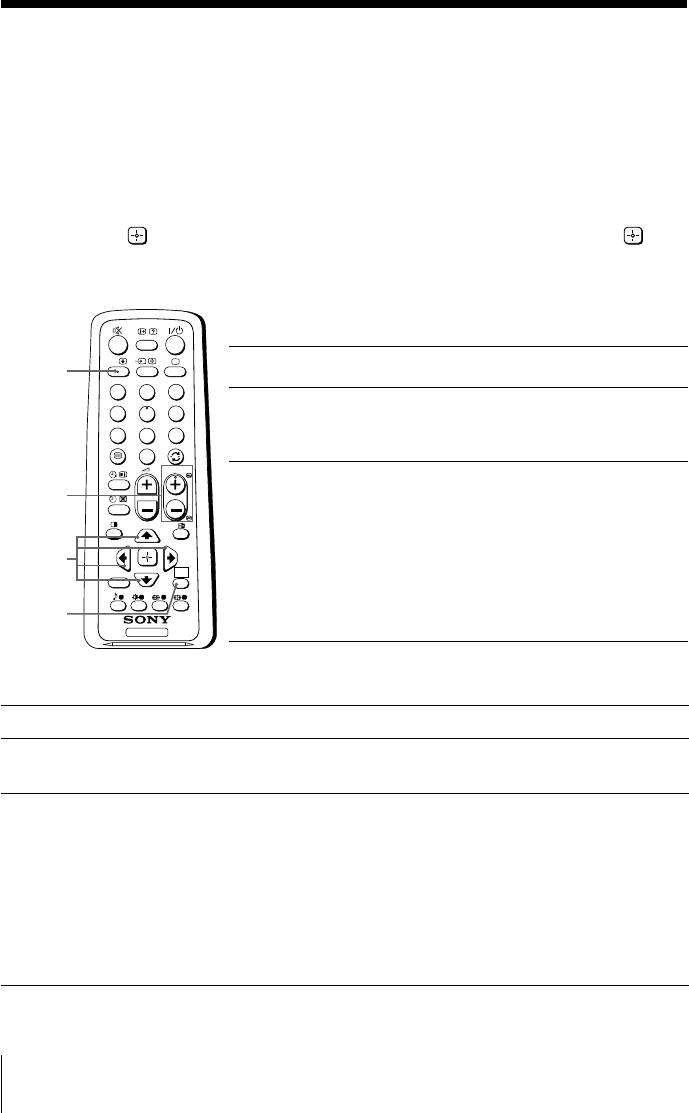
x Listening to the FM Radio
You are able to listen to the FM radio stations using your TV.
To access to FM Radio mode:
Press WEGA GATE button and select “FM Radio” (see page 15).
or
Press FM button on the front panel (see page 8).
To exit from FM Radio mode:
Press WEGA GATE button, select the desired items: “TV” or “External Inputs”,
then press
. Select the desired TV channel or external inputs and press .
or
Press FM button on the front panel.
Listening to preset stations
A/B
Access to FM Radio mode.
A/B
1
1
2
3
Press WEGA GATE button and select “Settings”.
4
5
6
2
Preset the desired FM radio stations in “FM Radio
7
8
9
Setup” from “Channel Setup” menu (see page 19).
0
PROG
Exit from “Channel Setup” menu by pressing WEGA
PROG
3
+/–
GATE button. The selected preset FM radio station
number and label will appear on the screen.
To select the desired preset FM radio station, press
V, v,
WEGA
PROG +/–.
B, b
RETURN
GATE
Tip
• You can also use the 1-9 buttons on the remote control to
WEGA
directly select the desired preset FM radio station.
GATE
TV
Listening to non-preset stations
Access to FM Radio mode.
1
Press V or v to search for the desired FM radio station. The preset number and
2
label will not be displayed.
If the station has a weak signal, press B or b to fine tune the radio frequency
3
manually.
Notes
• You can only operate V, v, B and b functions using the remote control buttons in FM
Radio mode.
• The available radio frequency is only for temporary listening pleasure and cannot be stored in
the memory.
• If the message “Please setup FM Radio” appears, display the “Channel Setup” menu and
select “FM Radio Setup” to preset the desired FM radio stations (see page 19).
Note
• When a FM stereo program has static noise, press A/B until “Mono” appears. There will be no
stereo effect, but the noise will be reduced.
12 Advanced Operations