
Pioneer DDJ-SX: инструкция
Раздел: Бытовая, кухонная техника, электроника и оборудование
Тип: DVD-проигрыватель
Инструкция к DVD-проигрывателю Pioneer DDJ-SX
Español
P
ortuguês
Ру
сский
F
rançais
Deutsch
Italiano
English
Nederlands
DDJ-SX
DDJ-SX-W
DDJ-SX-N
DJ Controller
Contrôleur pour DJ
DJ Controller
DJ Controller
DJ Controller
Controlador DJ
Controlador de DJ
DJ Контроллер
http://serato.com/
For the latest version of the Serato DJ software, access Serato.com and download the software from there.
Pour la toute dernière version du logiciel Serato DJ, accédez à Serato.com et téléchargez le logiciel de ce site.
Für die neueste Version der Serato DJ-Software gehen Sie zu Serato.com und laden die Software von dort
herunter.
Per ottenere la più recente versione di Serato DJ, raggiungere Serato.com e scaricare il software di lì.
Ga voor de nieuwste versie van de Serato DJ-software naar Serato.com en download de software van deze site.
Para la versión más reciente del software Serato DJ, acceda a Serato.com y descargue el software desde allí.
Para obter a versão mais recente do software Serato DJ, aceda a Serato.com e transfira o software a partir daí.
Относительно самой последней версии программного обеспечения Serato DJ зайдите на Serato.com и
загрузите оттуда программное обеспечение.
http://pioneerdj.com/support/
The Pioneer DJ support site shown above offers FAQs, information on software and various other types of
information and services to allow you to use your product in greater comfort.
Le site de support DJ de Pioneer indiqué ci-dessus propose une FAQ, des informations sur le logiciel et divers
types d’informations et de services qui permettent une utilisation plus confortable de ce produit.
Die oben gezeigte Pioneer DJ-Support-Website enthält häufig gestellte Fragen, Informationen über Software
und andere wichtige Informationen und Dienste, die Ihnen helfen, Ihr Produkt optimal zu verwenden.
Il sito di supporto DJ Pioneer indicato qui sopra offre una sezione FAQ, informazioni sul software ed
informazioni e servizi di vario tipo, per permettere un uso più confortevole dei nostri prodotti.
De bovengenoemde Pioneer DJ ondersteuningswebsite biedt een overzicht van de vaak gestelde vragen,
informatie over software en allerlei andere soorten informatie en diensten die u in staat stellen dit product met
meer gemak te gebruiken.
El sitio de asistencia Pioneer DJ mostrado arriba ofrece las preguntas frecuentes, información del software y
varios otros tipos de información y servicios que le permitirán usar su producto con mayor confort.
O site de suporte da Pioneer DJ mostrado acima oferece FAQs, informações sobre o software e outros tipos
de informações e serviços para permitir utilizar o produto com um maior conforto.
На указанном выше сайте поддержки Pioneer DJ содержатся раздел часто задаваемых вопросов,
информация по программному обеспечению, а также различные другие типы информации и услуг,
позволяющие использовать ваше изделие более лучшим образом.
Read Before Use (Important)/Quick Start Guide
A lire avant l’utilisation (Important)/Guide de démarrage rapide
Vor Gebrauch lesen (wichtig)/Kurzanleitung
Da leggere prima dell’uso (Importante)/Guida di avvio veloce
Lees dit voor gebruik (Belangrijk)/Snelstartgids
Léalo antes de usar (Importante)/Guía de inicio rápido
Leia Antes de Utilizar (Importante)/Guia de início rápido
Прочитайте перед использованием (Важно)/Краткое руководство пользователя
2
En
Thank you for buying this Pioneer product. Please read through these operating instructions so you will know how to operate your model properly. After
you have finished reading the instructions, put them away in a safe place for future reference.
In some countries or regions, the shape of the power plug and power outlet may sometimes differ from that shown in the explanatory drawings.
However the method of connecting and operating the unit is the same.
WARNING
This equipment is not waterproof. To prevent a fire or
shock hazard, do not place any container filled with
liquid near this equipment (such as a vase or flower
pot) or expose it to dripping, splashing, rain or
moisture.
D3-4-2-1-3_A1_En
WARNING
To prevent a fire hazard, do not place any naked flame
sources (such as a lighted candle) on the equipment.
D3-4-2-1-7a_A1_En
If the AC plug of this unit does not match the AC
outlet you want to use, the plug must be removed
and appropriate one fitted. Replacement and
mounting of an AC plug on the power supply cord of
this unit should be performed only by qualified
service personnel. If connected to an AC outlet, the
cut-off plug can cause severe electrical shock. Make
sure it is properly disposed of after removal.
The equipment should be disconnected by removing
the mains plug from the wall socket when left unused
for a long period of time (for example, when on
vacation).
D3-4-2-2-1a_A1_En
When using this product, confirm the safety
information shown on the bottom of the unit.
D3-4-2-2-4_B1_En
Operating Environment
Operating environment temperature and humidity:
+5 °C to +35 °C (+41 °F to +95 °F); less than 85 %RH
(cooling vents not blocked)
Do not install this unit in a poorly ventilated area, or in
locations exposed to high humidity or direct sunlight (or
strong artificial light)
D3-4-2-1-7c*_A1_En
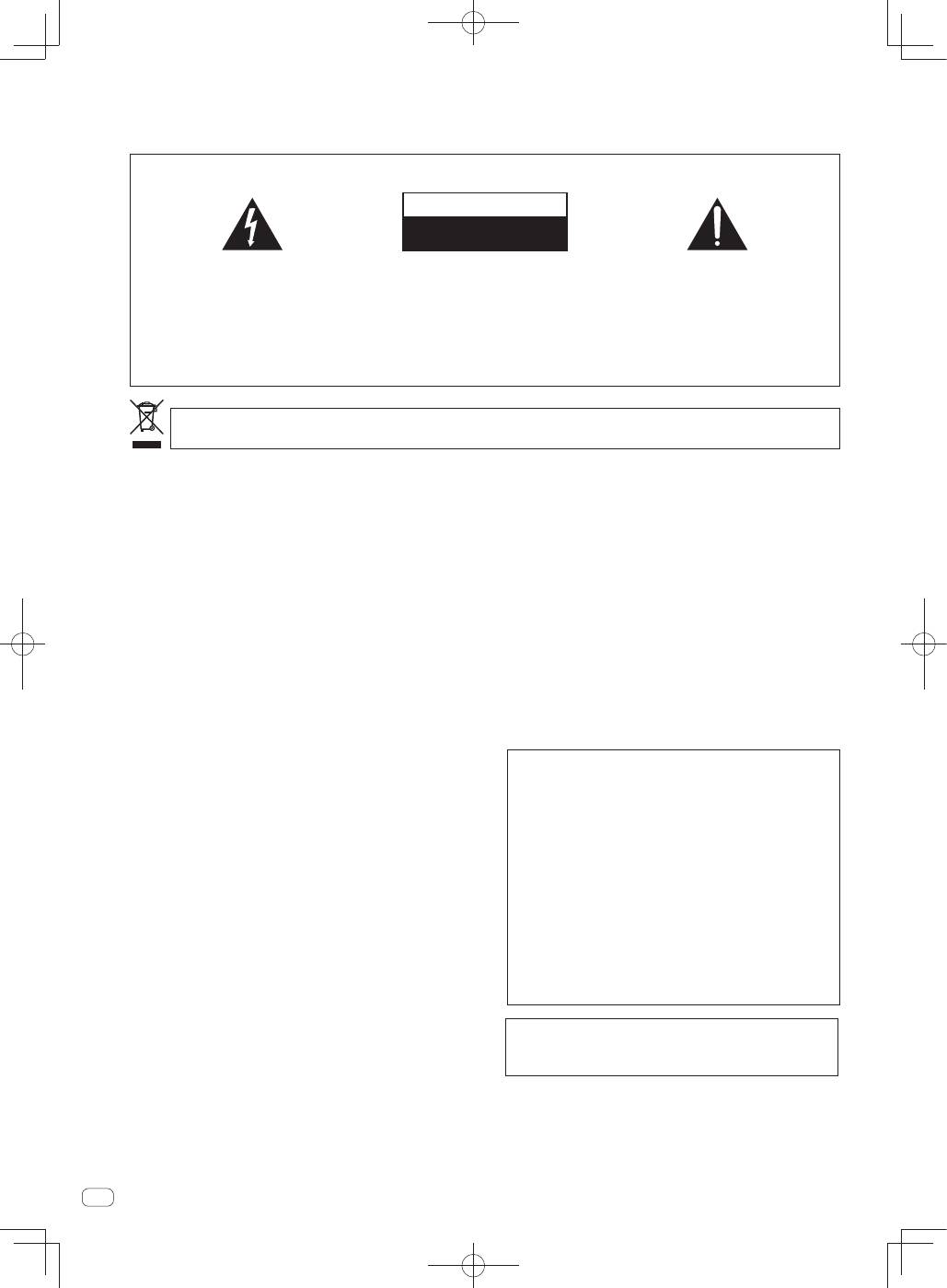
The exclamation point within an equilateral
triangle is intended to alert the user to the
presence of important operating and
maintenance (servicing) instructions in the
literature accompanying the appliance.
The lightning flash with arrowhead symbol,
within an equilateral triangle, is intended to
alert the user to the presence of uninsulated
“dangerous voltage” within the product’s
enclosure that may be of sufficient
magnitude to constitute a risk of electric
shock to persons.
CAUTION:
TO PREVENT THE RISK OF ELECTRIC
SHOCK, DO NOT REMOVE COVER (OR
BACK). NO USER-SERVICEABLE PARTS
INSIDE. REFER SERVICING TO QUALIFIED
SERVICE PERSONNEL.
CAUTION
RISK OF ELECTRIC SHOCK
DO NOT OPEN
IMPORTANT
D3-4-2-1-1_A1_En
If you want to dispose this product, do not mix it with general household waste. There is a separate collection system for used
electronic products in accordance with legislation that requires proper treatment, recovery and recycling.
Private households in the member states of the EU, in Switzerland and Norway may return their used electronic products free of charge to
designated collection facilities or to a retailer (if you purchase a similar new one).
For countries not mentioned above, please contact your local authorities for the correct method of disposal.
By doing so you will ensure that your disposed product undergoes the necessary treatment, recovery and recycling and thus prevent potential
negative effects on the environment and human health.
K058b_A1_En
WARNING
Before plugging in for the first time, read the following
section carefully.
The voltage of the available power supply differs
according to country or region. Be sure that the
power supply voltage of the area where this unit
will be used meets the required voltage (e.g., 230 V
or 120 V) written on the AC adapter’s label.
D3-4-2-1-4*_A1_En_PSV
3
En
POWER-CORD CAUTION
Handle the power cord by the plug. Do not pull out the
plug by tugging the cord and never touch the power cord
when your hands are wet as this could cause a short
circuit or electric shock. Do not place the unit, a piece of
furniture, etc., on the power cord, or pinch the cord. Never
make a knot in the cord or tie it with other cords. The
power cords should be routed such that they are not likely
to be stepped on. A damaged power cord can cause a fire
or give you an electrical shock. Check the power cord
once in a while. When you find it damaged, ask your
nearest PIONEER authorized service center or your dealer
for a replacement.
S002*_A1_En
CAUTION
The
STANDBY/ON
switch on this unit will not
completely shut off all power from the AC outlet.
Since the power cord serves as the main disconnect
device for the unit, you will need to unplug it from the
AC outlet to shut down all power. Therefore, make
sure the unit has been installed so that the power
cord can be easily unplugged from the AC outlet in
case of an accident. To avoid fire hazard, the power
cord should also be unplugged from the AC outlet
when left unused for a long period of time (for
example, when on vacation).
D3-4-2-2-2a*_A1_En
WARNING
Store small parts out of the reach of children and
infants. If accidentally swallowed, contact a doctor
immediately.
D41-6-4_A1_En
This product is for general household purposes. Any
failure due to use for other than household purposes
(such as long-term use for business purposes in a
restaurant or use in a car or ship) and which requires
repair will be charged for even during the warranty
period.
K041_A1_En
4
En
Contents
How to read this manual
Thank you for buying this Pioneer product.
Be sure to read both this leaflet and the operating instructions! Both
documents include important information that you must understand
before using this product.
For instructions on acquiring the operating instructions, see
Acquiring the manual
(p. 15).
In this manual, names of screens and menus displayed on the prod-
uct and on the computer screen, as well as names of buttons and
terminals, etc., are indicated within brackets. (e.g.: [
CUE
] button,
[
Files
] panel, [
MIC1
] terminal)
Please note that the screens and specifications of the software
described in this manual as well as the external appearance and
specifications of the hardware are currently under development and
may differ from the final specifications.
Please note that depending on the operating system version, web
browser settings, etc., operation may differ from the procedures
described in this manual.
In some countries or regions, the shape of the power plug and power
outlet may sometimes differ from that shown in the explanatory
drawings. However the method of connecting and operating the unit
is the same.
Before start
What’s in the box ........................................................................................ 5
Installing the software ................................................................................ 5
Operation
Connections ................................................................................................ 8
Starting the system ................................................................................... 10
Quitting the system .................................................................................. 13
Names of Parts ......................................................................................... 13
Acquiring the manual
Downloading this unit’s operating instructions .................................... 15
Downloading the Serato DJ software manual ....................................... 15
About the AC adapter
Safety instructions .................................................................................... 16
Mounting the power plug ......................................................................... 17
Additional information
About trademarks and registered trademarks ...................................... 18
Cautions on copyrights ............................................................................ 18
Specifications............................................................................................ 18
5
En
English
Before start
What’s in the box
CD-ROM (Installation Disc)
AC
adapter
Power
plug
USB
cable
Warranty
card
Read Before Use (Important)/Quick Start Guide (this document)
Installing the software
Before installing the software
For the latest version of the Serato DJ software, access Serato.com
and download the software from there. A software download link is
also provided on the included CD-ROM.
For details, refer to “
Installation Procedure (Windows)
” or
“
Installation procedure (Mac OS X)
”.
The user is responsible for preparing the computer, network
devices and other elements of the Internet usage environment
required for a connection to the Internet.
About the driver software (Windows)
This driver software is an exclusive ASIO driver for outputting audio
signals from the computer.
There is no need to install the driver software when using Mac OS X.
Checking the latest information on the driver software
For detailed information on this unit’s designated driver software, see
the Pioneer DJ support site below.
http://pioneerdj.com/support/
About the Serato DJ software
Serato DJ is a DJ software application by Serato. DJ performances are
possible by connecting the computer on which this software is installed
to this unit.
Minimum operating environment
Supported operating systems
Mac OS X: 10.6.8, 10.7.4 and 10.8
Windows: Windows 7
Others
Optical drive
Optical disc drive on which the CD-ROM can be read
USB port
A USB 2.0 port is required to connect the computer
with this unit.
Display resolution
Resolution of 1 280 x 720 or greater
Internet connection
An Internet connection is required for registering
the “Serato.com” user account and downloading the
software.
For the latest information on the required operating environment and compat-
ibility as well as to acquire the latest operating system, refer to “
Software Info
”
under “
DDJ-SX
” on the Pioneer DJ support site below.
http://pioneerdj.com/support/
Operation is not guaranteed on all computers, even if all the required operating
environment conditions indicated here are fulfilled.
Depending on the computer’s power-saving settings, etc., the CPU and hard
disk may not provide sufficient processing capabilities. For notebook comput-
ers in particular, make sure the computer is in the proper conditions to provide
constant high performance (for example by keeping the AC power connected)
when using Serato DJ.
Use of the Internet requires a separate contract with a provider offering Internet
services and payment of provider fees.
About the installation procedure
The installation procedure depends on the operating system (OS) on the
computer you are using.
For Windows
After installing the driver software, install the Serato DJ software.
For Mac OS X
Only install the Serato DJ software.
Installation Procedure (Windows)
Do not connect this unit and the computer until installation is
completed.
Log on as the user which was set as the computer’s administrator
before installing.
If any other programs are running on the computer, quit them.
1 Insert the CD-ROM into the computer’s optical drive.
The CD-ROM menu is displayed.
If the CD-ROM menu does not appear when the CD-ROM is inserted,
open the optical drive from [
Computer
(or
My Computer
)] in the
[
Start
] menu, then double-click the [
CD_menu.exe
] icon.
2 When the CD-ROM menu appears, select [Install
Driver Software (Pioneer_DDJ_SX_Driver_x.xxx.exe)],
then click [Start].
To close the CD-ROM menu, click [
Exit
].
3 Proceed with installation according to the instructions
on the screen.
If [
Windows Security
] appears on the screen while the installation is
in progress, click [
Install this driver software anyway
] and continue
with the installation.
When the installation program is completed, a completion message
appears.
After installing the driver software, install the Serato DJ software.
4 Select [Install DJ Software (Serato DJ/Download)]
from the CD-ROM’s menu, then click [Start].
5 “An internet environment is required to access the
site. Connected to the internet?” is displayed. Click [Yes].
The web browser is launched and the Pioneer DJ support site is
displayed.
6 Click [Software Info] under [DDJ-SX] on the Pioneer
DJ support site.
[
Serato DJ Support Information
] is displayed.
7 Click the link to the Serato DJ download page.
The Serato DJ download page is displayed.
8 Log in to your “Serato.com” user account.
If you have already registered a user account on “Serato.com”,
proceed to step 10.
If you have not completed registering your user account, do so
following the procedure below.
—
Following the instructions on the screen, input your e-mail
address and the password you want to set, then select the
region in which you live.
—
If you check [
E-mail me Serato newsletters
], newsletters
providing the latest information on Serato products will be
sent from Serato.
6
En
—
Once user account registration is completed, you will receive
an e-mail at the e-mail address you have input. Check the
contents of the e-mail sent from “Serato.com”.
Be careful not to forget the e-mail address and password speci-
fied when you performed user registration. They will be required
for updating the software.
The personal information input when registering a new user
account may be collected, processed and used based on the
privacy policy on the Serato website.
9 Click the link in the e-mail message sent from “Serato.
com”.
This takes you to the Serato DJ download page. Proceed to step 11.
10 Log in.
Input the e-mail address and password you have registered to log in to
“Serato.com”.
11 Download the Serato DJ software from the download
page.
Unzip the downloaded file, then double-click the unzipped file to launch
the installer.
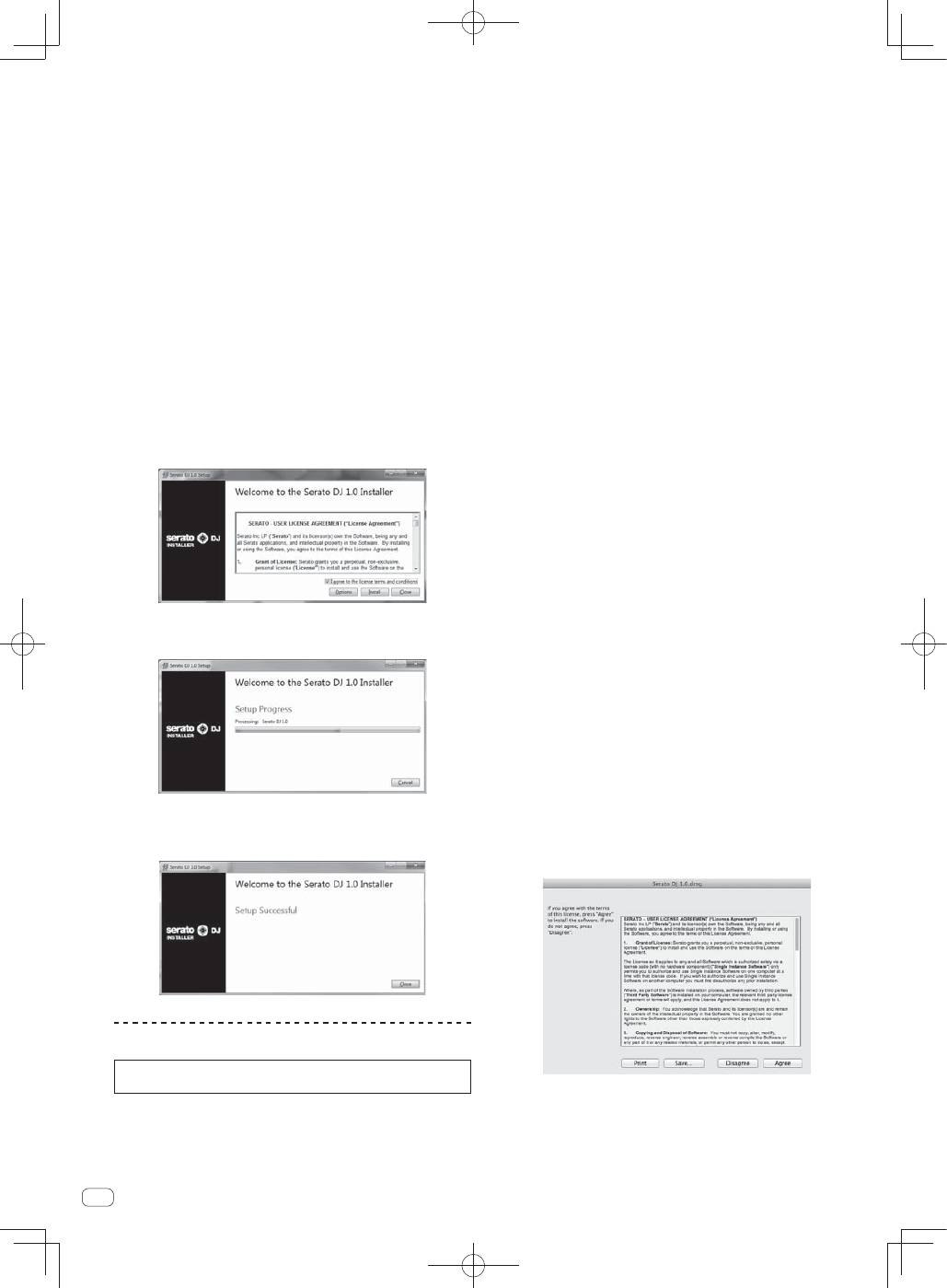
12 Read the terms of the license agreement carefully,
and if you agree, select [I agree to the license terms and
conditions], then click [Install].
If you do not agree to the contents of the usage agreement, click
[
Close
] to cancel installation.
Installation begins.
The message of successful installation appears once installation is
completed.
13 Click [Close] to quit the Serato DJ installer.
Installation procedure (Mac OS X)
Do not connect this unit and the computer until installation is
completed.
If any other programs are running on the computer, quit them.
1 Insert the CD-ROM into the computer’s optical drive.
The CD-ROM menu is displayed.
If the CD-ROM menu does not appear on the screen when the
CD-ROM is inserted, open the optical driver from Finder, then dou-
ble-click the [
CD_menu.app
] icon.
2 Select [Install DJ Software (Serato DJ/Download)]
from the CD-ROM’s menu, then click [Start].
3 “An internet environment is required to access the
site. Connected to the internet?” is displayed. Click [Yes].
The web browser is launched and the Pioneer DJ support site is
displayed.
4 Click [Software Info] under [DDJ-SX] on the Pioneer
DJ support site.
[
Serato DJ Support Information
] is displayed.
5 Click the link to the Serato DJ download page.
The Serato DJ download page is displayed.
6 Log in to your “Serato.com” user account.
If you have already registered a user account on “Serato.com”,
proceed to step 8.
If you have not completed registering your user account, do so
following the procedure below.
—
Following the instructions on the screen, input your e-mail
address and the password you want to set, then select the
region in which you live.
—
If you check [
E-mail me Serato newsletters
], newsletters
providing the latest information on Serato products will be
sent from Serato.
—
Once user account registration is completed, you will receive
an e-mail at the e-mail address you have input. Check the
contents of the e-mail sent from “Serato.com”.
Be careful not to forget the e-mail address and password speci-
fied when you performed user registration. They will be required
for updating the software.
The personal information input when registering a new user
account may be collected, processed and used based on the
privacy policy on the Serato website.
7 Click the link in the e-mail message sent from “Serato.
com”.
This takes you to the Serato DJ download page. Proceed to step 9.
8 Log
in.
Input the e-mail address and password you have registered to log in to
“Serato.com”.
9 Download the Serato DJ software from the download
page.
Unzip the downloaded file, then double-click the unzipped file to launch
the installer.
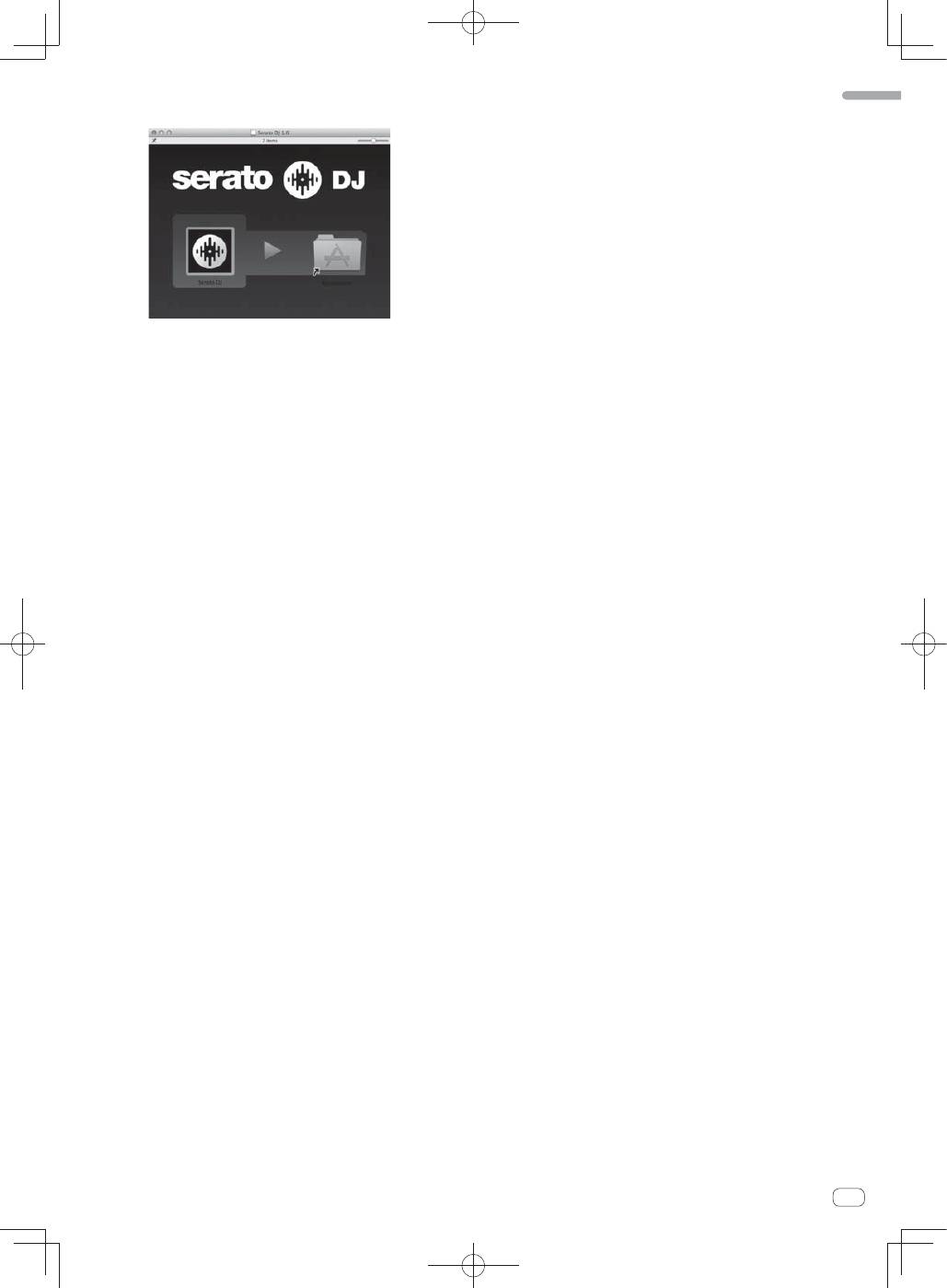
10 Read the terms of the license agreement carefully,
and if you agree, click [Agree].
If you do not agree to the contents of the usage agreement, click
[
Disagree
] to cancel installation.
7
En
English
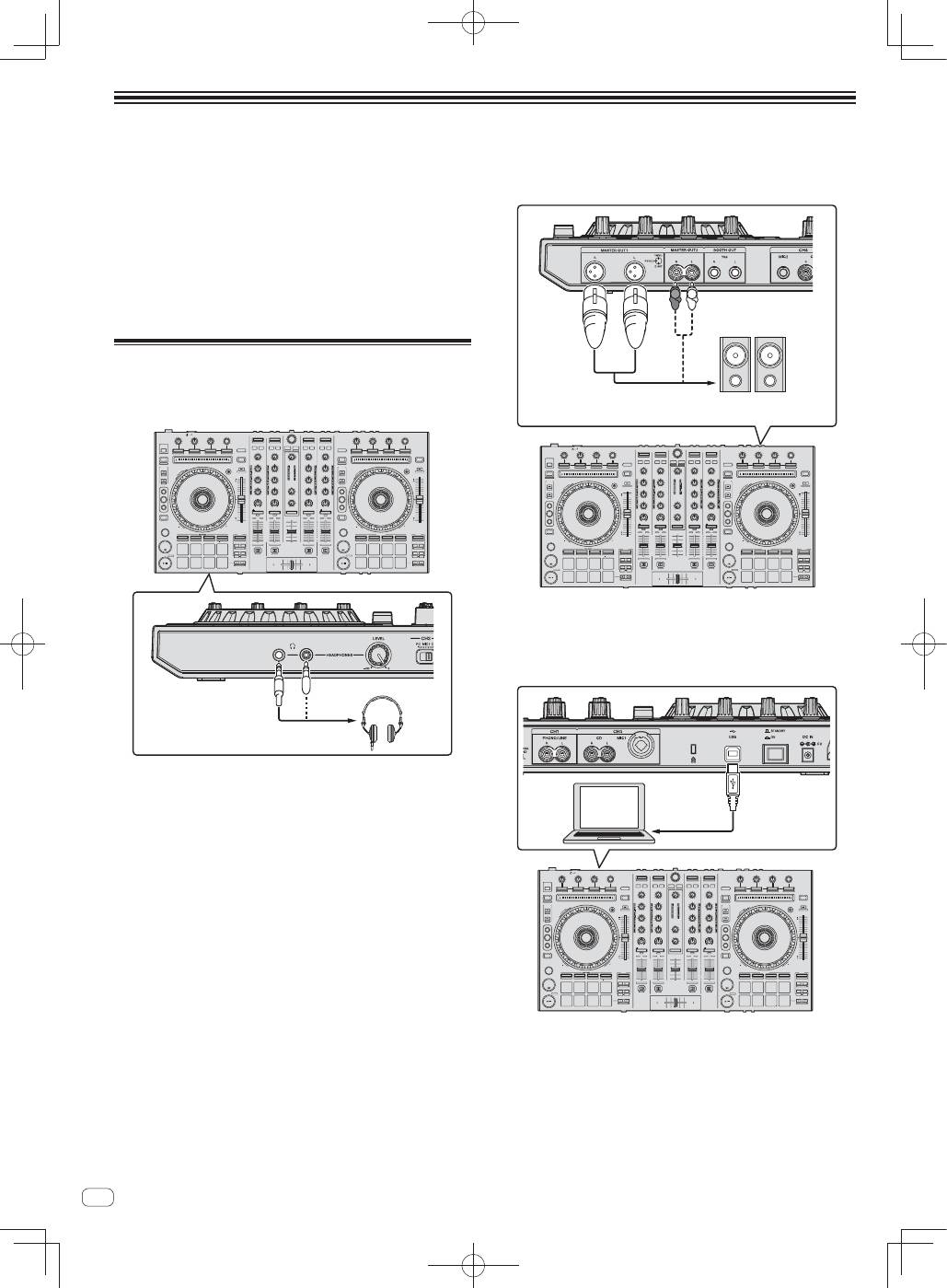
11 If the following screen appears, drag and drop the
[Serato DJ] icon on the [Applications] folder icon.
8
En
Operation
Wait until all connections between devices have been completed
before connecting the AC adapter.
Be sure to turn off the power and unplug the AC adapter from the
power outlet before making or changing connections between
devices.
Refer to the operating instructions for the component to be
connected.
Only use the AC adapter included with this unit.
Power is supplied to this unit by the AC adapter.
Connect this unit and the computer directly using the included USB
cable.
A USB hub cannot be used.
Connections
1 Connect headphones to one of the [PHONES]
terminals.
2 Connect powered speakers, a power amplifier,
components, etc., to the [MASTER OUT 1] or [MASTER
OUT 2] terminals.
R
L
Powered speaker, etc
To output the sound from the [
BOOTH
] terminals, connect speak-
ers or other devices to the [
BOOTH
] terminals.
For details on connecting the input/output terminals, see the
Operating Instructions.
3 Connect this unit to your computer via a USB cable.
4 Turn on the computer’s power.
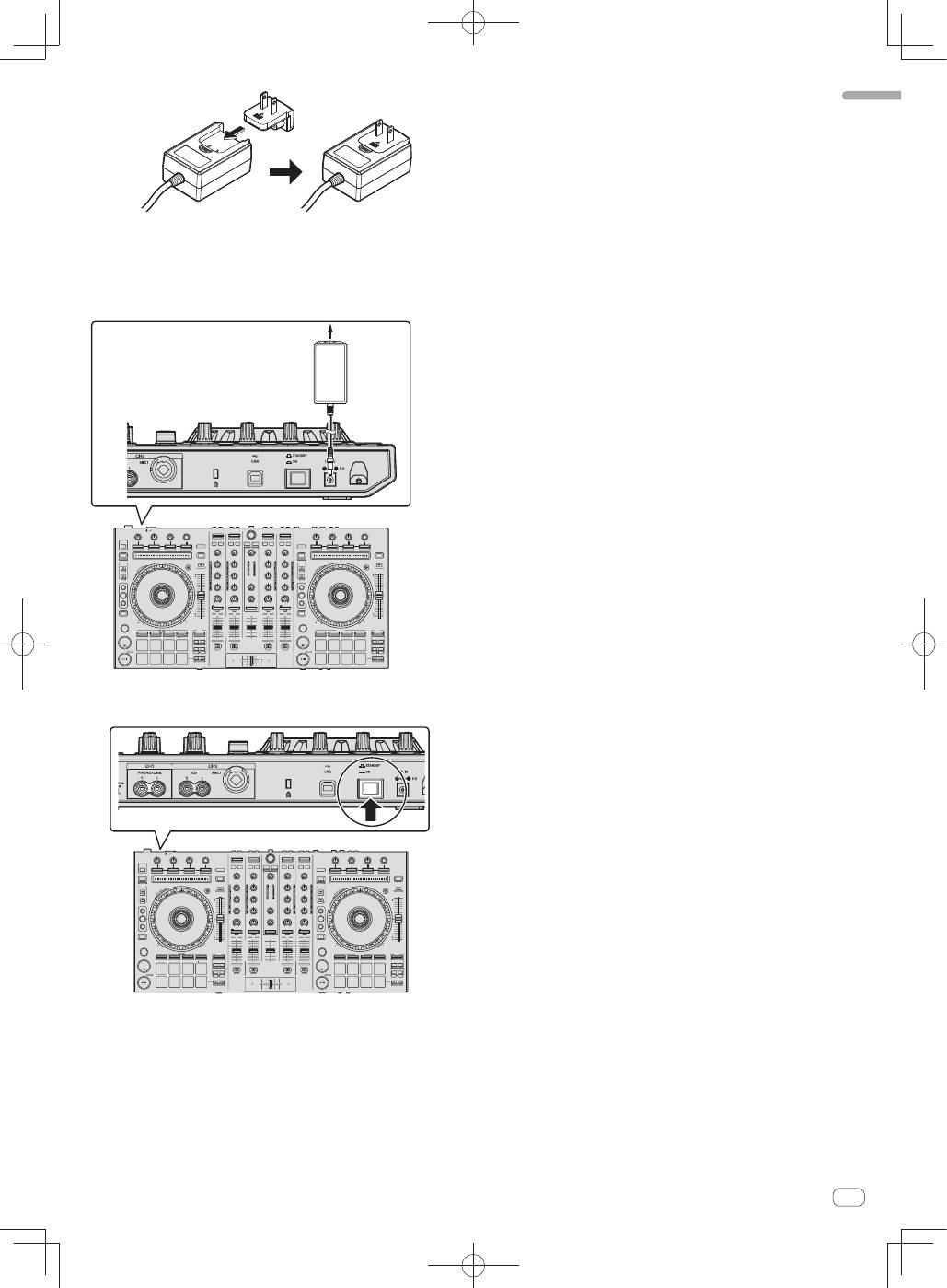
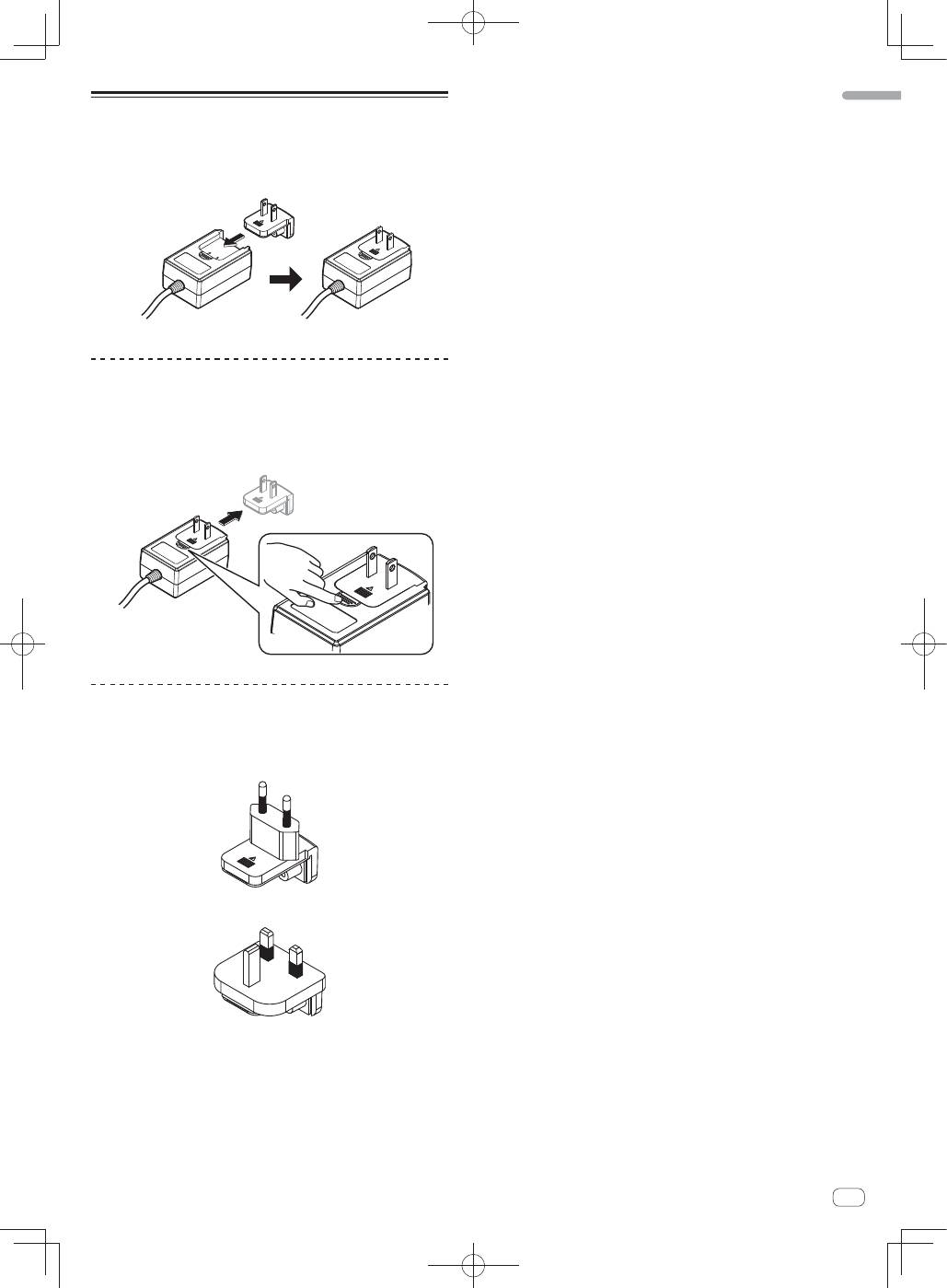
5 Connect the power plug to the AC adapter.
Slide the power plug into the AC adapter’s guide rails as shown on the
diagram and press in until a click is heard.
9
En
English
For detailed cautions on the AC adapter, see “
About the AC
adapter
” (p. 16).
The shape of the plug differs according to the region in which the
unit is sold.
6 Connect the AC adapter.
AC adapter
(included)
To power outlet
7 Press the [STANDBY/ON] switch on this unit’s rear
panel to turn this unit’s power on.
Turn on the power of this unit.
For Windows users
The message [
Installing device driver software
] may appear
when this unit is first connected to the computer or when it is
connected to a different USB port on the computer. Wait a while
until the message [
Your devices are ready for use
] appears.
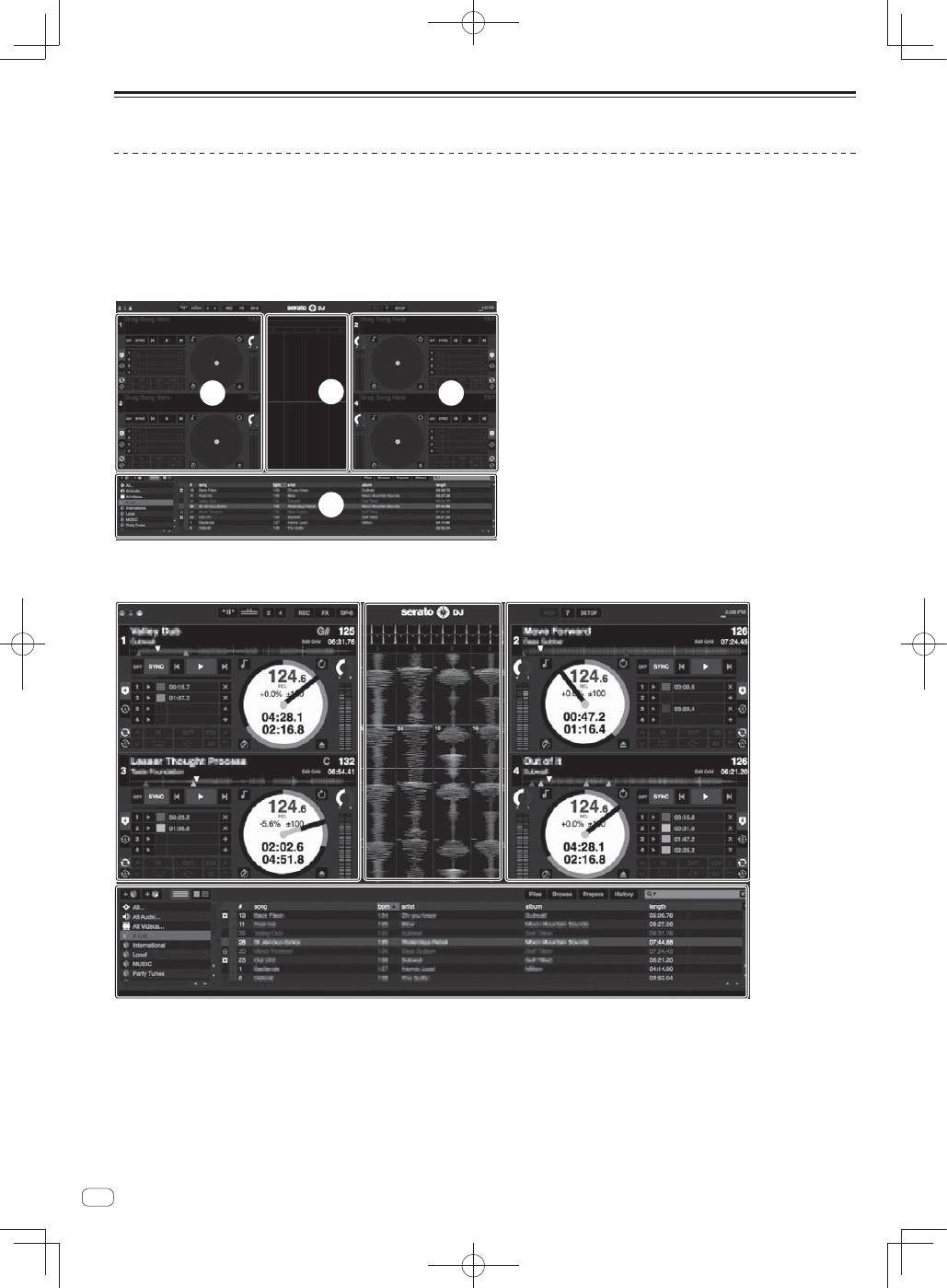
8 Turn on the power of the devices connected to the
output terminals (powered speakers, power amplifier,
components, etc.).
When a microphone, DJ player or other external device is con-
nected to input terminals, the power of that device also turns on.
10
En
Starting the system
Launching Serato DJ
For Windows
From the Windows [
Start
] menu, click the [
Serato DJ
] icon under [
All Programs
] > [
Serato
] > [
Serato DJ
].
For Mac OS X
In Finder, open the [
Application
] folder, then click the [
Serato DJ
] icon.
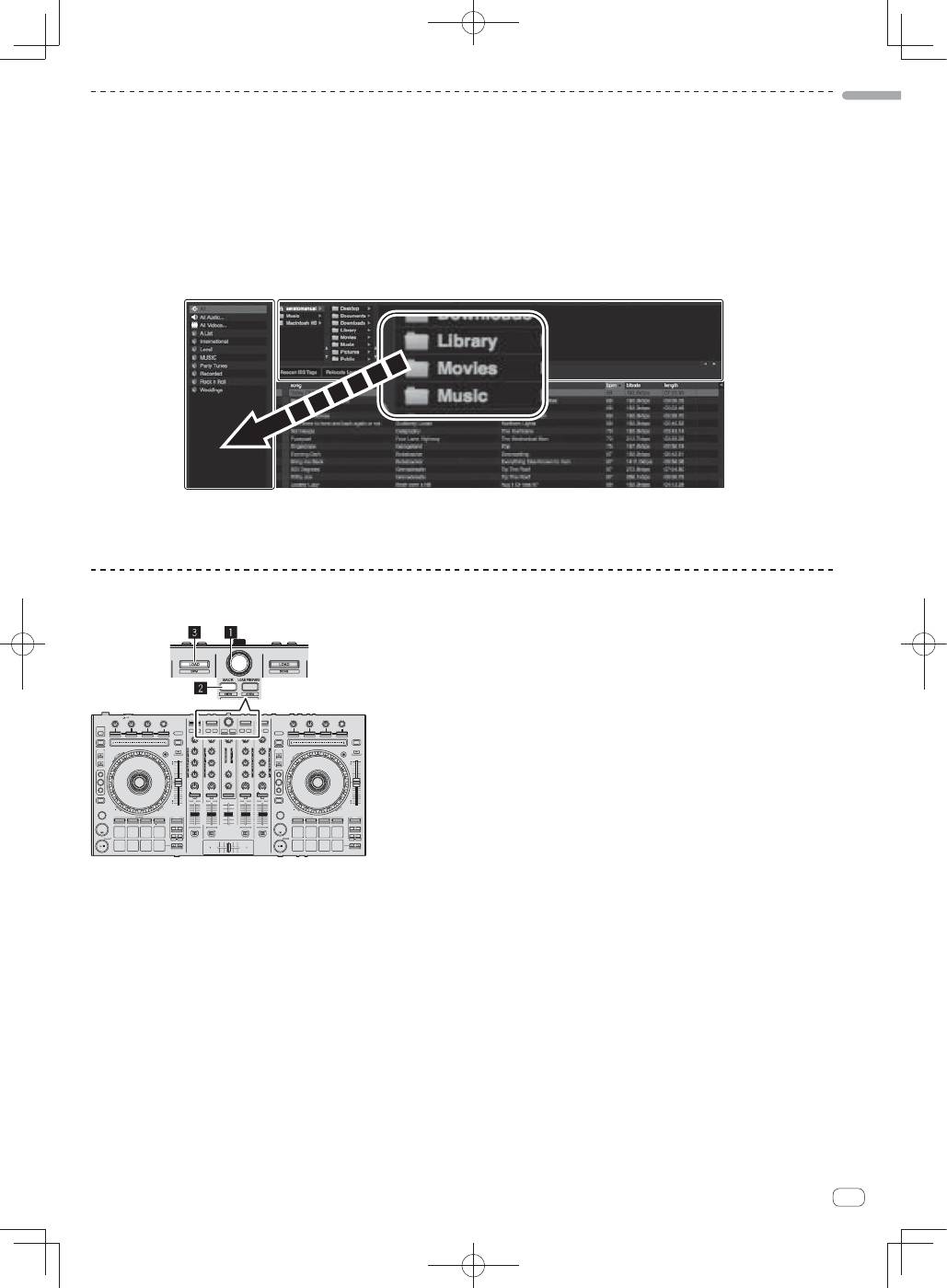
Computer screen directly after the Serato DJ software is launched
A
A
C
B
Computer screen when a track is loaded in the Serato DJ software
A
A
C
B
A Deck section
The track information (the name of the loaded track, artist name, BPM, etc.), the overall waveform and other information is displayed here.
B Waveform
display
The loaded track’s waveform is displayed here.
C Browser
section
Crates in which tracks in the library or sets of multiple tracks are stored are displayed here.
This manual consists mainly of explanations of functions of this unit as hardware. For detailed instructions on operating the Serato DJ software, see
the Serato DJ software manual.
11
En
English
Importing tracks
The following describes the typical procedure for importing tracks.
There are various ways to import tracks with the Serato DJ software. For details, see the Serato DJ software manual.
If you are already using Serato DJ software (Scratch Live, ITCH or Serato DJ Intro) and have already created track libraries, the track libraries you
have previously created can be used as such.
1 Click the [Files] key on the Serato DJ software screen to open the [Files] panel.
The contents of your computer or the peripheral connected to the computer are displayed in the [
Files
] panel.
2 Click the folder on the [Files] panel containing the tracks you want to add to the library to select it.
3 On the Serato DJ software’s screen, drag and drop the selected folder to the crates list panel.
A crate is created and the tracks are added to the library.
a
b
a
[
Files
] panel
b
Crates panel
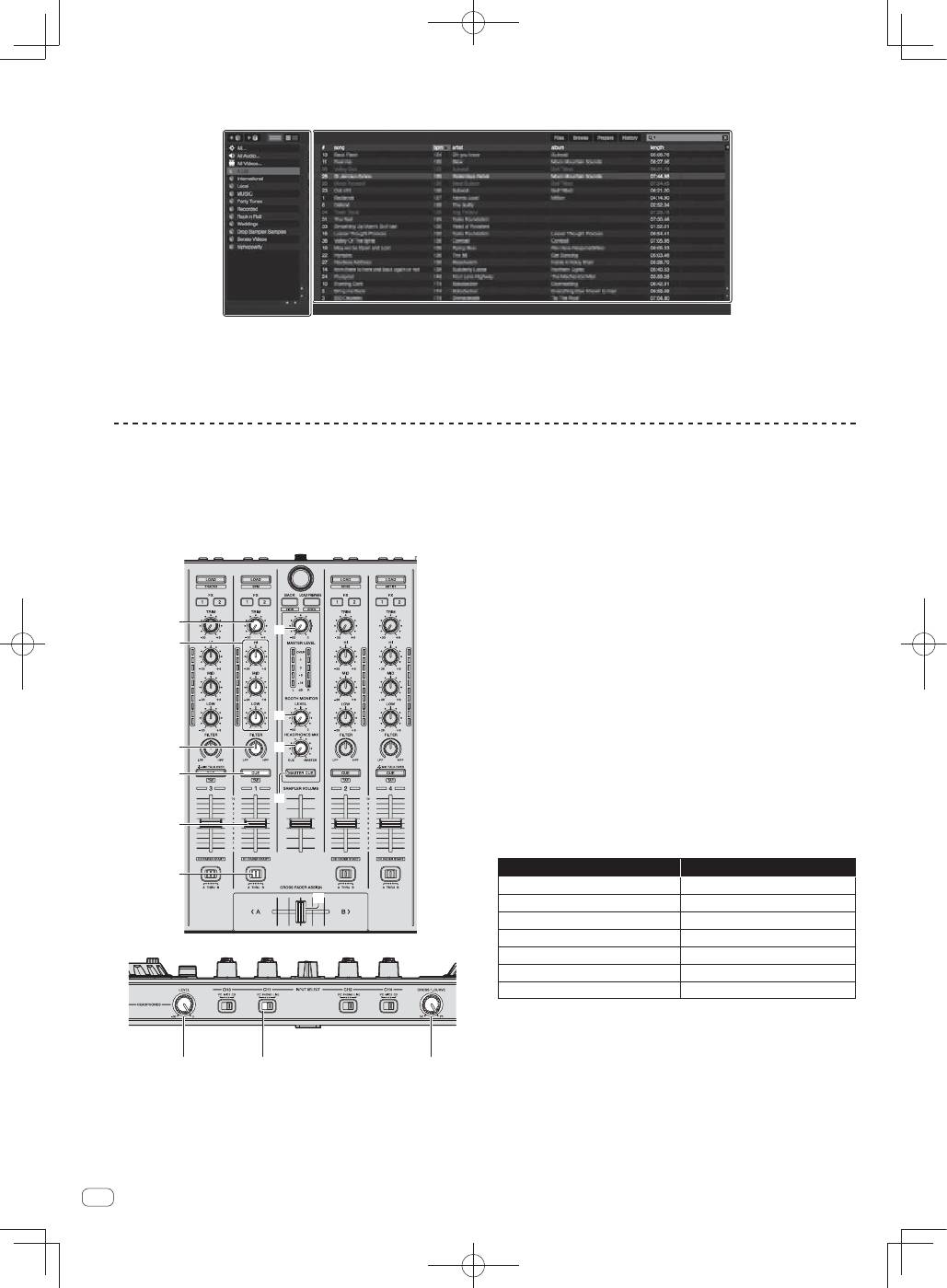
Loading tracks and playing them
The following describes the procedure for loading tracks into deck [
1
] as an example.
1
Rotary selector
2
BACK button
3
LOAD button
1 Press this unit’s [BACK] button, move the cursor to the crates panel on the computer’s screen, then turn the rotary
selector to select the crate, etc.
12
En
2 Press the rotary selector, move the cursor to the library on the computer’s screen, then turn the rotary selector and
select the track.
a
b
a
Library
b
Crates panel
3 Press the [LOAD] button to load the selected track onto the deck.
Playing tracks and outputting the sound
The following describes the procedure for outputting the channel 1
sound as an example.
Set the volume of the devices (power amplifier, powered speakers,
etc.) connected to the [
MASTER OUT 1
] and [
MASTER OUT 2
]
terminals to an appropriate level. Note that loud sound will be output
if the volume is set too high.
a
b
d
c
e
4
8
7
5
6
9
f
h
g
4
TRIM control
5
EQ (HI, MID, LOW) controls
6
FILTER control
7
Headphones CUE button
8
Channel fader
9
Crossfader Assign Switch
a
MASTER LEVEL control
b
BOOTH MONITOR LEVEL control
c
HEADPHONES MIXING control
d
MASTER CUE button
e
Crossfader
f
HEADPHONES LEVEL control
g
INPUT SELECT switch
h
Crossfader curve selector control
1 Set the positions of the controls, etc., as shown
below.
Names of controls, etc.
Position
MASTER LEVEL
control
Turned fully counterclockwise
TRIM
control
Turned fully counterclockwise
EQ
(
HI
,
MID
,
LOW
) controls
Center
FILTER
control
Center
Channel fader
Moved forward
Crossfader Assign Switch
[
THRU
] position
INPUT SELECT
switch
[
PC
] position
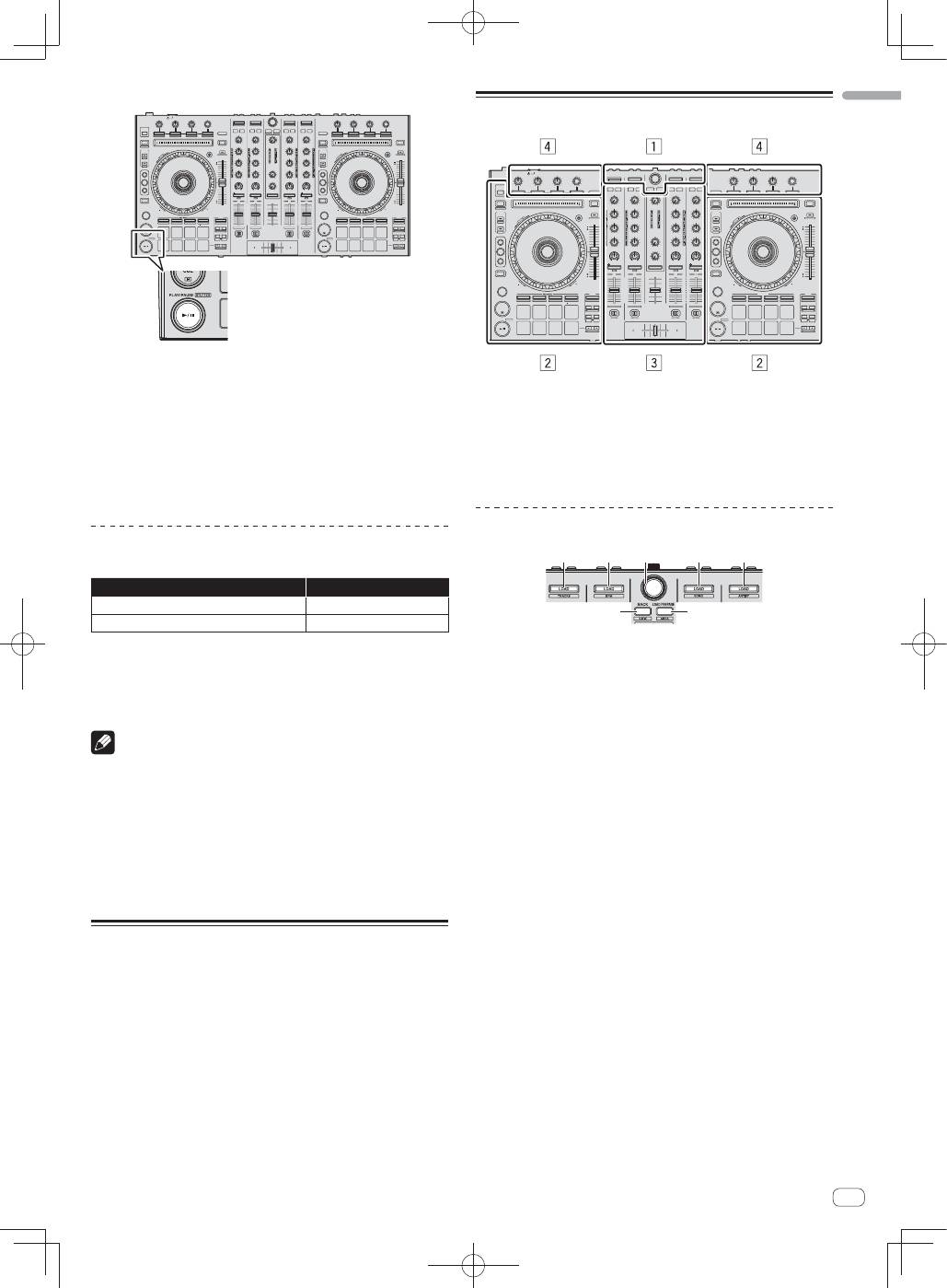
13
En
English
2 Press the [
"
] button to play the track.
3 Move the channel fader away from you.
4 Turn the [TRIM] control.
Adjust [
TRIM
] so that the orange indicator on the channel level indicator
lights at the peak level.
5 Turn the [MASTER LEVEL] control to adjust the audio
level of the speakers.
Adjust the sound level output from the [
MASTER OUT 1
] and [
MASTER
OUT 2
] terminals to an appropriate level.
Monitoring sound with headphones
Set the positions of the controls, etc., as shown below.
Names of controls, etc.
Position
HEADPHONES MIXING
control
Center
HEADPHONES LEVEL
control
Turned fully counterclockwise
1 Press the headphones [CUE] button for the channel 1.
2 Turn the [HEADPHONES LEVEL] control.
Adjust the sound level output from the headphones to an appropriate
level.
Note
This unit and the Serato DJ software include a variety of functions
enabling individualistic DJ performances. For details on the respective
functions, see the operating instructions and the Serato DJ software
manual.
This unit’s operating instructions can be downloaded from the
Pioneer DJ support site. For details, see
Downloading this unit’s oper-
ating instructions
(p. 15).
The Serato DJ software manual can be downloaded from “Serato.
com”. For details, see
Downloading the Serato DJ software manual
(p.
15).
Quitting the system
1 Quit [Serato DJ].
When the software is closed, a message for confirming that you want to
close it appears on the computer’s screen. Click [
Yes
] to close.
2 Press the [STANDBY/ON] switch on this unit’s rear
panel to set this unit’s power to standby.
3 Disconnect the USB cable from your computer.
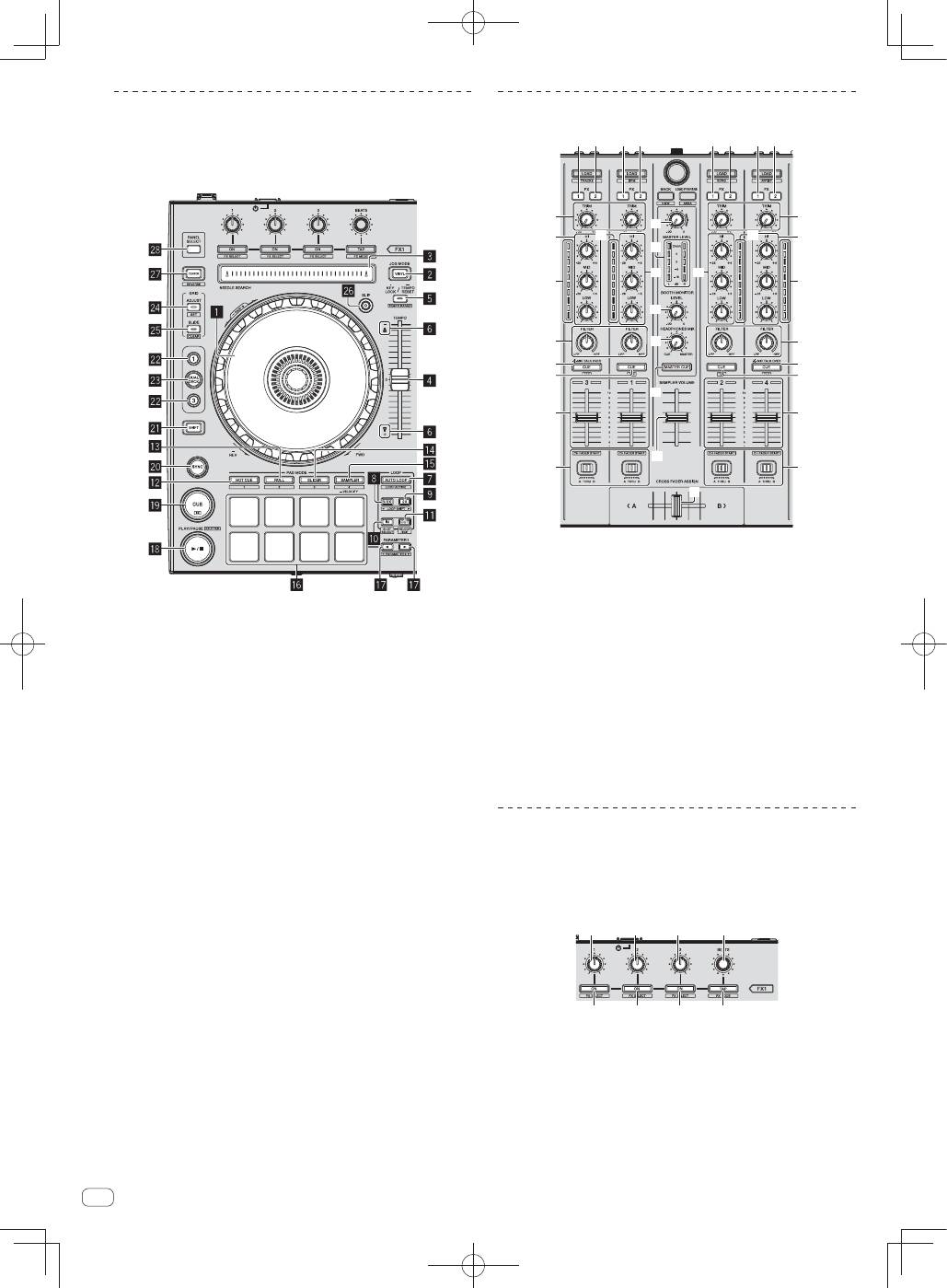
Names of Parts
1
Browser section
2
Deck section
3
Mixer section
4
Effect section
Browser section
1
1
2
1
1
3
4
1
LOAD
button
2
Rotary selector
3
BACK
button
4
LOAD PREPARE
button
14
En
Deck section
This section is used to control the four decks. The buttons and controls
for operating decks 1 and 3 are located on the left side of the controller,
those for operating decks 2 and 4 are located on the right side of the
controller.
1
Jog dial
2
VINYL
button
3
NEEDLE SEARCH
pad
4
TEMPO
slider
5
KEY LOCK
button
6
TAKEOVER indicator
7
AUTO LOOP
button
8
LOOP 1/2X
button
9
LOOP 2X
button
a
LOOP IN
button
b
LOOP OUT
button
c
HOT CUE
mode button
d
ROLL
mode button
e
SLICER
mode button
f
SAMPLER
mode button
g
Performance pads
h
PARAMETER
button,
PARAMETER
button
i
PLAY/PAUSE
"
button
j
CUE
button
k
SYNC
button
l
SHIFT
button
m
DECK
button
n
DUAL DECK
button
o
GRID ADJUST
button
p
GRID SLIDE
button
q
SLIP
button
r
CENSOR
button
s
PANEL SELECT
button
Mixer section
c
d
4
4
e
g
f
h
b
1 2
1 2
1 2
1 2
5
3
9
7
4
6
a
5
5
5
3
9
4
6
a
8
7
8
1
FX 1
assign button
2
FX 2
assign button
3
TRIM
control
4
EQ
(
HI
,
MID
,
LOW
) controls
5
Channel Level Indicator
6
FILTER
control
7
Headphones
CUE
/
MIC TALK OVER
button
8
Headphones
CUE
button
9
Channel fader
a
Crossfader Assign Switch
b
Crossfader
c
MASTER LEVEL
control
d
Master level indicator
e
Booth monitor level control
f
HEADPHONES MIXING
control
g
MASTER CUE
button
h
SAMPLER VOLUME
fader
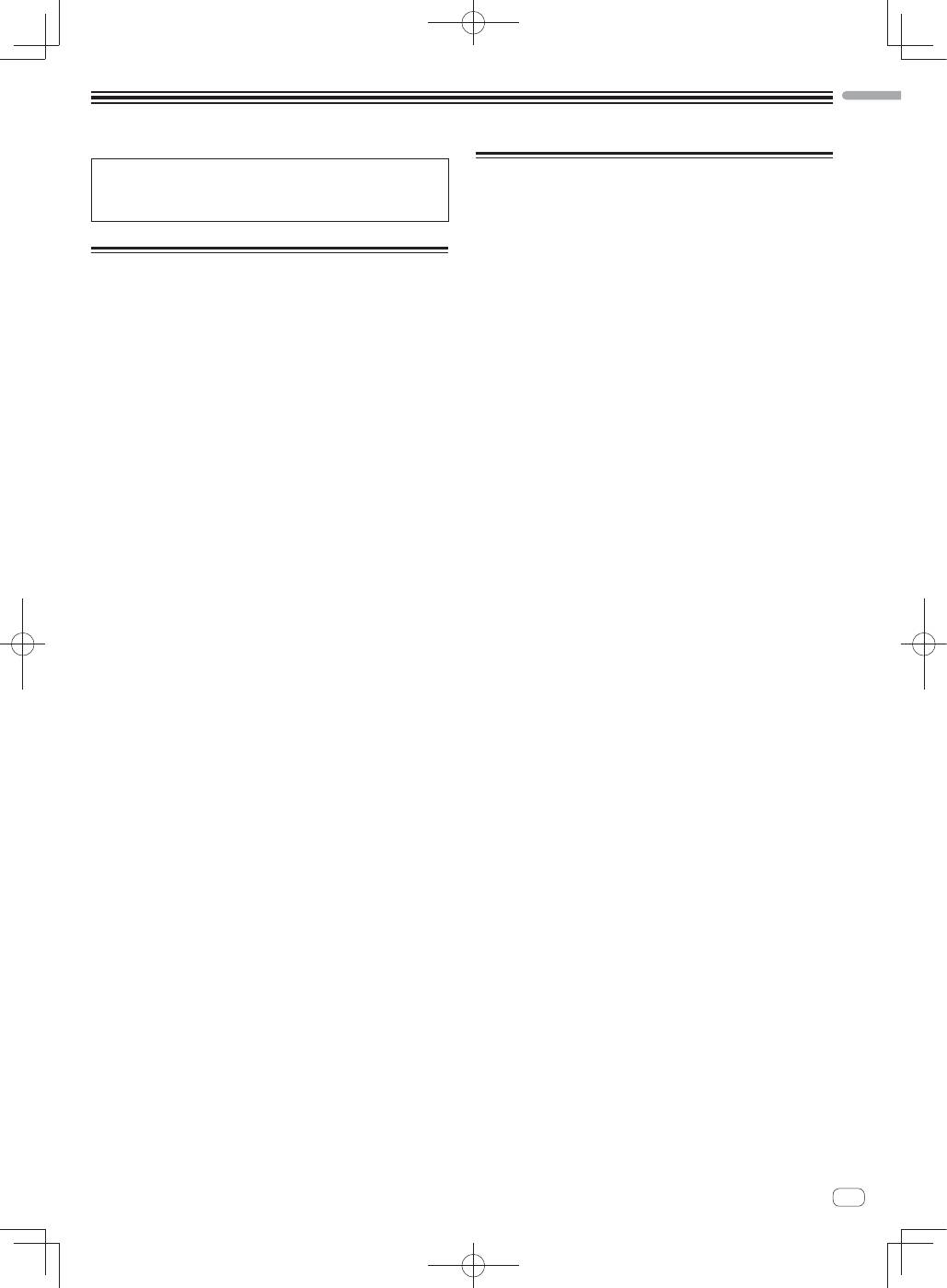
Effect section
This section is used to control the two effect units (FX1 and FX2).
Controls and buttons to operate the FX1 unit are located on the left side
of the controller, those to operate the FX2 unit are located on the right
side of the controller. The channels to which the effect is to be applied
are set using the effect assign buttons .
1
1
1
2
3
3
3
4
1
Effect parameter controls
2
FX BEATS
control
3
Effect parameter buttons
4
TAP
button
15
En
English
Acquiring the manual
The operating instructions may be in a file in PDF format. Adobe
®
Reader
®
must be installed to read files in PDF format. If you do not
have Adobe Reader, please install it from the download link on the
CD-ROM’s menu screen.
Downloading this unit’s operating
instructions
1 Insert the CD-ROM into the computer’s optical drive.
The CD-ROM menu is displayed.
If the CD-ROM’s menu does not appear when the CD-ROM is inserted,
perform the operations below.
For
Windows
Open the optical drive from [
Computer
(or
My Computer
)] in
the [
Start
] menu, then double-click the [
CD_menu.exe
] icon.
For Mac OS X
In Finder, double-click the [
CD_menu.app
] icon directly.
2 When the CD-ROM’s menu is displayed, select [DDJ-
SX: Operating Instructions (PDF file/Download)], then
click [Start].
3 “An internet environment is required to access the
site. Connected to the internet?” is displayed. Click [Yes].
The web browser is launched and the Pioneer DJ support site is
displayed.
4 On the Pioneer DJ support site, click “Manuals” under
“DDJ-SX”.
5 Click on the required language on the download
page.
Downloading of the operating instructions begins.
Downloading the Serato DJ
software manual
1 Insert the CD-ROM into the computer’s optical drive.
The CD-ROM menu is displayed.
If the CD-ROM’s menu does not appear when the CD-ROM is inserted,
perform the operations below.
For
Windows
Open the optical drive from [
Computer
(or
My Computer
)] in
the [
Start
] menu, then double-click the [
CD_menu.exe
] icon.
For Mac OS X
In Finder, double-click the [
CD_menu.app
] icon directly.
2 When the CD-ROM’s menu is displayed, select [Serato
DJ: Software Manual (PDF file/Download)], then click
[Start].
3 “An internet environment is required to access the
site. Connected to the internet?” is displayed. Click [Yes].
The web browser is launched and the Pioneer DJ support site is
displayed.
To close the CD-ROM menu, click [
Exit
].
4 Click [Software Info] under [DDJ-SX] on the Pioneer
DJ support site.
[
Serato DJ Support Information
] is displayed.
5 Click the link to the Serato DJ download page.
The Serato DJ download page is displayed.
6 Log in to your “Serato.com” user account.
Input the e-mail address and password you have registered to log in to
“Serato.com”.
7 From “More Downloads” on the right side of the
download page, click “Serato DJ x.x User Manual”.
Downloading of the Serato DJ software manual starts.
16
En
About the AC adapter
Safety instructions
To ensure your personal safety and to maximize the full operating poten-
tial of your unit, read and follow these safety instructions.
Read & Retain Instructions
Read all operating and user information provided with this product.
Cleaning
Use a damp cloth to clean the exterior housing. Avoid using any fluids
including liquid, aerosol or alcohol-based cleaning products.
Water or Moisture
Avoid operating or locating this product near water or other sources of
fluid.
Accessories
Do not place this product on an unstable cart, stand, or table. The prod-
uct may fall and be seriously damaged.
Ventilation
Do not block or cover this product in use. This unit should not be placed
in a built-in installation unless properly ventilated.
Environment
Avoid placing this product in a location with exposure to large quantities
of dust, high temperatures, high humidity, or subject to excessive vibra-
tions or shocks.
Power Sources
Operate this product only from the recommended power sources. If
you are unsure of the power source, consult an authorized Pioneer
representative.
Power-Cord Protection
When unplugging the unit, pull on the plug – not on the cord. Do not
handle the cord or plug with wet hands; doing so could cause an electric
short or shock. Do not allow anything to pinch or rest on the power cord
and do not place in a walkway.
Power
Turn OFF the system before installing this or any other hardware device.
Overloading
Avoid connecting too many devices to a single wall socket or power
source as this can cause fires or short circuits.
Object & Liquid Entry
Never push inappropriate objects in to the device. Avoid spilling any
liquids in to or on the outside of the drive.
Servicing
Opening or removing the cover exposes you to possible electrical shock
or other danger. Contact a Pioneer authorized service representative for
repairing this product (refer to the enclosed Service & Support Card).
Damage Requiring Service
Unplug the unit and refer servicing to qualified service personnel in the
following situations:
When the power cord, plug, or chassis is damaged.
If liquid has been spilled, or objects have fallen into the product.
If the product has been exposed to rain or water.
If the product does not operate normally when the operating instruc-
tions are followed. Adjust only those controls that are covered by the
operating instructions. Improper adjustment of other controls may
result in damage and can require extensive work by a qualified tech-
nician to restore the unit to its normal operation.
When the product exhibits a distinct change in performance – this
indicates a need for service.
Check that there are no irregularities with the AC adapter or power plug,
then insert the power plug into the specified position of the AC adapter
using the specified procedure until a click is heard. For details, see
Mounting the power plug
on page 17.
If there are irregularities with the AC adapter or power plug, ask your
nearest Pioneer authorized service center or your dealer to carry out
repair work.
Do not use this unit with a coin, paper clip or other metal object
stuck between the AC adapter and power plug. Doing so could cause
a short circuit, leading to fire or electric shock.
When mounting the AC adapter on a wall outlet, make sure there is
no space between the AC adapter and the wall outlet. Faulty contact
or a coin, paper clip or other metal object getting stuck in the space
could cause a short circuit, leading to fire or electric shock.
Coin, paper clip or other metal object
Top
Side
The power plug could come detached from the AC adapter and
remain in the power outlet if someone trips on the AC adapter’s
power cord or if something hits the AC adapter. If this happens,
remove the power plug remaining in the outlet with dry hands, hold-
ing it as shown on the diagram below and without touching metal
parts. Do not use any tools to remove it.
Do not touch.
17
En
English
Mounting the power plug
Slide the power plug along the guide rails in the AC
adapter unit as shown on the diagram below, then press
in until a click is heard.
Removing the power plug
While pressing the [PUSH] button on the AC adapter
unit, slide the power plug away from the adapter as
shown on the diagram below to remove it.
Once the power plug is mounted, there is no need to remove it.
Power plug
This product comes with the types of power plugs shown below. Use the
appropriate power plug for the country or region you are in.
Type 1 (for Europe)
Type 2 (for the UK)
18
En
Additional information
About trademarks and registered
trademarks
Pioneer is a registered trademark of PIONEER CORPORATION.
The names of companies and products mentioned herein are the trade-
marks of their respective owners.
Cautions on copyrights
Recordings you have made are for your personal enjoyment and accord-
ing to copyright laws may not be used without the consent of the copy-
right holder.
Music recorded from CDs, etc., is protected by the copyright laws of
individual countries and by international treaties. It is the full respon-
sibility of the person who has recorded the music to ensure that it is
used legally.
When handling music downloaded from the Internet, etc., it is the
full responsibility of the person who has downloaded the music to
ensure that it is used in accordance with the contract concluded
with the download site.
Specifications
AC adapter
Power ............................................................ AC 100 V to 240 V, 50 Hz/60 Hz
Rated current ..................................................................................... 800 mA
Rated output ................................................................................. DC 5 V, 3 A
General – Main Unit
Main unit weight ...................................................................................5.8 kg
Max. external dimensions
.................................664 mm (width) x 70.4 mm (height) x 357 mm (depth)
Tolerable operating temperature ........................................ +5 °C to +35 °C
Tolerable operating humidity ...................... 5 % to 85 % (no condensation)
Audio Section
Sampling rate ....................................................................................44.1 kHz
A/D, D/A converter ...............................................................................24 bits
Frequency characteristic
USB, LINE, MIC ............................................................... 20 Hz to 20 kHz
S/N ratio (rated output, A-WEIGHTED)
USB ................................................................................................ 105 dB
LINE ................................................................................................. 95 dB
PHONO ............................................................................................ 92 dB
MIC .................................................................................................. 92 dB
Total harmonic distortion (20 Hz — 20 kHzBW)
USB ...............................................................................................0.003 %
LINE ..............................................................................................0.005 %
Standard input level / Input impedance
LINE .................................................................................. –12 dBu/47 k
:
PHONO ............................................................................. –48 dBu/47 k
:
MIC ................................................................................... –52 dBu/10 k
:
Standard output level / Load impedance / Output impedance
MASTER OUT 1
.....................................................+8 dBu/10 k
:
/330
:
MASTER OUT 2
.......................................................+2 dBu/10 k
:
/1 k
:
BOOTH ...................................................................+8 dBu/10 k
:
/330
:
PHONE .......................................................................+4 dBu/32
:
/32
:
Rated output level / Load impedance
MASTER OUT 1
................................................................. 26 dBu/10 k
:
MASTER OUT 2
................................................................. 20 dBu/10 k
:
BOOTH
............................................................................... 26 dBu/10 k
:
Crosstalk
LINE
................................................................................................. 87 dB
Channel equalizer characteristic
HI .....................................................................–26 dB to +6 dB (13 kHz)
MID ....................................................................–26 dB to +6 dB (1 kHz)
LOW ...................................................................–26 dB to +6 dB (70 Hz)
Input / Output terminals
CD
input terminal
RCA pin jack .................................................................................... 2 sets
PHONO/LINE
input terminals
RCA pin jack .................................................................................... 2 sets
MIC1
terminal
XLR connector/phone jack (
Ø
6.3 mm) ...........................................1 set
MIC2
terminal
Phone jack (
Ø
6.3 mm) .....................................................................1 set
MASTER OUT 1
output terminal
XLR connector...................................................................................1 set
MASTER OUT 2
output terminal
RCA pin jacks ....................................................................................1 set
BOOTH
output terminal
Phone jack (
Ø
6.3 mm) .....................................................................1 set
PHONES
output terminal
Stereo phone jack (
Ø
6.3 mm) .........................................................1 set
Stereo mini phone jack (
Ø
3.5 mm) .................................................1 set
USB
terminal
B type .................................................................................................1 set
For improvement purposes, specifications and design of this unit
and the included software are subject to change without notice.
©
2012 PIONEER CORPORATION. All rights reserved.
2
Fr
Nous vous remercions d’avoir acquis un produit Pioneer. Veuillez lire attentivement ce mode d’emploi afin de connaître la manière d’utiliser l’appareil
comme il convient. Cela fait, conservez le mode d’emploi de façon à pouvoir vous y référer en cas de nécessité.
Dans certains pays ou certaines régions, la forme de la fiche et de la prise d’alimentation est un peu différente de ce qui est montré dans les illustra-
tions. Toutefois, l’appareil se raccorde et fonctionne de la même façon.
AVERTISSEMENT
Cet appareil n’est pas étanche. Pour éviter les risques
d’incendie et de décharge électrique, ne placez près de
lui un récipient rempli d’eau, tel qu’un vase ou un pot
de fleurs, et ne l’exposez pas à des gouttes d’eau, des
éclaboussures, de la pluie ou de l’humidité.
D3-4-2-1-3_A1_Fr
AVERTISSEMENT
Pour éviter les risques d’incendie, ne placez aucune
flamme nue (telle qu’une bougie allumée) sur
l’appareil.
D3-4-2-1-7a_A1_Fr
Milieu de fonctionnement
Température et humidité du milieu de fonctionnement :
De +5 °C à +35 °C (de +41 °F à +95 °F) ; Humidité
relative inférieure à 85 % (orifices de ventilation non
obstrués)
N’installez pas l’appareil dans un endroit mal ventilé ou
un lieu soumis à une forte humidité ou en plein soleil
(ou à une forte lumière artificielle).
D3-4-2-1-7c*_A1_Fr
Si la fiche d’alimentation secteur de cet appareil ne
convient pas à la prise secteur à utiliser, la fiche doit
être remplacée par une appropriée. Ce
remplacement et la fixation d’une fiche secteur sur le
cordon d’alimentation de cet appareil doivent être
effectués par un personnel de service qualifié. En cas
de branchement sur une prise secteur, la fiche de
coupure peut provoquer une sérieuse décharge
électrique. Assurez-vous qu’elle est éliminée
correctement après sa dépose.
L’appareil doit être déconnecté en débranchant sa
fiche secteur au niveau de la prise murale si vous
prévoyez une période prolongée de non utilisation
(par exemple avant un départ en vacances).
D3-4-2-2-1a_A1_Fr
Lorsque vous utilisez ce produit, vérifiez les
informations concernant la sécurité sous l’appareil.
D3-4-2-2-4_B1_Fr
Ce point d’exclamation, placé dans un
triangle équilatéral, a pour but d’attirer
l’attention de l’utilisateur sur la présence,
dans les documents qui accompagnent
l’appareil, d’explications importantes du
point de vue de l’exploitation ou de
l’entretien.
Ce symbole de l’éclair, placé dans un
triangle équilatéral, a pour but d’attirer
l’attention de l’utilisateur sur la présence, à
l’intérieur du coffret de l’appareil, de
“tensions dangereuses” non isolées d’une
grandeur suffisante pour représenter un
risque d’électrocution pour les êtres
humains.
ATTENTION :
POUR ÉVITER TOUT RISQUE
D’ÉLECTROCUTION, NE PAS ENLEVER LE
COUVERCLE (NI LE PANNEAU ARRIÈRE).
AUCUNE PIÈCE RÉPARABLE PAR
L’UTILISATEUR NE SE TROUVE À
L’INTÉRIEUR. CONFIER TOUT ENTRETIEN À
UN PERSONNEL QUALIFIÉ UNIQUEMENT.
ATTENTION
DANGER D´ELECTROCUTION
NE PAS OUVRIR
IMPORTANT
D3-4-2-1-1_A1_Fr
Si vous souhaitez vous débarrasser de cet appareil, ne le mettez pas à la poubelle avec vos ordures ménagères. Il existe un système de
collecte séparé pour les appareils électroniques usagés, qui doivent être récupérés, traités et recyclés conformément à la législation.
Les habitants des états membres de l’UE, de Suisse et de Norvège peuvent retourner gratuitement leurs appareils électroniques usagés aux
centres de collecte agréés ou à un détaillant (si vous rachetez un appareil similaire neuf).
Dans les pays qui ne sont pas mentionnés ci-dessus, veuillez contacter les autorités locales pour savoir comment vous pouvez vous débarrasser
de vos appareils.
Vous garantirez ainsi que les appareils dont vous vous débarrassez sont correctement récupérés, traités et recyclés et préviendrez de cette façon
les impacts néfastes possibles sur l’environnement et la santé humaine.
K058b_A1_Fr
AVERTISSEMENT
Avant de brancher l’appareil pour la première, lisez
attentivement la section suivante.
La tension de l’alimentation électrique disponible
varie selon le pays ou la région. Assurez-vous que
la tension du secteur de la région où l’appareil sera
utilisé correspond à la tension requise (par ex. 230
V ou 120 V), indiquée sur l’étiquette de
l’adaptateur secteur.
D3-4-2-1-4*_A1_Fr_PSV
