
LG P698 Black – страница 13
Инструкция к Смартфону LG P698 Black

:
PC Suite IV
1
USB ұғ
ғ
іі
, USB ə Bluetooth
ң.
і
2
Е ш,
. ,
USB
.
і іңі.
!
microSD
3
шғ і
і ші
ші,
əі ңң.
ш, USB
ғ
11.
.
ұ microSD
ғ
ш ,
ш
microSD
і ,
,
я ə я
і іі і
іші , я.
і .
ші,
ңі .
, ғ
ғ ші,
USB ұғ
іі іі
ің ұ
ұя ң.
19

ң
12. іі
13. Э
ғ
я
Э
я іі
ғ ə
ұң. LG-P698
:
ұғң іші
я шғ,
. ң
ң ,
ғ
ң. Е əі
ң, ұң
ұ і,
ш .
ғ
ң шғ/
ң.
ғ
і/ғ,
14. і
ң
і іі
,
ұғ ң. О
ұ ңң
ғ.
ə і і.
ің
ғ і
ң. ғғ
і ,
ұ
і.
20
English
LG-P698LG-P698 Quick Reference Guide
This guide will help you understand your new mobile phone.
It will provide you with useful explanations of features on your phone.
•
Some of the contents of this
manual may not apply to your
phone. This depends on your
phone’s software and your service
provider.
•
This handset is not recommended
for the visually impaired because of
its touch screen keyboard.
•
Copyright ©2011 LG Electronics,
Inc. All rights reserved. LG and the
LG logo are registered trademarks
of LG Group and its related entities.
All other trademarks are the
property of their respective owners.
•
Google™, Google Maps™,
Gmail™, YouTube™, Google
Talk™ and Android Market™ are
trademarks of Google, Inc.
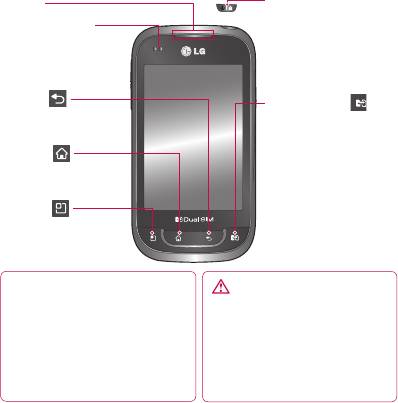
Getting to know your phone
To turn on your phone, press and hold the Power key for 3 seconds.
To turn off the phone, press and hold the Power key for 3 seconds, then
touch
Power off
and
OK
.
Speaker
Power/Lock key
Switch your phone on/off
Proximity sensor
by pressing and holding
this key.
Turn off and lock the
screen.
Back key
SIM Switch Key
Return to the previous
(SIM1 and SIM2 selection)
screen.
Change active SIM.
Home key
Current SIM is displayed
Return to home from any
on indicator and will be
screen.
used when making calls or
Menu key
sending messages.
Check what options are
Go to Dual SIM settings by
available.
pressing and holding this
key.
NOTE: proximity sensor
WARNING
When receiving and making calls, the
Placing a heavy object on the phone
proximity sensor automatically turns
or sitting on it can damage the LCD
the backlight off and locks the touch
and touch screen functions. Do not
keypad by sensing when the phone is
cover the protective fi lm on the LCD’s
near your ear. This extends battery life
proximity sensor. This may cause the
and prevents the touch keypad from
sensor to malfunction.
activating unintentionally during calls.
2
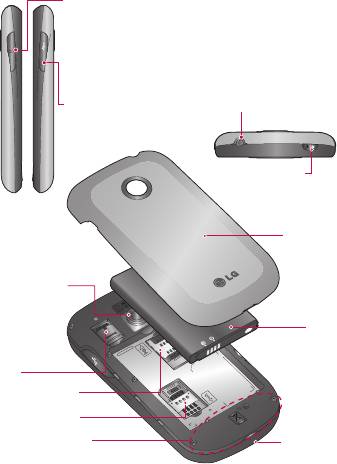
Volume keys
On the home screen: control ringer volume.
• During a call: control your earpiece volume.
• When playing a track: control volume continuously.
Charger, micro USB
Stereo earphone connector
cable connector
Power/Lock key
Back cover
Camera lens
Battery
microSD
memory card
slot
SIM2 card slot
SIM1 card slot
Internal antenna
Microphone
3
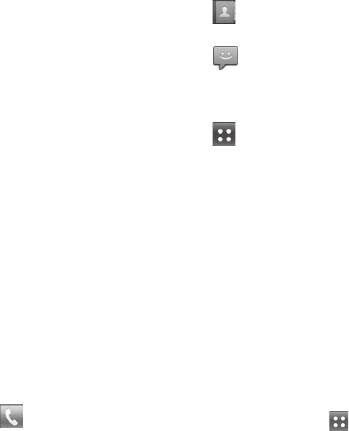
Getting to know your phone
Unlock screen
Touch the Contacts icon to
Whenever your LG-P698 is not in
open your contacts.
use, it returns to the lock screen.
Touch the Message icon to
Drag your finger from bottom to
access the messaging menu. This
top to unlock the screen.
is where you can create a new
message.
Home
Touch the Applications tab
Simply swipe your finger to the left
at the bottom of the screen. You
or right to view the panels.
can then view all your installed
You can customise each panel
applications.
with widgets, shortcuts (to your
To open the desired application,
favourite applications), folders and
simply touch the icon in the
wallpaper.
applications list.
NOTE: Some screen images may
NOTE: preloaded applications
be different depending on your
may differ according to your
phone provider.
phone’s software or your service
In your Home screen, you can view
provider.
quick keys at the bottom of the
screen. Quick keys provide easy,
Creating your Google
one-touch access to the functions
account
you use the most.
1
In the Home screen, touch the
Touch the Phone icon to
Applications tab
to open
bring up the touch screen dialpad
the Applications menu.
to make a call.
4
2
Tap Google Mail, then tap
NOTE:
Next > Create to start the
•
If only one SIM card is inserted
Gmail™ setup wizard.
or one SIM is off, SIM switching
3
Enter your name and username
is not available, and the SIM
for your Google account.
switch key has no action unless
4
Tap Next. Your phone is now
you press it.
communicating with Google
•
During a call, sending a
servers and checking username
message or using a data
availability.
service, the other SIM’s RSSI
5
Enter and re-enter your
might be displayed as ‘No
password. Follow the
service’ due to the network
instructions and enter
service status.
the required and optional
information about your account.
WARNING
Wait while the server creates
If you are outside of the
your account.
service area, it may cause
your device to consume more
Using Dual SIM
battery power.
When two SIM cards are inserted
on your phone, the SIM cards
information are displayed on your
notification drawer. When you
press the SIM switch key, currently
active SIM is switched.
5
Camera
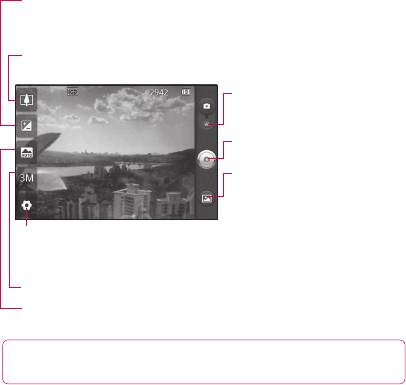
Getting to know the viewfinder
Brightness - this defines and controls the amount of sunlight entering
the image. Slide the brightness indicator along the bar towards “-” to
lower the brightness of the image or towards “+” to increase it.
Zoom - zoom in or zoom out. Alternatively you can use the side
volume keys.
Video mode - slide this icon
down to switch to video mode.
Taking a photo
Gallery - touch to view the
last photo you captured. This
enables you to access your
gallery and view saved photos
Settings - touch this icon to open
from within camera mode.
the Settings menu. See 'Using the
advanced settings'.
Image size – touch to set the size (in pixels) of the picture you take.
Scene mode – choose from Auto, Portrait, Landscape, Sports, Night
and Sunset.
TIP Close all shortcut options to give a clearer viewfi nder screen. Touch the
centre of the viewfi nder once. To display the options, touch the screen again.
6

Video camera
Getting to know the viewfinder
Brightness - this defines and controls the amount of sunlight entering
the video. Slide the brightness indicator along the bar towards “-” to
lower the brightness of the video or towards “+” to increase it.
Zoom - zoom in or zoom out. Alternatively you can use the side
volume keys.
Camera mode - slide this icon
up to switch to camera mode.
Start recording
Gallery - touch to view the
last video you recorded. This
enables you to access your
gallery and view your saved
Settings - touch this icon to
videos from within video mode.
open the settings menu. See
'Using the advanced settings'.
Duration – set a duration limit for your video. Choose between
Normal and MMS to limit the maximum size to send as an MMS
message.
Video size – touch to set the size (in pixels) of the video
you record.
7

Important notice
Please check to see whether any
3
Tap Uninstall, then touch OK
problems you encountered with
to uninstall the application you
your phone are described in this
selected.
section before taking the phone
2. Optimising battery life
in for service or calling a service
representative.
Extend your battery's life between
charges by turning off features you
1. Phone memory
don't need to run constantly in the
When available space in your
background. You can monitor how
phone memory is less than 10%,
applications and system resources
your phone cannot receive new
consume battery power.
messages. You need to check
Extending your battery's life
your phone memory and delete
•
Turn off radio communications
some data, such as applications or
you are not using. If you are not
messages, to make more memory
using Wi-Fi, Bluetooth or GPS,
available.
turn them off.
Managing applications
•
Reduce screen brightness and
1
In the Home screen, touch the
set a shorter screen timeout.
Applications tab, then select
•
Turn off automatic syncing
Settings > Applications >
for Google Mail™, Calendar,
Manage applications.
Contacts and other applications.
2
Once all applications appear,
•
Some applications you have
scroll to and select the
downloaded may cause your
application you want to
battery life to be reduced.
uninstall.
8
Checking the battery charge
power. The body of the screen
level
lists applications or services
1
In the Home screen, touch the
using battery power, from
Applications tab, then select
greatest amount to least.
Settings > Applications >
3. Installing an open
Manage applications.
source operating
2
The battery status (Charging,
system
Not charging) and level
If you install and use an open
(percentage charged) is
source operating system (OS) on
displayed at the top of the
your phone rather than using the
screen.
OS provided by the manufacturer,
Monitoring and controlling what
your phone may malfunction.
uses the battery
1
In the Home screen, touch the
WARNING
Applications tab, then select
If you install and use an OS
Settings > About phone >
other than the one provided by
Battery use.
the manufacturer, your phone
2
Battery usage time is displayed
is no longer covered by the
at the top of the screen. It tells
warranty.
you how long it has been since
you last connected to a power
source or, if connected to a
power source, how long you
were last running on battery
9
Important notice
WARNING
WARNING
To protect your phone
Precautions to take when
and personal data, only
using pattern lock.
download applications from
It is very important to
trusted sources, such as
remember the unlock pattern
Android Market™. If there
you set. You will not be able to
are improperly installed
access your phone if you use
applications on your phone,
an incorrect pattern 5 times.
your phone may not work
You have 5 opportunities to
normally or a serious error
enter your unlock pattern, PIN
may occur. You must uninstall
or password. If you have used
those applications and all their
all 5 opportunities, you can try
data and settings from the
again after 30 seconds.
phone.
When you cannot recall your
4. Using unlock pattern
unlock pattern:
Set unlock pattern to secure your
If you logged in to your Google
phone. This opens a set of screens
account on the phone but failed
that guide you through how to
to enter the correct pattern 5
draw a screen unlock pattern.
times, tab the Forgotten pattern
Caution: create a Gmail account
button. You are then required to
before setting an unlock pattern.
log in with your Google account to
unlock your phone.
10

If you have not created a Google
Leave your phone for at least a
account on the phone or you
minute while it performs the hard
forgot it, you have to perform a
reset, then your phone will be
factory reset.
turned on.
Caution: if you perform a hard
Caution: if you perform a hard
reset, all user applications and
reset, all user applications and
user data are deleted. Remember
user data are deleted. This cannot
to back up any important data
be reversed. Remember to back
before performing a hard reset.
up any important data before
performing a hard reset.
5. Using the hard reset
If it does not restore to the original
6. Connecting to Wi-Fi
condition, use hard reset to
networks
initialise your phone.
To use Wi-Fi on your phone,
When the phone is turned off,
access a wireless access point or
press and hold the Home key +
“hotspot.” Some access points are
Volume down key + Power key
open and you can simply connect
for over ten seconds. When the
to them. Others are hidden or
screen shows the LG logo, release
use security features; you must
the Power key.
configure your phone to be able to
connect to them.
After the screen shows the hard
reset screen, release the other
Turn off Wi-Fi when you're not
keys.
using it to extend the life of your
battery.
11

Important notice
Turning Wi-Fi on and
7. Using a microSD card
connecting to a Wi-Fi network
Pictures, along with music and
1
In the Home screen, touch
video files, can only be saved to
the Applications tab, then
external memory.
select Settings > Wireless &
Before using the built-in camera,
networks > Wi-Fi settings.
you first need to insert a microSD
2
Touch Wi-Fi to turn it on and
memory card into your phone.
begin scanning for available
If you don't insert a memory card,
Wi-Fi networks.
you cannot save the pictures and
•
A list of available Wi-Fi networks
video you take with the camera.
is displayed. Secured networks
are indicated by a lock icon.
WARNING
3
Touch a network to connect
Do not insert or remove the
to it.
memory card when the phone
•
If the network is open, you are
is on. Doing so may damage
asked to confirm that you want
the memory card as well as
to connect to that network by
your phone, and the data
touching Connect.
stored on the memory card
may be corrupted. To remove
•
If the network is secure, you're
the memory card safely, in
asked to enter a password or
the Home screen, touch
other credentials. (Ask your
the Applications tab, then
network administrator for details)
select Settings > Storage >
4
The status bar displays icons
Unmount SD Card.
that indicate Wi-Fi status.
12

8. Opening and switching
TIP Returning to recent apps
applications
Press and hold the Home key.
A screen then displays a list
Multitasking is easy with Android
of the applications you used
because you can keep more than
recently.
one application running at the
same time. There’s no need to
9. Copying LG PC Suite
quit an application before opening
another. Use and switch between
from an SD card
several open applications. Android
LG PC Suite IV is a program that
manages each application,
helps you connect your mobile
stopping and starting them
phone to a PC using a USB data
as needed to ensure that idle
communication cable. Once
applications don’t consume
connected, you can use the
resources unnecessarily.
functions of the mobile phone on
Stopping applications
your PC.
1
In the Home screen, touch the
Major functions of LG PC Suite
Applications tab, then select
IV
Settings > Applications >
•
Create, edit and delete phone
Manage applications.
data with ease
2
Scroll to the desired application
•
Synchronise mobile phone data
and touch Force stop to
with PC data (contacts, calendar,
stop it.
SMS messages, bookmarks and
call log)
13

Important notice
•
Easily transfer multimedia files
4
• In the status bar, drag the
(photos, videos, music) by simply
USB icon.
dragging and dropping between
• Choose USB connected and
a PC and your phone
Turn on USB storage.
•
Transfer SMS messages from
• You can view the mass
your phone to a PC
storage content on your PC
•
Software update without losing
and transfer files.
your data
5
• Copy the LGPCSuiteIV folder
Installing LG PC Suite from your
in mass storage to your PC.
microSD memory card
• Run the LGInstaller.exe file
1
Insert your microSD memory
on your PC and follow the
card into your phone. (It may
instructions.
already be inserted)
* When LG PC Suite IV installation
2
Before connecting the USB
is complete, disable Mass
data cable, make sure that
storage only mode to run LG PC
Mass storage only mode is
Suite IV.
enabled on your phone. (In
NOTE: do not remove or delete
the applications menu, choose
other program fi les installed
Settings, then select the Mass
on your memory card. This
storage only box)
may damage your preinstalled
3
Use the USB data cable to
applications.
connect your phone to the PC.
14

10. Connecting your
1
Use the USB cable to connect
phone to a computer
your phone to a USB port
using USB
on your computer. Once
connected, you will receive
NOTE: to synchronise your phone
a notification that a USB
with your PC using the USB
cable, you need to install LG PC
connection has been made.
Suite onto your PC. Download
2
Open the notification drawer
the program from the LG website
and touch USB connected.
(www.lg.com). Go to www.
3
Touch Turn on USB storage
lg.com and select your region,
to confirm that you want to
country and language. For more
transfer files between your
information, visit the various pages
phone’s microSD card and the
of the site. Since PC Suite is on
computer.
the microSD card, you can simply
You will receive a notification
copy it to your PC.
when the phone connects as USB
LG-P698 does not support:
storage. Your phone’s microSD
- LG Air Sync (Web Sync, R-
card is mounted as a drive on your
Click)
computer. You can now copy files
- OSP (On Screen Phone)
to and from the microSD card.
- To-do in Calendar
NOTE: when uninstalling PC Suite
- Memo
IV, USB and Bluetooth, drivers are
not automatically removed. You
- Java application
must uninstall them manually.
After installing PC Suite IV, you
can find the User Guide in the
Help menu.
15

Important notice
TIP To use the microSD card on
11. Unlocking the screen
your phone again, you need to
when using a data
open the notifi cation drawer and
connection
touch Turn off USB storage.
Your display goes dark if
During this time, you can’t
untouched for a period of time
access the microSD card from
when using a data connection.
your phone, so you can’t use
To turn on your LCD screen, just
applications that rely on the
touch it.
microSD card, such as Camera,
Gallery and Music.
12. Hold your phone
To disconnect your phone from
straight up
the computer, carefully follow
Hold your mobile phone straight
your computer’s instructions
up, as you would a regular
for properly disconnecting USB
phone. The LG-P698 has an
devices to avoid losing information
internal antenna. Be careful not
on the card.
to scratch or damage the back of
1
Safely disconnect the USB
the phone, as that causes loss of
device from your computer.
performance.
2
Open the notification drawer
While making/receiving calls or
and touch Turn off USB
sending/receiving data, avoid
storage.
holding the lower part of the
3
Touch Turn off USB storage in
phone where the antenna is
the dialog that opens.
located. Doing so may affect call
quality.
16

13. When the screen
freezes
If the screen freezes or the phone
does not respond when you try to
operate it:
Remove the battery, reinsert it,
then turn the phone on. If it still
does not work, please contact the
service centre.
14. Do not connect your
phone when you turn
on/off your PC.
Make sure you disconnect the
data cable between your phone
and PC; leaving it connected might
cause errors on your PC.
17

Ukraine Restriction of Hazardous Substances
The equipment complies with requirements of the Technical
Regulation, in terms of restrictions for the use of certain dangerous
substances in electrical and electronic equipment.

