
Pioneer VSX-1025-K – page 6
Manual for Pioneer VSX-1025-K
Table of contents
- IMPORTANT VENTILATION CAUTION
- Flow of settings on the receiver
- Chapter 1: Before you start Checking what’s in the box Loading the batteries Installing the receiver
- Chapter 2: Controls and displays Front panel
- Controls and displays02
- Display
- Controls and displays02
- Remote control
- Controls and displays02
- Chapter 3: Connecting your equipment Rear panel
- Connecting your equipment03
- Connecting your equipment 03 Determining the speakers’ application
- Connecting your equipment03
- Placing the speakers Some tips for improving sound quality
- Connecting the speakers
- Installing your speaker system
- Bi-amping your speakers Bi-wiring your speakers
- Selecting the Speaker system
- About the audio connection About the video converter
- Connecting your TV and playback components
- Connecting your equipment03 About HDMI
- Connecting your DVD player with no HDMI output
- Connecting your TV with no HDMI input
- Connecting a satellite/cable Connecting a HDD/DVD receiver or other set-top box recorder, VCR and other video sources
- Connecting other audio components
- Connecting AM/FM antennas
- MULTI-ZONE setup
- Connecting Optional Bluetooth ADAPTER
- Connecting to the network Connecting an HDMI-equipped through LAN interface component to the front panel input
- Connecting to the front panel video terminal
- Connecting a USB device Connecting a USB device for Advanced MCACC output
- Connecting an IR receiver Operating other Pioneer components with this unit’s sensor
- Plugging in the receiver
- Chapter 4: Basic Setup Changing the OSD display language (OSD Language) Automatically conducting optimum sound tuning (Auto MCACC)
- Basic Setup04
- Basic Setup 04
- Basic Setup04 Problems when using the Auto MCACC Setup The Input Setup menu
- Input function default and possible settings
- Chapter 5: Basic playback Playing a source
- Playing an iPod
- Basic playback05 Finding what you want to play Switching the iPod controls
- Playing back audio files stored on a Playing a USB device USB memory device
- Basic playback controls
- About playable file formats Music files Photo files
- Listening to the radio
- Saving station presets Listening to station presets Naming station presets
- An introduction to RDS
- Bluetooth ® ADAPTER for Wireless Enjoyment of Music
- Basic playback05 Listening to music contents of a Bluetooth wireless technology device with your system
- Listening to Internet radio stations
- Basic playback05
- Chapter 6: Listening to your system
- Listening to your system06
- Listening in stereo
- Using Front Stage Surround Using Stream Direct Advance
- Selecting MCACC presets Choosing the input signal
- Better sound using Phase Control
- Chapter 7: Control with HDMI function Making Control with HDMI connections
- HDMI Setup
- Before using synchronization About synchronized operations
- Setting the PQLS function
- Cautions on the Control with HDMI function
- Chapter 8: Using other functions Setting the Audio options
- Setting What it does Option(s)
- Setting What it does Option(s)
- Setting the Video options
- Setting What it does Option(s)
- Switching the speaker terminals Using the MULTI-ZONE controls
- Making an audio or a video recording MULTI-ZONE remote controls
- Dimming the display Reducing the level of an analog signal Checking your system settings Using the sleep timer
- Resetting the system Default system settings
- Chapter 9: Controlling the rest of your system Operating multiple receivers Setting the remote to control other components
- Selecting preset codes directly Programming signals from other remote controls
- Erasing one of the remote control button settings
- Resetting the input assignment Direct function of one of the input function buttons
- Multi operation and System off
- Controlling the rest of your system09
- Clearing all the remote control settings Controlling components
- Button(s) TV TV (Monitor) BD/DVD HDD/DVR VCR SAT/CATV
- Controlling the rest of your system 09 Button(s) LD
- Chapter 10: The Advanced MCACC menu Making receiver settings from the Advanced MCACC menu
- Automatic MCACC (Expert)
- The Advanced MCACC menu10
- The Advanced MCACC menu 10
- The Advanced MCACC menu10 Manual MCACC setup
- The Advanced MCACC menu 10
- The Advanced MCACC menu10 Standing Wave
- Acoustic Calibration EQ Adjust
- Using Acoustic Calibration EQ Professional
- The Advanced MCACC menu 10
- Checking MCACC Data
- Standing Wave Output MCACC data Acoustic Cal EQ
- Data Management
- The Advanced MCACC menu 10 Clearing MCACC presets
- Chapter 11: The System Setup and Other Setup menus Making receiver settings from the System Setup menu Manual speaker setup
- The System Setup and Other Setup menus 11 Speaker system setting
- Speaker Setting
- The System Setup and Other Setup menus 11 Speaker Distance Channel Level
- Network Setup menu
- The System Setup and Other Setup menus 11
- The Other Setup menu
- The System Setup and Other Setup menus 11 Remote Control Mode Setup
- Chapter 12: Additional information Power Symptom Remedy
- Symptom Remedy No sound Symptom Remedy
- Symptom Remedy Other audio problems Symptom Remedy
- Symptom Remedy
- Video Symptom Remedy
- Settings Symptom Remedy
- Professional Calibration EQ graphical output Symptom Remedy Display Symptom Remedy
- Symptom Remedy Remote control Symptom Remedy
- HDMI Symptom Remedy
- Symptom Remedy Important information regarding the HDMI connection
- USB interface Symptoms Causes Remedies
- ADAPTER PORT Symptom Remedy Internet radio Symptoms Causes Remedies
- Symptoms Causes Remedies
- About iPod Surround sound formats
- Auto Surround, ALC and Stream Direct with different input signal formats Stereo (2 channel) signal formats
- Preset code list
- Additional information12
- Additional information 12
- DVD
- BD DVR (BDR, HDR) VCR
- Satellite Set Top Box
- Additional information 12
- Additional information12 Satellite Set Top Box (SAT/PVR Combination)
- Cable Set Top Box Cable Set Top Box (Cable/PVR Combination) CD CD-R Laser Disc Player Cassete Deck Digital Tape MD
- Specifications
- Cleaning the unit
The System Setup and Other Setup menus 11
1 Select ‘
Manual SP Setup
’, then press
2 Select the speaker system setting.
English
ENTER
.
• Normal(SB/FH) – Select for normal home
See Making receiver settings from the System
theater use with front height speakers in
Setup menu above if you’re not already at this
your main (speaker system A) setup.
screen.
• Normal(SB/FW) – Select for normal home
theater use with front wide speakers in
2 Select the setting you want to adjust.
Deutsch
your main (speaker system A) setup.
If you are doing this for the first time, you may
want to adjust these settings in order:
• Speaker B – Select to use the B speaker
terminals to listen to stereo playback in
• Speaker System – Specifies how you are
another room (see Switching the speaker
using the B speaker terminals (see below).
terminals on page 73).
• Speaker Setting – Specifies the size and
Français
• Front Bi-Amp – Select this setting if
number of speakers you’ve connected
you’re bi-amping your front speakers (see
(page 102).
Bi-amping your speakers on page 22).
• Channel Level – Adjusts the overall
• ZONE 2 – Select to use the surround back
balance of your speaker system (page 103).
terminals for an independent system in
• Speaker Distance – Specifies the distance
another zone (see Using the MULTI-ZONE
Italiano
of your speakers from the listening position
controls on page 73).
(page 103).
3 If you selected
Normal(SB/FH)
,
• X-Curve – Adjusts the tonal balance of
Normal(SB/FW)
, or
Speaker B
in Step 2,
your speaker system for movie soundtracks
select the placement of the surround
(page 104).
speakers.
Nederlands
3 Make the adjustments necessary for each
In a 7.1-channel surround system with
setting, pressing
RETURN
to confirm after
surround speakers placed directly at the sides
each screen.
of the listening position, the surround sound
of 5.1-channel sources is heard from the side.
This function mixes the sound of the surround
Speaker system setting
speakers with the surround back speakers so
Español
•Default setting: Normal(SB/FH)
that the surround sound is heard from
There are several ways you can use the speaker
1
diagonally to the rear as it should be.
terminals with this receiver. In addition to a
• ON SIDE – Select when the surround
normal home theater setup where they are
speakers is positioned right beside you.
used for the front height speakers or front wide
speakers, they can be used for bi-amping the
• IN REAR – Select when the surround
front speakers or as an independent speaker
speaker is positioned obliquely behind you.
system in another room.
4 When ‘
Setting Change?
’ is displayed,
1 Select ‘
Speaker System
’ from the
select
Yes
.
Manual SP Setup
menu.
If No is selected, the setting is not changed.
See Making receiver settings from the System
You will return to the Manual SP Setup menu.
Setup menu on page 100 if you’re not already at
this screen.
101
En
Note
VSX-1020_SYXCN.book 101 ページ 2010年3月12日 金曜日 午前9時10分
1 Depending on the positions of the speakers and the sound source, in some cases it may not be possible to achieve
good results. In this case, set the setting to ON SIDE or IN REAR.
The System Setup and Other Setup menus11
Speaker Setting
• FH – Select LARGE if your front height
speakers reproduce bass frequencies
Use this setting to specify your speaker
configuration (size, number of speakers and
effectively, or select SMALL to send bass
crossover frequency). It is a good idea to make
frequencies to the other speakers or
sure that the settings made in Automatically
subwoofer. If you didn’t connect front
conducting optimum sound tuning (Auto
height speakers, choose NO (the front
MCACC) on page 39 are correct. Note that this
height channel is sent to the front
2
setting applies to all MCACC presets, and
speakers).
cannot be set independently.
• FW – Select LARGE if your front wide
speakers reproduce bass frequencies
1 Select ‘
Speaker Setting
’ from the
effectively, or select SMALL to send bass
Manual SP Setup
menu.
frequencies to the other speakers or
2 Choose the set of speakers that you want
subwoofer. If you didn’t connect front wide
to set, then select a speaker size.
speakers, choose NO (the front wide
Use / to select the size (and number) of
3
channel is sent to the front speakers).
1
each of the following speakers:
• Surr – Select LARGE if your surround
• Front – Select LARGE if your front
speakers reproduce bass frequencies
speakers reproduce bass frequencies
effectively. Select SMALL to send bass
effectively, or if you didn’t connect a
frequencies to the other speakers or
subwoofer. Select SMALL to send the bass
subwoofer. If you didn’t connect surround
frequencies to the subwoofer.
speakers choose NO (the sound of the
• Center – Select LARGE if your center
surround channels is sent to the front
speaker reproduces bass frequencies
speakers or a subwoofer).
effectively, or select SMALL to send bass
• SB – Select the number of surround back
frequencies to the other speakers or
4
speakers you have (one, two or none).
subwoofer. If you didn’t connect a center
Select LARGEx2 or LARGEx1 if your
speaker, choose NO (the center channel is
surround back speakers reproduce bass
sent to the front speakers).
frequencies effectively. Select SMALLx2 or
SMALLx1 to send bass frequencies to the
other speakers or subwoofer. If you didn’t
connect surround back speakers choose
NO.
102
En
Note
VSX-1020_SYXCN.book 102 ページ 2010年3月12日 金曜日 午前9時10分
1 If you select SMALL for the front speakers the subwoofer will automatically be fixed to YES. Also, the center, surround,
surround back, front height and front wide speakers can’t be set to LARGE if the front speakers are set to SMALL. In
this case, all bass frequencies are sent to the subwoofer.
2 • You can only adjust the front height speakers when Speaker System is set to Normal(SB/FH).
• If the surround speakers are set to NO, the front height speakers will automatically be set to NO.
3 • You can only adjust the front wide speakers when Speaker System is set to Normal(SB/FW).
• If the surround speakers are set to NO, the front wide speakers will automatically be set to NO.
4 • If you selected ZONE 2 or Front Bi-Amp (in Speaker system setting on page 101) you can’t adjust the surround back
settings.
• If the surround speakers are set to NO, the surround back speakers will automatically be set to NO.
• If you select one surround back speaker only, make sure that speaker is hooked up to the left surround back
terminal.
The System Setup and Other Setup menus 11
• SW – LFE signals and bass frequencies of
1 Select ‘
Channel Level
’ from the
Manual
English
channels set to SMALL are output from the
SP Setup
menu.
subwoofer when YES is selected. Choose
The test tones will start.
the PLUS setting if you want the subwoofer
2 Adjust the level of each channel using
/
to output bass sound continuously or you
.
want deeper bass (the bass frequencies
Use / to switch speakers.
that would normally come out the front and
Deutsch
center speakers are also routed to the
Adjust the level of each speaker as the test
1
3
subwoofer).
If you did not connect a
tone is emitted.
subwoofer choose NO (the bass
3 When you’re finished, press
RETURN
.
frequencies are output from other
You will return to the Manual SP Setup menu.
speakers).
Français
3 Select ‘
X. OVER
’ and set the crossover
2
Tip
frequency.
Frequencies below this point will be sent to the
• You can change the channel levels by
subwoofer (or LARGE speakers).
press , then press CH LEVEL,
and then using / on the remote
4 When you’re finished, press
RETURN
.
4
Italiano
control.
You will return to the Manual SP Setup menu.
Speaker Distance
Channel Level
For good sound depth and separation from
Using the channel level settings, you can
your system, you need to specify the distance
adjust the overall balance of your speaker
Nederlands
of your speakers from the listening position.
system, an important factor when setting up a
The receiver can then add the proper delay
home theater system.
needed for effective surround sound.
Move the test tone manually from speaker to
speaker and adjust individual channel levels.
Español
103
En
Note
VSX-1020_SYXCN.book 103 ページ 2010年3月12日 金曜日 午前9時10分
RECEIVER
1 If you have a subwoofer and like lots of bass, it may seem logical to select LARGE for your front speakers and PLUS
for the subwoofer. This may not, however, yield the best bass results. Depending on the speaker placement of your
room you may actually experience a decrease in the amount of bass due low frequency cancellations. In this case, try
changing the position or direction of speakers. If you can’t get good results, listen to the bass response with it set to
PLUS and YES or the front speakers set to LARGE and SMALL alternatively and let your ears judge which sounds best.
If you’re having problems, the easiest option is to route all the bass sounds to the subwoofer by selecting SMALL for
the front speakers.
2 • This setting decides the cutoff between bass sounds playing back from the speakers selected as LARGE, or the
subwoofer, and bass sounds playing back from those selected as SMALL. It also decides where the cutoff will be for
bass sounds in the LFE channel.
• With Full Auto MCACC Setup or Auto MCACC Setup (ALL or Speaker Setting), the setting here will not apply and
the crossover frequency will be automatically set. Crossover frequency is a frequency aimed at achieving the optimal
sound field taking into account the bass capacity of all connected speakers and human aural characteristics.
• If you’re using THX speakers, confirm that the crossover frequency is set to 80Hz.
3 • If you are using a Sound Pressure Level (SPL) meter, take the readings from your main listening position and adjust
the level of each speaker to 75 dB SPL (C-weighting/slow reading).
• The subwoofer test tone is output at low volumes. You may need to adjust the level after testing with an actual
soundtrack.
4 The channel level cannot be adjusted using this procedure while making settings on HOME MENU.
The System Setup and Other Setup menus11
1 Select ‘
Speaker Distance
’ from the
Manual SP Setup
menu.
Network Setup menu
Set up the network to listen to Internet radio on
2 Adjust the distance of each speaker using
this receiver.
/
.
You can adjust the distance of each speaker in
1 Press on the remote control,
0.01 m increments.
then press
HOME MENU
.
3 When you’re finished, press
RETURN
.
A Graphical User Interface (GUI) screen
You will return to the Manual SP Setup menu.
appears on your TV. Use /// and
ENTER to navigate through the screens and
select menu items. Press RETURN to confirm
Tip
and exit the current menu.
• For best surround sound, make sure the
2Select ‘
System Setup
’ from the
Home
surround back speakers are the same
Menu
.
distance from the listening position.
3Select ‘
Network Setup
’ from the
System
X-Curve
Setup
menu.
Most soundtracks mixed for cinema sound too
4 Select the setting you want to adjust.
bright when played back in large rooms. The X-
If you are doing this for the first time, you may
Curve setting acts as a kind of re-equalization
want to adjust these settings in order:
for home theater listening, and restores proper
1
• IP Address, Proxy – Sets up the IP
tonal balance of movie soundtracks.
address/Proxy of this receiver (see below).
1 Select ‘
X-Curve
’ from the
Manual SP
• Information – Checks the MAC address of
Setup
menu.
this receiver (page 105).
2 Choose the X-Curve setting you want.
Use / to adjust the setting. The X-Curve is
IP address/Proxy setting
expressed as a downwards slope in decibels
In case the router connected to the LAN
per octave, starting at 2 kHz. The sound
terminal on this receiver is a broadband router
becomes less bright as the slope increases (to
(with a built-in DHCP server function), simply
a maximum of –3.0dB/oct). Use the following
turn on the DHCP server function, and you will
guidelines to set the X-Curve according to your
not need to set up the network manually. You
room size:
must set up the network as described below
only when you have connected this receiver to
a broadband router without a DHCP server
function. Before you set up the network,
consult with your ISP or the network manager
•If you select OFF, the frequency curve will
for the required settings. It is advised that you
be flat and the X-Curve has no effect.
also refer to the operation manual supplied
2
with your network component.
3 When you’re finished, press
RETURN
.
104
En
Note
2
Room size (m
)
≤36 ≤48 ≤60 ≤72 ≤300 ≤1000
X-Curve
–0.5 –1.0 –1.5 –2.0 –2.5 –3.0
(dB/oct)
1 Since the principal is the same, X-Curve isn’t applied when you’re using the Pure direct mode.
2 In case you make changes to the network configuration without the DHCP server function, make the corresponding
changes to the network settings of this receiver.
RECEIVER
VSX-1020_SYXCN.book 104 ページ 2010年3月12日 金曜日 午前9時10分
The System Setup and Other Setup menus 11
IP Address
1 Select ‘
IP Address, Proxy
’ from the
English
The IP address to be entered must be defined
Network Setup
menu.
within the following ranges. If the IP address
2 Select the
DHCP
setting you want.
defined is beyond the following ranges, you
When you select ON, the network is
cannot listen to Internet radio stations.
automatically set up, and you do not need to
Class A: 10.0.0.1 to 10.255.255.254
follow Steps 3. Proceed with Step 4.
Class B: 172.16.0.1 to 172.31.255.254
Deutsch
Class C: 192.168.0.1 to 192.168.255.254
If there is no DHCP server on the network and
you select ON, this receiver will use its own
Subnet Mask
1
Auto IP function to determine the IP address.
In case an xDSL modem or a terminal adapter
is directly connected to this receiver, enter the
3 Enter the
IP Address
,
Subnet Mask
,
subnet mask provided by your ISP on paper. In
Français
Default Gateway
,
Primary DNS Server
and
most cases, enter 255.255.255.0.
Secondary DNS Server
.
Default Gateway
Press / to select a number and / to
In case a gateway (router) is connected to this
move the cursor.
receiver, enter the corresponding IP address.
4 Select ‘
OFF
’ or ‘
ON
’ for the Enable Proxy
Primary DNS Server/Secondary DNS Server
Server setting to deactivate or activate the
Italiano
In case there is only one DNS server address
proxy server.
provided by your ISP on paper, enter it in the
In case you select ‘OFF’, proceed with Step 7.
‘Primary DNS Server’ field. In case there are
In case you select ‘ON’, on the other hand,
more than two DNS server addresses, enter
proceed with Step 5.
one of the other DNS server addresses in the
Nederlands
‘Secondary DNS Server’ field.
5 Enter the address of your proxy server or
the domain name.
Proxy Hostname/Proxy Port
This setting is required when you connect this
6 Enter the port number of your proxy
receiver to the Internet via a proxy server. Enter
server.
the IP address of your proxy server in the
7 Select ‘
OK
’ to confirm the IP Address/
‘Proxy Hostname’ field. Also, enter the port
Español
Proxy setup.
number of your proxy server in the ‘Proxy Port’
field.
Checking the MAC address
You can check the MAC address.
Tip
• Select ‘
Information
’ from the
Network
• Press / or the numeric buttons to enter
Setup
menu.
alphanumeric characters. To delete
alphanumeric characters entered one at a
time, press CLEAR.
105
En
Note
VSX-1020_SYXCN.book 105 ページ 2010年3月12日 金曜日 午前9時10分
1 The IP address determined by the Auto IP function is 169.254.X.X. You cannot listen to an Internet radio station if the
IP address is set for the Auto IP function.
The System Setup and Other Setup menus11
Volume Setup
The Other Setup menu
You can set the maximum volume of this
The Other Setup menu is where you can make
receiver or specify what the volume level will be
customized settings to reflect how you are
when the power is turned on.
using the receiver.
1Select ‘
Volume Setup
’ from the
Other
Setup
menu.
1 Press on the remote control,
then press
HOME MENU
.
2 Select the
Power ON Level
setting you
A Graphical User Interface (GUI) screen
want.
appears on your TV. Use /// and
The volume can be set so that it is always set to
ENTER to navigate through the screens and
the same level when the receiver’s power is
select menu items. Press RETURN to confirm
turned on.
and exit the current menu.
• LAST (default) – When the power is turned
2 Select ‘
System Setup
’ from the
Home
on, the volume is set to the same level as
Menu
.
when the power was last turned off.
•“---” – When the power is turned on, the
3 Select ‘
Other Setup
’, then press
ENTER
.
volume is set to minimum level.
4 Select the setting you want to adjust.
• –80.0dB to +12.0dB – Specify the volume
If you are doing this for the first time, you may
to be set when the power is turned on, in
want to adjust these settings in order:
steps of 0.5 dB.
• HDMI Setup – Synchronizes this receiver
It is not possible to set a volume level greater
with your Pioneer component supporting
than the value specified at Volume Limit setup
Control with HDMI (see HDMI Setup on
(see below).
page 64).
3 Select the
Volume Limit
setting you
• Volume Setup – Sets up the volume-
want.
related operations of this unit (see below).
Use this function to limit the maximum
• Remote Control Mode Setup – Sets this
volume. The volume cannot be increased
receiver’s remote control mode (page 107).
above the level set here, even by operating
• Flicker Reduction Setup – Adjusts the way
MASTER VOLUME button (or the dial on the
the GUI screen looks (page 107).
front panel).
• Pairing Bluetooth Setup – Used to pair a
• OFF (default) – The maximum volume is
Bluetooth ADAPTER and Bluetooth
not limited.
wireless technology device (page 53).
• –20.0dB/–10.0dB/0.0dB – The maximum
5 Make the adjustments necessary for each
volume is limited to the value set here.
setting, pressing
RETURN
to confirm after
4 Select the
Mute Level
setting you want.
each screen.
This sets how much the volume is to be turned
down when MUTE is pressed.
• FULL (default) – No sound.
• –40.0dB/–20.0dB – The volume will be
turned down to the level specified here.
5 When you’re finished, press
RETURN
.
You will return to the Other Setup menu.
106
En
RECEIVER
VSX-1020_SYXCN.book 106 ページ 2010年3月12日 金曜日 午前9時10分
The System Setup and Other Setup menus 11
Remote Control Mode Setup
English
•Default setting: 1
This sets this receiver’s remote control mode to
prevent erroneous operation when multiple
1
units of the receiver are being used.
Deutsch
1 Select ‘
Remote Control Mode Setup
’
from the
Other Setup
menu.
2 Select the
Remote Control Mode
setting
you want.
3 Select “
OK
” to change the remote control
Français
mode.
4 Follow the instructions on the screen to
change the remote control’s setting.
See Operating multiple receivers on page 77.
Italiano
5 When you’re finished, press
RETURN
.
You will return to the Other Setup menu.
Flicker Reduction Setup
•Default setting: OFF
Nederlands
The GUI screen’s resolution can be increased.
If you feel the GUI screen is hard to see, try
changing this setting. Note this setting only
affects the GUI screen; it has no influence on
the video output.
1 Select ‘
Flicker Reduction Setup
’ from the
Español
Other Setup
menu.
2 Select the Flicker Reduction setting you
want.
3 When you’re finished, press
RETURN
.
You will return to the Other Setup menu.
107
En
Note
VSX-1020_SYXCN.book 107 ページ 2010年3月12日 金曜日 午前9時10分
1 If you change this receiver’s setting, also change the setting on the remote control.

VSX-1020_SYXCN.book 108 ページ 2010年3月12日 金曜日 午前9時10分
Additional information12
Chapter 12:
Additional information
Troubleshooting
Incorrect operations are often mistaken for trouble and malfunctions. If you think that there is
something wrong with this component, check the points below. Sometimes the trouble may lie in
another component. Investigate the other components and electrical appliances being used. If the
trouble cannot be rectified even after exercising the checks listed below, ask your nearest Pioneer
authorized independent service company to carry out repair work.
Note
• If the unit does not operate normally due to external effects such as static electricity
disconnect the power plug from the outlet and insert again to return to normal operating
conditions.
Power
Symptom Remedy
The power does not turn on. • Make sure that the power cord is plugged in to an active power outlet.
• Try disconnecting from the power outlet, then plugging back in.
Power cannot be turned off.
• Set the remote control’s MULTI-ZONE operation selector switch to ZONE 2,
(ZONE 2 ON is displayed.)
then press RECEIVER to switch the Zone 2 off.
The receiver suddenly
• Check that there are no loose strands of speaker wire touching the rear panel
switches off or the iPod
or another set of wires. If so, re-attach the speaker wires, making sure there are
iPhone indicator blinks.
no stray strands.
• The receiver may have a serious problem. Disconnect from the power and call
a Pioneer authorized independent service company.
During loud playback the
• Turn down the volume.
power suddenly switches off.
• Lower the 63 Hz and 125 Hz equalizer levels in the Manual MCACC setup on
page 90.
• Switch on the digital safety feature. While holding down ENTER on the front
panel, press STANDBY/ON to set this receiver to the standby mode. Use
TUNE / to select D.SAFETY OFF, and then use PRESET / to select
1 or 2 (select D.SAFETY OFF to deactivate this feature). If the power
switches off even with 2 switched on, turn down the volume. With 1 or 2 on,
some features may be unavailable.
The unit does not respond
• Try switching the receiver off, then back on again.
when the buttons are
• Try disconnecting the power cord, then connect again.
pressed.
108
En
VSX-1020_SYXCN.book 109 ページ 2010年3月12日 金曜日 午前9時10分
Additional information 12
Symptom Remedy
English
AMP ERR blinks in the
• The receiver may have a serious problem. Do not try switching the receiver
display, then the power
on. Unplug the receiver from the wall and call a Pioneer authorized
automatically switches off.
independent service company.
The ADVANCED MCACC
blinks and the power does
not turn on.
Deutsch
The blue indicator (at the
• There is a problem with the receiver’s power unit. The receiver may have a
center of the receiver) flashes
serious problem. Unplug the receiver from the wall and call a Pioneer
and power turns off.
authorized independent service company.
AMP OVERHEAT and the
• Allow the unit to cool down in a well-ventilated place before switching back
blue indicator (at the center
on.
of the receiver) flash and the
Français
• Wait at least 1 minute, then try turning the power on again.
power turns off.
The receiver suddenly power
• The power unit is damaged. Unplug the receiver from the wall and call a
off or PQLS flashes.
Pioneer authorized independent service company.
No sound
Italiano
Symptom Remedy
No sound is output when an
• Check the volume, mute setting (press MUTE) and speaker setting (press
input function is selected.
SPEAKERS).
No sound is output from the
• Make sure the correct input function is selected.
front speakers.
• Check that the MCACC setup microphone is disconnected.
Nederlands
• Make sure the correct input signal is selected (press SIGNAL SEL). Note that
when PCM is selected, you won’t be able to hear any other signal format.
• Check that the source component is connected properly (see Connecting
your equipment on page 15).
• Check that the speakers are connected properly (see Connecting the speakers
on page 20).
No sound from the surround
• Check that the Stereo listening mode or the Front Stage Surround Advance
Español
or center speakers.
mode isn’t selected; select one of the surround listening modes (see Listening
in surround sound on page 57).
• Check that the surround/center speakers are not set to NO (see Speaker
Setting on page 102).
• Check the channel level settings (see Channel Level on page 103).
• Check the speaker connections (see Connecting the speakers on page 20).
No sound from surround
• Check that the surround back speakers are set to LARGE or SMALL, and the
back speakers.
surround speakers are not set to NO (see Speaker Setting on page 102).
• Check the speaker connections (see Connecting the speakers on page 20).
If only one surround back speaker is connected, make sure it’s connected to
the left channel speaker terminal.
• Surround back speakers will not play while the Speaker System is set to
Speaker B and audio is being played through speaker B.
No sound from front height or
• Check that the front height or front wide speakers are set to LARGE or
front wide speakers.
SMALL, and the surround speakers are not set to NO (see Speaker Setting on
page 102).
• Check the speaker connections (see Connecting the speakers on page 20).
109
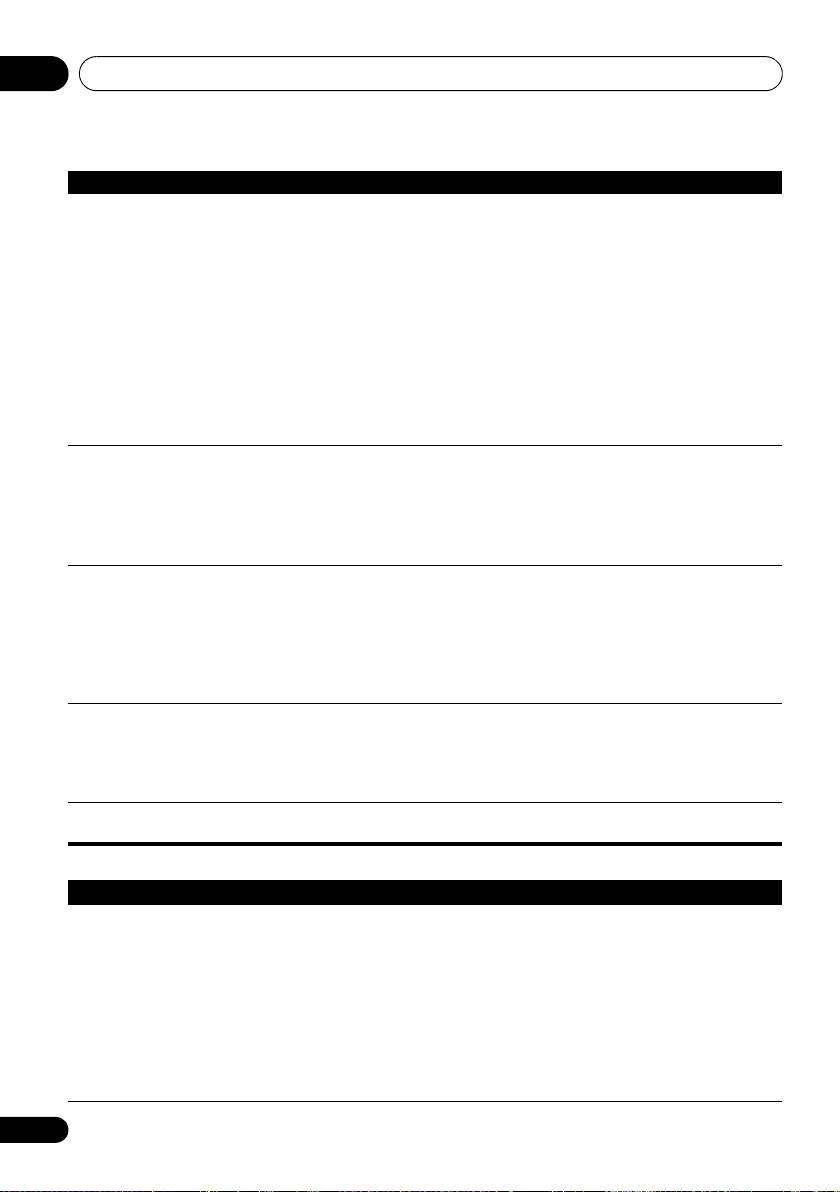
En
VSX-1020_SYXCN.book 110 ページ 2010年3月12日 金曜日 午前9時10分
Additional information12
Symptom Remedy
No sound from subwoofer. • Check that the subwoofer is connected properly, switched on and the volume
turned up.
• If your subwoofer has a sleep function, make sure it is switched off.
• Make sure that the Subwoofer setting is YES or PLUS (see Speaker Setting on
page 102).
• The crossover frequency may be set too low; try setting it higher to match the
characteristics of your other speakers (see Speaker Setting on page 102).
• If there is very little low frequency information in the source material, change
your speaker settings to Front: SMALL / Subwoofer: YES, or Front: LARGE /
Subwoofer: PLUS (see Speaker Setting on page 102).
• Check that the LFE channel is not set to OFF, or to a very quiet setting (see
Setting the Audio options on page 68).
• Check the speaker level settings (see Channel Level on page 103).
No sound from one speaker. • Check the speaker connection (see Connecting the speakers on page 20).
• Check the speaker level settings (see Channel Level on page 103).
• Check that the speaker hasn’t been set to
NO
(see
Speaker Setting
on page 102).
• The channel may not be recorded in the source. By using one of the advanced
effect listening modes, you may be able to create the missing channel (see
Listening in surround sound on page 57).
Sound is produced from
• Check that the input signal type is set to DIGITAL (see Choosing the input
analog components, but not
signal on page 61).
from digital ones (DVD, LD,
• Make sure that the digital input is assigned correctly for the input jack the
CD-ROM, etc.).
component is connected to (see The Input Setup menu on page 42).
• Check the digital output settings on the source component.
• If the source component has a digital volume control, make sure this is not
turned down.
No sound is output or a noise
• Check that your DVD player is compatible with Dolby Digital/DTS discs.
is output when Dolby Digital/
• Check the digital output settings of your DVD player. Make sure that the DTS
DTS software is played back.
signal output is set to On.
• If the source component has a digital volume control, make sure this is not
turned down.
No sound when using the
• If the HDMI input function is selected, sound is muted until exiting the Home
Home Menu.
Menu.
Other audio problems
Symptom Remedy
Broadcast stations cannot be
For FM broadcasts
selected automatically, or
• Fully extend the FM wire antenna, adjust the position for best reception and
there is considerable noise in
secure to a wall, etc.
radio broadcasts.
• Use an outdoor antenna for better reception (see page 31).
For AM broadcasts
• Adjust the position and direction of the AM antenna.
• Use an outdoor antenna for better reception (see page 31).
• Noise may be caused by interference from other equipment, such as a
fluorescent light, motor, etc. Switch off or move the other equipment, or move
the AM antenna.
110
En
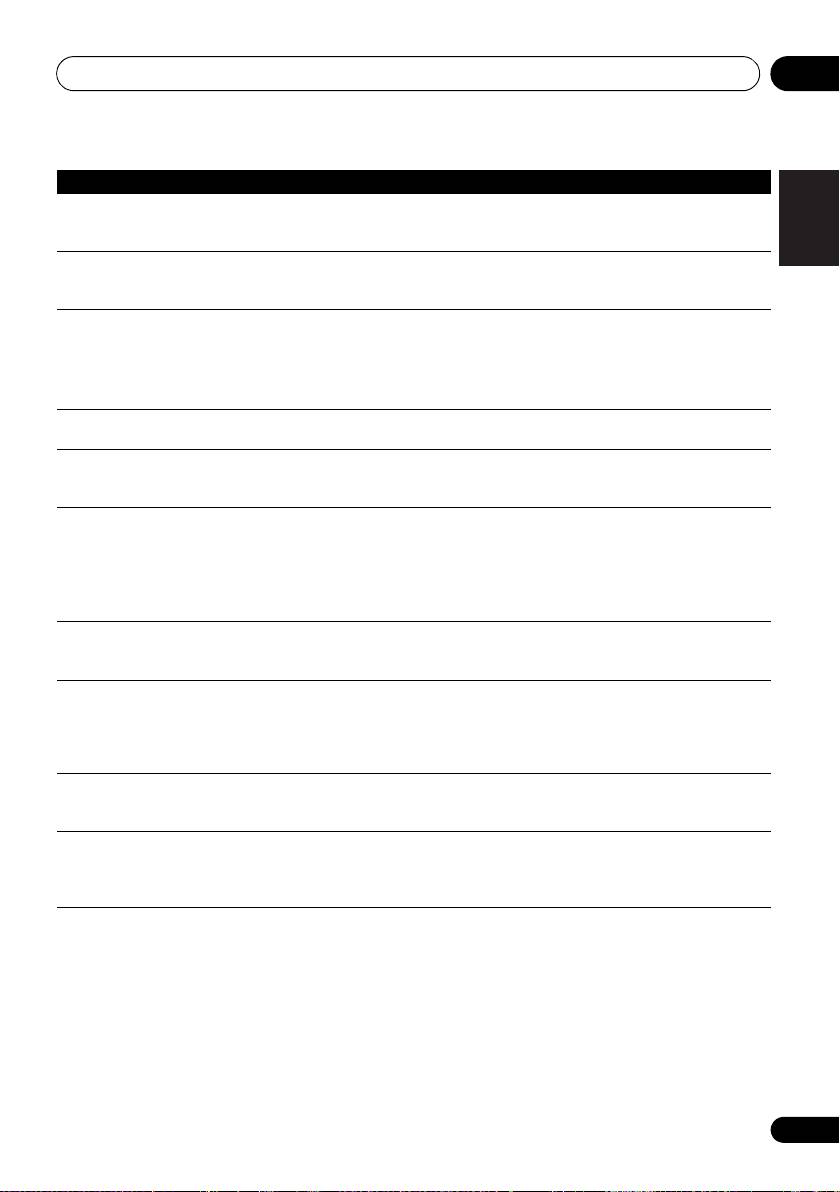
VSX-1020_SYXCN.book 111 ページ 2010年3月12日 金曜日 午前9時10分
Additional information 12
Symptom Remedy
English
Noise is output when
• This is not a malfunction of the receiver. The scan function of your player
scanning a DTS CD.
alters the digital information, making it unreadable, resulting in noise being
output. Lower the volume when scanning.
When playing a DTS format
• Make sure that the input signal type is set to DIGITAL (see Choosing the input
LD there is audible noise on
signal on page 61).
the soundtrack.
Deutsch
Can’t record audio. • You can only make a digital recording from a digital source, and an analog
recording from an analog source.
• For digital sources, make sure that what you’re recording isn’t copy protected.
• Check that the OUT jacks are properly connected to the recorders input jacks
(see Connecting other audio components on page 30).
Français
Subwoofer output is very low. • To route more signal to the subwoofer, set it to PLUS or set the front speakers
to SMALL (see Speaker Setting on page 102).
Everything seems to be set up
• The speakers may be out of phase. Check that the positive/negative speaker
correctly, but the playback
terminals on the receiver are matched with the corresponding terminals on the
sound is odd.
speakers (see Connecting the speakers on page 20).
The PHASE CONTROL
• If applicable, check that the lowpass filter switch on your subwoofer is off, or
Italiano
feature doesn’t seem to have
the lowpass cutoff is set to the highest frequency setting. If there is a PHASE
an audible effect.
setting on your subwoofer, set it to 0º (or depending on the subwoofer, the
setting where you think it has the best overall effect on the sound).
• Make sure the speaker distance setting is correct for all speakers (see Speaker
Distance on page 103).
Nederlands
Noise or hum can be heard
• Check that personal computers or other digital components connected to the
even when there is no sound
same power source are not causing interference.
being input.
Can’t select some Input
• Check the Input Skip settings in the Input Setup menu.
functions by the INPUT
• Check the HDMI Input assignment in the Input Setup menu then try OFF.
SELECTOR on the front panel
or the INPUT SELECT button
Español
on the remote control.
There seems to be a time lag
• See Automatically conducting optimum sound tuning (Auto MCACC) on
between the speakers and
page 39 to set up your system again using MCACC (this will automatically
the output of the subwoofer.
compensate for a delay in the subwoofer output).
The maximum volume
• Check that the Volume Limit is set to OFF (see Volume Setup on page 106).
available (shown in the front
• The channel level setting may be over 0dB.
panel display) is lower than
the +12dB maximum.
111
En
VSX-1020_SYXCN.book 112 ページ 2010年3月12日 金曜日 午前9時10分
Additional information12
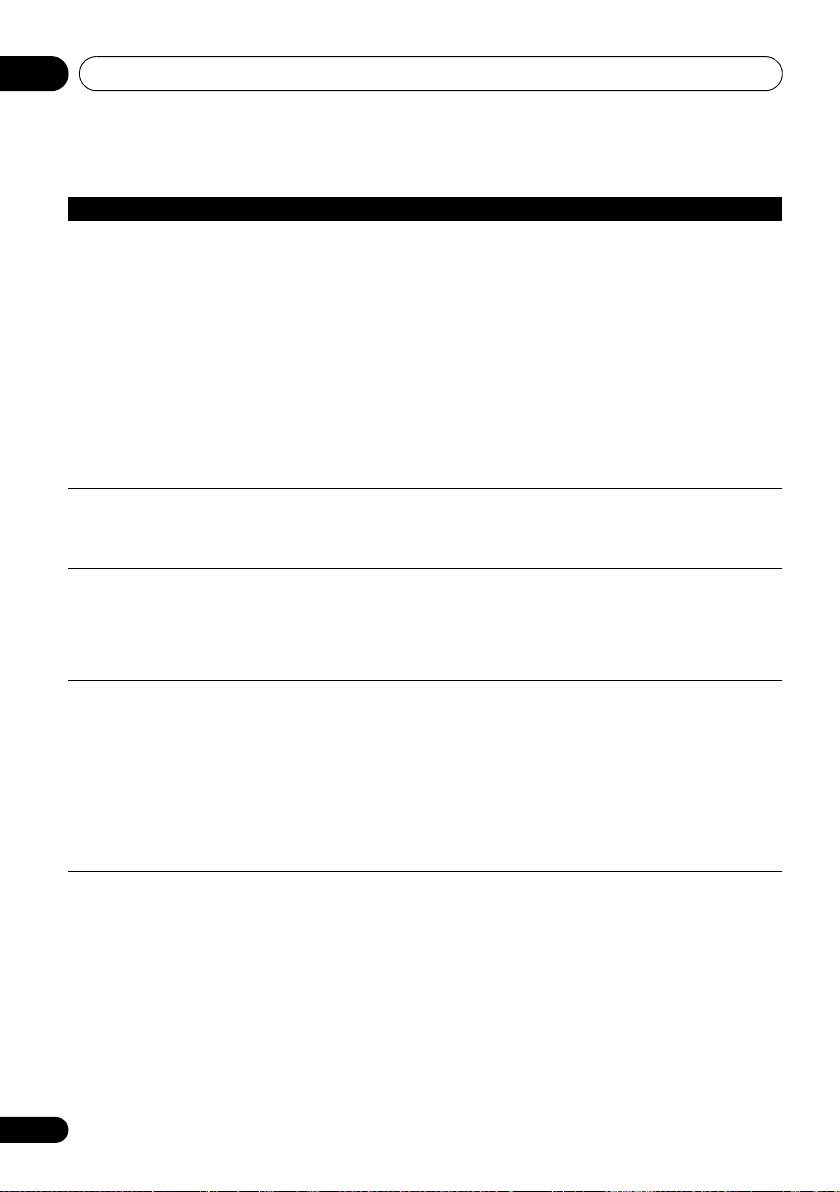
Video
Symptom Remedy
No image is output when an
• Check the video connections of the source component (see page 29).
input is selected.
• For HDMI, or when digital video conversion is set to OFF and a TV and another
component are connected with different cords (in Setting the Video options on
page 71), you must connect your TV to this receiver using the same type of video
cable as you used to connect your video component.
• Make sure the input assignment is correct for components connected using
component video or HDMI cables (see The Input Setup menu on page 42).
• Check the video output settings of the source component.
• Check that the video input you selected on your TV is correct.
• Some components (such as video game units) have resolutions that may not
be converted. If adjusting this receiver’s Resolution setting (in Setting the Video
options on page 71) and/or the resolution settings on your component or
display doesn’t work, try switching Digital Video Conversion (in Setting the Video
options on page 71) to OFF.
Can’t record video. • Check that the source is not copy-protected.
• The video converter is not available when making recordings. Check that the
same type of video cable is used for connecting both the recorder and the video
source (the one you want to record) to this receiver.
Noisy, intermittent, or
• Sometimes a video deck may output a noisy video signal (during scanning,
distorted picture.
for example), or the video quality may just be poor (with some video game units,
for example). The picture quality may also depend on the settings, etc. of your
display device. Switch off the video converter and reconnect the source and
display device using the same type of connection (component or composite),
then start playback again.
Video signals are not output
• When a monitor only compatible with resolutions of 480i is connected to the
from the component
component terminal and another monitor is connected to the HDMI terminal,
terminal.
the video signals may not be output to the monitor connected to the component
terminal. If this happens, do the following:
– Turn off the power of the monitor connected to the HDMI terminal.
– Change the VIDEO PARAMETER menu RES setting (page 71).
– Video signals from the HDMI terminal cannot be output to the component
terminals. Input the video signals from the player or other source to the
composite or component terminals. When using the component terminal,
assign it at Input Setup.
112
En

VSX-1020_SYXCN.book 113 ページ 2010年3月12日 金曜日 午前9時10分
Additional information 12
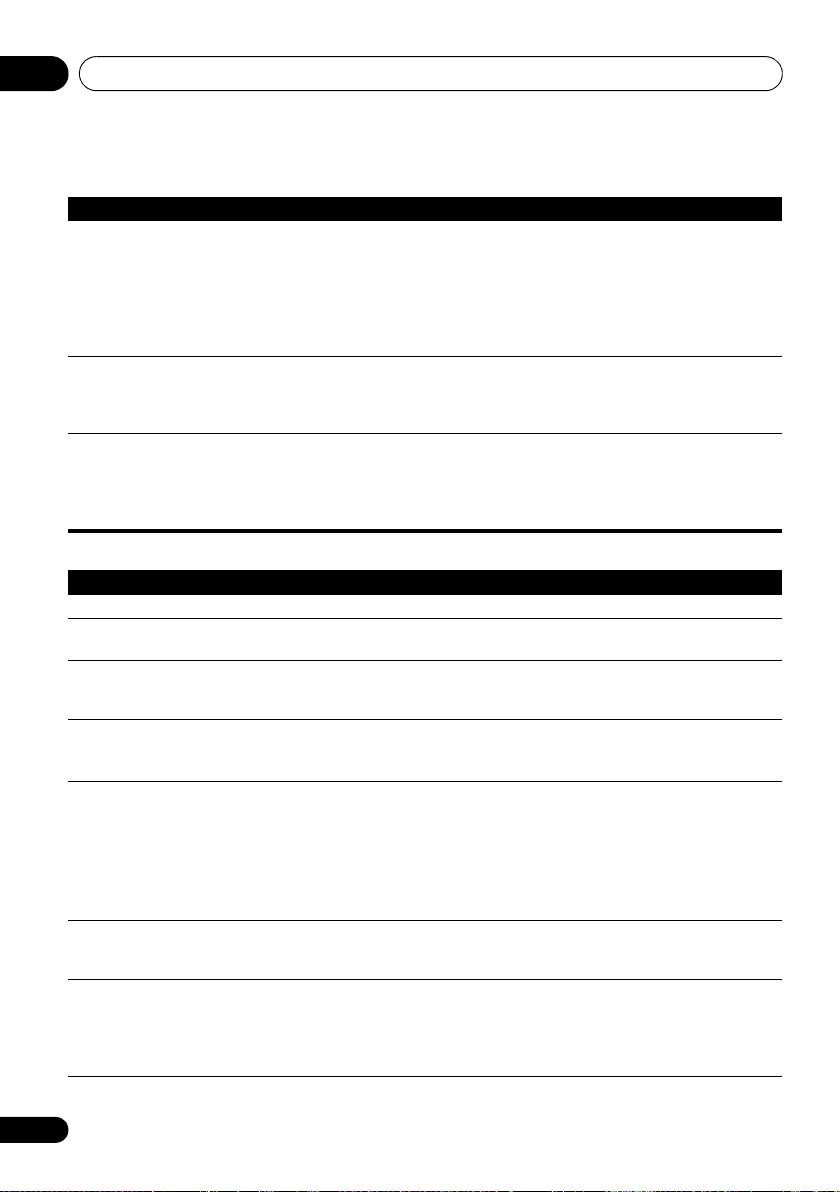
Settings
English
Symptom Remedy
The Auto MCACC Setup
• The ambient noise level may be too high. Keep the noise level in the room as
continually shows an error.
low as possible (see also Problems when using the Auto MCACC Setup on
page 42). If the noise level cannot be kept low enough, you will have to set up
the surround sound manually (page 100).
Deutsch
• When using only one surround back speaker, connect it to the SURROUND
BACK L (Single) terminals.
• To use a 5.1-channel speaker set, use the surround speakers for the surround
channel, not the surround back channel.
• Make sure there are no obstacles between the speakers and the microphone.
• If Reverse Phase is displayed, try the following:
Français
– The speaker’s wiring (+ and –) may be inverted. Check the speaker
connections.
– Depending on the type of speakers and their installation conditions, Reverse
Phase may be displayed even if the speakers are properly connected. If this
happens, select GO NEXT and continue.
– If the speaker is not pointed to the microphone (listening position) or when
Italiano
using speakers that affect the phase (dipole speakers, reflective speakers, etc.),
it may not be possible to properly identify the polarity.
After using the Auto MCACC
• There may have been some low frequency noise in the room from an air-
Setup, the speaker size
conditioner, motor, etc. Switch off all other appliances in the room and use
setting is incorrect.
Auto MCACC Setup again.
Nederlands
• Depending on a number of factors (bass reproduction capabilities of the
speakers, room size, speaker placement, etc.) this may occur in some cases.
Change the speaker setting manually in Speaker Setting on page 102, and use
the ALL (Keep SP System) option for the Auto MCACC menu in Automatic
MCACC (Expert) on page 87 if this is a recurring problem.
Can’t adjust the Fine Speaker
• Check that the speakers are all in phase (make sure the positive (+) and
Distance setting (page 91)
negative (–) terminals are matched up properly).
Español
properly.
The display shows KEY LOCK
• With the receiver in standby, press STANDBY/ON for about 10 seconds
ON when you try to make
while holding down SPEAKERS to disable the key lock.
settings.
Most recent settings have
• The power cord was disconnected from the wall while adjusting this setting.
been erased.
• Settings are only stored if all the zones are turned off. Turn off all the zones
before unplugging the power cord.
The various system settings
• Do not pull out the power cord while conducting the settings. (The settings
are not stored.
will be stored when both the main zone and sub zone turn off. Turn off all zones
before pulling out the power cord.)
113
En
VSX-1020_SYXCN.book 114 ページ 2010年3月12日 金曜日 午前9時10分
Additional information12
Professional Calibration EQ graphical output
Symptom Remedy
The EQ response displayed in
• There are cases where the graph does not appear flat (even when selecting
the graphical output
ALL CH ADJ in the Auto MCACC Setup) due to adjustments made to
following calibration does not
compensate for room characteristics to achieve optimal sound.
appear entirely flat.
• Areas of the graph may appear identical (before and after) when there is little
or no adjustment needed.
• The graph may appear to have shifted vertically when comparing before and
after measurements.
EQ adjustments made using
• Despite level adjustments being made, the filters used for analysis may not
the Manual MCACC setup on
display these adjustments in the graphical output. However, these adjustments
page 90 do not appear to
are taken this into account by the filters dedicated to overall system calibration.
change the graphical output.
Lower frequency response
• Low frequencies used in bass management (the subwoofer channel) will not
curves do not seem to have
change for speakers that have been specified as SMALL in the configuration,
been calibrated for SMALL
or do not output these frequencies.
speakers.
• Calibration is performed, but due to your speakers’ low frequency limitations,
no measurable sound is output for display.
Display
Symptom Remedy
The display is dark or off. • Press DIMMER repeatedly to select a different brightness.
After making an adjustment
• Press DIMMER repeatedly to select a different brightness.
the display goes off.
You can’t get DIGITAL to
• Check the digital connections and make sure that the digital inputs are
display when using SIGNAL
assigned correctly (see The Input Setup menu on page 42).
SEL.
2 DIGITAL or DTS does not
• These indicators do not light if playback is paused.
light when playing Dolby/DTS
• Check the playback (especially the digital output) settings of the source
software.
component.
When playing Dolby Digital
• Check that the player is connected using a digital connection.
or DTS sources, the receiver’s
• Make sure that the receiver is set to AUTO or DIGITAL (see Choosing the
format indicators do not light.
input signal on page 61).
• Check that the player isn’t set up so that Dolby Digital and DTS sources are
converted to PCM.
• Ensure that if there are several audio tracks on the disc, the Dolby Digital or
DTS is selected.
When playing certain discs,
• The disc may not contain 5.1/6.1 channel material. Check the disc packaging
none of the receiver’s format
for more on what audio tracks are recorded on the disc.
indicators light.
When playing a disc with the
• Make sure that the receiver is set to AUTO or DIGITAL (see Choosing the
listening mode set to Auto
input signal on page 61).
Surround or ALC, 2 PL II or
• If a two channel soundtrack is currently playing (including Dolby Surround
Neo:6 appear on the receiver.
encoded), then this is not a malfunction. Check the disc packaging for details
about the audio tracks available.
114
En

VSX-1020_SYXCN.book 115 ページ 2010年3月12日 金曜日 午前9時10分
Additional information 12
Symptom Remedy
English
During playback of DVD-
• This will occur when playing DVD-Audio material over the HDMI connection.
Audio, the display shows
This is not a malfunction.
PCM.
The power turns off
• See the Power section (page 108).
automatically and some
Deutsch
indicator flashes, or some
indicator flashes and the
power does not turn on.
Remote control
Symptom Remedy
Français
Cannot be remote controlled. • Set the remote control unit’s remote control mode so that it matches the
setting on the receiver (see Operating multiple receivers on page 77).
• Check whether the receiver’s remote control mode is properly set (see
Remote Control Mode Setup on page 107).
• Try replacing the batteries in the remote control (see Loading the batteries on
page 8).
Italiano
• Be sure to operate within 7 m and a 30º angle of the remote sensor on the
front panel (see Operating range of remote control unit on page 14).
• Check that there are no obstacles between the receiver and the remote
control.
• Make sure that there is no fluorescent or other strong light shining on to the
Nederlands
remote sensor.
• Check the connections of the CONTROL IN jacks (see Operating other Pioneer
components with this unit’s sensor on page 37).
Other components can’t be
• If the battery ran down, the preset codes may have been cleared. Re-enter the
operated with the system
preset codes.
remote.
• The preset code may be incorrect. Redo the procedure for entering preset
codes.
Español
115
En
VSX-1020_SYXCN.book 116 ページ 2010年3月12日 金曜日 午前9時10分
Additional information12
HDMI
Symptom Remedy
The HDMI indicator blinks
• Check all the points below.
continuously.
No picture or sound. • This receiver is HDCP-compatible. Check that the components you are
connecting are also HDCP-compatible. If they are not, please connect them
using the component or composite video jacks.
• Depending on the connected source component, it’s possible that it will not
work with this receiver (even if it is HDCP-compatible). In this case, connect
using the component or composite video jacks between source and receiver.
• If the problem still persists when connecting your HDMI component directly
to your monitor, please consult the component or monitor manual or contact
the manufacturer for support.
• If video images do not appear on your TV, try adjusting the resolution, Deep
Color or other setting for your component.
• While analog video signals are being output over HDMI, use a separate
connection for audio output.
®
• To output signals in Deep Color, use an HDMI cable (High Speed HDMI
Cable) to connect this receiver to a component or TV with the Deep Color
feature.
No picture. • Try changing the Resolution setting (in Setting the Video options on page 71).
No sound, or sound suddenly
• Check that the HDMI AV setting is set to AMP/THROUGH.
ceases.
• If the component is a DVI device, use a separate connection for the audio.
• If analog video is being output over HDMI, please use a separate connection
for the audio.
• Check the audio output settings of the source component.
• HDMI format digital audio transmissions require a longer time to be
recognized. Due to this, interruption in the audio may occur when switching
between audio formats or beginning playback.
• Turning on/off the device connected to this unit's HDMI OUT terminal during
playback, or disconnecting/connecting the HDMI cable during playback, may
cause noise or interrupted audio.
Noisy or distorted picture. • Sometimes a video deck may output a noisy video signal (during scanning,
for example), or the video quality may just be poor (with some video game units,
for example). The picture quality may also depend on the settings, etc. of your
display device. Switch off the video converter and reconnect the source and
display device using the same type of connection (component or composite),
then start playback again.
• If the problem still persists when connecting your HDMI component directly
to your monitor, please consult the component or monitor manual or contact
the manufacturer for support.
HDCP ERROR shows in the
• Check whether or not the connected component is compatible with HDCP. If
display.
it is not compatible with HDCP, reconnect the source device using a different
type of connection (component or composite). Some components that are
compatible with HDCP still cause this message to be displayed, but so long as
there is no problem with displaying video, this is not a malfunction.
116
En
VSX-1020_SYXCN.book 117 ページ 2010年3月12日 金曜日 午前9時10分
Additional information 12
Symptom Remedy
English
When Control with HDMI is
• Even when Control with HDMI is set to ON, for Digital In assignment of
set to ON, the HDMI Input
HDMI 1 is not canceled, so in this case use the HDMI IN 1 input.
assignment at Input Setup is
canceled.
Synchronized operation not
• Check the HDMI connections.
Deutsch
possible using Control with
• The cable may be damaged.
HDMI function.
• Select ON for the Control with HDMI setting (see HDMI Setup on page 64).
• Select ALL for the Control Mode
setting (see HDMI Setup on page 64).
• Turn the TV’s power on before turning on this receiver’s power.
• Set the TV side Control with HDMI setting to on (see TV’s operating
instructions).
Français
Important information regarding the HDMI connection
There are cases where you may not be able to
Configuration B
route HDMI signals through this receiver (this
Connect your HDMI-equipped component
depends on the HDMI-equipped component
directly to the display using an HDMI cable.
you are connecting–check with the
Then use the most convenient connection
Italiano
manufacturer for HDMI compatibility
(digital is recommended) for sending audio to
information).
the receiver. See the operating instructions for
If you aren’t receiving HDMI signals properly
more on audio connections. Set the display
through this receiver (from your component),
volume to minimum when using this
please try one of the following configurations
configuration.
Nederlands
when connecting up.
Note
Configuration A
Use component video cables to connect the
• If your display only has one HDMI
video output of your HDMI-equipped
terminal, you can only receive HDMI video
component to the receiver’s component video
from the connected component.
Español
input. The receiver can then convert the analog
• Depending on the component, audio
component video signal to a digital HDMI
output may be limited to the number of
signal for transmission to the display. For this
channels available from the connected
configuration, use the most convenient
display unit (for example audio output is
connection (digital is recommended) for
reduced to 2 channels for a monitor with
sending audio to the receiver. See the
stereo audio limitations).
operating instructions for more on audio
• If you want to switch the input function,
connections.
you’ll have to switch functions on both the
receiver and your display unit.
Note
• Since the sound is muted on the display
• The picture quality will change slightly
when using the HDMI connection, you
during conversion.
must adjust the volume on the display
every time you switch input functions.
117
En

VSX-1020_SYXCN.book 118 ページ 2010年3月12日 金曜日 午前9時10分
Additional information12
USB interface
Symptoms Causes Remedies
The folders/files stored on
The folders/files are currently stored
Store the folders/files in the FAT region.
a USB memory device are
in a region other than the FAT (File
not displayed.
Allocation Table) region.
The number of levels in a folder is
Limit the maximum number of levels in a
more than 8.
folder to 8 (page 47).
There are more than 30 000 folders/
Limit the maximum number of folders/files
files stored in a USB memory device.
stored in a USB memory device to 30 000
(page 47).
The audio files are copyrighted. Copyrighted audio files stored on a USB
memory device cannot be played back
(page 47).
A USB memory device is
The USB memory device does not
Try using a USB memory device compatible
not recognized.
support the mass storage class
with the mass storage class specifications.
specifications.
Note that there are cases where even the
audio files stored on a USB memory device
compatible with the mass storage class
specifications are not played back on this
receiver (page 47).
Some formats of USB memory
Check whether the format of your USB
devices, including NTFS, and HFS,
memory device is either FAT 12, FAT 16 or
cannot be played back on this
FAT 32. Note that the NTFS, and HFS
receiver.
formats cannot be played back on this
receiver (page 47).
The USB memory device is not
Check the USB memory device connection,
connected properly.
then switch on this receiver (page 36).
A USB hub is currently being used. This receiver does not support USB hubs
(page 47).
This receiver recognizes the USB
Switch off and on again this receiver.
memory device as a fraud.
A USB memory device is
The file format cannot be properly
See the list of file formats that can be played
connected and displayed,
played back on this receiver.
back on this receiver (page 49).
but the audio files stored
on the USB memory device
cannot be played back.
Cannot detect USB
The USB keyboard is routed through
This receiver is not compatible with USB
keyboard.
a USB hub.
hubs. Plug the keyboard directly into the
receiver.
A PS2 keyboard is routed through a
PS2 keyboards cannot be used with this
PS2/USB connector.
receiver, even if routed through a PS2/USB
connector. Use a USB keyboard.
Keyboard is not a USB HID Class
Some devices will not be detected. Use a
device.
USB HID Class keyboard.
Cannot enter correct text
Keyboard is not US-international
Use a US-international layout keyboard.
using the USB keyboard.
layout keyboard.
NB: Some characters cannot be entered.
118
En

VSX-1020_SYXCN.book 119 ページ 2010年3月12日 金曜日 午前9時10分
Additional information 12
ADAPTER PORT
English
Symptom Remedy
The Bluetooth wireless
• Check that no object that emits electromagnetic waves in the 2.4 GHz
technology device cannot
band (microwave oven, wireless LAN device or Bluetooth wireless
be connected or operated.
technology apparatus) is near the unit. If such an object is near the unit,
Sound from the Bluetooth
set the unit far from it. Or, stop using the object emitting the
Deutsch
wireless technology device
electromagnetic waves.
is not emitted or the sound
• Check that the Bluetooth wireless technology device is not too far from
is interrupted.
the unit and that obstructions are not set between the Bluetooth wireless
technology device and the unit. Set the Bluetooth wireless technology
device and the unit so that the distance between them is less than about
Français
10 m and no obstructions exist between them.
• Check that the Bluetooth ADAPTER and the ADAPTER PORT of the unit
are correctly connected.
• The Bluetooth wireless technology device may not be set to the
communication mode supporting the Bluetooth wireless technology.
Check the setting of the Bluetooth wireless technology device.
Italiano
• Check that pairing is correct. The pairing setting was deleted from this
unit or the Bluetooth wireless technology device. Reset the pairing.
• Check that the profile is correct. Use a Bluetooth wireless technology
device that supports A2DP profile and AVRCP profile.
Nederlands
Internet radio
Symptoms Causes Remedies
Cannot access the
The LAN cable is not firmly
Firmly connect the LAN cable (page 34).
network. (“Connection
connected.
Error” shows in the
The router is not switched on. Switch on the router.
display.)
The network device was switched on
Switch the network device on before the
Español
when this receiver was already on.
receiver.
Cannot listen to Internet
The firewall settings for components
Check the firewall settings for components
radio stations.
on the network are currently in
on the network.
(“Connection Error”
operation.
shows in the display.)
You are currently disconnected from
Check the connection settings for
the Internet.
components on the network, and consult
with your network service provider if
necessary (page 104).
The URL for the Internet radio
Check that the URL was correctly entered
station is incorrectly programmed.
when programming.
The broadcasts from an Internet radio
Broadcasts may be interrupted or
station are stopped or interrupted.
suspended by the radio station.
An Internet radio station is selected
This receiver does not recognize protocols
whose protocol this receiver does
other than ‘http’ and ‘mms’.
not recognize.
An Internet radio station had closed
Enter new internet radio station on the
or moved.
Internet Radio Setup.
119
En

VSX-1020_SYXCN.book 120 ページ 2010年3月12日 金曜日 午前9時10分
Additional information12
Symptoms Causes Remedies
Cannot listen to Internet
Broadcast is in a format not
This receiver cannot play audio in formats
radio stations. (“File
compatible with this receiver.
other than MP3 or WMA. Also, even if they
Format Error” shows in
are MP3 or WMA formats, this receiver may
the display.)
not be able to play back.
The Internet radio settings
This receiver’s IP address has not
Check the receiver’s IP address and enter it
screen cannot be
been entered into the browser
correctly on the browser (page 104).
displayed on the
correctly.
computer’s Internet
JavaScript is disabled on the
Enable JavaScript.
browser.
Internet browser.
The browser is not compatible with
Use an Internet browser that is compatible
JavaScript.
with JavaScript.
If the problem is not solved after the troubleshooting above, if the screen freezes unexpectedly or
if the buttons on the remote control or front panel stop working completely, do the following:
• Press STANDBY/ON on the front panel to turn off the power, then turn the power back on.
• If the power cannot be turned off, press and hold STANDBY/ON on the front panel for over
10 seconds. The power will turn off. (In this case, the various settings made on the receiver may
be cleared.)
120
En
