
Pioneer XC-HM70-K: instruction
Class: Household, kitchen appliances, electronics and equipment
Type: Home Theater System
Manual for Pioneer XC-HM70-K
Table of contents
- VENTILATION CAUTION IMPORTANT Operating Environment
- Contents Accessories
- Before you start
- Controls and Displays Remote control
- Front Panel Speaker system (X-HM70 only)
- Connecting your equipment Aerial connection
- Speaker connection Using other subwoofer Connecting a TV, etc.
- Connecting to the network through LAN interface AC power connection
- General control To turn the power on Setting the clock Auto power down setup
- Enhancing your system
- Listening to a CD or MP3/ WMA disc
- Advanced CD or MP3/WMA disc playback
- MP3/WMA folder mode (only for MP3/WMA files)
- Procedure to playback MP3/WMA disc with folder mode on
- Listening to the iPod, iPhone or iPad Supported iPod, iPhone and iPad models: Connecting your iPod/iPhone To insert iPad adaptor
- Playing an iPod, iPhone or iPad Basic playback controls
- Listening to USB mass storage device/MP3 player Connecting a USB device Playing a USB device
- Playback with NETWORK feature Listening to Internet radio stations
- Playing back audio files stored on components on the network Playing back your favorite songs
- Network connection requirements
- Glossary
- Listening to the radio Improving FM sound Saving station presets Listening to station presets Naming preset stations Changing the noise cut mode
- Using the Radio Data System (RDS) An introduction to RDS Displaying RDS information Searching for RDS programs
- Timer and sleep operation Sleep operation Setting the wake-up timer Turning the wake-up timer on/off
- Additional Information
- Additional Information
- Additional Information
- Category Extension Stream About playable music file formats Category Extension Stream About status messages Status messages Descriptions
- Specifications About iPod/iPhone/iPad
X-HM70_En_Anki.fm 1 ページ 2011年8月2日 火曜日 午後7時9分
X-HM70-S/-K XC-HM70-S/-K
NETWORK CD RECEIVER SYSTEM
NETWORK CD RECEIVER
MICRO CHAINE CD ET RESEAU
MICRO CHAINE CD ET RESEAU
SISTEMA RECEPTOR DE CD EN RED
RECEPTOR DE CD EN RED
NETWORK-CD-RECEIVER-SYSTEM
NETWORK-CD-RECEIVER
SISTEMA DI RETE CON AMPLIFICATORE E CD
AMPLIFICATORE CON CD E RETE
NETWORK CD RECEIVER SYSTEM
NETWORK CD RECEIVER
СИСТЕМА СЕТЕВОГО РЕСИВЕРА CD
СЕТЕВОЙ РЕСИВЕР CD
Discover the benefits of registering your product online at http://www.pioneer.co.uk (or http://www.pioneer.eu).
Découvrez les nombreux avantages offerts en enregistrant votre produit en ligne maintenant sur http://www.pioneer.fr (ou http://www.pioneer.eu).
Registre su producto en http://www.pioneer.es (o en http://www.pioneer.eu) Descubra los beneficios de registrarse on-line:
Bitte nutzen Sie die Möglichkeit zur Registrierung Ihres Produktes unter http://www.pioneer.de (oder http://www.pioneer.eu)
Registra il tuo prodotto su http://www.pioneer.it (o http://www.pioneer.eu) e scopri subito quali vantaggi puoi ottenere!
Ontdek nu de voordelen van online registratie! Registreer uw Pioneer product via http://www.pioneer.nl
- http://www.pioneer.be (of http://www.pioneer.eu).
Зарегистрируйте Baшe изделие на http://www.pioneer-rus.ru (или http://www.pioneer.eu).
Oзнакомьтесь с преимуществами регистрации в Интернет
Operating Instructions | Mode d’emploi | Manual de instrucciones | Bedienungsanleitung |
Istruzioni per I’uso | Handleiding |
Инструкции по эксплуатации
2
En
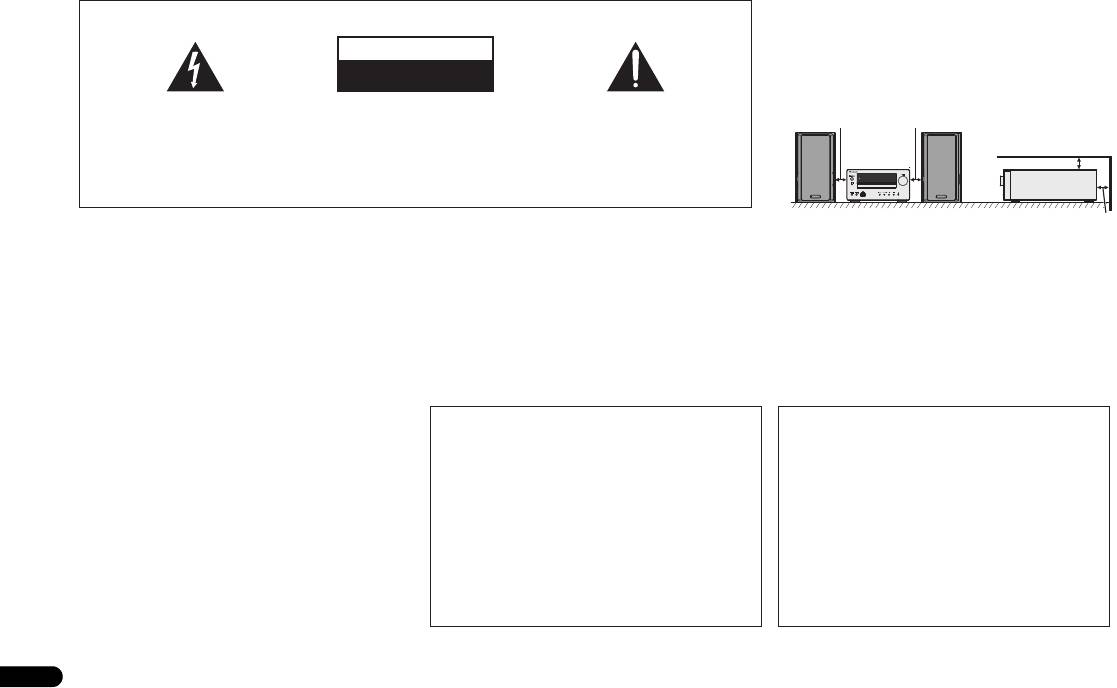
VENTILATION CAUTION
IMPORTANT
When installing this unit, make sure to leave space
around the unit for ventilation to improve heat radiation
CAUTION
(at least 10 cm at top, 10 cm at rear, and 10 cm at each
RISK OF ELECTRIC SHOCK
side).
DO NOT OPEN
The lightning flash with arrowhead symbol,
CAUTION:
The exclamation point within an equilateral
within an equilateral triangle, is intended to
TO PREVENT THE RISK OF ELECTRIC
triangle is intended to alert the user to the
10 cm 10 cm
alert the user to the presence of uninsulated
SHOCK, DO NOT REMOVE COVER (OR
presence of important operating and
“dangerous voltage” within the product’s
BACK). NO USER-SERVICEABLE PARTS
maintenance (servicing) instructions in the
10 cm
enclosure that may be of sufficient
INSIDE. REFER SERVICING TO QUALIFIED
literature accompanying the appliance.
magnitude to constitute a risk of electric
SERVICE PERSONNEL.
TIMER
shock to persons.
D3-4-2-1-1_A1_En
10 cm
WARNING
Operating Environment
WARNING
This equipment is not waterproof. To prevent a fire or
Operating environment temperature and humidity:
Slots and openings in the cabinet are provided for
shock hazard, do not place any container filled with liquid
+5 °C to +35 °C (+41 °F to +95 °F); less than 85 %RH
ventilation to ensure reliable operation of the product,
near this equipment (such as a vase or flower pot) or
(cooling vents not blocked)
and to protect it from overheating. To prevent fire
expose it to dripping, splashing, rain or moisture.
Do not install this unit in a poorly ventilated area, or in
hazard, the openings should never be blocked or
D3-4-2-1-3_A1_En
locations exposed to high humidity or direct sunlight (or
covered with items (such as newspapers, table-cloths,
strong artificial light)
curtains) or by operating the equipment on thick carpet
D3-4-2-1-7c*_A1_En
or a bed.
D3-4-2-1-7b*_A1_En
WARNING
Before plugging in for the first time, read the following
If the AC plug of this unit does not match the AC
CAUTION
section carefully.
outlet you want to use, the plug must be removed
The STANDBY/ON switch on this unit will not
The voltage of the available power supply differs
and appropriate one fitted. Replacement and
completely shut off all power from the AC outlet.
according to country or region. Be sure that the
mounting of an AC plug on the power supply cord of
Since the power cord serves as the main disconnect
power supply voltage of the area where this unit
this unit should be performed only by qualified
device for the unit, you will need to unplug it from the
will be used meets the required voltage (e.g., 230 V
service personnel. If connected to an AC outlet, the
AC outlet to shut down all power. Therefore, make
or 120 V) written on the rear panel.
D3-4-2-1-4*_A1_En
cut-off plug can cause severe electrical shock. Make
sure the unit has been installed so that the power
sure it is properly disposed of after removal.
cord can be easily unplugged from the AC outlet in
The equipment should be disconnected by removing
case of an accident. To avoid fire hazard, the power
the mains plug from the wall socket when left unused
cord should also be unplugged from the AC outlet
WARNING
for a long period of time (for example, when on
when left unused for a long period of time (for
To prevent a fire hazard, do not place any naked flame
vacation).
example, when on vacation).
sources (such as a lighted candle) on the equipment.
D3-4-2-2-1a_A1_En
D3-4-2-2-2a*_A1_En
D3-4-2-1-7a_A1_En
X-HM70_En_Anki.fm 2 ページ 2011年8月1日 月曜日 午後9時40分
X-HM70_En_Anki.fm 3 ページ 2011年8月1日 月曜日 午後9時40分
Condensation
If the player is moved suddenly from a cold place into a
English Français Español Italiano
warm room (in winter, for example) or if the
temperature in the room in which the player is installed
rises suddenly due to a heater, etc., water droplets
(condensation) may form inside (on operating parts and
the lens). When condensation is present, the player will
not operate properly and playback is not possible. Let
the player stand at room temperature for 1 or 2 hours
with the power turned on (the time depends on the
extent of condensation). The water droplets will
dissipate and playback will become possible.
Condensation can also occur in the summer if the
player is exposed to the direct wind from an
air-conditioner. If this happens, move the player to a
different place.
S005_A1_En
Deutsch
This product is for general household purposes. Any
failure due to use for other than household purposes
(such as long-term use for business purposes in a
restaurant or use in a car or ship) and which requires
repair will be charged for even during the warranty
period.
K041_A1_En
CAUTION
Nederlands
This product is a class 1 laser product classified
under the Safety of laser products, IEC 60825-1:2007.
CLASS 1 LASER PRODUCT
D58-5-2-2a_A1_En
3
En
X-HM70_EnTOC.fm 4 ページ 2011年8月1日 月曜日 午後9時39分
Thank you for purchasing this PIONEER product. To obtain the best performance from this product, please read this manual carefully. It will guide you in operating your PIONEER product.
Playback with NETWORK feature. . . . . . . . . . . 20
X-HM70 Network CD Receiver System consisting of main unit
Contents
Listening to Internet radio stations . . . . . . . . . . . . . . . . . 20
and speaker system.
Playing back audio files stored on components on the
XC-HM70 Network CD Receiver consisting of main unit.
Accessories. . . . . . . . . . . . . . . . . . . . . . . . . . . . . . 4
network. . . . . . . . . . . . . . . . . . . . . . . . . . . . . . . . . . . . . . 21
Playing back your favorite songs. . . . . . . . . . . . . . . . . . . 21
Before you start . . . . . . . . . . . . . . . . . . . . . . . . . 5
General . . . . . . . . . . . . . . . . . . . . . . . . . . . . . . . . . . . . . . . 5
Network setup menu . . . . . . . . . . . . . . . . . . . . . . . . . . . 21
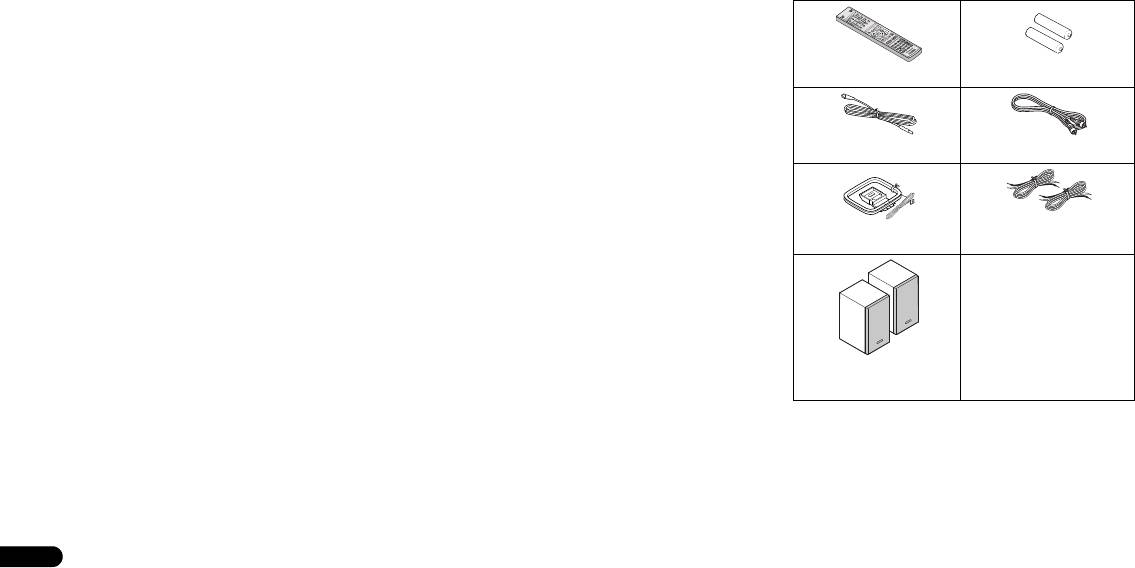
Accessories
Loading the batteries. . . . . . . . . . . . . . . . . . . . . . . . . . . . . 5
Network connection requirements . . . . . . . . . . . . . . . . . 22
About network playback . . . . . . . . . . . . . . . . . . . . . . . . . 22
Please confirm that the following accessories are included.
Controls and Displays . . . . . . . . . . . . . . . . . . . . . 6
Glossary . . . . . . . . . . . . . . . . . . . . . . . . . . . . . . . . . . . . . 23
Remote control . . . . . . . . . . . . . . . . . . . . . . . . . . . . . . . . . 6
o
Front Panel . . . . . . . . . . . . . . . . . . . . . . . . . . . . . . . . . . . . 7
Listening to the radio . . . . . . . . . . . . . . . . . . . . 24
Speaker system (X-HM70 only) . . . . . . . . . . . . . . . . . . . . . 7
Using the Radio Data System (RDS). . . . . . . . . 25
An introduction to RDS . . . . . . . . . . . . . . . . . . . . . . . . . 25
Connecting your equipment . . . . . . . . . . . . . . . 8
Remote control x 1
“AAA” size battery x 2
Aerial connection . . . . . . . . . . . . . . . . . . . . . . . . . . . . . . . 8
Timer and sleep operation . . . . . . . . . . . . . . . . 26
Speaker connection . . . . . . . . . . . . . . . . . . . . . . . . . . . . . 9
Setting the wake-up timer. . . . . . . . . . . . . . . . . . . . . . . . 26
Using other subwoofer . . . . . . . . . . . . . . . . . . . . . . . . . . . 9
Sleep operation . . . . . . . . . . . . . . . . . . . . . . . . . . . . . . . 26
Connecting a TV, etc. . . . . . . . . . . . . . . . . . . . . . . . . . . . . 9
Connecting to the network through LAN interface . . . . . 10
Additional Information . . . . . . . . . . . . . . . . . . 27
FM aerial x 1
Video cable x 1
AC power connection . . . . . . . . . . . . . . . . . . . . . . . . . . . 10
Troubleshooting chart . . . . . . . . . . . . . . . . . . . . . . . . . . 27
Condensation . . . . . . . . . . . . . . . . . . . . . . . . . . . . . . . . . 29
General control . . . . . . . . . . . . . . . . . . . . . . . . . 11
If problem occurs . . . . . . . . . . . . . . . . . . . . . . . . . . . . . . 29
To turn the power on . . . . . . . . . . . . . . . . . . . . . . . . . . . . 11
Factory reset, clearing all memory . . . . . . . . . . . . . . . . . 29
Setting the clock . . . . . . . . . . . . . . . . . . . . . . . . . . . . . . . 11
Before transporting the unit . . . . . . . . . . . . . . . . . . . . . . 29
Enhancing your system. . . . . . . . . . . . . . . . . . . . . . . . . . 12
Care of compact discs . . . . . . . . . . . . . . . . . . . . . . . . . . 29
Speaker wires x 2
Cleaning the cabinet. . . . . . . . . . . . . . . . . . . . . . . . . . . . 29
AM loop aerial x 1
(X-HM70 only)
Listening to a CD or MP3/WMA disc. . . . . . . . . 13
Disc playback . . . . . . . . . . . . . . . . . . . . . . . . . . . . . . . . . 13
Caution for when the unit is installed in a rack with a glass
Various disc functions. . . . . . . . . . . . . . . . . . . . . . . . . . . 13
door . . . . . . . . . . . . . . . . . . . . . . . . . . . . . . . . . . . . . . . . 29
Warranty card
Advanced CD or MP3/WMA disc playback . . . . . . . . . . . 14
About playable music file formats . . . . . . . . . . . . . . . . . 30
MP3/WMA folder mode (only for MP3/WMA files). . . . . . 15
About status messages . . . . . . . . . . . . . . . . . . . . . . . . . 30
These operating instructions
Specifications. . . . . . . . . . . . . . . . . . . . . . . . . . . . . . . . . 31
Listening to the iPod, iPhone or iPad . . . . . . . 17
About iPod/iPhone/iPad . . . . . . . . . . . . . . . . . . . . . . . . . 31
Supported iPod, iPhone and iPad models: . . . . . . . . . . . 17
Disclaimer for Third Party Content . . . . . . . . . . . . . . . . . 31
Connecting your iPod/iPhone . . . . . . . . . . . . . . . . . . . . . 17
Speaker x 2
To remove adaptor for iPod or iPhone . . . . . . . . . . . . . . . 17
To insert iPad adaptor . . . . . . . . . . . . . . . . . . . . . . . . . . . 17
(X-HM70 only)
Playing an iPod, iPhone or iPad . . . . . . . . . . . . . . . . . . . 18
Listening to USB mass storage device/
MP3 player. . . . . . . . . . . . . . . . . . . . . . . . . . . . . 19
Connecting a USB device . . . . . . . . . . . . . . . . . . . . . . . . 19
Playing a USB device . . . . . . . . . . . . . . . . . . . . . . . . . . . 19
4
En
Before you start
English Français Español Italiano
Before you start
General
• Use the unit on a firm, level surface free from vibration.
• Place the speakers at least 30 cm away from any CRT TV
to avoid colour variations across the TV screen. If the
variations persist, move the speakers further away from
the TV. LCD TV is not prone to such variation.
• Keep the unit away from direct sunlight, strong magnetic
fields, excessive dust, humidity and electronic/electrical
equipment (home computers, facsimiles, etc.) which
generate electrical noise.
• Do not place anything on top of the unit.
• Do not expose the unit to moisture, to temperatures
Deutsch
higher than 60°C (140°F) or to extremely low
temperatures.
• If your system does not work properly, disconnect the AC
power lead from the wall socket. Plug the AC power lead
back in, and then turn on your system.
• In case of an electrical storm, unplug the unit for safety.
• Hold the AC power plug by the head when removing it
from the wall socket, as pulling the lead can damage
internal wires.
Nederlands
• The AC power plug is used as a disconnect device and
shall always remain readily operable.
• Do not remove the outer cover, as this may result in
electric shock. Refer internal service to your local
PIONEER service facility.
• The ventilation should not be impeded by covering the
ventilation openings with items, such as newspapers,
tablecloths, curtains, etc.
• No naked flame sources, such as lighted candles, should
be placed on the apparatus.
• Attention should be drawn to the environmental aspects
of battery disposal.
• The apparatus is designed for use in moderate climates.
5
En
CAUTION
• The voltage used must be the same as that specified on
this unit. Using this product with a higher voltage other
than that which is specified is dangerous and may result
in a fire or other type of accident causing damage.
PIONEER will not be held responsible for any damage
resulting from use of this unit with a voltage other than
that which is specified.
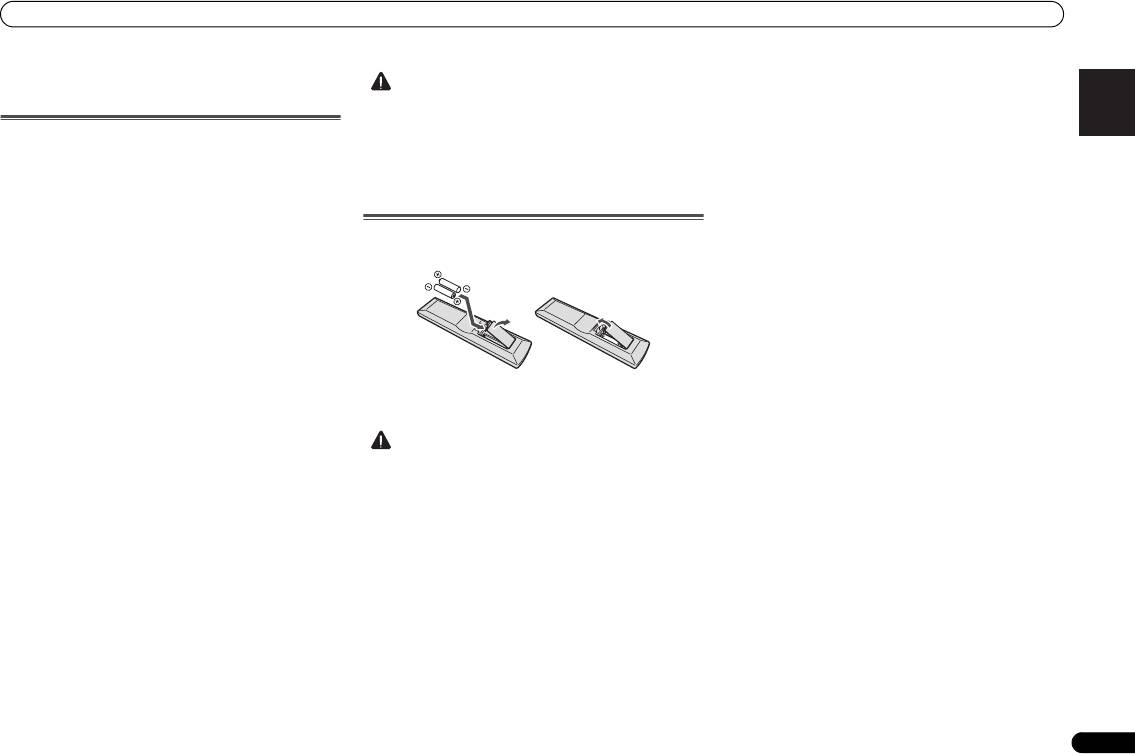
Loading the batteries
The batteries included with the unit are to check initial
operations; they may not last over a long period. We
recommend using alkaline batteries that have a longer life.
CAUTION
X-HM70_En.fm 5 ページ 2011年8月2日 火曜日 午後4時46分
• Incorrect use of batteries may result in such hazards as
leakage and bursting. Observe the following precautions:
-
Never use new and old batteries together.
-
Insert the plus and minus sides of the batteries properly
according to the marks in the battery case.
-
Batteries with the same shape may have different
voltages. Do not use different batteries together.
-
When disposing of used batteries, please comply with
governmental regulations or environmental public
instruction’s rules that apply in your country or area.
• Do not use or store batteries in direct sunlight or other
excessively hot place, such as inside a car or near a
heater. This can cause batteries to leak, overheat, explode
or catch fire. It can also reduce the life or performance of
batteries.
X-HM70_En.fm 6 ページ 2011年8月2日 火曜日 午後4時46分
Controls and Displays
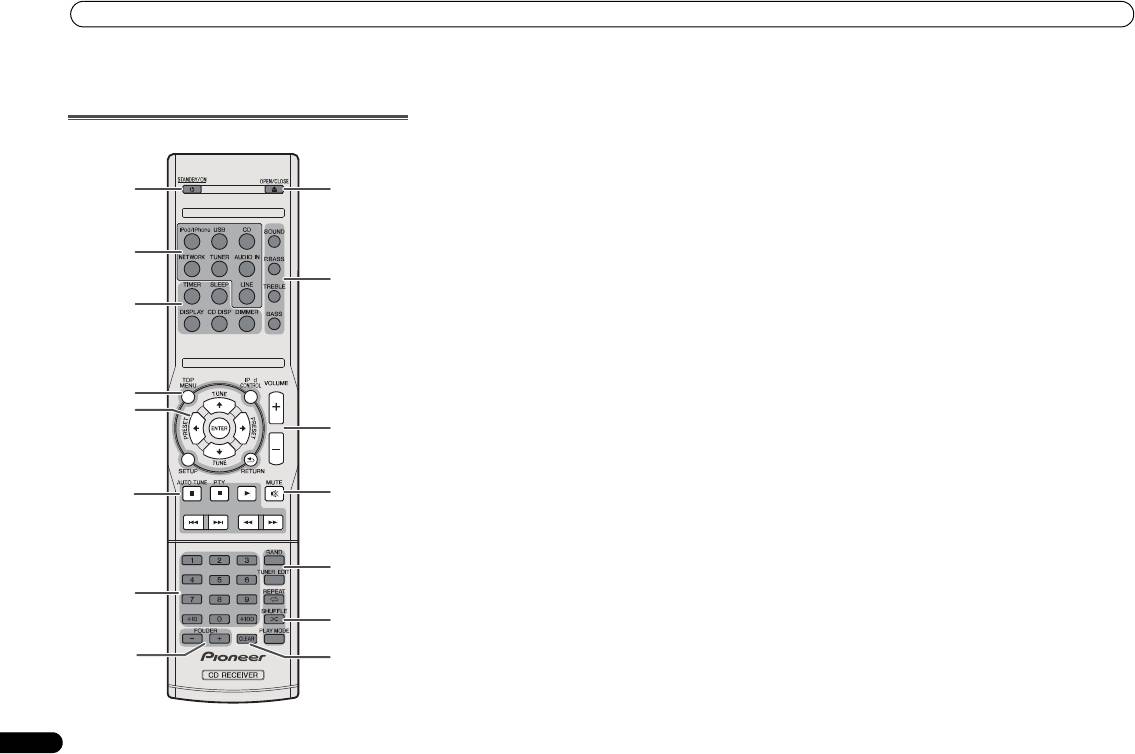
1 STANDBY/ON
9 OPEN/CLOSE
Controls and Displays
Switches the receiver between standby and on (page 11).
Use to open or close the disc tray (page 13).
2 Input function buttons
10 Sound control buttons
Use to select the input source to this receiver.
Adjust the sound quality (page 12).
Remote control
3 CD Receiver control buttons
11 Volume control buttons
DIMMER – Dims or brightens the display. The brightness
Use to set the listening volume (page 11).
can be controlled in four steps (page 11).
12 MUTE
1
9
SLEEP – Press to change the amount of time before the
Mutes/unmutes the sound (page 12).
receiver switches into standby (30 min. – 60 min. – 90
13 Tuner control buttons
min. – Off). You can check the remaining sleep time at
BAND – Switches between AM, FM ST (stereo) and FM
any time by pressing SLEEP once (page 26).
MONO radio bands (page 24).
2
TIMER – Use for setting the clock, as well as for setting
TUNER EDIT – Memorizes/names stations for recall
and checking the timers (page 11, 26).
(page 24).
10
DISPLAY – Display the MP3/WMA disc or RDS
14 Playback mode buttons
3
information.
REPEAT – Press to change repeat play setting from a CD,
CD DISP – Display the disc information (page 15).
iPod or USB (page 14).
4 CD Receiver control buttons
SHUFFLE – Press to change shuffle play setting from a
TOP MENU – Press to display the iPod Top menu
CD, iPod or USB (page 14).
(page 18).
O
PLAY MODE – Press to change the playback mode
4
iPod CONTROL – Switches between the iPod controls
between CD and MP3/WMA disc (page 14).
and the receiver controls (page 18).
5
15 CLEAR
11
SETUP – Press to access the receiver setup menu
Use to clear the programmed play (page 15).
(page 11, 24).
RETURN – Confirm and exit the current menu screen.
5
///
(TUNE
/
, PRESET
/
), ENTER
6
12
Use to select/switch system settings and modes, and to
confirm actions.
Use TUNE / can be used to find radio frequencies and
PRESET / can be used to select preset radio stations
(page 24).
13
6 Playback control buttons
The main buttons (, , etc.) are used to control each
7
function after you have selected it using the input function
14
buttons.
PTY – Use to search for RDS program types (page 25).
8
15
• AUTO TUNE button is not used with this receiver.
7 Numeric buttons
Use to enter the number (page 14).
8 FOLDER +/-
Use to select the folder of the MP3/WMA disc (page 15).
6
En
Controls and Displays
10 USB Terminal
English Français Español Italiano
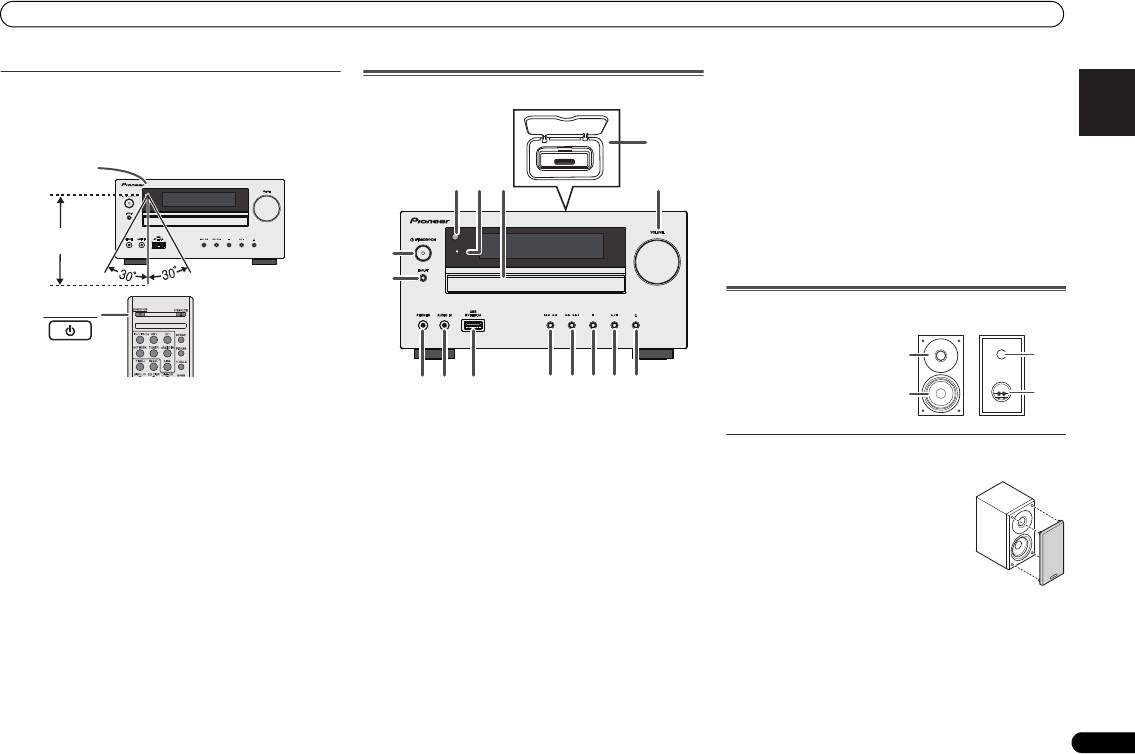
Test of the remote control
Front Panel
Use to connect your USB mass storage device or Apple iPad
Check the remote control after checking all the connections.
as an audio source (page 19).
Point the remote control directly at the remote sensor on the
11 Tune Down, Skip Down Button
unit. The remote control can be used within the range shown
Selects the desired track or folder to be played back.
below:
12 Tune Up, Skip Up Button
Selects the desired track or folder to be played back.
13 Stop Button
TIMER
Use to stop the playback.
14 Play or Pause Button
Stops playback or resumes playback from the pause point.
15 Disc Tray Open/Close Button
Use to open or close the disc tray (page 13).
Speaker system (X-HM70 only)
STANDBY/ON
Deutsch
1 Remote Sensor
Receives the signals from the remote control.
2 Timer Indicator
Speaker grilles are removable
Lights when the timer is set (page 26).
Nederlands
3 Disc Tray
Place the disc, label side up (page 13).
4 iPod or iPhone Docking Station
Dock iPod/iPhone (page 17).
5 Volume Control
Use to set the listening volume (page 11).
6 STANDBY/ON Button
Switches the receiver between standby and on (page 11).
7 INPUT Button
Selects the input source (page 12).
8 Headphone Socket
Use to connect headphones. When the headphones are
connected, there is no sound output from the speakers
(page 12).
9 AUDIO IN Socket
Use to connect an auxiliary component using a stereo
minijack cable (page 12).
7
En
Remote sensor
7 m
4
1
3
52
6
TIMER
7
8 11 12 13 14 15
9
10
1 Dome-Tweeter
2 Woofer
3 Bass Reflex Duct
4 Speaker Terminal
1
3
2
4
Make sure nothing comes into contact
with the speaker diaphragms when you
remove the speaker grilles.
X-HM70_En.fm 7 ページ 2011年8月2日 火曜日 午後4時46分
Connecting your equipment
Connecting your equipment
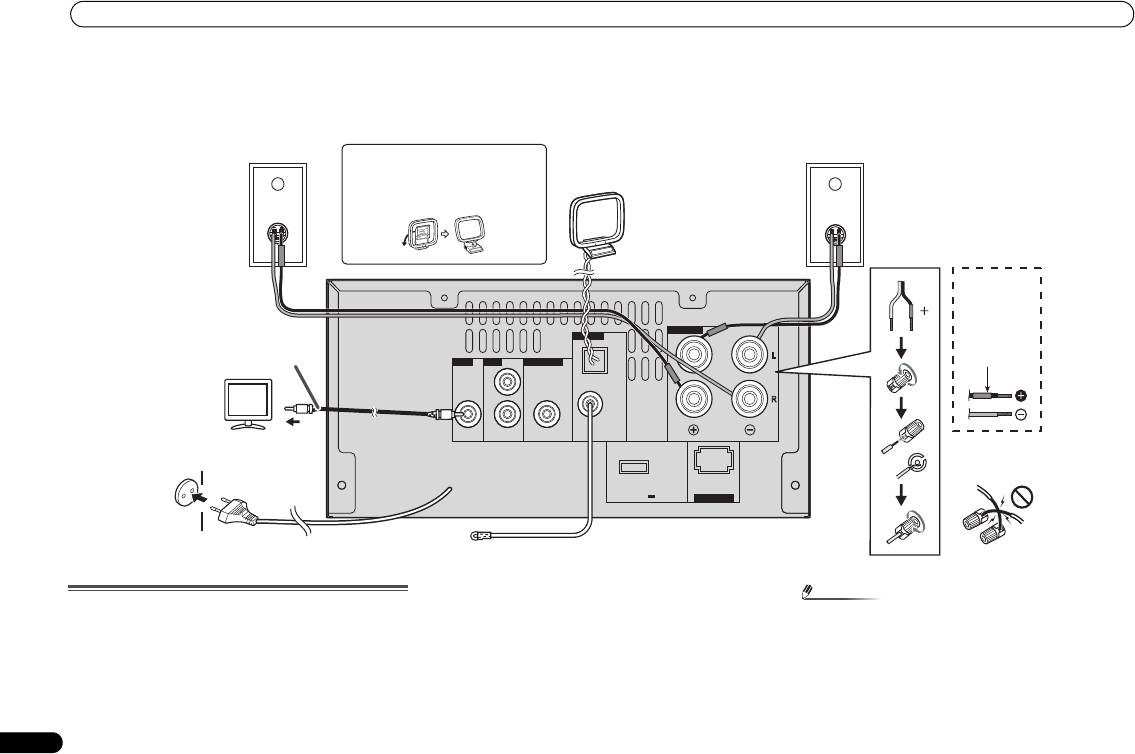
Before making or changing the connections, switch off the power and disconnect the power cord from the AC outlet.
External FM aerial:
Aerial connection
Use an external FM aerial (75 ohms coaxial cable) for better
reception. When an external FM aerial is used, disconnect
Supplied FM aerial:
the supplied FM aerial wire.
Connect the FM aerial wire to the FM 75 ohms socket and
position the FM aerial wire in the direction where the
Supplied AM loop aerial:
strongest signal can be received.
Connect the AM loop aerial to the AM terminal. Position the
AM loop aerial for optimum reception. Place the AM loop
aerial on a shelf, etc., or attach it to a stand.
8
En
Note
• Placing the aerial on the unit or near the AC power lead
may cause noise pickup. Place the aerial away from the
unit for better reception.
SPEAKERS
ANTENNA
AM
VIDEO LINE
SUBWOOFER
LOOP
L
FM
UNBAL
R
75
Ω
OUT
IN
PREOUT
DC OUTPUT
for WIRELESS LAN
(OUTPUT 5 V
0.6 A MAX)
LAN
10/100
(
)
Right
Left
speaker
speaker
Installing the AM loop aerial
AM loop
aerial
< Assembling >
X-HM70
provided
speaker wire
Video cable
Red tube
TV
Wall socket
(AC 220 V to 240 V,
To video input
50 Hz)
socket
Incorrect
FM aerial
X-HM70_En.fm 8 ページ 2011年8月2日 火曜日 午後4時46分
Connecting your equipment
English Français Español Italiano
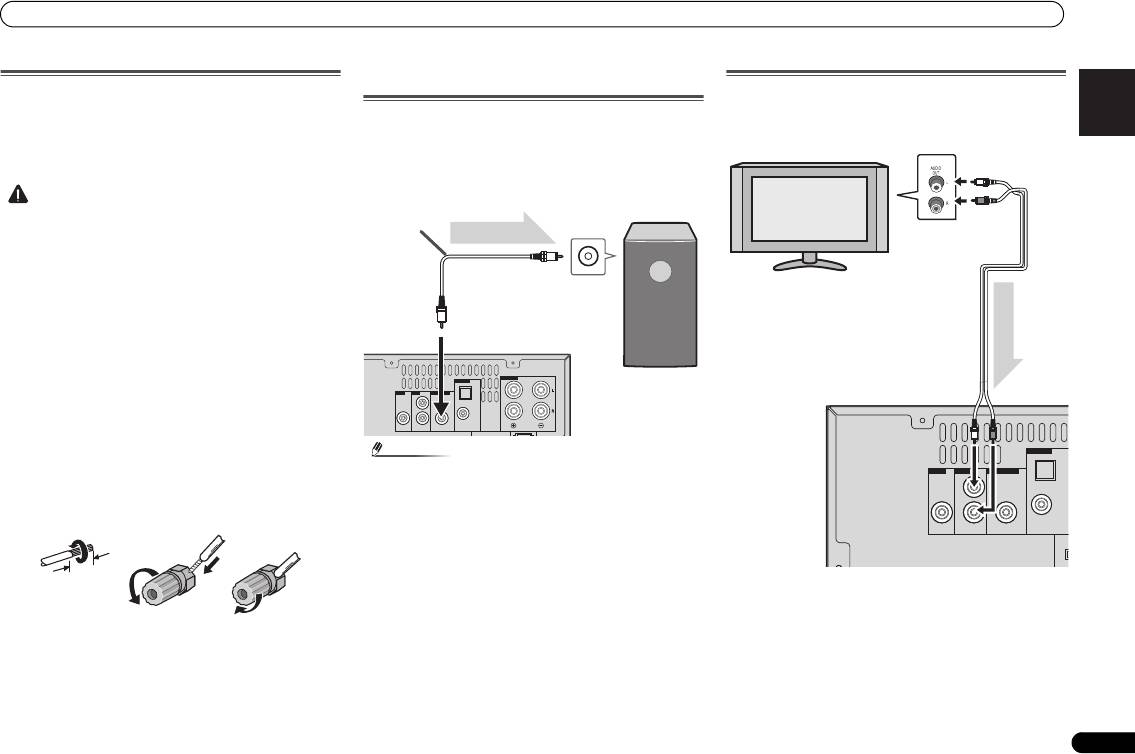
Speaker connection
• The provided speaker wire with the red tube is for the plus
(+) terminal. Connect the wire with red tube to the plus
(+) terminal, and other wire to the minus (
–) terminal.
• Use speakers with an impedance of 4 ohms as lower
impedance speakers can damage the unit.
Deutsch
Nederlands
9
En
CAUTION
• Do not stand or sit on the speakers. You may be injured.
Using other subwoofer
You can connect a subwoofer with an amplifier to the
SUBWOOFER PREOUT socket.
• These speaker terminals carry HAZARDOUS LIVE
voltage. To prevent the risk of electric shock when
connecting or disconnecting the speaker cables,
disconnect the power cord before touching any
uninsulated parts.
• Do not mistake the right and the left channels. The right
speaker is the one on the right side when you face the
unit.
• Do not let the bare speaker wires touch each other.
• Make sure that all the bare speaker wire is twisted
together and inserted fully into the speaker terminal. If
any of the bare speaker wire touches the back panel, it
may cause the power to cut off as a safety measure.
If not using the provided speaker wire
Bare wire connections
1 Twist exposed wire strands together.
2 Loosen terminal and insert exposed wire.
3 Tighten terminal.
X-HM70 only:
• Do not install your speakers overhead on the ceiling or
wall. The grill is designed to be detachable, and as such it
may fall and cause damage or personal injury if installed
overhead.
• Do not allow any objects to fall into or to be placed in the
bass reflex ducts.
Note
Connecting a TV, etc.
Connect to the TV using an audio cable.
• No sound is heard from the subwoofer without a built-in
amplifier.
12 3
To select Line In function:
• On main unit: Press INPUT button repeatedly until Line In
is displayed.
• On remote control: Press LINE button.
10 mm
ANTENNA
SPEAKERS
VIDEO LINE
SUBWOOFER
LOOP
AM
L
FM
UNBAL
R
75
Ω
OUT
IN
PREOUT
(OUTPUT 5 V
for WIRELESS LAN
DC OUTPUT
0.6 A MAX)
LAN
10/100
(
)
Audio cable
(commercially
available)
Audio signal
To audio input
socket
To SUBWOOFER
PREOUT socket
Main unit
Commercially
available subwoofer
(amplifier built in)
ANTENNA
SPEAKERS
VIDEO LINE SUBWOOFER
AM
LOOP
L
FM
UNBAL
R
75
Ω
OUT
IN
PREOUT
(OUTPUT 5 V
for WIRELESS LAN
DC OUTPUT
0.6 A MAX)
LAN
10/100
(
)
TV To audio
output sockets
Audio cable
(commercially
available)
Audio signal
To LINE
input
Main unit
sockets
X-HM70_En.fm 9 ページ 2011年8月2日 火曜日 午後4時46分

Connecting your equipment
Connecting to the network through LAN
interface
By connecting this receiver to the network via the LAN
terminal, you can listen to Internet radio stations. To listen to
Internet radio stations, you must sign a contract with an ISP
(Internet Service Provider) beforehand.
When connected in this way, you can play audio files stored
on the components on the network, including your computer,
using NETWORK functions.
Connect the LAN terminal on this receiver to the LAN
terminal on your router (with or without the built-in DHCP
server function) with a straight LAN cable (CAT 5 or higher).
Turn on the DHCP server function of your router. In case your
router does not have the built-in DHCP server function, it is
necessary to set up the network manually. For details, see
Network setup menu on page 21.
10
En
Note
AC power connection
• Refer to the operation manual of the equipment you have
as the connected equipment and connection method
After checking all the connections have been made correctly,
may differ depending on your Internet environment.
plug the AC power lead of this unit into the wall socket.
• When using a broadband Internet connection, a contract
with an Internet service provider is required. For more
details, contact your nearest Internet service provider.
Connecting to a wireless LAN
Wireless connection to the network is possible through a
wireless LAN connection. Use the separately sold AS-WL300
for connection.
For details, refer to the operating instructions of the wireless
LAN converter (AS-WL300).
CAUTION
• Unplug the AC power lead from the wall socket if the unit
will not be in use for a prolonged period of time.
• Handle the power cord by the plug. Do not pull out the
plug by tugging the cord and never touch the power cord
when your hands are wet as this could cause a short
circuit or electric shock. Do not place the unit, a piece of
furniture, etc., on the power cord, or pinch the cord. Never
make a knot in the cord or tie it with other cords. The
power cords should be routed such that they are not likely
to be stepped on. A damaged power cord can cause a fire
or give you an electrical shock. Check the power cord
once in a while. When you find it damaged, ask your
nearest PIONEER authorized service center or your dealer
for a replacement.
ANTENNA
SPEAKERS
AM
LOOP
FM
UNBAL
75
Ω
DC OUTPUT
(OUTPUT 5 V
for WIRELESS LAN
0.6 A MAX)
LAN
(
10/100
)
LAN
321
WAN
Internet
Modem
Router
LAN cable
(sold separately)
to LAN port
ANTENNA
SPEAKERS
AM
LOOP
FM
UNBAL
75
Ω
DC OUTPUT
(OUTPUT 5 V
for WIRELESS LAN
0.6 A MAX)
LAN
(
10/100
)
RT
WAN
DC 5V WPS
Ethernet
Internet
Modem
Router
Wireless LAN converter (AS-WL300)
X-HM70_En.fm 10 ページ 2011年8月2日 火曜日 午後4時46分
General control
English Français Español Italiano
General control
To turn the power on
Press the STANDBY/ON button to turn the power on.
After use:
Press the STANDBY/ON button to enter the power stand-by
mode.
Deutsch
Nederlands
11
En
Note
2 Press ENTER button.
3Use
/
to set the day, then press ENTER.
4Use
/
to select 24-hour or 12-hour display, then
press ENTER.
5Use
/
to set the hour, then press ENTER.
6Use
/
to set the minute, then press ENTER to
• However, if iPod/iPhone is docked, the unit turns charge
confirm.
mode. “iPod charge” will be displayed.
• During iPod charge mode, press the STANDBY/ON
To confirm the time display:
button to turn the power on.
Press the TIMER button. The time display will appear for
• Remove iPod to turn the power stand-by mode.
about 10 seconds.
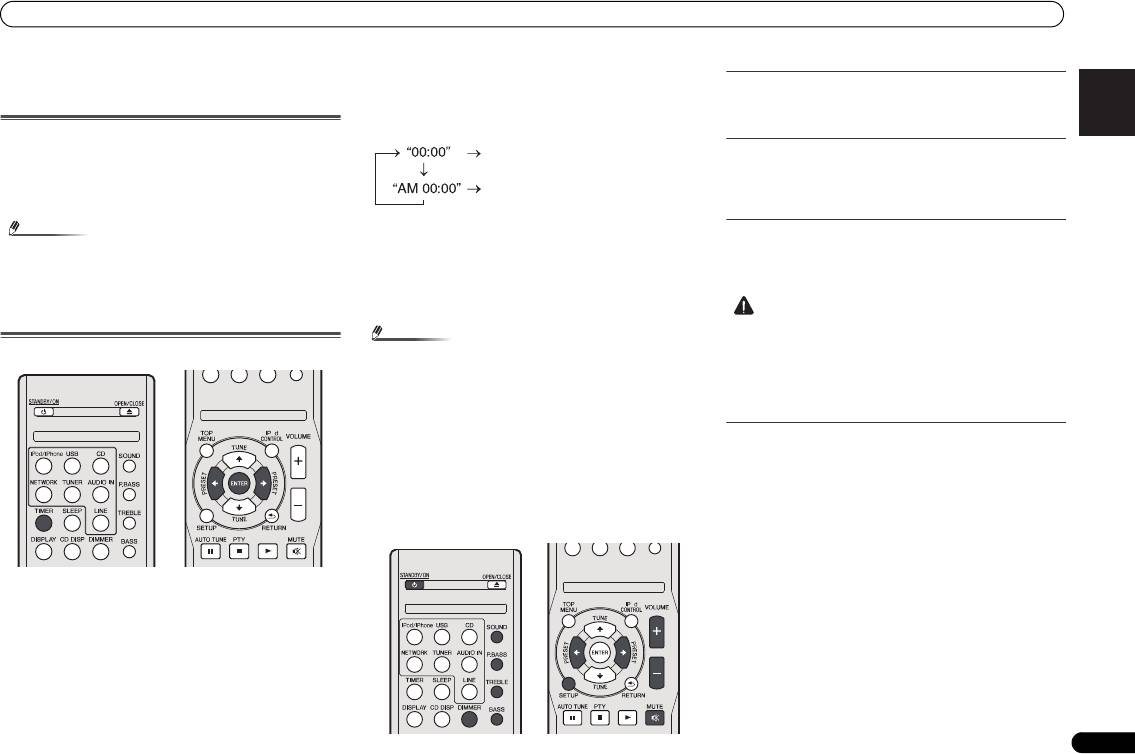
Setting the clock
In this example, the clock is set for the 24-hour (00:00)
display.
1 Press TIMER button on the remote control.
The current date and time are displayed.
The first time you use the clock, you are taken to the clock
adjust mode.
Note
Display brightness control
Press DIMMER button to dims the display brightness. The
brightness can be controlled in four steps.
Volume auto fade-in
If you turn off and on the main unit with the volume set to 41
or higher, the volume starts at 40 and fades in to the last set
level.
Volume control
Turn the volume knob towards VOLUME (on main unit) or
press VOLUME +/- (on remote control) to increase or
decrease the volume.
• When power supply is restored after unit is plugged in
again or after a power failure, reset the clock (See below).
To readjust the clock:
Perform “Setting the clock” from step 1. If the “Clock” does
not appear in step 2, step 4 (for selecting the 24-hour or 12-
hour display) will be skipped.
To change the 24-hour or 12-hour display:
1 Clear all the programmed contents.
Refer to Factory reset, clearing all memory on page 29 for
details.
2 Perform “Setting the clock” from step 1 onwards.
CAUTION
X-HM70_En.fm 11 ページ 2011年8月2日 火曜日 午後4時46分
The 24-hour display will appear.
(00:00 - 23:59)
The 12-hour display will appear.
(AM 00:00 - PM 11:59)
• The sound level at a given volume setting depends on
speaker efficiency, location, and various other factors. It
is advisable to avoid exposure to high volume levels. Do
not turn the volume on to full at switch on. Listen to music
at moderate levels. Excessive sound pressure from
earphones and headphones can cause hearing loss.
O
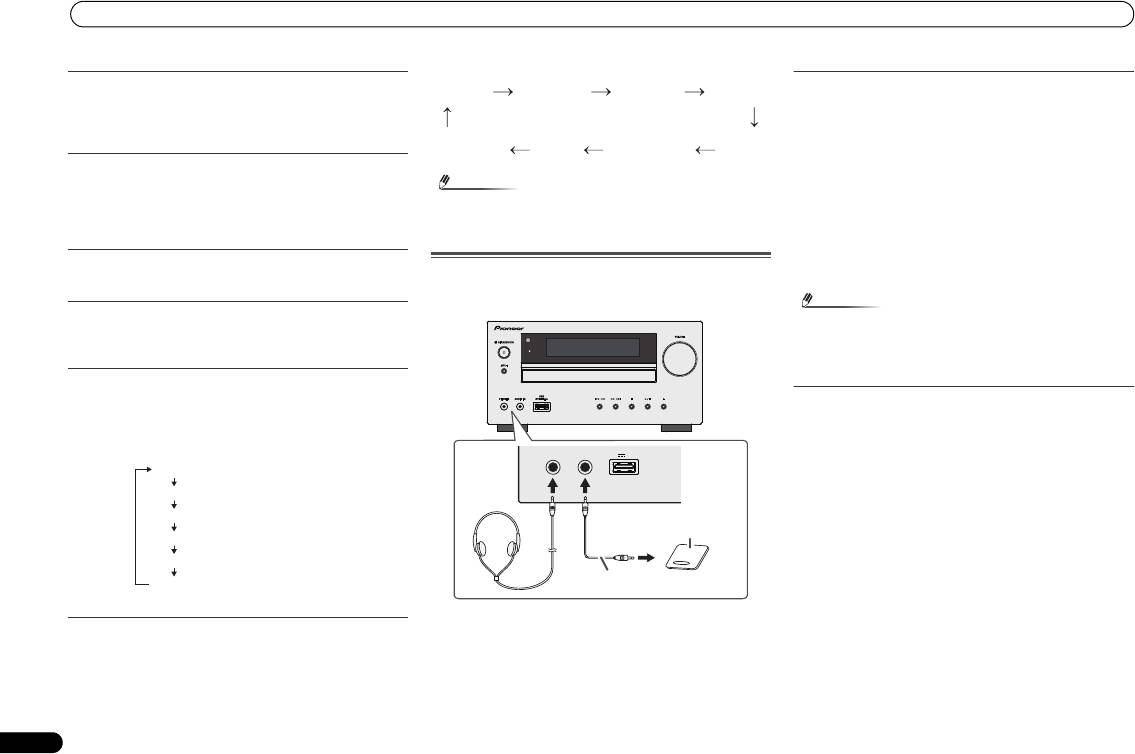
Auto power down setup
Set to automatically turn off the receiver after a specified time
has passed (when the power has been on with no operation
for several hours).
• Default setting: 6H
1 Press SETUP on the remote control.
•If APD does not appear, press / to select APD.
2Use
/
to specify the amount of time to allow before
the power is turned off (when there has been no
operation).
O
• You can select 2, 4 or 6 hours, or off (if no automatic
shutoff is desired).
3 When you’re finished, press RETURN.
General control
Muting
The volume is muted temporarily when pressing the MUTE
button on the remote control. Press again to restore the
volume.
P.bass control
When the power is first turned on, the unit will enter the
P.bass mode which emphasises the bass frequencies. To
cancel the P.bass mode, press the P.BASS button on the
remote control.
Bass control
Press the BASS button, then press / to adjust the bass.
Treble control
Press the TREBLE button, then press / to adjust the
treble.
Equaliser
When the SOUND button is pressed, the current mode
setting will be displayed. To change to a different mode, press
the SOUND button repeatedly until the desired sound mode
appears.
Input function
When the INPUT button on main unit is pressed, the current
function will change to different mode. Press the INPUT
button repeatedly to select desired function.
12
En
Note
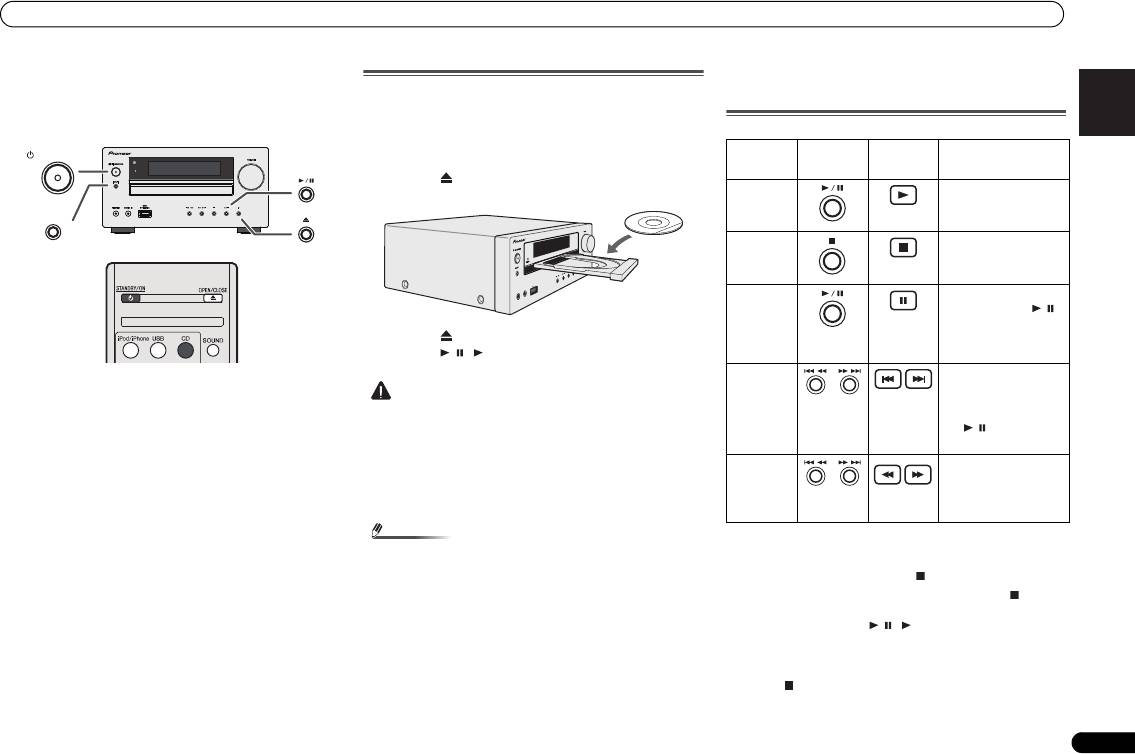
Listening to the playback sounds of portable
audio player, etc.
1 Use a connection lead to connect the portable audio
player etc. to the AUDIO IN socket.
2 Press the STANDBY/ON button to turn the power on.
3 Press the AUDIO IN button on the remote control or
INPUT button repeatedly on main unit to select AUDIO
• The backup function will protect the memorised function
IN function.
mode should there be a power failure or the AC power
4 Play the connected equipment.
lead becomes disconnected.
• If volume level of the connected device is too high, sound
distortion may occur. Should this happen, lower the
volume of the connected device. If volume level is too low,
Enhancing your system
increase the volume of the connected device.
The connection lead is not included. Purchase a
commercially available lead as shown below.
Note
• To prevent noise interference, place the unit away from
the television.
• When using video equipment, connect the audio output
to this unit and the video output to a television.
Headphones
• Do not turn the volume on to full at switch on and listen
to music at moderate levels. Excessive sound pressure
from earphones and headphones can cause hearing loss.
• Before plugging in or unplugging the headphone, reduce
FLAT
Equaliser off.
No equalization.
the volume.
GAME
For game.
For rock music.
• Be sure your headphone has a 3.5 mm diameter plug and
CLASSIC
For classical music.
For classical music.
impedance between 16 and 50 ohms. The recommended
impedance is 32 ohms.
POPS
For pop music.
For pop music.
• Plugging in the headphone disconnects the speakers
VOCAL
Vocals are enhanced.
Vocals are enhanced.
automatically. Adjust the volume using the VOLUME
control.
JAZZ
For jazz.
For jazz.
CD AM USB
FM
Stereo
NETWORK
iPodLINEAUDIO IN
TIMER
PHONES AUDIO IN
5V 2.1A
USB
Portable audio player, etc.
Audio cable (not supplied)
X-HM70_En.fm 12 ページ 2011年8月2日 火曜日 午後4時46分
Listening to a CD or MP3/WMA disc
English Français Español Italiano
Listening to a CD or MP3/
Disc playback
1 Press the STANDBY/ON button to turn the power on.
WMA disc
2 Press the CD button on the remote control or INPUT
button repeatedly on the main unit to select CD
function.
3 Press the button to open the disc tray.
4 Place the disc on the disc tray, label side up.
Deutsch
5 Press the button to close the disc tray.
6 Press the / ( ) button to start playback. After the
last track is played, the unit will stop automatically.
This system can play back a standard CD, CD-R/RW in the CD
format and CD-R/RW with MP3 or WMA files, but cannot
record on them. Some audio CD-R and CD-RW discs may not
be playable due to the state of the disc or the device that was
used for recording.
Nederlands
MP3:
MP3 is a form of compression. It is an acronym which stands
for MPEG Audio Layer 3. MP3 is a type of audio code which is
processed by significant compression from the original audio
source with very little loss in sound quality.
• This system supports MPEG-1/2/2.5 Audio Layer 3
(Sampling rates: 8 kHz to 48 kHz; Bit rates: 32 kbps to 320
kbps).
• During VBR file playback, time counter in the display may
differ from its actual playback time.
WMA:
WMA files are Advanced System Format files that include
audio files which are compressed with Windows Media
Audio codec. WMA is developed by Microsoft as an audio
format file for Windows Media Player.
• This system supports WMA (Sampling rates: 32 kHz/44.1
kHz/48 kHz; Bit rates: 32 kbps to 320 kbps).
13
En
CAUTION
• Do not place two discs in one disc tray.
• Do not play discs of special shapes (heart, octagon, etc).
It may cause malfunctions.
• Do not push the disc tray whilst it is moving.
• If the power fails whilst the tray is open, wait until the
power is restored.
• Be sure to place 8 cm disc in the middle of the disc tray.
Note
X-HM70_En.fm 13 ページ 2011年8月2日 火曜日 午後4時46分
• If TV or radio interference occurs during CD operation,
move the unit away from the TV or radio.
Various disc functions
STANDBY/ON
STANDBY/ON
Remote
Function Main unit
Operation
TIMER
TIMER
control
Play
Press in the stop mode.
INPUT
INPUT
Stop
Press in the playback
mode.
2.1A
USB
PHONES
AUDIO IN
5V
Pause
Press in the playback
mode. Press the /
button to resume
playback from the
paused point.
Track up/
Press in the playback
down
or stop mode.
If you press the button
in the stop mode, press
the / button to start
the desired track.
Press in the playback
Fast
mode.
forward/
reverse
Release the button to
resume playback.
Resume:
• Due to the structure of the disc information, it takes
longer to read an MP3/WMA disc than a normal CD
1 You can resume the track you stopped.
(approximately 20 to 90 seconds).
While a disc is playing, press the button.
• “MP3” or “WMA” will appear after the unit reads
2 The system stores the track you stopped and is
information on an MP3 or WMA disc.
blinking on the display.
• When the end of the last track is reached during fast
To restart play, press the / ( ) button.
forward, “END” will appear on the display and CD
Play resumes from the beginning of the track you stopped.
operation will be paused. When the beginning of the first
track is reached during fast reverse, the unit will enter the
To cancel the resume playback:
playback mode (only for CD).
Press the button.
• Rewritable multi-session discs with unfinished writing,
can still be played.
Listening to a CD or MP3/WMA disc
Advanced CD or MP3/WMA disc playback
Direct track search
By using the numeric buttons, the desired tracks on the
current disc can be played.
Use the numeric buttons on the remote control to select
the desired track whilst playing the selected disc.
• The numeric buttons allow you to select up to number 9.
• When selecting number 100 or higher, use the “+100”
button.
• When selecting number 10 or higher, use the “+10”
button.
A. For example, to choose 13
1 Press the “+10” button.
2 Press the “3” button.
B. For example, to choose 130
1 Press the “+100” button.
2 Press the “+10” button three times.
3 Press the “0” button.
14
En
Note
• During shuffle play, direct track search is not possible.
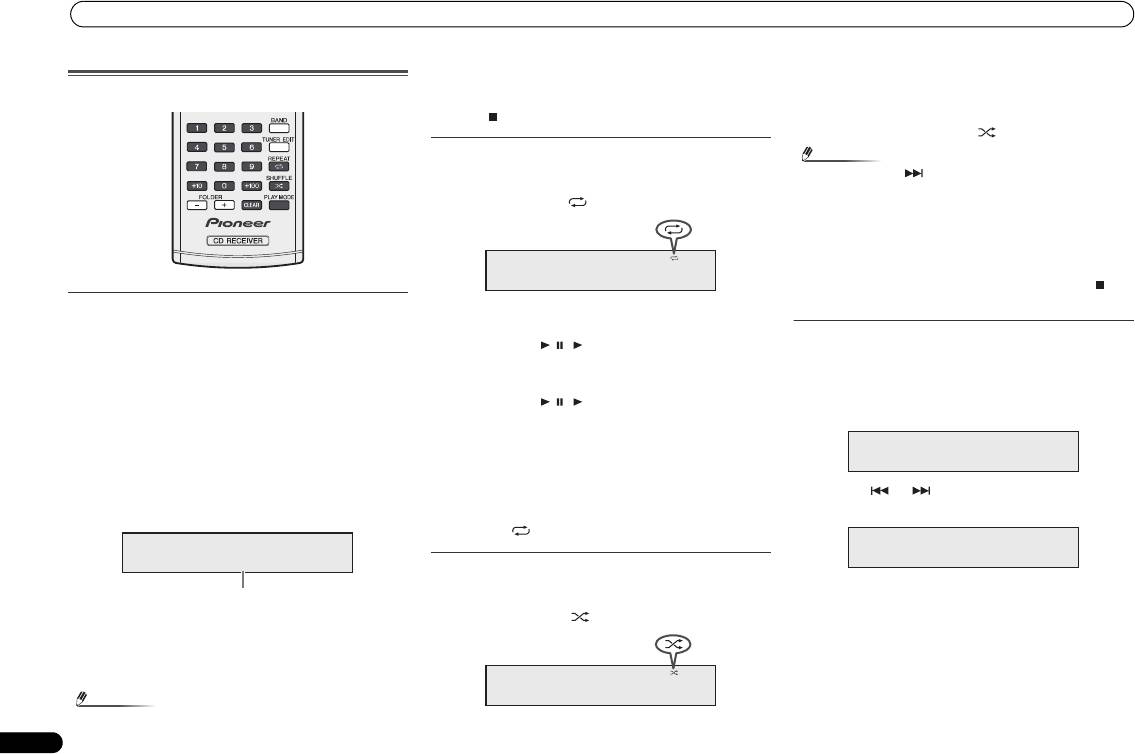
To shuffle play all tracks:
Press the SHUFFLE button on the remote control.
To stop playback:
Press the button.
To cancel shuffle play:
Press the SHUFFLE button and “ ” disappears.
Repeat play
Repeat play can play one track, all tracks or a programmed
sequence continuously.
• During repeat play, “ ” appears.
To repeat one track:
Press the REPEAT button repeatedly until “Repeat One”
appears. Press the / ( ) button.
To repeat all tracks:
Press the REPEAT button repeatedly until “Repeat All”
appears. Press the / ( ) button.
To repeat desired tracks:
Perform steps 1 - 5 in “Programmed play” section on this
page and then press the REPEAT button repeatedly until
“Repeat All” appears.
To cancel repeat play:
Press the REPEAT button repeatedly until “Repeat Off”
appears and “ ” disappears.
Shuffle play
The tracks on the disc can be played in shuffle order
automatically.
• During shuffle play, “ ” appears.
• A track number higher than the number of tracks on the
disc cannot be selected.
Note
• If you press the button during shuffle play, you can
move to the track selected next by the shuffle operation.
On the other hand, the button does not allow you to move
to the previous track. The beginning of the track being
played will be located.
• In shuffle play, the unit will select and play tracks
automatically. (You cannot select the order of the tracks.)
• After performing repeat play, be sure to press the
button. Otherwise, the disc will play continuously.
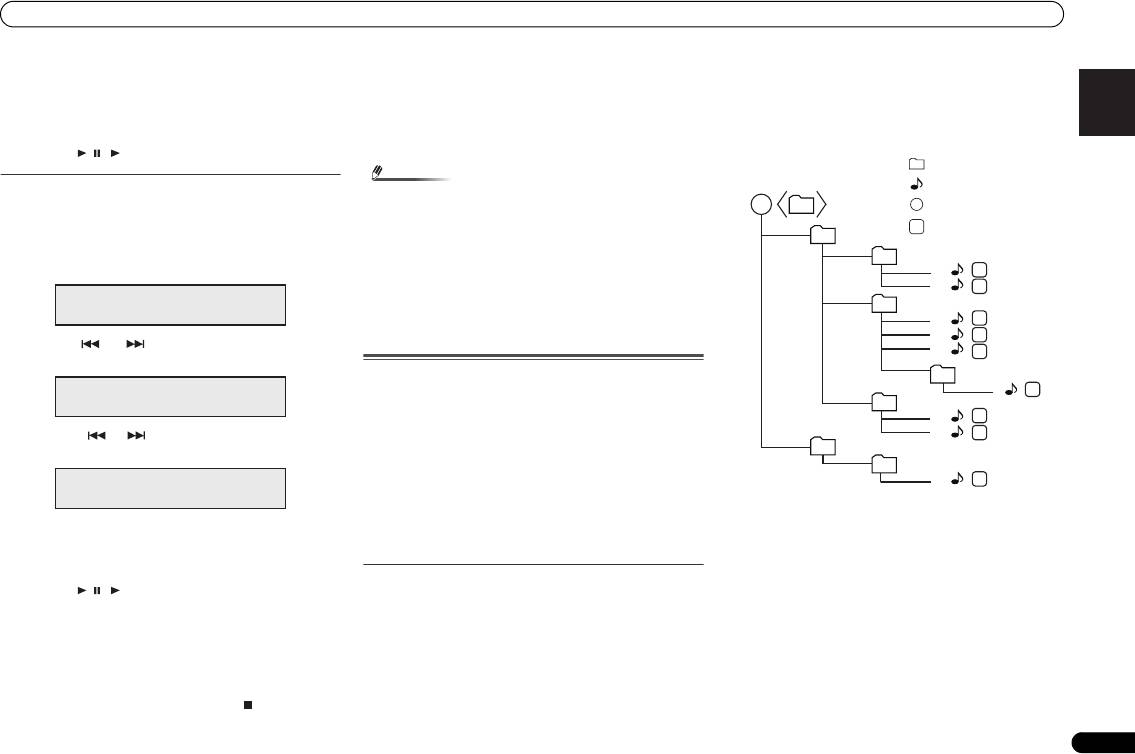
Programmed play (CD)
You can choose up to 32 selections for playback in the order
you like.
1 Whilst in the stop mode, press the PLAY MODE button
on the remote control to enter the programming save
mode.
2 Press the or button or numeric buttons on the
remote control to select the desired track.
CD
F008 T001 00:00
Selected track number
CD
F008 T001 00:00
PROGRAM
P - 01 ← T--
CD
F008 T001 00:00
PROGRAM
P - 01 ← T005
X-HM70_En.fm 14 ページ 2011年8月2日 火曜日 午後4時46分
Listening to a CD or MP3/WMA disc
3 Press the ENTER button to save the track number.
Displaying disc information:
English Français Español Italiano
4 Repeat steps 2 - 3 for other tracks. Up to 32 tracks can
Press CD DISP repeatedly to change to the display of the
be programmed. If you make a mistake, the
elapsed playback time and the remaining playback time of
programmed tracks can be cleared by pressing the
the CD.
CLEAR button.
Various track information can be displayed while an MP3/
5 Press the / ( ) button to start playback.
WMA disc is playing. Press DISPLAY.
Programmed play (MP3/WMA)
1 Whilst in the stop mode, press the PLAY MODE button
until ‘PROGRAM’ appears to enter the programming
save mode.
Every time you press the PLAY MODE button, the playback
mode changes.
Deutsch
2 Press the or , or numeric buttons on the
remote control to select the desired folder.
Then press the or button or numeric buttons on the
remote control to select the desired tracks.
Nederlands
3 Press the ENTER button to save the folder and track
number.
4 Repeat steps 2 - 3 for other folder/tracks. Up to 32 tracks
can be programmed.
5 Press the / ( ) button to start playback.
Adding tracks to the programme:
Stop the playing mode, then follow steps 2 - 3 to add tracks.
The new tracks will be stored after the last track of the
previous programme.
To cancel the programmed play mode:
During programmed stop mode, press the button. Press
the PLAY MODE button to select the basic play mode, and all
the programmed contents will be cleared.
15
En
Note
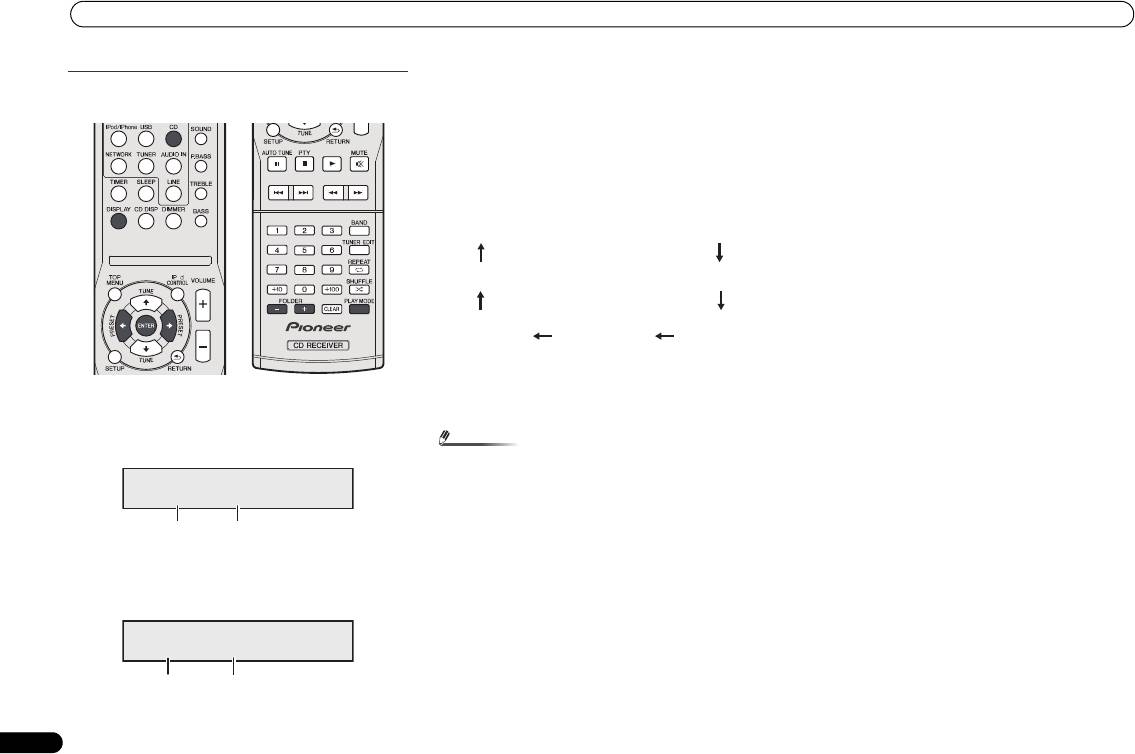
1 ROOT folder is set as folder 1.
2 Playback will be in the order of the diagram below.
3 For CD MP3/WMA, 255 numbers of folders and files
inclusive of the folders which have non playable files
can be read.
• When a disc is ejected, the programme is automatically
cancelled.
• If you press the STANDBY/ON button to enter the stand-
by mode or change the function from CD to another, the
programmed selections will be cleared.
• During the programme operation, shuffle play is not
possible.
• The control buttons to change displays differ between the
discs: for CD, CD DISP is used; for MP3/WMA disc,
DISPLAY is used.
MP3/WMA folder mode (only for MP3/WMA
files)
To play back MP3/WMA (Windows Media Audio) file
There are many music sites on the internet that you can
download MP3/WMA (Windows Media Audio) music files.
Follow the instructions from the website on how to download
the music files. You can then play back these downloaded
music files by burning them to a CD-R/RW disc.
• Your downloaded song/files are for personal use only. Any
other usage of the song without owner’s permission, is
against the law.
About folder playback order
If MP3/WMA files are recorded in several folders, a folder
number will be set to each folder automatically.
Press PLAY MODE to select the folder playback mode.
These folders can be selected by the FOLDER +/- button on
the remote control. If there is no supported file formats inside
the selected folder, the folder is skipped and the next folder
will be selected.
Example: How to set folder number if MP3/WMA format files
are recorded as below figure.
PROGRAM
P - 01 ← F--- T---
1
2
3
1
1
2
2
4
1
3
2
4
3
5
5
PROGRAM
6
P - 01 ← F002 T---
6
1
7
2
8
7
8
PROGRAM
1
9
P - 01 ← F002 T005
Media layer example
Folder
Audio file
Root
Session order
Layer 1 Layer 2 Layer 3 Layer 4 Layer 5
X-HM70_En.fm 15 ページ 2011年8月2日 火曜日 午後4時46分
Listening to a CD or MP3/WMA disc
• Title, Artist and Album name are displayed if they are
Procedure to playback MP3/WMA disc with folder
recorded on the disc.
mode on
• In case of playback with the folder mode on, press
FOLDER +/-, and the folder can be selected even though
it is in playback/pause mode. It will continue playback/
pause mode in the 1st track of the selected folder.
• Display content can be changed by pressing the DISPLAY
button.
*The song title, artist name, and the album name will only be
displayed during playback.
To play back CD-R/RW.
To cancel the folder playback mode, stop the playback, press
the PLAY MODE button, and select the normal playback
1 Press the CD button, and load an MP3/WMA disc. Press
mode.
the PLAY MODE button to select the folder playback
mode.
Disc info will be displayed.
2 Press FOLDER +/- to select desired playback folder.
(Folder mode on)
Playback will start.
16
En
Note
O
• If “Can’t Play” is displayed, it means “Copyright protected
WMA file” or “Not supported playback file” is selected.
FOLDER
F008 T005
Total folders
Total tracks
FOLDER
F005 T003 00:01
Folder number First track number in the
folder
Total folders and Total tracks (Stopping)
Folder number and Track number (Playing)
Album name display*
File name display
Artist name
Music title
Folder name
display*
display*
display
X-HM70_En.fm 16 ページ 2011年8月2日 火曜日 午後4時46分
Listening to the iPod, iPhone or iPad
English Français Español Italiano
Listening to the iPod,
iPhone or iPad
Supported iPod, iPhone and iPad models:
• iPod touch (4
th
/3
rd
/2
nd
/1
st
generation)
• iPod classic
• iPod with video
• iPod nano (6
th
/5
th
/4
th
/3
rd
/2
nd
/1
st
generation)
• iPhone 4/3GS/3G
•iPad
Deutsch
Nederlands
17
En
Important
• Pioneer cannot under any circumstances accept
responsibility for any direct or indirect loss arising from
any inconvenience or loss of recorded material resulting
from the iPod failure.
Note
Connecting your iPod/iPhone
• This system has been developed and tested for the
software version of iPod/iPhone/iPad indicated on the
website of Pioneer (http://pioneer.jp/homeav/support/ios/
eu/).
• Installing software versions other than indicated on the
website of Pioneer to your iPod/iPhone/iPad may result in
incompatibility with this system.
• Once iPod or iPhone is connected to the unit it will begin
charging.
• You can recharge the iPad when the power is on or during
iPod Charge Mode.
• When connecting the iPad, use only an iPad dedicated
cable.
• Connect iPad to the USB terminal.
• iPod and iPhone are licensed for reproduction of non-
copyrighted materials or materials the user is legally
permitted to reproduce.
• Features such as the equalizer cannot be controlled using
this receiver, and we recommend switching the equalizer
off before connecting.
CAUTION
3 Connect your iPod/iPhone.
• If an iPod/iPhone is connected when this unit is in
standby mode, the power will turn on and playback of the
iPod/iPhone will begin.
• When connecting an iPod/iPhone units, always use the
universal dock adapter provided with your iPod/iPhone, or
a commercially adapter designed to support iPod/iPhone.
The iPod/iPhone cannot be connected without a universal
dock adapter; attempting to connect an iPod/iPhone
without a universal dock adapter will cause damage or
malfunction.
• Unplug all accessories from the iPod or iPhone before
inserting it into the dock.
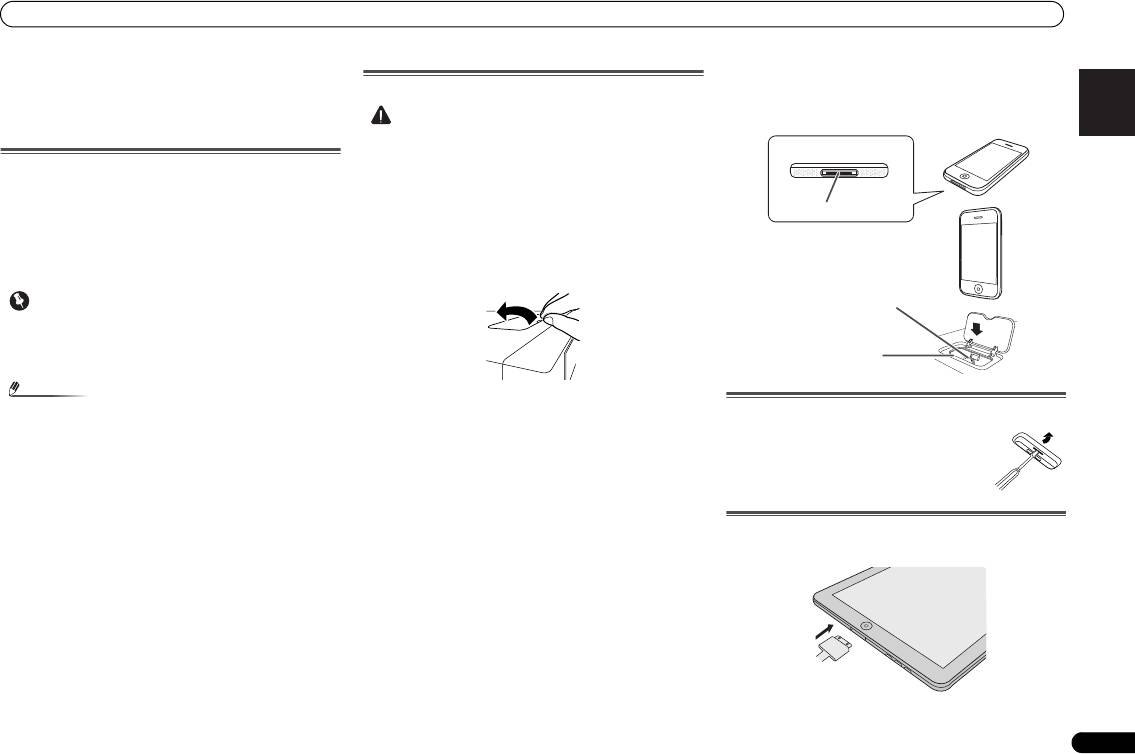
1 Open the dock cover by pulling up.
2 Attach the Universal dock adapter to iPod/iPhone
connector port on this unit.
To remove adaptor for iPod or iPhone
• An iPod/iPhone universal dock adapter is not supplied
with this unit.
When attaching the Universal dock adapter, be sure to orient
the front-back directions of the Universal dock adapter
correctly. To attach, first place the protruding tabs on the
front side of the adapter into the depressions on the iPod/
iPhone connector port and press into position. When
attaching the adapter, be careful not to strike the connectors.
To insert iPad adaptor
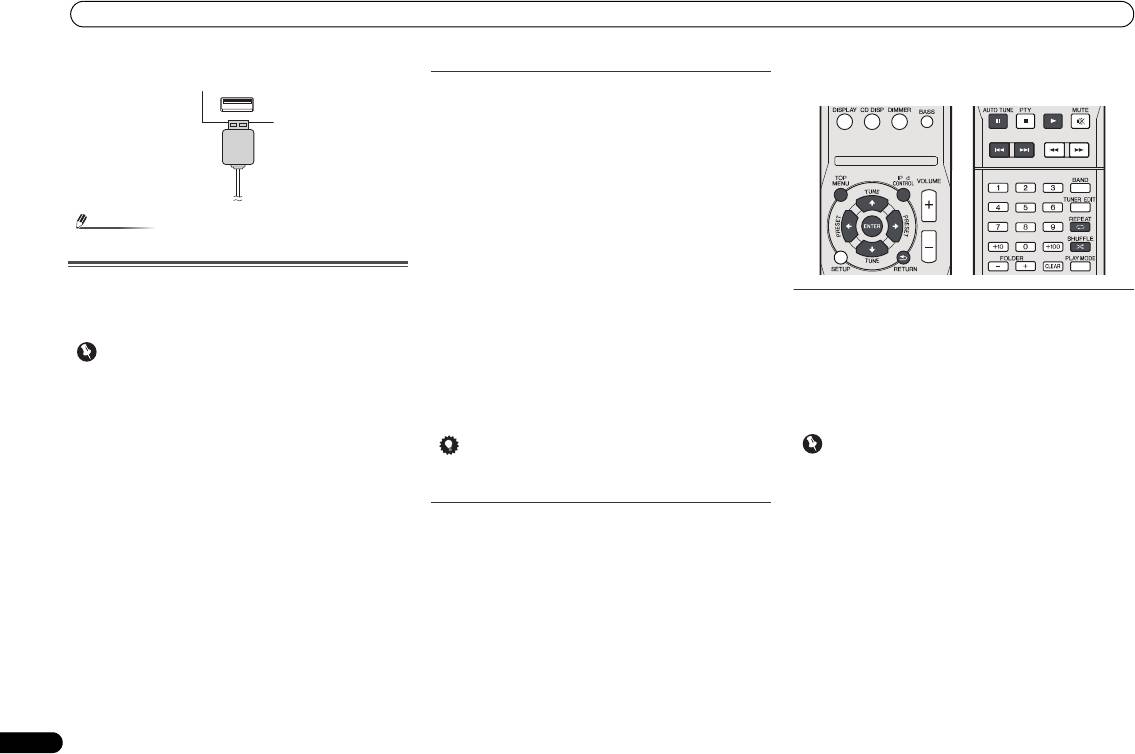
1 Insert the iPad connector to the iPad.
iPhone (bottom)
iPhone
Dock connector
iPhone dock
iPhone connector
Insert the tip of a screwdriver ("–" type, small)
into the adaptor hole as shown and lift upward
to remove.
X-HM70_En.fm 17 ページ 2011年8月2日 火曜日 午後4時46分
Listening to the iPod, iPhone or iPad
2 Connect the iPad to the unit via USB connector.
18
En
Note
• USB connector do not support VIDEO out.
Playing an iPod, iPhone or iPad
This receiver has a dedicated iPod terminal that will allow you
to control playback of audio content from your iPod using the
controls of this receiver.
Important
Playing back files stored on an iPod
To navigate songs on your iPod, you can take advantage of
the OSD of your TV connected to this receiver. You can also
control all operations for music in the front panel display of
this receiver.
• Note that non-roman characters in the title are displayed
as ‘*’.
• This feature is not available for photos or video clips on
your iPod.
Finding what you want to play
When your iPod is connected to this receiver, you can browse
songs stored on your iPod by playlist, artist, album name,
song name, genre or composer, similar to using your iPod
directly.
1Use
/
to select a category, then press ENTER to
browse that category.
• To return to the previous level any time, press RETURN.
2Use
/
to browse the selected category (e.g.,
• If you connect your iPod to the receiver and it doesn’t
albums).
work properly, switch off the receiver and reconnect the
•Use / to move to previous/next levels.
iPod to it. If this doesn’t seem to work, try resetting your
3 Continue browsing until you arrive at what you want to
iPod.
play, then press
to start playback.
1 Switch on the receiver and your TV.
2 Switch the TV input so that it connects to the receiver.
3 If iPod or iPhone is connected via the iPod dock, press
iPod/iPhone to select the iPod input.
If iPad (or iPod/iPhone) is connected via the USB
terminal, press USB to select the USB input.
The front panel display shows Please Wait while the receiver
verifies the connection and retrieves data from the iPod.
When the display shows Top Menu you’re ready to play
music from the iPod.
•If after pressing
iPod/iPhone
the display shows iPod
Disconnected, try switching off the receiver and
reconnecting the iPod to the receiver.
• The controls of your iPod will be inoperable when
connected to this receiver.
Tip
•Press iPod/iPhone to switch the remote control to the
iPod/iPhone operation mode.
Switches between the iPod controls and the
receiver controls
This allows you to switch between performing iPod
operations via the receiver remote control or on the iPod
itself.
Press iPod CONTROL to switch to the iPod controls.
•Press iPod CONTROL again to switch back to the receiver
controls when you’re done.
• If you’re in the song category, you can also press ENTER
to start playback.
Basic playback controls
This receiver’s remote control buttons can be used for basic
playback of files stored on an iPod.
Important
X-HM70_En.fm 18 ページ 2011年8月2日 火曜日 午後4時46分
O
• You cannot use this function, when an iPod of fifth
generation or iPod nano of first generation is connected.
Listening to USB mass storage device/MP3 player
English Français Español Italiano
Listening to USB mass
storage device/MP3
player
Connecting a USB device
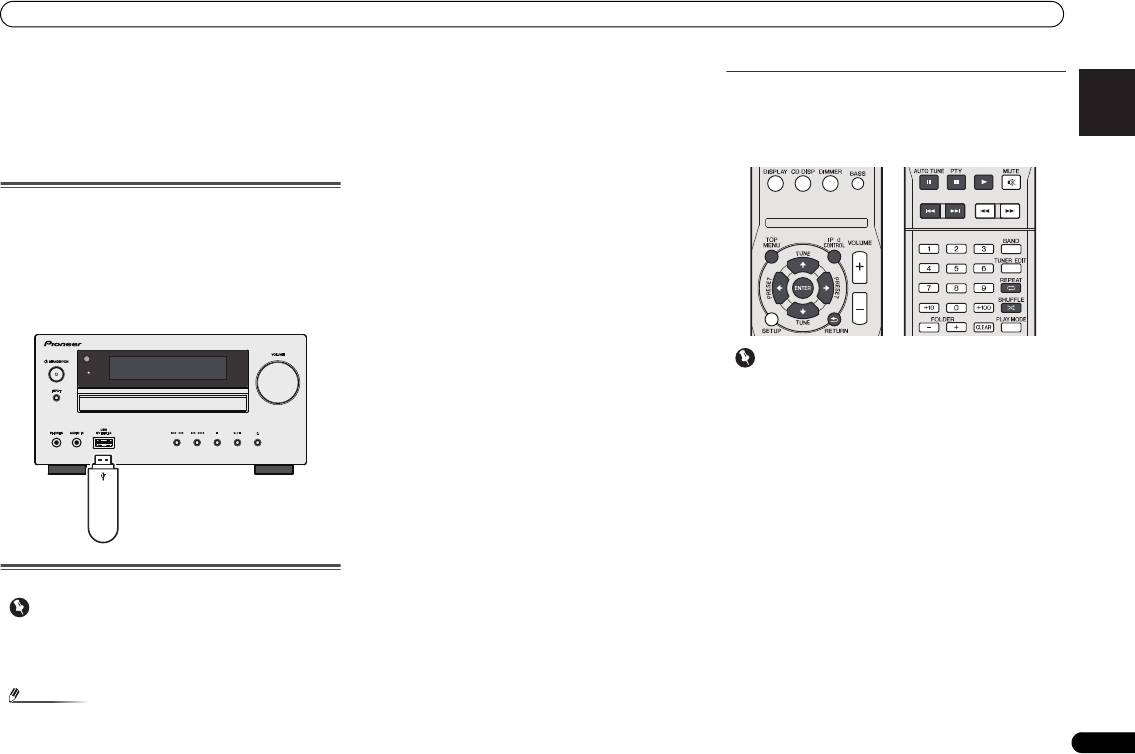
It is possible to listen to two-channel audio using the USB
interface on the front of this receiver.
Switch the receiver into standby then connect your USB
device to the USB terminal on the front panel of this
receiver.
• This receiver does not support a USB hub.
Deutsch
• If iPad is connected, the unit will begin charging.
Nederlands
Playing a USB device
19
En
Important
• Pioneer cannot guarantee compatibility (operation and/or
bus power) with all USB mass storage devices and
assumes no responsibility for any loss of data that may
occur when connected to this receiver.
Note
• Compatible USB devices include external magnetic hard
drives, portable flash memory (particularly keydrives) and
Basic playback controls
digital audio players (MP3 players) of format FAT16/32. It
This receiver’s remote control buttons can be used for basic
is not possible to connect this receiver to a personal
playback of files stored on USB devices.
computer for USB playback.
• Press USB to switch the remote control to the USB
• With large amounts of data, it may take longer for the
operation mode.
receiver to read the contents of a USB device.
• If the file selected cannot be played back, this receiver
automatically skips to the next file playable.
• When the file currently being played back has no title
assigned to it, the file name is displayed in the OSD
instead; when neither the album name nor the artist
name is present, the row is displayed as a blank space.
• Note that non-roman characters in the playlist are
displayed as ‘*’.
• Make sure the receiver is in standby when disconnecting
the USB device.
1 Switch on the receiver and your TV.
2 Switch the TV input so that it connects to the receiver.
3 Press USB on the remote control to switch the receiver
to the USB function.
Please Wait appears in the OSD as this receiver starts
recognizing the USB device connected. After the recognition,
a playback screen appears in the OSD and playback starts
automatically.
• This includes playback of WMA/MP3/MPEG-4 AAC files
(except files with copy-protection or restricted playback).
Important
TIMER
If a USB Error message lights in the display, try following the
points below:
• Switch the receiver off, then on again.
• Reconnect the USB device with the receiver switched off.
• Select another input source (like CD), then switch back to
USB.
• Use a dedicated AC adapter (supplied with the device) for
USB power.
If this doesn’t remedy the problem, it is likely your USB device
is incompatible.
USB mass
storage device
X-HM70_En.fm 19 ページ 2011年8月2日 火曜日 午後4時46分
O
Playback with NETWORK feature
Playback with NETWORK
feature
This receiver is equipped with the LAN terminal and you can
enjoy the following features by connecting your components
to these terminals.
• Listening to Internet radio stations
You can select and listen to your favorite Internet radio
station from the list of Internet radio stations created,
edited, and managed by the SHOUTcast database
service.
See Listening to Internet radio stations below.
• Playback the music files stored in PCs
You can playback a lot of musics stored in your PCs using
this unit.
See Playing back audio files stored on components on
the network on page 21.
-
Besides a PC, you can also play back audio files stored
on your other components with the built-in media server
function based on DLNA 1.0 or DLNA 1.5 framework and
protocols (i.e. network-capable hard disks and audio
systems).
20
En
Important
2 Switch the TV input so that it connects to the receiver.
3 Press NETWORK on the remote control to switch the
Listening to Internet radio stations
receiver to the NETWORK function.
Internet radio is an audio broadcasting service transmitted
It may take several seconds for this receiver to access the
via the Internet. There are a large number of Internet radio
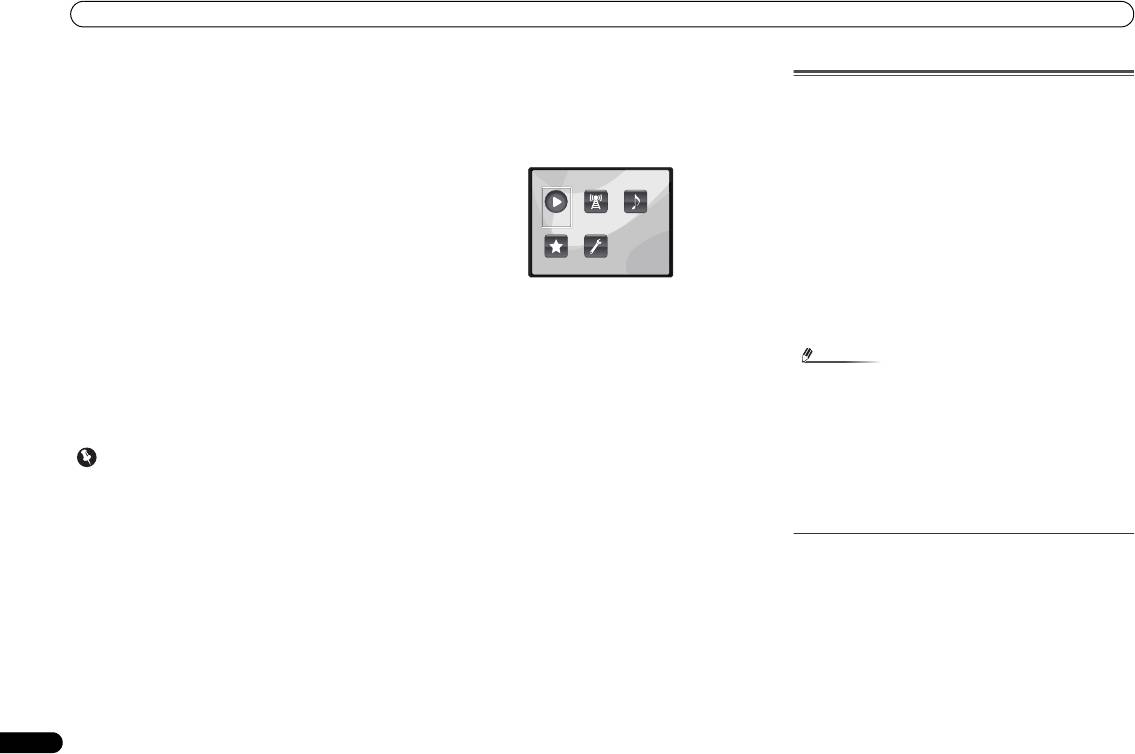
network. The following screen appears when the NETWORK
stations broadcasting a variety of services from every corner
is selected as the input function.
of the world. Some are hosted, managed, and broadcast by
private individuals while others are by the corresponding
traditional terrestrial radio stations or radio networks.
Whereas terrestrial, or OTA (over-the-air), radio stations are
geographically restricted on the range of radio waves
broadcast from a transmitter through the air, Internet radio
stations are accessible from anywhere in the world, as long
as there is a connection to the Internet, as services are not
transmitted through the air but are delivered over the World
Wide Web. On this receiver you can select Internet radio
4Use
/
to select the category you want to play back,
stations by genre as well as by region.
and then press ENTER.
Select a category from the following list:
Depending on the Internet line conditions, the sound may not
be smooth when playing Internet radio.
• Now Playing – Display the Current status and station
information.
• Internet Radio – Listening the SHOUTcast internet radio
via network.
• Music Library – Playback the music files stored in PCs.
• Favorites – Favorite songs currently being registered.
• Settings – Perform NETWORK function settings.
5Use
/
to select the folder, music files or Internet
radio station to play back, and then press ENTER.
• When you play back audio files, ‘Please Wait’ is displayed
Press / to scroll up and down the list and select the
before playback starts. The display may continue for
desired item. When you press ENTER, playback starts with
several seconds depending on the type of file.
the playback screen being displayed for the selected item. To
• In case a domain is configured in a Windows network
return to the list screen, press RETURN.
environment, you cannot access a PC on the network
When the items are displayed over multiple pages, use /
while you are logged onto the domain. Instead of logging
to quickly display different pages.
onto the domain, log onto the local machine.
6 Repeat step 5 to play back the desired song.
• There are cases where the time elapsed may not be
For detailed operating instructions, refer to the section
correctly displayed.
shown below.
1 Switch on the receiver and your TV.
• Internet radio stations – See Listening to Internet radio
See Connecting to the network through LAN interface on
stations below.
page 10.
• Music files stored in PCs – See Playing back audio files
stored on components on the network on page 21.
Note
X-HM70_En.fm 20 ページ 2011年8月2日 火曜日 午後4時46分
Main Menu
Now Playing
Internet
Music
Radio
Library
Favorites Settings
• To listen to Internet radio stations, you must have high-
speed broadband Internet access. With a 56 K or ISDN
modem, you may not enjoy the full benefits of Internet
radio.
• The port number varies depending on the Internet radio
station. Check the firewall settings.
• Broadcasts may be stopped or interrupted depending on
the Internet radio station. In this case, you cannot listen
to a radio station selected from the list of Internet radio
stations.
About list of Internet radio
The list of Internet radio stations on this receiver is created,
edited, and managed by the SHOUTcast database service.
