
Pioneer XC-HM70-K: Using the Radio Data System (RDS) An introduction to RDS Displaying RDS information Searching for RDS programs
Using the Radio Data System (RDS) An introduction to RDS Displaying RDS information Searching for RDS programs: Pioneer XC-HM70-K
Table of contents
- VENTILATION CAUTION IMPORTANT Operating Environment
- Contents Accessories
- Before you start
- Controls and Displays Remote control
- Front Panel Speaker system (X-HM70 only)
- Connecting your equipment Aerial connection
- Speaker connection Using other subwoofer Connecting a TV, etc.
- Connecting to the network through LAN interface AC power connection
- General control To turn the power on Setting the clock Auto power down setup
- Enhancing your system
- Listening to a CD or MP3/ WMA disc
- Advanced CD or MP3/WMA disc playback
- MP3/WMA folder mode (only for MP3/WMA files)
- Procedure to playback MP3/WMA disc with folder mode on
- Listening to the iPod, iPhone or iPad Supported iPod, iPhone and iPad models: Connecting your iPod/iPhone To insert iPad adaptor
- Playing an iPod, iPhone or iPad Basic playback controls
- Listening to USB mass storage device/MP3 player Connecting a USB device Playing a USB device
- Playback with NETWORK feature Listening to Internet radio stations
- Playing back audio files stored on components on the network Playing back your favorite songs
- Network connection requirements
- Glossary
- Listening to the radio Improving FM sound Saving station presets Listening to station presets Naming preset stations Changing the noise cut mode
- Using the Radio Data System (RDS) An introduction to RDS Displaying RDS information Searching for RDS programs
- Timer and sleep operation Sleep operation Setting the wake-up timer Turning the wake-up timer on/off
- Additional Information
- Additional Information
- Additional Information
- Category Extension Stream About playable music file formats Category Extension Stream About status messages Status messages Descriptions
- Specifications About iPod/iPhone/iPad
Using the Radio Data System (RDS)
English Français Español Italiano
Using the Radio Data
System (RDS)
An introduction to RDS
Radio Data System (RDS) is a system used by most FM radio
stations to provide listeners with various kinds of
information—the name of the station and the kind of show
they’re broadcasting, for example.
One feature of RDS is that you can search by type of program.
For example, you can search for a station that’s broadcasting
a show with the program type, JAZZ.
You can search the following program types:
Deutsch
Nederlands
25
En
Note
Displaying RDS information
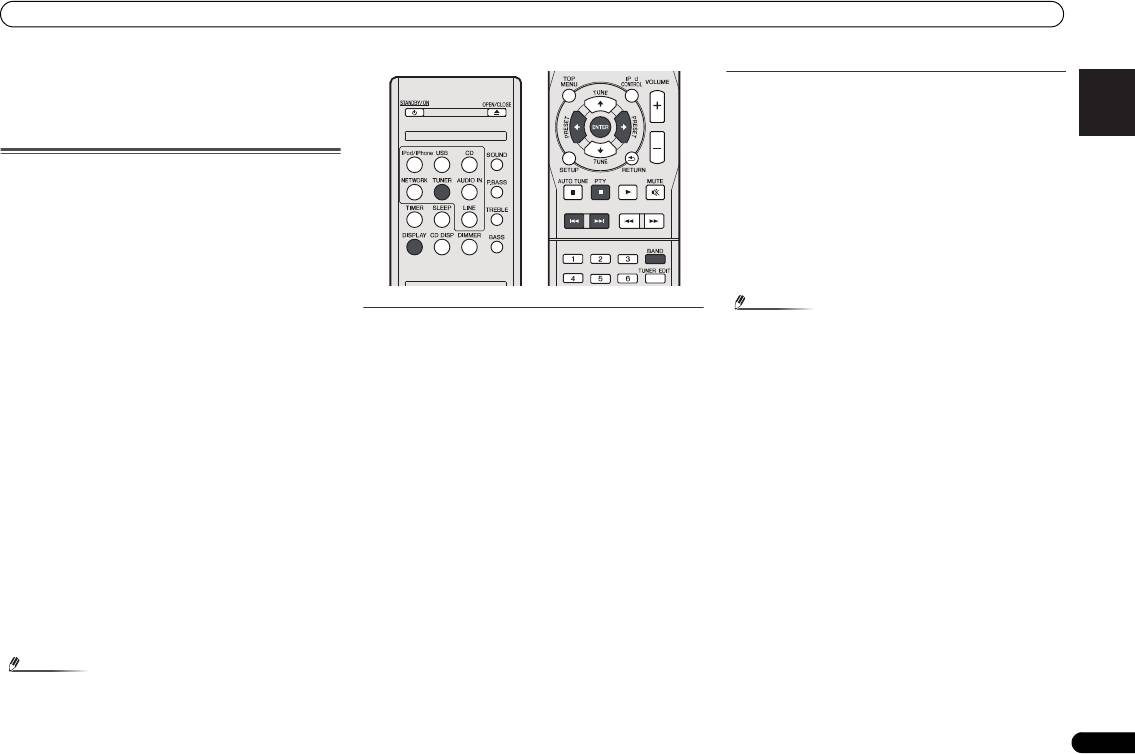
Use the DISPLAY button to display the different types of RDS
information available.
Press DISPLAY for RDS information.
Each press changes the display as follows:
• Radio Text (RT) – Messages sent by the radio station. For
example, a talk radio station may provide a phone number
as RT.
• Program Service Name (PS) – The name of the radio
station.
•Program Type (PTY) – This indicates the kind of program
currently being broadcast.
• Current tuner frequency (FREQ)
Searching for RDS programs
You can search for a program type listed above.
1 Press TUNER then press BAND to select the FM band.
• RDS is only possible in the FM band.
2 Press PTY.
SEARCH shows in the display.
3 Press PRESET
/
to select the program type you
want to hear.
4 Press ENTER to search for the program type.
The system starts searching through the station presets for a
match, stopping when it was found one. Repeat to search for
other stations.
If NO PTY is displayed it means the tuner couldn’t find that
program type at the time of the search.
• RDS searches station presets only. If no stations have
been preset, or if the program type could not be found
among the station presets NO PTY is displayed. FINISH
means the search is complete.
• In addition, there are three other program types, ALARM,
ALARMTST, and NO TYPE. ALARM and ALARMTST are
used for emergency announcements. NO TYPE appears
when a program type cannot be found.
Note
X-HM70_En.fm 25 ページ 2011年8月2日 火曜日 午後4時46分
O
NEWS – News
FINANCE – Stock market
• If any noise is picked up while displaying the RT scroll,
AFFAIRS – Current Affairs
reports, commerce, trading,
some characters may be displayed incorrectly.
INFO – General Information
etc.
CHILDREN – Programs for
• If you see NO TEXT in the RT display, it means no RT data
SPORT – Sport
is sent from the broadcast station. The display will
EDUCATE – Educational
children
SOCIAL – Social affairs
automatically switch to the PS data display (if no PS data,
DRAMA – Radio plays, etc.
RELIGION – Programs
NO NAME is displayed).
CULTURE – National or
regional culture, theater, etc.
concerning religion
• In the PTY display, NO PTY may be shown.
SCIENCE – Science and
PHONE IN – Public expressing
technology
their views by phone
VARIED – Usually talk-based
TRAVEL – Holiday-type travel
material, such as quiz shows
rather than traffic
or interviews.
announcements
POP M – Pop music
LEISURE – Leisure interests
ROCK M – Rock music
and hobbies
EASY M – Easy listening
JAZZ – Jazz
LIGHT M – ‘Light’ classical
COUNTRY – Country music
music
NATION M – Popular music in
CLASSICS – ‘Serious’ classical
a language other than English
music
OLDIES – Popular music from
OTHER M – Music not fitting
the ’50s and ’60s
above categories
FOLK M – Folk music
WEATHER – Weather reports
DOCUMENT – Documentary
