
Pioneer XC-HM70-K: MP3/WMA folder mode (only for MP3/WMA files)
MP3/WMA folder mode (only for MP3/WMA files): Pioneer XC-HM70-K
Table of contents
- VENTILATION CAUTION IMPORTANT Operating Environment
- Contents Accessories
- Before you start
- Controls and Displays Remote control
- Front Panel Speaker system (X-HM70 only)
- Connecting your equipment Aerial connection
- Speaker connection Using other subwoofer Connecting a TV, etc.
- Connecting to the network through LAN interface AC power connection
- General control To turn the power on Setting the clock Auto power down setup
- Enhancing your system
- Listening to a CD or MP3/ WMA disc
- Advanced CD or MP3/WMA disc playback
- MP3/WMA folder mode (only for MP3/WMA files)
- Procedure to playback MP3/WMA disc with folder mode on
- Listening to the iPod, iPhone or iPad Supported iPod, iPhone and iPad models: Connecting your iPod/iPhone To insert iPad adaptor
- Playing an iPod, iPhone or iPad Basic playback controls
- Listening to USB mass storage device/MP3 player Connecting a USB device Playing a USB device
- Playback with NETWORK feature Listening to Internet radio stations
- Playing back audio files stored on components on the network Playing back your favorite songs
- Network connection requirements
- Glossary
- Listening to the radio Improving FM sound Saving station presets Listening to station presets Naming preset stations Changing the noise cut mode
- Using the Radio Data System (RDS) An introduction to RDS Displaying RDS information Searching for RDS programs
- Timer and sleep operation Sleep operation Setting the wake-up timer Turning the wake-up timer on/off
- Additional Information
- Additional Information
- Additional Information
- Category Extension Stream About playable music file formats Category Extension Stream About status messages Status messages Descriptions
- Specifications About iPod/iPhone/iPad
Listening to a CD or MP3/WMA disc
3 Press the ENTER button to save the track number.
Displaying disc information:
English Français Español Italiano
4 Repeat steps 2 - 3 for other tracks. Up to 32 tracks can
Press CD DISP repeatedly to change to the display of the
be programmed. If you make a mistake, the
elapsed playback time and the remaining playback time of
programmed tracks can be cleared by pressing the
the CD.
CLEAR button.
Various track information can be displayed while an MP3/
5 Press the / ( ) button to start playback.
WMA disc is playing. Press DISPLAY.
Programmed play (MP3/WMA)
1 Whilst in the stop mode, press the PLAY MODE button
until ‘PROGRAM’ appears to enter the programming
save mode.
Every time you press the PLAY MODE button, the playback
mode changes.
Deutsch
2 Press the or , or numeric buttons on the
remote control to select the desired folder.
Then press the or button or numeric buttons on the
remote control to select the desired tracks.
Nederlands
3 Press the ENTER button to save the folder and track
number.
4 Repeat steps 2 - 3 for other folder/tracks. Up to 32 tracks
can be programmed.
5 Press the / ( ) button to start playback.
Adding tracks to the programme:
Stop the playing mode, then follow steps 2 - 3 to add tracks.
The new tracks will be stored after the last track of the
previous programme.
To cancel the programmed play mode:
During programmed stop mode, press the button. Press
the PLAY MODE button to select the basic play mode, and all
the programmed contents will be cleared.
15
En
Note
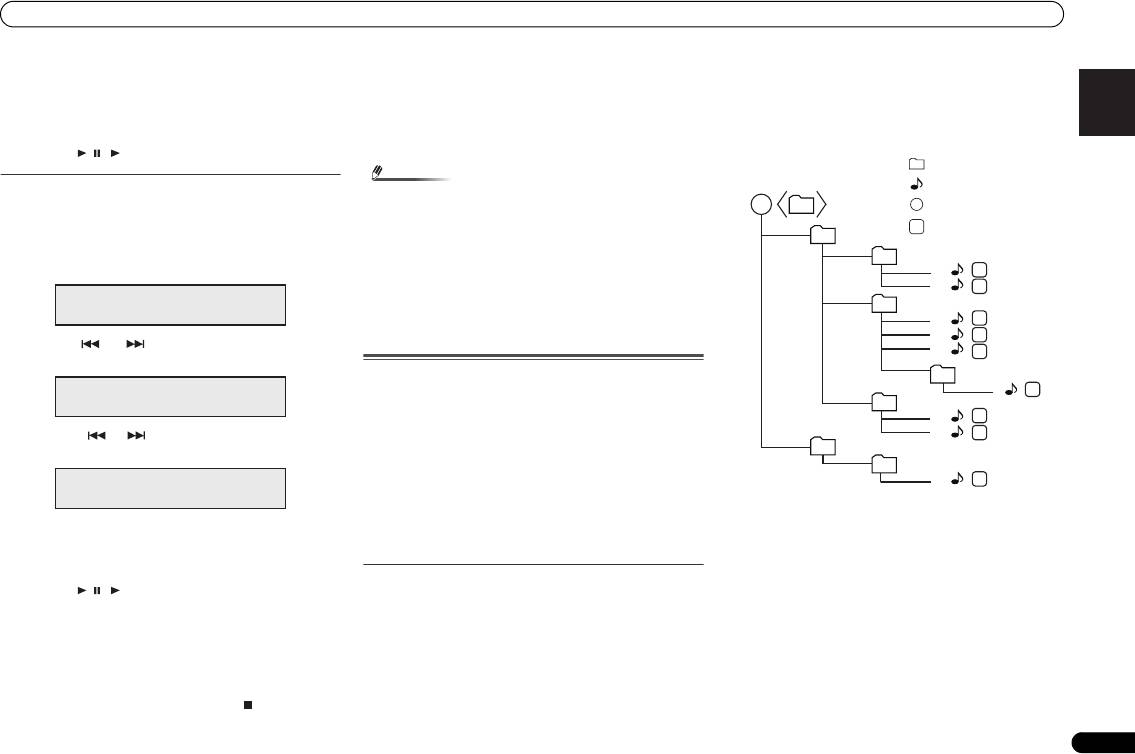
1 ROOT folder is set as folder 1.
2 Playback will be in the order of the diagram below.
3 For CD MP3/WMA, 255 numbers of folders and files
inclusive of the folders which have non playable files
can be read.
• When a disc is ejected, the programme is automatically
cancelled.
• If you press the STANDBY/ON button to enter the stand-
by mode or change the function from CD to another, the
programmed selections will be cleared.
• During the programme operation, shuffle play is not
possible.
• The control buttons to change displays differ between the
discs: for CD, CD DISP is used; for MP3/WMA disc,
DISPLAY is used.
MP3/WMA folder mode (only for MP3/WMA
files)
To play back MP3/WMA (Windows Media Audio) file
There are many music sites on the internet that you can
download MP3/WMA (Windows Media Audio) music files.
Follow the instructions from the website on how to download
the music files. You can then play back these downloaded
music files by burning them to a CD-R/RW disc.
• Your downloaded song/files are for personal use only. Any
other usage of the song without owner’s permission, is
against the law.
About folder playback order
If MP3/WMA files are recorded in several folders, a folder
number will be set to each folder automatically.
Press PLAY MODE to select the folder playback mode.
These folders can be selected by the FOLDER +/- button on
the remote control. If there is no supported file formats inside
the selected folder, the folder is skipped and the next folder
will be selected.
Example: How to set folder number if MP3/WMA format files
are recorded as below figure.
PROGRAM
P - 01 ← F--- T---
1
2
3
1
1
2
2
4
1
3
2
4
3
5
5
PROGRAM
6
P - 01 ← F002 T---
6
1
7
2
8
7
8
PROGRAM
1
9
P - 01 ← F002 T005
Media layer example
Folder
Audio file
Root
Session order
Layer 1 Layer 2 Layer 3 Layer 4 Layer 5
X-HM70_En.fm 15 ページ 2011年8月2日 火曜日 午後4時46分
