
Pioneer CDJ-2000: instruction
Class: Music Equipment
Type:
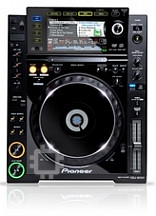
Manual for Pioneer CDJ-2000
Table of contents
- Contents
- Before start
- Before you start What’s in the box Discs/ files playable on the CDJ-2000 About CD playback About SD memory cards
- About USB devices About AAC files About WAV files About MP3 files About AIFF files About rekordbox
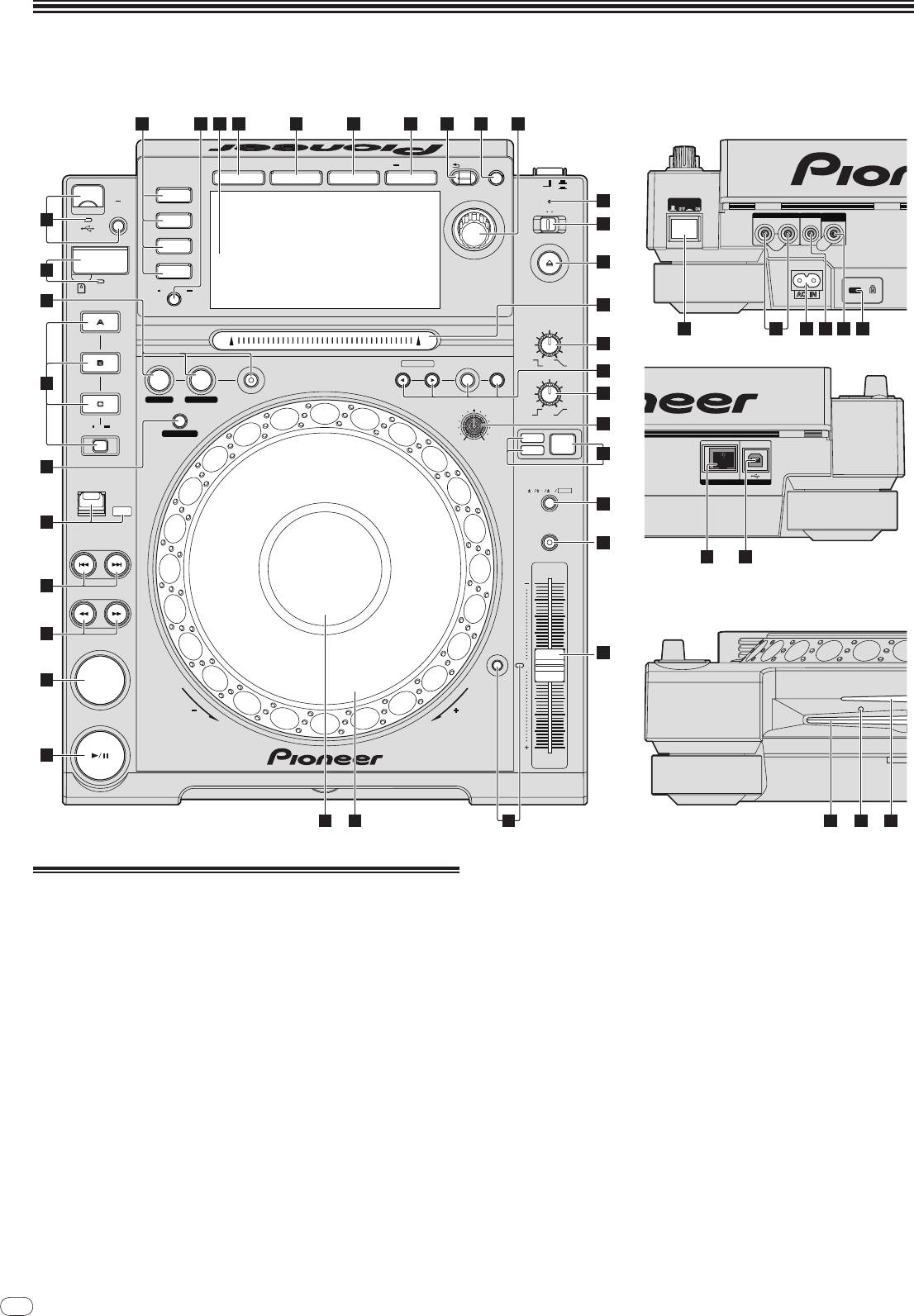
- Part Names and Functions Control Panel
- Rear Panel Front Panel
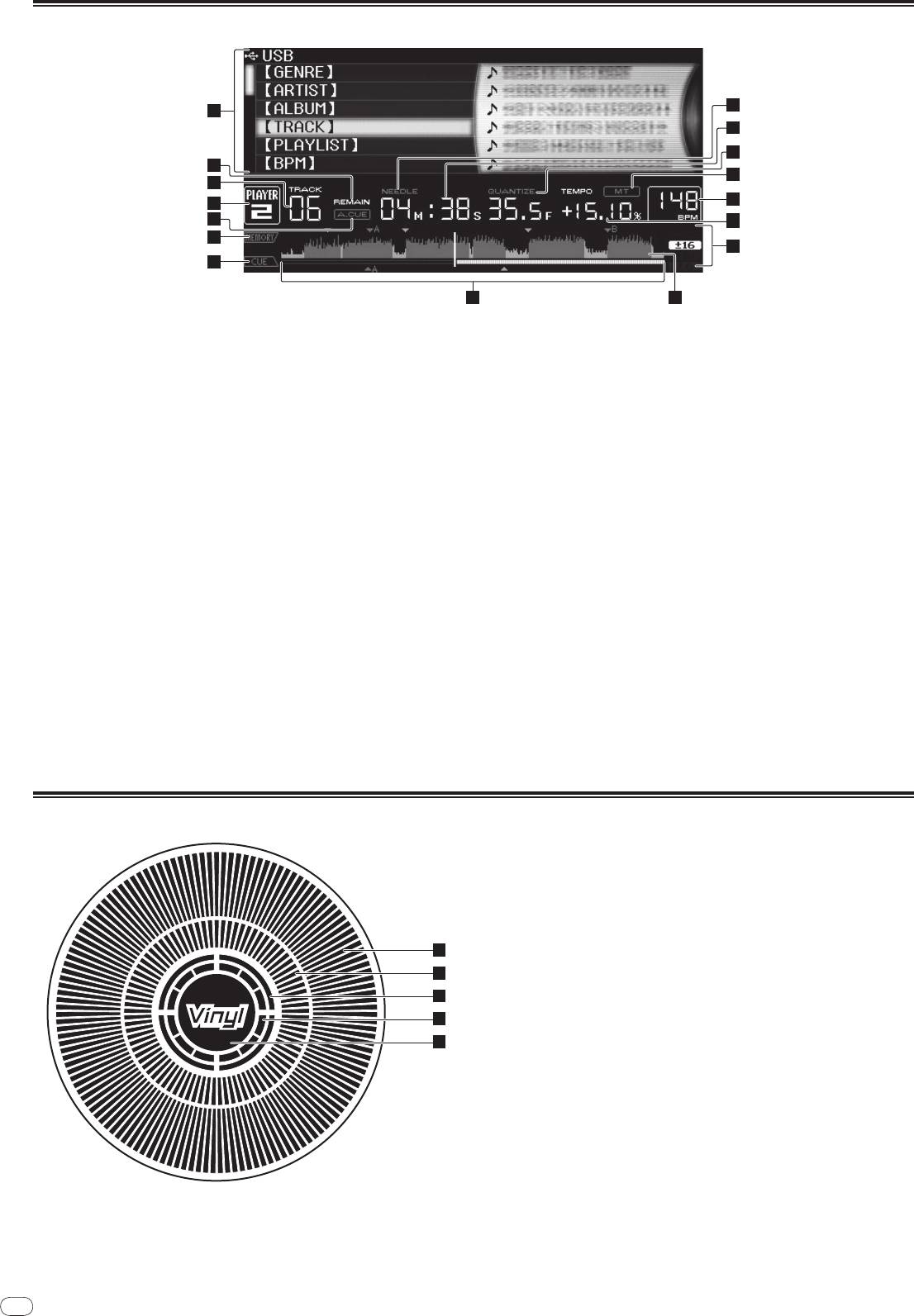
- Main unit display Jog dial display section
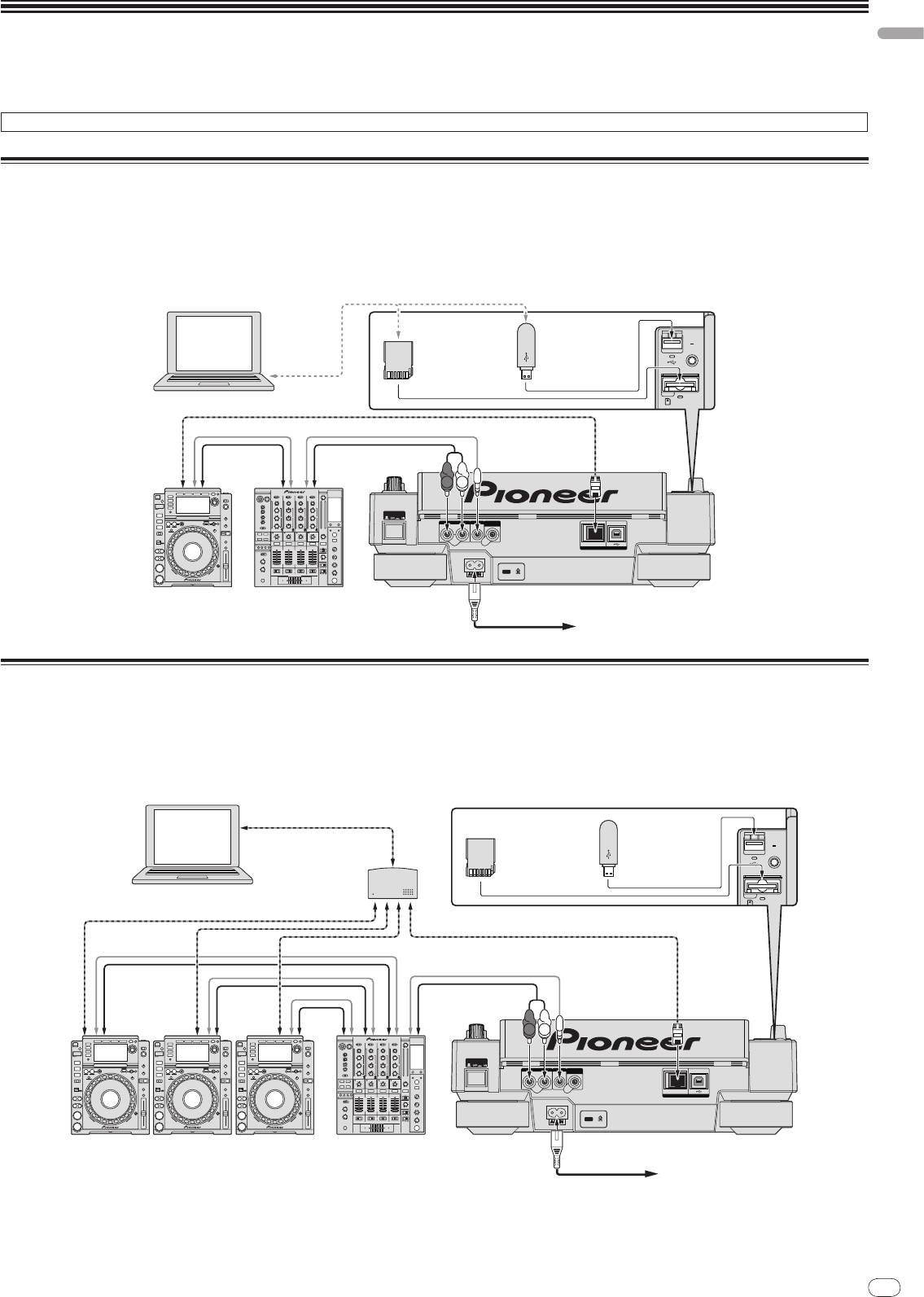
- Connections Basic style Using in combination with rekordbox
- Using other brands of DJ software Connections for relay play
- Loading USB devices Playback Loading discs Using the PRO DJ LINK function Loading SD memory cards
- Playback
- Setting Cue Setting Loop
- Setting Hot Cue Storing cue and loop points
- Operating the jog dial Operating the [NEEDLE SEARCH] pad
- Using the [BROWSE] button Operating the CDJ-2000 in combination with other devices
- Checking the playing history (HISTORY) Using the [TAG LIST] button Adding tracks to the tag list Loading tracks from the tag list Removing tracks from the tag list
- Using the [INFO] button Checking the details of loaded tracks Displaying details of tracks loaded in other DJ players Using the information jump function
- Changing the settings Using the [MENU/UTILITY] button Setting the auto standby mode Setting [HISTORY NAME] Changing the settings Changing the language List of settings
- About the rekordbox software Software end user license agreement Cautions on copyrights Cautions on Installation
- Installing rekordbox Using the support site
- Connecting the CDJ-2000 and computer About the driver software Cautions on Installation Adjusting the buffer size (Windows) Installing the driver software
- Checking the version of the driver software Checking the latest information on the driver software Using other brands of DJ software Operating DJ software by MIDI interface
- Additional information Troubleshooting Problem Check Remedy
- About the liquid crystal display Error messages List of icons displayed on the main unit display section
- Cautions on use
- Disclaimer Specifications
DRB1475-B
1
MULTI PLAYER
LECTEUR DE MULTI
MULTI-PLAYER
LETTORE MULTIPLO
CDJ-2000
MULTI-SPELER
MULTIRREPRODUCTOR
МНОГОФУНКЦИОНАЛЬНЫЙ
ПРОИГРЫВАТЕЛЬ
http://www.prodjnet.com/support/
The Pioneer website listed above provides answers to frequently asked questions, information about
software, and other up-to-date data of assistance to our customers.
Le site Web de Pioneer ci-dessus fournit des réponses aux questions souvent posées, des informations
au sujet des logiciels et d’autres données mises à jour afin de venir en aide à notre clientèle.
Auf der oben angegebenen Pioneer-Website werden unseren Kunden Antworten auf häufig gestellte
Fragen, Informationen über Software und weitere Unterstützung mit neuesten Daten angeboten.
http://www.prodjnet.com/rekordbox/support/
For inquiries on rekordbox, please see the support site indicated above.
Pour toute demande d’informations au sujet de rekordbox, veuillez consulter le site d’assistance
indiqué ci-dessus.
Für Anfragen über rekordbox sehen Sie bitte die oben angegebene Support-Site.
Per domande riguardanti rekordbox, consultare il sito di supporto tecnico indicato qui sopra.
Voor hulp of nadere inlichtingen over rekordbox kunt u terecht op de bovengenoemde website.
Para obtener información acerca del rekordbox, vea el sitio de asistencia indicado más arriba.
Для справок по rekordbox, пожалуйста, смотрите сайт поддержки, обозначенный выше.
Operating Instructions
Mode d’emploi
Bedienungsanleitung
Istruzioni per l’uso
Handleiding
Manual de instrucciones
Инструкции по эксплуатации
2
En
DRB1475-B
2
English
En
3
DRB1475-B
Contents
How to read this manual
The names of displays, menus, and buttons in this manual are enclosed in brack-
ets. (e.g. [MASTER] channel, [ON/
OFF], [File] menu)
Before start
Features ...........................................................................................................................4
Before you start
What’s in the box .............................................................................................................6
Discs/
files playable on the CDJ-2000 ............................................................................6
Part Names and Functions
Control Panel ...................................................................................................................8
Rear Panel .......................................................................................................................9
Front Panel.......................................................................................................................9
Main unit display ...........................................................................................................10
Jog dial display section.................................................................................................10
Connections
Basic style ......................................................................................................................11
Using in combination with rekordbox .........................................................................11
Using other brands of DJ software ..............................................................................12
Connections for relay play ............................................................................................12
Playback
Loading discs.................................................................................................................13
Loading SD memory cards ...........................................................................................13
Loading USB devices ....................................................................................................13
Using the PRO DJ LINK function ................................................................................13
Playback .........................................................................................................................14
Setting Cue ....................................................................................................................15
Setting Loop ...................................................................................................................15
Setting Hot Cue .............................................................................................................16
Storing cue and loop points .........................................................................................16
Operating the jog dial ...................................................................................................17
Operating the [NEEDLE SEARCH] pad .......................................................................17
Operating the CDJ-2000 in combination with other devices ....................................18
Using the [BROWSE] button .......................................................................................18
Using the [TAG LIST] button .........................................................................................19
Using the [INFO] button ...............................................................................................20
Changing the settings
Using the [MENU/UTILITY] button ...............................................................................21
About the rekordbox software ......................................................................................22
About the driver software .............................................................................................24
Using other brands of DJ software ..............................................................................25
Additional information
Troubleshooting ............................................................................................................26
About the liquid crystal display ....................................................................................27
Error messages .............................................................................................................27
List of icons displayed on the main unit display section ...........................................27
Cautions on use ............................................................................................................28
Handling discs ..............................................................................................................28
Disclaimer ......................................................................................................................29
Specifications ................................................................................................................29
3
4
En
DRB1475-B
Before start
Features
The CDJ-2000 is a multi player for professional DJs, offering the variety of functions, durability and operability required for working in discos and nightclubs.
MULTI MEDIA, MULTI FORMAT
The CDJ-2000 can play not only discs (CDs and DVDs), but also music files recorded on SD memory cards and USB devices (flash memory drives and hard disks).
Supported music file formats include not only music CD (CD-DA) and MP3 but also AAC, WAV and AIFF.
TM
rekordbox
The included rekordbox music management software can be used to prepare playlists, cues, loops, hot cues and other data required for DJ play unhurriedly at home
ahead of time. This allows you to devote all your attention to DJ play at the disco/
nightclub, with total assurance. From acquiring music files to DJ play, all steps in the
cycle of the DJ’s work can be accomplished smoothly.
rekordbox is an application for managing music files which are used for DJ play with a Pioneer DJ Player (i.e. CDJ-2000, CDJ-900).
Data that has been detected and measured, as well as any points which have been set and stored using rekordbox, can be used in combination with a Pioneer DJ Player
(i.e. CDJ-2000, CDJ-900) to achieve outstanding DJ performance.
PRO DJ LINK
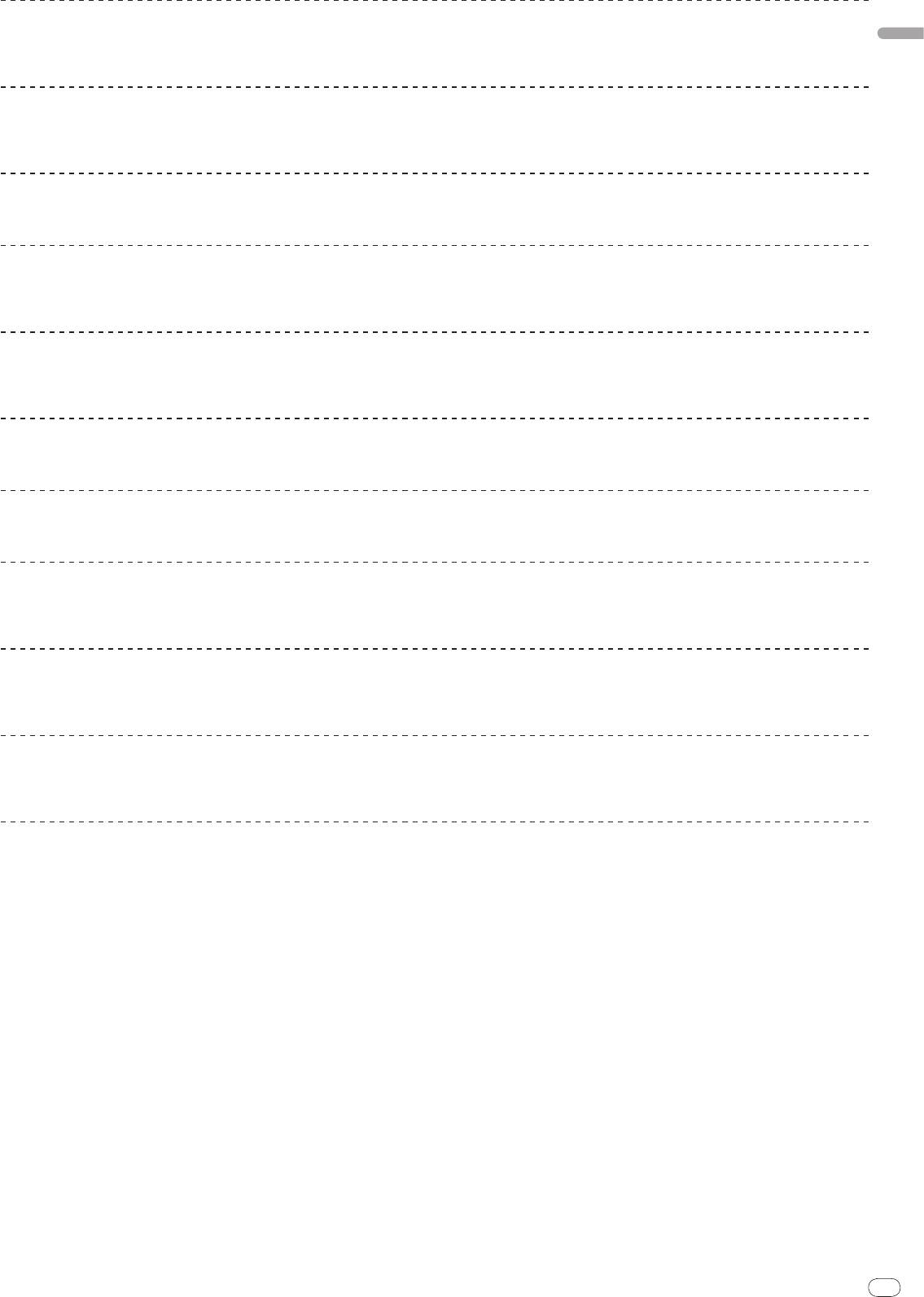
Functions include “SD & USB Export” using SD memory cards and USB devices (flash memory drives and hard discs) and “rekordbox LINK Export” using the computer
on which rekordbox is installed.
SD & USB Export
This function can be used to transfer rekordbox music files and management data using SD memory cards/
USB devices. This eliminates the need to take your com-
puter to the disco or club.
4
At home/In a studio
At the disco/club
Computer
The playing history is
- Play using the rekordbox data.
Load music files onto
Check and manage
stored on the SD
- Share rekordbox data using PRO
the computer from the
the playing history
memory card/USB
DJ LINK.
Internet or discs.
rekordbox
with rekordbox.
device.
Write the rekordbox
Load the SD
- Add to and analyze the
data onto an SD
memory card/USB
collection.
memory card or USB
device into the DJ
- Prepare with rekordbox.
device.
player.
DJ player
rekordbox LINK Export
When the CDJ-2000 and computer are connected by LAN cable, the rekordbox music files and management data can be transferred directly between them. This elimi-
nates the need to export data to SD memory cards/
USB devices.
At home/In a studio
At the disco/club
Computer
Switching
Load music files onto
rekordbox
- Play using the rekordbox data.
hub
the computer from the
- Share rekordbox data using PRO DJ LINK.
Internet or discs.
rekordbox
Computer
- Connect the computer and
- Add to and analyze the collection.
DJ player.
- Prepare with rekordbox.
- Load the rekordbox data into
the DJ player.
DJ player
English
En
5
DRB1475-B
SOUND CARD
The CDJ-2000 is equipped with exclusive interface and MIDI interface for controlling the DJ software of other brands. There is also a built-in sound card, so other equip-
ment can be connected easily.
DISPLAY
A large 6.1-inch color LCD is used to display not only text data but also jacket photos. The combination of a GUI displaying music file information in easily understand-
able fashion and a rotary selector with easy operation lets you select tracks with no stress.
WAVE DISPLAY
WAVE displays indicate the data with a higher resolution than previous Pioneer products.
NEEDLE SEARCH
When the NEEDLE SEARCH pad is touched with a finger, the sound near the position at which the pad is touched is played instantaneously. This makes for faster point
searching than ever before.
TAG LIST
In addition to playlists prepared using rekordbox, tracks to be played next can be temporarily collected inside the CDJ-2000. The music files added to the tag list can be
displayed as a list. This function is extremely convenient for selecting tracks during live performances.
KEYWORD SEARCH
Keyword searching, letter jumping and other functions let you quickly and precisely search for the desired music file.
HISTORY MEMORY
The CDJ-2000 is equipped with a history function storing the playing history of music files. Playlists can be created from this playing history using rekordbox.
0.5 FRAME STEP
The minimum frame has evolved from 1 (1/
75 seconds) to 0.5 frames. This makes it possible to set the cue and loop points with greater precision to achieve accurate,
advanced DJ play.
ADVANCED JOG DIAL
The jog ring illumination lights in four places, so the top and side edges of the jog dial are clearly visible, even in dark DJ booths. This can also be used to impress the
audience.
QUANTIZE
The CDJ-2000 is equipped with a quantize function for putting a track on beat even when the button is pressed roughly, as long as the track has been analyzed with
rekordbox. When setting real time cues and hot cues, the beat is automatically set to the beat closest to the position at which the button was pressed.
HIGH SOUND QUALITY
The CDJ-2000 is designed for thorough improvement of the sound quality, for both the digital and analog outputs.
For the digital circuitry, a high performance Wolfson D/
A converter is used to faithfully reproduce even the most delicate sounds, achieving clear, high quality sound
with a rich sense of mass and acoustic field.
For the analog circuitry, a hybrid OP amplifier is used to reduce to the utmost limits that inaudible noise of 20 kHz and higher that can blur the original sound. Unwanted
digital noise is shut out to achieve clear, highly transparent sound faithful to the original.
5
6
En
DRB1475-B
Regarding copy protected CDs
This player is designed to conform to the specifications of the audio CD format.
This player does not support the playback or function of discs that do not con-
Before you start
form to these specifications.
About DualDisc
What’s in the box
This player is designed to conform to the specifications of the audio CD format.
! Audio cable
This player does not support the playback or function of discs that do not con-
! Power cable
form to these specifications.
! Control cord
! LAN cable
About 8 cm single CDs
! Disc force eject pin
! CD-ROM (rekordbox)
8 cm single CDs cannot be played on the CDJ-2000. Do not mount 8 cm adapt-
! Warranty card
ers on CDs and play them on the CDJ-2000. The adapter could fall off as the disc
! Operating instructions (this document)
spins, damaging the disc or the player.
About CD-Text
Discs/
files playable on the CDJ-2000
The CDJ-2000 supports CD-Text. Titles, album names and artist names recorded
in CD-Text are displayed. When multiple text data is recorded, the first text data
is displayed. The supported character codes are shown below.
Playable discs
! ASCII
! ISO-8859
Discs including the following marks on the disc label, package or jacket can be
! MS-JIS
played.
! Mandarin Chinese character code
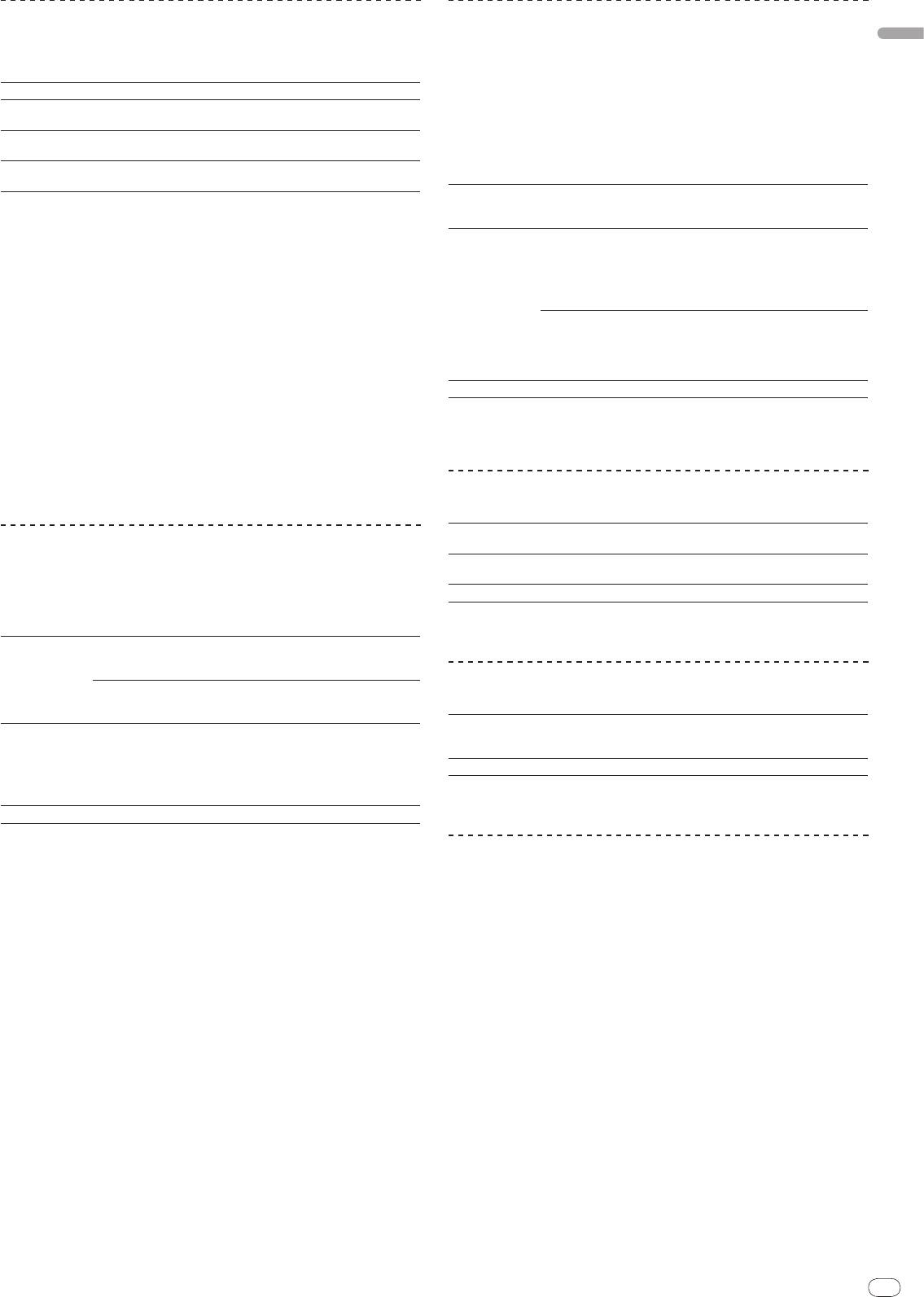
Types of discs that can be played and marks
About CD playback
Music files (MP3/
AAC/
WAV/
AIFF) recorded on CD-R/
-RW, DVD-R/
-RW, DVD+R/
+RW, DVD-R DL (dual layer) and DVD+R DL (dual layer) discs can be played.
Folder layers Max. 8 levels (files in folders beyond the 8th level cannot be played)
CD
CD-TEXT
Max. number of
2 000 folders per disc (folders beyond the 2 000th folder cannot be
CD-R
folders
displayed)
! 999 files for each file format
Max. number of
! 3 000 files per disc (files beyond the 3 000th folder cannot be dis-
files
played)
When there are many folders or files, some time may be required for loading.
DVD-R
DVD-RW
CD-RW
About SD memory cards
is a trademark of DVD Format/
Logo Licensing Corporation.
Discs playable on this player are as shown below.
Music files (MP3/
AAC/
WAV/
AIFF) recorded on SD and SDHC memory cards
! CD-R/
-RW discs recorded in music CD (CD-DA) format
conforming to SD standards can be played.
! CD-R/
-RW, DVD-R/
-RW, DVD+R/
+RW, DVD-R DL (dual layer) and DVD+R
Such data as disc identification information, cue points, loop points and hot cues
DL (dual layer) discs on which music files (MP3/
AAC/
WAV/
AIFF) are
can be recorded on SD memory cards.
recorded
Folder layers Max. 8 levels (files in folders beyond the 8th level cannot be played)
Max. number of
Unlimited (folders beyond the 10 000th folder within a single folder
folders
cannot be displayed)
Discs that cannot be played
Max. number of
Unlimited (files beyond the 10 000th file within a single folder cannot
! DTS-CD
files
be displayed)
! Photo CDs
1
! SD memory cards: 8 MB – 2 GB
! Video CDs
Supported cards
! SDHC memory cards: 4 GB – 32 GB
! CD Graphics (CD-G) discs
Compatible
! SD memory cards: FAT12 and FAT16 (conforming to SD standards)
! Unfinalized CDs
formats
! SDHC memory cards: FAT32 (conforming to SD standards)
! DVD-Video discs
1 CPRM is not supported.
! DVD-Audio discs
! DVD-RAM discs
! SDHC memory cards can be used with devices supporting SDHC memory
! Unfinalized DVDs
cards. They cannot be used with devices that only support SD memory cards.
! When using SD memory cards with a capacity of 4 GB or greater, use SD
Playback of discs created on a computer or DVD recorder
memory cards on which the SDHC logo is indicated.
! SD memory cards are shipped from the manufacturer in the standard format
Depending on the application’s settings and the computer’s environment set-
indicated above. If a non-formatted SD memory card is loaded, [FORMAT SD]
tings, it may not be possible to play discs created on a computer. Record discs in
is displayed and the card cannot be used.
a format playable on the CDJ-2000. For details, contact your application’s selling
! It may not be possible to used card formatted on a computer, digital camera,
agent.
etc.
It may not be possible to play discs created on a computer or DVD recorder due
! Pioneer does not guarantee that all SD memory cards will operate on the
to the disc’s properties, scratches or dirt, or poor recording quality (dirt on the
CDJ-2000.
recording lens, etc.).
See Handling discs on page 28 for instructions on handling discs.
Cautions on using SD memory cards
Creating backup discs
! SD memory cards are precision electronic devices. Handle them with care.
Bending, dropping or subjecting SD memory cards to strong forces or shocks
When CD-R/
-RW, DVD-R/
-RW, DVD+R/
+RW, DVD-R DL (dual layer) and DVD+R
could break them. Also, do not use or store SD memory cards in environ-
DL (dual layer) discs are paused or left in the pause mode at cue points for long
ments where static electricity or electric noise tends to be produced. We
periods of time, it may become difficult to play the disc that point, due to the
recommend periodically making copies of valuable data.
properties of the disc. When a specific point is looped repeatedly an extremely
! Please note that Pioneer will accept no responsibility whatsoever for loss of
large number of times, it may become difficult to play that point.
data recorded by the customer on SD memory cards or other direct or indirect
When playing valuable discs, we recommend making backup discs.
problems resulting from connection to the CDJ-2000.
! After ejecting SD memory cards, store them in their dedicated case, etc.
! Depending on the SD memory card you are using, the desired performance
may not be achieved.
6
English
En
7
DRB1475-B
About USB devices
About AAC files
Music files (MP3/
AAC/
WAV/
AIFF) recorded on USB devices can be played.
! AAC is the abbreviation of “Advanced Audio Coding”, a basic format of audio
Such data as disc identification information, cue points, loop points and hot cues
compression technology used for MPEG-2 and MPEG-4.
can be recorded on USB devices.
! The file format and extension of AAC data depends on the application used to
Folder layers Max. 8 levels (files in folders beyond the 8th level cannot be played)
create the data.
®
! In addition to AAC files encoded with iTunes
and with the extension “.m4a”,
Max. number of
Unlimited (folders beyond the 10 000th folder within a single folder
files with the extensions “.aac” and “.mp4” can also be played on the CDJ-
folders
cannot be displayed)
2000. However, copyright protected AAC files purchased for example at the
Max. number of
Unlimited (files beyond the 10 000th file within a single folder cannot
iTunes Music Store cannot be played. Also, some files may not be playable,
files
be displayed)
depending on the iTunes version used to encode them.
Supported file
FAT, FAT32 and HFS+
! The CDJ-2000 supports AAC files in the formats shown below.
systems
Sampling frequencies of 16 kHz, 22.05 kHz, 24 kHz,
! The CDJ-2000 supports such USB mass storage class USB devices as external hard
Compatible
MPEG-4 AAC LC
32 kHz, 44.1 kHz and 48 kHz, and bit rates of 16
discs, portable flash memory drives and digital audio players. External DVD/
CD drives
formats
kpbs – 320 kbps are supported.
and other optical disc devices cannot be used.
! When there are many folders or files, some time may be required for loading.
ID3 tag versions 1.0, 1.1, 2.2, 2.3 and 2.4 are sup-
! If multiple partitions are set for the USB device, the device may not be recognized.
ported.
Titles, album names, artist names, etc., are dis-
aac
1
played here.
JPEG images embedded in ID3 tags are displayed
Cautions on using USB devices
2
Track information
as the jacket photo.
! Some USB devices may not operate properly. Please note that Pioneer will
Meta tags (embedded tags) are supported.
accept no responsibility whatsoever for loss of data recorded on USB devices.
Titles, album names, artist names, etc., are dis-
Extensions other
1
played here.
! USB hubs cannot be used.
than aac
JPEG images embedded in tags are displayed as
! USB devices equipped with flash card readers may not operate.
2
the jacket photo.
! If a current above the allowable level is detected in the CDJ-2000’s USB port,
File extension .m4a, .aac and .mp4
it could happen that a warning message is displayed, the power to the USB
device is cut off and signal transfer is stopped. To restore normal operation,
1 To display characters written in a local code other than Unicode, change the [LAN-
remove USB devices connected to the player, then press USB STOP. Avoid
GUAGE] setting at [UTILITY] (page 21).
2 Files larger than 800 x 800 dots cannot be displayed.
reusing the USB device for which the excess current was detected. If normal
operation is not restored after performing the above operation (if signals are
not transferred), try turning off the player’s power then turning it back on.
! Depending on the USB device you are using, the desired performance may
About WAV files
not be achieved.
The CDJ-2000 supports WAV files in the formats shown below.
Compatible
The 16-/
24-bit non-compressed PCM format and sampling frequencies
About MP3 files
formats
of 44.1 kHz and 48 kHz are supported.
LST chunk
MP3 files can have a constant bit rate (CBR) or a variable bit rate (VBR). Both
Track information
1
Titles, album names, artist names, etc., are displayed here.
types of files can be played on the CDJ-2000, but the search and super fast search
File extension .wav
functions are slower with VBR files. If your priority is operability, we recommend
recording MP3 files in CBR.
1 To display characters written in a local code other than Unicode, change the [LAN-
The CDJ-2000 supports MP3 files in the formats shown below.
GUAGE] setting at [UTILITY] (page 21).
Audio Layer-3 sampling frequencies of 32 kHz, 44.1
MPEG-1
kHz and 48 kHz, and bit rates of 32 kbps – 320 kbps
Compatible
are supported.
About AIFF files
formats
Audio Layer-3 sampling frequencies of 16 kHz,
MPEG-2
22.05 kHz and 24 kHz, and bit rates of 16 kbps – 160
The CDJ-2000 supports AIFF files in the formats shown below.
kbps are supported.
The 16-/
24-bit non-compressed PCM format and sampling frequencies
ID3 tag versions 1.0, 1.1, 2.2, 2.3 and 2.4 are sup-
Compatible
of 44.1 kHz and 48 kHz are supported.
ported.
formats
1
Titles, album names, artist names, etc., are displayed here.
Titles, album names, artist names, etc., are dis-
Track information
1
File extension .aif, .aiff
played here.
JPEG images embedded in ID3 tags are displayed
1 To display characters written in a local code other than Unicode, change the [LAN-
2
as the jacket photo.
GUAGE] setting at [UTILITY] (page 21).
File extension .mp3
1 To display characters written in a local code other than Unicode, change the [LAN-
GUAGE] setting at [UTILITY] (page 21).
2 Files larger than 800 x 800 dots cannot be displayed.
About rekordbox
! rekordbox is an application for managing music files which are used for DJ
play with a Pioneer DJ Player (i.e. CDJ-2000, CDJ-900).
Data that has been detected and measured, as well as any points which
have been set and stored using rekordbox, can be used in combination with
a Pioneer DJ Player (i.e. CDJ-2000, CDJ-900) to achieve outstanding DJ
performance.
! Install rekordbox from the included CD-ROM onto a computer. For instruc-
tions on using rekordbox, see Using in combination with rekordbox on page 11
and About the rekordbox software on page 22.
7
8
En
DRB1475-B
Part Names and Functions
8
Control Panel Rear Panel
1211 13 14 15 16 17 18 19
20
UTILITY
BACK
TAG TRACK
/REMOVE
BROWSE TAG LIST INFO MENU
OFF
POWER
ON
LINK
STANDBY
21
POWER
USB
STOP
UNLOCK
LOCK
AUDIO OUT
CONTROL DIGITAL
10
USB
RL
OUT
22
DISC EJECT
SD
23
9
DISC
SD
TIME
AUTO
MODE
CUE
8
HOT CUE
VINYL
24
SPEED ADJUST
TOUCH/BRAKE
36 38 39 40 4137
25
IN / CUE
OUTRELOOP/EXIT
NEEDLE SEARCH
CUE/LOOP
DELETE MEMORY
LOOP
CALL
RELEASE/START
26
7
IN ADJUSTOUT ADJUST
27
JOG ADJUST
4-BEAT LOOP
REC / CALL
28
LOOP CUTTER
LIGHTHEAVY
VINYL
JOG
CDJ
MODE
29
6
DIRECTION
TEMPO
LINK
USB
6
10 16
WIDE
FWD
30
REV
5
MASTER
TEMPO
TRACK SEARCH
31
42 43
4
SEARCH
Front Panel
3
32
0
2
CUE
TEMPO
RESET
PLAY / PAUSE
REV
FWD
1
TEMPO
MULTI PLAY ER
CDJ-
2000
333435
45 4644
c TIME MODE/
AUTO CUE (page 15)
Control Panel
d Main unit display (page 10)
1 PLAY/PAUSEf and PLAY/PAUSEf indicator (page 14)
e BROWSE (page 18)
This lights when playing tracks and flashes when in the pause mode.
f TAG LIST (page 19)
2 CUE and CUE indicator (page 15)
This lights when a cue point is set (except during track searching), and
g INFO (page 20)
flashes when a new cue point can be set in the pause mode.
h MENU/UTILITY (page 21)
3 SEARCHm/
n (page 14)
i BACK (page 18)
4 TRACK SEARCHo/
p (page 14)
j TAG TRACK/
REMOVE (page 19)
5 DIRECTION FWD REV and REV indicator (page 14)
k Rotary selector and indicator
6 4-BEAT LOOP/
LOOP CUTTER (page 16)
When selecting tracks or setting items, the cursor moves when the rotary
selector is turned. Press the rotary selector to enter.
7 HOT CUE (A, B, C, REC/CALL) (page 16)
l STANDBY indicator (page 21)
8 LOOP IN/
CUE (IN ADJUST) (page 15), LOOP OUT (OUT ADJUST)
This lights when in the standby mode.
(page 15), RELOOP/EXIT (page 15)
m UNLOCK, LOCK (page 13)
9 SD memory card door, insertion slot and SD memory card
n DISC EJECTh and DISC EJECT indicator (page 13)
indicator (page 13)
o NEEDLE SEARCH pad (page 17)
a USB device insertion slot, USB indicator and USB STOP (page 13)
p VINYL SPEED ADJUST TOUCH/BRAKE (page 17)
b LINK, USB, SD, DISC (page 14)
English
En
9
DRB1475-B
q CUE/LOOP CALLc/
d (page 16), DELETE (page 16), MEMORY
(page 16)
r VINYL SPEED ADJUST RELEASE/START (page 17)
s JOG ADJUST (page 17)
t JOG MODE, VINYL mode indicator and CDJ mode indicator
(page 17)
The mode switches between VINYL and CDJ each time this is pressed. The
indicator for the selected mode lights.
u TEMPO ±6/±10/±16/WIDE (page 14)
v MASTER TEMPO (page 14)
w TEMPO (page 14)
x TEMPO RESET and TEMPO RESET indicator
Regardless of the position of the TEMPO dial, tracks are played at the
original playing speed recorded on the disc, etc. The indicator lights when
TEMPO RESET is turned on.
y Jog dial ( – REV/
+ FWD) and JOG RING ILLUMINATION (page 17)
z Jog dial display section (page 10)
Rear Panel
A POWER wON vOFF
Press to turn the power on and off.
B AUDIO OUT L/
R (page 11)
C AC IN (page 11)
D CONTROL (page 18)
E DIGITAL OUT
F Kensington security slot
G LINK (page 11)
H USB (page 11)
Front Panel
I Disc insertion slot
J Disc force eject pin insertion hole
K Disc insertion slot indicator
About ejecting discs by force
! If the disc cannot be ejected by pressing [DISC EJECTh], the disc can be
ejected forcibly by inserting the disc force eject pin all the way into the disc
force eject pin insertion hole on the main unit’s front panel.
! When forcibly ejecting a disc, be sure to do so following the procedure below.
1 Press [POWER] and wait at least 1 minute after the set’s
power has turned off.
Never forcibly eject a disc directly after turning off the set’s power. Doing so is
dangerous for the reasons described below.
The disc will still be spinning when ejected and could hit your fingers, etc.,
causing injury.
Also, the disc clamp will rotate in an unstable way, and the disc could get
scratched.
2 Use the included disc force eject pin. (Do not use anything
else.)
The included disc force eject pin is mounted on the CDJ-2000’s bottom panel.
When the pin is inserted all the way into the insertion hole, the disc is ejected
5 mm to 10 mm out of the disc insertion slot. Grasp the disc with your fingers and
pull it out.
9
10
En
DRB1475-B
Main unit display
10
10
1
11
12
2
13
3
14
4
5
15
6
16
7
8 9
1 Information display section
a NEEDLE
This lights when needle searching is possible.
2 REMAIN
This lights when the time display is set to the remaining time.
b Time display (minutes, seconds and frames)
There are 75 frames to a second.
3 TRACK
This indicates the track number (01 – 99).
c QUANTIZE
This lights red when [QUANTIZE] is turned on.
4 PLAYER
When [QUANTIZE] is turned on, the loop points and hot cue are automatically
This indicates the player number (1 – 4) assigned to this CDJ-2000.
set to the beat nearest the position at which [LOOP IN/
CUE (IN ADJUST)],
[LOOP OUT (OUT ADJUST)], [4-BEAT LOOP] or [HOT CUE] (A, B or C) was
5 A. CUE (page 15)
pressed.
This lights when auto cue is set.
The quantize function does not work in the following situations ([QUANTIZE]
is displayed in gray):
6 MEMORY
! When playing tracks recorded on discs
Cue points, loop points and hot cues recorded on SD memory cards and USB
! When playing music files that have not been analyzed with rekordbox
devices are displayed as marks.
! In the pause mode
7 CUE
d MT
The positions of cue points, loop points and hot cues are displayed as marks.
This lights when the master tempo is set (page 14).
8 Playing address display
e BPM
The track is displayed as a bar graph. The current playback position is dis-
Displays BPM (Beats Per Minute) of the track currently being played.
played as a white vertical line. When the elapsed time is displayed, the left
edge of the graph lights. When the remaining time is displayed, the display
f Playing speed display
turns off from the left side. The entire graph flashes slowly when there are
The number changes according to the position of [TEMPO].
less than 30 seconds remaining in the track, then begins flashing rapidly
when less than 15 seconds remain.
g Playing speed adjustment range display
This indicates the range in which the playing speed can be adjusted with
9 WAVE display
respect to the original playing speed recorded on the medium.
This displays the WAVE display, guidance, etc.
Jog dial display section
1
2
3
4
5
1 Operation display
This indicates the playing position, with one revolution equal to 135 frames. It
turns during playback and stops in the pause mode.
2 Cue point display
3 Audio memory status display
This flashes when the audio memory is being written. It stops flashing,
remaining lit, when writing is completed.
The operations below may not be possible while the audio memory is being
written.
! Setting Cue Point during playback (Real Time Cue)
! Setting Hot Cue
The display also flashes when there is not enough memory due to scratch
play.
4 Jog touch detection display
When the jog mode is set to VINYL, the top of the jog dial lights when
pressed.
5 VINYL
This lights when the jog mode is set to VINYL (page 17).
En
11
DRB1475-B
English
Connections
Be sure to turn off the power and unplug the power cord from the power outlet whenever making or changing connections.
Refer to the operating instructions for the component to be connected.
Connect the power cord after all the connections between devices have been completed.
Do not disconnect the LAN cable when music files and/
or information are being shared using PRO DJ LINK.
Basic style
! rekordbox music files and data can be transferred to the CDJ-2000 using USB devices (flash memory drives, hard discs, etc.), eliminating the need to bring a com-
puter into the DJ booth. Playlist, cue, loop and hot cue information set with rekordbox in advanced can be used for DJ play.
! The contents of media loaded in DJ players (tracks, cue point memories, WAVE information, etc.) can be shared. For details, see Using the PRO DJ LINK function on
page 13.
! Up to four units can be connected. A switching hub (commercially available) is required to connect three or more units. Use a switching hub of 100 Mbps or greater.
Note that some switching hubs may not operate normally.
11
rekordbox
Computer
LAN cable
Control cord
Control cord
Audio cable
Audio cable
R
L
POWER
RL
AUDIO OUT
CONTROL
DIGITAL
OUT
LINK
USB
DJ player DJ mixer
Rear panel
Power cable
To an AC outlet
USB
STOP
SD
M
IN
IN
SD memory card
USB device on
on which rekordbox
which rekordbox
data is recorded
data is recorded
Using in combination with rekordbox
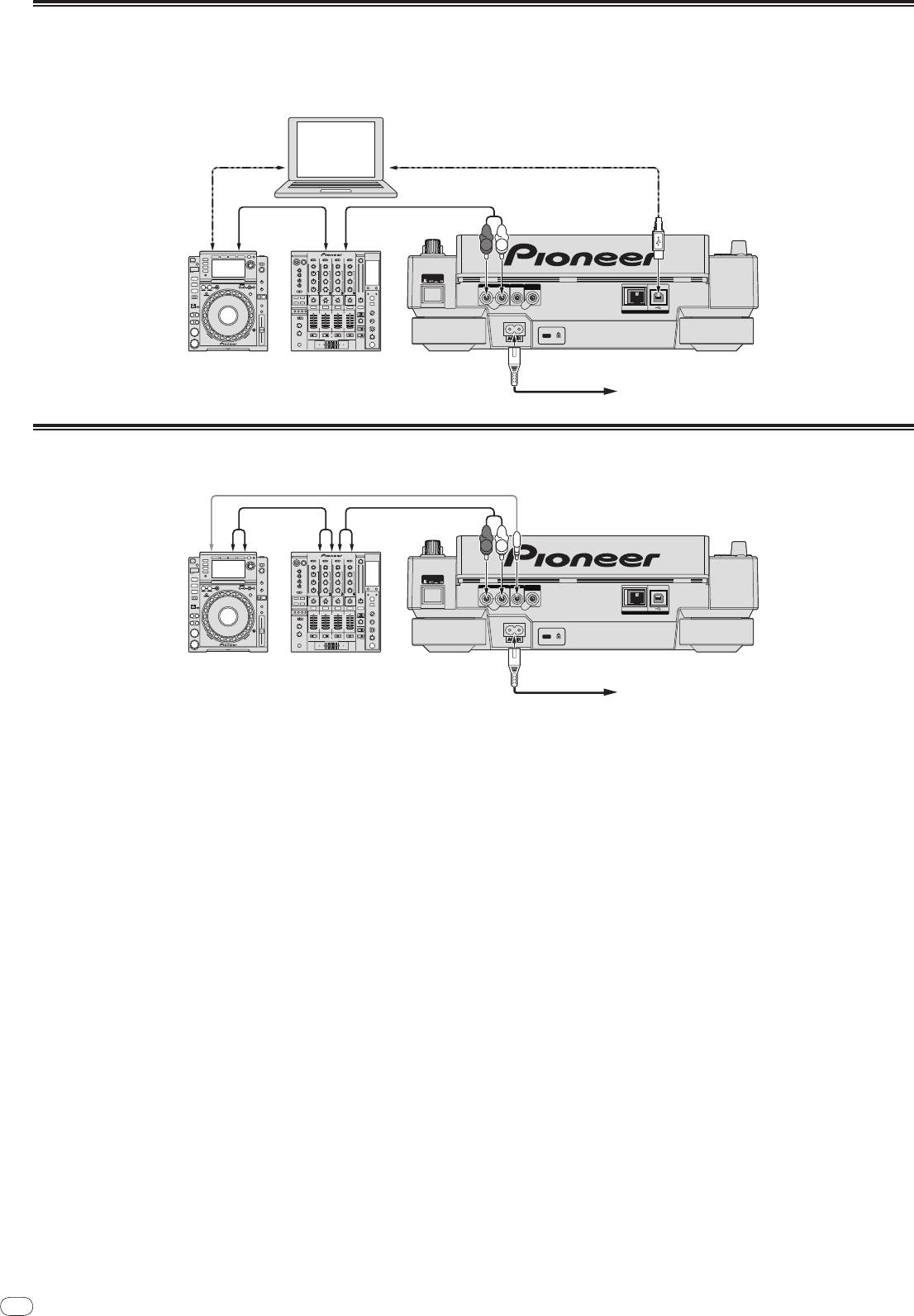
! When connected by LAN cable to a computer on which rekordbox is installed, tracks in rekordbox can be selected and played. For instructions on operating rekord-
box on the computer, see the rekordbox manual. Instructions on operating rekordbox can be found in the rekordbox [Help] menu.
! Up to two computers can be connected.
! The contents of media loaded in the different DJ players (tracks, cue point memories, WAVE information, etc.) can be displayed (page 14).
! Up to four units can be connected. A switching hub (commercially available) is required to connect three or more units. Use a switching hub of 100 Mbps or greater.
Note that some switching hubs may not operate normally.
LAN cable
rekordbox
Computer
Switching hub
LAN cable × 3
LAN cable
Control cord × 3
Control cord
Audio cable × 3
Audio cable
R
L
POWER
RL
AUDIO OUT
CONTROL
DIGITAL
OUT
LINK
USB
DJ player × 3DJ mixer
Rear panel
Power cable
To an AC outlet
USB
STOP
SD
M
IN
IN
REC / CALL
DIRECTION
FWD
SD memory card
USB device on
on which rekordbox
which rekordbox
data is recorded
data is recorded
12
En
DRB1475-B
Using other brands of DJ software
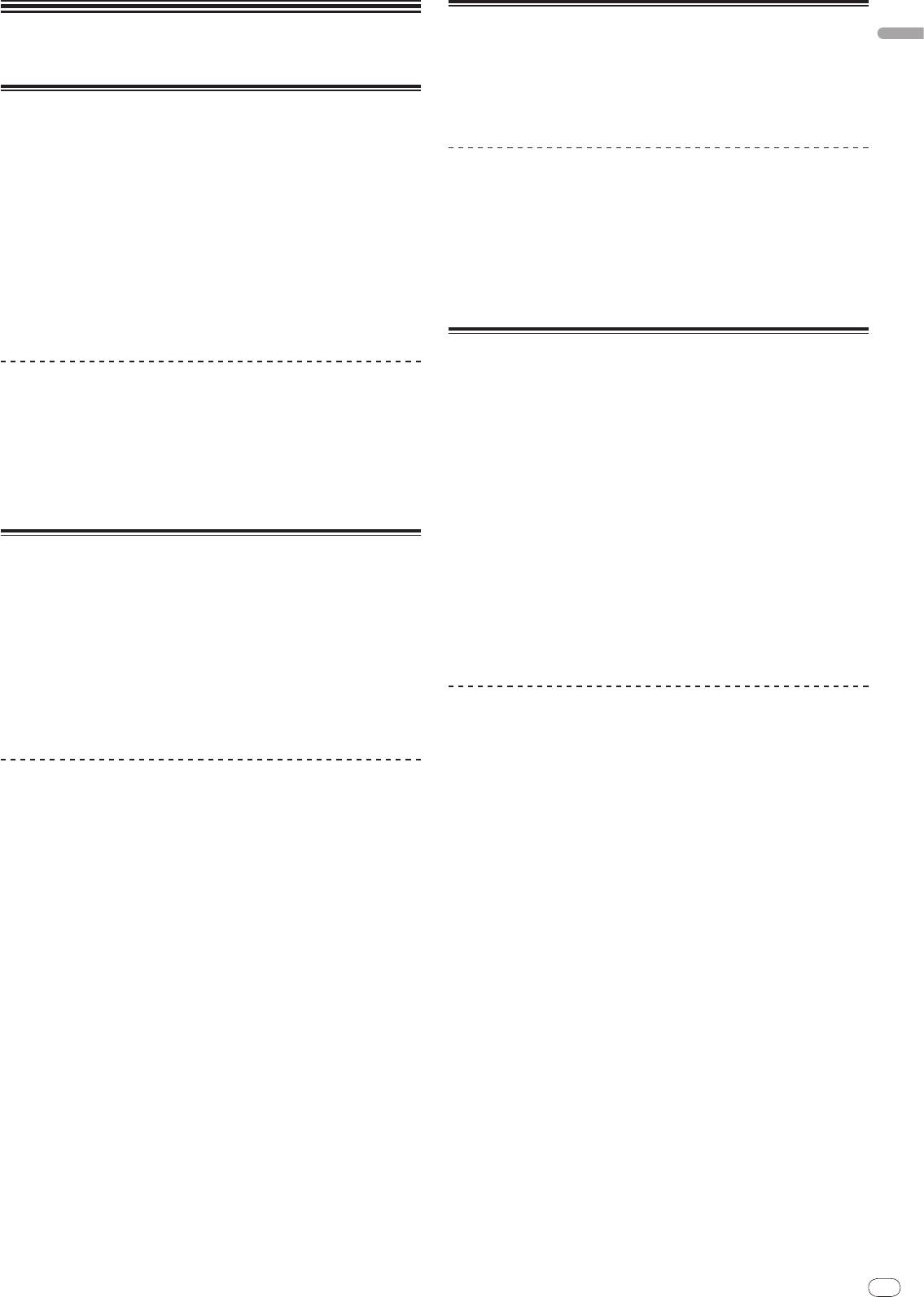
With the CDJ-2000, the operating information of the buttons, tempo adjustment dial, etc., can also be output in universal MIDI format. When connected by USB cable
to a computer on which MIDI-compatible DJ software is installed, the DJ software can be operated from the CDJ-2000. The sound of music files being played on the
computer can also be output from the CDJ-2000. For details, see About the driver software on page 24 and Using other brands of DJ software on page 25.
®
®
! Connect a computer on which Mac OS X (10.4.6 or later), Windows Vista
or Windows
XP is installed.
12
Other brands
Computer
of DJ software
USB Cable
USB Cable
Audio cable
Audio cable
R
L
POWER
RL
AUDIO OUT
CONTROL
DIGITAL
OUT
LINK
USB
DJ player DJ mixer
Rear panel
Power cable
To an AC outlet
Connections for relay play
Relay play between two DJ players is possible by interconnecting the CDJ-2000 and a Pioneer DJ player using the CONTROL jacks (page 18).
Control cord
Audio cable Audio cable
R
L
POWER
RL
AUDIO OUT
CONTROL
DIGITAL
OUT
LINK
USB
DJ player DJ mixer
Rear panel
Power cable
To an AC outlet
En
13
DRB1475-B
Loading USB devices
English
Playback
Insert the USB device into the USB port.
The USB indicator lights.
! When a USB device that has previously been loaded in the CDJ-2000 or a
Pioneer DJ player is loaded, the number of discs for which WAVE informa-
Loading discs
tion, etc., is recorded is displayed on the main unit display.
! Set the disc with the printed side facing up.
! Insert the disc into the disc insertion slot on the set’s front panel.
! Do not insert two or more discs at once.
Removing USB devices from the set
! Do not force discs into the set’s disc insertion slot when the set’s power is off.
Doing so could damage the disc or the set.
! Be sure to follow the procedure below when removing USB devices from the
! When the disc is being drawn in or ejected, do not apply any force to the disc in
set. Removing a USB device without following this procedure could erase the
the direction opposite its movement. Doing so could damage the disc or the set.
set’s management data and make it impossible to read the USB device.
! When turning the set’s power off, be sure to remove the USB device first.
1 Press [POWER].
Turn on the power of this unit.
1 Press [USB STOP] for over 2 second.
The USB indicator turns off.
2 Insert the disc into the disc insertion slot.
Playback starts.
2 Disconnect the USB device.
! When auto cue is turned on, playback starts when [PLAY/PAUSEf] is
pressed. For details on the auto cue function, see Setting auto cue on page 15.
Using the PRO DJ LINK function
Ejecting discs
When two or more CDJ-2000s are connected by LAN cable, tracks recorded on
SD memory cards or USB devices connected to other players can be loaded onto
this unit.
Press [DISC EJECTh].
The disc is ejected from the disc insertion slot.
1 Connect this unit and other DJ players using LAN cables.
! If [DISC EJECTh] is pressed by mistake, press [PLAY/PAUSEf] immedi-
ately. The set is restored to the status it was in just before [DISC EJECTh] was
2 Press [LINK].
pressed. (No sound is output during this time.)
Media loaded in another DJ player is displayed on this unit’s display.
! When [UNLOCK/
LOCK] is set to [LOCK], press [PLAY/PAUSEf] to set the
3 Select the medium and enter.
pause mode, then press [DISC EJECTh].
The medium’s contents are displayed.
4 Select the track and enter.
Loading SD memory cards
The track is loaded into this unit.
! The information below can be shared among DJ players connected by PRO
DJ LINK.
1 Open the SD memory card door.
— Tracks (music files)
2 Insert the SD memory card.
— TAG LIST (page 19)
Insert the SD memory card vertically, with the back side facing forward and the
— INFO (page 20)
notch facing down. Push the card in slowly until it stops.
— Disc cue points
— Disc WAVE displays
3 Close the SD memory card door.
The SD memory card indicator lights.
! When an SD memory card that has previously been loaded in the CDJ-2000 or
Sharing disc information
a Pioneer DJ player is loaded, the number of discs for which WAVE informa-
tion, etc., is recorded is displayed on the main unit display.
1 Load an SD memory card or USB device into the DJ player
connected by PRO DJ LINK.
Ejecting SD memory cards from the set
2 Load a disc in the CDJ-2000.
Do not eject SD memory cards or turn off the CDJ-2000’s power while the SD
When no SD memory card or USB device is loaded in this unit, the player number
memory card indicator is flashing. Doing so could damage the data recorded on
and check screen for DJ players in which SD memory cards or USB devices are
the card.
loaded are displayed on this unit’s display.
1 Open the SD memory card door.
3 Press [MEMORY] on this unit.
The SD memory card indicator turns off.
The disc information set for this unit is registered on the SD memory card/
USB
device of the DJ player connected by PRO DJ LINK.
2 Press the SD memory card in. When it pops back up, pull it out
! When multiple DJ players are connected by PRO DJ LINK and SD memory
vertically.
cards/
USB devices are loaded in two or more DJ players, discs are not regis-
! Do not forcibly insert or remove SD memory cards. Doing so could damage
tered in DJ players other than this one.
the SD memory card or the set.
! If [DELETE] is pressed in step 3, the disc information is not registered on any
! Do not insert any objects other than SD memory cards into the SD memory
DJ player. No disc information is registered on any DJ player until the SD
card insertion slot. Inserting coins or other metal objects could damage the
memory card/
USB device is loaded on the CDJ-2000. To register the disc
internal circuitry, resulting in malfunction.
information, press [DISC], then press [MENU/UTILITY] and select the player
in which the information is to be registered.
13
14
En
DRB1475-B
Browsing libraries and folders
The browsing display differs depending on whether or not library information is
recorded on the SD memory card/
USB device.
! With library information d Library browsing: The music files are displayed by
the categories set in rekordbox (album, artist, etc.).
! Without library information d Folder browsing: The folders/
tracks on the
medium are displayed with a tree structure.
The types of items on the category menu can be changed in rekordbox’s prefer-
ences (environmental settings).
14
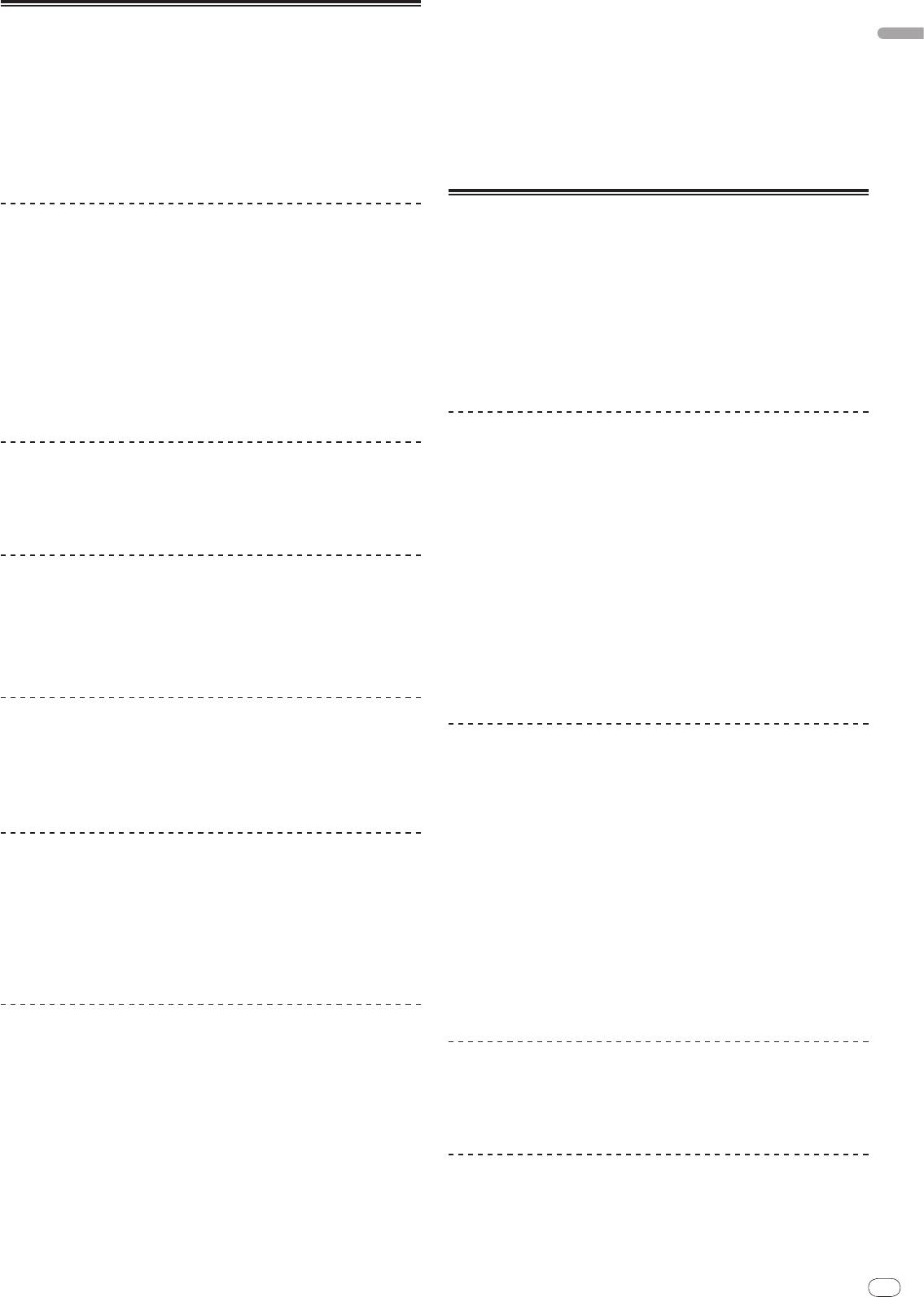
2 3 4 51
Forward and reverse scanning
Press [SEARCHm/
n].
When [SEARCHm/
n] pressed and held in, the track is fast-forwarded or fast-
reversed.
! When the music files are recorded in a folder structure, only tracks within the
same category/
folder are fast-forwarded/
fast-reversed.
Finding the beginnings of tracks (Track Search)
Press [TRACK SEARCHo/
p].
Press the [p] to move to the beginning of the next track.
When [o] is pressed, the beginning of the currently playing track is searched.
When pressed twice consecutively, the set returns to the beginning of the previ-
ous track.
! When the music files are recorded in a folder structure, only tracks within the
same category/
folder are searched.
! When auto cue is turned on, the set searches for the beginning of the track
and pauses there (page 15).
Adjusting the playing speed (Tempo control)
1List of contents
The contents of the selected medium are displayed.
Move [TEMPO] up or down.
2Uppermost level
Displays the name of the upper folder or media of the displayed item.
The tempo increases when moved to the [+] side (down), decreases when
3Cursor
Turn the rotary selector to move the cursor up and down.
moved to the [-] side (up). The rate at which the playing speed is changed is
4Contents of
indicated on the playing speed display.
The contents of the line selected with the cursor are displayed.
selected item
When artwork is registered in rekordbox or when the ID3 tag contains
Selecting the range for adjusting the playing speed
5Jacket photo
a JPEG image, the image for the track selected with the cursor is dis-
played.
Press [TEMPO ±6/±10/±16/WIDE].
The range of adjustment of the [TEMPO] control switches each time the button is
pressed. The adjustment range setting is indicated on the playing speed adjust-
Playback
ment range display.
! The tempo can be adjusted in units of 0.02 % when set to ±6 %, in steps of
0.05 % when set to ±10 %, in steps of 0.05 % when set to ±16 %, and in steps
1 Load the medium in this unit.
of 0.5 % when set to WIDE.
2 Press [DISC], [SD], [USB] or [LINK].
! The adjustment range is ±100 % when set to WIDE. When set to –100 %,
The contents of the selected medium are displayed.
playback stops.
! The adjustment range is set to ±10 % when the power is turned on.
3 Turn the rotary selector.
Select the track. The category/
folder/
track information is displayed.
! Once the lowermost level in the folder is reached, press the rotary selector.
Adjusting the playing speed without changing
Press [BACK] to return to the uppermost level.
the pitch (Master Tempo)
! Press [BACK] for over 1 second or press the media button of the medium you
are browsing to return to the uppermost level.
Press [MASTER TEMPO].
4 Press the rotary selector.
The MASTER TEMPO indicator and [MT] on the main unit display light. The pitch
does not change even when the playing speed is changed with the [TEMPO]
The track is loaded and playback begins. is displayed to the left of the cur-
control.
rently playing track.
! The sound is digitally processed, so the sound quality decreases.
! [TRACK SEARCHo/
p] can be used to select tracks within the currently
playing track’s category/
folder.
! When a disc containing music files recorded with a hierarchical structure is
Playing in reverse
loaded, playback starts from the tracks in the uppermost level.
! When [UNLOCK/
LOCK] is set to [LOCK], press [PLAY/PAUSEf] to set the
pause mode, then press the rotary selector.
Set [DIRECTION FWD/
REV] to [REV].
The REV indicator lights and the track plays in the reverse direction.
! When the music files are recorded in a folder structure, only tracks within the
same category/
folder can be played in reverse. Also note that reverse play-
Pausing
back may not start immediately.
! The direction in which the playing speed is increased or decreased according
During playback, press [PLAY/PAUSEf].
to the direction in which the jog dial is turned is reversed.
The PLAY/PAUSEf and CUE indicators flash. Press [PLAY/PAUSEf] again
! When such operations as track searching and loop playback are performed
to resume playback.
during reverse playback, the audio memory status display on the jog dial
! If no operation is performed for 100 minutes while in the pause mode, the disc
display section flashes and scratch play may not be possible.
automatically stops spinning. When [PLAY/PAUSEf] is pressed at this
time, playback resumes from the first track. When auto cue is turned on, the
set cues to the first track and pauses there.
Resuming playback from the position playing just before
the disc was ejected (Resume)
! After a disc is ejected, if that same disc is immediately reloaded in the CDJ-
2000, playback resumes from the position playing just before the disc was
ejected.
! The resume function only works when the same disc is ejected then reloaded
before loading another disc.
! When [TRACK SEARCHo/
p] is pressed before starting playback, the set
searches for the beginning of the track and playback starts.
! The resume function does not work for SD memory cards or USB devices.
English
En
15
DRB1475-B
3 Turn the rotary selector.
Setting Cue
The auto cue level setting changes.
1 During playback, press [PLAY/PAUSEf].
Changing procedure - [TIME MODE/
AUTO CUE]
Playback is paused.
1 Press [TIME MODE/
AUTO CUE] for at least 5 seconds.
2 Press [CUE].
The auto cue level setting changing mode is set.
The point at which the track is paused is set as the cue point. The CUE indicator
lights and the PLAY/PAUSEf indicators flashes. No sound is output at this
2 Press [CUE/
LOOP CALLc/
d].
time.
The auto cue level setting changes.
! When a new cue point is set, the previously set cue point is canceled.
! To cancel the changing mode, press [TIME MODE/
AUTO CUE] again.
! For instructions on saving cue points. see Storing cue and loop points on page 16.
Setting Loop
Adjusting the cue point position
1 During playback, press [LOOP IN/
CUE (IN ADJUST)] at the
1 Press [SEARCHm/
n] while pausing at the cue point.
position at which you want to start looping (the loop in point).
The CUE and PLAY/PAUSEf indicators flash.
Loop In Point is set.
2 Press [SEARCHm/
n].
! This operation is not necessary if you have already set a Cue Point as a Loop
The cue point can be fine-adjusted in steps of 0.5 frames.
In Point.
! The same operation is possible using the jog dial.
2 Press [LOOP OUT (OUT ADJUST)] at the position at which you
3 Press [CUE].
want to stop looping (the loop out point).
The point at which the button was pressed is set as the cue point.
The Loop Out Point is set, and Loop playback starts from the Loop In Point.
! When a new cue point is set, the previously set cue point is canceled.
! When playing music files, looping can only be set within the same track.
! When the medium containing the track is removed, the cue point is canceled. For
instructions on saving cue points. see Storing cue and loop points on page 16.
Fine-adjusting the loop in point (loop in adjust)
Returning to Cue Point (Back Cue)
1 During loop playback, press [LOOP IN/
CUE (IN ADJUST)].
[LOOP IN/
CUE (IN ADJUST)] switches to a fast flashing and [LOOP OUT
During playback, press [CUE].
(OUT ADJUST)] turns off.
The set immediately returns to the currently set cue point and pauses.
The loop in point’s time is displayed on the main unit display.
! When [PLAY/PAUSEf] is pressed, playback starts from the cue point.
2 Press [SEARCHm/
n].
The loop in point can be adjusted in units of 0.5 frames.
! The same operation is possible using the jog dial.
Checking Cue Point (Cue Point Sampler)
! The loop in point can be adjusted by ±30 frames and must be in front of the
loop out point.
Press and hold [CUE] after returning to the cue point.
Playback starts from the currently set cue point. Playback continues while [CUE]
3 Press [LOOP IN/
CUE (IN ADJUST)].
is pressed in.
! Normal loop playback resumes.
! When the music files are recorded in a folder structure, the cue point can only
! Normal loop playback also resumes if no operation is performed for over 10
be checked for tracks within the same category/
folder.
seconds.
! When playing music files, the loop in point can only be adjusted within the
same track.
Setting Cue Point during playback (Real Time
Cue)
Fine-adjusting the loop out point (loop out
adjust)
During playback, press [LOOP IN/
CUE (IN ADJUST)] at the position
at which you want to set the cue point.
1 During loop playback, press [LOOP OUT (OUT ADJUST)].
The point at which the button was pressed is set as the cue point.
[LOOP OUT (OUT ADJUST)] switches to a fast flashing and [LOOP IN/
CUE
(IN ADJUST)] turns off.
The loop out point’s time is displayed on the main unit display.
Setting auto cue
2 Press [SEARCHm/
n].
When a track is loaded or the track search operation is performed, the silent sec-
The loop out point can be adjusted in units of 0.5 frames.
tion at the beginning of the track is skipped and the cue point is automatically set
! The same operation is possible using the jog dial.
at the point immediately before the sound starts.
! The loop out point adjustment range is anywhere after the loop in point.
Press [TIME MODE/
AUTO CUE] for over 1 second.
3 Press [LOOP OUT (OUT ADJUST)].
Auto cue is turned on. [A. CUE] lights on the main unit display.
Normal loop playback resumes.
! The auto cue level setting remains in the memory, even when the power is
! Normal loop playback also resumes if no operation is performed for over 10
turned off.
seconds.
! When playing music files, the loop out point can only be adjusted within the
same track.
Changing the auto cue level
The sound pressure level for identifying a section as silent can be selected from
among the following eight steps:
Canceling Loop playback (Loop Exit)
–36 dB, –42 dB, –48 dB, –54 dB, –60 dB, –66 dB, –72 dB and –78 dB
! The auto cue level setting remains in the memory, even when the power is
During loop playback, press [RELOOP/EXIT].
turned off.
Playback continues after the Loop Out Point without returning to the Loop In
! There are two ways to change the auto cue level, as shown below.
Point.
Changing procedure - [MENU/UTILITY]
Returning to Loop playback (Reloop)
1 Press [MENU/UTILITY] for over 1 second.
The [UTILITY] screen is displayed.
After canceling loop playback, press [RELOOP/EXIT] during
playback.
2 Select [AUTO CUE LEVEL] and enter.
Playback returns to the previously set Loop In Point, and Loop playback resumes.
15
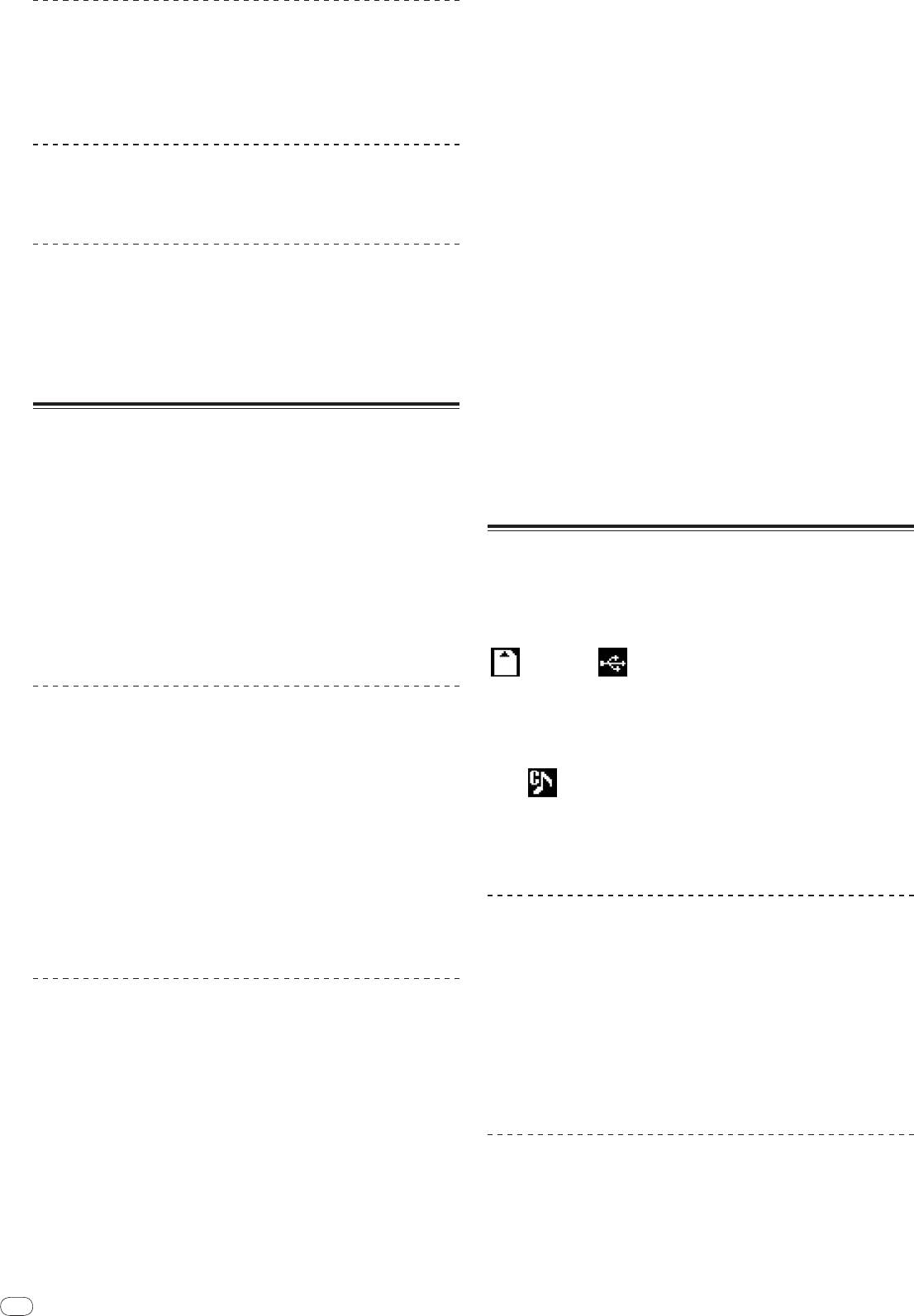
16
En
DRB1475-B
! When playing tracks recorded on media other than discs, hot cues cannot be
Setting loops automatically (4-beat Loop)
called out even when a disc for which hot cues are recorded is loaded in the
CDJ-2000.
! If you accidentally cancel the hot cue call out mode, eject the SD memory
During playback, press [4-BEAT LOOP/
LOOP CUTTER].
card/
USB device, then reload it.
A loop of 4 beats starting from the point at which the button was pressed is set
automatically according to the BPM of the currently playing track, and loop
playback starts.
Procedure for calling out hot cues (for SD memory cards/
! If the track’s BPM cannot be detected, the BPM is set to 130.
USB devices)
1 Load an SD memory card/
USB device in the CDJ-2000.
Cutting loops (Loop Cut)
2 Load the track whose hot cue you want to call out.
During loop playback, press [4-BEAT LOOP/
LOOP CUTTER].
3 Press [HOT CUE REC/CALL] for over 1 second.
The loop playing time is cut in half each time the button is pressed.
The set switches to the hot cue call out mode, and the HOT CUE indicators (A, B
or C) at which hot cues are recorded flash.
Extending loops
4 Press the [HOT CUE] button (A, B or C) whose hot cue you
want to call out.
During loop playback, press [4-BEAT LOOP/
LOOP CUTTER] while
The hot cue is called out. The HOT CUE (A, B, C) indicator lights.
! If you do not want to call out a hot cue, press [HOT CUE REC/CALL] without
pressing in [LOOP OUT (OUT ADJUST)].
pressing [HOT CUE] (A, B or C). Buttons for which no hot cue was not called
The loop playing time is doubled each time the button is pressed.
out turn off.
! The same operation can be performed as described below.
! If you accidentally cancel the hot cue call out mode, press [HOT CUE
— Press [SEARCHm/
n] while pressing [LOOP OUT (OUT ADJUST)].
REC/CALL] again.
— Turn the jog dial while pressing [LOOP OUT (OUT ADJUST)].
Canceling the hot cue call out mode
Setting Hot Cue
Perform one of the operations below to cancel the hot cue call out mode.
The hot cue call out mode is not canceled when a different track is played.
1 Press [HOT CUE REC/CALL].
1 Calling out hot cues A, B and C.
The set switches to the hot cue recording mode. The HOT CUE indicator (A, B, C)
light red.
2 Press [HOT CUE REC/CALL].
2 During playback or in the pause mode, press [HOT CUE] (A, B
or C) at the point at which you want to set the hot cue.
The position at which the button was pressed or the currently playing loop is set
Storing cue and loop points
at the [HOT CUE] button (note that the direction of playback is not recorded). The
button’s indicator flashes.
1 Load an SD memory card/
USB device in the CDJ-2000.
! While the hot cue is being recorded, it is not possible to record other
[HOT CUE] buttons, set cue points, fast-forward/
fast-reverse or scratch play.
2 Set Cue Point or Loop Point.
! When an SD memory card or USB device is loaded in the player, the point
information is recorded automatically.
3 Press [MEMORY].
! When a hot cue is set during scratch play, playback may stop temporarily.
[ MEMORY] or [ MEMORY] appears on the main unit display. The
stored cue point appears on the playing address display. The point information is
registered on the SD memory card/
USB device.
Playing hot cues
! When both an SD memory card and USB device are loaded on the CDJ-2000,
the SD memory card has priority.
1 Press [HOT CUE REC/CALL].
! To store loop points, press [MEMORY] during loop playback. The stored loop
The hot cue playing mode is set.
points appear on the playing address display.
! The indicators of buttons at which cue points are recorded light green.
! The indicators of buttons at which loop playback is recorded light orange.
! The
icon is displayed to the left of tracks for which cue or loop points
! The indicators of the buttons at which nothing is recorded do not light.
are saved.
! The information is automatically recorded on the SD memory card/
USB
2 During playback or in the pause mode, press [HOT CUE] (A, B
device.
or C).
— Cue point or loop playback information set at [HOT CUE] (A, B and C)
Playback starts instantaneously from the point recorded at that button.
— Track’s WAVE display information
! For loop playback recorded at the [HOT CUE] buttons, the information dif-
fers from loop playback set using the [LOOP IN/
CUE (IN ADJUST)] and
[LOOP OUT (OUT ADJUST)] buttons. Loop playback can be canceled using
Calling out saved cue or loop points
the [RELOOP/EXIT] button and the loop out point can be fine-adjusted using
the [LOOP OUT (OUT ADJUST)] button. Adjusting this directly changes the
information recorded at the [HOT CUE] buttons (A, B and C).
1 Load an SD memory card/
USB device in the CDJ-2000.
2 Load the track whose cue or loop points you want to call out.
Cue and loop points are displayed as marks on the playing address display.
Calling out Hot Cue
3 Press [CUE/
LOOP CALLc/
d].
Playback is moved to the selected point and paused.
Procedure for calling out hot cues (for discs)
! When multiple points are recorded, the point moves each time the button is
pressed.
1 Load an SD memory card/
USB device in the CDJ-2000.
4 Press [PLAY/PAUSEf].
2 Load a disc in the CDJ-2000.
Playback starts from the Cue or Loop point.
When the disc’s hot cues are recorded on the SD memory card/
USB device, the
HOT CUE indicator (A, B or C) flashes.
Deleting cue or loop points individually
3 Press the [HOT CUE] button (A, B or C) whose hot cue you
want to call out.
1 Load an SD memory card/
USB device in the CDJ-2000.
The hot cue is called out. The HOT CUE (A, B, C) indicator lights.
! If you do not want to call out a hot cue, press [HOT CUE REC/CALL] without
2 Load the track containing the cue point or loop points you
pressing [HOT CUE] (A, B or C). Buttons for which no hot cue was not called
want to delete.
out turn off.
Cue and loop points are displayed as marks on the main unit display’s playing
address display.
16
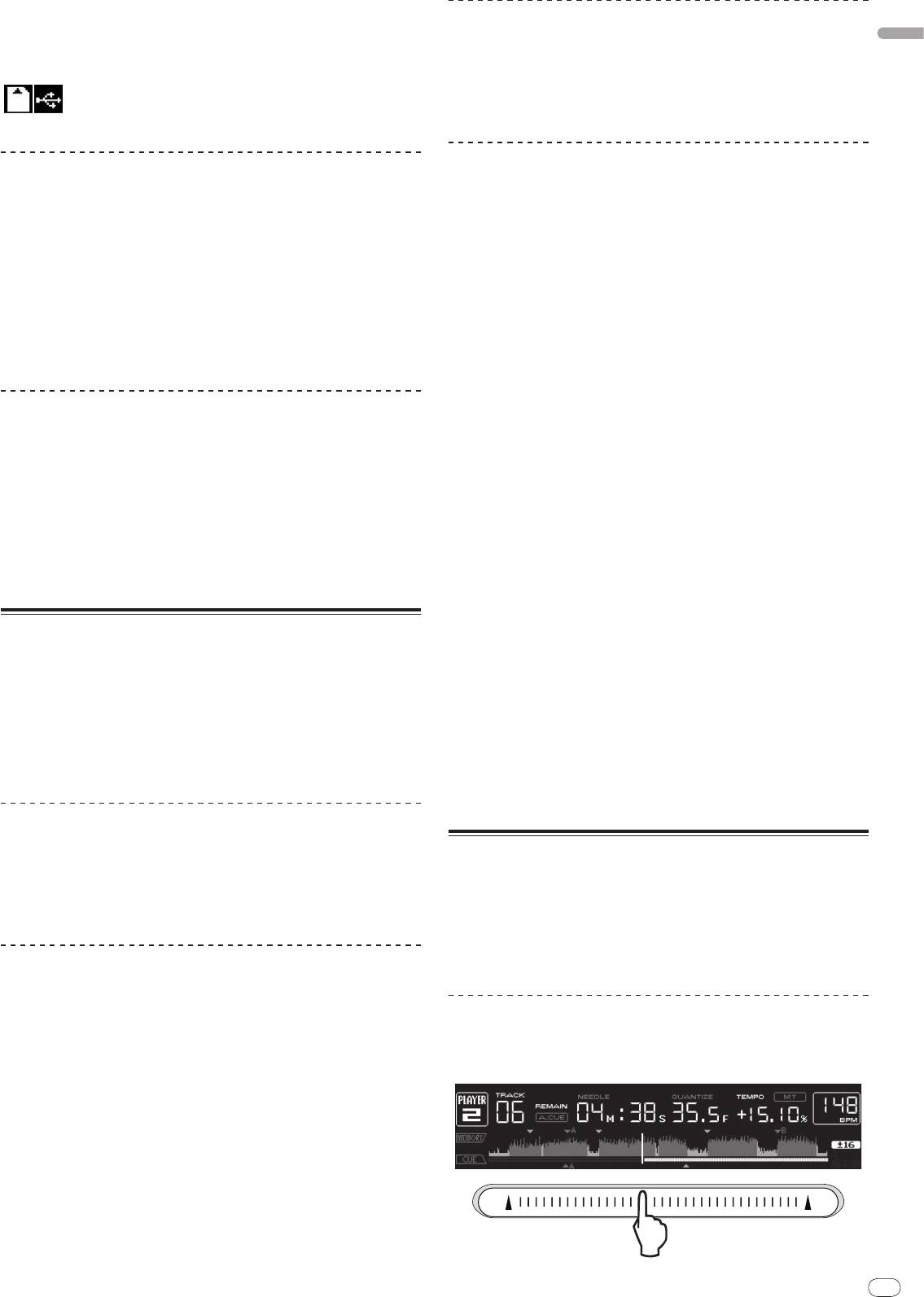
English
En
17
DRB1475-B
3 Press [CUE/
LOOP CALLc/
d].
Playback is moved to the selected point and paused.
Pitch bend [VINYL・CDJ]
! When multiple points are recorded, the point moves each time the button is
pressed.
During playback, spin the outer section of the jog dial.
The playing speed increases when spun clockwise, decreases when spun coun-
4 Press [DELETE].
terclockwise. When spinning is stopped, playback returns to the normal speed.
! When the jog mode is set to the CDJ mode, the same operation can be per-
[ DELETE] is displayed on the main unit display and the selected point
formed by spinning the top of the jog dial.
information is deleted.
Scratch play [VINYL]
Deleting all cue and loop points for a disc
When the jog mode is set to the VINYL mode, tracks can be played according to
the direction and speed at which the jog dial is spun by spinning the top of the
1 Load an SD memory card/
USB device in the CDJ-2000.
jog dial while pressing it.
Cue and loop points are displayed as marks on the main unit display’s playing
address display.
1 Press [JOG MODE].
Set the jog mode to VINYL.
2 Press [DELETE] for at least 5 seconds.
[DISC CUE/
LOOP DATA-DELETE? PUSH MEMORY] appears on the main unit
2 During playback, press the top of the jog dial.
display.
Playback slows then stops.
3 Press [MEMORY].
3 Spin the jog dial in the desired direction and at the desired
All cue and loop points for the disc currently loaded in the CDJ-2000 are deleted.
speed.
! The deletion mode is canceled when any button other than [MEMORY] is
The sound is played according to the direction and speed at which the jog dial is
pressed.
spun by spinning the top of the jog dial while pressing it.
4 Release your hand from the top of the jog dial.
Deleting all disc information recorded on the SD
Normal playback resumes.
memory card/
USB device
Adjusting the load when the jog dial is spun
1 With no disc loaded in the CDJ-2000, press [DELETE] for at
least 5 seconds.
Turn [JOG ADJUST].
[DISC CUE/
LOOP DATA-DELETE ALL? PUSH MEMORY] appears on the main unit
The load gets heavier when turned clockwise, lighter when turned
display.
counterclockwise.
2 Press [MEMORY].
Adjusting the time until which playback stops when the
All the disc information recorded on the SD memory card/
USB device is deleted.
top of the jog dial is pressed
! The deletion mode is canceled when any button other than [MEMORY] is
pressed.
Turn [VINYL SPEED ADJUST TOUCH/BRAKE].
The speed increases when turned clockwise, decreases when turned
counterclockwise.
Operating the jog dial
! When the jog mode is set to VINYL, the speed at which playback stops when
The top of the jog dial has an embedded switch. Do not place objects on the jog
[PLAY/PAUSEf] is pressed changes simultaneously.
dial or subject it to strong forces. Also note that water or other liquids getting into
the set will lead to malfunction.
Adjusting the speed until which normal playback
The jog dial has two modes.
resumes when the top of the jog dial is released
! VINYL mode: When the top of the jog dial is pressed during playback, play-
back stops, and when the jog dial is spun at this time sound is produced
according to the direction in which the jog dial is spun.
Turn [VINYL SPEED ADJUST RELEASE/START].
! CDJ mode: When the top of the jog dial is pressed, playback stops, and such
The speed increases when turned clockwise, decreases when turned
operations as scratch play are not possible.
counterclockwise.
! When the jog mode is set to VINYL, the speed at which playback starts when
[PLAY/PAUSEf] is pressed changes simultaneously.
Frame search [VINYL・
CDJ]
In the pause mode, spin the jog dial.
Operating the [NEEDLE SEARCH] pad
The position at which the track is pausing can be moved in units of 0.5 frames.
! The [NEEDLE SEARCH] pad can only be operated in the following cases:
! The position is moved in the direction of playback when the jog dial is spun
— In the pause mode
clockwise, in the reverse direction when it is spun counterclockwise. The
— While the jog dial is being pressed with the jog mode set to VINYL
position moves 135 for one revolution of the jog dial.
! Touch the [NEEDLE SEARCH] pad with a finger to easily play the sound at the
position at which the pad is touched. Move your finger while touching the pad
to quickly move to the desired position.
Super fast search [VINYL・CDJ]
! For several of the CDJ-2000’s functions, this pad is used to input characters.
Spin the jog dial while pressing in [SEARCHm/
n].
The track is fast-forwarded/
fast-reversed in the direction in which the jog dial is
Playing from the position at which the pad was
spun.
touched
! When the [SEARCHm/
n] button is released, this function is canceled.
! When you stop the jog dial from spinning, normal playback resumes.
! The fast-forward/
fast-reverse speed can be adjusted according to the speed at
Touch the [NEEDLE SEARCH] pad.
which the jog dial is spun.
Super fast track search
When the jog dial is spun while pressing in [TRACK SEARCHo/
p], the track
advances at high speed in the direction in which the jog dial is spun.
17
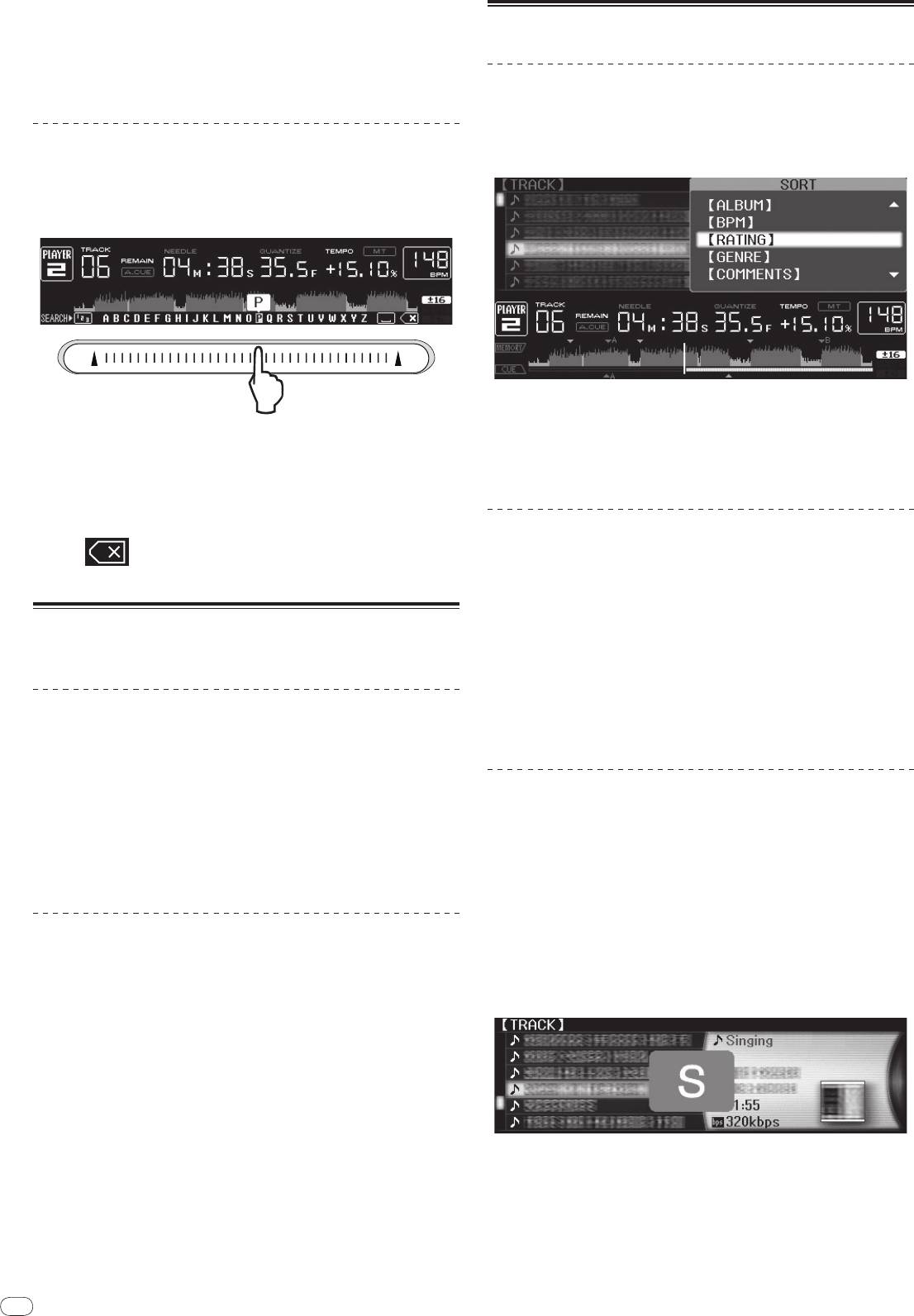
18
En
DRB1475-B
The track is played from the position at which the pad was released. The current
playing position on the playing address display moves to directly over the posi-
Using the [BROWSE] button
tion at which the pad was touched.
! The position of playback can be moved by moving your finger over the pad
while touching it. Note that when this is done, the position on the playing
address display may not be displayed properly and the sound may not be
Rearranging tracks (Sort menu)
played properly.
When in the library browse mode, the tracks can be rearranged using the Sort
menu. (The Sort menu is not displayed when in the folder browse mode.)
Inputting characters
1 Press [MENU/UTILITY] while the tracks are displayed.
The Sort menu is displayed to the right of the information display screen.
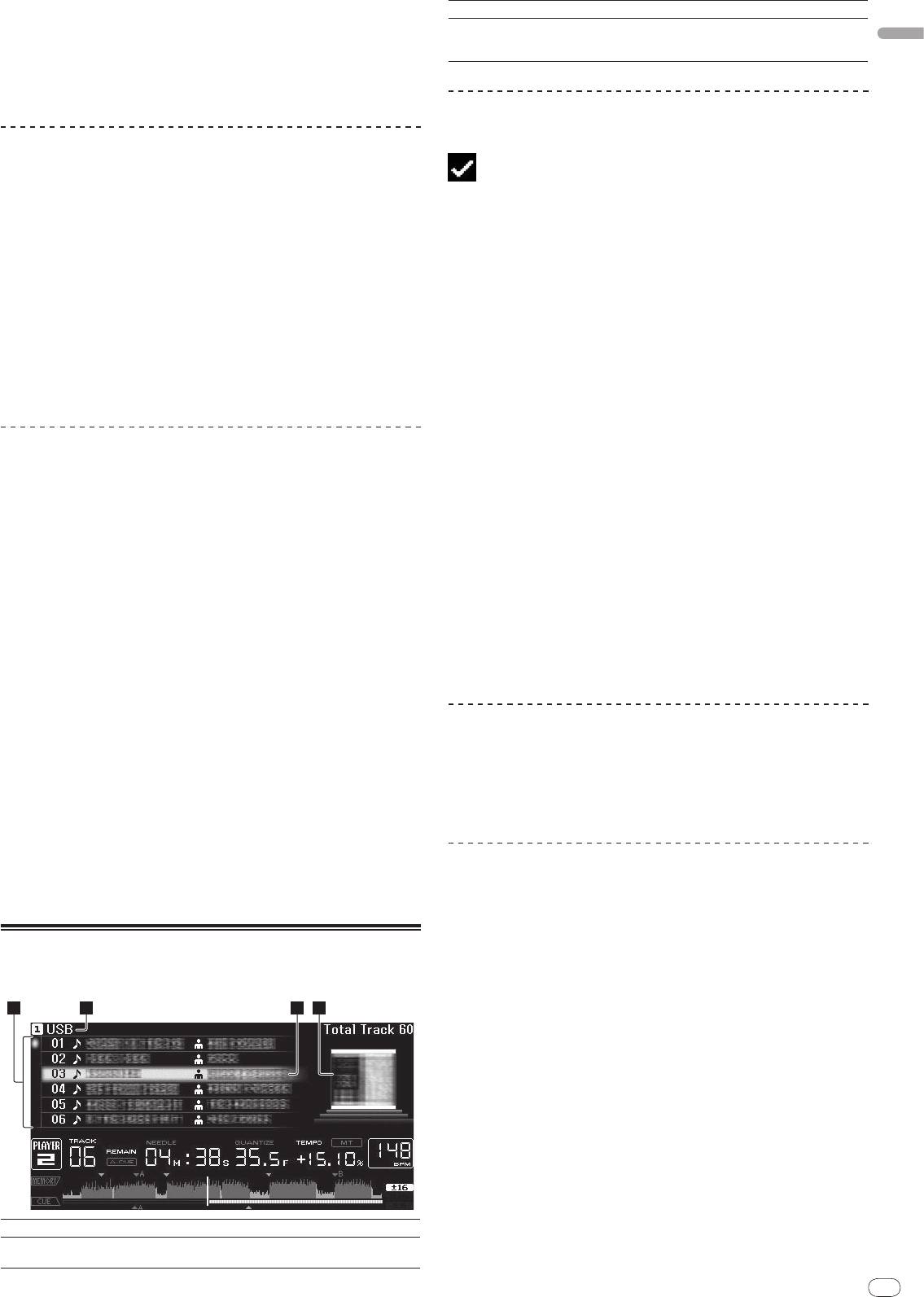
Inputting search characters using the [SEARCH] buttons
1 Touch the [NEEDLE SEARCH] pad.
2 Select and enter the setting item.
The tracks are sorted according to the selected item. The track information is
The character directly above the position touched is enlarged.
displayed.
! Sorting is canceled when [BACK] is pressed to return to the uppermost level.
2 Release your finger from the [NEEDLE SEARCH] pad.
! The types of sorting items on the Sort menu can be changed in the rekordbox
The enlarged character is input.
preferences (environmental settings).
! To input more characters at this point, repeat the above procedure.
! The characters that can be input are letters A – Z, numbers 0 – 9 and symbols.
The characters that can be input switch when the position just below [ABC]
or [123] is pressed.
Searching for tracks (SEARCH)
! The search function can be used to search for tracks recorded on the media
! When
is input, a single character is deleted. If input again, charac-
loaded in the set with [SEARCH].
ters are deleted consecutively.
! Tracks recorded on discs cannot be searched.
! Tracks recorded on media for which library browsing is not possible cannot
be searched.
Operating the CDJ-2000 in combination
1 Select [SEARCH] and enter the setting item.
with other devices
A character appears at the bottom of the main unit display.
2 Use the [NEEDLE SEARCH] pad to input a character.
Tracks including the character you have input are displayed.
Starting playback using a DJ mixer’s fader
! When more characters are input at this point, tracks starting with the charac-
ter string you have input are displayed.
(Fader Start)
! When [BACK] is pressed, the category screen reappears.
1 Connect the CDJ-2000 with a Pioneer DJ mixer using the
included control cord.
Using the jump function
For instructions on connecting, see Basic style on page 11.
The jump function can be used to instantaneously move to the track, category or
2 Move the DJ mixer’s channel fader or cross fader.
folder you want to play.
The DJ player’s pause mode is canceled and the track is played instantaneously.
The jump function includes the two modes below.
Also refer to the operating instructions of the connected DJ mixer.
! Letter jumping: Use this when the tracks are arranged or sorted in alphabeti-
! When the channel fader or cross fader is set back to its original position, play-
cal order.
back cues back to the set cue point and the pause mode is set (Back Cue).
! Page jumping: Use this when the tracks are not arranged or sorted in alpha-
betical order. Turn the rotary selector to jump by page.
Relay play on two DJ players
In the letter jump mode
1 Connect the CDJ-2000 and a DJ mixer.
1 Press the rotary selector for at least 1 second.
For instructions on connecting, see Connections for relay play on page 12.
The mode switches to the letter jump mode. The first letter of the selected track
is enlarged.
2 Set the DJ mixer’s cross fader to the center position.
3 Turn auto cue on for both DJ players.
The DJ players’ auto cue indicators light.
4 Start playback on this unit.
The first track on this unit is played, and once it finished playback begins auto-
matically on the other DJ player. This unit cues to the beginning of the next track
and pauses. This operation is repeated for relay play between the two DJ players.
! The medium can be changed and the cue point set on the DJ player that is in
standby.
2 Select the character or symbol to which you want to jump and
! If the power of one DJ player is turned off during playback, playback may
enter.
start on the other DJ player.
The display moves to the category starting with the selected character or symbol.
! The fader start function does not work during relay play.
! The characters that can be displayed are letters A – Z, numbers 0 – 9 and
! Relay play may not be possible if the two DJ players are not connected to the
symbols.
same DJ mixer.
18
English
En
19
DRB1475-B
In the page jump mode
1 Press the rotary selector for at least 1 second.
The mode switches to the page jump mode.
2 Select the page to which you want to jump and enter.
The display moves to the selected page.
Using hot cue banks
Hot cue banks set ahead of time in rekordbox can be registered at the CDJ-2000’s
[HOT CUE] buttons (A, B and C).
1 Load the medium on which the hot cue bank is registered in
the CDJ-2000.
[HOT CUE BANK] appears in the category items.
2 Select [HOT CUE BANK] and enter the setting item.
The hot cue bank is displayed. The cursor is fixed to hot cue bank A. It cannot be
moved using the rotary selector or other buttons.
3 Select the hot cue bank you want to call out and enter.
The hot cues registered in the hot cue bank are registered at the CDJ-2000’s
[HOT CUE] buttons (A, B or C). The indicators (A, B or C) light.
! When a new hot cue is registered at the CDJ-2000’s [HOT CUE] buttons (A, B
or C), all of the hot cue bank’s point information is deleted.
! Hot cue banks cannot be deleted on the CDJ-2000.
Checking the playing history (HISTORY)
! The track playing history is recorded and displayed at [HISTORY].
! Playlists can be created based on the playing history at [HISTORY] using
rekordbox. For details, see rekordbox’s operating instructions.
1 Load an SD memory card/
USB device in the CDJ-2000.
2 Playing tracks.
The currently playing track is recorded and displayed at [HISTORY].
! When a USB device, etc., is connected to the CDJ-2000 for the first time or
reconnected, the new [HISTORY] is automatically created on the USB device.
! A warning message is displayed if there is not enough free space on the USB
device, etc., or if the device is write-protected.
! The name of [HISTORY] can be preset at [UTILITY] (page 21).
! If a track already recorded in [HISTORY] is played again after playing a dif-
ferent track, it is newly recorded in [HISTORY]. However, tracks played using
the [HOT CUE] buttons (A, B and C) are not recorded in the history (they are
recorded when the hot cue is called out).
! The maximum number of tracks that can be recorded in [HISTORY] is 999.
When a 1 000th track is recorded, the oldest item in the history is deleted.
Deleting [HISTORY]
1 While [HISTORY] is selected, press [MENU/UTILITY].
The delete menu is displayed.
2 Select the range to be deleted and enter.
! [DELETE]: The [HISTORY] item selected with the cursor is deleted.
! [ALL DELETE]: The entire [HISTORY] is deleted.
! The [HISTORY] is deleted when [HISTORY] is converted into a playlist using
rekordbox.
Using the [TAG LIST] button
Up to 60 tracks to be played next or tracks selected for specific DJ scenes can be
preset in the tag list.
19
2 3 41
3Cursor
Turn the rotary selector to move the cursor up and down.
When artwork is registered in rekordbox or when the ID3 tag contains
4Jacket photo
a JPEG image, the image for the track selected with the cursor is dis-
played.
Adding tracks to the tag list
Select the track, then press [TAG TRACK/
REMOVE].
is displayed to the left of the track.
! The number of tracks that can be added to the tag list is 60 tracks per
medium. If you attempt to add a 61st track, a warning message is displayed
and the track cannot be added. (There is no limit to the number of tracks
when a computer on which rekordbox is installed is connected.)
! Tracks can be recorded in the tag list ahead of time using rekordbox.
! When multiple DJ players are connected by PRO DJ LINK, the same tag list
contents are displayed on all DJ players.
! When [TAG TRACK/
REMOVE] is pressed while the information is displayed
after pressing [INFO], the tracks loaded in this unit are added to the tag list.
Adding categories or folders to the tag list
With the list of the tracks displayed on the right side of the
information display screen, press [TAG TRACK/
REMOVE].
The category name/
folder name flashes, and the tracks in that category/
folder
are added to the tag list.
! When a category/
folder including tracks already added to the tag list is
selected and [TAG TRACK/
REMOVE] is pressed, only the tracks not already
on the tag list are added.
! When a folder is added while in the folder browse mode, the track names are
registered as file names. The artist names are not registered.
Adding playlists to the tag list
With the list of the tracks displayed on the right side of the
information display screen, press [TAG TRACK/
REMOVE].
The playlist name flashes, and the tracks in that playlist are added to the tag list.
! When a playlist including tracks that have already been added to the tag list
is selected and [TAG TRACK/
REMOVE] is pressed, only the tracks that were
not previously added to the tag list are added.
! Playlists can also be added by pressing [TAG TRACK/
REMOVE] while artwork
is displayed on the information display screen.
Loading tracks from the tag list
1 Press [TAG LIST].
The tag list is displayed.
2 Select the track to be loaded and enter.
The track is loaded and playback starts.
Removing tracks from the tag list
1 Press [TAG LIST].
The tag list is displayed.
2 Select the track to be removed from the tag list, then press
[TAG TRACK/
REMOVE] for at least 1 second.
The track is removed from the tag list.
! If a track that has been added to the tag list is removed from the tag list while
it is playing, the track is played to the end, then the stop mode is set. The next
track is not played.
! When a medium is removed from the CDJ-2000, all the tracks recorded on
that medium are removed from the tag list.
1List of contents
The contents of the tag list are displayed here.
The name of the medium on which the track is recorded is displayed
2Medium name
here.
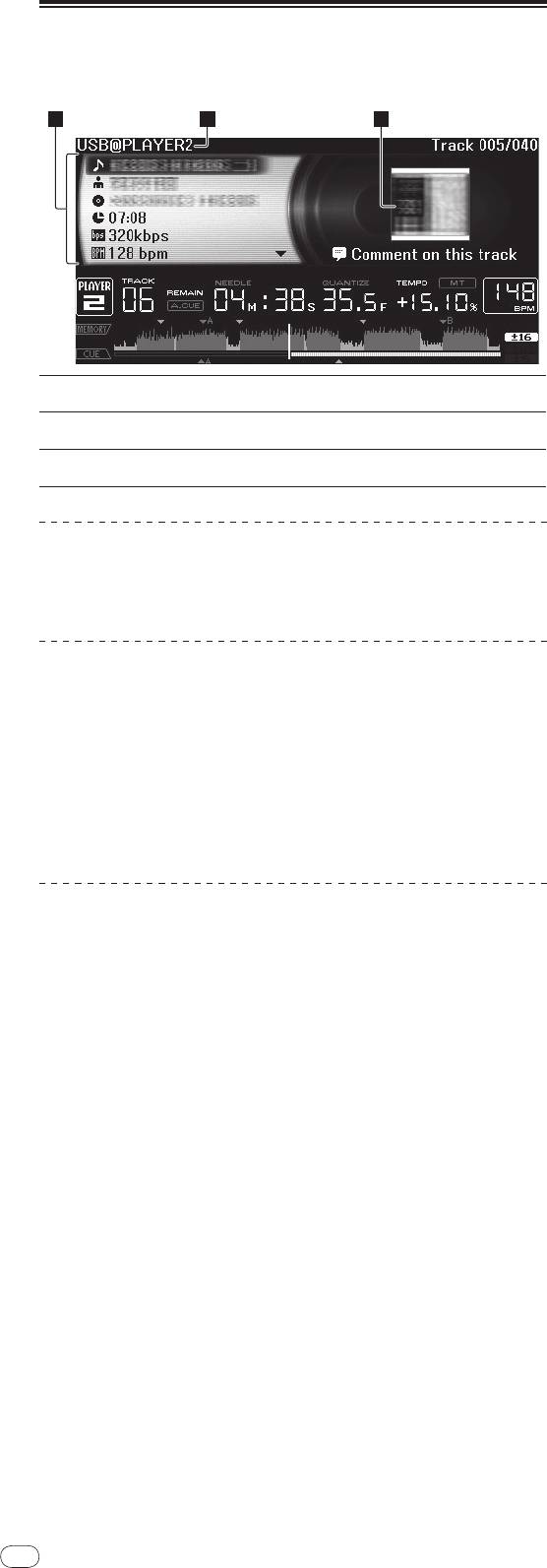
20
En
DRB1475-B
Using the [INFO] button
The details of the tracks loaded in the CDJ-2000 can be checked by pressing
[INFO]. When DJ players are connected by PRO DJ LINK, the details of the tracks
loaded in the other DJ players can also be checked.
20
2 31
The details of the tracks loaded in the DJ player are displayed
1Track details
here.
2Medium/
player
The place where the track information is stored is displayed here.
number
3Jacket photo and
The jacket photo and comment about the track loaded in the DJ
comment
player are displayed here.
Checking the details of loaded tracks
While the track is playing, press [INFO].
The track’s details are displayed.
Displaying details of tracks loaded in other DJ
players
1 Connect this unit and the other DJ players by PRO DJ LINK.
2 Press [INFO], then press [MENU/UTILITY].
The [Link Info] screen appears.
3 Select the DJ player and enter.
The details of the tracks loaded in the selected DJ player are displayed.
! If no tracks are loaded in the selected DJ player, no details are displayed.
Using the information jump function
This function can be used to select items displayed in the details and move them
to the category, etc., in which a track is included.
1 Display the track details.
2 Select and enter the setting item.
The library browse mode for the selected item is set.
! It may not be possible to select some items.
! When a track is selected, it is moved to the category in which the track was
loaded.
! It is not possible to move items from the disc’s details to tracks loaded in a DJ
player connected by PRO DJ LINK.
! When an item for which only an icon is displayed is selected, that icon is
moved to the corresponding category.


