
Pioneer CDJ-2000 – page 2
Manual for Pioneer CDJ-2000
Table of contents
- Contents
- Before start
- Before you start What’s in the box Discs/ files playable on the CDJ-2000 About CD playback About SD memory cards
- About USB devices About AAC files About WAV files About MP3 files About AIFF files About rekordbox
- Part Names and Functions Control Panel
- Rear Panel Front Panel
- Main unit display Jog dial display section
- Connections Basic style Using in combination with rekordbox
- Using other brands of DJ software Connections for relay play
- Loading USB devices Playback Loading discs Using the PRO DJ LINK function Loading SD memory cards
- Playback
- Setting Cue Setting Loop
- Setting Hot Cue Storing cue and loop points
- Operating the jog dial Operating the [NEEDLE SEARCH] pad
- Using the [BROWSE] button Operating the CDJ-2000 in combination with other devices
- Checking the playing history (HISTORY) Using the [TAG LIST] button Adding tracks to the tag list Loading tracks from the tag list Removing tracks from the tag list
- Using the [INFO] button Checking the details of loaded tracks Displaying details of tracks loaded in other DJ players Using the information jump function
- Changing the settings Using the [MENU/UTILITY] button Setting the auto standby mode Setting [HISTORY NAME] Changing the settings Changing the language List of settings
- About the rekordbox software Software end user license agreement Cautions on copyrights Cautions on Installation
- Installing rekordbox Using the support site
- Connecting the CDJ-2000 and computer About the driver software Cautions on Installation Adjusting the buffer size (Windows) Installing the driver software
- Checking the version of the driver software Checking the latest information on the driver software Using other brands of DJ software Operating DJ software by MIDI interface
- Additional information Troubleshooting Problem Check Remedy
- About the liquid crystal display Error messages List of icons displayed on the main unit display section
- Cautions on use
- Disclaimer Specifications
En
21
DRB1475-B
English
Changing the
settings
Using the [MENU/UTILITY] button
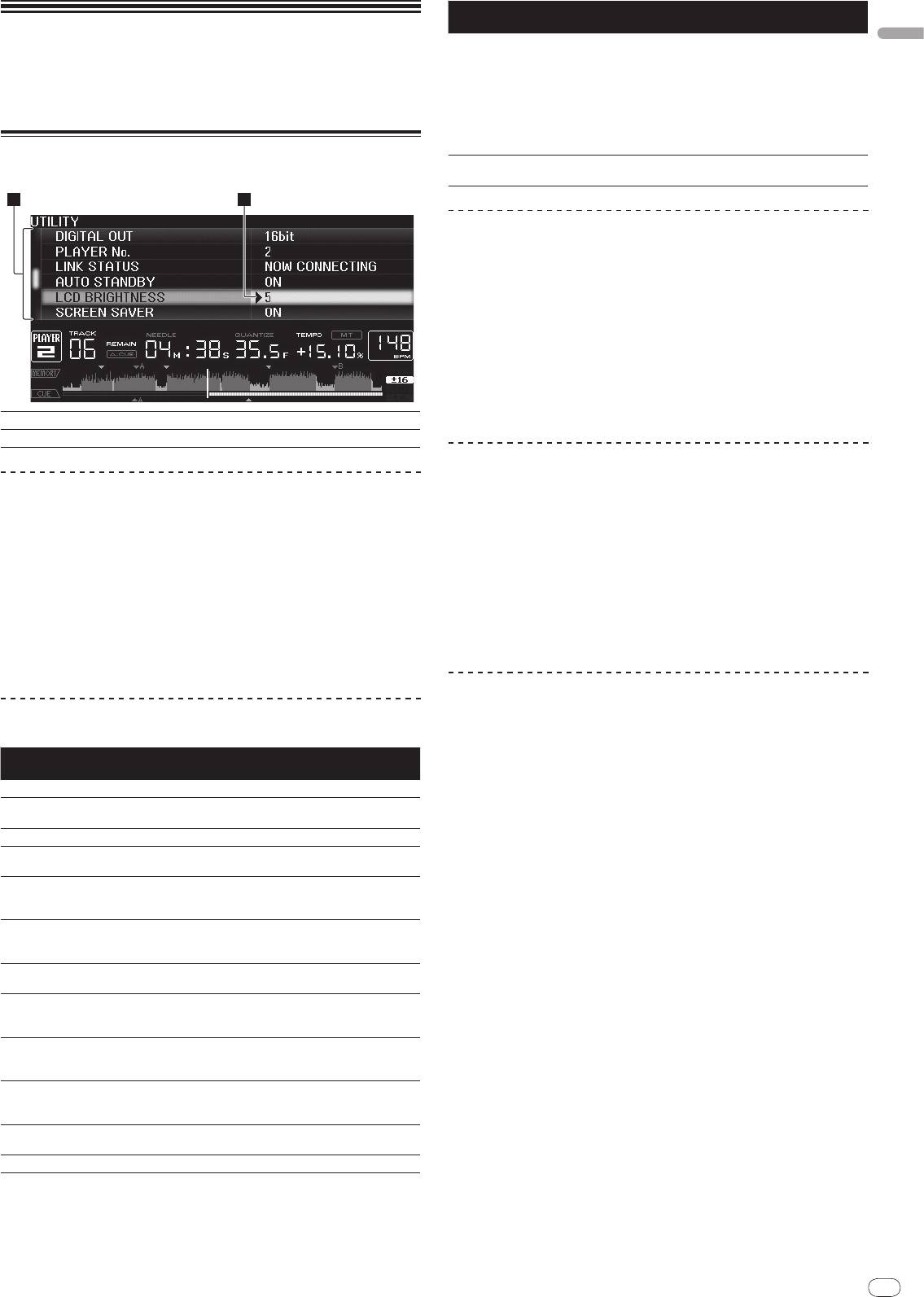
Various settings on the CDJ-2000 can be changed by pressing [MENU/UTILITY].
21
1 2
Options
Setting ranges Descriptions
settings
When set to [ON], the screensaver starts
up in the following cases:
! When no track is loaded in the CDJ-
2000 for over 5 minutes
SCREEN SAVER
ON/
OFF
! When no operation is performed
for over 100 minutes while in the
pause or cue standby mode or when
[END] is displayed on the main unit
display.
Displays the CDJ-2000’s software ver-
VERSION No. -
sion.
Setting the auto standby mode
1 Select [AUTO STANDBY] and enter the setting item.
2 Select [ON] or [OFF] and enter.
When [AUTO STANDBY] is set to [ON], the power management function is acti-
vated in the following cases and the standby mode is set.
! When no operation at all is performed for over 4 hours with no disc, SD
memory card or USB device loaded, no PRO DJ LINK connection and no
computer connected to the USB port (on the main unit’s rear panel).
! When the CDJ-2000 is operated, the standby mode is canceled.
! The CDJ-2000 is shipped with the power management function turned
on. If you do not want to use the power management function, set [AUTO
1Setting item
The CDJ-2000’s settings items are displayed here.
STANDBY] to [OFF].
2Setting
The settings for the various items are displayed here.
Setting [HISTORY NAME]
The name of the [HISTORY] recorded on the SD memory card/
USB device can be
Changing the settings
preset.
1 Press [MENU/UTILITY] for over 1 second.
1 Select [HISTORY NAME] and enter the setting item.
The [UTILITY] screen is displayed.
2 Use the [NEEDLE SEARCH] pad to input a character.
2 Select and enter the setting item.
The cursor moves to the setting.
3 Press the rotary selector to enter.
The [HISTORY NAME] setting is changed.
3 Change the setting and enter.
! If [HISTORY NAME] is not set, numbers are added sequentially after
The cursor returns to the setting.
[HISTORY].
! Press [BACK] before changing the setting to return to step 2.
! The maximum number of characters that can be set for the [HISTORY] name
is 32, including both letters, numbers and symbols.
4 Press [MENU/UTILITY].
Press [MENU/UTILITY] to return to the menu screen.
Changing the language
List of settings
1 Select [LANGUAGE] and enter the setting item.
The factory default settings are indicated in bold.
2 Select the language and enter.
Options
Setting ranges Descriptions
The language of the on-screen display is changed.
settings
! To display characters written in a local code other than Unicode, change the
QUANTIZE
ON/
OFF For details, see QUANTIZE on page 10.
[LANGUAGE] setting.
-36dB/
-42dB/
-48dB/
-54dB/
For details, see Changing the auto cue
AUTO CUE LEVEL
-60dB/
-66dB/
-72dB/
-78dB
level on page 15.
MIDI CHANNEL
1 – 16
-
The language used for the CDJ-2000’s
LANGUAGE -
display can be selected here.
When set to [ON], jacket photos are dis-
ART WORK
ON/
OFF
played on the tag list. When set to [OFF],
jacket photos are not displayed.
This can only be selected when a
LIBRARY CRE-
LIBRARY/
FOLDER
medium on which a Pioneer MEP-7000
ATOR
library is recorded is loaded.
For details, refer to Setting [HISTORY
HISTORY NAME -
NAME] on the right.
This switches the number of bits of the
DIGITAL OUT
16 bit/
24 bit
audio signals output from the [DIGITAL
OUT] terminal.
Sets this unit’s player number. The
PLAYER No.
AUTO, 1 – 4
player number cannot be changed when
a medium is loaded in this unit.
When PRO DJ LINK connections are
LINK STATUS -
made, the connection status is dis-
played here.
For details, refer to Setting the auto
AUTO STANDBY
ON/
OFF
standby mode on the right.
LCD BRIGHTNESS
1 – 3 – 5 Sets the main unit display’s brightness.

22
En
DRB1475-B
6 General terms
About the rekordbox software
1 Limitation of Liability. In no event will Pioneer or its subsidiaries be liable
in connection with this Agreement or its subject matter, under any theory
rekordbox is an application for managing music files which are used for DJ play
of liability, for any indirect, incidental, special, consequential or punitive
with a Pioneer DJ Player (i.e. CDJ-2000, CDJ-900).
damages, or damages for lost profits, revenue, business, savings, data,
— rekordbox can be used to classify and search for music files stored on
use, or cost of substitute procurement, even if advised of the possibility
your computer and create playlists used for DJ performance.
of such damages or if such damages are foreseeable. In no event will
— rekordbox allows you to detect, measure and adjust the beats, tempos
Pioneer’s liability for all damages exceed the amounts actually paid by
(BPM) and other elements of your music files prior to performance.
You to Pioneer or its subsidiaries for the Program. The parties acknowl-
— rekordbox can be used to set and store point information (for Cue, Loop,
edge that the liability limits and risk allocation in this Agreement are
Hot Cue, etc.) prior to performance.
reflected in the Program price and are essential elements of the bargain
Data that has been detected and measured, as well as any points which have
between the parties, without which Pioneer would not have provided the
been set and stored using rekordbox, can be used in combination with a Pioneer
Program or entered into this Agreement.
DJ Player (i.e. CDJ-2000, CDJ-900) to achieve outstanding DJ performance.
2 The limitations or exclusions of warranties and liability contained in this
Agreement do not affect or prejudice Your statutory rights as consumer
and shall apply to You only to the extent such limitations or exclusions
Software end user license agreement
are permitted under the laws of the jurisdiction where You are located.
This Software End User License Agreement (“Agreement”) is between you (both
3 Severability and Waiver. If any provision of this Agreement is held to be
the individual installing the Program and any single legal entity for which the
illegal, invalid or otherwise unenforceable, that provision will be enforced
individual is acting) (“You” or “Your”) and PIONEER CORPORATION (“Pioneer”).
to the extent possible or, if incapable of enforcement, deemed to be
TAKING ANY STEP TO SET UP OR INSTALL THE PROGRAM MEANS THAT YOU ACCEPT
severed and deleted from this Agreement, and the remainder will con-
ALL OF THE TERMS OF THIS LICENSE AGREEMENT. PERMISSION TO DOWNLOAD
tinue in full force and effect. The waiver by either party of any default or
AND/ OR USE THE PROGRAM IS EXPRESSLY CONDITIONED ON YOUR FOLLOWING
breach of this Agreement will not waive any other or subsequent default
THESE TERMS. WRITTEN OR ELECTRONIC APPROVAL IS NOT REQUIRED TO MAKE
or breach.
THIS AGREEMENT VALID AND ENFORCEABLE. IF YOU DO NOT AGREE TO ALL OF THE
4 No Assignment. You may not assign, sell, transfer, delegate or otherwise
TERMS OF THIS AGREEMENT, YOU ARE NOT AUTHORIZED TO USE THE PROGRAM
dispose of this Agreement or any rights or obligations under it, whether
AND MUST STOP INSTALLING IT OR UNINSTALL IT, AS APPLICABLE.
voluntarily or involuntarily, by operation of law or otherwise, without
Pioneer’s prior written consent. Any purported assignment, transfer or
1 Definitions
delegation by You will be null and void. Subject to the foregoing, this
1 “Documentation” means written documentation, specifications and
Agreement will be binding upon and will inure to the benefit of the par-
help content made generally available by Pioneer to aid in installing and
ties and their respective successors and assigns.
using the Program.
5 Entire Agreement. This Agreement constitutes the entire agreement
2 “Program” means all or any part of Pioneer’s software licensed to You by
between the parties and supersedes all prior or contemporaneous agree-
Pioneer under this Agreement.
ments or representations, whether written or oral, concerning its sub-
2 Program license
ject matter. This Agreement may not be modified or amended without
1 Limited License. Subject to this Agreement’s restrictions, Pioneer grants
Pioneer’s prior and express written consent, and no other act, document,
to You a limited, non-exclusive, nontransferable, license (without the
usage or custom will be deemed to amend or modify this Agreement.
right to sublicense):
6 You agree that this Agreement shall be governed and construed by and
a. To install a single copy of the Program on the hard disk drive of Your
under the laws of Japan.
computer, to use the Program only for Your personal purpose comply-
ing with this Agreement and the Documentation (“Authorized Use”);
b. To use the Documentation in support of Your Authorized Use; and
Cautions on copyrights
c. To make one copy of the Program solely for backup purposes, pro-
rekordbox restricts playback and duplication of copyright-protected music
vided that all titles and trademark, copyright and restricted rights
contents.
notices are reproduced on the copy.
! When coded data, etc., for protecting the copyright is embedded in the music
2 Restrictions. You will not copy or use the Program or Documentation
contents, it may not be possible to operate the program normally.
except as expressly permitted by this Agreement. You will not transfer,
! When rekordbox detects that coded data, etc., for protecting the copyright is
sublicense, rent, lease or lend the Program, or use it for third-party
embedded in the music contents, processing (playback, reading, etc.) may
training, commercial time-sharing or service bureau use. You will not
stop.
Yourself or through any third party modify, reverse engineer, disassemble
Recordings you have made are for your personal enjoyment and according to
or decompile the Program, except to the extent expressly permitted by
copyright laws may not be used without the consent of the copyright holder.
applicable law, and then only after You have notified Pioneer in writing of
! Music recorded from CDs, etc., is protected by the copyright laws of indi-
Your intended activities. You will not use the Program on multiple pro-
vidual countries and by international treaties. It is the full responsibility of the
cessors without Pioneer’s prior written consent.
person who has recorded the music to ensure that it is used legally.
3 Ownership. Pioneer or its licensor retains all right, title and interest in
! When handling music downloaded from the Internet, etc., it is the full respon-
and to all patent, copyright, trademark, trade secret and other intellectual
sibility of the person who has downloaded the music to ensure that it is used
property rights in the Program and Documentation, and any derivative
in accordance with the contract concluded with the download site.
works thereof. You do not acquire any other rights, express or implied,
beyond the limited license set forth in this Agreement.
4 No Support. Pioneer has no obligation to provide support, mainte-
Cautions on Installation
nance, upgrades, modifications or new releases for the Program or
Read the “Software end user license agreement” carefully before installing
Documentation under this Agreement.
rekordbox.
3 Warranty disclaimer
rekordbox is compatible with the operating systems shown
THE PROGRAM AND DOCUMENTATION ARE PROVIDED “AS IS” WITHOUT ANY
below.
REPRESENTATIONS OR WARRANTIES, AND YOU AGREE TO USE THEM AT YOUR
! Mac OS X (10.4.6 or later)
SOLE RISK. TO THE FULLEST EXTENT PERMISSIBLE BY LAW, PIONEER EXPRESSLY
®
! Windows Vista
Home Basic/
Home Premium/
Ultimate/
Business
DISCLAIMS ALL WARRANTIES OF ANY KIND WITH RESPECT TO THE PROGRAM
®
! Windows
XP Home Edition/
Professional (SP2 or later)
AND DOCUMENTATION, WHETHER EXPRESS, IMPLIED, STATUTORY, OR ARISING
— rekordbox is not compatible with 64-bit editions of operating systems
OUT OF COURSE OF PERFORMANCE, COURSE OF DEALING OR USAGE OF TRADE,
®
(Windows
XP Professional x64 edition or 64-bit editions of Windows
INCLUDING ANY WARRANTIES OF MERCHANTABILITY, FITNESS FOR A PARTICULAR
®
Vista
).
PURPOSE, SATISFACTORY QUALITY, ACCURACY, TITLE OR NON-INFRINGEMENT.
The included CD-ROM contains installation programs and
4 Damages and remedies for breach
You agree that any breach of this Agreement’s restrictions would cause Pioneer
operating instructions in the following 12 languages:
irreparable harm for which money damages alone would be inadequate. In addi-
! English, French, German, Italian, Dutch, Spanish, Portuguese, Russian,
tion to damages and any other remedies to which Pioneer may be entitled, You
Chinese (simplified characters), Chinese (traditional characters), Korean,
agree that Pioneer may seek injunctive relief to prevent the actual, threatened or
Japanese.
continued breach of this Agreement.
— When using rekordbox with an operating system in a different language,
follow the instructions on the screen to select [English].
5 Termination
Pioneer may terminate this Agreement at any time upon Your breach of any
Check that the computer provides the operating environment
provision. If this Agreement is terminated, You will stop using the Program,
described below before starting installation.
permanently delete it from the computer where it resides, and destroy all copies
<Required system (minimum operating environment)>
of the Program and Documentation in Your possession, confirming to Pioneer in
! CPU:
writing that You have done so. Sections 2.2, 2.3, 2.4, 3, 4, 5 and 6 will continue in
— For Mac OS X, Macintosh computer equipped with a 1.83 GHz or greater
®
effect after this Agreement’s termination.
Intel
Core™ Duo (or compatible) processor
22
English
En
23
DRB1475-B
®
®
— For Windows Vista
or Windows
XP, PC/
AT compatible computer
3 Install rekordbox following the instructions on the screen.
®
®
equipped with a 2 GHz or greater Intel
Pentium
4 (or compatible)
Once installation of rekordbox is completed, the operating instructions can be
processor
opened from rekordbox’s [Help] menu.
! Required memory: 512 MB or more of RAM
! Hard disc: 250 MB or more of free space (not including space for storing
Installation Procedure (Windows)
music files, etc.)
! CD drive: Optical disc drive on which the CD-ROM can be read
! Read the “Cautions on installation” carefully before installing rekordbox.
! Sound: Audio output to speakers, headphones, etc. (internal or external audio
! Authorization of the computer’s administrator is required to install and unin-
device)
stall rekordbox. Log on as the user registered as the computer’s administrator
! Internet connection: For user registration and inquiries, use a web browser
before installing rekordbox.
®
supporting 128-bit SSL (Safari 2.0 or later or Internet Explorer
6.0 or later).
! USB port: A USB port for connection of a USB device (flash memory, hard
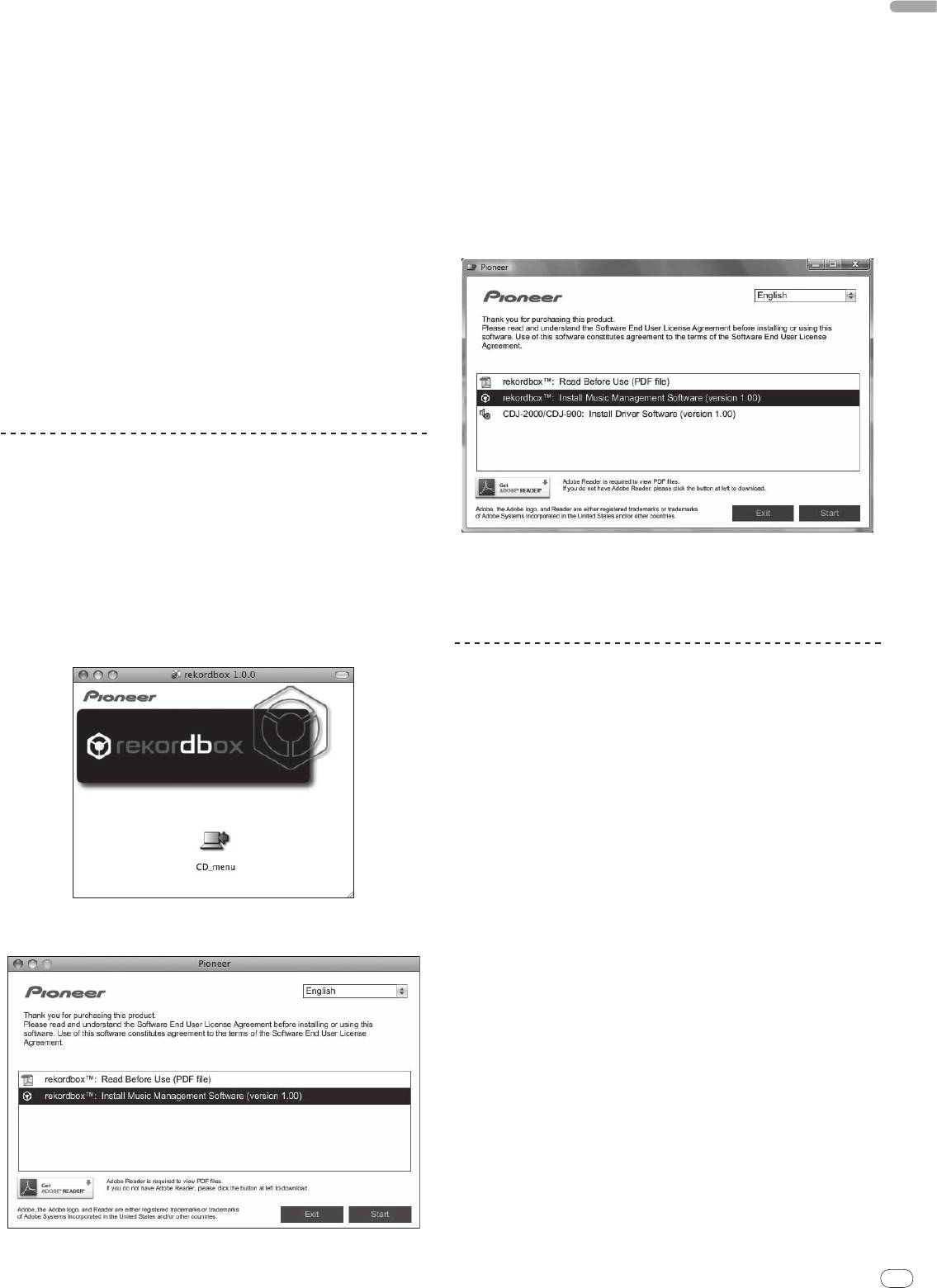
1 Insert the included CD-ROM into the computer’s CD drive.
disc, etc.) is required to transfer music files to the USB device.
The CD-ROM menu is displayed.
! LAN port: An Ethernet LAN adapter (RJ45 port) for communicating with the
! If the CD-ROM menu does not appear when the CD-ROM is inserted, open
DJ player is required to transfer music files to a Pioneer DJ player (i.e. CDJ-
the CD drive from [Computer (or My Computer)] in the [Start] menu, then
2000, CDJ-900).
double-click the [CD_menu.exe] icon.
— Operation is not guaranteed on all computers, even those with the oper-
ating environment described above.
2 When the CD-ROM’s menu is displayed, select [rekordbox:
— Even with the required memory capacity indicated for the operating
Install Music Management Software], then click [Start].
environment above, depending on the number of resident programs and
services, the software may not provide full functionality and performance
due to lack of memory. In this case, stop some resident programs and
services in order increase the amount of free memory. We recommend
adding extra memory in order to achieve stable performance.
— Depending on the computer’s power settings, etc., the CPU and hard
disc processing capacity may be insufficient. When using laptop comput-
ers in particular, always keep the AC power connected and set the com-
puter to maximum performance conditions when using rekordbox.
— Note that problems may arise in the operation of rekordbox due to other
software being used together with it.
Installing rekordbox
Installation Procedure (Macintosh)
! Read the “Cautions on installation” carefully before installing rekordbox.
! Authorization of the computer’s administrator is required to install and unin-
stall rekordbox. Have the name and password of the computer’s administra-
To close the CD-ROM menu, click [Exit].
tor ready.
3 Install rekordbox following the instructions on the screen.
1 When the included CD-ROM is inserted into the computer’s
Once installation of rekordbox is completed, the operating instructions can be
CD drive, the CD drive opens on the screen. Double-click the
opened from rekordbox’s [Help] menu.
! To stop installation in progress, click [Cancel].
[CD_menu.app] icon.
! If the CD drive does not open on the screen when the CD-ROM is inserted,
use Finder to open the CD drive, then double-click the [CD_menu.app] icon.
Using the support site
Before making an inquiry about rekordbox operations and technical support,
refer to the operating instructions for rekordbox and check the FAQs published
on the support site for rekordbox.
<Support Site for rekordbox>
http://www.prodjnet.com/rekordbox/support/
! To make an inquiry about rekordbox, you need to register as a user in advance
on the support site for rekordbox.
! You need to enter the license key for your user registration. Have the license key
ready. Also, be sure not to forget the login name (your e-mail address) and the
password specified for your user registration, as well as the license key.
! Pioneer Corporation collects your personal information for the following
purposes:
1 To provide customer support for your purchased product
2 To inform you of product or event information by e-mail
3 To reflect your opinions collected by survey on product planning
— Your personal information is kept confidential corresponding to the privacy
2 When the CD-ROM’s menu is displayed, select [rekordbox:
policy set forth by our company.
Install Music Management Software], then click [Start].
— You can check our privacy policy on the support site for rekordbox.
! When you make an inquiry about rekordbox, be sure to provide us the
information on the model name, specifications (CPU and memory capacity and
peripheral devices connected), and operating system version of your computer,
as well as specific descriptions of system malfunction.
— For an inquiry about configuring your computer with peripheral devices
other than our products and the corresponding technical support, contact
each manufacturer or retailer.
! rekordbox is subject to upgrade for enhanced function and performance.
The upgrade program can be downloaded on the support site. We strongly
recommend you upgrade your software on a regular basis to keep the latest
updates on your system.
To close the CD-ROM menu, click [Exit].
23
24
En
DRB1475-B
Connecting the CDJ-2000 and computer
About the driver software
This driver software is an exclusive ASIO driver for outputting audio signals from
1 Connect this unit to your computer via a USB cable.
the computer. To use the CDJ-2000 connected to a computer on which Windows
is installed, install the driver software on the computer beforehand.
2 Press [POWER].
When using a computer on which a MAC operating system is installed, use the
Turn on the power of this unit.
operating system’s standard driver software.
! The message [Installing device driver software] may appear when the CDJ-
2000 is connected to the computer for the first time or when it is reconnected
to the computer’s USB port. Wait until the [Your devices are ready for use]
Software end user license agreement
message appears.
! When installing on Windows XP
Carefully read the provisions of the Software end user license agreement (page
— [Can Windows connect to Windows Update to search for software?]
22) before installing or using the driver software. Using the driver software
may appear while the installation is in progress. Select [No, not this
implies that you have consented to the Software end user license agreement.
time] and click [Next] to continue with the installation.
— [What do you want the wizard to do?] may appear while the instal-
lation is in progress. Select [Install the software automatically
Cautions on Installation
(Recommended)] and click [Next] to continue with the installation.
! Before installing the driver software, be sure to turn off the power of this unit
— If [Hardware Installation] appears on the screen while the installation is
and disconnect the USB cable from both this unit and your computer.
in progress, click [Continue Anyway] and continue with the installation.
! If you connect this unit to your computer without installing the driver soft-
ware first, an error may occur on your computer depending on the system
environment.
Adjusting the buffer size (Windows)
! If you have discontinued the installation process in progress, step through
This unit functions as an audio device conforming to the ASIO standards.
the installation process again from the beginning according to the following
procedure.
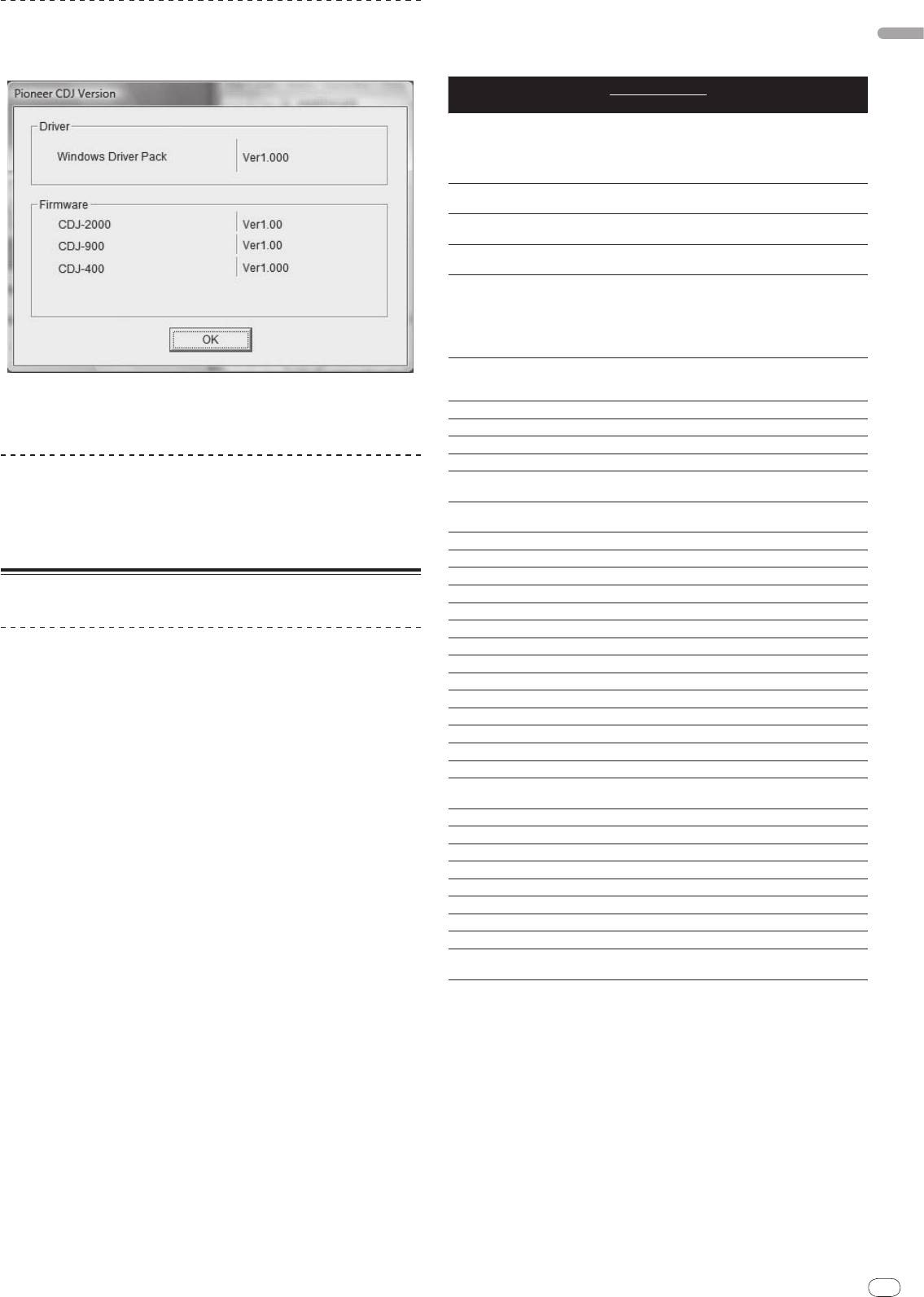
Click Windows [Start] menu >[All Programs]>[Pioneer]>[Pioneer
! Carefully read the provisions of the Software end user license agreement
CDJ]>[Pioneer CDJ ASIO Settings Utility].
before installing the driver software for exclusive use with this unit.
! Before installing the driver software, terminate all other programs running on
your computer.
! The driver software is compatible with the following OSs.
®
— Windows Vista
Home Basic/
Home Premium/
Ultimate/
Business
®
— Windows
XP Home Edition/
Professional (SP2 or later)
®
The driver software is not compatible with 64-bit OS (Windows
XP
®
Professional x64 edition and Windows Vista
64-bit).
! The included CD-ROM contains installation programs in the following 12
languages:
English, French, German, Italian, Dutch, Spanish, Portuguese, Russian,
Simplified Chinese, Traditional Chinese, Korean, and Japanese
If the language of your OS is one other than the ones listed above, select
[English] following the instructions on the screen.
Installing the driver software
! Carefully read “Cautions on Installation” before installing the driver software.
! To install or uninstall the driver software, you need to be authorized by the
administrator of your computer. Log on as the administrator of your computer
before proceeding with the installation.
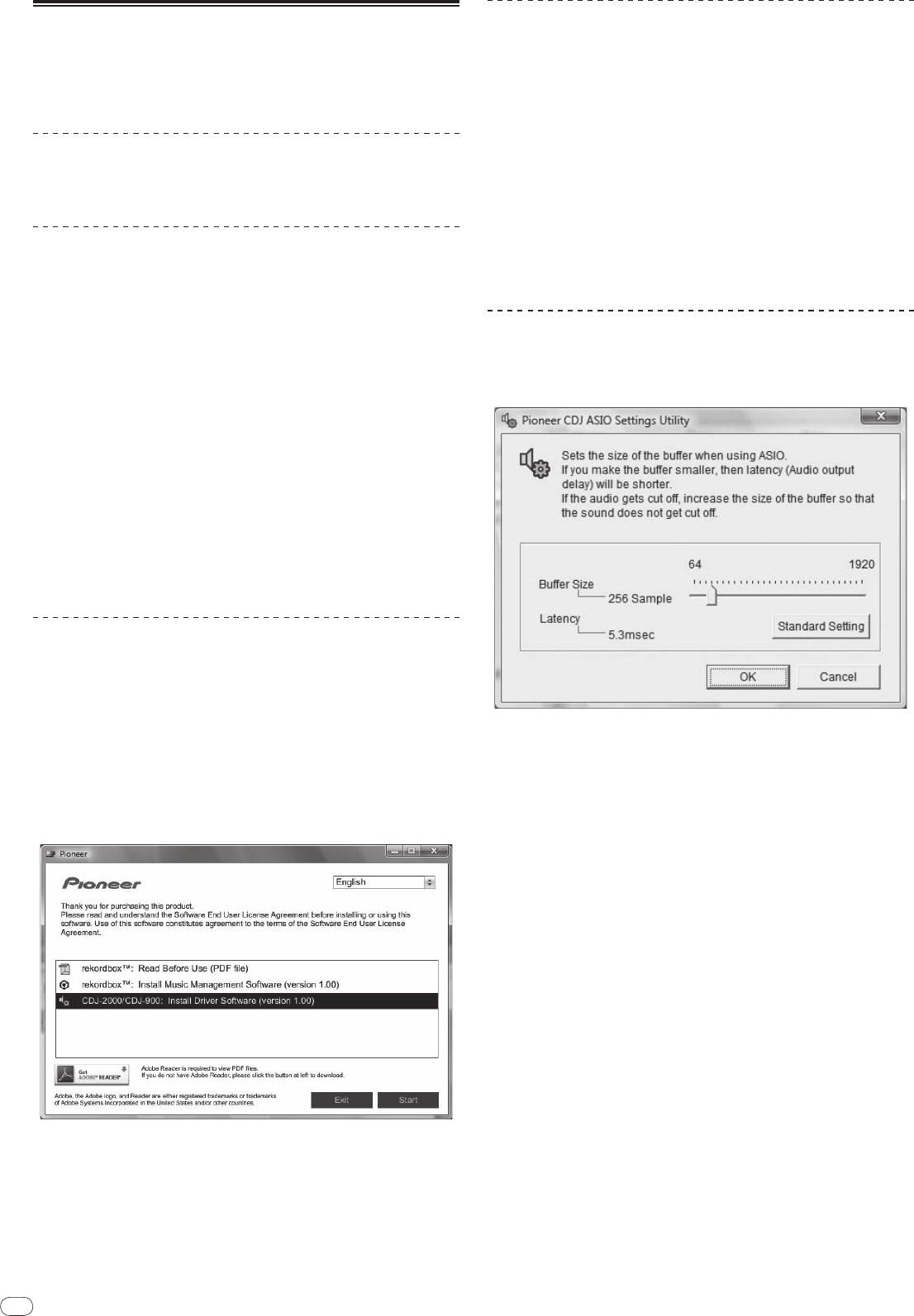
1 Insert the included CD-ROM into the computer’s CD drive.
A sufficiently large buffer size decreases the chance of sound dropout (sound
The CD-ROM menu is displayed.
interruption) but increases audio signal transmission delay (latency).
! If the CD-ROM menu does not appear when the CD-ROM is inserted, open
! When an application program (DJ software, etc.) with this unit set as a fixed
the CD drive from [Computer (or My Computer)] in the [Start] menu, then
device is running, terminate the program before adjusting the buffer size.
double-click the [CD_menu.exe] icon.
2 When the CD-ROM’s menu is displayed, select [CDJ-2000/
CDJ-
900: Install Driver Software], then click [Start].
To close the CD-ROM menu, click [Exit].
3 Proceed with installation according to the instructions on the
screen.
If [Windows Security] appears on the screen while the installation is in progress,
click [Install this driver software anyway] and continue with the installation.
! When installing on Windows XP
If [Hardware Installation] appears on the screen while the installation is in
progress, click [Continue Anyway] and continue with the installation.
! When the installation program is completed, a completion message appears.
24
English
En
25
DRB1475-B
5 Press [MENU/UTILITY].
Checking the version of the driver software
The previous screen reappears.
Click Windows [Start] menu >[All Programs]>[Pioneer]>[Pioneer
List of MIDI Messages
CDJ]>[ Pioneer CDJ Version Display Utility].
MIDI Messages
SW Name SW Type
Notes
MSB
A linear value corresponding to
the speed, from stop to 4X: 64 for
JOG (TOUCH)
-
Bn 10 dd
stop, 65 (0.06X) – 127 (4X) in the
forward direction, 63 (0.06X) – 0
(4X) in the reverse direction.
0 – 127, 0 on the – side, 127 on
TEMPO SLIDER VR Bn 1D dd
the + side
0 – 127, 0 (min.) on the left side,
TOUCH/
BRAKE VR Bn 1E dd
127 (max.) on the right side
0 – 127, 0 (min.) on the left side,
RELEASE/
START VR Bn 1F dd
127 (max.) on the right side
A linear value corresponding
to the speed from 0.5X to 4X: 64
when stopped (under 0.49X), 65
JOG RING
-
Bn 30 dd
(0.5X) to 127 (4X) in the forward
direction, 63 (0.5X) to 0 (4X) in the
reverse direction.
General
98 – 127, 1 – 30 Difference of count
ENCODER
Purpose
Bn 4F dd
from previous time is sent (±1 –
! You can check the firmware version of this unit on the screen.
Controller
±30) When over ±30, set at ±30
! The firmware version is not displayed when the CDJ-2000 is not connected
PLAY/
PAUSE SW 9n 00 dd OFF=0, ON=127
to the computer or when the CDJ-2000 and computer are not properly
communicating.
CUE SW 9n 01 dd OFF=0, ON=127
SEARCH FWD SW 9n 02 dd OFF=0, ON=127
SEARCH REV SW 9n 03 dd OFF=0, ON=127
Checking the latest information on the driver
TRACK SEARCH
SW 9n 04 dd OFF=0, ON=127
software
NEXT
For the latest information on the driver software for exclusive use with this unit,
TRACK SEARCH
SW 9n 05 dd OFF=0, ON=127
REV
visit our website shown below.
http://www.prodjnet.com/support/
LOOP IN SW 9n 06 dd OFF=0, ON=127
LOOP OUT SW 9n 07 dd OFF=0, ON=127
RELOOP SW 9n 08 dd OFF=0, ON=127
Using other brands of DJ software
MEMORY SW 9n 0A dd OFF=0, ON=127
CALL NEXT SW 9n 0B dd OFF=0, ON=127
CALL PREV SW 9n 0C dd OFF=0, ON=127
Operating DJ software by MIDI interface
DELETE SW 9n 0D dd OFF=0, ON=127
The CDJ-2000 also outputs the operating data for the buttons and dials in MIDI
TIME/
A.CUE SW 9n 0E dd OFF=0, ON=127
format. If you connect a computer with a built-in MIDI-compatible DJ software
TEMPO RANGE SW 9n 10 dd OFF=0, ON=127
via a USB cable, you can operate the DJ software on this unit. The sound of
MASTER TEMPO SW 9n 11 dd OFF=0, ON=127
music files being played on the computer can also be output from the CDJ-2000.
JOG MODE SW 9n 12 dd OFF=0, ON=127
Before using the CDJ-2000 as an audio device, install the driver software on the
HOT CUE A SW 9n 18 dd OFF=0, ON=127
computer (page 24). Also, the CDJ-2000 must be selected in the DJ software’s
settings. For details, see your DJ software’s operating instructions.
HOT CUE B SW 9n 19 dd OFF=0, ON=127
HOT CUE C SW 9n 1A dd OFF=0, ON=127
1 Connect the USB port on this unit to your computer.
HOT CUE REC/
For instructions on connecting, see Using other brands of DJ software on page 12.
SW 9n 1C dd OFF=0, ON=127
CALL
2 Press [BROWSE], then press [LINK].
TEMPO RESET SW 9n 1D dd OFF=0, ON=127
[Control Mode] and [USB-MIDI] appear on the menu screen.
JOG TOUCH SW 9n 20 dd OFF=0, ON=127
REVERSE SW 9n 21 dd OFF=0, ON=127
3 Select [Control Mode] and enter.
4 BEAT LOOP
-
9n 2A dd OFF=0, ON=127
The connecting screen is displayed.
EJECT SW 9n 2F dd OFF=0, ON=127
4 Select [USB-MIDI] and enter.
TAG TRACK SW 9n 30 dd OFF=0, ON=127
The CDJ-2000 switches to the control mode.
BACK SW 9n 32 dd OFF=0, ON=127
5 Start the DJ software.
ENCODER PUSH SW 9n 33 dd OFF=0, ON=127
Communication with the DJ software starts.
OFF = 0 1 to 127 position data
NEEDLE
Touch Sensor
Bn 1C dd
! The DJ software on the computer can be operated using the buttons and
from left to right side
rotary selector on the CDJ-2000.
n is the channel number.
! It may not be possible to use some buttons to operate the DJ software.
! The control mode is canceled when a track is loaded in the CDJ-2000.
! For messages output by the CDJ-2000, see List of MIDI Messages.
Changing the MIDI channel setting
1 Press [MENU/UTILITY] for over 1 second.
The utility screen appears.
2 Select [MIDI CHANNEL] and enter.
3 Turn the rotary selector.
Select the MIDI channel and change the setting. A setting from 1 – 16 can be
selected.
4 Press the rotary selector to enter.
25

26
En
DRB1475-B
Additional information
Troubleshooting
! Incorrect operation is often mistaken for trouble or malfunction. If you think that there is something wrong with this component, check the points below. Sometimes
the trouble may lie in another component. Inspect the other components and electrical appliances being used. If the trouble cannot be rectified after checking the
items below, ask your nearest Pioneer authorized service center or your dealer to carry out repair work.
! The CDJ-2000 may not operate properly due to such external causes as static electricity. If this happens, normal operation can sometimes be restored by turning the
power off, waiting for the disc to stop completely, then turning the power back on.
! Non-finalized (partial discs) CD-R/
-RW, DVD-R/
-RW, DVD+R/
+RW and DVD±R dual layer discs cannot be played on the CDJ-2000.
! Irregularly shaped discs other than standard 12 cm discs cannot be played on the CDJ-2000 (doing so will lead to damage or accidents).
! The BPM measured by the CDJ-2000 may differ from the BPM indicated on the disc or that of a Pioneer DJ mixer, etc. This is due to the different methods used for
measuring the BPM, and is not a malfunction.
Problem Check Remedy
Disc cannot be ejected. Is [UNLOCK/
LOCK] set to [LOCK]?
Press [PLAY/
PAUSEf] to set the pause mode, then press [DISC EJECTh].
Set [UNLOCK/
LOCK] to [UNLOCK], then press [DISC EJECTh].
-
If the [DISC EJECTh] button does not work, insert the pin in the disc force
eject pin insertion hole to eject the disc.
Playback does not start when disc is loaded. Is the disc or file playable? See Discs/
files playable on the CDJ-2000 on page 6.
Is the auto cue function activated? Press [AUTO CUE] for at least 1 second to turn cancel the auto cue function.
File cannot be played. Is the file copyright-protected (by DRM)? Copyright-protected files cannot be played.
No sound is produced, or sound is distorted or noisy. Are you operating the connected DJ mixer properly? Check the operation of the DJ mixer.
Is the CDJ-2000 placed near a TV? Turn the TV’s power off, or install the CDJ-2000 and TV away from one
another.
Loud noise is produced or playback stops when a
Is the disc scratched? Scratched discs may not play.
certain disc is played.
Is the disc dirty? Wipe the dirt off the disc (page 28).
File information is not properly displayed. Is [LANGUAGE] properly set? Set [LANGUAGE] to the proper language.
Is the information recorded in a language not supported
When creating files using DJ software, etc., record the information in a
by the CDJ-2000?
language supported by the CDJ-2000.
Track search operation takes too long. Is the auto cue function activated? Track searching may take some time when there are long silent sections
between tracks.
-
If track searching is not possible within 10 seconds, a cue point is set at the
beginning of the track.
Back cue function does not work. Is a cue point set? Set the cue point (page 15).
Loop play function does not work. Is a cue point set? Set the cue point (page 15).
Settings are not stored in the memory. Has the power been turned off directly after changing the
After changing settings, wait at least 10 seconds before turning the power
setting?
off.
USB device is not recognized. Is the USB device properly connected? Connect the device securely (all the way in).
Is the USB device connected via a USB hub? USB hubs cannot be used.
Is the USB device supported by the CDJ-2000? This player only supports USB mass storage class devices.
This player supports portable flash memory and digital audio playback
devices.
Is the file format supported by the CDJ-2000? Check the file format of the connected USB device. For the file formats sup-
ported by the CDJ-2000, see About USB devices on page 7.
-
Turn the power off then back on.
Cue points or loops of tracks recorded on SD memory
Is there sufficient free space on the SD memory card/
USB
A maximum of 100 cue and loop points per disc can be recorded on SD
cards/
USB devices are not stored in the memory.
device?
memory cards/
USB devices (10 per track for media other than discs). If you
attempt to record more points than the limit, [POINT FULL] is displayed and
the points cannot be recorded.
If the SD memory card is write-protected, [CARD PROTECTED] is displayed
and the points cannot be recorded.
If there is not enough free space on the USB device or if the device is write-
protected, [USB FULL] is displayed and the points cannot be recorded.
Cue points or loops of tracks recorded on SD memory
Has the SD memory card/
USB device been properly
Points may not be displayed if the SD memory card/
USB device is removed
cards/
USB devices are not displayed.
removed?
without performing the proper stopping procedure or if the CDJ-2000’s
power is turned off.
The playing address display is not displayed in the
-
When playing files recorded in VBR, it may happen that the set cannot
remaining time mode.
detect the length of the track immediately and that some time is required for
the playing address display to appear.
Time is required to read SD memory cards/
USB
Is there a large number of folders or files recorded on the
When there are many folders or files, some time may be required for load-
devices (flash memory drives and hard discs).
SD memory card/
USB device?
ing.
Are files other than music files stored on the SD memory
When files other than music files are stored in folders, time is required to
card/
USB device?
read them as well. Do not store files or folders other than music files on the
USB device.
Library browsing is not possible. Is a medium on which library information is recorded
The library browse mode is only set when media on which library informa-
loaded?
tion is recorded are loaded. When a medium on which no library information
is recorded is loaded, the folder browse mode is set.
[HISTORY] is not displayed. Is an SD memory card/
USB device loaded? The [HISTORY] function can only be used for DJ players on which an SD
memory card/
USB device is loaded.
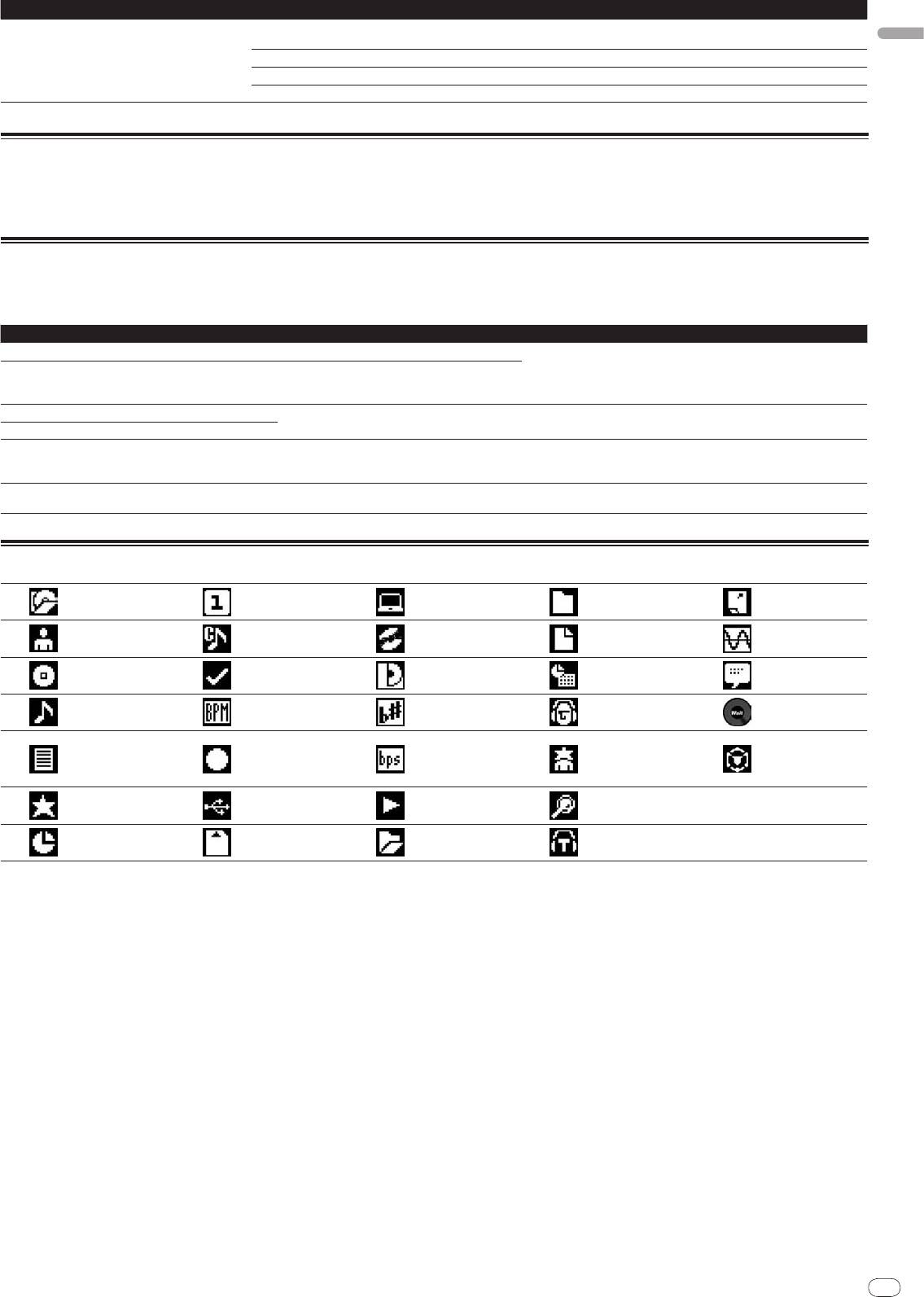
Nothing is displayed. Is the power management function activated? The CDJ-2000 is shipped with the power management function turned
on. If you do not want to use the power management function, set [AUTO
STANDBY] to [OFF]. (page 21)
26
English
En
27
DRB1475-B
Problem Check Remedy
PRO DJ LINK does not work well. Are the player numbers properly set? Set [PLAYER No.] to [AUTO] or to a number different from the number cur-
rently set. (page 21)
Is the LAN cable properly connected? Connect the LAN cable properly to the [LINK] terminal.
Is the switching hub’s power turned on? Turn the switching hub’s power on.
Is an unnecessary device connected to the switching hub? Disconnect the unnecessary device from the switching hub.
About the liquid crystal display
! Small black or shining points may appear on the liquid crystal display. This is a phenomenon inherent to liquid crystal displays; this is not a malfunction.
! When using in cold places, the liquid crystal display may be dark for a while after the CDJ-2000’s power is turned on. It will reach the normal brightness after a while.
! When the liquid crystal display is exposed to direct sunlight, the light will reflect off it, making it difficult to see. Block the direct sunlight.
Error messages
When the CDJ-2000 cannot operate normally, an error code appears on the display. Take the necessary measures, referring to the table below. If an error code not
indicated on the table below is displayed or if the same error code appears after the indicated action has been taken, contact your store of purchase or nearby Pioneer
service station.
Error code Error type Description of error Cause and action
E-7201 TOC READ ERROR TOC data cannot be read.
! Disc is cracked.dReplace the disc.
E-8301
! Disc is dirty.dClean the disc.
E-8302
PLAYER ERROR Disc that cannot be played normally is loaded.
! If operation is normal with other discs, the problem is with that disc.
E-8303
E-8304 DECODE ERROR
Music files that cannot be played normally are
Format is wrong.dReplace with music files in the proper format.
E-8305 DATA FORMAT ERROR
loaded.
Track recorded in the library, playlist, etc., has been
E-8306 NO FILE
deleted from the SD memory card/
USB device and
Do not delete that track from the SD memory card/
USB device.
cannot be played.
Mechanical error (time out) during loading or eject-
Displayed when mechanism operation is not completed within the specified
E-9101 MECHANICAL TIME OUT
ing of disc.
time.
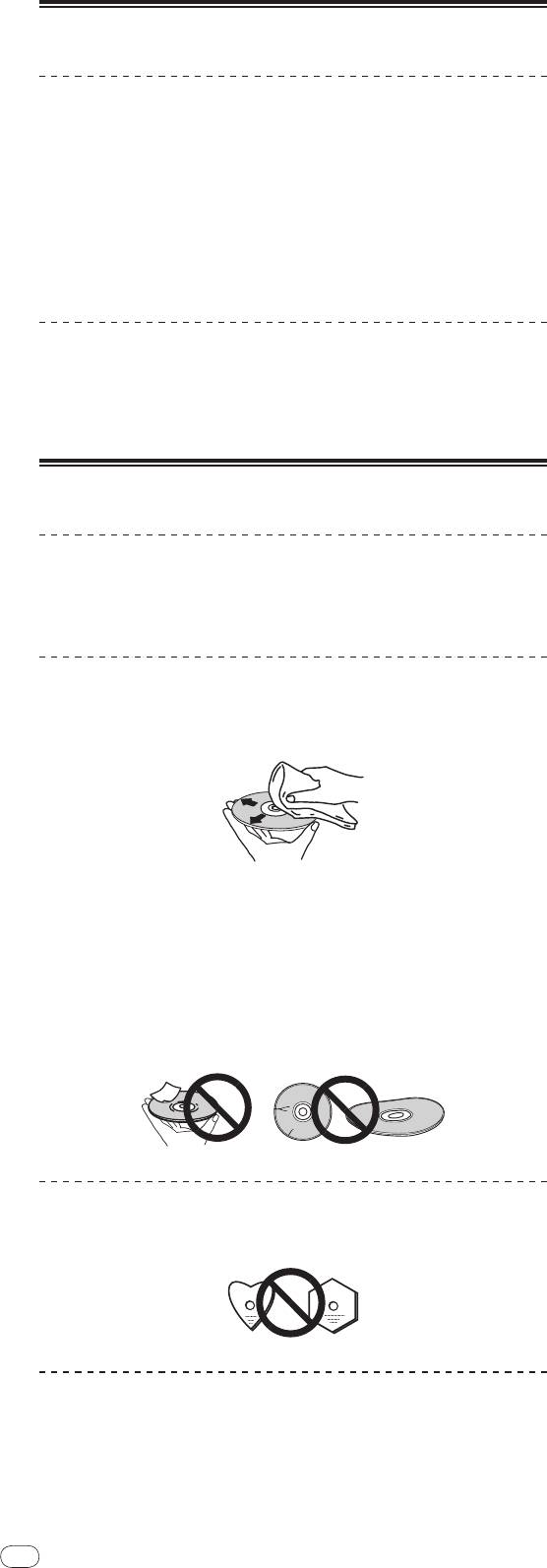
List of icons displayed on the main unit display section
Player number
Date library
Genre
Computer
Close folder
(1 – 4)
added
Cue point set in
Artist
Disc
File type
Sampling rate
memory
Registered in
Album
Label
Year
Comment
tag list
Track/
file name
Tempo (BPM)
Key
Remixer name
WAIT
Playlist
HISTORY
Color
Bit rate
Original artist
rekordbox
Hot Cue Bank
List
Rating
USB
Playing
Search
Time
SD
Open folder
DJ play count
27
28
En
DRB1475-B
Cautions on use
About condensation
Water droplets (condensation) may form inside the unit (on operating parts and
lenses) in the winter, for example, if the unit is moved from a cold place into a
warm room or if the temperature in the room in which the unit is installed rises
suddenly (through heating, etc.). The unit will not operate properly and will not
be playable with condensation inside. Let the unit stand for 1 to 2 hours at room
temperature (though this time depends on the conditions of the condensation)
without turning on the power. The water droplets will evaporate and the unit will
become playable. Condensation can occur in the summer as well if the unit is
exposed to the direct wind from an air-conditioner, etc. If this happens, move the
unit to a different location.
Cleaning the lens
The player’s lens should not become dirty in normal use, but if for some reason it
should malfunction due to dust or dirt, consult your nearest Pioneer authorized
service center. Although lens cleaners for players are commercially available, we
advise against using them since some may damage the lens.
Handling discs
Storing
! Always place discs in their cases and store them vertically, avoiding hot,
humid places, places exposed to direct sunlight and extremely cold places.
! Be sure to read the cautions included with the disc.
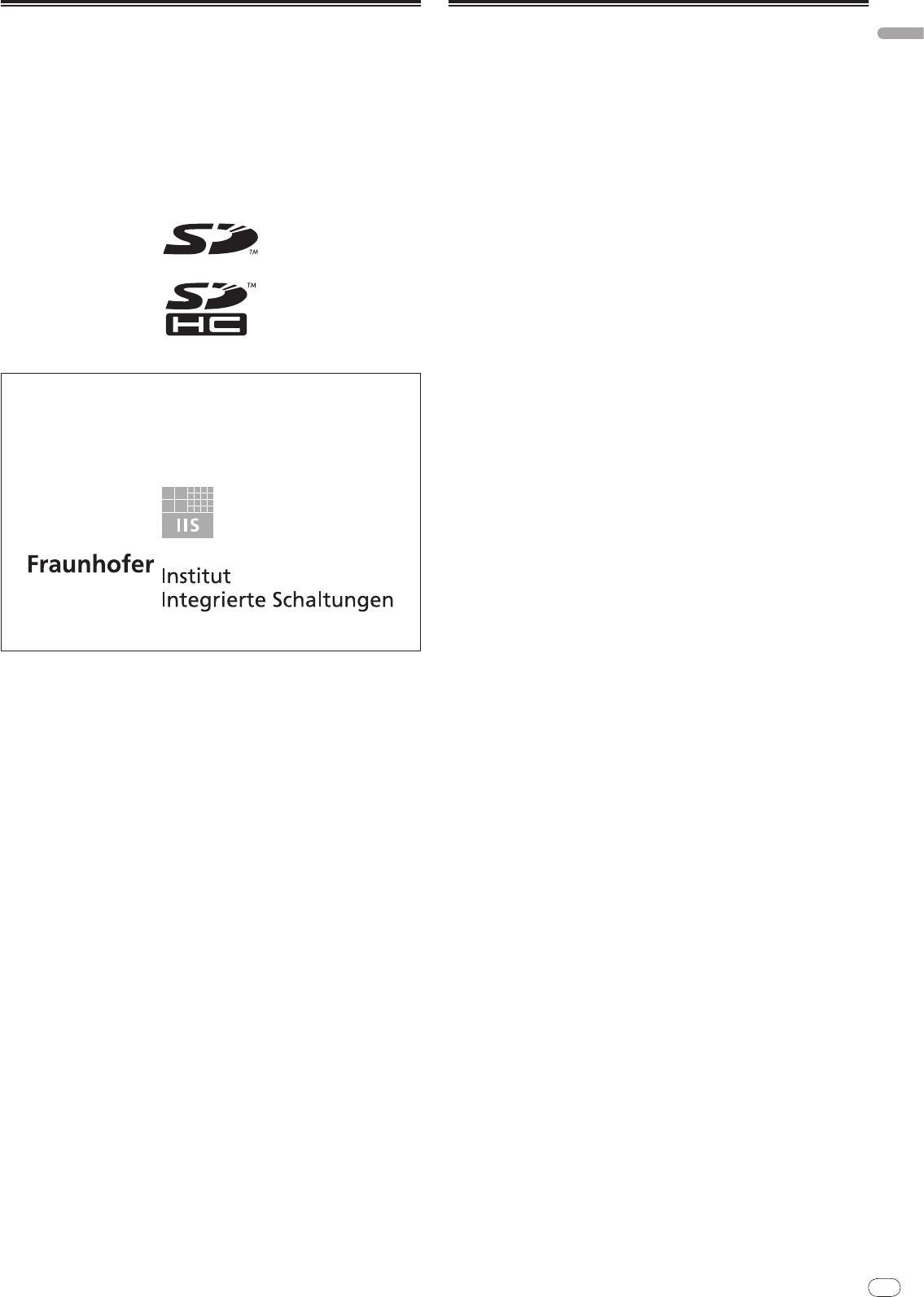
Cleaning discs
! Discs may not play if there are fingerprints or dust on them. In this case, use a
cleaning cloth, etc., to gently wipe the disc from the inside towards the out-
side. Do not use dirty cleaning cloths.
! Do not use benzene, thinner or other volatile chemicals. Also do not use
record spray or antistatic agents.
! For tough dirt, apply some water to a soft cloth, wring out thoroughly, wipe off
the dirt, then wipe off the moisture with a dry cloth.
! Do not use damaged (cracked or warped) discs.
! Do not let the signal surface of discs get scratched or dirty.
! Do not place two discs in the disc tray, one on top of the other.
! Do not attach pieces of paper or stickers to discs. Doing so could warp discs,
making it impossible to play them. Also note that rental discs often have
labels attached to them, and the label’s glue may have oozed out. Check that
there is no glue around the edges of such labels before using rented discs.
About specially shaped discs
Specially shaped discs (heart-shaped, hexagonal, etc.) cannot be played on this
player. Do not attempt to play such discs, as they could damage the player.
About condensation on discs
Water droplets (condensation) may form on the surface of discs if they are moved
from a cold place (particularly in winter) into a warm room. Discs may not play
normally if there is condensation on them. Carefully wipe the water droplets off
the surface of the disc before loading it.
28
English
En
29
DRB1475-B
Disclaimer
Specifications
! Pioneer and rekordbox are trademarks or registered trademarks of the
Power requirements .....................................................AC 220 V to 240 V, 50 Hz/
60 Hz
Pioneer Corporation.
Power consumption .................................................................................................28 W
®
®
®
®
! Microsoft
, Windows Vista
, Windows
and Internet Explorer
are registered
Power consumption (standby) ...............................................................................0.4 W
trademarks or trademarks in the United States and other countries of the
Main unit weight ..................................................................................................... 4.6 kg
Microsoft Corporation of the United States.
External dimensions ...............................320 mm (W) x 106.4 mm (H) x 405.7 mm (D)
! Apple, Macintosh, Mac OS, Safari, iTunes and Finder are registered trade-
Tolerable operating temperature .........................................................+5 °C to +35 °C
marks of Apple Inc. in the United States and other countries.
Tolerable operating humidity ...................................... 5 % to 85 % (no condensation)
! Pentium is a registered trademark of Intel Corporation.
! Adobe and Reader are either registered trademarks or trademarks of Adobe
Analog audio output (AUDIO OUT L/
R)
Systems Incorporated in the United States and/
or other countries.
Output terminal ..........................................................................................RCA terminal
! ASIO is a trademark of Steinberg Media Technologies GmbH.
Output Level ..........................................................................................2.0 Vrms (1 kHz)
! The SD logo is a trademark.
Frequency response .................................................................................4 Hz to 20 kHz
S/
N ratio ..................................................................................................................115 dB
Total harmonic distortion ................................................................................. 0.0018 %
Digital audio output (DIGITAL OUT)
! The SDHC logo is a trademark.
Output terminal ..........................................................................................RCA terminal
Output type ...............................................................................Coaxial digital (S/
PDIF)
Output level ..............................................................................................0.5 Vp-p (75 W)
Output format ................................................................................44.1 kHz, 24 bit/
16 bit
The names of companies and products mentioned herein are the trademarks of
USB downstream section (USB)
their respective owners.
Port ......................................................................................................................... Type A
Power supply ..................................................................................... 5 V/
500 mA or less
This product has been licensed for nonprofit use. This product has not been
licensed for commercial purposes (for profit-making use), such as broadcast-
USB upstream section (USB)
ing (terrestrial, satellite, cable or other types of broadcasting), streaming on
Port ......................................................................................................................... Type B
the Internet, Intranet (a corporate network) or other types of networks or dis-
tributing of electronic information (online digital music distribution service).
LAN (PRO DJ LINK)
You need to acquire the corresponding licenses for such uses. For details, visit
Rating .............................................................................................................100Base-TX
http:/
/
www.mp3licensing.com.
Control output (CONTROL)
Port .....................................................................................................................Mini-jack
SD memory card section
File system .............Conforming to “SD Specifications Part 2 File System Specification
Version 2.00”
Max. memory capacity ...........................................................................................32 GB
Main display
Display type .........................................Active matrix TFT liquid crystal display (LCD)
The audio compression technology for MP3 is offered under the license of
Screen size................................................................................................. 6.1-inch, wide
Fraunhofer IIS and Thomson Multimedia.
Supported languages ................................................................................ 18 languages
! The articles concerning free repairs, etc., indicated on the warranty do not
apply to the rekordbox music management software. Before installing or using
rekordbox, carefully read the articles in Software end user license agreement on
page 22.
! The specifications and design of this product are subject to change without
notice.
! Published by Pioneer Corporation. Copyright © 2009 Pioneer Corporation. All
rights reserved.
29
2
Fr
DRB1475-B
30
Français
Fr
3
DRB1475-B
Sommaire
Comment lire ce manuel
Les noms d’écrans, de menus et de touches dans ce manuel sont entre crochets.
(ex. canal [MASTER], [ON/OFF], menu [File])
Informations préliminaires
Caractéristiques ..............................................................................................................4
Avant de commencer
Contenu du carton d’emballage ....................................................................................6
Disques/
fichiers pouvant être lus sur le CDJ-2000 ......................................................6
Noms et fonctions des éléments
Panneau de commande .................................................................................................9
Panneau arrière.............................................................................................................10
Face avant ......................................................................................................................10
Écran de l’appareil principal ........................................................................................11
Section d’affichage de la molette jog ..........................................................................11
Raccordements
Style de base ..................................................................................................................12
Utilisation en association avec rekordbox ..................................................................12
Utilisation d’un logiciel DJ d’une autre marque ........................................................13
Raccordements pour la lecture en relais ...................................................................13
Lecture
Insertion de disques .....................................................................................................14
Insertion d’une carte mémoire SD ..............................................................................14
Insertion d’un dispositif USB .......................................................................................14
Utilisation de la fonction PRO DJ LINK ......................................................................14
Lecture ...........................................................................................................................15
Pose d’un repère ...........................................................................................................16
Pose d’une boucle ........................................................................................................16
Pose d’un repère instantané ........................................................................................17
Sauvegarde de points de repères et de boucle ..........................................................18
Fonctionnement de la molette jog ...............................................................................18
Fonctionnement du pad [NEEDLE SEARCH] .............................................................19
Utilisation du CDJ-2000 avec d’autres appareils .......................................................19
Utilisation de la touche [BROWSE] .............................................................................20
Utilisation de la touche [TAG LIST] ..............................................................................21
Utilisation de la touche [INFO].....................................................................................21
Changement des réglages
Utilisation de la touche [MENU/UTILITY] ....................................................................22
À propos du logiciel rekordbox ....................................................................................23
À propos du logiciel ......................................................................................................25
Utilisation d’un logiciel DJ d’une autre marque ........................................................26
Informations supplémentaires
En cas de panne ............................................................................................................27
À propos de l’écran à cristaux liquides .......................................................................28
Messages d’erreur ........................................................................................................28
Liste des icônes s’affichant sur l’écran de l’appareil principal ................................28
Précautions d’emploi....................................................................................................29
Manipulation des disques ............................................................................................29
Avis de non responsabilité ...........................................................................................30
Spécifications ................................................................................................................30
31
4
Fr
DRB1475-B
Informations préliminaires
Caractéristiques
Le CDJ-2000 est un multi-lecteur conçu pour les DJ professionnels, offrant une grande variété de fonctions et la résistance et maniabilité exigées pour le travail en dis-
cos et night-clubs.
MULTIMÉDIA, MULTIFORMAT
Le CDJ-2000 peut lire non seulement les disques (CD et DVD) mais aussi les fichiers de musique enregistrés sur les cartes mémoire SD et les dispositifs USB (lecteurs
de cartes mémoires flash et disques durs). Il prend en charge comme formats de fichiers de musique non seulement les CD (CD-DA) et le MP3 mais aussi les formats
AAC, WAV et AIFF.
TM
rekordbox
Le logiciel de gestion de musique rekordbox inclus peut être utilisé pour préparer au préalable et en toute tranquillité des listes de lecture, des points de repères, des
repères instantanés et d’autres données nécessaires à la lecture DJ. Ceci permet de se concentrer totalement à la lecture DJ proprement dite à la disco ou au night-
club. Toutes les étapes du travail d’un DJ, de l’acquisition de fichiers de musique à la lecture DJ, s’effectuent facilement.
rekordbox est une application permettant de gérer les fichiers de musique utilisés pour la lecture DJ avec un lecteur DJ Pioneer (par ex. un CDJ-2000, CDJ-900).
Les données détectées et mesurées, de même que les points posés et enregistrés avec rekordbox, peuvent être utilisées avec un lecteur DJ Pioneer (par ex. un CDJ-
2000, CDJ-900) pour créer une excellente ambiance DJ.
PRO DJ LINK
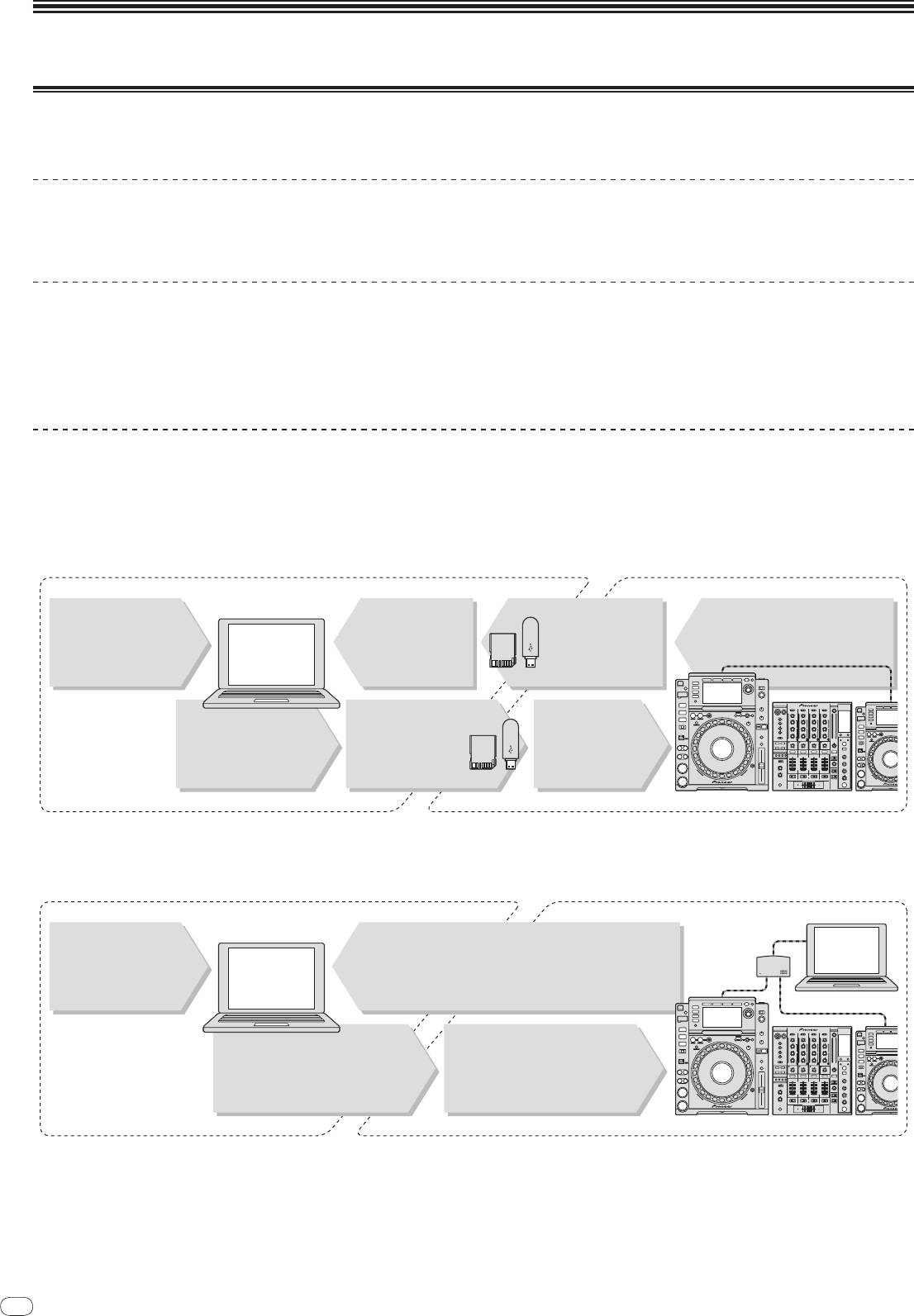
Vous disposez entre autres des fonctions “Exportation SD & USB” par l’intermédiaire de cartes mémoire SD et de dispositifs USB (lecteurs de cartes mémoire flash et
disques durs) et “Exportation rekordbox LINK” par l’intermédiaire de l’ordinateur sur lequel rekordbox est installé.
Exportation SD & USB
Cette fonction peut être utilisée pour transférer des fichiers de musique rekordbox et des données de gestion par l’intermédiaire de cartes mémoire SD/
dispositifs USB.
Apporter son ordinateur à la disco ou au club devient superflu.
32
Chez soi/Au studio
À la discothèque/au club
Ordinateur
- Utilisez les données de rekordbox
L’ historique de la
Chargez des fichiers de
Vérifiez et gérez
pour la lecture.
lecture est enregistré
musique sur l’ ordinateur
l’ historique de la
- Partagez les données de rekordbox
sur la carte mémoire
à partir d’ Internet ou de
lecture avec
rekordbox
avec PRO DJ LINK
SD ou le dispositif
disques.
rekordbox.
USB.
Enregistrez les
- Ajoutez à la collection
Insérez la carte
données de
et analysez celle-ci.
mémoire SD ou le
rekordbox sur une
- Préparez la soirée avec
dispositif USB dans
carte mémoire SD ou
rekordbox.
le lecteur DJ.
un dispositif USB.
Lecteur DJ
Exportation rekordbox LINK
Lorsque le CDJ-2000 et l’ordinateur sont raccordés par un câble LAN, les fichiers de musique rekordbox et les données de gestion peuvent être échangés directement.
L’exportation de données sur cartes mémoire SD/
dispositifs USB devient alors inutile.
Chez soi/Au studio À la discothèque/au club
Ordinateur
Chargez des fichiers de
Concentrateur
rekordbox
musique sur l’ ordinateur
- Utilisez les données de rekordbox pour la lecture.
commutateur
à partir d’ Internet ou de
- Partagez les données de rekordbox avec PRO DJ LINK
rekordbox
disques.
Ordinateur
- Raccordez l’ ordinateur et le lecteur
- Ajoutez à la collection et analysez
DJ.
celle-ci.
- Chargez les données de rekordbox
- Préparez la soirée avec rekordbox.
dans le lecteur DJ.
Lecteur DJ

Français
Fr
5
DRB1475-B
CARTE SON
Le CDJ-2000 est pourvu d’une interface spéciale et d’une interface MIDI pour le contrôle du logiciel DJ d’autres marques. Il contient également une carte son, ce qui
permet de raccorder sans problème d’autres appareils.
ÉCRAN
Le grand écran LCD couleur de 6,1 pouces sert à afficher non seulement les données alphanumériques mais aussi les photos de jaquettes. L’association d’une interface
graphique présentant les informations relatives aux fichiers de musique de manière simple et d’un sélecteur rotatif permet de sélectionner les plages sans stress.
AFFICHAGE DE L’ONDE
La résolution des affichages de l’onde est supérieure à celle des produits Pioneer antérieurs.
RECHERCHE INSTANTANÉE
Lorsque le pad de NEEDLE SEARCH est touché par un doigt, le son proche de la position où le pad a été touché est lu instantanément. La recherche de points est plus
rapide que jamais.
LISTE DE BALISES
En plus des listes de lecture préparées à l’avance avec rekordbox, les morceaux suivants à lire peuvent être réunis temporairement dans le CDJ-2000. Les fichiers de
musique ajoutés à la liste de balises peuvent être affichés sous forme de liste. Cette fonction est extrêmement pratique lors de la sélection des morceaux au cours de la
soirée.
RECHERCHE PAR MOT CLÉ
La recherche par mot clé, le saut de lettres et d’autres fonctions permettent de rechercher rapidement et précisément le fichier de musique souhaité.
MÉMOIRE D’HISTORIQUE
Le CDJ-2000 présente une fonction d’historique pour mémoriser l’historique des fichiers de musique lus. Des listes de lecture peuvent être créées à partir de cet histori-
que avec rekordbox.
PAS DE TRAME DE 0,5
La trame minimale est passée de 1 (1/
75 de seconde) à 0,5 trame. Ceci permet de poser les points de repère et de boucle avec une plus grande précision et d’améliorer la
lecture DJ.
MOLETTE JOG AVANCÉE
La bague jog s’allume à quatre endroits, de sorte que le haut et les bords de la molette jog sont clairement visibles même dans les cabines de DJ sombres. Cet éclairage
peut aussi être utilisé pour impressionner l’audience.
QUANTIFICATION
Le CDJ-2000 présente une fonction de quantification pour mettre un morceau au temps même lorsque la touche est pressée de manière approximative, dans la mesure
où le morceau a été analysé avec rekordbox. Lorsque des points de repère ou des points instantanés sont posés en temps réel, le temps est automatiquement ajusté au
temps le plus proche de la position où la touche a été pressée.
HAUTE QUALITÉ SONORE
Le CDJ-2000 a été conçu en vue d’une amélioration complète de la qualité sonore, aussi bien au niveau des sorties numériques que des sorties analogiques.
En ce qui concerne le circuit numérique, un convertisseur N/
A Wolfson haute performance est utilisé pour restituer fidèlement même les sons les plus délicats, si bien
qu’un son clair, de haute qualité, avec une sensation intense de volume et champs acoustique, est obtenu.
En ce qui concerne le circuit analogique, un amplificateur OP hybride est utilisé pour réduire dans les limites du possible le bruit inaudible de 20 kHz et au-delà qui
risque de brouiller le son original. Le bruit numérique indésirable est éliminé, ce qui permet d’obtenir un son clair, extrêmement transparent et fidèle à l’original.
33
6
Fr
DRB1475-B
Création de disques de sauvegarde
Lorsque des disques CD-R/
-RW, DVD-R/
-RW, DVD+R/
+RW, DVD-R DL (double
couche) et DVD+R DL (double couche) sont mis en pause ou laissés en pause
Avant de commencer
pendant un certain temps aux points de repères, il peut être difficile de lire ce
point du disque, compte tenu des propriétés du disque. Lorsqu’un point précis
est repris trop souvent en boucle, il peut être difficile de lire ce point.
Pendant la lecture de disques précieux, il est conseillé de faire des disques de
Contenu du carton d’emballage
sauvegarde.
! Câble audio
! Câble d’alimentation
À propos de la copie de CD protégés
! Cordon de commande
! Câble LAN
Ce lecteur se conforme aux spécifications du format CD Audio. Il ne prend
! Broche d’éjection forcée du disque
pas en charge la lecture ou les fonctions des disques non conformes à ces
! CD-ROM (rekordbox)
spécifications.
! Carte de garantie
! Mode d’emploi (ce document)
À propos des Disques doubles
Ce lecteur se conforme aux spécifications du format CD Audio. Il ne prend
pas en charge la lecture ou les fonctions des disques non conformes à ces
Disques/
fichiers pouvant être lus sur le
spécifications.
CDJ-2000
À des mini CD de 8 cm
Les mini CD de 8 cm ne peuvent pas être lus sur le CDJ-2000. Ne posez pas
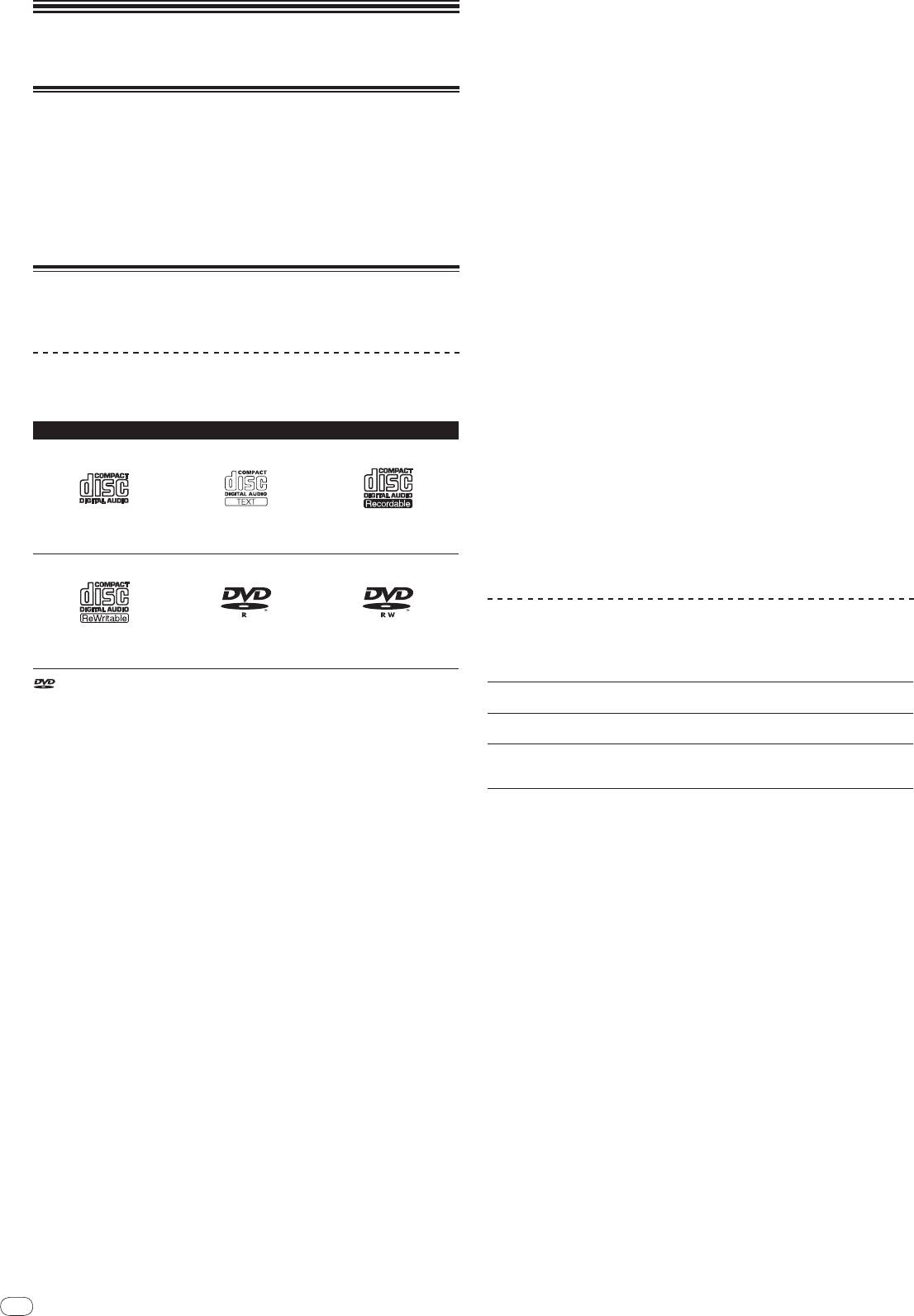
Disques lisibles
d’adaptateurs 8 cm que le CD et ne lisez pas le disque de cette façon sur le CDJ-
2000. L’adaptateur pourrait tomber quand le disque tourne, endommageant le
Les disques portant les marques suivantes sur l’étiquette, le carton ou la jaquette
disque ou le lecteur.
peuvent être lus.
Types de disques pouvant être lus et marques
À propos des CD-TEXT
Le CDJ-2000 prend en charge les CD-Text. Les noms de titres, d’albums et
d’auteurs enregistrés sur un CD-Text sont affichés. Si plusieurs données de texte
sont enregistrées, les premières données sont affichées. Les codes de caractères
suivants sont pris en charge.
! ASCII
CD
CD-TEXT
! ISO-8859
CD-R
! MS-JIS
! Code des caractères chinois mandarin
À propos de la lecture de CD
DVD-R
DVD-RW
Les fichiers de musique (MP3/
AAC/
WAV/
AIFF) enregistrés sur CD-R/
-RW,
CD-RW
DVD-R/
-RW, DVD+R/
+RW, DVD-R DL (double couche) et DVD+R DL (double
couche) peuvent être lus.
est une marque de commerce de DVD Format/
Logo Licensing Corporation.
Niveaux de dos-
Maximum 8 niveaux (au-delà du 8e niveau de dossiers, les fichiers ne
Les disques suivants peuvent être lus sur ce lecteur.
siers
peuvent plus être lus)
! Disques CD-R/
-RW contenant de la musique enregistrée dans le format CD
Nombre maximal
2 000 dossiers par disque (au-delà du dossier 2 000 les dossiers ne
(CD-DA)
de dossiers
peuvent plus être affichés)
! Disques CD-R/
-RW, DVD-R/
-RW, DVD+R/
+RW, DVD-R DL (double couche)
! 999 fichiers pour chaque format de fichier
et DVD+R DL (double couche) contenant des fichiers de musique (MP3/
AAC/
Nombre maximal
! 3 000 fichiers par disque (au-delà du dossier 3 000 les fichiers ne
WAV/
AIFF)
de fichiers
peuvent plus être affichés)
Le chargement peut durer un certain temps si la quantité de dossiers ou de fichiers est
Disques illisibles
importante.
! DTS-CD
! CD Photos
! CD Vidéo
! CD Graphiques (CD-G)
! CD non clôturés
! DVD-Vidéo
! Disques DVD-Audio
! Disques DVD-RAM
! DVD non clôturés
Lecture de disques créés sur un ordinateur ou un
enregistreur DVD
Selon les réglages de l’application et de l’environnement de l’ordinateur, il peut
être impossible de lire des disques créés sur un ordinateur. Enregistrez les dis-
ques dans un format lisible par le CDJ-2000. Pour le détail, contactez le vendeur
de l’application.
Il peut être impossible de lire des disques créés sur un ordinateur ou un graveur
de DVD à cause des propriétés du disque, de rayures ou saletés, en encore de la
mauvaise qualité de l’enregistrement (saleté sur la lentille de l’enregistreur, etc.).
Voir la page 29, Manipulation des disques pour les consignes sur la manipulation
des disques.
34
Français
Fr
7
DRB1475-B
! Un message d’avertissement peut s’afficher, l’alimentation du dispositif USB
À propos des cartes mémoire SD
peut être coupée et le transfert du signal peut être interrompu si un courant
supérieur au niveau autorisé est détecté dans le port USB du CDJ-2000. Pour
Les fichiers de musique (MP3/
AAC/
WAV/
AIFF) enregistrés sur des cartes
revenir au fonctionnement normal, retirez les dispositifs USB raccordés au
mémoire SD et SDHC conformes aux normes SD peuvent être lus.
lecteur, puis appuyez sur USB STOP. Évitez de réutiliser le dispositif USB
Les informations, telles que l’identification d’un disque, les points de repère,
ayant provoqué le courant excessif détecté. S’il n’est pas possible de revenir
les points de boucle et les points instantanés, peuvent être enregistrées sur des
à un fonctionnement normal après l’intervention mentionnée ci-dessus (si les
cartes mémoire SD.
signaux ne sont toujours pas transférés), essayez d’éteindre le lecteur puis de
Niveaux de dos-
Maximum 8 niveaux (au-delà du 8e niveau de dossiers, les fichiers ne
le rallumer.
siers
peuvent plus être lus)
! Selon le dispositif USB utilisé, vous pouvez ne pas atteindre les performances
Nombre maximal
Illimité (au-delà du 10 000e dossier à l’intérieur d’un dossier, les dos-
souhaitées.
de dossiers
siers ne peuvent pas être affichés)
Nombre maximal
Illimité (au-delà du 10 000e fichier à l’intérieur d’un dossier, les fichiers
de fichiers
ne peuvent pas être affichés)
À propos de fichiers MP3
Carte prises en
! Cartes mémoire SD : 8 Mo – 2 Go
1
charge
! Cartes mémoire SDHC : 4 Go – 32 Go
Les fichiers MP3 peuvent avoir un débit binaire constant (CBR) ou un débit
Formats compa-
! Cartes mémoire SD : FAT12 et FAT16 (conformes aux normes SD)
binaire variable (VBR). Ces deux types de fichiers peuvent être lus sur le CDJ-
tibles
! Cartes mémoire SDHC : FAT32 (conformes aux normes SD)
2000, mais les fonctions de recherche et de recherche super rapide agissent plus
lentement dans le cas de fichiers VBR. Si vous visez avant tout la maniabilité, il
1 Le CPRM n’est pas pris en charge.
est conseillé d’enregistrer des fichiers MP3 de type CBR.
! Les cartes mémoire SDHC peuvent être utilisées avec les dispositifs prenant
Le CDJ-2000 prend en charge les fichiers MP3 enregistrés dans les formats
en charge les cartes mémoire SDHC. Elles ne peuvent pas être utilisées avec
suivants.
les dispositifs ne prenant que les cartes mémoire SD en charge.
Les taux d’échantillonnage Audio Layer-3 de 32
! Lorsque des cartes mémoire SD de 4 Go ou plus sont utilisées, utilisez des
MPEG-1
kHz, 44,1 kHz et 48 kHz, et les débits binaires de 32
cartes mémoire SD pourvu du logo SDHC.
Formats compa-
kbps – 320 kbps sont pris en charge.
! Les cartes mémoire SD sortent d’usine dans le format indiqué ci-dessus. Si
tibles
Les taux d’échantillonnage Audio Layer-3 de 16
une carte mémoire SD non formatée est insérée, [FORMAT SD] s’affiche et la
MPEG-2
kHz, 22,05 kHz et 24 kHz, et les débits binaires de
carte ne peut pas être utilisée.
16 kbps – 160 kbps sont pris en charge.
! Il peut être impossible d’utiliser une carte formatée sur un ordinateur, un
Les balises ID3 versions 1.0, 1.1, 2.2, 2.3 et 2.4 sont
appareil photo numérique, etc.
prises en charge.
! Pioneer ne garantit pas que toutes les cartes mémoire SD fonctionneront sur
Indique les noms de titres, d’albums et d’auteurs,
Informations concernant les morceaux
1
le CDJ-2000.
etc.
Les images JPEG insérées dans les balises ID3
2
apparaissent sous forme de photos de jaquettes.
Précautions à prendre lors de l’utilisation de cartes
Extension de fichier .mp3
mémoire SD
1 Pour afficher les caractères écrits dans un code local différent de l’Unicode, changez le
réglage [LANGUAGE] dans [UTILITY] (la page 22).
! Les cartes mémoire SD sont des dispositifs électroniques de précision.
2 Les fichiers de plus de 800 x 800 ne peuvent pas être affichés.
Maniez-les avec précaution. Tordre, laisser tomber ou soumettre les cartes
mémoire SD à des forces ou chocs importants peut les endommager. En
À propos des fichiers AAC
outre, les cartes mémoire SD ne doivent pas être utilisées ou rangées à des
! AAC est l’abréviation de “Advanced Audio Coding”, le format de base de
endroits susceptibles de produire de l’électricité statique ou des parasites
compression audio utilisé pour le MPEG-2 et le MPEG-4.
électriques. Il est conseillé de faire régulièrement des copies de données
! Le format de fichier et l’extension des données AAC dépendent de l’applica-
importantes.
tion utilisée pour créer les données.
! Veuillez noter que Pioneer décline toute responsabilité, quelle qu’elle soit,
®
! En plus des fichiers AAC codés avec iTunes
et pourvus de l’extension “.m4a”
quant à la perte de données enregistrées par le client sur des cartes mémoire
les fichiers pourvus des extensions “.aac” et “.mp4” peuvent aussi être lus sur
SD ou quant aux problèmes directs ou indirects résultant de leur branche-
le CDJ-2000. Toutefois, les fichiers AAC acquis par exemple auprès de iTunes
ment sur le CDJ-2000.
Music Store, mais protégés par des droits d’auteur, ne peuvent pas être lus.
! Après avoir éjecté des cartes mémoire SD, rangez-les dans leur propre étui,
De même, certains fichiers ne pourront pas être lus du fait de la version iTu-
etc.
nes utilisée pour leur codage.
! Selon la carte mémoire SD utilisée, vous pouvez ne pas atteindre les perfor-
! Le CDJ-2000 prend en charge les fichiers AAC enregistrés dans les formats
mances souhaitées.
suivants.
Les taux d’échantillonnage de 16 kHz, 22,05 kHz,
Formats compa-
MPEG-4 AAC LC
24 kHz, 32 kHz, 44,1 kHz et 48 kHz, et les débits
À propos des appareils USB
tibles
binaires de 16 kpbs – 320 kbps sont pris en charge.
Les fichiers de musique (MP3/
AAC/
WAV/
AIFF) enregistrés sur des dispositifs
Les balises ID3 versions 1.0, 1.1, 2.2, 2.3 et 2.4 sont
USB peuvent être lus.
prises en charge.
Les informations, telles que l’identification d’un disque, les points de repère,
Indique les noms de titres, d’albums et d’auteurs,
aac
1
etc.
les points de boucle et les points instantanés, peuvent être enregistrées sur des
Les images JPEG insérées dans les balises ID3
dispositifs USB.
Informations
2
apparaissent sous forme de photos de jaquettes.
Niveaux de dos-
Maximum 8 niveaux (au-delà du 8e niveau de dossiers, les fichiers ne
concernant les
siers
peuvent plus être lus)
morceaux
Les métabalises (balises insérées) sont prises en
charge.
Nombre maximal
Illimité (au-delà du 10 000e dossier à l’intérieur d’un dossier, les dos-
Extensions autres
Indique les noms de titres, d’albums et d’auteurs,
de dossiers
siers ne peuvent pas être affichés)
1
que aac
etc.
Nombre maximal
Illimité (au-delà du 10 000e fichier à l’intérieur d’un dossier, les fichiers
Les images JPEG insérées dans les balises appa-
2
de fichiers
ne peuvent pas être affichés)
raissent sous forme de photos de jaquettes.
Systèmes de
Extension de
.m4a, .aac et .mp4
fichiers pris en
FAT, FAT32 et HFS+
fichier
charge
1 Pour afficher les caractères écrits dans un code local différent de l’Unicode, changez le
! Le CDJ-2000 prend en charge les dispositifs USB de stockage de masse USB, tels que
réglage [LANGUAGE] dans [UTILITY] (la page 22).
les disques durs, les lecteurs portables de mémoire flash et les lecteurs audionuméri-
2 Les fichiers de plus de 800 x 800 ne peuvent pas être affichés.
ques. Les lecteurs DVD/
CD externes et les dispositifs pour disques optiques ne peuvent
pas être utilisés.
! Le chargement peut durer un certain temps si la quantité de dossiers ou de fichiers est
importante.
! Si le dispositif USB comprend plusieurs partitions, il risque de ne pas être reconnu.
Précautions à prendre lors de l’utilisation de dispositifs USB
! Certains dispositifs USB peuvent ne pas être reconnus correctement. Veuillez
noter que Pioneer décline toute responsabilité, quelle qu’elle soit, quant aux
pertes des données enregistrées sur des dispositifs USB.
! Les concentrateurs USB ne peuvent pas être utilisés.
! Les dispositifs USB pourvus de lecteurs de cartes flash peuvent ne pas
fonctionner.
35
8
Fr
DRB1475-B
À propos des fichiers WAV
Le CDJ-2000 prend en charge les fichiers WAV enregistrés dans les formats
suivants.
Formats compa-
Le format PCM non compressé de 16/
24 bits et les taux d’échantillon-
tibles
nage de 44,1 kHz et 48 kHz sont pris en charge.
Informations
LST chunk
concernant les
1
Indique les noms de titres, d’albums et d’auteurs, etc.
morceaux
Extension de
.wav
fichier
1 Pour afficher les caractères écrits dans un code local différent de l’Unicode, changez le
réglage [LANGUAGE] dans [UTILITY] (la page 22).
À propos de fichiers AIFF
Le CDJ-2000 prend en charge les fichiers AIFF enregistrés dans les formats
suivants.
Le format PCM non compressé de 16/
24 bits et les taux d’échantillon-
Formats compa-
nage de 44,1 kHz et 48 kHz sont pris en charge.
tibles
1
Indique les noms de titres, d’albums et d’auteurs, etc.
Extension de
.aif, .aiff
fichier
1 Pour afficher les caractères écrits dans un code local différent de l’Unicode, changez le
réglage [LANGUAGE] dans [UTILITY] (la page 22).
À propos de rekordbox
! rekordbox est une application permettant de gérer les fichiers de musique
utilisés pour la lecture DJ avec un lecteur DJ Pioneer (par ex. un CDJ-2000,
CDJ-900).
Les données détectées et mesurées, de même que les points posés et enre-
gistrés avec rekordbox, peuvent être utilisées avec un lecteur DJ Pioneer (par
ex. un CDJ-2000, CDJ-900) pour créer une excellente ambiance DJ.
! Installez rekordbox sur un ordinateur depuis le CD-ROM fourni. Pour les
instructions sur l’emploi de rekordbox, reportez-vous à la page 12, Utilisation
en association avec rekordbox et la page 23, À propos du logiciel rekordbox.
36
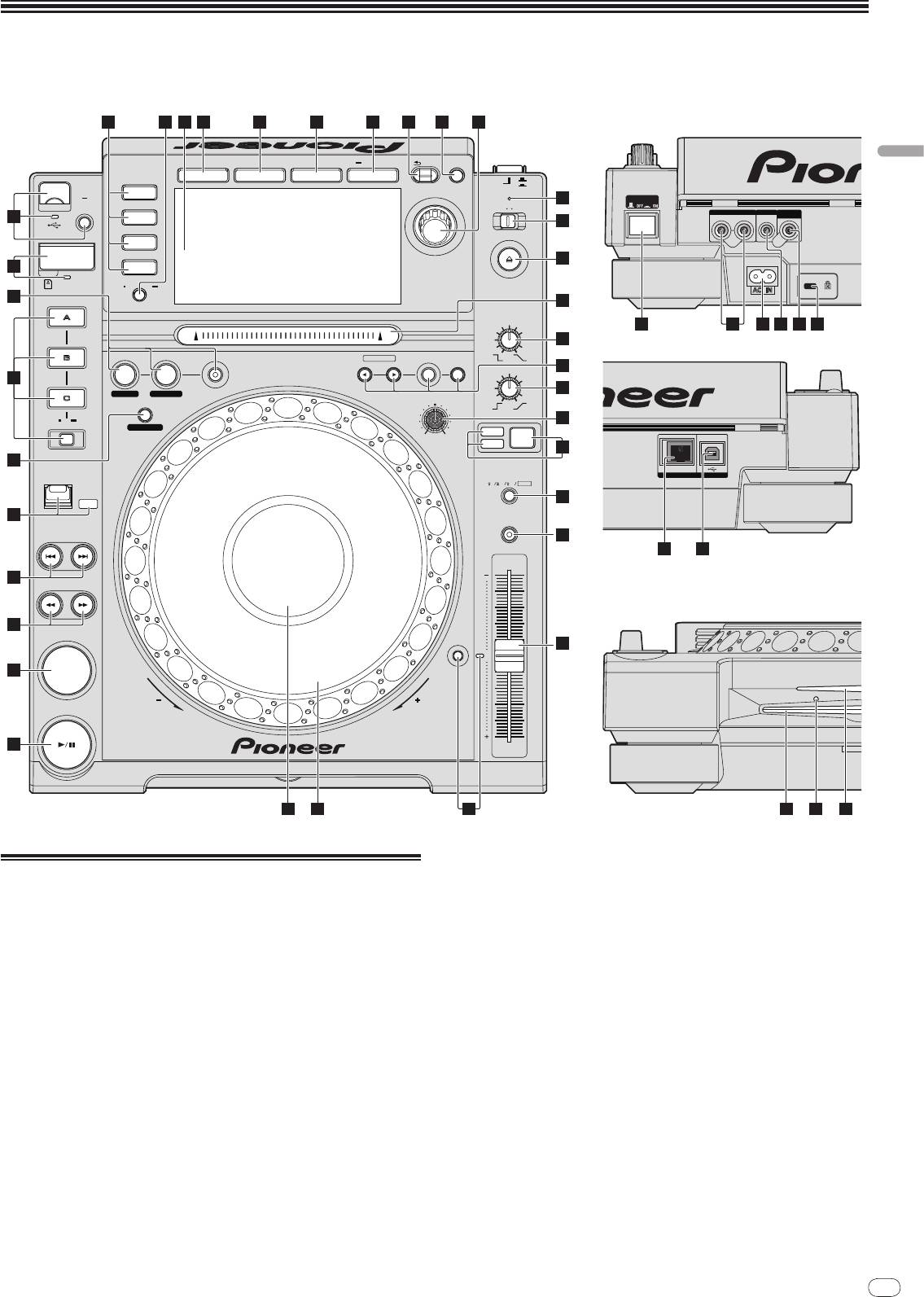
Fr
9
DRB1475-B
Noms et fonctions des éléments
Français
37
Panneau de commande Panneau arrière
1211 13 14 15 16 17 18 19
20
UTILITY
BACK
TAG TRACK
/REMOVE
BROWSE TAG LIST INFO MENU
OFF
POWER
ON
LINK
STANDBY
21
POWER
USB
STOP
UNLOCK
LOCK
AUDIO OUT
CONTROL DIGITAL
10
USB
RL
OUT
22
DISC EJECT
SD
23
9
DISC
SD
TIME
AUTO
MODE
CUE
8
HOT CUE
VINYL
24
SPEED ADJUST
TOUCH/BRAKE
36 38 39 40 4137
25
IN / CUE
OUTRELOOP/EXIT
NEEDLE SEARCH
CUE/LOOP
DELETE MEMORY
LOOP
CALL
RELEASE/START
26
7
IN ADJUSTOUT ADJUST
27
JOG ADJUST
4-BEAT LOOP
REC / CALL
28
LOOP CUTTER
LIGHTHEAVY
VINYL
JOG
CDJ
MODE
29
6
DIRECTION
TEMPO
LINK
USB
6
10 16
WIDE
FWD
30
REV
5
MASTER
TEMPO
TRACK SEARCH
31
42 43
4
SEARCH
Face avant
3
32
0
2
CUE
TEMPO
RESET
PLAY / PAUSE
REV
FWD
1
TEMPO
MULTI PLAY ER
CDJ-
2000
333435
45 4644
b LINK, USB, SD, DISC (la page 15)
Panneau de commande
c TIME MODE/
AUTO CUE (la page 16)
1 PLAY/PAUSEf et indicateur PLAY/PAUSEf (la page 15)
d Écran de l’appareil principal (la page 11)
S’éclaire pendant la lecture de morceaux et clignote pendant la pause.
e BROWSE (la page 20)
2 CUE et indicateur CUE (la page 16)
S’éclaire quand un point de repère est posé (sauf pendant la recherche de
f TAG LIST (la page 21)
morceau) et clignote quand un nouveau point de repère peut être posé pen-
g INFO (la page 21)
dant la pause.
h MENU/UTILITY (la page 22)
3 SEARCHm/
n (la page 15)
i BACK (la page 20)
4 TRACK SEARCHo/
p (la page 15)
j TAG TRACK/
REMOVE (la page 21)
5 DIRECTION FWD REV et indicateur REV (la page 15)
k Sélecteur rotatif et indicateur
6 4-BEAT LOOP/
LOOP CUTTER (la page 17)
Lors de la sélection de morceaux ou de réglages, le curseur bouge au fur et
7 HOT CUE (A, B, C, REC/CALL) (la page 17)
mesure que le sélecteur rotatif est tourné. Appuyez sur le sélecteur rotatif
pour valider un choix.
8 LOOP IN/
CUE (IN ADJUST) (la page 16), LOOP OUT
l Indicateur STANDBY (la page 22)
(OUT ADJUST) (la page 16), RELOOP/EXIT (la page 17)
S’éclaire en mode de veille.
9 Volet, fente d’insertion de carte mémoire SD et indicateur de
m UNLOCK, LOCK (la page 14)
carte mémoire SD (la page 14)
n Indicateur DISC EJECTh et DISC EJECT (la page 14)
a Fente d’insertion de dispositif USB, indicateur USB et
USB STOP (la page 14)
o Pad NEEDLE SEARCH (la page 19)

10
Fr
DRB1475-B
p VINYL SPEED ADJUST TOUCH/BRAKE (la page 19)
Face avant
q CUE/LOOP CALLc/
d (la page 18), DELETE (la page 18),
MEMORY (la page 18)
I Fente d’insertion de disque
r VINYL SPEED ADJUST RELEASE/START (la page 19)
J Trou d’insertion de la broche d’éjection forcée du disque
s JOG ADJUST (la page 19)
K Indicateur de fente d’insertion de disque
t Indicateur de mode JOG MODE, VINYL et indicateur de mode
CDJ (la page 19)
Le mode bascule sur VINYL ou CDJ chaque appui. L’indicateur du mode
À propos de l’éjection forcée de disques
sélectionné s’éclaire.
! Si un disque ne peut pas être éjecté par un appui sur [DISC EJECTh], il
u TEMPO ±6/±10/±16/WIDE (la page 15)
peut être éjecté de force en insérant la broche d’éjection forcée de disque à
fond dans le trou d’insertion de cette broche sur la face avant de l’appareil
v MASTER TEMPO (la page 15)
principal.
! Pour éjecter de force un disque, procédez de la façon suivante.
w TEMPO (la page 15)
1 Appuyez sur [POWER] et attendez au moins 1 minute après
x Indicateur TEMPO RESET et TEMPO RESET
l’extinction de l’appareil.
Quelle que soit la position de la molette TEMPO, les morceaux sont lus à la
N’éjectez jamais de force un disque directement après l’extinction de l’appareil.
vitesse originale, tels qu’enregistrés sur le disque, etc. L’indicateur s’éclaire
lorsque TEMPO RESET est mis en service.
Ceci est dangereux pour les raisons suivantes.
Le disque est encore en train de tourner quand il est éjecté et, de ce fait, causer
y Molette jog (– REV/
+ FWD) et ÉCLAIRAGE DE LA BAGUE JOG
des blessures en frappant les doigts, etc.
(la page 18)
D’autre part, la fixation du disque tourne de manière instable et le disque peut
être rayé.
z Section d’affichage de la molette jog (la page 11)
2 Utilisez la broche d’éjection forcée de disque fournie. (Ne pas
utiliser d’autres objets.)
Panneau arrière
La broche d’éjection forcée du disque fournie se trouve sur le panneau inférieur
du CDJ-2000. Lorsque la broche est insérée à fond dans le trou d’insertion, le
A POWER wON vOFF
disque ressort de 5 mm à 10 mm de la fente d’insertion du disque. Saisissez le
Sert à mettre le lecteur en ou hors service.
disque avec les doigts et tirez-le.
B AUDIO OUT L/
R (la page 12)
C AC IN (la page 12)
D CONTROL (la page 19)
E DIGITAL OUT
F Fente de sécurité Kensington
G LINK (la page 12)
H USB (la page 12)
38
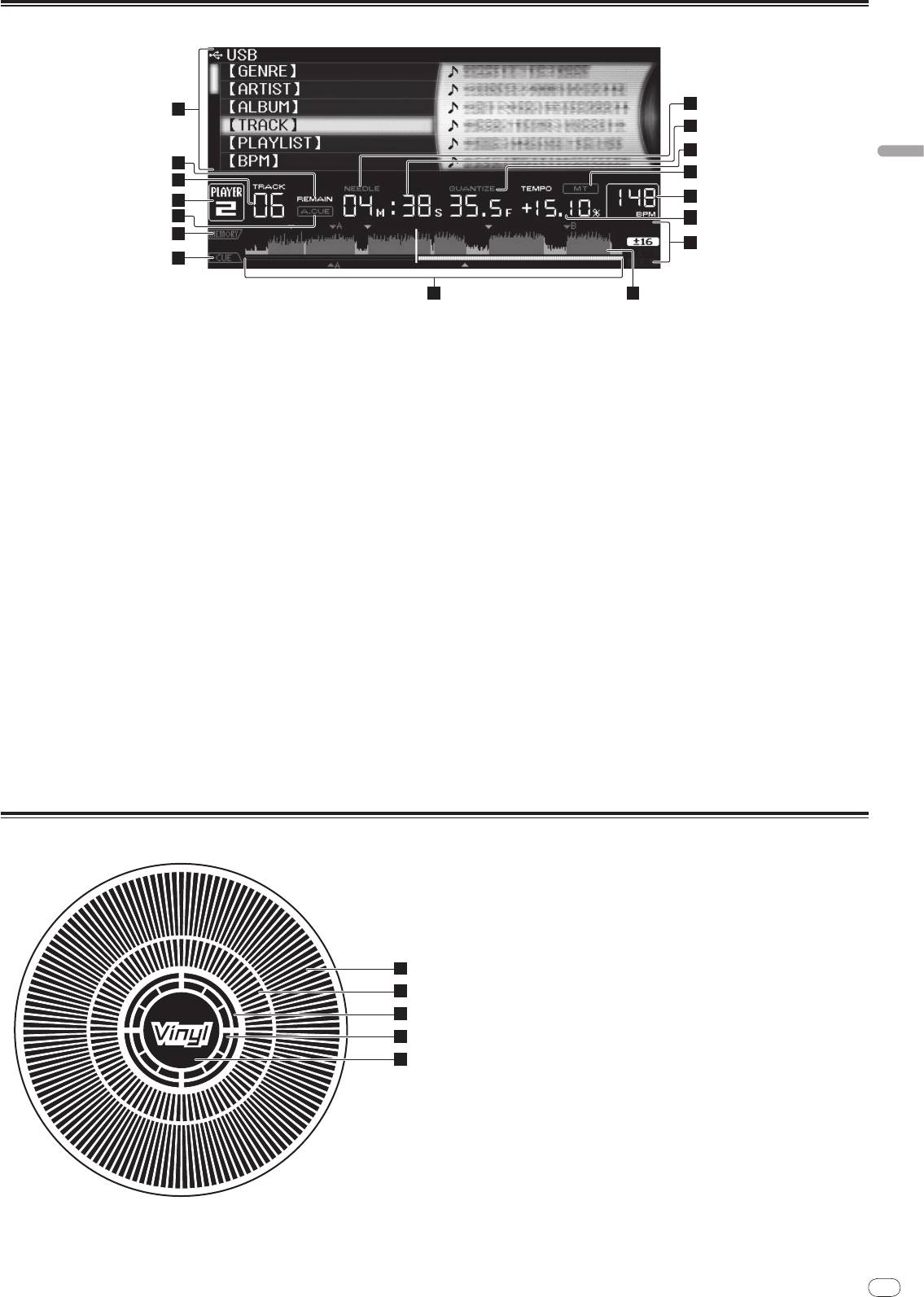
Français
Fr
11
DRB1475-B
Écran de l’appareil principal
39
10
1
11
12
2
13
3
14
4
5
15
6
16
7
8 9
1 Section d’affichage des informations
a NEEDLE
S’éclaire lorsque la recherche instantanée est possible.
2 REMAIN
S’éclaire lorsque l’affichage du temps restant est spécifié.
b Affichage du temps (minutes, secondes et trames)
Il y a 75 trames par seconde.
3 TRACK
Indique le numéro de morceau (01 – 99).
c QUANTIZE
S’éclaire en rouge lorsque [QUANTIZE] est en service.
4 PLAYER
Quand [QUANTIZE] est en service, les points de boucle et un point instantané
Indique le numéro de lecteur (1 – 4) associé à ce CDJ-2000.
sont automatiquement posés au temps le plus proche de la position où vous
avez appuyé sur [LOOP IN/
CUE (IN ADJUST)], [LOOP OUT (OUT ADJUST)],
5 A.CUE (la page 16)
[4-BEAT LOOP] ou [HOT CUE] (A, B ou C).
S’éclaire lorsqu’un repère automatique est posé.
La fonction de quantification n’agit pas dans les situations suivantes
([QUANTIZE)] apparaît en gris) :
6 MEMORY
! Lors de la lecture de morceaux enregistrés sur des disques
Les points de repère, les points de boucle et les points instantanés enregis-
! Lors de la lecture de fichiers de musique non analysés avec rekordbox
trés sur des cartes mémoire SD et des dispositifs USB sont indiqués sous
! En pause
forme de symboles.
d MT
7 CUE
S’éclaire lorsque le tempo principal est spécifié (la page 15).
Les positions des points de repère, des points de boucle et des points instan-
tanés sont indiqués sous forme de symboles.
e BPM
Indique les BPM (temps par minute) du morceau en cours de lecture.
8 Affichage des adresses de lecture
Le morceau apparaît sous forme de graphique en barres. La position de lec-
f Affichage de la vitesse de lecture
ture actuelle est indiquée par une ligne verticale blanche. Lorsque le temps
Le nombre change selon la position de [TEMPO].
écoulé est affiché, le bord gauche du graphique s’éclaire. Lorsque le temps
restant est affiché, l’affichage s’éteint du côté gauche. Le graphique complet
g Affichage de la plage de réglage de la vitesse de lecture
clignote lentement lorsqu’il reste moins de 30 secondes sur la plage, puis
Il indique la plage dans laquelle la vitesse de lecture peut être ajustée en
commence à clignoter rapidement lorsqu’il reste moins de 15 secondes.
tenant compte de la vitesse de lecture originale du morceau enregistré sur le
support.
9 Affichage de l’onde
Affiche l’onde, le guide, etc.
Section d’affichage de la molette jog
1
2
3
4
5
1 Affichage opérationnel
Il indique la position de lecture, pour un tour complet de 135 trames. Il tourne
pendant la lecture et s’arrête en pause.
2 Affiche des points de repère
3 Affichage de l’état de la mémoire audio
Il clignote lorsque des données sont inscrites dans la mémoire audio. Il cesse
de clignoter et reste éclairé, lorsque l’inscription est terminée.
Les opérations suivantes peuvent être impossibles pendant l’inscription de
données dans la mémoire audio.
! Pose d’un point de repère pendant la lecture (Real Time Cue)
! Pose d’un repère instantané
L’affichage clignote aussi s’il n’y a pas suffisamment de mémoire suite à un
scratching.
4 Affichage de détection de toucher de jog
Lorsque le mode jog est réglé sur VINYL, le haut de la molette jog s’éclaire
lorsqu’il est pressé.
5 VINYL
S’éclaire lorsque le mode jog est réglé sur VINYL (la page 18).
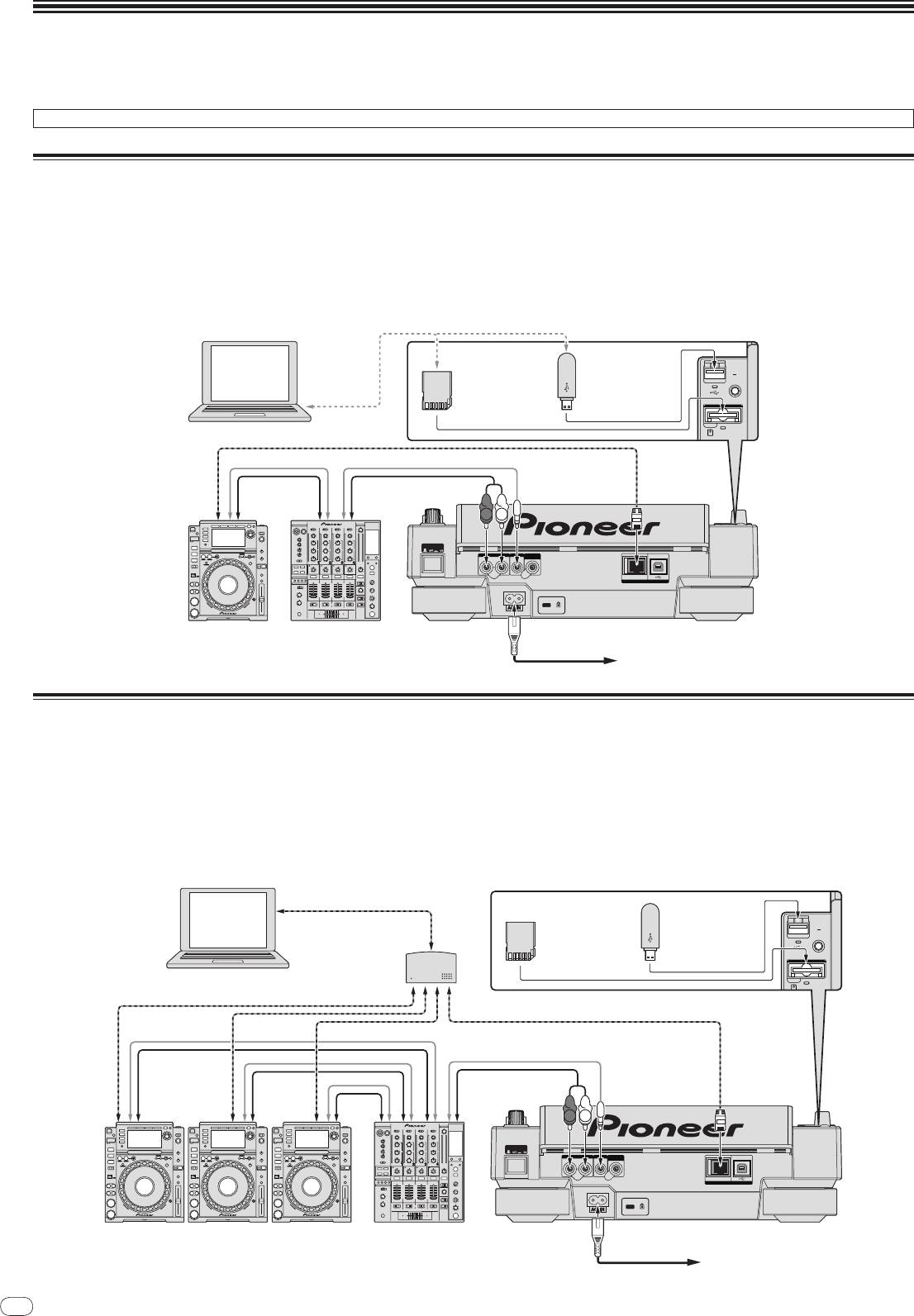
12
Fr
DRB1475-B
Raccordements
Veillez à toujours éteindre les appareils et à débrancher le cordon d’alimentation de la prise secteur avant de raccorder un appareil ou de changer les liaisons.
Reportez-vous au mode d’emploi de l’appareil devant être raccordé.
Lorsque tous les appareils ont été raccordés, vous pouvez brancher le cordon d’alimentation.
Ne débranchez pas le câble LAN lorsque des fichiers de musique et/
ou des informations sont partagés avec PRO DJ LINK.
Style de base
! Les fichiers de musique et les données rekordbox peuvent être transférés sur le CDJ-2000 par l’intermédiaire de dispositifs USB (lecteurs de mémoire flash, disques
durs, etc.) et, de ce fait, il devient inutile d’apporter son ordinateur dans la cabine DJ. Les informations relatives aux listes de lecture, repères, boucles et points
instantanés programmées au préalable dans rekordbox peuvent être utilisées pour la lecture DJ.
! Le contenu des supports insérés dans les lecteurs DJ (morceaux, points de repère en mémoire, informations concernant l’onde, etc.) peut être partagé. Pour le
détail, reportez-vous à la page 14, Utilisation de la fonction PRO DJ LINK.
! En tout quatre appareils peuvent être raccordés. Pour raccorder trois appareils ou plus, il est nécessaire d’utiliser un concentrateur commutateur (en vente dans le
commerce). Utilisez un concentrateur commutateur de 100 Mbps ou plus. Notez toutefois que certains concentrateurs commutateurs peuvent ne pas fonctionner
normalement.
40
rekordbox
Ordinateur
Câble LAN
Cordon de commande
Cordon de commande
Câble audio
Câble audio
R
L
POWER
RL
AUDIO OUT
CONTROL
DIGITAL
OUT
LINK
USB
Lecteur DJ Table de mixage
Panneau arrière
Câble d'alimentation
À une prise secteur
USB
STOP
SD
M
IN
IN
Carte mémoire SD
Dispositif USB sur
sur laquelle des
lequel des données
données de
de rekordbox sont
rekordbox sont
enregistrées
enregistrées
Utilisation en association avec rekordbox
! Le raccordement par un câble LAN à un ordinateur sur lequel rekordbox est installé permet de sélectionner et lire les morceaux présents dans rekordbox. Pour les
instructions concernant le fonctionnement de rekordbox sur l’ordinateur, reportez-vous au mode d’emploi de rekordbox. Les instructions concernant rekordbox se
trouvent dans le menu rekordbox [Aide].
! En tout deux ordinateurs peuvent être raccordés.
! Le contenu des supports insérés dans les différents lecteurs DJ (morceaux, points de repère en mémoire, informations concernant l’onde, etc.) peut être affiché (la
page 15).
! En tout quatre appareils peuvent être raccordés. Pour raccorder trois appareils ou plus, il est nécessaire d’utiliser un concentrateur commutateur (en vente dans le
commerce). Utilisez un concentrateur commutateur de 100 Mbps ou plus. Notez toutefois que certains concentrateurs commutateurs peuvent ne pas fonctionner
normalement.
Câble LAN
rekordbox
Ordinateur
Concentrateur
commutateur
Câble LAN × 3
Câble LAN
Cordon de
commande × 3
Cordon de commande
Câble audio × 3
Câble audio
R
L
POWER
RL
AUDIO OUT
CONTROL
DIGITAL
OUT
LINK
USB
Lecteur DJ × 3Table de mixage
Panneau arrière
Câble d'alimentation
À une prise secteur
USB
STOP
SD
M
IN
IN
REC / CALL
DIRECTION
FWD
Carte mémoire SD
Dispositif USB sur
sur laquelle des
lequel des données
données de
de rekordbox sont
rekordbox sont
enregistrées
enregistrées


