
Pioneer CDJ-2000: Connecting the CDJ-2000 and computer About the driver software Cautions on Installation Adjusting the buffer size (Windows) Installing the driver software
Connecting the CDJ-2000 and computer About the driver software Cautions on Installation Adjusting the buffer size (Windows) Installing the driver software: Pioneer CDJ-2000
Table of contents
- Contents
- Before start
- Before you start What’s in the box Discs/ files playable on the CDJ-2000 About CD playback About SD memory cards
- About USB devices About AAC files About WAV files About MP3 files About AIFF files About rekordbox
- Part Names and Functions Control Panel
- Rear Panel Front Panel
- Main unit display Jog dial display section
- Connections Basic style Using in combination with rekordbox
- Using other brands of DJ software Connections for relay play
- Loading USB devices Playback Loading discs Using the PRO DJ LINK function Loading SD memory cards
- Playback
- Setting Cue Setting Loop
- Setting Hot Cue Storing cue and loop points
- Operating the jog dial Operating the [NEEDLE SEARCH] pad
- Using the [BROWSE] button Operating the CDJ-2000 in combination with other devices
- Checking the playing history (HISTORY) Using the [TAG LIST] button Adding tracks to the tag list Loading tracks from the tag list Removing tracks from the tag list
- Using the [INFO] button Checking the details of loaded tracks Displaying details of tracks loaded in other DJ players Using the information jump function
- Changing the settings Using the [MENU/UTILITY] button Setting the auto standby mode Setting [HISTORY NAME] Changing the settings Changing the language List of settings
- About the rekordbox software Software end user license agreement Cautions on copyrights Cautions on Installation
- Installing rekordbox Using the support site
- Connecting the CDJ-2000 and computer About the driver software Cautions on Installation Adjusting the buffer size (Windows) Installing the driver software
- Checking the version of the driver software Checking the latest information on the driver software Using other brands of DJ software Operating DJ software by MIDI interface
- Additional information Troubleshooting Problem Check Remedy
- About the liquid crystal display Error messages List of icons displayed on the main unit display section
- Cautions on use
- Disclaimer Specifications
24
En
DRB1475-B
Connecting the CDJ-2000 and computer
About the driver software
This driver software is an exclusive ASIO driver for outputting audio signals from
1 Connect this unit to your computer via a USB cable.
the computer. To use the CDJ-2000 connected to a computer on which Windows
is installed, install the driver software on the computer beforehand.
2 Press [POWER].
When using a computer on which a MAC operating system is installed, use the
Turn on the power of this unit.
operating system’s standard driver software.
! The message [Installing device driver software] may appear when the CDJ-
2000 is connected to the computer for the first time or when it is reconnected
to the computer’s USB port. Wait until the [Your devices are ready for use]
Software end user license agreement
message appears.
! When installing on Windows XP
Carefully read the provisions of the Software end user license agreement (page
— [Can Windows connect to Windows Update to search for software?]
22) before installing or using the driver software. Using the driver software
may appear while the installation is in progress. Select [No, not this
implies that you have consented to the Software end user license agreement.
time] and click [Next] to continue with the installation.
— [What do you want the wizard to do?] may appear while the instal-
lation is in progress. Select [Install the software automatically
Cautions on Installation
(Recommended)] and click [Next] to continue with the installation.
! Before installing the driver software, be sure to turn off the power of this unit
— If [Hardware Installation] appears on the screen while the installation is
and disconnect the USB cable from both this unit and your computer.
in progress, click [Continue Anyway] and continue with the installation.
! If you connect this unit to your computer without installing the driver soft-
ware first, an error may occur on your computer depending on the system
environment.
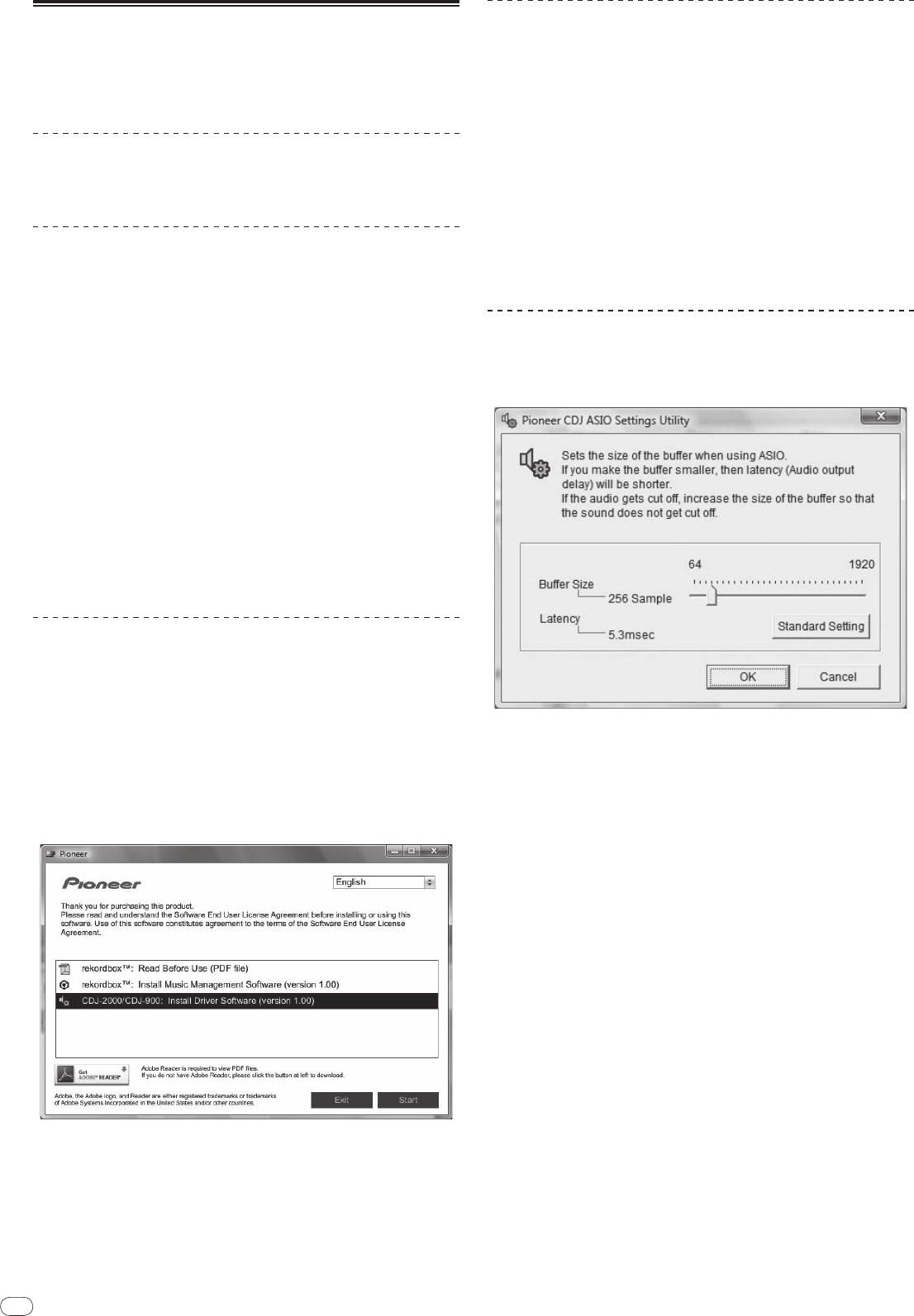
Adjusting the buffer size (Windows)
! If you have discontinued the installation process in progress, step through
This unit functions as an audio device conforming to the ASIO standards.
the installation process again from the beginning according to the following
procedure.
Click Windows [Start] menu >[All Programs]>[Pioneer]>[Pioneer
! Carefully read the provisions of the Software end user license agreement
CDJ]>[Pioneer CDJ ASIO Settings Utility].
before installing the driver software for exclusive use with this unit.
! Before installing the driver software, terminate all other programs running on
your computer.
! The driver software is compatible with the following OSs.
®
— Windows Vista
Home Basic/
Home Premium/
Ultimate/
Business
®
— Windows
XP Home Edition/
Professional (SP2 or later)
®
The driver software is not compatible with 64-bit OS (Windows
XP
®
Professional x64 edition and Windows Vista
64-bit).
! The included CD-ROM contains installation programs in the following 12
languages:
English, French, German, Italian, Dutch, Spanish, Portuguese, Russian,
Simplified Chinese, Traditional Chinese, Korean, and Japanese
If the language of your OS is one other than the ones listed above, select
[English] following the instructions on the screen.
Installing the driver software
! Carefully read “Cautions on Installation” before installing the driver software.
! To install or uninstall the driver software, you need to be authorized by the
administrator of your computer. Log on as the administrator of your computer
before proceeding with the installation.
1 Insert the included CD-ROM into the computer’s CD drive.
A sufficiently large buffer size decreases the chance of sound dropout (sound
The CD-ROM menu is displayed.
interruption) but increases audio signal transmission delay (latency).
! If the CD-ROM menu does not appear when the CD-ROM is inserted, open
! When an application program (DJ software, etc.) with this unit set as a fixed
the CD drive from [Computer (or My Computer)] in the [Start] menu, then
device is running, terminate the program before adjusting the buffer size.
double-click the [CD_menu.exe] icon.
2 When the CD-ROM’s menu is displayed, select [CDJ-2000/
CDJ-
900: Install Driver Software], then click [Start].
To close the CD-ROM menu, click [Exit].
3 Proceed with installation according to the instructions on the
screen.
If [Windows Security] appears on the screen while the installation is in progress,
click [Install this driver software anyway] and continue with the installation.
! When installing on Windows XP
If [Hardware Installation] appears on the screen while the installation is in
progress, click [Continue Anyway] and continue with the installation.
! When the installation program is completed, a completion message appears.
24


