
Pioneer CDJ-2000: Installing rekordbox Using the support site
Installing rekordbox Using the support site: Pioneer CDJ-2000
Table of contents
- Contents
- Before start
- Before you start What’s in the box Discs/ files playable on the CDJ-2000 About CD playback About SD memory cards
- About USB devices About AAC files About WAV files About MP3 files About AIFF files About rekordbox
- Part Names and Functions Control Panel
- Rear Panel Front Panel
- Main unit display Jog dial display section
- Connections Basic style Using in combination with rekordbox
- Using other brands of DJ software Connections for relay play
- Loading USB devices Playback Loading discs Using the PRO DJ LINK function Loading SD memory cards
- Playback
- Setting Cue Setting Loop
- Setting Hot Cue Storing cue and loop points
- Operating the jog dial Operating the [NEEDLE SEARCH] pad
- Using the [BROWSE] button Operating the CDJ-2000 in combination with other devices
- Checking the playing history (HISTORY) Using the [TAG LIST] button Adding tracks to the tag list Loading tracks from the tag list Removing tracks from the tag list
- Using the [INFO] button Checking the details of loaded tracks Displaying details of tracks loaded in other DJ players Using the information jump function
- Changing the settings Using the [MENU/UTILITY] button Setting the auto standby mode Setting [HISTORY NAME] Changing the settings Changing the language List of settings
- About the rekordbox software Software end user license agreement Cautions on copyrights Cautions on Installation
- Installing rekordbox Using the support site
- Connecting the CDJ-2000 and computer About the driver software Cautions on Installation Adjusting the buffer size (Windows) Installing the driver software
- Checking the version of the driver software Checking the latest information on the driver software Using other brands of DJ software Operating DJ software by MIDI interface
- Additional information Troubleshooting Problem Check Remedy
- About the liquid crystal display Error messages List of icons displayed on the main unit display section
- Cautions on use
- Disclaimer Specifications
English
En
23
DRB1475-B
®
®
— For Windows Vista
or Windows
XP, PC/
AT compatible computer
3 Install rekordbox following the instructions on the screen.
®
®
equipped with a 2 GHz or greater Intel
Pentium
4 (or compatible)
Once installation of rekordbox is completed, the operating instructions can be
processor
opened from rekordbox’s [Help] menu.
! Required memory: 512 MB or more of RAM
! Hard disc: 250 MB or more of free space (not including space for storing
Installation Procedure (Windows)
music files, etc.)
! CD drive: Optical disc drive on which the CD-ROM can be read
! Read the “Cautions on installation” carefully before installing rekordbox.
! Sound: Audio output to speakers, headphones, etc. (internal or external audio
! Authorization of the computer’s administrator is required to install and unin-
device)
stall rekordbox. Log on as the user registered as the computer’s administrator
! Internet connection: For user registration and inquiries, use a web browser
before installing rekordbox.
®
supporting 128-bit SSL (Safari 2.0 or later or Internet Explorer
6.0 or later).
! USB port: A USB port for connection of a USB device (flash memory, hard
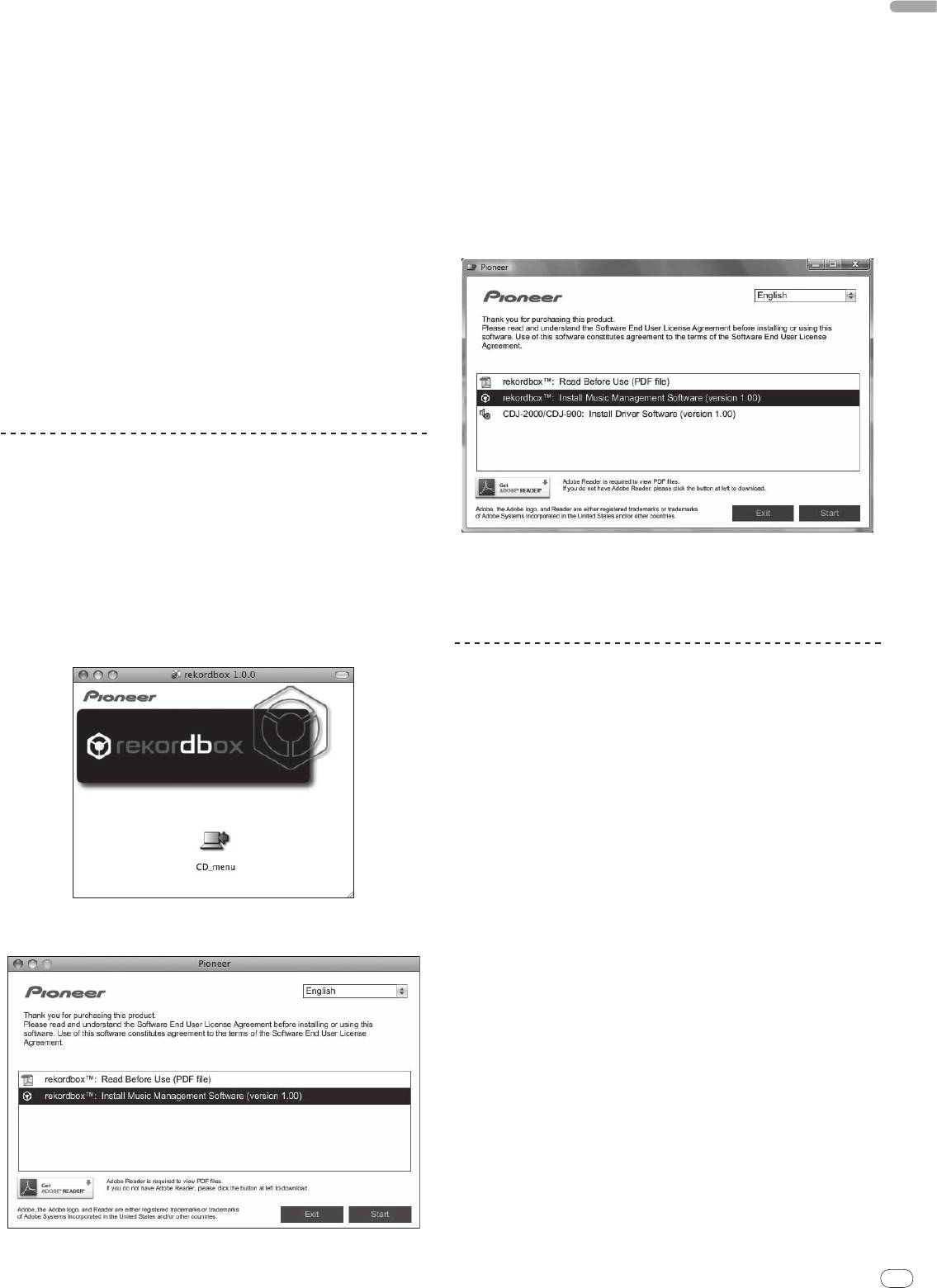
1 Insert the included CD-ROM into the computer’s CD drive.
disc, etc.) is required to transfer music files to the USB device.
The CD-ROM menu is displayed.
! LAN port: An Ethernet LAN adapter (RJ45 port) for communicating with the
! If the CD-ROM menu does not appear when the CD-ROM is inserted, open
DJ player is required to transfer music files to a Pioneer DJ player (i.e. CDJ-
the CD drive from [Computer (or My Computer)] in the [Start] menu, then
2000, CDJ-900).
double-click the [CD_menu.exe] icon.
— Operation is not guaranteed on all computers, even those with the oper-
ating environment described above.
2 When the CD-ROM’s menu is displayed, select [rekordbox:
— Even with the required memory capacity indicated for the operating
Install Music Management Software], then click [Start].
environment above, depending on the number of resident programs and
services, the software may not provide full functionality and performance
due to lack of memory. In this case, stop some resident programs and
services in order increase the amount of free memory. We recommend
adding extra memory in order to achieve stable performance.
— Depending on the computer’s power settings, etc., the CPU and hard
disc processing capacity may be insufficient. When using laptop comput-
ers in particular, always keep the AC power connected and set the com-
puter to maximum performance conditions when using rekordbox.
— Note that problems may arise in the operation of rekordbox due to other
software being used together with it.
Installing rekordbox
Installation Procedure (Macintosh)
! Read the “Cautions on installation” carefully before installing rekordbox.
! Authorization of the computer’s administrator is required to install and unin-
stall rekordbox. Have the name and password of the computer’s administra-
To close the CD-ROM menu, click [Exit].
tor ready.
3 Install rekordbox following the instructions on the screen.
1 When the included CD-ROM is inserted into the computer’s
Once installation of rekordbox is completed, the operating instructions can be
CD drive, the CD drive opens on the screen. Double-click the
opened from rekordbox’s [Help] menu.
! To stop installation in progress, click [Cancel].
[CD_menu.app] icon.
! If the CD drive does not open on the screen when the CD-ROM is inserted,
use Finder to open the CD drive, then double-click the [CD_menu.app] icon.
Using the support site
Before making an inquiry about rekordbox operations and technical support,
refer to the operating instructions for rekordbox and check the FAQs published
on the support site for rekordbox.
<Support Site for rekordbox>
http://www.prodjnet.com/rekordbox/support/
! To make an inquiry about rekordbox, you need to register as a user in advance
on the support site for rekordbox.
! You need to enter the license key for your user registration. Have the license key
ready. Also, be sure not to forget the login name (your e-mail address) and the
password specified for your user registration, as well as the license key.
! Pioneer Corporation collects your personal information for the following
purposes:
1 To provide customer support for your purchased product
2 To inform you of product or event information by e-mail
3 To reflect your opinions collected by survey on product planning
— Your personal information is kept confidential corresponding to the privacy
2 When the CD-ROM’s menu is displayed, select [rekordbox:
policy set forth by our company.
Install Music Management Software], then click [Start].
— You can check our privacy policy on the support site for rekordbox.
! When you make an inquiry about rekordbox, be sure to provide us the
information on the model name, specifications (CPU and memory capacity and
peripheral devices connected), and operating system version of your computer,
as well as specific descriptions of system malfunction.
— For an inquiry about configuring your computer with peripheral devices
other than our products and the corresponding technical support, contact
each manufacturer or retailer.
! rekordbox is subject to upgrade for enhanced function and performance.
The upgrade program can be downloaded on the support site. We strongly
recommend you upgrade your software on a regular basis to keep the latest
updates on your system.
To close the CD-ROM menu, click [Exit].
23


