
Pioneer CDJ-2000: Playback
Playback: Pioneer CDJ-2000
Table of contents
- Contents
- Before start
- Before you start What’s in the box Discs/ files playable on the CDJ-2000 About CD playback About SD memory cards
- About USB devices About AAC files About WAV files About MP3 files About AIFF files About rekordbox
- Part Names and Functions Control Panel
- Rear Panel Front Panel
- Main unit display Jog dial display section
- Connections Basic style Using in combination with rekordbox
- Using other brands of DJ software Connections for relay play
- Loading USB devices Playback Loading discs Using the PRO DJ LINK function Loading SD memory cards
- Playback
- Setting Cue Setting Loop
- Setting Hot Cue Storing cue and loop points
- Operating the jog dial Operating the [NEEDLE SEARCH] pad
- Using the [BROWSE] button Operating the CDJ-2000 in combination with other devices
- Checking the playing history (HISTORY) Using the [TAG LIST] button Adding tracks to the tag list Loading tracks from the tag list Removing tracks from the tag list
- Using the [INFO] button Checking the details of loaded tracks Displaying details of tracks loaded in other DJ players Using the information jump function
- Changing the settings Using the [MENU/UTILITY] button Setting the auto standby mode Setting [HISTORY NAME] Changing the settings Changing the language List of settings
- About the rekordbox software Software end user license agreement Cautions on copyrights Cautions on Installation
- Installing rekordbox Using the support site
- Connecting the CDJ-2000 and computer About the driver software Cautions on Installation Adjusting the buffer size (Windows) Installing the driver software
- Checking the version of the driver software Checking the latest information on the driver software Using other brands of DJ software Operating DJ software by MIDI interface
- Additional information Troubleshooting Problem Check Remedy
- About the liquid crystal display Error messages List of icons displayed on the main unit display section
- Cautions on use
- Disclaimer Specifications
14
En
DRB1475-B
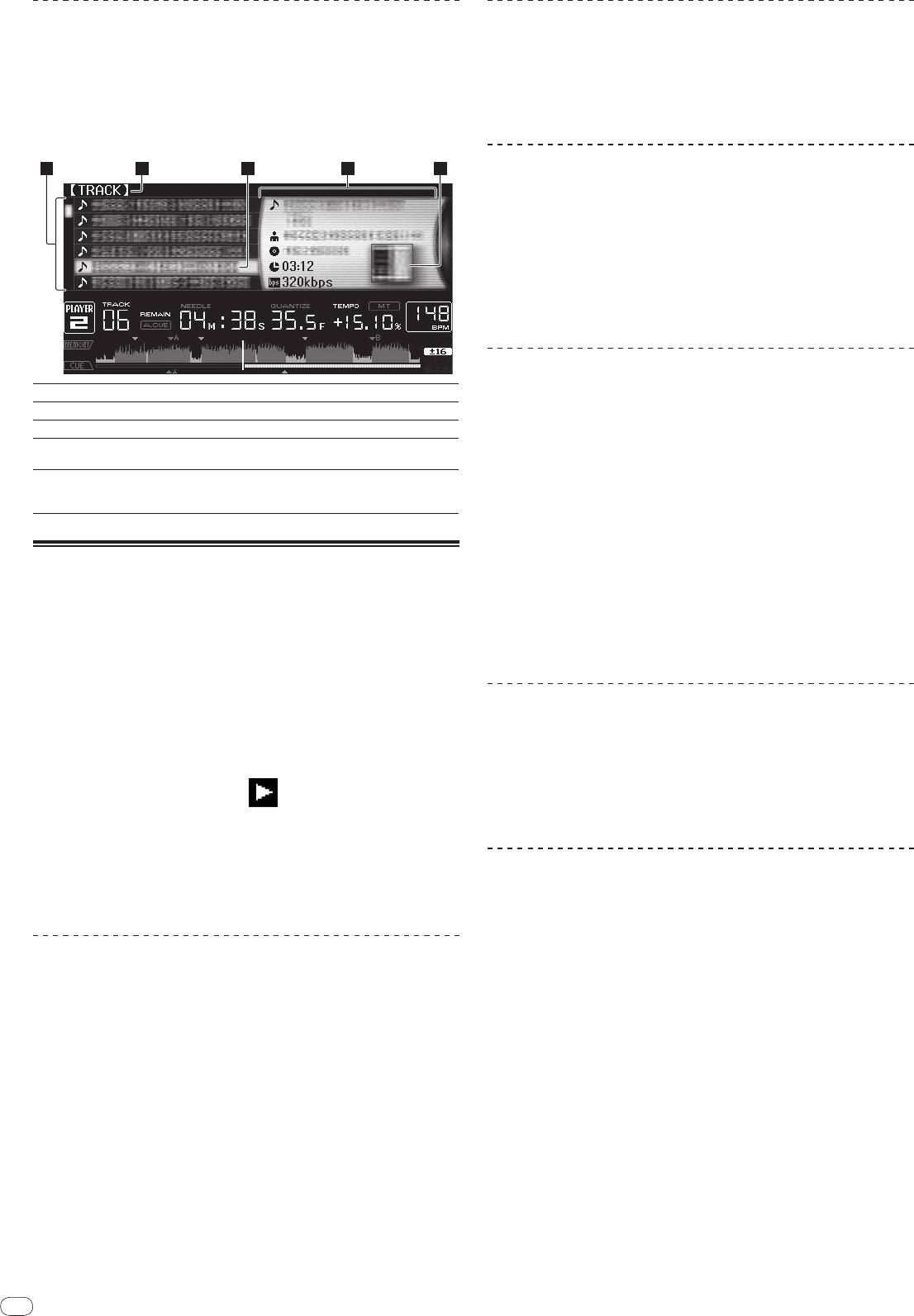
Browsing libraries and folders
The browsing display differs depending on whether or not library information is
recorded on the SD memory card/
USB device.
! With library information d Library browsing: The music files are displayed by
the categories set in rekordbox (album, artist, etc.).
! Without library information d Folder browsing: The folders/
tracks on the
medium are displayed with a tree structure.
The types of items on the category menu can be changed in rekordbox’s prefer-
ences (environmental settings).
14
2 3 4 51
Forward and reverse scanning
Press [SEARCHm/
n].
When [SEARCHm/
n] pressed and held in, the track is fast-forwarded or fast-
reversed.
! When the music files are recorded in a folder structure, only tracks within the
same category/
folder are fast-forwarded/
fast-reversed.
Finding the beginnings of tracks (Track Search)
Press [TRACK SEARCHo/
p].
Press the [p] to move to the beginning of the next track.
When [o] is pressed, the beginning of the currently playing track is searched.
When pressed twice consecutively, the set returns to the beginning of the previ-
ous track.
! When the music files are recorded in a folder structure, only tracks within the
same category/
folder are searched.
! When auto cue is turned on, the set searches for the beginning of the track
and pauses there (page 15).
Adjusting the playing speed (Tempo control)
1List of contents
The contents of the selected medium are displayed.
Move [TEMPO] up or down.
2Uppermost level
Displays the name of the upper folder or media of the displayed item.
The tempo increases when moved to the [+] side (down), decreases when
3Cursor
Turn the rotary selector to move the cursor up and down.
moved to the [-] side (up). The rate at which the playing speed is changed is
4Contents of
indicated on the playing speed display.
The contents of the line selected with the cursor are displayed.
selected item
When artwork is registered in rekordbox or when the ID3 tag contains
Selecting the range for adjusting the playing speed
5Jacket photo
a JPEG image, the image for the track selected with the cursor is dis-
played.
Press [TEMPO ±6/±10/±16/WIDE].
The range of adjustment of the [TEMPO] control switches each time the button is
pressed. The adjustment range setting is indicated on the playing speed adjust-
Playback
ment range display.
! The tempo can be adjusted in units of 0.02 % when set to ±6 %, in steps of
0.05 % when set to ±10 %, in steps of 0.05 % when set to ±16 %, and in steps
1 Load the medium in this unit.
of 0.5 % when set to WIDE.
2 Press [DISC], [SD], [USB] or [LINK].
! The adjustment range is ±100 % when set to WIDE. When set to –100 %,
The contents of the selected medium are displayed.
playback stops.
! The adjustment range is set to ±10 % when the power is turned on.
3 Turn the rotary selector.
Select the track. The category/
folder/
track information is displayed.
! Once the lowermost level in the folder is reached, press the rotary selector.
Adjusting the playing speed without changing
Press [BACK] to return to the uppermost level.
the pitch (Master Tempo)
! Press [BACK] for over 1 second or press the media button of the medium you
are browsing to return to the uppermost level.
Press [MASTER TEMPO].
4 Press the rotary selector.
The MASTER TEMPO indicator and [MT] on the main unit display light. The pitch
does not change even when the playing speed is changed with the [TEMPO]
The track is loaded and playback begins. is displayed to the left of the cur-
control.
rently playing track.
! The sound is digitally processed, so the sound quality decreases.
! [TRACK SEARCHo/
p] can be used to select tracks within the currently
playing track’s category/
folder.
! When a disc containing music files recorded with a hierarchical structure is
Playing in reverse
loaded, playback starts from the tracks in the uppermost level.
! When [UNLOCK/
LOCK] is set to [LOCK], press [PLAY/PAUSEf] to set the
pause mode, then press the rotary selector.
Set [DIRECTION FWD/
REV] to [REV].
The REV indicator lights and the track plays in the reverse direction.
! When the music files are recorded in a folder structure, only tracks within the
same category/
folder can be played in reverse. Also note that reverse play-
Pausing
back may not start immediately.
! The direction in which the playing speed is increased or decreased according
During playback, press [PLAY/PAUSEf].
to the direction in which the jog dial is turned is reversed.
The PLAY/PAUSEf and CUE indicators flash. Press [PLAY/PAUSEf] again
! When such operations as track searching and loop playback are performed
to resume playback.
during reverse playback, the audio memory status display on the jog dial
! If no operation is performed for 100 minutes while in the pause mode, the disc
display section flashes and scratch play may not be possible.
automatically stops spinning. When [PLAY/PAUSEf] is pressed at this
time, playback resumes from the first track. When auto cue is turned on, the
set cues to the first track and pauses there.
Resuming playback from the position playing just before
the disc was ejected (Resume)
! After a disc is ejected, if that same disc is immediately reloaded in the CDJ-
2000, playback resumes from the position playing just before the disc was
ejected.
! The resume function only works when the same disc is ejected then reloaded
before loading another disc.
! When [TRACK SEARCHo/
p] is pressed before starting playback, the set
searches for the beginning of the track and playback starts.
! The resume function does not work for SD memory cards or USB devices.


