
Pioneer PDP-42MVE1: instruction
Class: Televisions and Digital TV
Type:
Manual for Pioneer PDP-42MVE1
Table of contents
- Precautions Important Information Warnings and Safety Precaution
- To avoid damage and prolong operating life:
- Important Information Caution
- Contents Contents of the Package
- How to use the safety metal fittings and the screws for safety metal fittings Ventilation Requirements for enclosure mounting Installation
- Creating a video wall Cable Management
- Caution on when the plasma monitor is installed vertically How to use the remote control
- Front View Part Names and Function
- Rear View/ Terminal Board
- Remote Control
- Basic Operations POWER VOLUME MUTING DISPLAY DIGITAL ZOOM AUTO SET UP OFF TIMER
- SCREEN SIZE Operation WIDE Operations
- SCREEN SIZE Operation with Computer Signals
- Menu Operations OSD (On Screen Display) Controls Setting the language for the menus
- Menu Tree
- Main menu
- Picture Settings Menu
- SOUND Settings Menu SCREEN Settings Menu
- Option1 Settings Menu
- Information
- Option2 Settings Menu STANDBY/ON indicator ABL (Auto Brightness Limiter)
- ORBITER Adjust the ORBITER function manually INVERSE
- SCREEN WIPER Setting the time for SCREEN WIPER SOFT FOCUS
- Option3 Settings Menu PRESENT TIME
- PROGRAM TIMER
- Information
- VIDEO WALL POSITION DIVIDER AUTO ID DISP. MODE
- SCREEN P. ON DELAY (Power on delay) ABL LINK
- REPEAT TIMER Advanced OSD Settings Menu Color System Settings Menu Source Information Menu
- mini D-Sub 15-pin connector (Analog) DVI-D 24-pin connector (Digital) Pin Assignments
- Table of Signals Supported Supported resolution
- What is HDCP/HDCP technology?
- Troubleshooting
- Specifications
Operating Instructions
Mode d’emploi
Bedienungsanleitung
Istruzioni per l’utilizzo
Manual de instrucciones
Инструкция по эксплуатации
Gebruiksaanwijzing
PLASMA DISPLAY
ÉCRAN À PLASMA
PLASMA-DISPLAY
DISPLAY A PLASMA
PANTALLA DE PLASMA
ПЛАЗМЕННЫЙ ДИСПЛЕЙ
PLASMASCHERM
PDP-42MVE1
English
En
Operating Instructions
Thank you very much for purchasing this PIONEER product.
Before using your Plasma Display, please carefully read the
“Important Information” and these “Operating Instructions” so
you will know how to operate the Plasma Display properly.
Keep this manual in a safe place. You will find it useful in the
future.
Note for Dealers:
After installation, be sure to deliver this manual to the customer
and explain to the customer how to handle the product.
Notes on Installation Work:
This product is marketed assuming that it is installed by qualified
personnel with enough skill and competence. Always have an
installation specialist or your dealer install and set up the product.
PIONEER cannot assume liabilities for damage caused by mistake
in installation or mouting, misuse, modification or a natural disaster.
English
Important Information
2
En
i
En
Precautions
Please read this manual carefully before using your plasma
monitor and keep the manual handy for future reference.
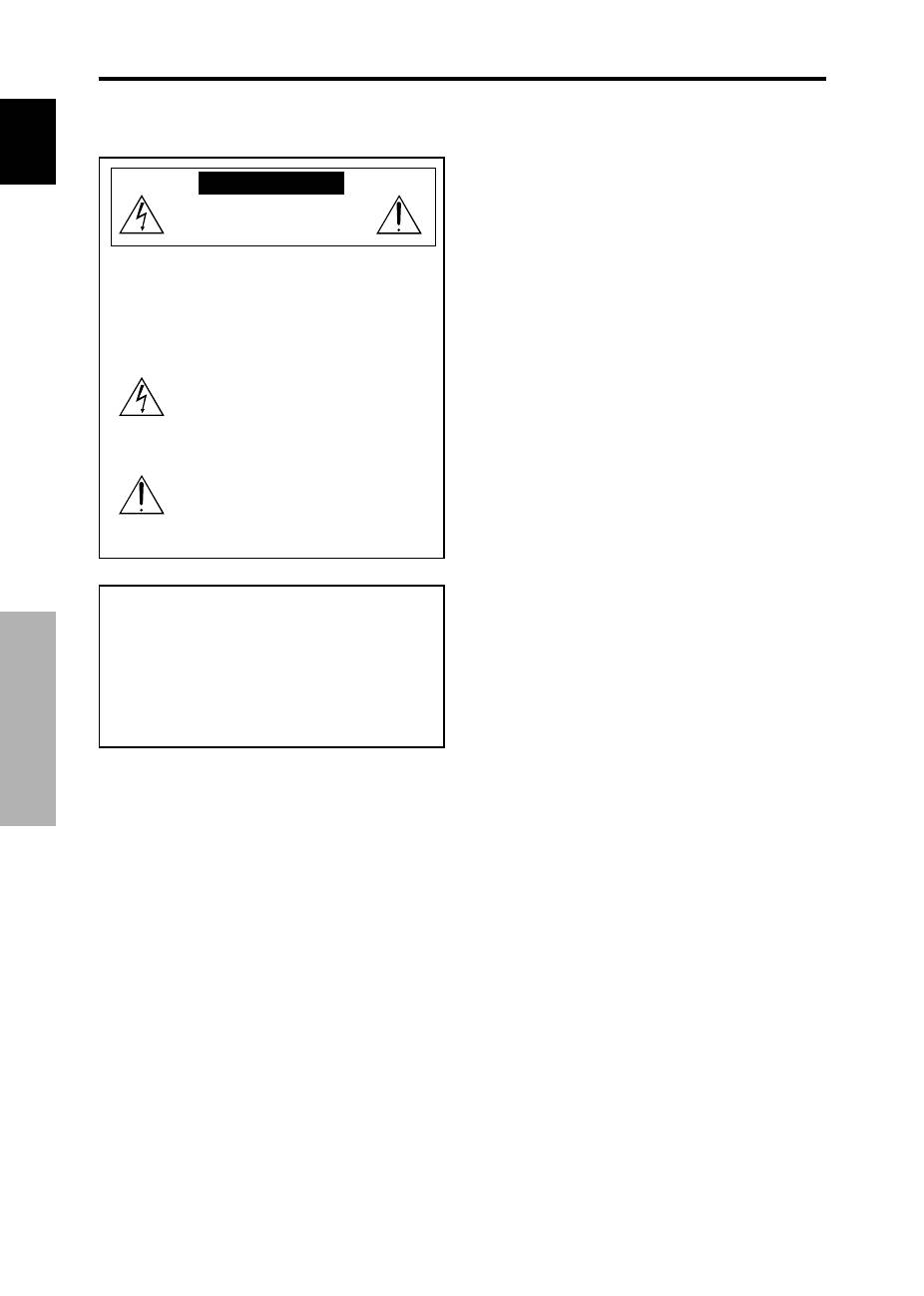
CAUTION
RISK OF ELECTRIC SHOCK
DO NOT OPEN
CAUTION: TO REDUCE THE RISK OF ELECTRIC
SHOCK, DO NOT REMOVE COVER. NO
USER-SERVICEABLE PARTS INSIDE.
REFER SERVICING TO QUALIFIED
SERVICE PERSONNEL.
This symbol warns the user that uninsulated
voltage within the unit may have sufficient
magnitude to cause electric shock.
Therefore, it is dangerous to make any kind
of contact with any part inside of this unit.
This symbol alerts the user that important
literature concerning the operation and
maintenance of this unit has been included.
Therefore, it should be read carefully in
order to avoid any problems.
WARNING
TO PREVENT FIRE OR SHOCK HAZARDS, DO NOT EXPOSE
THIS UNIT TO RAIN OR MOISTURE. ALSO DO NOT USE
THIS UNIT’S POLARIZED PLUG WITH AN EXTENSION CORD
RECEPTACLE OR OTHER OUTLETS, UNLESS THE
PRONGS CAN BE FULLY INSERTED. REFRAIN FROM
OPENING THE CABINET AS THERE ARE HIGH-VOLTAGE
COMPONENTS INSIDE. REFER SERVICING TO QUALIFIED
SERVICE PERSONNEL.
Important Information
Warnings and Safety Precaution
This plasma monitor is designed and
manufactured to provide long, trouble-free service.
No maintenance other than cleaning is required.
Please see the section “Plasma monitor cleaning
procedure” on the next page.
The plasma display panel consists of fine picture
elements (cells) with more than 99.99 percent active
cells. There may be some cells that do not produce
light or remain lit.
For operating safety and to avoid damage to the unit,
read carefully and observe the following instructions.
To avoid shock and fire hazards:
1. Provide adequate space for ventilation to avoid internal
heat build-up. Do not cover rear vents or install the unit
in a closed cabinet or shelves.
If you install the unit in an enclosure, make sure there
is adequate space at the top of the unit to allow hot air
to rise and escape. If the monitor becomes too hot, the
overheat protector will be activated and the monitor will
be turned off. If this happens, turn off the power to the
monitor and unplug the power cord. If the room where
the monitor is installed is particularly hot, move the
monitor to a cooler location, and wait for 60 minutes to
cool the monitor. If the problem persists, contact your
dealer for service.
2. Do not use this unit’s polarized plug with extension cords
or outlets unless the prongs can be completely inserted.
3. Do not expose the unit to water or moisture.
4. Avoid damage to the power cord, and do not attempt to
modify the power cord.
5. Unplug the power cord during electrical storms or if
the unit will not be used over a long period.
6. Do not open the cabinet which has potentially dangerous
high voltage components inside. If the unit is damaged in
this way the warranty will be void. Moreover, there is a
serious risk of electric shock.
7. Do not attempt to service or repair the unit. The
manufacturer is not liable for any bodily harm or damage
caused if unqualified persons attempt service or open
the back cover. Refer all service to authorized Service
Centers.
English
Important Information
3
En
ii
En
To avoid damage and prolong operating life:
1. Use only with 100-240 V 50/60Hz AC power supply.
Continued operation at line voltages greater than 100-
240 Volts AC will shorten the life of the unit, and might
even cause a fire hazard.
2. Handle the unit carefully when installing it and do not
drop.
3. Set the unit away from heat, excessive dust, and direct
sunlight.
4. Protect the inside of the unit from liquids and small
metal objects. In case of accident, unplug the power
cord and have it serviced by an authorized Service
Center.
5. Do not hit or scratch the panel surface as this causes
flaws on the surface of the screen.
6. For correct installation and mounting it is strongly
recommended to use a trained, authorized dealer.
7. As is the case with any phosphor-based display (like a
CRT monitor, for example) light output will gradually
decrease over the life of a Plasma Display Panel.
8. To avoid sulfurization it is strongly recommended not to
place the unit in a dressing room in a public bath or hot
spring bath.
9. Do not use in a moving vehicle, as the unit could drop or
topple over and cause injuries.
10. Do not place the unit on its side, upside-down or with the
screen facing up or down, to avoid combustion or electric
shock.
Plasma monitor cleaning procedure:
1. Use a wiping cloth (attached) or a soft dry cloth to clean
the front panel and bezel area. Never use solvents such as
alcohol or thinner to clean these surfaces.
2. Clean plasma ventilation areas with a vacuum cleaner
with a soft brush nozzle attachment.
3. To ensure proper ventilation, cleaning of the ventilation
areas must be carried out monthly. More frequent cleaning
may be necessary depending on the environment in which
the plasma monitor is installed.
Recommendations to avoid or minimize phosphor burn-in:
Like all phosphor-based display devices and all other gas
plasma displays, plasma monitors can be susceptible to
phosphor burn under certain circumstances. Certain
operating conditions, such as the continuous display of a
static image over a prolonged period of time, can result in
phosphor burn if proper precautions are not taken. To protect
your investment in this plasma monitor, please adhere to the
following guidelines and recommendations for minimizing
the occurrence of image burn:
* Always enable and use your computer’s screen saver
function during use with a computer input source.
* Display a moving image whenever possible.
* Change the position of the menu display from time to time.
* Always power down the monitor when you are finished
using it.
If the plasma monitor is in long term use or continuous
operation take the following measures to reduce the
likelihood of phosphor burn:
* Lower the Brightness and Contrast levels as much as
possible without impairing image readability.
* Display an image with many colors and color gradations
(i.e. photographic or photo-realistic images).
* Create image content with minimal contrast between light
and dark areas, for example white characters on black
backgrounds. Use complementary or pastel color whenever
possible.
* Avoid displaying images with few colors and distinct,
sharply defined borders between colors.
*
Note:
Burn-in is not covered by the warranty.
Contact your dealer for other recommended procedures that
will best suit your particular application needs.
CAUTION:
WHEN POSITIONING THIS EQUIPMENT ENSURE THAT
THE MAINS PLUG AND SOCKET IS EASILY ACCES-
SIBLE.
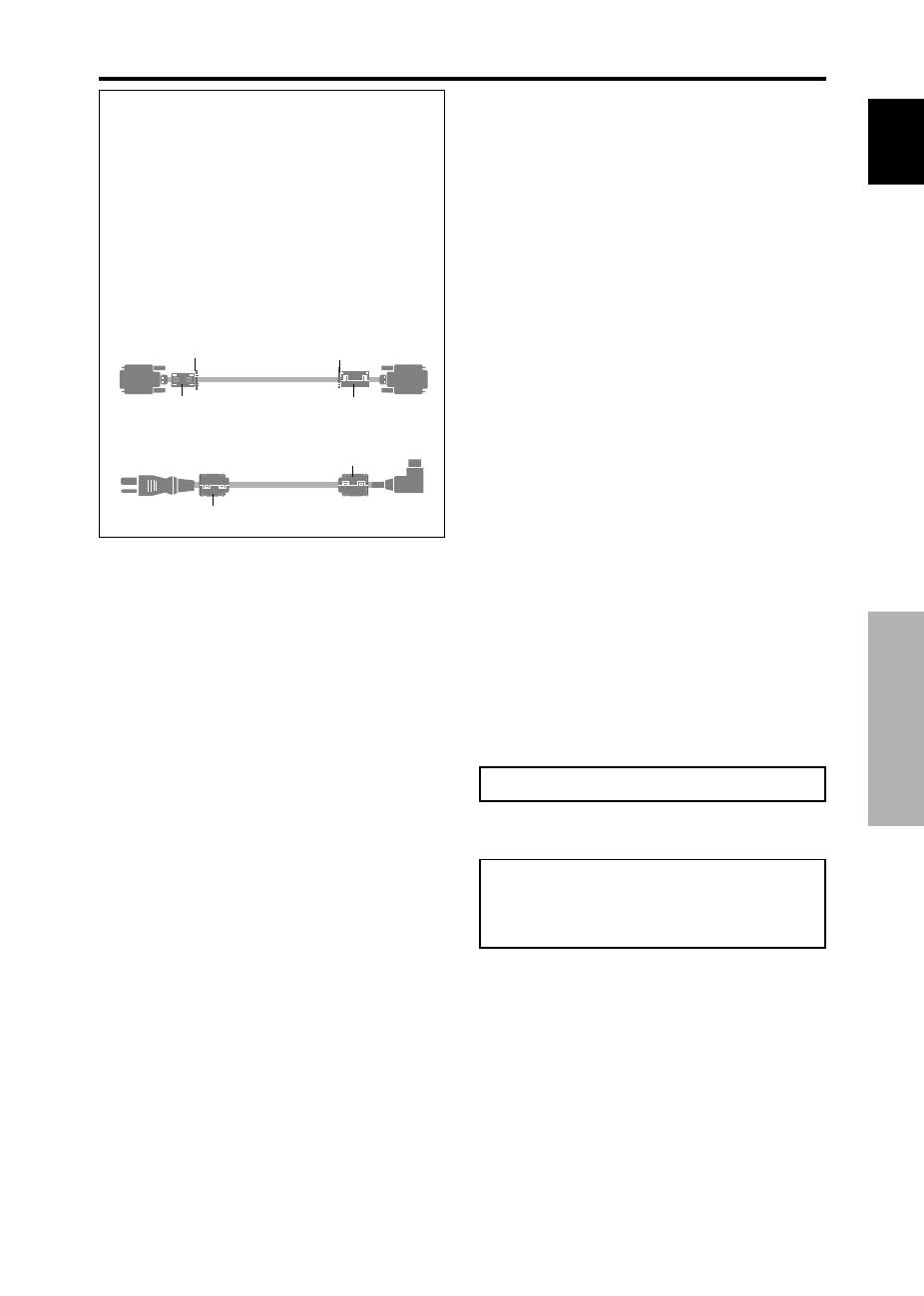
NOTE:
When you connect a computer to this monitor, use an RGB
cable including the ferrite core on both ends of the cable.
And regarding DVI and power cable, attach the supplied
ferrite cores. If you do not do this, this monitor will not
conform to mandatory CE or C-Tick standards.
Attaching the ferrite cores:
Set the ferrite cores on both ends of the DVI cable (not
supplied), and both ends of the power cable (supplied).
Close the lid tightly until the clamps click.
Use the band to fasten the ferrite core (supplied) to the
DVI cable.
DVI cable (not supplied)
core (small)
core (small)
Connector
band
band
Power cable (supplied)
core (large)
core (large)
English
Important Information
4
En
iii
En
This product complies with the Low Voltage Directive
(73/23/EEC, amended by 93/68/EEC), EMC Directives
(89/336/EEC, amended by 92/31/EEC and 93/68/EEC).
Caution
This model is for use with the following optional accessories.
Use with other optional accessories is capable of resulting in
instability causing possible injury.
Speakers: PDP-S32-LR
Table top stand: PDK-TS09
Wall mount unit: PDK-WM04
Tilt mount unit: PDK-WT01
Ceiling mount unit: PDK-CK01
English
Contents
1
En
Contents
Contents of the Package
Plasma monitor
Power cord
Remote control with two AAA Batteries
Manual
Warranty
Safety metal fittings (2pcs)
*
Ferrite cores (large 2pcs, small 2pcs)
Bands (2pcs)
Wiping cloth
* These are fittings for fastening the unit to a wall to prevent
tipping due to external shock when using the stand
(optional). Fasten the safety fittings to the holes in the
back of the monitor using the safety fitting mount screws
(see page 2).
Options
• Stand
• Speakers
• Wall mount unit
• Tilt mount unit
• Ceiling mount unit
Installation ...................................................... 2
Ventilation Requirements for enclosure mounting .......... 2
How to use the safety metal fittings and the screws for
safety metal fittings ................................................ 2
Creating a video wall ............................................... 3
Cable Management .................................................. 3
Caution on when the plasma monitor is installed vertically ... 4
How to use the remote control .................................... 4
Battery Installation and Replacement ........................... 4
Using the wired remote control mode .......................... 4
Operating Range .......................................................... 4
Handling the remote control ......................................... 4
Part Names and Function .................................. 5
Front View .............................................................. 5
Rear View/ Terminal Board ....................................... 6
Remote Control ........................................................ 7
Basic Operations ............................................... 8
POWER .................................................................. 8
To turn the unit ON and OFF: ...................................... 8
VOLUME ................................................................ 8
To adjust the sound volume: ......................................... 8
MUTING ................................................................. 8
To mute the sound: ....................................................... 8
DISPLAY .................................................................. 8
To check the settings: ................................................... 8
DIGITAL ZOOM ....................................................... 8
AUTO SET UP .......................................................... 8
To adjust the size or quality of the picture automatically: ...... 8
OFF TIMER .............................................................. 8
To set the off timer: ...................................................... 8
To check the remaining time: ....................................... 8
To cancel the off timer: ................................................ 8
WIDE Operations ............................................... 9
SCREEN SIZE Operation (manual) ............................. 9
When viewing videos or digital video discs ................. 9
SCREEN SIZE Operation with Computer Signals ........ 10
OSD (On Screen Display) Controls ..................... 11
Menu Operations ................................................... 11
Setting the language for the menus ........................... 11
Menu Tree ............................................................. 12
Picture Settings Menu .............................................. 14
Adjusting the picture .................................................. 14
Setting the picture modes according to the brightness of
the room .................................................................. 14
Reducing noise in the picture ..................................... 14
Setting the color temperature ..................................... 14
Adjusting the color to the desired level ...................... 15
Changing the Gamma Curve ...................................... 15
Making the Low Tone adjustments ............................. 15
Adjusting the colors ................................................... 15
SOUND Settings Menu ........................................... 16
Adjusting the treble, bass and left/right balance and audio
input select .............................................................. 16
Setting the allocation of the audio connectors ............ 16
SCREEN Settings Menu ........................................... 16
Adjusting the Position, Size, PHASE, CLOCK .......... 16
Option1 Settings Menu ........................................... 17
Setting the on-screen display ...................................... 17
Setting the PC2/COMPONENT2 connectors ............. 17
Setting the PC1 connector .......................................... 17
Setting a computer image to the correct RGB select screen ...... 18
Setting high definition images to the suitable screen size .... 18
Setting the Input Skip ................................................. 18
Resetting to the default values .................................... 18
Option2 Settings Menu ........................................... 19
Setting the power management for computer images . 19
STANDBY/ON indicator ........................................... 19
Setting the picture to suit the movie ........................... 19
Reducing burn-in of the screen .................................. 19
Setting the gray level for the SIDE MASK ................. 21
Setting the screen size for S1/S2 video input .............. 22
Setting the signal and black level for DVI signal ........ 22
Option3 Settings Menu ........................................... 22
Using the timer .......................................................... 22
Setting the power on mode ......................................... 23
Enabling/disabling the front panel controls ................ 23
Enabling/disabling remote control wireless transmission .... 24
Loop Out setting ........................................................ 24
ID number setting ...................................................... 24
Video Wall setting ...................................................... 24
Advanced OSD Settings Menu ................................. 27
Setting the menu mode .............................................. 27
Color System Settings Menu .................................... 27
Setting the video signal format ................................... 27
Source Information Menu ........................................ 27
Checking the frequencies, polarities of input signals, and
resolution ................................................................ 27
Pin Assignments ............................................. 28
mini D-Sub 15-pin connector (Analog) ..................... 28
DVI-D 24-pin connector (Digital) .............................. 28
Table of Signals Supported .............................. 29
Troubleshooting .............................................. 31
Specifications ................................................. 32
English
Installation
2
En
50
mm
(2")
50
mm
(2")
50
mm
(2")
Wall
Wall
50
mm
(2")
50
mm
(2")
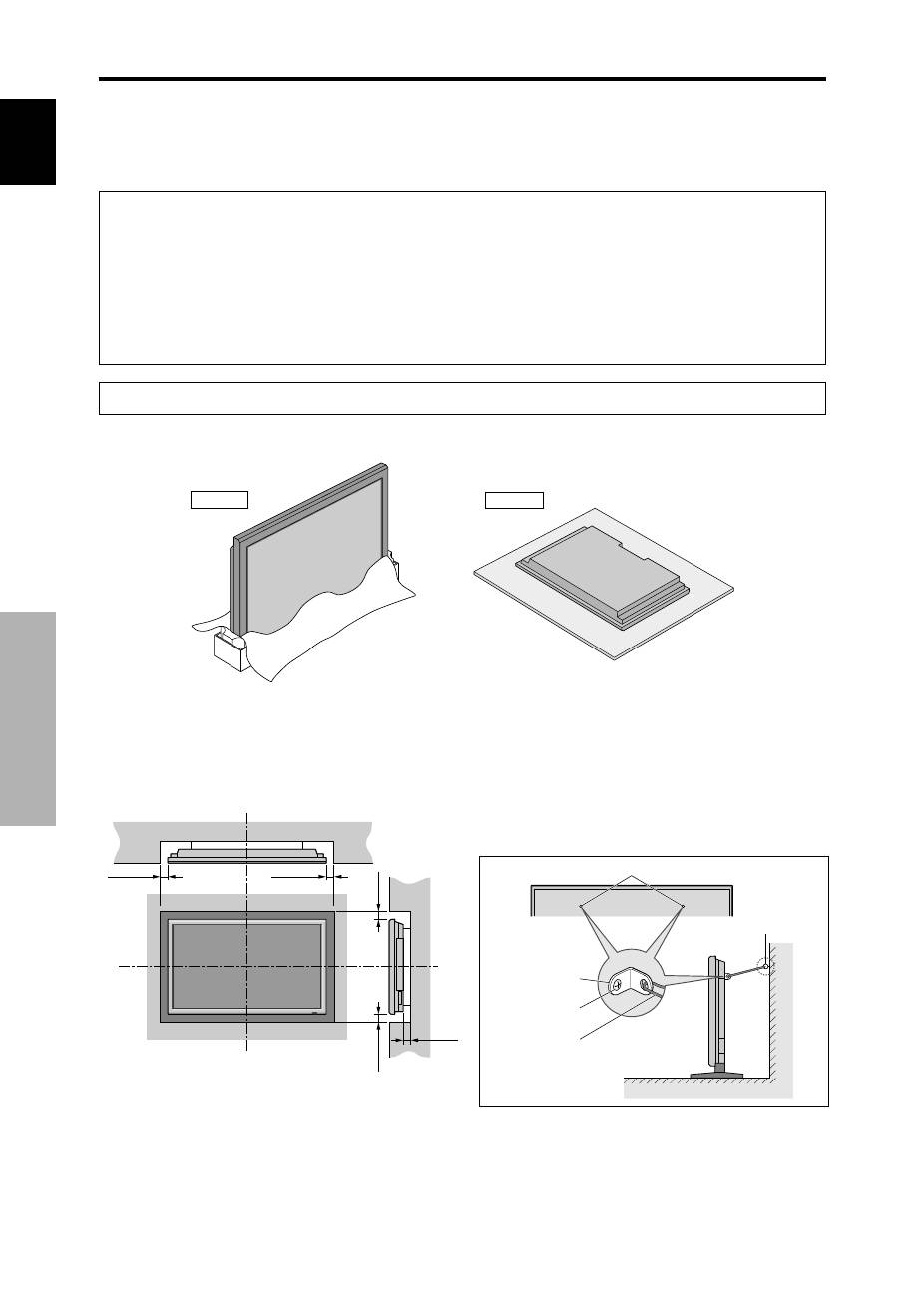
You can attach your optional mounts or stand to the plasma monitor in one of the following two ways:
* While it is upright. (See Drawing A)
* As it is laid down with the screen face down (See Drawing B). Lay the protective sheet, which was wrapped around the
monitor when it was packaged, beneath the screen surface so as not to scratch the screen face.
* Do not touch or hold the screen face when carrying the unit.
• This device cannot be installed on its own. Be sure to use a stand or original mounting unit. (Wall
mount unit, Stand, etc.)
* See page 1.
• For correct installation and mounting it is strongly recommended to use a trained, authorized
dealer.
Failure to follow correct mounting procedures could result in damage to the equipment or injury
to the installer.
Product warranty does not cover damage caused by improper installation.
* Use only the mounting kit or stand provided by manufacturer and listed under Options.
Drawing B
Drawing A
How to use the safety metal fittings
and the screws for safety metal
fittings
These are fittings for fastening the unit to a wall to prevent
tipping due to external shock when using the stand
(optional). Fasten the safety fittings to the holes in the
back of the monitor using the safety fitting mount screws.
Screw hole
Wall
Table Top
Safty metal fittings
Screw for Safty metal
fittings
Metal chain
(Not supplied)
Screw or Hook etc.
(Not supplied)
Ventilation Requirements for
enclosure mounting
To allow heat to disperse, leave space between surrounding
objects as shown on the diagram below when installing.
Installation
English
Installation
3
En
Note:
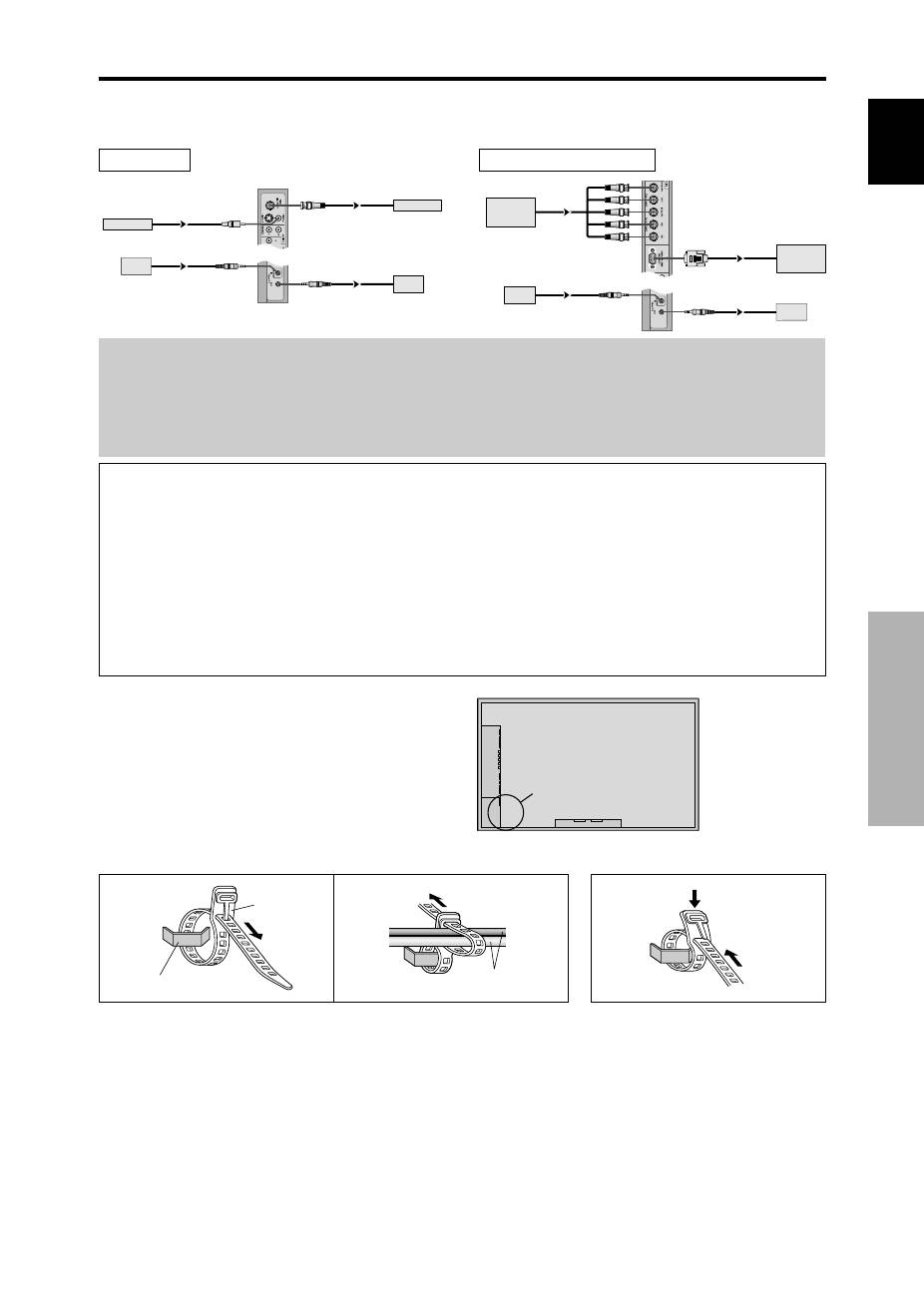
1. The VIDEO1 and PC1 terminals can be used for either INPUT or OUTPUT.
When LOOP OUT is ON, do not connect an OUTPUT signal from another unit, that will place an extraordinary load on
the other unit and may damage it.
2. LOOP OUT can not be turned ON while signals are input to the PC1 terminal.
3. LOOP OUT can be turned ON while signals are input to the PC1 terminal if the POWER is switched ON.
Information
• To loop signals out to another plasma display, set the LOOP OUT to ON.
• To create a video wall, set the VIDEO WALL menu items properly.
• To connect monitors, please use a 1~2m (3.3~6.6 feet) BNC cable (any commercially available cable).
• If the image quality is poor, do not use the monitor’s out terminal. Use a distribution amplifier (any commercially
available distribution amplifier) to connect the split signals to the respective monitor INPUT terminals.
• Being used as a video wall function, maximaly 4-screen is rough-standard with lower than 1024
768, 60Hz
signal.
• A distribution amplifier is particularly recommended when using 9-screen and over video wall.
• From the second monitor onward, connections require a BNC-RCA conversion cable or connector, a mini D-Sub
15 pin cable-BNC (
5) cable or a conversion connector.
Creating a video wall
With built-in matrix display capability, you can create a 4-25 video wall.
• Connect signal cables and remote cables as shown below.
Video signal
PC/COMPONENT signal
BNC connector
RCA phono plug
OUT
VIDEO signal
IN
OUT
Remote
control
VIDEO signal
Remote
IN
control
BNC connector
PC signal /
IN
OUT
OUT
Remote
control
COMPONENT
signal
PC signal /
COMPONENT
signal
IN
Remote
control
Cable Management
Using the cable clamps provided with the plasma display,
bundle at the back of the unit the signal and audio cables
connected to the display.
Back of the unit
mounting hooks
To attach
To detach
clamp
mounting hook
cables
1.
2.
English
Installation
4
En
OPTION1
RETURN
SEL.
OK
: RGB
: RGB
: AUTO
: 1080B
: OFF
: OFF
1024 768
EXIT
OSD
BNC INPUT
D-SUB INPUT
RGB SELECT
HD SELECT
INPUT SKIP
ALL RESET
MENU
Bottom side
Top side
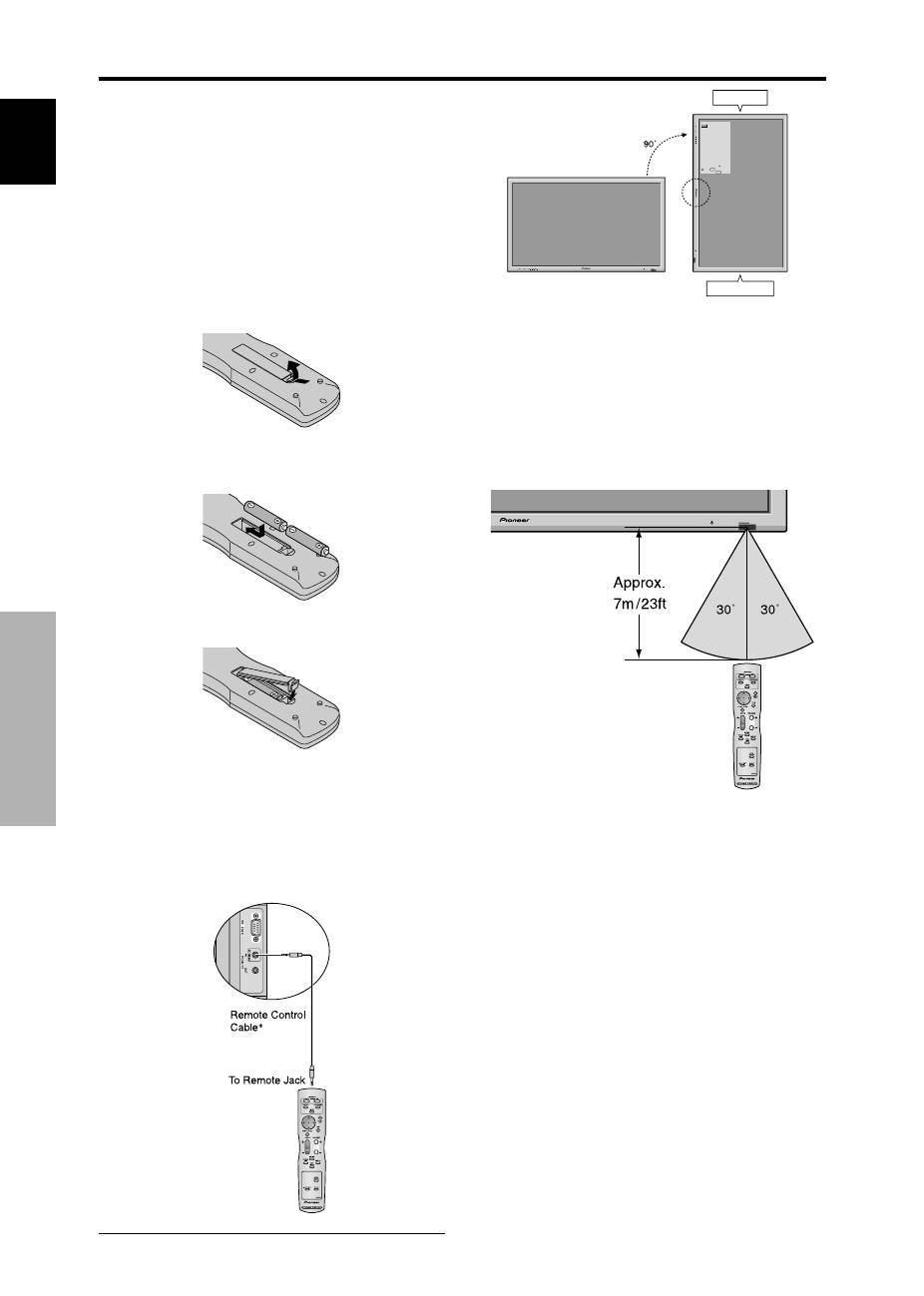
Caution on when the plasma monitor is installed vertically
• Use the optional unit. Contact your store of purchase when installing.
• Rotate 90° clockwise as seen from the front when installing.
• After installing, check with the PIONEER logo mark
as seen from the front.
• Be sure to set “OSD ANGLE” to “V” when using.
* Failure to heed the above cautions may lead to malfunction.
How to use the remote control
Battery Installation and Replacement
Insert the 2 “AAA” batteries, making sure to set them in
with the proper polarity.
1. Press and open the cover.
2. Align the batteries according to the (+) and (–) indication
inside the case.
3.Replace the cover.
* The 1/8 Stereo Mini cable must be purchased separately.
Operating Range
* Use the remote control within a distance of about 7 m/
23ft. from the front of the monitor’s remote control sensor
and at horizontal and vertical angles of up to approximately
30°.
* The remote control operation may not function if the
monitor’s remote control sensor is exposed to direct
sunlight or strong artificial light, or if there is an obstacle
between the sensor and the remote control.
Handling the remote control
• Do not drop or mishandle the remote control.
• Do not get the remote control wet. If the remote control
gets wet, wipe it dry immediately.
• Avoid heat and humidity.
• When not using the remote control for a long period,
remove the batteries.
• Do not use new and old batteries together, or use different
types together.
• Do not take apart the batteries, heat them, or throw them
into a fire.
• When using the remote control in the wireless condition,
be sure to unplug the remote cable from the REMOTE
IN terminal on the monitor.
• When disposing of used batteries, please comply with
governmental regulations or environmental public
instruction’s rules that apply in your country/area.
Using the wired remote control mode
Connect the remote cable* to the remote control’s remote
jack and the “REMOTE IN” terminal on the monitor.
When the cable is connected, the mode automatically
switches to wired remote control. When the wired remote
control mode is used, the remote control can be operated
even if no batteries are loaded.

English
Part Names and Function
5
En
q
Power (
)
Turns the monitor’s power on and off.
w
Remote sensor window
Receives the signals from the remote control.
e
STANDBY/ON indicator
When the power is on ............................. Lights green.
When the power is in the standby mode ... Lights red.
r
INPUT/EXIT
Switches the input.
The available inputs depend on the setting of “BNC
INPUT”, “RGB SELECT”, “D-SUB SELECT” and
“DVI SET-UP”.
Functions as the EXIT buttons in the On-Screen
Display (OSD) mode.
Front View
4
5
6
7
1
3
2
t
LEFT/– and RIGHT/+
Functions as the CURSOR (
/
) buttons in the On-
Screen Display (OSD) mode.
y
VOLUME
and
Adjusts the volume. Functions as the CURSOR (
▲
/
▼
) buttons in the On-Screen Display (OSD) mode.
u
MENU/SET
Sets the On-Screen Display (OSD) mode and displays
the main menu.
WARNING
The Power on/off switch does not disconnect the plasma
display completely from the supply mains.
Part Names and Function
Note:
This plasma monitor has the capasity to display images when connected to European DVD players with a SCART
output signal, which is RGB with composite sync.
Your dealer can supply a special SCART cable, which will enable you to use the RGB with composite sync signal.
To obtain the special cable as well as for further information, please contact your dealer.
Please refer to page 19 for selection of the correct mode in the on-screen display.
English
Part Names and Function
6
En
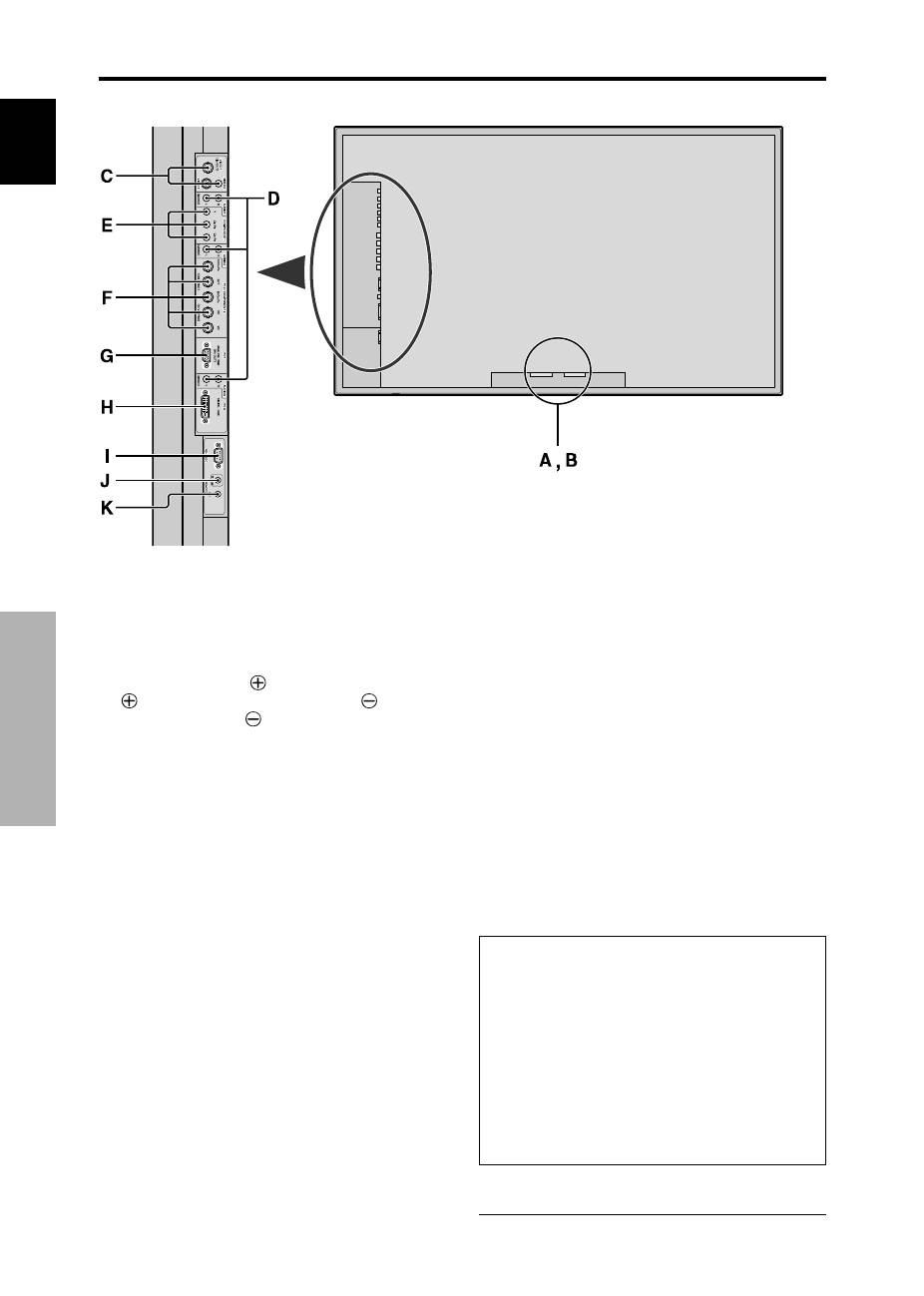
A
AC IN
Connect the included power cord here.
B
EXT SPEAKER L and R
Connect speakers (optional) here. Maintain the correct
polarity. Connect the
(positive) speaker wire to the
EXT SPEAKER terminal and the
(negative)
speaker wire to the
EXT SPEAKER terminal on
both LEFT and RIGHT channels.
Please refer to your speaker’s owner’s manual.
C
VIDEO1, 2, 3 (BNC, RCA, S-Video)
Connect VCR’s, DVD’s or Video Cameras, etc. here.
VIDEO1 can be used for Input or Output (see page
24).
D
AUDIO1, AUDIO2, AUDIO3
These are audio input terminals.
The input is selectable. Set which video image to allot
them from the SOUND menu screen.
E
COMPONENT1
Connect DVD’s, High Definition or Laser Discs, etc.
here.
F
PC2/COMPONENT2
PC2:
You can connect an analog RGB signal
and the syncronization signal.
COMPONENT2: You can connect DVDs, High
Definition sources, Laser Discs, etc.
here.
This input can be set for use with an
RGB or component source (see page
17).
G
PC1 (mini D-Sub 15pin)
Connect an analog RGB signal from a computer, etc.
here. This input can be used for Input or Output (see
page 24).
H
PC3
(DVI 24pin)
Connect a digital signal (TMDS) from a source with a
DVI output.
I
RS-232C
Never connect any component to this connector
without first consulting your Pioneer installation
technician.
This connector is used for plasma display setup
adjustments.
J
REMOTE IN
Connect the remote cable* to the remote control’s
remote jack to obtain wired remote control.
K
REMOTE OUT
Connect the remote cable* to the REMOTE IN jack of
the other display monitor to obtain wired remote
control.
Information
• For Y/CB/Cr, connect to the COMPONENT1 or PC2/
COMPONENT2 terminals.
• For SCART, this unit provides three ways to connect:
·
SCART1:
Connect R/G/B and composite sync. to
the PC2/COMPONENT2 terminals. (R, G, B and
HD connector)
·
SCART2:
Connect R/G/B to the COMPONENT2
terminals and composite sync. to the VIDEO1
terminal.
·
SCART3:
Connect R/G/B and composite sync. to
the PC1 terminal.
* The 1/8 Stereo Mini cable must be purchased separately.
Rear View/ Terminal Board

English
Part Names and Function
7
En
q
POWER ON/STANDBY
Switches the power on/standby.
(This does not operate when STANDBY/ON indicator
of the main unit is off.)
w
RGB/PC
Press this button to select RGB/PC as the source.
RGB/PC can also be selected using the INPUT/EXIT
button on the monitor.
e
COMPONENT
Press this button to select COMPONENT as the source.
COMPONENT can also be selected using the INPUT/
EXIT button on the monitor.
r
VIDEO
Press this button to select VIDEO as the source.
VIDEO can also be selected using the INPUT/EXIT
button on the monitor.
t
MENU/SET
Press this button to access the OSD controls.
Press this button during the display of the main menu
to go to the sub menu.
y
CURSOR (
▲
/
▼
/
/
)
Use these buttons to select items or settings and to
adjust settings.
u
EXIT
Press this button to exit the OSD controls in the main
menu. Press this button during the display of the sub
menu to return to the previous menu.
i
POINT ZOOM
Press this button to display the pointer.
o
ZOOM (+ /–)
Enlarges or reduces the image.
!0
VOLUME (+ /–)
Adjusts the sound volume.
!1
MUTING
Mutes the sound.
!2
SCREEN SIZE
Automatically detects the signal and sets the aspect ratio.
SCREEN SIZE button is not active for all signals.
!3
DISPLAY
Displays the source settings on the screen.
!4
OFF TIMER
Activates the off timer for the unit.
!5
AUTO SET UP
Press this button to adjust PHASE, CLOCK, Position,
and Contrast automatically, or to switch the screen size
to ZOOM mode automatically with the superimposed
caption displayed fully only when the picture contains
dark areas above and below the picture.
!6
ID NO. SET
Set the ID number in the remote control. The remote
control can then be used only for a display with the
same ID number. When several displays are used
together they can be controlled individually.
!7
CLEAR
Clears the number set by the ID NO. SET button.
!8
Remote control signal transmitter
Transmits the remote control signals.
!9
Remote Jack
Insert the plug of the remote cable (The 1/8 Stereo
Mini cable) here when using the supplied remote
control in the wired condition.
Remote Control
→
VIDEO1
→
VIDEO2
→
VIDEO3
English
Basic Operations
8
En
Basic Operations
POWER
To turn the unit ON and OFF:
1. Plug the power cord into an active AC power outlet.
2. Press the Power button (on the unit).
The monitor’s STANDBY/ON indicator turns red and the
standby mode is set.
3. Press the POWER ON button (on the remote control) to
turn on the unit.
The monitor’s STANDBY/ON indicator will light up
(green) when the unit is on.
4. Press the POWER STANDBY button (on the remote control)
or the Power button (on the unit) to turn off the unit.
The monitor’s STANDBY/ON indicator turns red and the
standby mode is set (only when turning off the unit with
the remote control).
VOLUME
To adjust the sound volume:
1. Press and hold the VOLUME
button (on the remote
control or the unit) to increase to the desired level.
2. Press and hold the VOLUME
button (on the remote
control or the unit) to decrease to the desired level.
MUTING
To mute the sound:
Press the MUTING button on the remote control to mute
the sound; press again to restore.
DISPLAY
To check the settings:
1. The screen changes each time the DISPLAY button is
pressed.
2. If the button is not pressed for approximately three seconds,
the menu turns off.
DIGITAL ZOOM
Digital zoom specifies the picture position and enlarges
the picture.
1. Press the POINT ZOOM button to display the pointer.
( )
To change the size of the picture:
Press the ZOOM+ button and enlarge the picture.
The pointer will change to resemble a magnifying glass.
(
)
A press of the ZOOM- button will reduce the picture
and return it to its original size.
To change the picture position:
Select the position with the
▲▼
buttons.
2. Press the POINT ZOOM button to delete the pointer.
AUTO SET UP
To adjust the size or quality of the picture
automatically:
Press the AUTO SET UP button.
Information
AUTO SET UP ON setting
When RGB (still picture) input is selected:
PHASE, CLOCK, Position, and Contrast will be
adjusted automatically.
When RGB (motion picture), VIDEO, or Y/Pb/Pr
(component) input is selected:
The screen size switches to ZOOM mode automatically
with the superimposed caption displayed fully only
when the picture contains dark areas above and below
the picture.
OFF TIMER
To set the off timer:
The off timer can be set to turn the power off after 30, 60,
90 or 120 minutes.
1. Press the OFF TIMER button to start the timer at 30
minutes.
2. Press the OFF TIMER button to the desired time.
3. The timer starts when the menu turns off.
→
30
→
60
→
90
→
120
→
0
OFF TIMER 30
To check the remaining time:
1. Once the off timer has been set, press the OFF TIMER
button once.
2. The remaining time is displayed, then turns off after a few
seconds.
3. When five minutes remain the remaining time appears
until it reaches zero.
OFF TIMER 28
To cancel the off timer:
1. Press the OFF TIMER button twice in a row.
2. The off timer is canceled.
OFF TIMER 0
Note:
After the power is turned off with the off timer ...
A slight current is still supplied to the monitor. When you
are leaving the room or do not plan to use the system for a
long period of time, turn off the power of the monitor.
English
WIDE Operations
9
En
SCREEN SIZE Operation
(manual)
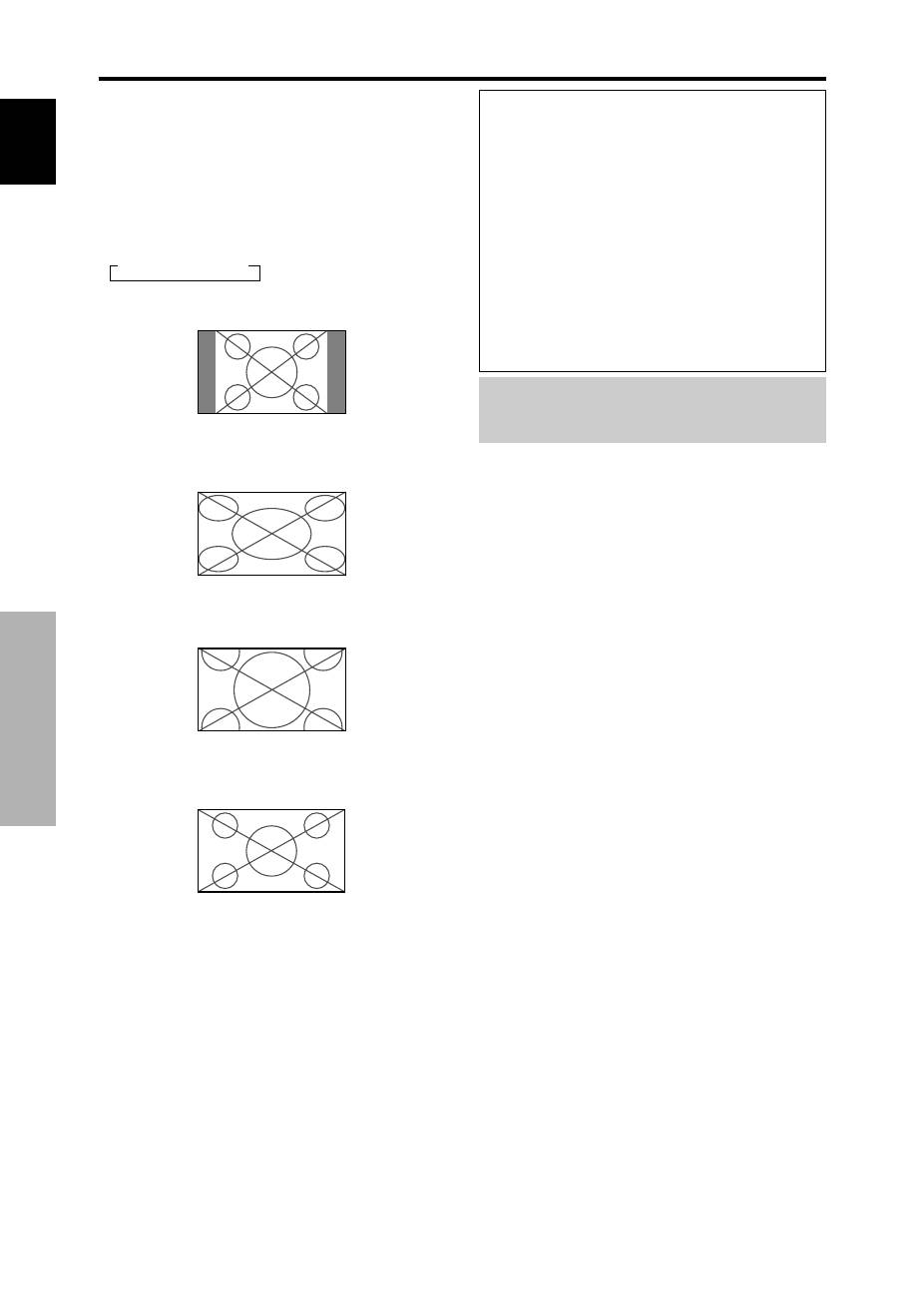
With this function, you can select one of six screen sizes.
When viewing videos or digital video discs
1. Press the SCREEN SIZE button on the remote control.
2.
Within 3 seconds ...
Press the SCREEN SIZE button again.
The screen size switches as follows:
→
4:3
→
FULL
→
WIDE
→
ZOOM
→
2.35:1
→
14:9
When a 720P or 1080I signal is input:
FULL
↔
2.35:1
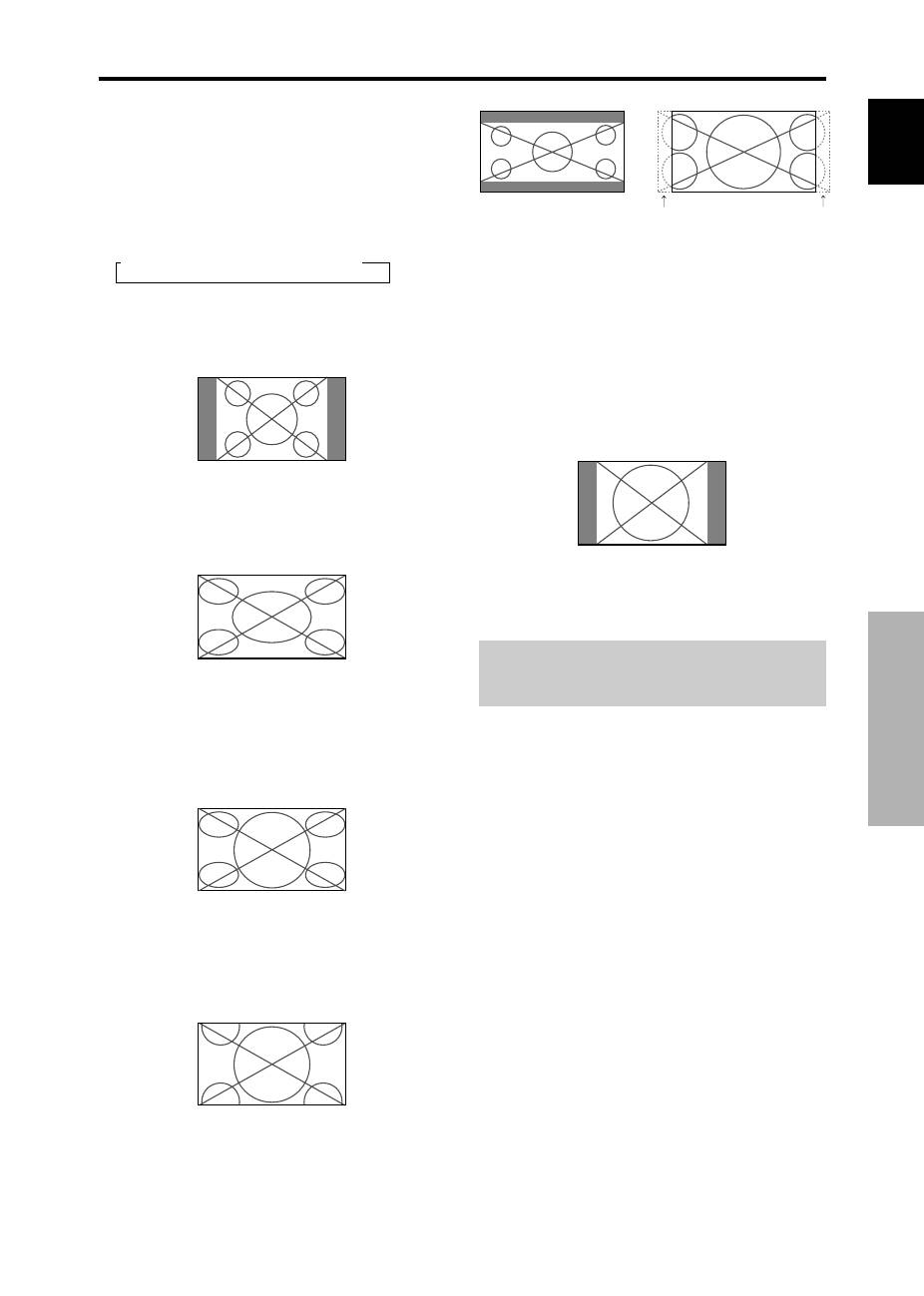
4:3 size screen
The normal size screen is displayed.
* The picture has the same size as video pictures with a 4 : 3
aspect ratio.
FULL size screen
The image is expanded in the horizontal direction.
* Images compressed in the horizontal direction (“squeezed
images”) are expanded in the horizontal direction and
displayed on the entire screen with correct linearity.
(Normal images are expanded in the horizontal direction.)
WIDE size screen
The picture is expanded in the horizontal and vertical
directions at different ratios.
* Use this for watching normal video programs (4:3) with a
wide screen.
ZOOM size screen
The picture is expanded in the horizontal and vertical
direction, maintaining the original proportions.
* Use this for theater size (wide) movies, etc.
2.35:1 size screen
The squeezed film image is expanded to fulfill the entire
screen at a ratio of 2.35:1. Black bands do not appear at
the top and bottom but information is lost on the left and
right margins.
• This feature is available when the input signal is video,
component (480I, 480P, 576I, 576P, 720P, 1080I) or RGB
(525P or 625P signal from a scan converter).
* If black bands appear on the top and bottom in the full size
screen, select the 2.35:1 size screen to avoid phosphor burn-
in.
14:9 size screen
The image is displayed at a 14:9 aspect ratio.
* This feature is available when the input signal is video,
component (480I, 480P, 576I, 576P) or RGB (525P or 625P
signal from a scan converter).
Note:
Do not allow the displayed in 4:3 mode or 14:9 mode for
an extended period. This can cause a phosphor burn-in.
Information is lost on both sides.
Original image
WIDE Operations
English
WIDE Operations
10
En
Information
Supported resolution
See page 29 for details on the display output of the
various VESA signal standards supported by the
monitor.
When 852 (848) dot
480 line wide VGA*
signals with a vertical frequency of 60 Hz and
horizontal frequency of 31.7 (31.0) kHz are in-
put
Select an appropriate setting for RGB SELECT mode
referring to the“Table of Signals Supported” on page
29.
* “VGA”, “SVGA” and “SXGA” are registered
trademarks of IBM, Inc. of the United States.
Note:
Do not allow the displayed in 4:3 mode or 14:9 mode for
an extended period. This can cause a phosphor burn-in.
SCREEN SIZE Operation with
Computer Signals
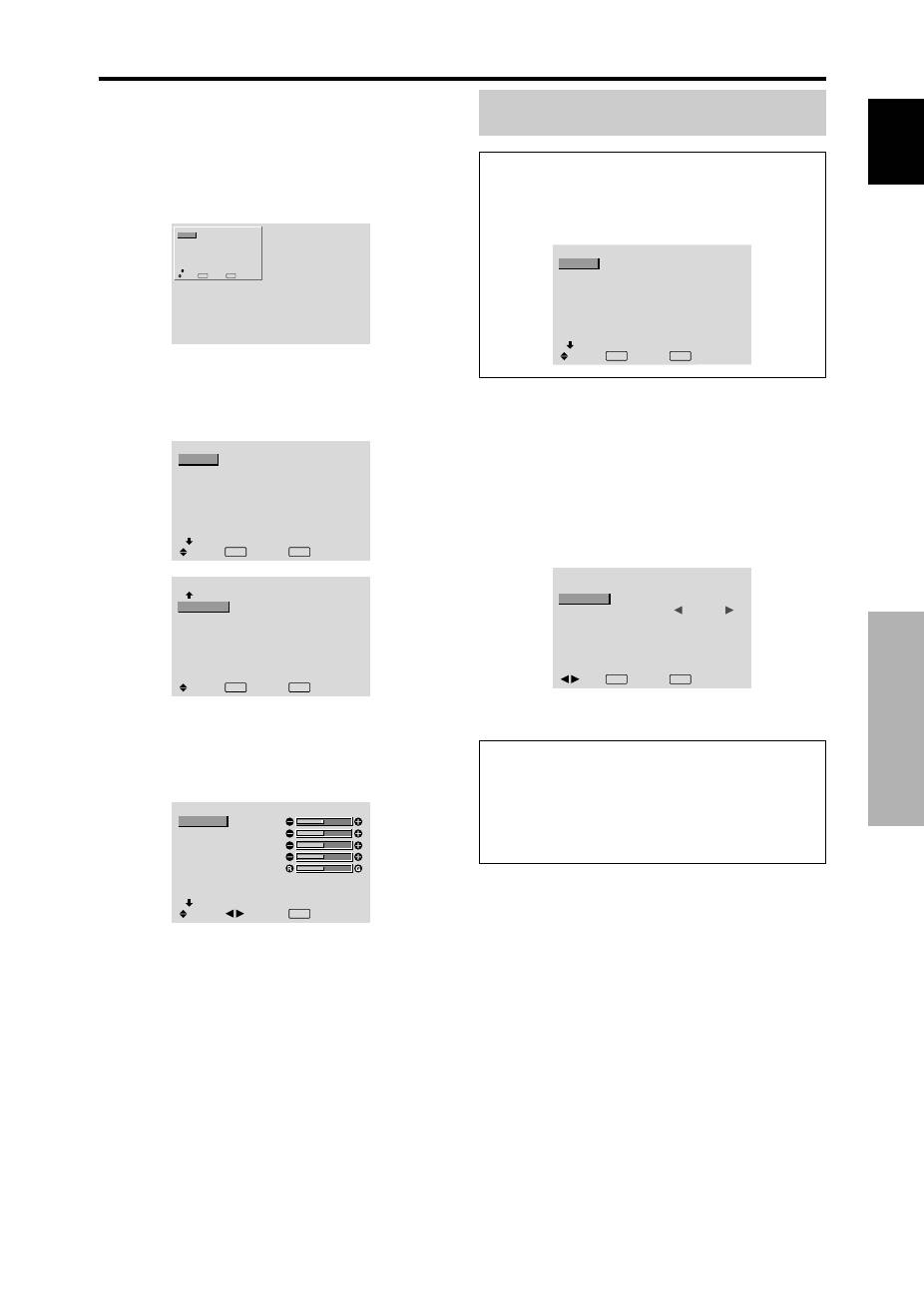
Switch to the wide screen mode to expand the 4 : 3 image
to fill the entire screen.
1. Press the SCREEN SIZE button on the remote control.
2.
Within 3 seconds ...
Press the SCREEN SIZE button again.
The screen size switches as follows:
→
4:3
→
FULL
→
ZOOM
4:3 size screen (4:3 or SXGA 5:4)
The picture has the same size as the normal computer image.
FULL size screen
The image is expanded in the horizontal direction.
ZOOM size screen
When wide signals are input.
FULL size screen
English
OSD (On Screen Display)
Controls
11
En
Menu Operations
The OSD window is displayed with respect to the
screen as shown on the diagram.
* Depending on the screen’s mode, the OSD may be
displayed differently.
In the explanation, the OSD section is shown close up.
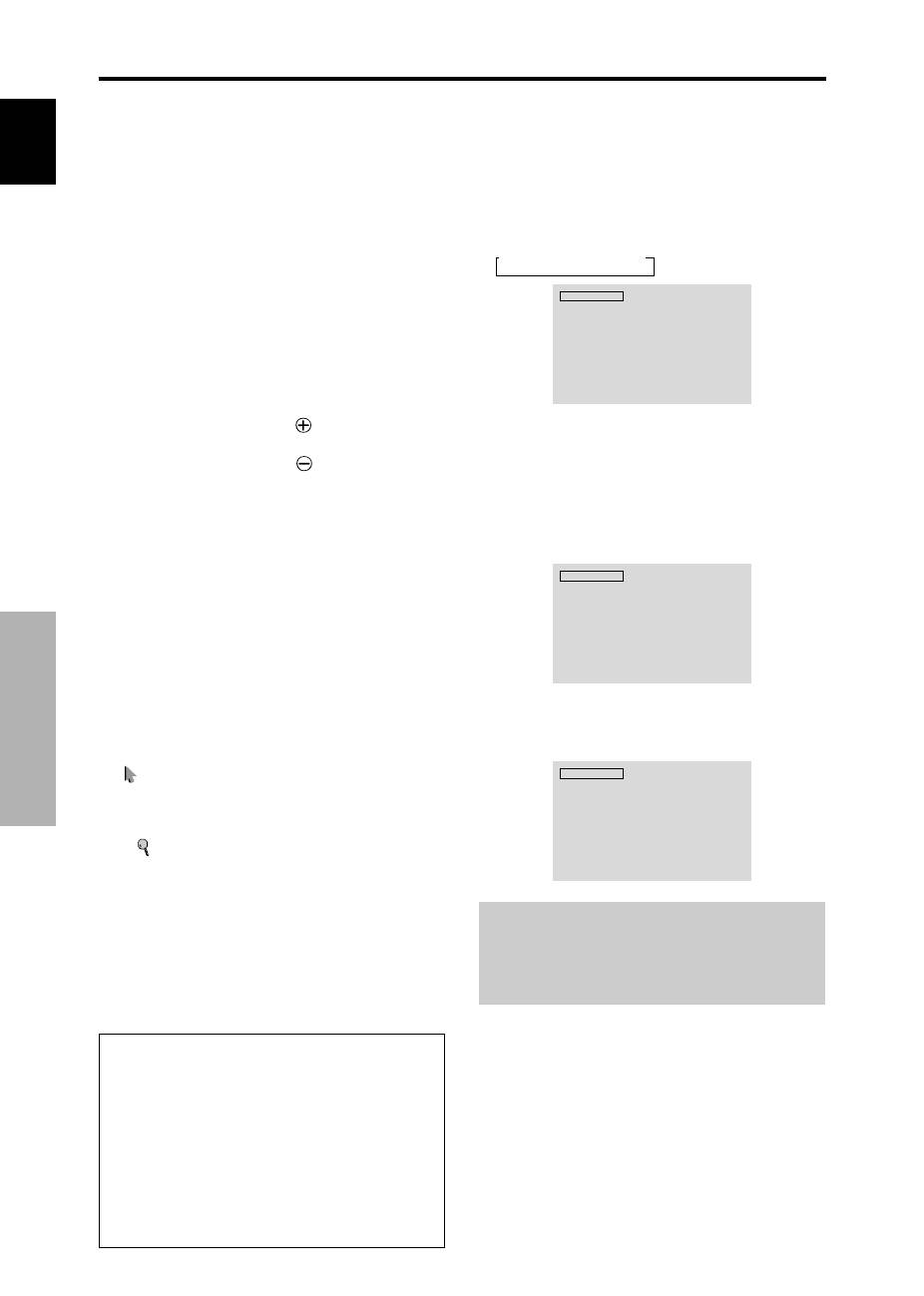
MAIN MENU
1 / 2
EXIT
PICTURE
SOUND
SCREEN
OPTION1
ADVANCED OSD
NEXT PAGE
: OFF
SEL.
EXIT
OK
MENU
The following describes how to use the menus and the
selected items.
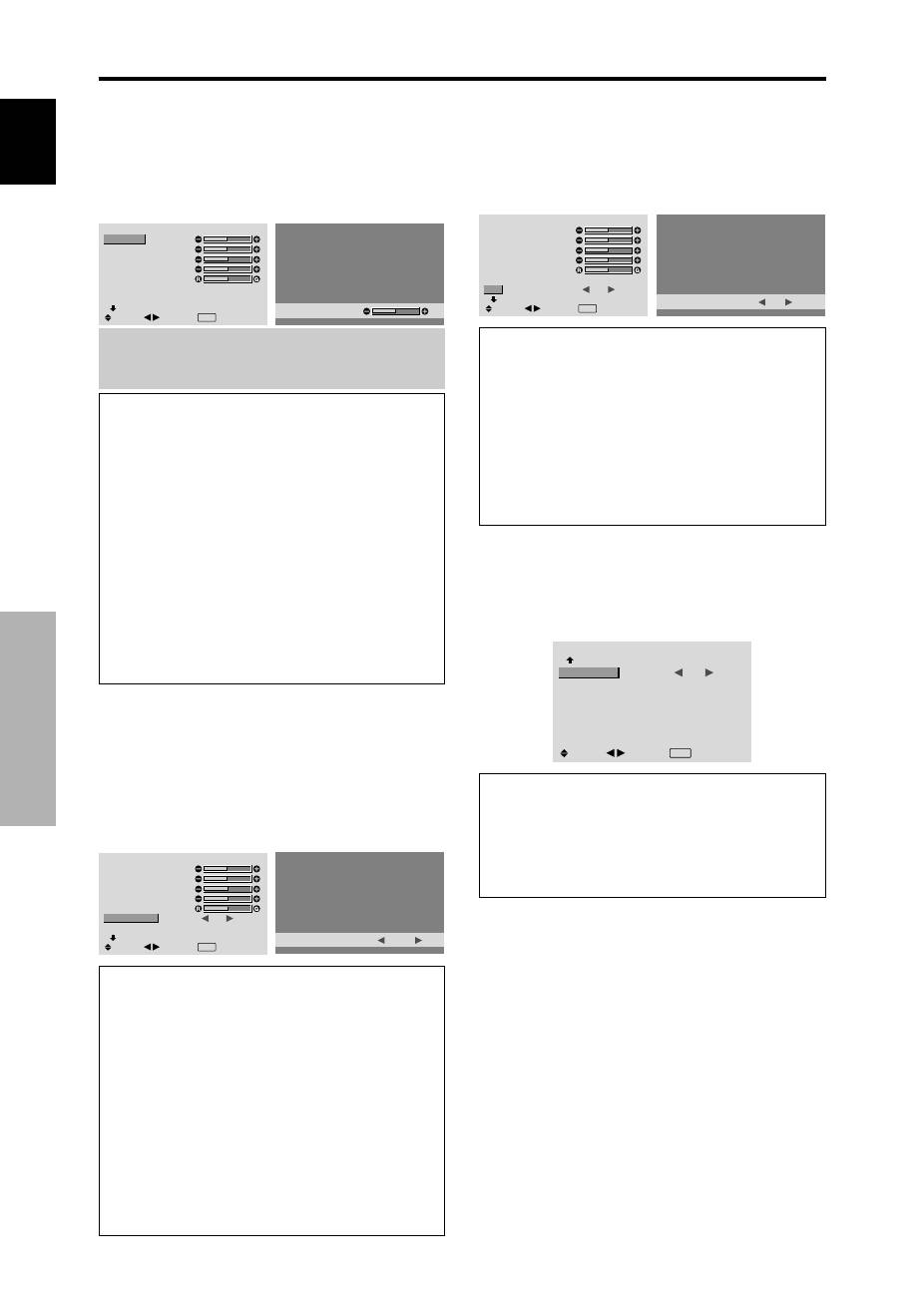
1. Press the MENU/SET button on the remote control to
display the MAIN MENU.
MAIN MENU
1 / 2
EXIT
PICTURE
SOUND
SCREEN
OPTION1
ADVANCED OSD
NEXT PAGE
: OFF
SEL.
EXIT
OK
MENU
MAIN MENU
2 / 2
PREVIOUS PAGE
LANGUAGE
COLOR SYSTEM
SOURCE INFORMATION
SEL.
EXIT EXIT
OK
MENU
2. Press the cursor buttons
▲ ▼
on the remote control to
highlight the menu you wish to enter.
3. Press the MENU/SET button on the remote control to
select a sub menu or item.
PICTURE
1 / 2
CONTRAST
BRIGHTNESS
SHARPNESS
COLOR
TINT
AV SELECTION
DNR
NEXT PAGE
: STD
: OFF
SEL.
ADJ.
EXIT RETURN
4. Adjust the level or change the setting of the selected item
by using the cursor buttons
on the remote control.
5. The adjustments or the settings that are stored in memory.
The change is stored until you change it again.
6. Repeat steps 2 – 5 to adjust an additional item, or press
the EXIT button on the remote control to return to the
main menu.
* When adjusting using the bar at the bottom of the screen,
press the
or
button within 5 seconds. If not, the
current setting is set and the previous screen appears.
Note:
The main menu disappears by pressing the EXIT
button.
Information
Advanced menu mode
When “ADVANCED OSD” is set to “ON” in the main
menu (1/2), full menu items will be shown.
MAIN MENU
1 / 2
PICTURE
SOUND
SCREEN
OPTION1
OPTION2
OPTION3
ADVANCED OSD
NEXT PAGE
: ON
SEL.
EXIT EXIT
OK
MENU
OSD
(On Screen Display)
Controls
Setting the language for the menus
The menu display can be set to one of seven languages.
Example: Setting the menu display to “DEUTSCH”
On “MAIN MENU”, select “LANGUAGE”, then press the
MENU/SET button.
The “LANGUAGE” screen appears.
On “LANGUAGE”, select “ DEUTSCH”, then press the
MENU/SET button.
LANGUAGE
LANGUAGE
:
DEUTSCH
EXIT RETURN
OK
MENU
ADJ.
The “LANGUAGE” is set to “DEUTSCH” and return to the
main menu.
Information
Language settings
ENGLISH ........
English
DEUTSCH .......
German
FRANÇAIS ......
French
ESPAÑOL .......
Spanish
ITALIANO ........
Italian
SVENSKA .......
Swedish
У ............
Russian

English
OSD (On Screen Display) Controls
12
En
Main menu
Sub menu
Sub menu 2
Sub menu 3
Sub menu 4
RESET
REFERENCE
PICTURE
CONTRAST
←→
0
←
52
→
72
YES
14
BRIGHTNESS
←→
0
←
32
→
64
YES
14
SHARPNESS
←→
0
←
16
→
32
YES
14
COLOR
←→
0
←
32
→
64
YES
14
TINT
R
←→
G 0
←
32
→
64
YES
14
AV SELECTION
DYNAMIC/STD/MOVIE1/MOVIE2/DEFAULT
YES
14
DNR
OFF/LOW/MID/HIGH
YES
14
COLOR TEMP.
LOW/MID LOW/MID/HIGH
YES
14
WHITE BALANCE
R.HIGH
←→
0
←
40
→
70
YES
15
G.HIGH
←→
0
←
40
→
70
YES
15
B.HIGH
←→
0
←
40
→
70
YES
15
R.LOW
←→
0
←
40
→
70
YES
15
G.LOW
←→
0
←
40
→
70
YES
15
B.LOW
←→
0
←
40
→
70
YES
15
RESET
OFF
←→
ON
YES
15
GAMMA
1
←→
2
←…→
4
YES
15
LOW TONE
AUTO
←→
1
←…→
3
YES
15
C. DETAIL ADJ
RED
Y
←→
M 0
←
32
→
64
YES
15
GREEN
C
←→
Y
0
←
32
→
64
YES
15
BLUE
M
←→
C 0
←
32
→
64
YES
15
YELLOW
G
←→
R
0
←
32
→
64
YES
15
MAGENTA
R
←→
B
0
←
32
→
64
YES
15
CYAN
B
←→
G
0
←
32
→
64
YES
15
RESET
OFF
←→
ON
YES
15
Main menu
Sub menu
Sub menu 2
Sub menu 3
Sub menu 4
RESET
REFERENCE
SOUND
BASS
←→
0
←
13
→
26
YES
16
TREBLE
←→
0
←
13
→
26
YES
16
BALANCE
L
←→
R
-22
←
0
→
+22
YES
16
AUDIO INPUT1
VIDEO 1-3 / COMPNT 1-2 / PC1DSUB / PC2-BNC / PC3-DVI
YES
16
AUDIO INPUT2
VIDEO 1-3 / COMPNT 1-2 / PC1DSUB / PC2-BNC / PC3-DVI
YES
16
AUDIO INPUT3
VIDEO 1-3 / COMPNT 1-2 / PC1DSUB / PC2-BNC / PC3-DVI
YES
16
Main menu
Sub menu
Sub menu 2
Sub menu 3
Sub menu 4
RESET
REFERENCE
SCREEN
SCREEN SIZE
4:3/FULL/WIDE/ZOOM/2.35:1/14:9
—
16
V.POSITION
←→
-64
←
0
→
+64
YES
16
H.POSITION
←→
-128
←
0
→
+127
YES
16
V.SIZE
←→
0
←→
64
YES
16
H.SIZE
←→
0
←→
64
YES
16
AUTO PICTURE
OFF
←→
ON*
2
NO
16
PHASE*
1
←→
*
2
0
←→
64
YES
16
CLOCK*
1
←→
*
2
0
←
64
→
128
YES
16
Main menu
Sub menu
Sub menu 2
Sub menu 3
Sub menu 4
RESET
REFERENCE
OPTION1
OSD
DISPLAY OSD
OFF
←→
ON
YES
17
OSD ADJUST
1
←…→
6
YES
17
OSD ANGLE
H
←→
V
YES
17
OSD ORBITER
OFF
←→
ON
YES
17
OSD CONTRAST
LOW
←→
NORMAL
YES
17
BNC INPUT
RGB
←→
COMP.
←→
SCART1
←→
SCART2
YES
17
D-SUB INPUT
RGB
←→
SCART3
—
17
RGB SELECT
AUTO/STILL/MOTION/WIDE1/WIDE2/WIDE3/WIDE4/DTV
YES
18
HD SELECT
1080B/1035
I
/1080A
NO
18
INPUT SKIP
OFF
←→
ON
YES
18
ALL RESET
OFF
←→
ON
—
18
:Shaded areas indicate the default value.
←→
: Press the
or
button to adjust.
:Menu items in a ruled box are available when the ADVANCED OSD is set to ON.
Menu Tree

English
OSD (On Screen Display)
Controls
13
En
*1 Only when AUTO PICTURE is OFF
*2 RGB/PC only
Main menu
Sub menu
Sub menu 2
Sub menu 3
Sub menu 4
RESET
REFERENCE
OPTION2
PWR. MGT.
OFF
←→
ON
YES
19
PURECINEMA
OFF
←→
ON
YES
19
LONG LIFE
ABL
AUTO/LOCK 1/LOCK 2/LOCK 3
YES
19
ORBITER
AUTO 1
YES
20
AUTO 2
YES
20
MANUAL
H-DOT/V-LINE/TIME
YES
20
OFF
YES
20
INVERSE
OFF
YES
20
ON
WORKING TIME/WAITING TIME
YES
20
WHITE
YES
20
SCREEN WIPER
OFF
YES
21
ON
WORKING TIME/WAITING TIME/SPEED
YES
21
SOFT FOCUS
OFF/1/2/3/4
YES
21
SIDE MASK
0
←…→
3
←…→
15
YES
21
S1/S2
AUTO
←→
OFF
YES
22
DVI SET-UP
PLUG/PLAY
PC
←→
STB/DVD
NO
22
BLACK LEVEL
LOW
←→
HIGH
NO
22
Main menu
Sub menu
Sub menu 2
Sub menu 3
Sub menu 4
RESET
REFERENCE
OPTION3
TIMER
PRESENT TIME
DAYLIGHT SAIVING TIME OFF
←→
ON
NO
22
DAY/HOUR/MINUTES
NO
22
PROGRAM
OFF
YES
23
ON
DATE/ON/OFF(HOUR, MINUTE)/INPUT/FUNCTION
YES
23
PWR. ON MODE
LAST / VIDEO 1-3 / COMPNT 1-2 / PC1DSUB / PC2-BNC / PC3-DVI
YES
23
KEY LOCK
OFF
←→
ON
YES
23
IR REMOTE
OFF
←→
ON
YES
24
LOOP OUT
OFF
←→
ON
YES
24
ID NUMBER
ALL
←→
1
←…→
256
YES
24
VIDEO WALL
DIVIDER
OFF/1/4/9/16/25
YES
24
POSITION
No.1
←…→
No.4/No.7
←…→
No.15/No.16
←…→
No.31/No.32
←…→
No.56
—
25
DISP. MODE
NORMAL
←→
ADJUST
YES
25
AUTO ID
OFF
←→
ON
YES
25
SCREEN
SCREEN SIZE
4:3/FULL/WIDE/ZOOM/2.35:1/14:9
—
26
V.POSITION
←→
-64
←
0
→
+64
YES
26
H.POSITION
←→
-128
←
0
→
+127
YES
26
V.SIZE
←→
0
←→
64
YES
26
H.SIZE
←→
0
←→
64
YES
26
AUTO PICTURE
OFF
←→
ON*
2
NO
26
PHASE*
1
←→
*
2
0
←→
64
YES
26
CLOCK*
1
←→
*
2
0
←
64
→
128
YES
26
P. ON DELAY
OFF/ON/MODE1/MODE2
YES
26
ABL LINK
OFF
←→
ON
YES
26
REPEAT TIMER
OFF
YES
27
ON
DIVIDER/SOURCE/WORK TIME
YES
27
Main menu
Sub menu
Sub menu 2
Sub menu 3
Sub menu 4
RESET
REFERENCE
ADVANCED OSD
OFF
←→
ON
YES
27
LANGUAGE
ENGLISH/DEUTSCH/FRANÇAIS/ESPAÑOL/ITALIANO/SVENSKA/
У
NO
11
COLOR SYSTEM
AUTO/3.58NTSC/4.43 NTSC/PAL/PAL 60/PAL-N/PAL-M/SECAM
NO
27
SOURCE INFORMATION —
—
27
Information
Restoring the factory default settings
Select “ALL RESET” under the OPTION1 menu. Note that this also restores other settings to the factory defaults.
English
OSD (On Screen Display) Controls
14
En
Picture Settings Menu
Adjusting the picture
The contrast, brightness, sharpness, color and tint can be
adjusted as desired.
Example: Adjusting the contrast
On “CONTRAST” of “PICTURE” menu, adjust the contrast.
PICTURE
1 / 2
CONTRAST
BRIGHTNESS
SHARPNESS
COLOR
TINT
AV SELECTION
DNR
NEXT PAGE
: STD
: OFF
SEL.
ADJ.
EXIT RETURN
CONTRAST
5 2
Note:
If “CAN NOT ADJUST” appears ...
When trying to enter the PICTURE submenu, make sure
AV SELECTION is not set to DEFAULT.
Information
Picture adjustment screen
CONTRAST:
Changes the picture’s white level.
BRIGHTNESS:
Changes the picture’s black level.
SHARPNESS:
Changes the picture’s sharpness.
Adjusts picture detail of VIDEO display.
COLOR:
Changes the color density.
TINT:
Changes the picture’s tint. Adjust for natural
colored skin, background, etc.
Adjusting the computer image
Only the contrast and brightness can be adjusted when
a computer signal is connected.
Restoring the factory default settings
Select “DEFAULT” under the “AV SELECTION”
settings.
Setting the picture modes according to the
brightness of the room
There are four picture modes that can be used effectively
according to the environment in which you are viewing
the display.
Example: Setting the “MOVIE 1” mode
On “AV SELECTION” of “PICTURE” menu, select
“MOVIE 1”.
PICTURE
1 / 2
CONTRAST
BRIGHTNESS
SHARPNESS
COLOR
TINT
AV SELECTION
DNR
NEXT PAGE
:
STD
: OFF
SEL.
ADJ.
EXIT RETURN
AV SELECTION
:
MOVIE 1
Information
Types of AV SELECTIONS
MOVIE 1, 2:
Set this mode when watching video in a
dark room.
This mode provides darker, finer pictures, like the
screen in movie theaters.
For a darker image, select MOVIE 2.
STD:
Set this mode when watching video in a bright room.
This mode provides pictures with distinct differences
between light and dark sections.
DYNAMIC:
This mode provides brighter pictures than
STD.
DEFAULT:
Use this to reset the picture to the factory
default settings.
Reducing noise in the picture
Use these settings if the picture has noise due to poor
reception or when playing video tapes on which the picture
quality is poor.
Example: Setting “HIGH”
On “DNR” of “PICTURE” menu, select “HIGH”.
PICTURE
1 / 2
CONTRAST
BRIGHTNESS
SHARPNESS
COLOR
TINT
AV SELECTION
DNR
NEXT PAGE
: STD
:
OFF
SEL.
ADJ.
EXIT RETURN
DNR
:
HIGH
Information
DNR
* “DNR” stands for Digital Noise Reduction.
* This function reduces noise in the picture.
Types of noise reduction
There are three types of noise reduction. Each has a
different level of noise reduction.
The effect increases stronger in the order of LOW, MID
and High.
OFF:
Turns the noise reduction function off.
Setting the color temperature
Use this procedure to set color tone produced by the plasma
display.
Example: Setting “HIGH”
On “COLOR TEMP.” of “PICTURE” menu, select “HIGH”.
PICTURE
2 / 2
PREVIOUS PAGE
COLOR TEMP.
GAMMA
LOW TONE
C.DETAIL ADJ.
:
HIGH
: 2
: AUTO
SEL.
ADJ.
EXIT RETURN
Information
Setting the color temperature
LOW:
Redder
MID LOW:
Slightly red
MID:
Standard (slightly bluer)
HIGH:
Bluer

English
OSD (On Screen Display)
Controls
15
En
Adjusting the color to the desired level
Use this procedure to adjust the white balance for each
color temperature to achieve the desired color quality.
Example: Adjusting the “R.HIGH” of “HIGH” color
temperature
Set “ADVANCED OSD” to “ON” in the main menu (1/
2), then perform the following operations.
On “COLOR TEMP.” of “PICTURE” menu, select “HIGH”,
then press the MENU/SET button.
The “WHITE BALANCE” screen appears.
On “R.HIGH”, adjust the white balance.
WHITE BALANCE
COLOR TEMP. HIGH
R.HIGH
G.HIGH
B.HIGH
R.LOW
G.LOW
B.LOW
RESET
: OFF
SEL.
ADJ.
EXIT RETURN
R.HIGH
7 0
Information
Adjusting the white balance
R/G/B.HIGH:
White balance adjustment for white level
R/G/B.LOW:
White balance adjustment for black level
RESET:
Resets settings to the factory default values.
Use
and
buttons to select “ON”, then press the
MENU/SET button.
Restoring the factory default settings
Select “RESET” under the WHITE BALANCE menu.
Changing the Gamma Curve
This feature adjusts the brightness of the midtone areas
while keeping shadows and highlights unchanged.
Example: Setting “3”
Set “ADVANCED OSD” to “ON” in the MAIN MENU
(1/2), then perform the following operations.
On “GAMMA” of “PICTURE” menu, select “3”.
PICTURE
2 / 2
PREVIOUS PAGE
COLOR TEMP.
GAMMA
LOW TONE
C.DETAIL ADJ.
: MID
:
3
: AUTO
SEL.
ADJ.
EXIT RETURN
Information
GAMMA settings
The picture becomes darker as the number increases
(in the sequence of 1, 2, 3, 4).
Making the Low Tone adjustments
This feature allows more detailed tone to be reproduced
especially in the dark area.
Example: Setting “2”
Set “ADVANCED OSD” to “ON” in the MAIN MENU
(1/2), then perform the following operations.
On “LOW TONE” of “PICTURE” menu, select “2”.
PICTURE
2 / 2
PREVIOUS PAGE
COLOR TEMP.
GAMMA
LOW TONE
C.DETAIL ADJ.
: MID
: 2
:
2
SEL.
ADJ.
EXIT RETURN
Information
LOW TONE settings
AUTO:
Will automatically appraise the picture and
make adjustments.
1:
Will apply the dither method suitable for still pictures.
2:
Will apply the dither method suitable for motion
pictures.
3:
Will apply the error diffusion method.
Adjusting the colors
Use this procedure to adjust hue and color density for red,
green, blue, yellow, magenta and cyan.
You can accentuate the green color of trees, the blue of
the sky, etc.
Example: Adjusting the color detail adj for blue
Set “ADVANCED OSD” to “ON” in the MAIN MENU
(1/2), then perform the following operations.
On “PICTURE” menu, select “C. DETAIL ADJ”, then press
the MENU/SET button.
The “C. DETAIL ADJ” screen appears.
On “BLUE” of “C. DETAIL ADJ”, adjust the color detail.
C.DETAIL ADJ.
RED
GREEN
BLUE
YELLOW
MAGENTA
CYAN
RESET
: OFF
SEL.
ADJ.
EXIT RETURN
M
G
R
B
C
Y
C
R
B
G
Y
M
Information
C. DETAIL ADJ settings
RED:
Makes red’s adjustment
GREEN:
Makes green’s adjustment
BLUE:
Makes blue’s adjustment
YELLOW:
Makes yellow’s adjustment
MAGENTA:
Makes magenta’s adjustment
CYAN:
Makes cyan’s adjustment
RESET:
Resets settings to the factory default value.
Use
and
buttons to select “ON”, then press the
MENU/SET button.
