
Pioneer PDP-42MVE1: Menu Operations OSD (On Screen Display) Controls Setting the language for the menus
Menu Operations OSD (On Screen Display) Controls Setting the language for the menus: Pioneer PDP-42MVE1
Table of contents
- Precautions Important Information Warnings and Safety Precaution
- To avoid damage and prolong operating life:
- Important Information Caution
- Contents Contents of the Package
- How to use the safety metal fittings and the screws for safety metal fittings Ventilation Requirements for enclosure mounting Installation
- Creating a video wall Cable Management
- Caution on when the plasma monitor is installed vertically How to use the remote control
- Front View Part Names and Function
- Rear View/ Terminal Board
- Remote Control
- Basic Operations POWER VOLUME MUTING DISPLAY DIGITAL ZOOM AUTO SET UP OFF TIMER
- SCREEN SIZE Operation WIDE Operations
- SCREEN SIZE Operation with Computer Signals
- Menu Operations OSD (On Screen Display) Controls Setting the language for the menus
- Menu Tree
- Main menu
- Picture Settings Menu
- SOUND Settings Menu SCREEN Settings Menu
- Option1 Settings Menu
- Information
- Option2 Settings Menu STANDBY/ON indicator ABL (Auto Brightness Limiter)
- ORBITER Adjust the ORBITER function manually INVERSE
- SCREEN WIPER Setting the time for SCREEN WIPER SOFT FOCUS
- Option3 Settings Menu PRESENT TIME
- PROGRAM TIMER
- Information
- VIDEO WALL POSITION DIVIDER AUTO ID DISP. MODE
- SCREEN P. ON DELAY (Power on delay) ABL LINK
- REPEAT TIMER Advanced OSD Settings Menu Color System Settings Menu Source Information Menu
- mini D-Sub 15-pin connector (Analog) DVI-D 24-pin connector (Digital) Pin Assignments
- Table of Signals Supported Supported resolution
- What is HDCP/HDCP technology?
- Troubleshooting
- Specifications
English
OSD (On Screen Display)
Controls
11
En
Menu Operations
The OSD window is displayed with respect to the
screen as shown on the diagram.
* Depending on the screen’s mode, the OSD may be
displayed differently.
In the explanation, the OSD section is shown close up.
MAIN MENU
1 / 2
EXIT
PICTURE
SOUND
SCREEN
OPTION1
ADVANCED OSD
NEXT PAGE
: OFF
SEL.
EXIT
OK
MENU
The following describes how to use the menus and the
selected items.
1. Press the MENU/SET button on the remote control to
display the MAIN MENU.
MAIN MENU
1 / 2
EXIT
PICTURE
SOUND
SCREEN
OPTION1
ADVANCED OSD
NEXT PAGE
: OFF
SEL.
EXIT
OK
MENU
MAIN MENU
2 / 2
PREVIOUS PAGE
LANGUAGE
COLOR SYSTEM
SOURCE INFORMATION
SEL.
EXIT EXIT
OK
MENU
2. Press the cursor buttons
▲ ▼
on the remote control to
highlight the menu you wish to enter.
3. Press the MENU/SET button on the remote control to
select a sub menu or item.
PICTURE
1 / 2
CONTRAST
BRIGHTNESS
SHARPNESS
COLOR
TINT
AV SELECTION
DNR
NEXT PAGE
: STD
: OFF
SEL.
ADJ.
EXIT RETURN
4. Adjust the level or change the setting of the selected item
by using the cursor buttons
on the remote control.
5. The adjustments or the settings that are stored in memory.
The change is stored until you change it again.
6. Repeat steps 2 – 5 to adjust an additional item, or press
the EXIT button on the remote control to return to the
main menu.
* When adjusting using the bar at the bottom of the screen,
press the
or
button within 5 seconds. If not, the
current setting is set and the previous screen appears.
Note:
The main menu disappears by pressing the EXIT
button.
Information
Advanced menu mode
When “ADVANCED OSD” is set to “ON” in the main
menu (1/2), full menu items will be shown.
MAIN MENU
1 / 2
PICTURE
SOUND
SCREEN
OPTION1
OPTION2
OPTION3
ADVANCED OSD
NEXT PAGE
: ON
SEL.
EXIT EXIT
OK
MENU
OSD
(On Screen Display)
Controls
Setting the language for the menus
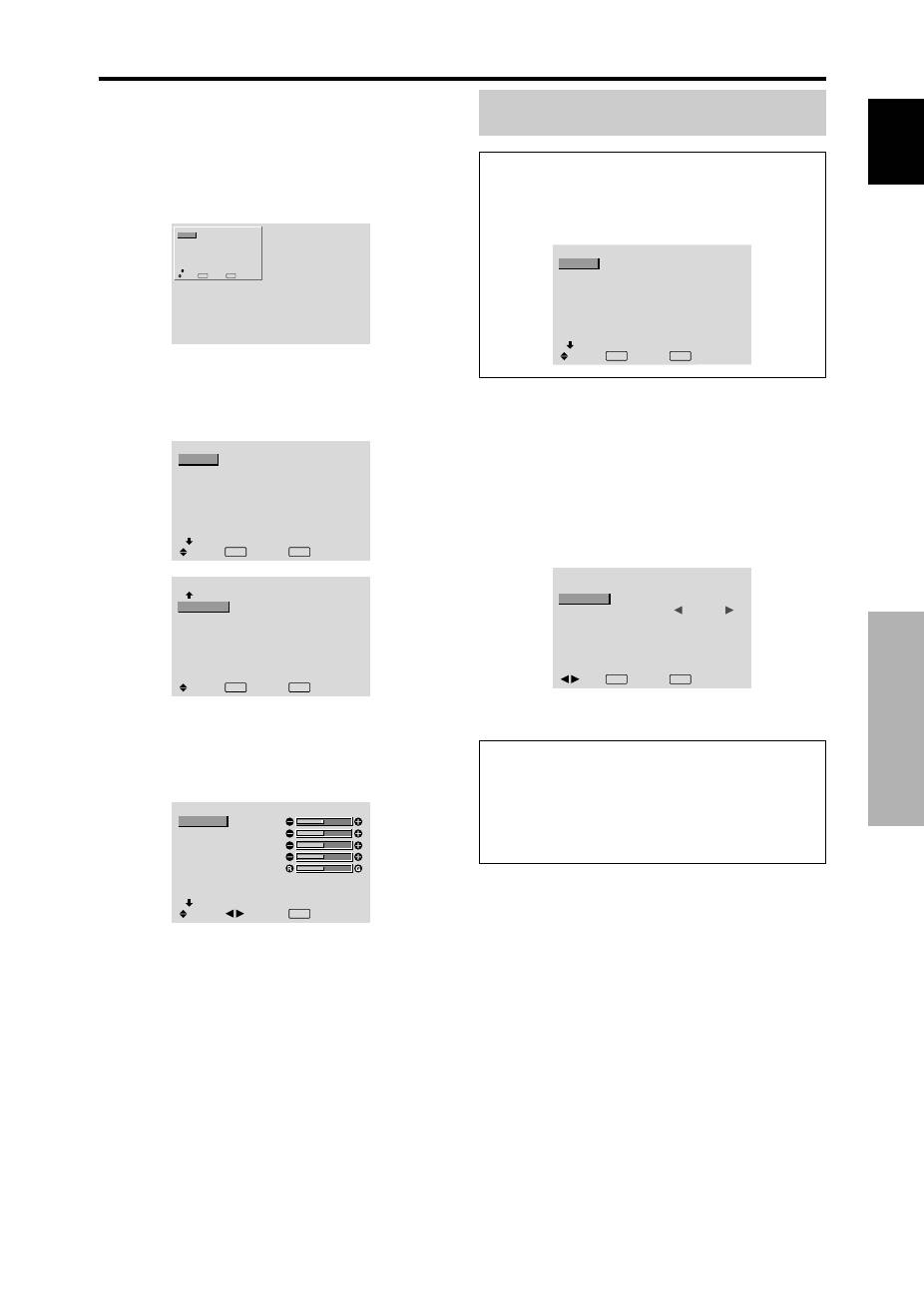
The menu display can be set to one of seven languages.
Example: Setting the menu display to “DEUTSCH”
On “MAIN MENU”, select “LANGUAGE”, then press the
MENU/SET button.
The “LANGUAGE” screen appears.
On “LANGUAGE”, select “ DEUTSCH”, then press the
MENU/SET button.
LANGUAGE
LANGUAGE
:
DEUTSCH
EXIT RETURN
OK
MENU
ADJ.
The “LANGUAGE” is set to “DEUTSCH” and return to the
main menu.
Information
Language settings
ENGLISH ........
English
DEUTSCH .......
German
FRANÇAIS ......
French
ESPAÑOL .......
Spanish
ITALIANO ........
Italian
SVENSKA .......
Swedish
У ............
Russian
