
Asus WL-169gE: Windows XP Wireless Options
Windows XP Wireless Options: Asus WL-169gE
Table of contents
- Installation Procedures Installing the WLAN utilities and driver Reading the WLAN status indicators
- One Touch Wizard
- Conguring with the WLAN utility (Infrastructure)
- Conguring with the WLAN utility (Ad Hoc)
- ASUS WLAN Control Center
- Quick Start Guide
- ASUS Wireless Settings Utility Status - Status
- Quick Start Guide
- Quick Start Guide Status - Connection
- Status - IP Cong Status - Ping
- Cong - Basic
- Cong - Advanced
- Quick Start Guide
- Cong - Encryption
- Quick Start Guide Data encryption
- Cong - Authentication
- Survey - Site Survey
- Link State
- Windows XP Wireless Options
- Quick Start Guide
Quick Start Guide
®
Windows
XP Wireless Options
English
®
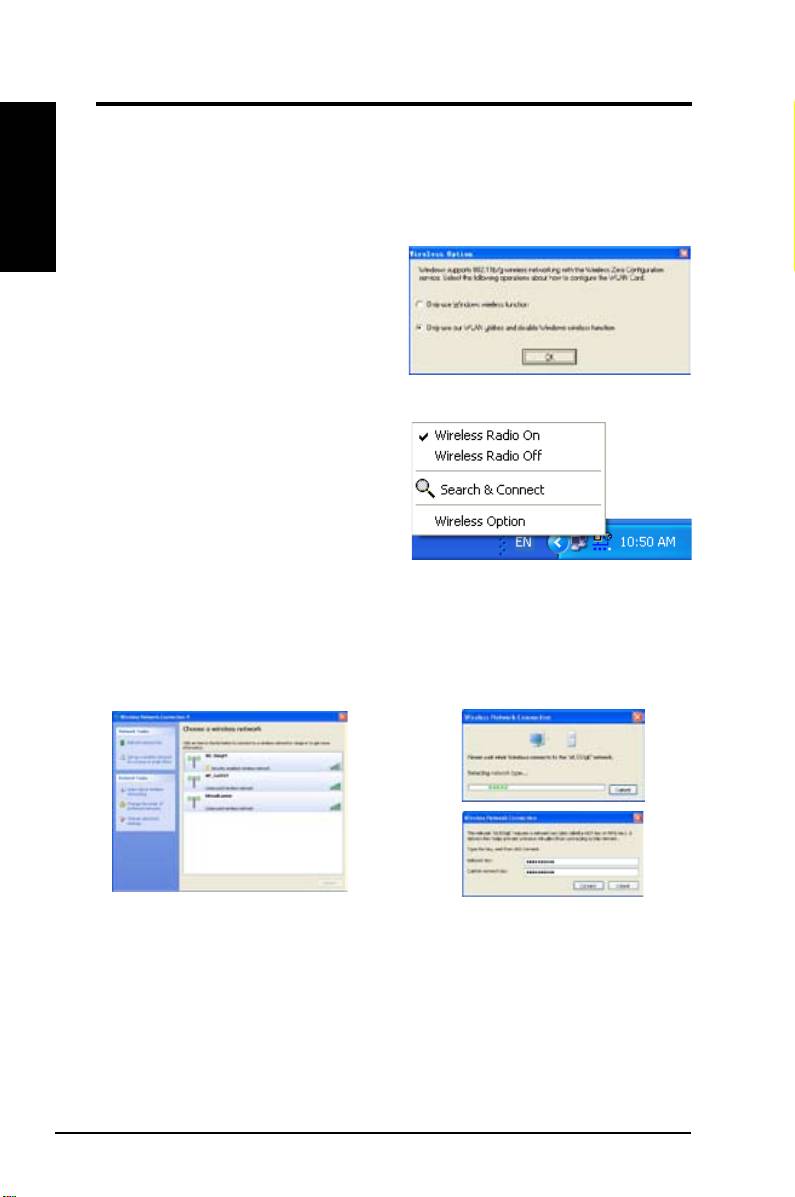
The wireless options window shown below is only available for Windows
XP.
It appears when you run the Control Center utility at the rst time. Select the
utility you want to use for conguring your WLAN Card.
Only use Windows wireless function
®
–
Only use Windows
XP Wireless
Zero Conguration service to congure
the WLAN Card.
Only use our WLAN utilities and
disable XP wireless function
–
Only use ASUS WLAN utilities to congure the WLAN Card. (recommended)
You c a n open the Wireless
Option setting window at any
time by left-clicking the control
center
icon and choosing
Wireless
Option
.
Taskbar LeftClick Menu
®
Conguring with Windows
Wireless Zero Conguration service
®
If you want to configure your WLAN Card via Windows
Wireless Zero
Conguration (WZC) service, follow the instruction below to make the settings.
1. Double-click the wireless network
2. A window prompts out asking
icon on the task bar to view available
you for the key if you have set up
networks.Select the AP and click
encryption on your wireless router,
Connect
.
input the keys and click
Connect
.
The connection is complete.
20 ASUS WLAN Card
