
Asus RT-N66U (VER.B1): instruction
Class: Household, kitchen appliances, electronics and equipment
Type:
Manual for Asus RT-N66U (VER.B1)
Table of contents
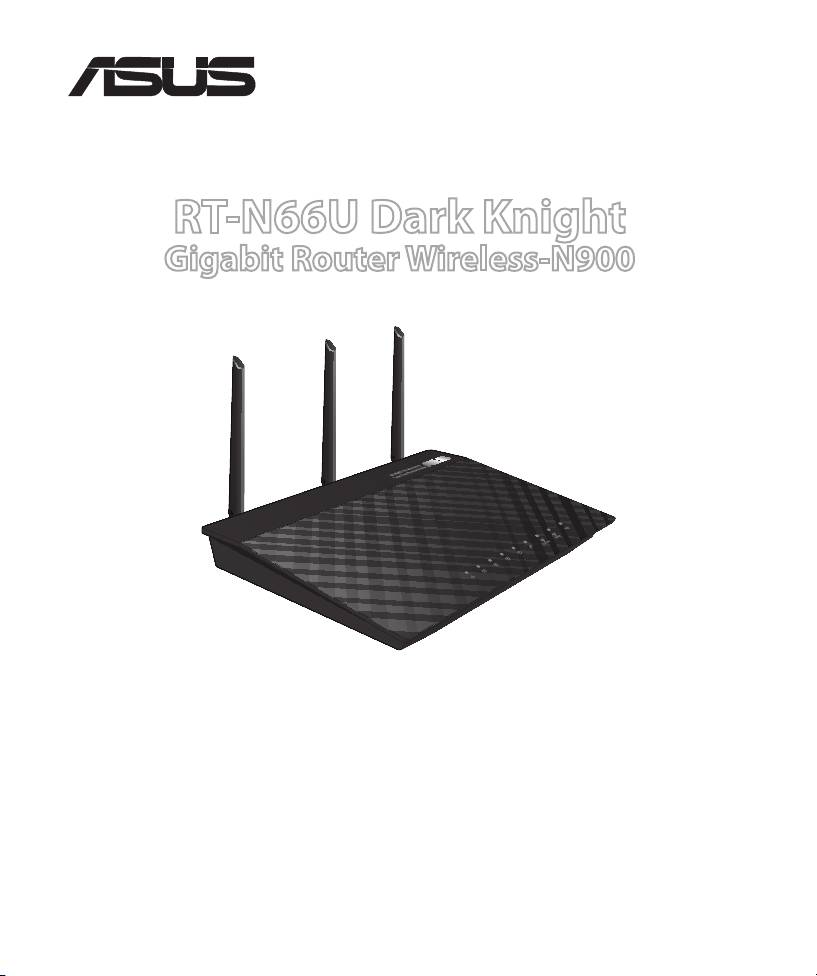
RT-N66U Dark Knight
Gigabit Router Wireless-N900
Quick Start Guide
®
WEU6842 / Second Edition / November 2011

EC Declaration of Conformity
We, the undersigned,
Manufacturer:
ASUSTek COMPUTER INC.
Address, City:
No. 150, LI-TE RD., PEITOU, TAIPEI 112, TAIWAN R.O.C.
Country:
TAIWAN
Authorized representative in Europe:
ASUS COMPUTER GmbH
Address, City: HARKORT STR. 21-23, 40880 RATINGEN
Country:
GERMANY
declare the following apparatus:
Product name : Dark Knight Double 450Mbps Dual N Band Router
Model name : RT-N66U
conform with the essential requirements of the following directives:
2004/108/EC-EMC Directive
EN 55022:2006+A1:2007 Class B
EN 55024:1998+A1:2001+A2:2003
EN 61000-3-2:2006+A2:2009 Class A
EN 61000-3-3:2008
1999/5/EC-R &TTE Directive
EN 300 328 V1.7.1(2006-10)
EN 301 489-1 V1.8.1(2008-04)
EN 301 893 V1.5.1(2008-12)
EN 301 489-17 V2.1.1(2009-05)
EN 62311:2008
2006/95/EC-LVD Directive
EN 60950-1:2006
EN 60065:2002+A1:2006+A11:2008
EN 60950-1:2006+A11:2009
2009/125/EC-ErP Directive
Regulation (EC) No. 1275/2008
Regulation (EC) No. 278/2009
EN 62301:2005
EN 62301:2005
Regulation (EC) No. 642/2009
EN 62301:2005
Ver. 110101
CE marking
Declaration Date: Nov. 30, 2011
Year to begin affixing CE marking:2011
Position : CEO
Name : Jerry Shen
Signature : __________
(
E
C co
nf
o
rmit
y
m
a
rkin
g)
Table of contents
English .............................................................................................6
Nederlands
....................................................................................19
Suomi
...............................................................................................32
Français
...........................................................................................45
Deutsch
...........................................................................................58
Norsk
................................................................................................71
Dansk
...............................................................................................83
Svenska
...........................................................................................97
Ελληνικά
..........................................................................................110
Italiano
............................................................................................123
Português
.......................................................................................136
Español
............................................................................................149
Русский
...........................................................................................162
NOTE
•
For more details, refer to the user manual included in the support
CD.
• Für weitere Details beziehen Sie sich auf das Handbuch auf derFür weitere Details beziehen Sie sich auf das Handbuch auf der
Support-CD.
• Katso lisätietoja tuki-CD-levyllä olevasta käyttöoppaasta.
• Pour plus de détails, consultez le manuel de l'utilisateur contenuPour plus de détails, consultez le manuel de l'utilisateur contenu
dans le CD de support.
• Für weitere Details beziehen Sie sich auf das Handbuch auf der
Support-CD.
• For mer detaljert informasjon, se brukerveiledningen som fulgte
med på støtte CD-en.
• For yderligere oplysninger herom, bedes du venligst se i
brugervejledningen på den medfulgte cd.

• För ytterligare detaljer, se bruksanvisningen på support-CD:
n.
• Για περισσότερε λεπτοέρειε, ανατρέξτε στο εγχειρίδιο
χρήστη που περιλαβάνεται στο CD υποστήριξη.
• Per approfondimenti. consultare il manuale utente nel CD
di supporto.
• Para mais detalhes, consulte o manual do utilizador
incluído no CD de suporte.
• Para obtener más detalles, consulte el manual del usuario
incluido en el CD de soporte.
•
Для получения подробной информации. обратитесь к
руководству пользователя на компакт-диске.
English
Package contents
RT-N66U AC adapter
Network cable Quick Start Guide
Support CD (User Manual/utilities) Warranty card
Stand
NOTE: If any of the items is damaged or missing, contact your retailer.
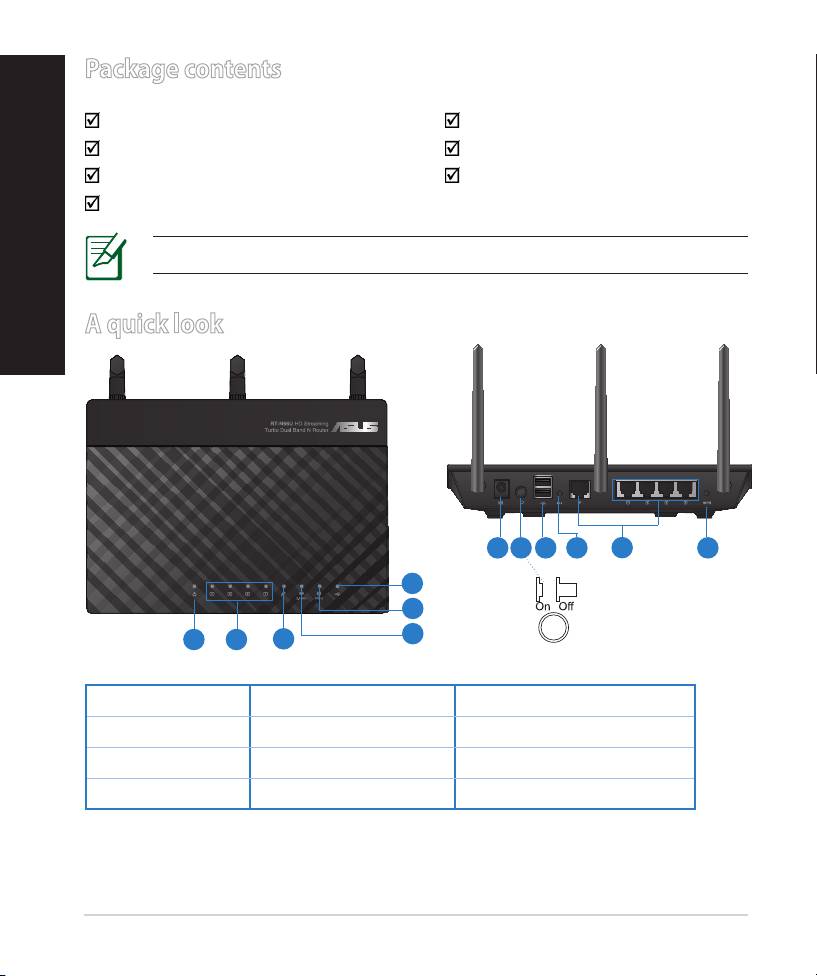
A quick look
7 9 10 12
8
11
6
5
4
1 2
3
1) Power LED 5) 5GHz LED 9) USB 2.0 ports
2) LAN LED 6) USB 2.0 LED 10) Reset button
3) WAN LED 7) Power (DC-In) port 11) Internet & LAN ports
4) 2.4GHz LED 8) Power switch 12) WPS button
6
NOTES:
• USB External HDD/Flash disk:
• The wireless router works with most USB HDDs/Flash disks up to
2TB and supports read-write access for FAT16, FAT32, EXT2, EXT3,
and NTFS.
• To safely remove the USB disk, launch the web GUI
(http://192.168.1.1), then in the Network Map page's upper right
corner, click the USB icon and click Eject USB 1.
English
• Incorrect removal of the USB disk may cause data corruption.
• For the list of le system and hard disk partitions that the
wireless router supports, visit http://event.asus.com/networks/
disksupport
• For the list of printers that the wireless router supports, visit
http://event.asus.com/networks/printersupport
7
English
Positioning your wireless router
For the best wireless signal transmission between the wireless router and the
network devices connected to it, ensure that you:
• Place the wireless router in a centralized area for a maximum wireless coverage
for the network devices.
• Keep the device away from metal obstructions and away from direct sunlight.
• Keep the device away from 802.11g or 20MHz only Wi-Fi devices, 2.4GHz
computer peripherals, Bluetooth devices, cordless phones, transformers,
heavy-duty motors, uorescent lights, microwave ovens, refrigerators, and other
industrial equipment to prevent signal interference or loss.
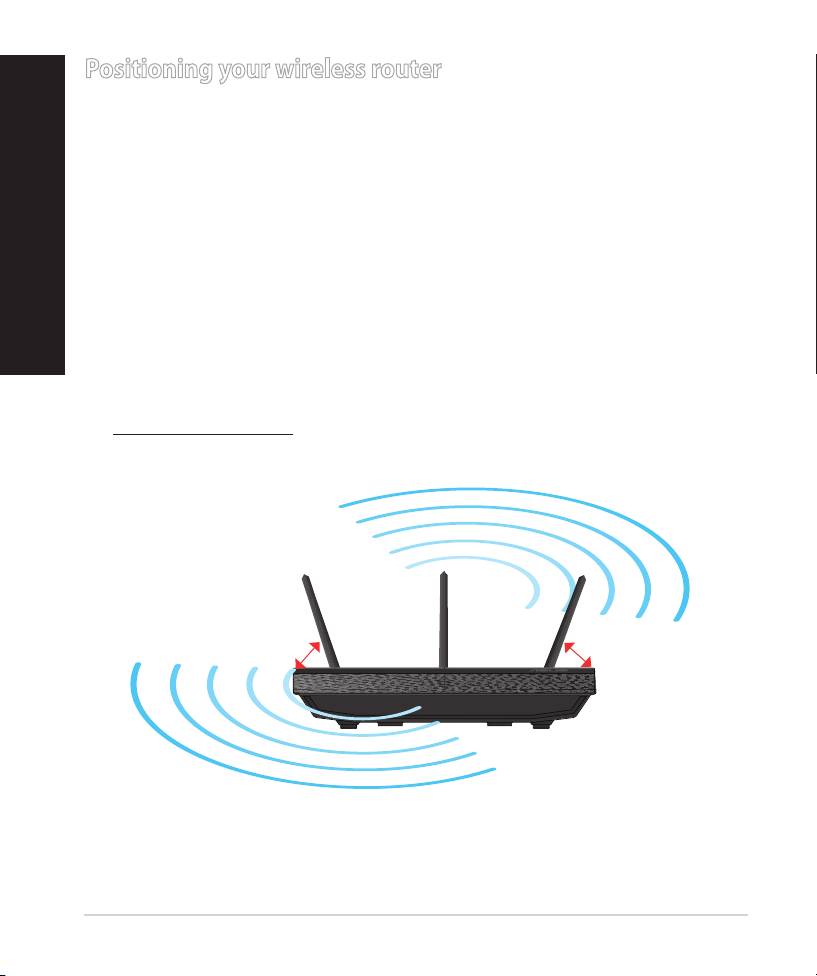
• To ensure the best wireless signal, orient the three detachable antennas as
shown in the drawing below.
• For optimum performance, adjust the internal cooling system. Refer to the user
manual for details.
• Always update to the latest rmware. Visit the ASUS website at
http://www.asus.com to get the latest rmware updates.
0
90
0
0
45
45
8
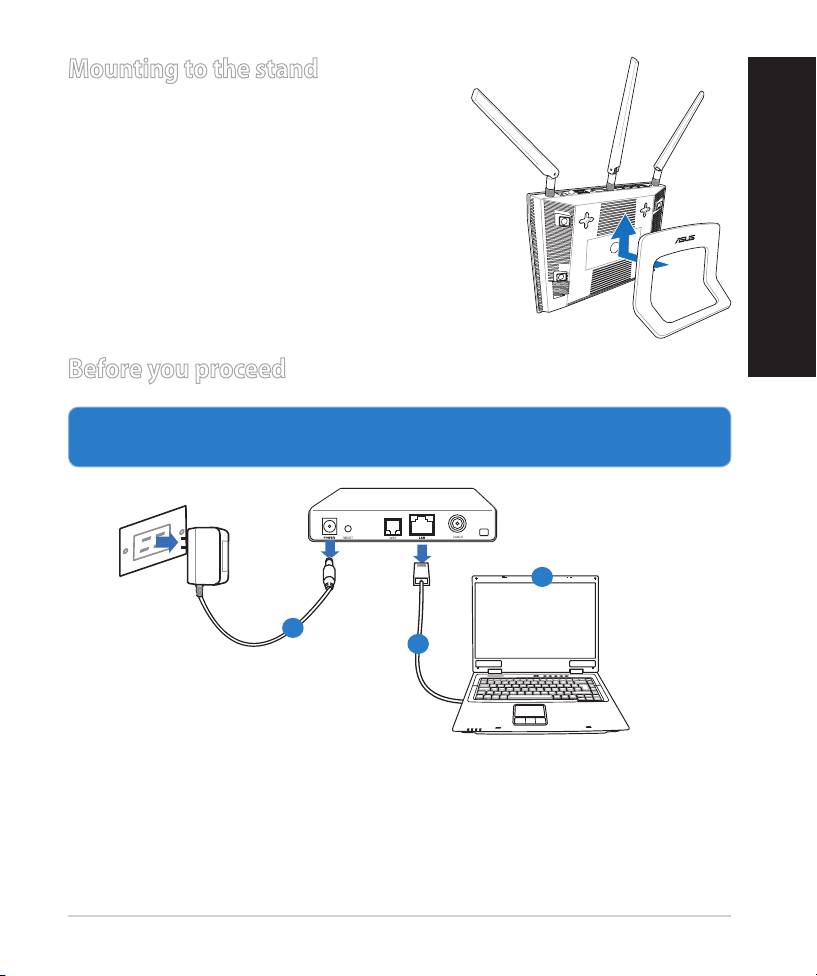
Mounting to the stand
• Align and insert the stand’s mounting hooks
to the wireless router’s mounting holes.
Before you proceed
1. Unplug and disconnect the wires/cables from your existing modem setup
and release your computer’s outmoded IP address.
a:
Unplug the AC adapter from the power outlet and disconnect it from your
cable/ADSL modem.
b: Disconnect the network cable from your cable/ADSL modem.
c: Reboot your computer (recommended).
9
Modem
OFF!
English
c
a
b
WARNING! Before disconnecting the wires/cables, ensure that your
cable/ADSL modem has been turned o for at least two minutes. If your
modem has a backup battery, remove it as well.
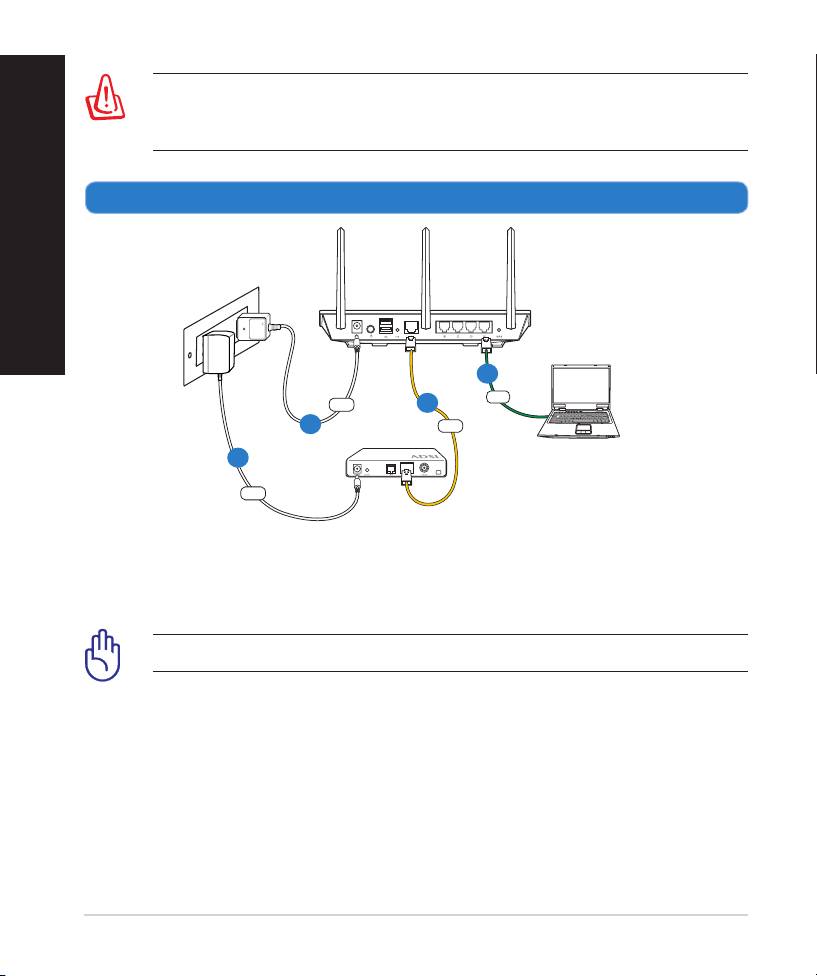
2. Set up your wireless environment.
10
Wall Power Outlet
RT-N66U
LAN
Power
WAN
Modem
Computer
Power
English
b
c
a
d
a: Insert your wireless router’s AC adapter to the DC-In port and plug it to a
power outlet.
b: Using the bundled network cable, connect your computer to your wireless
router’s LAN port.
IMPORTANT! Ensure that the WAN and LAN LEDs are blinking.
c:
Using another network cable, connect your modem to your wireless router’s
WAN port.
d: Insert your modem’s AC adapter to the DC-In port and plug it to a power
outlet.
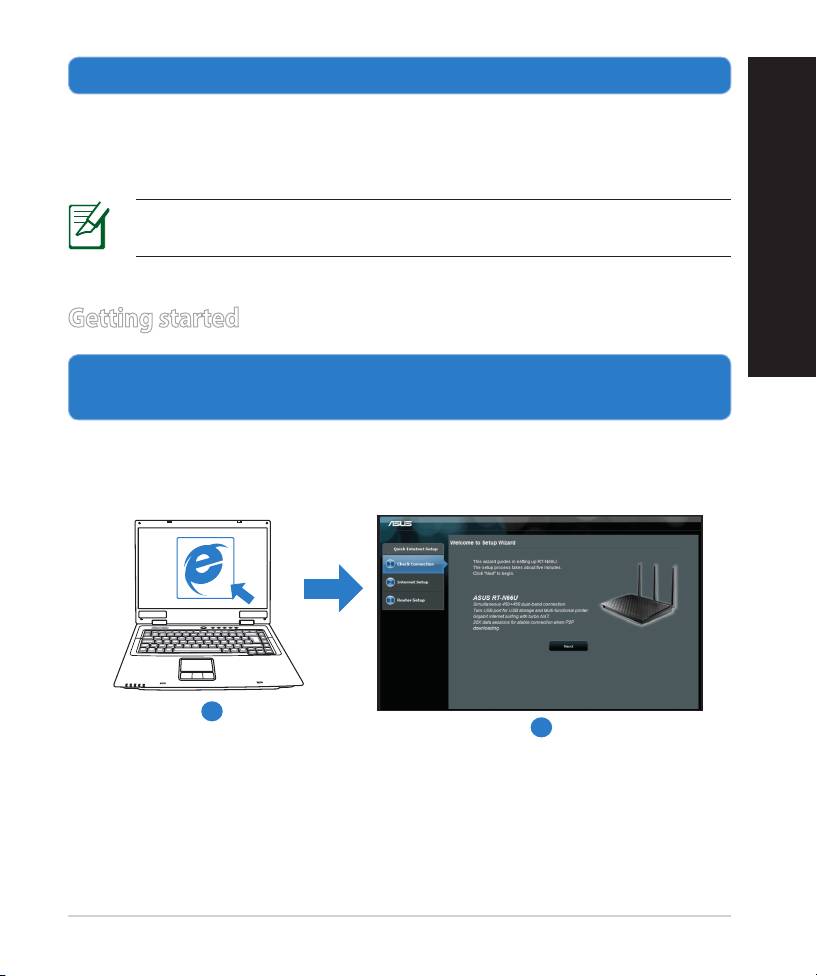
3. Disable some settings on your computer.
A. Disable the proxy server, if enabled.
B. Set the TCP/IP settings to automatically obtain an IP address.
C. Disable the dial-up connection, if enabled.
NOTE: For more details on disabling your computer settings, refer to
Frequently Asked Questions (FAQs).
English
Getting started
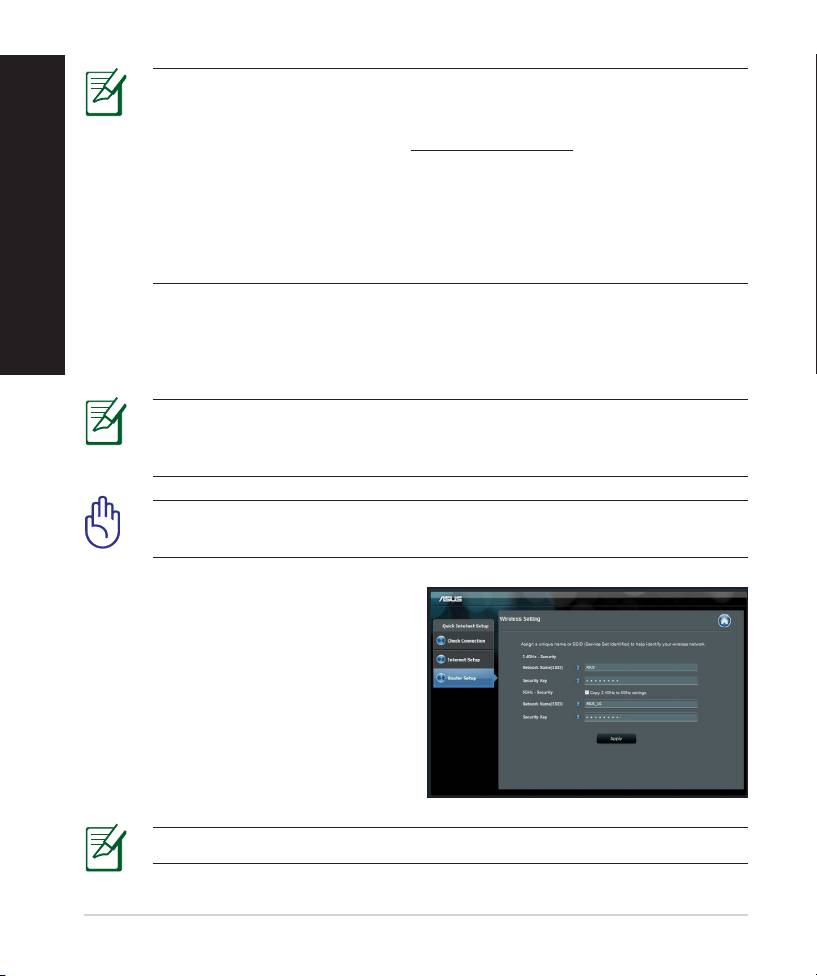
1. Congure your wireless settings via the wireless router’s web graphics
user interface (web GUI).
a: Launch your web browser such as Internet Explorer, Firefox, Google Chrome,
or Safari.
a
b
11
English
NOTE: If QIS does not launch automatically, follow these steps to
manually launch QIS:
• On your web browser, key in http://192.168.1.1 and run the Quick
Internet Setup (QIS) Wizard again.
• Disable the proxy settings, dial-up connection, and set your TCP/IP
settings to automatically obtain an IP address. For more details, refer
to the FAQs section or use the Setup Wizard in the support CD for
auto-diagnosis.
b: The wireless router’s Quick Internet Setup (QIS) feature automatically detects
if your ISP connection type is Dynamic IP, PPPoE, PPTP, L2TP, and Static IP.
Key in the necessary information for your connection type.
NOTE: The auto-detection of your ISP connection type takes place
when you congure the wireless router for the rst time or when your
wireless router is reset to its default settings.
IMPORTANT! Obtain the necessary information about your Internet
connection type from your Internet Service Provider (ISP).
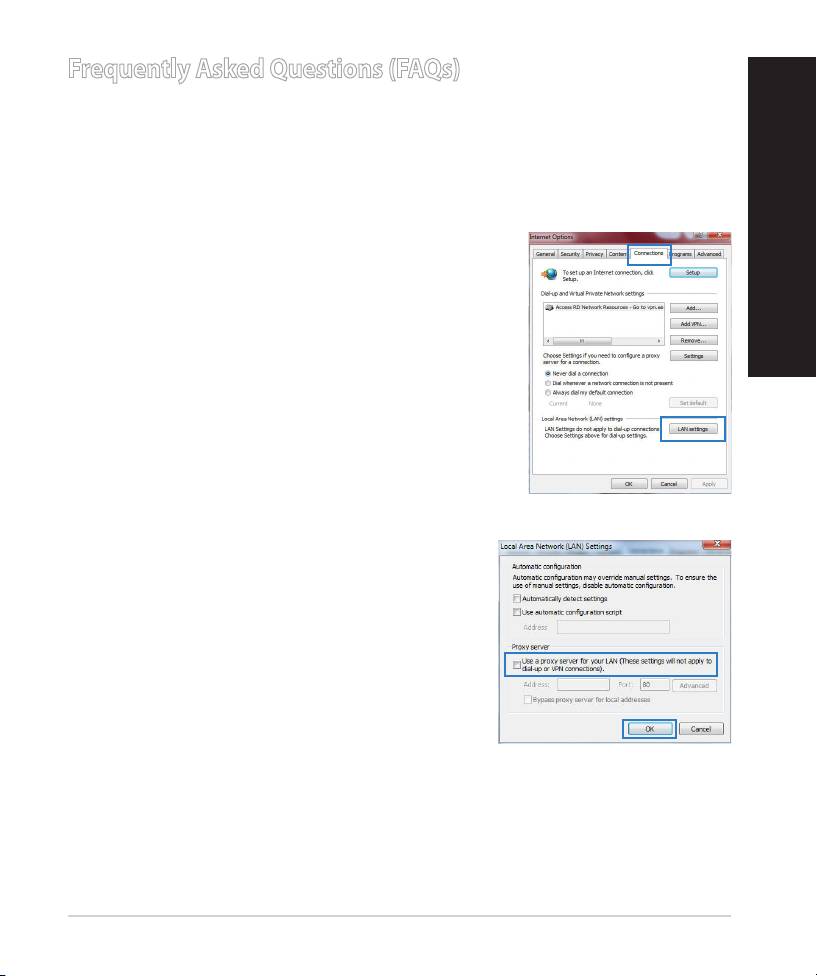
c: Assign the network name (SSID) and
security key for your 2.4GHz and
5GHz wireless connection. Click Ap-
ply when done.
d: Your Internet and wireless settings
are displayed. Click Next to con-
tinue.
e: Read the wireless network con-
nection tutorial. When done, click
Finish.
NOTE: You can assign a network name with up to 32 characters.
12
Frequently Asked Questions (FAQs)
After following the steps, I still cannot access the wireless router’s web
graphics user interface (web GUI) to congure the wireless router settings.
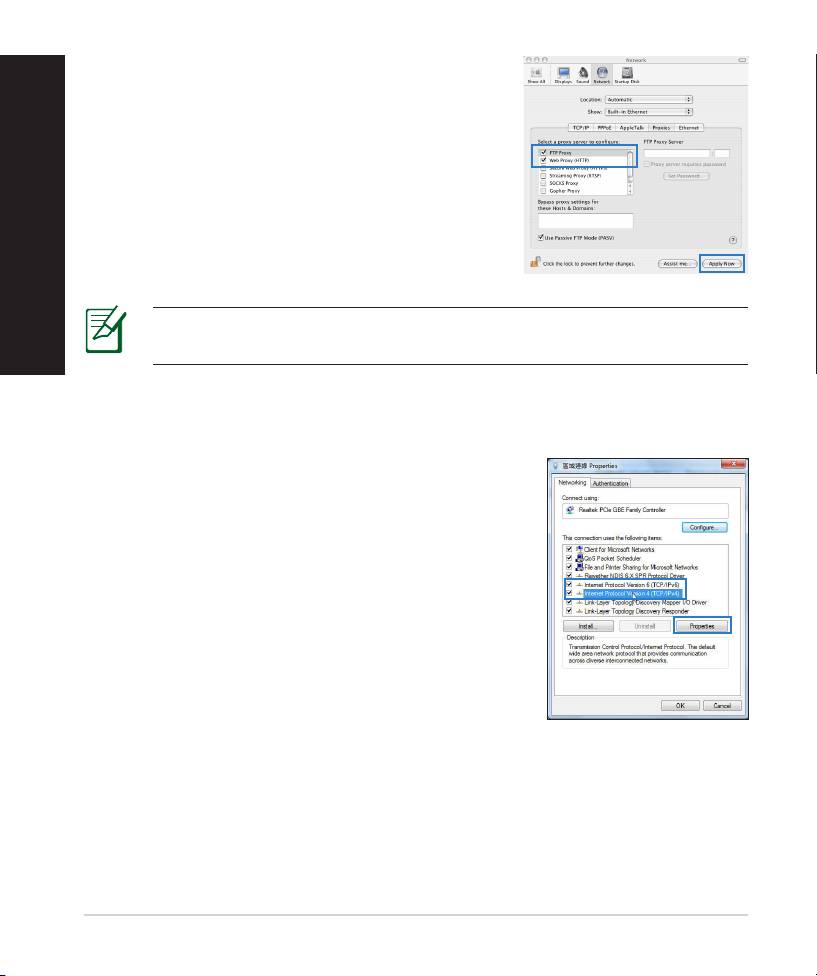
A. Disable the proxy server, if enabled.
Windows® 7
1. Click Start > Internet Explorer to launch the web
browser.
2. Click Tools > Internet options > Connections tab
English
> LAN settings.
3. From the Local Area Network (LAN) Settings
screen, untick Use a proxy server for your
LAN.
4. Click OK when done.
13
MAC OS
English
1. From your Safari browser, click Safari > Prefer-
ences > Advanced > Change Settings...
2. From the Network screen, deselect FTP Proxy
and Web Proxy (HTTP).
3. Cllick Apply Now when done.
NOTE: Refer to your browser's help feature for details on disabling the
proxy server.
B. Set the TCP/IP settings to automatically obtain an IP address.
Windows® 7
1. Click Start > Control Panel > Network and
Internet > Network and Sharing Center >
Manage network connections.
2. Select Internet Protocol Version 4 (TCP/IPv4),
then click Properties.
14
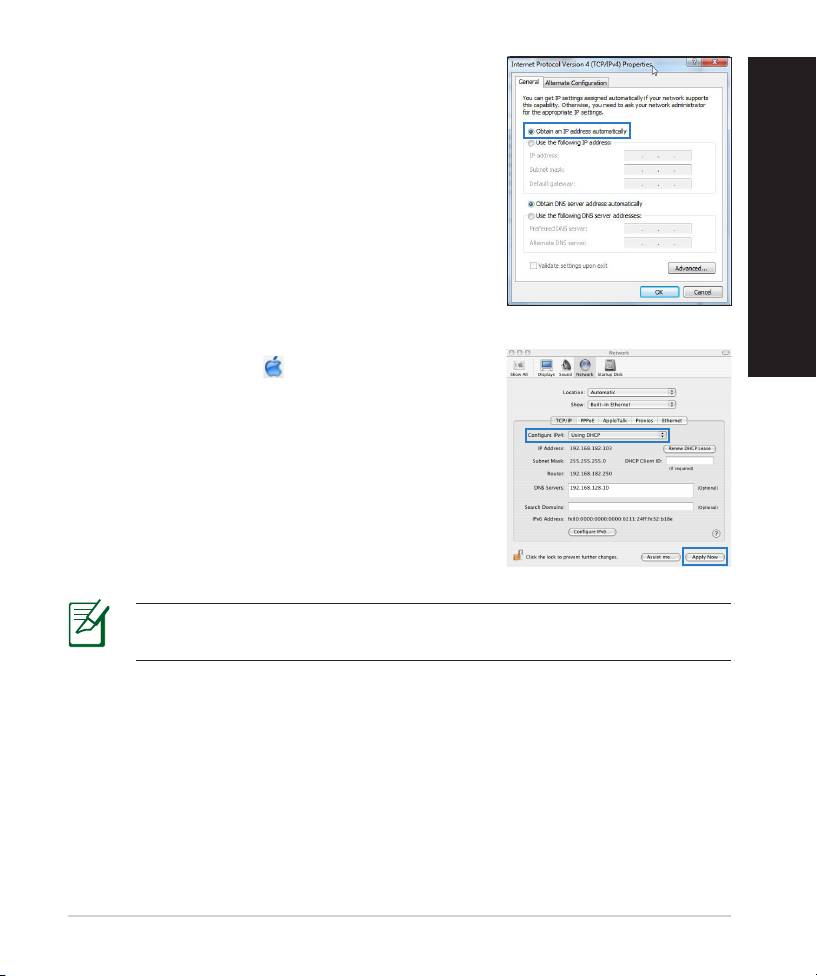
3. To obtain the iPv4 IP settings automatically, tick
Obtain an IP address automatically.
4. Click OK when done.
English
MAC OS
1. Click the Apple icon located on the top left of
your screen.
2. Click System Preferences > Network >
Congure...
3. From the TCP/IP tab, select Using DHCP in the
Congure IPv4 dropdown list.
4. Cllick Apply Now when done.
NOTE: Refer to your operating system’s help and support feature for
details on conguring your computer’s TCP/IP settings.
15
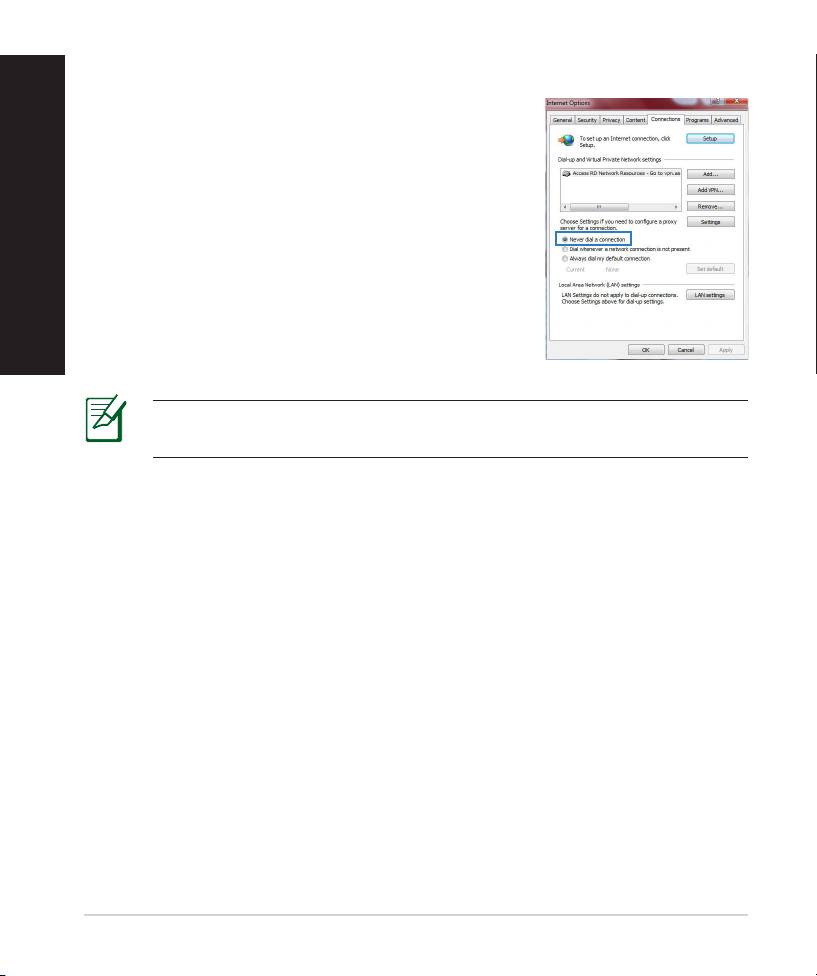
C. Disable the dial-up connection, if enabled.
English
Windows® 7
1. Click Start > Internet Explorer to launch the
browser.
2. Click Tools > Internet options > Connections tab.
3. Tick Never dial a connection.
4. Click OK when done.
NOTE: Refer to your browser's help feature for details on disabling
the dial-up connection settings.
D. Close all running web browsers.
The client cannot establish a wireless connection with the router.
Out of Range:
• Put the router closer to the wireless client.
• Try to change the channel settings.
Authentication:
• Use wired connection to connect to the router.
• Check the wireless security settings.
• Press the Reset button at the rear panel for more than ve seconds.
16
Cannot nd the router:
• Press the Reset button at the rear panel for more than ve seconds.
• Check the setting in the wireless adapter such as SSID and encryption
settings.
Cannot access the Internet via wireless LAN adapter.
• Move the router closer to the wireless client.
• Check whether the wireless adapter is connected to the correct wireless
router.
• Check whether the wireless channel in use conforms to the channels avail-
English
able in your country/area.
• Check the encryption settings.
• Check if the ADSL or Cable connection is correct.
• Retry using another Ethernet cable.
If the ADSL “LINK” light blinks continuously or stays o, Internet access is
not possible - the Router is unable to establish a connection with the ADSL
network.
• Ensure that all your cables are all properly connected .
• Disconnect the power cord from the ADSL or cable modem, wait a few min-
utes, then reconnect the cord.
• If the ADSL light continues to blink or stays OFF, contact your ADSL service
provider.
Network name or encryption keys are forgotten.
• Try setting up the wired connection and conguring the wireless encryption
again.
• Press the Reset button of the wireless router for more than ve seconds.
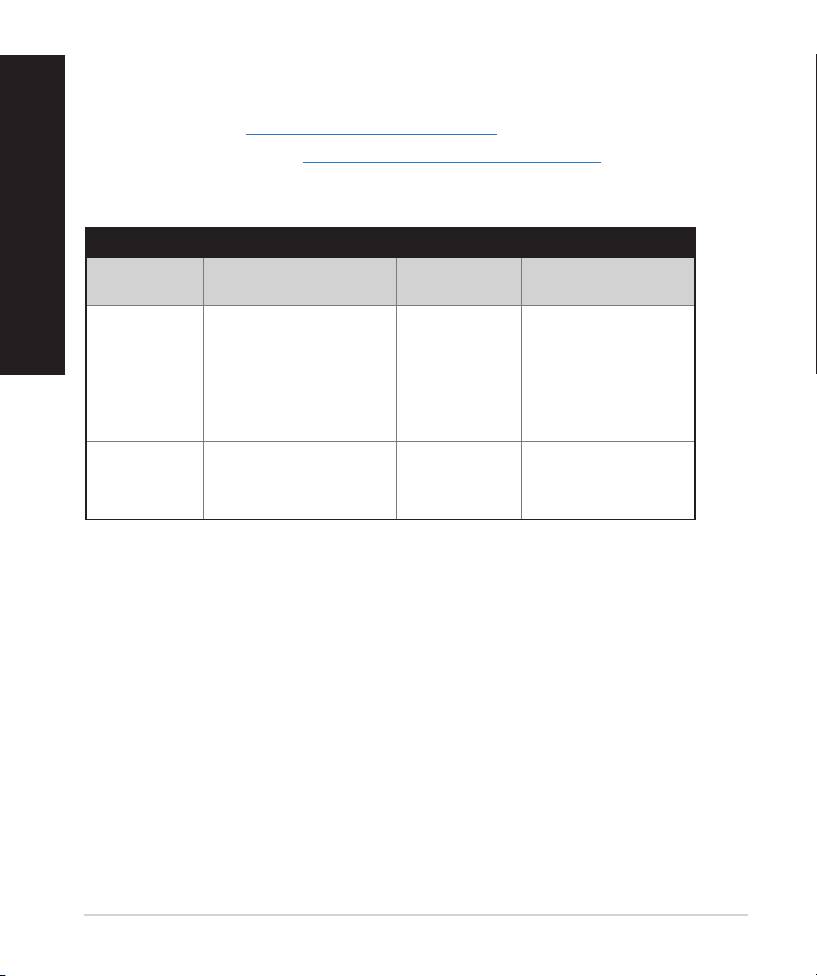
• Factory default settings:
User name / Password:
IP address:
SSID: ASUS
admin / admin
192.168.1.1
17
English
Where can I nd more information about the wireless router?
• User Manual in the support CD
• Online FAQ site: http://support.asus.com/faq
• Technical Support site: http://support.asus.com/techserv
• Customer Hotline: Refer to the Support Hotline in this Quick Start Guide
SUPPORT HOTLINE
Area Hotline Number Support
Availability
Languages
USA/
1-812-282-2787 English Mon. to Fri.
Canada
8:30-12:00am EST
(5:30am-9:00pm PST)
Sat. to Sun.
9:00am-6:00pm EST
(6:00am-3:00pm PST)
Brazil 4003 0988 (Capital) Português
Mon. to Fri.
9:00am-
18:00
0800 880 0988
(demais localidades)
18
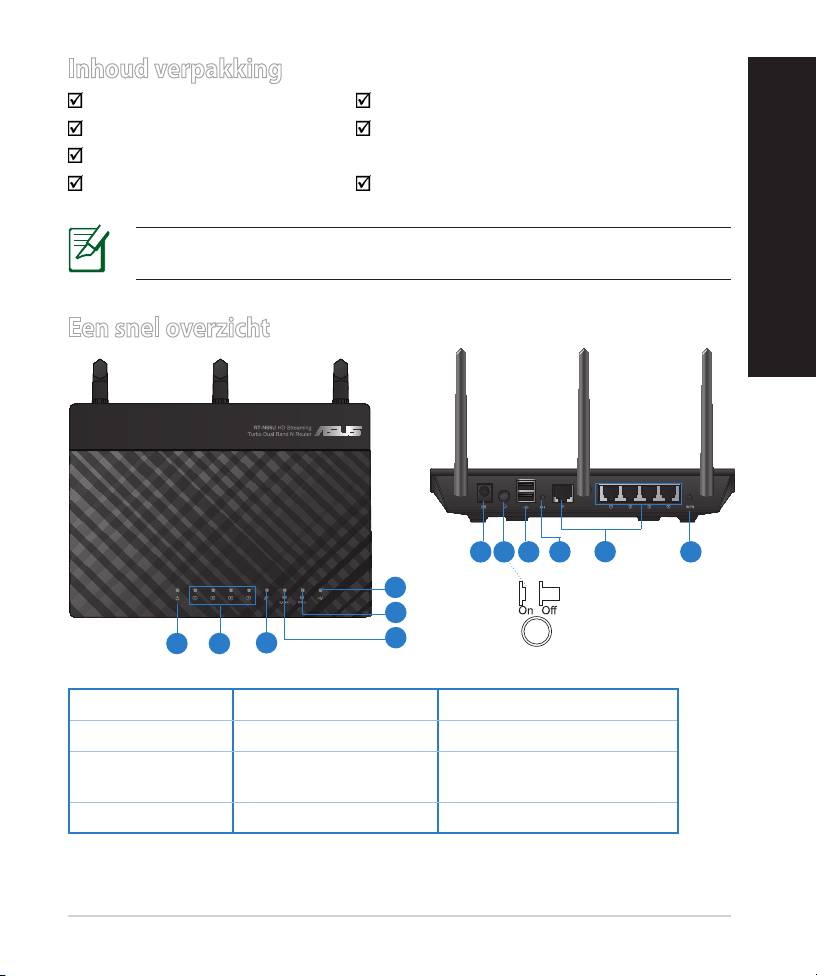
Inhoud verpakking
RT-N66U Wisselstroomadapter
Netwerkkabel Beknopte handleiding
Ondersteuningscd (handleiding, hulpprogramma's)
Garantiekaart Voetstuk
OPMERKING: als een van de items beschadigd is of ontbreekt, moet u contact
opnemen met uw leverancier.
Nederlands
Een snel overzicht
7 9 10 12
8
11
6
5
4
1 2
3
1) Voedings-LED 5) 5GHz LED 9) USB 2.0-poorten
2) LAN-LED 6) USB 2.0 LED 10) Reset-knop
7) Voedingsaansluit-
11) Internet- & LAN-
3) WAN-LED
ing (DC-In)
poorten
4) 2.4GHz LED 8) uit-schakelaar 12) WPS-knop
19
Nederlands
OPMERKINGEN:
• Extere USB-HDD/Flashdisk:
• De draadloze router werkt met de meeste USB-HDD’s/Flashdisks
tot 2TB en ondersteunt lees-schrijftoegang voor FAT16, FAT32,
EXT2, EXT3 en NTFS.
• Om de USB-disk veilig te verwijderen, start u de grasche
webinterface (http://192.168.1.1). Klik vervolgens in de
rechterbovenhoek van de pagina Network Map (Netwerkkaart)
op het USB-pictogram en klik daarna op Eject USB 1 (USB 1
uitwerpen).
• Wanneer u de USB-schijf op de verkeerde manier verwijdert, kan
dit uw gegevens beschadigen.
• De lijst van bestandssystemen en harde schijfpartities die de
draadloze router ondersteunt, vindt u op http://event.asus.com/
networks/disksupport
• De lijst van printers die de draadloze router ondersteunen, vindt u op
http://event.asus.com/networks/printersupport
20
