
Asus Xonar DX: instruction
Class: Professional equipment
Type:
Manual for Asus Xonar DX
Table of contents
- 1.1 Installation requirements
- 1.2 Card installation
- 1.3 Driver installation 1.3.1 Installing the Audio Card Driver
- 1.4 Connecting audio device 1.4.1 Back ports 1.4.2 Connecting analog speakers
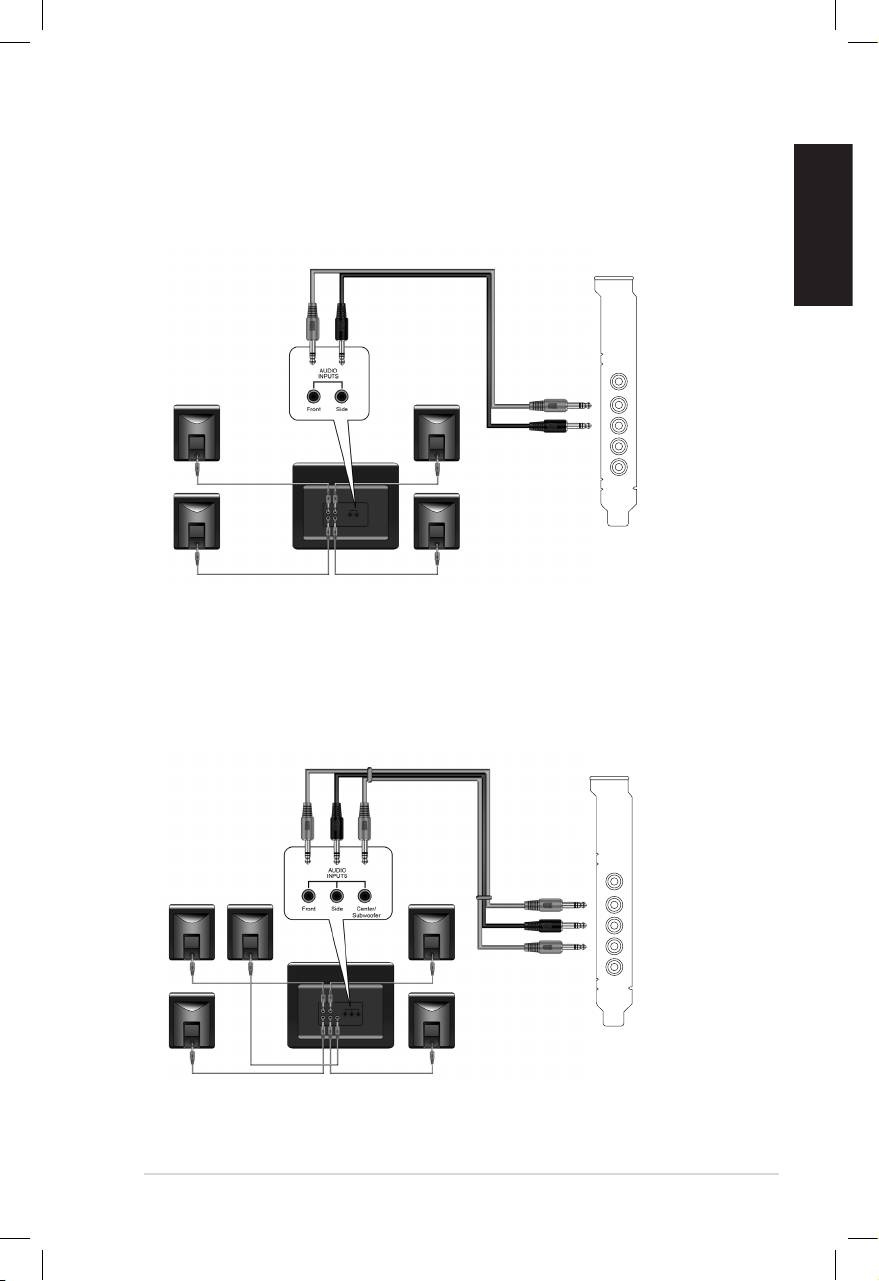
- 2.1 Speakers 4 Speakers
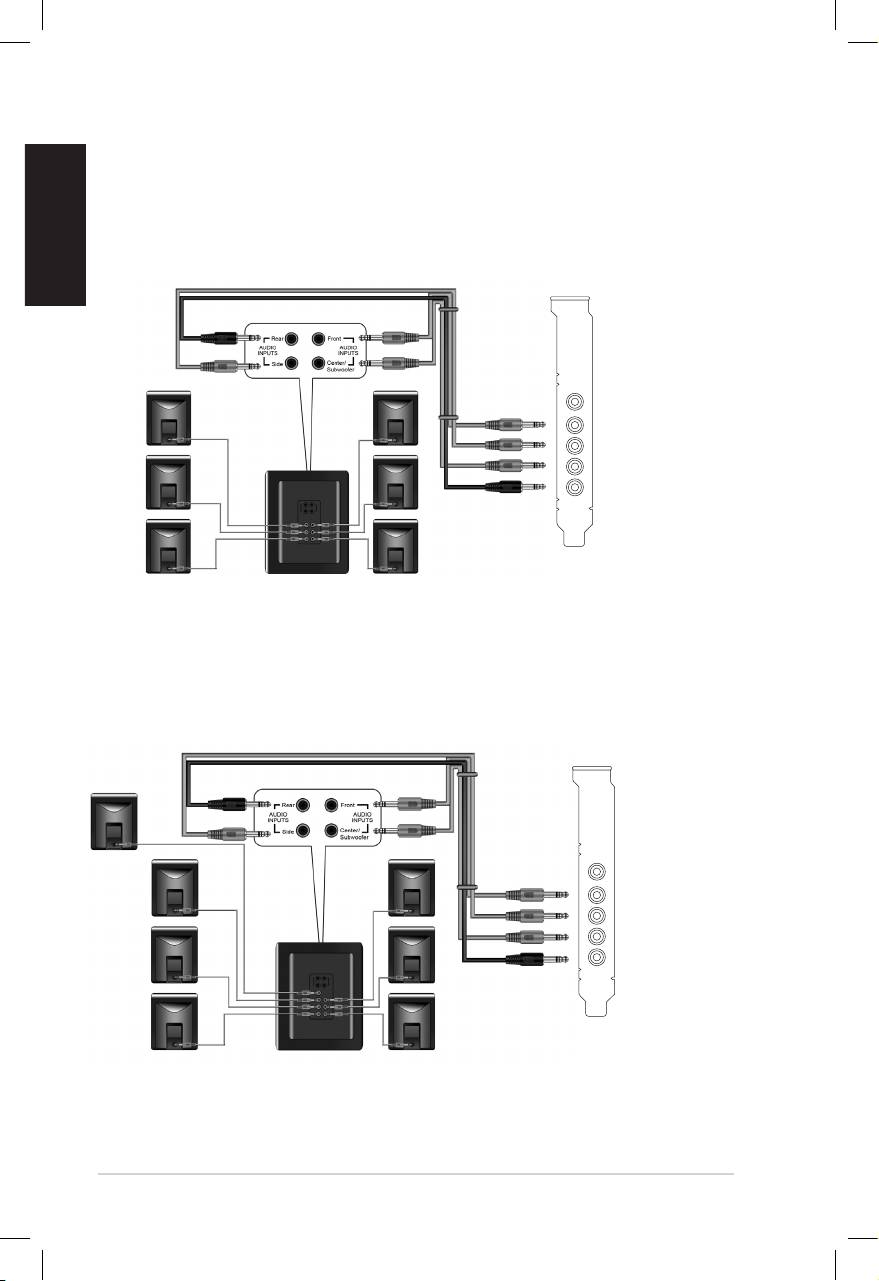
- 4.1 Speakers 5.1 Speakers
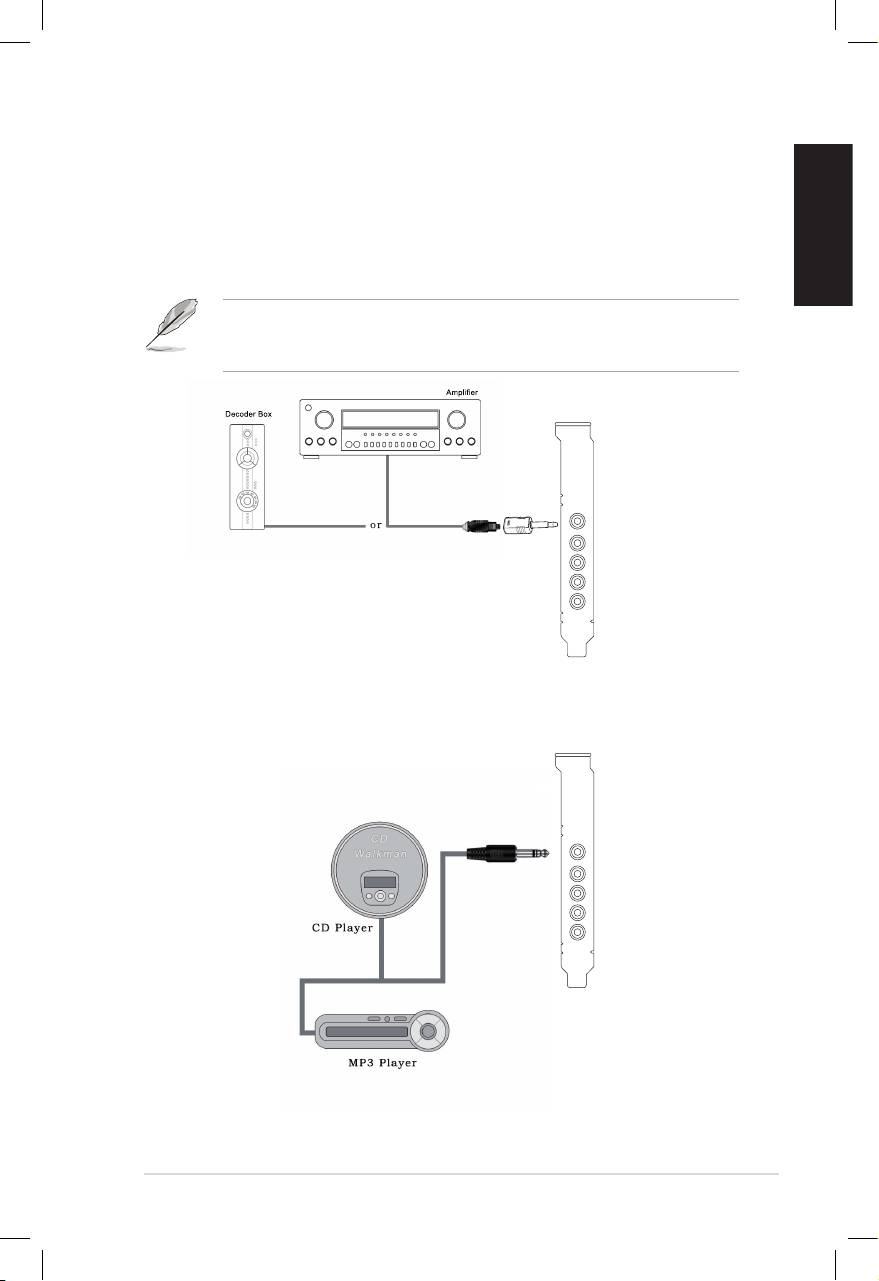
- 6.1 Speakers 7.1 Speakers
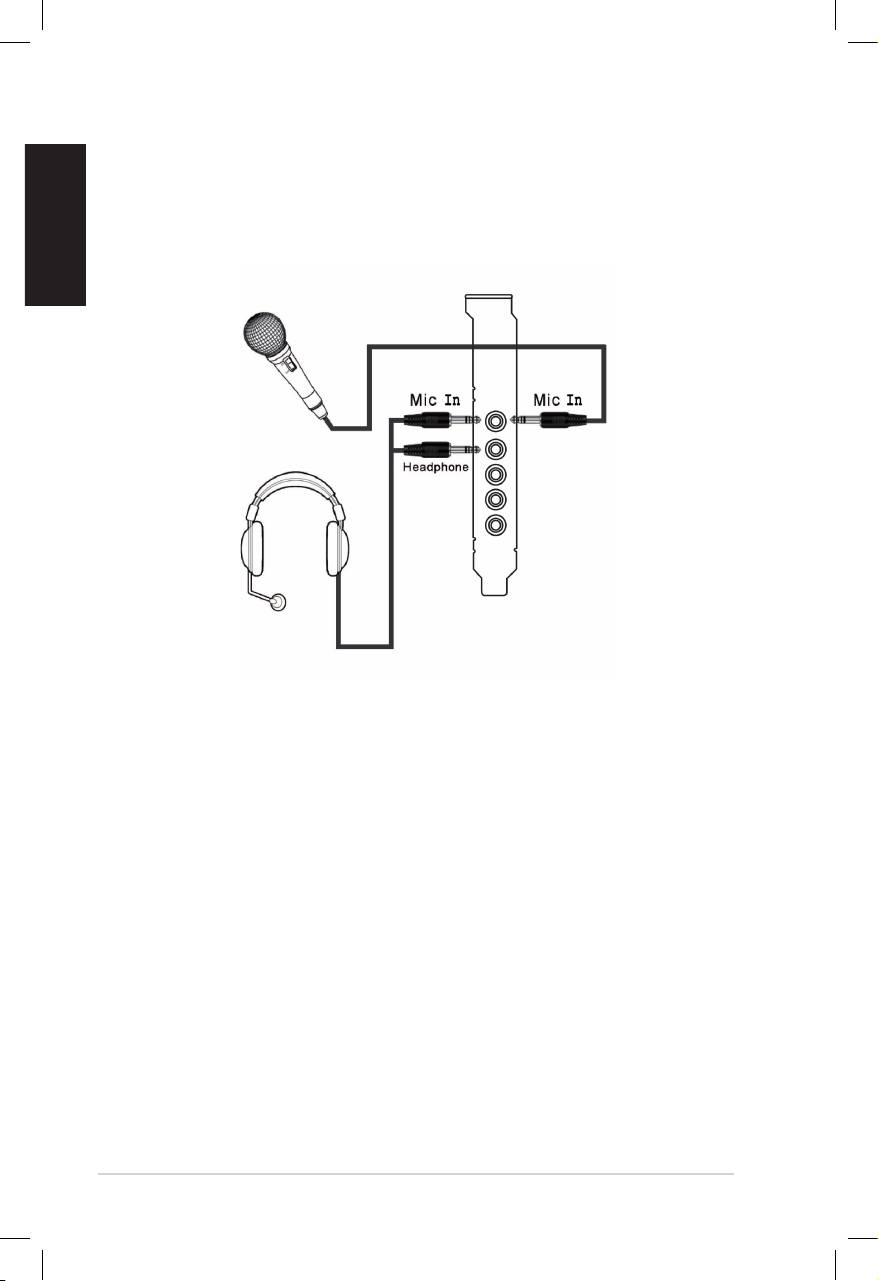
- 1.4.3 Connecting digital speakers 1.4.4 Connecting Line-In audio sources
- 1.4.5 Connecting headphone / microphone

Xonar DX
PCI Express Audio Card
Quick Installation Guide

English
2
ASUS Xonar DX Quick Installation Guide
1.1 Installation requirements
To ensure a successful installation of the Xonar DX audio card, your computer must
meet the following requirements:
• One PCI Express 1.0 (or higher) compatible slot for the audio card
• One available 4-pin power cable from PC’s power supply unit
®
®
• Microsoft
Windows
Vista/XP(32/64bit)/MCE2005
®
®
• Intel
Pentium
4 1.4GHz or AMD Athlon 1400 CPU or faster CPU
• > 256 MB DRAM system memory
• > 60 MB available HDD space for driver installation package; > 200MB space
available for Ableton Live and > 320MB for Cakewalk package
• CD-ROM drive (or DVD-ROM drive) for software installation
• High-quality headphones, powered analog speakers, or digital speakers with
Dolby Digital decoder to enjoy the Ultra-High Fidelity sounds of the card
Before the installation, check your ASUS Xonar DX audio card package for the
following items:
• ASUS Xonar DX audio card
• ASUS Xonar DX support CD (including Portable Music Processor™ Lite and
RMAA V6.0.6 utilities)
• Additionallow-prolebracket
• S/PDIF TOSLINK optical adaptor x1
• Quick Installation Guide
English
ASUS Xonar DX Quick Installation Guide
3
3
3
1.2 Card installation
To install the Xonar DX audio card:
1. Touch the metal back or side panel of the computer to avoid static electricity.
2. Power OFF the computer, the monitor, and all other peripheral devices
connected to your computer.
3. Unplug the computer power cord from your computer and power outlet.
4. Remove the chassis cover.
5. Locate an empty PCIE slot on the motherboard.
6. Connect the power cable of the power supply to the power connector on the
audio card.
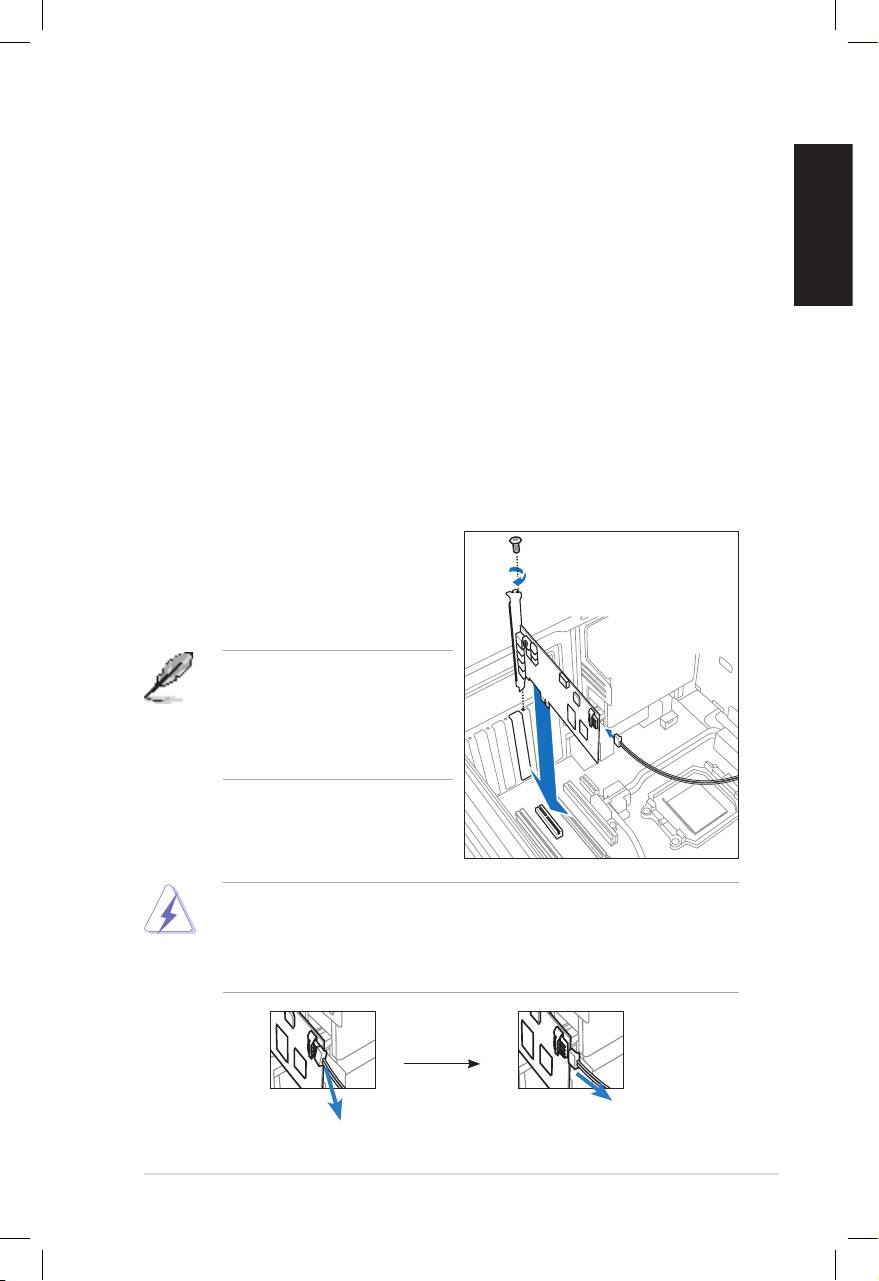
7. Align and insert the audio card into the PCIE slot until it seats in place. Make
surethegoldngersareproperlyinsertedtotheslot.
8. Secure the bracket screw that holds the audio card in place. Refer to the
picture below for the bracket screw hole.
9. Put back the chassis cover.
10. Reconnect all cables.
11. Plug the power cord to the computer
and to a power outlet.
12. Power ON the computer.
The PCI Express high-quality
audio card requires additional
power from your computer. If the
power cable is not connected
properly, the audio card will not
work at all.
When removing the power cable from the Xonar DX audio card, make sure to
pulloutwardthe4-pinheaderrst,thenunplugitfromthepowerconnectoras
the following pictures show. Do not forcefully remove the header from the power
connector; doing so may pull up the power connector from the audio card and
cause damage!
English
4
ASUS Xonar DX Quick Installation Guide
1.3 Driver installation
After installing the Xonar DX audio card on your computer, you need to install
the device driver that enables the Xonar DX audio card to work with Windows
operating system.
The version and content of the driver CD are subject to change without notice.
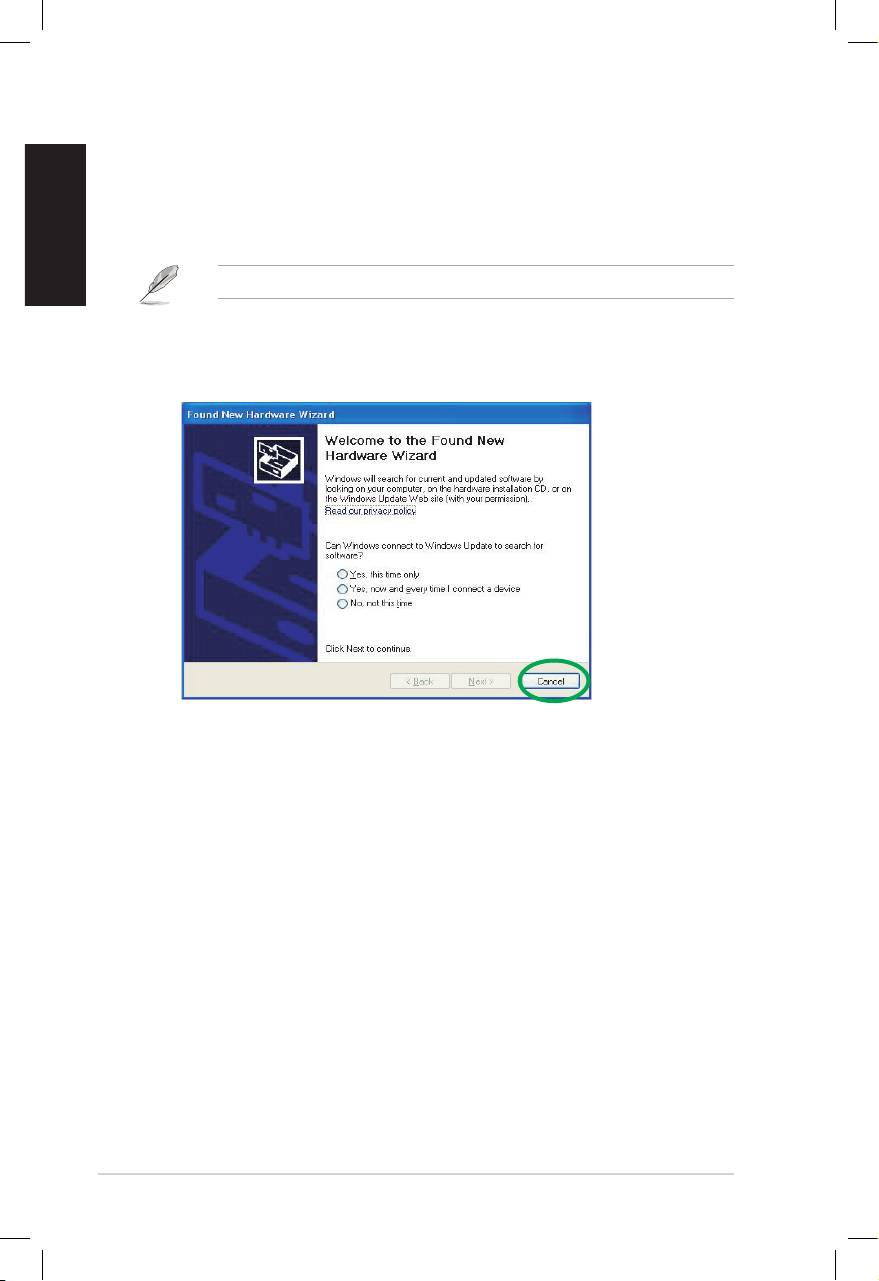
If you have already installed the ASUS Xonar DX audio card, the Found New
Hardware Wizard window may pop up before or during driver installation. See
gurebelow.
1.3.1 Installing the Audio Card Driver
To install the device driver:
1. Click Cancel from the Found New Hardware wizard window.
2. Insert the ASUS Xonar DX support CD into your optical drive.
If autorun is enabled, the ASUS Xonar Card Driver screen appears
automatically. Go to step 5.
If Autorun is not enabled in your computer, perform step 3.
3. Click My Computer on your desktop and double-click the optical drive icon.
4. Double-click the setup.exe icon located on the optical drive.
5. Follow the on-screen instructions to complete the installation. Read the “END
USER LICENSE AGREEMENT” in the process and make sure that you
understand and accept it before continuing the installation.
6. Whentheinstallationnishes,youmaybepromptedtorestartyourcomputer.
You can choose to restart the computer later if desired.
English
ASUS Xonar DX Quick Installation Guide
5
1.4 Connecting audio device
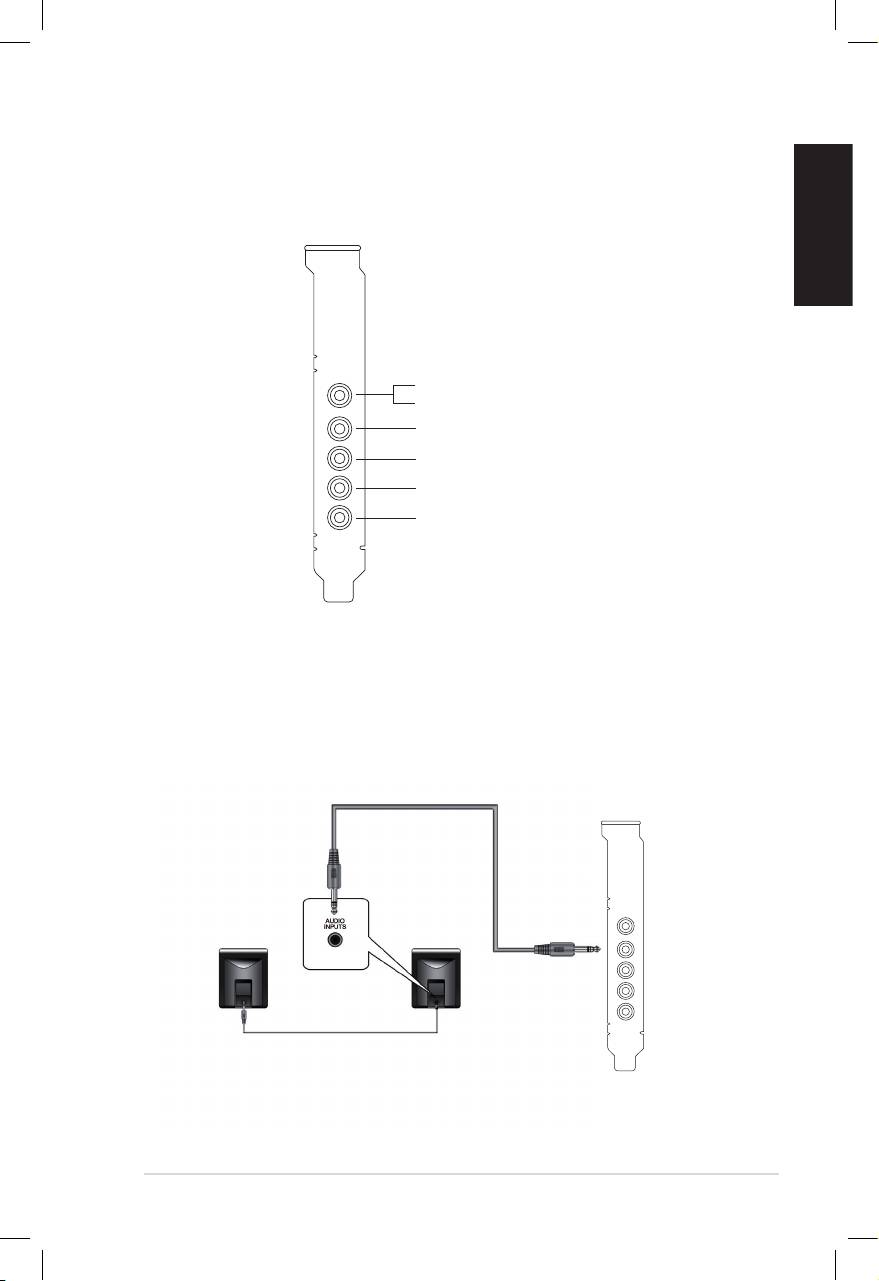
1.4.1 Back ports
SPDIF Out
Line / Mic In
Front Out
Side Surround
Center & Subwoofer
Back Surround
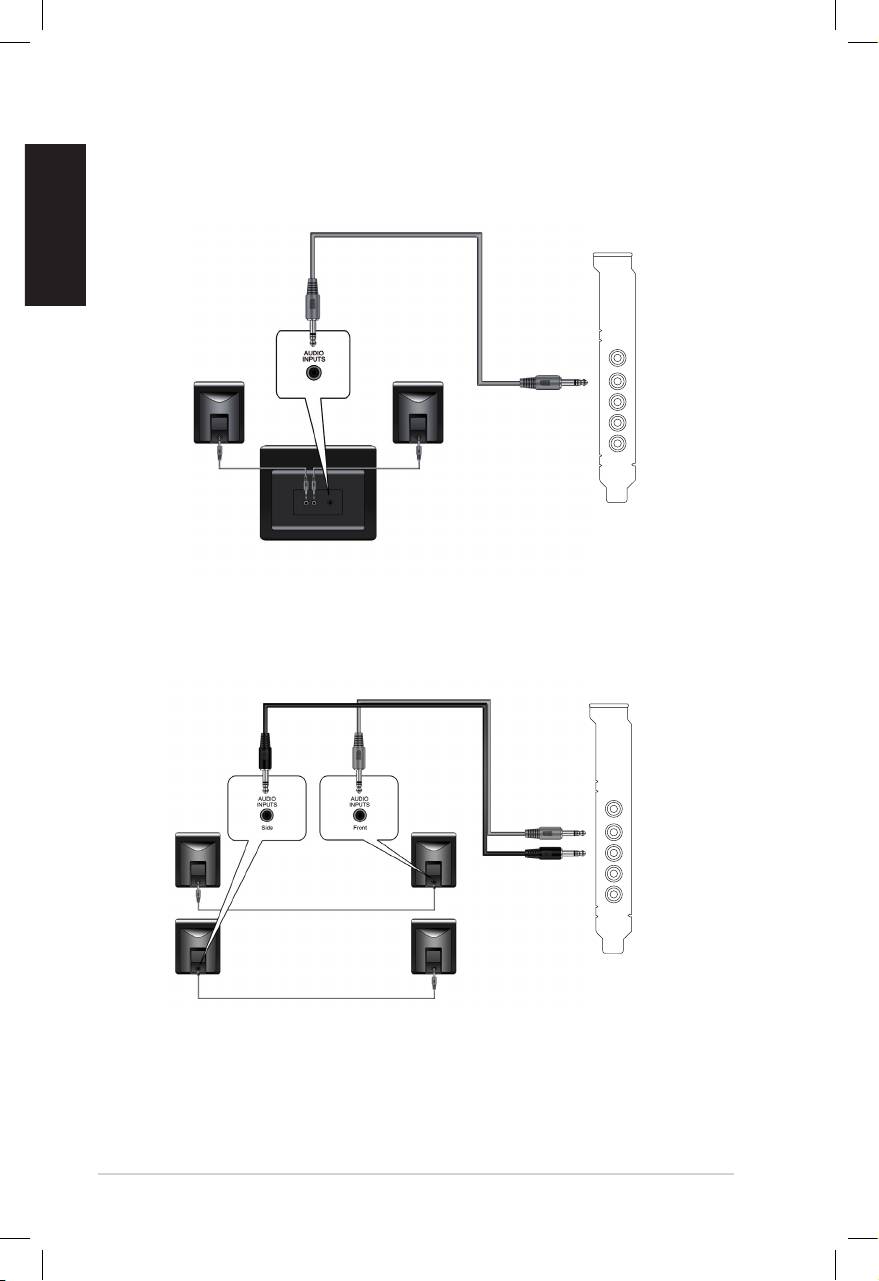
1.4.2 Connecting analog speakers
2 Speakers
Front Out
English
6
ASUS Xonar DX Quick Installation Guide
2.1 Speakers
Front Out
4 Speakers
Front Out
Side Surround
English
ASUS Xonar DX Quick Installation Guide
7
4.1 Speakers
Front Out
Side Surround
5.1 Speakers
Front Out
Side Surround
Center & Subwoofer
English
8
ASUS Xonar DX Quick Installation Guide
6.1 Speakers
Front Out
Side Surround
Center & Subwoofer
Back Surround
7.1 Speakers
Front Out
Side Surround
Center & Subwoofer
Back Surround
English
ASUS Xonar DX Quick Installation Guide
9
1.4.3 Connecting digital speakers
SPDIF Out
Plug the optical TOSLINK adaptor into the S/PDIF-Out combo connector. Then,
connect your decoder’s S/PDIF in port to the optical adaptor with the TOSLINK
optical cable.
You can also use a coaxial cable for a S/PDIF connection. Just plug the coaxial
RCA male connector to the S/PDIF-Out combo jack and connect the other end
into the coaxial S/PDIF input on your decoder.
SPDIF Out
1.4.4 Connecting Line-In audio sources
Line In
English
1.4.5 Connecting headphone / microphone
10
ASUS Xonar DX Quick Installation Guide

Xonar DX
Français
Carte son PCI Express
Guide d’installation rapide
ASUS Xonar DX - Guide d’installation rapide
11

Français
12
ASUS Xonar DX - Guide d’installation rapide
1.1 Congurationrequise
Avant d’installer la carte son Xonar DX, assurez-vous que votre ordinateur puisse
satisfaire aux critères suivants:
• PC avec un slot PCI Express 1.0 (ou supérieur) disponible pour la carte son
• Un câble d’alimentation 4 broches disponible
®
®
• Microsoft
Windows
Vista/XP(32/64bits)/MCE2005
®
®
• Un processeur Intel
Pentium
4 1.4GHz ou AMD Athlon 1400 ou supérieur
• > Mémoire DRAM supérieure à 256 Mo
• > Plus de 60 Mo d’espace disque disponible pour l’installation des pilotes; plus
de 200 Mo d’espace disque disponible pour l’installation du pack Ableton Live
et plus de 320 Mo pour l’installation du pack Cakewalk
• Un lecteur de CD-ROM (ou DVD-ROM) pour l’installation des logiciels
• Des écouteurs de haute qualité, des haut-parleurs analogiques ou numériques
intégrantundécodeurDolbyDigitalpourproterpleinementdelaqualitéaudio
délivrée par la carte son
Avantl’installation,vériezquelaboîtedevotrecartesonASUSXonarDXcontient
les éléments suivants:
• Carte son ASUS Xonar DX
• CD de support ASUS Xonar DX (incluant les utilitaires Portable Music(incluant les utilitaires Portable Music
Processor™ Lite et RMAA V6.0.6)
• Support demi-hauteur additionnel
• Adaptateur S/PDIF optique TOSLINK x1
• Guide d’installation rapide
Français
ASUS Xonar DX - Guide d’installation rapide
13
1.2 Installation de la carte
Pour installer la carte son Xonar DX:
1. Touchez une des parties métalliques de votre châssis pour vous décharger
de l’électricité statique.
2. Eteignez l’ordinateur, le moniteur, ainsi que tous les autres périphériques
connectés à votre PC.
3. Débranchez le cordon d’alimentation de votre ordinateur et de la prise électrique.
4. Retirez le panneau latéral du châssis.
5. Localisez un slot PCI-Express libre sur la carte mère.
6. Connectez un des câbles du bloc d’alimentation au connecteur d’alimentation
de la carte son.
7. Alignez et insérez la carte son sur le slot PCI-E jusqu’à ce qu’elle soit bien
en place. Assurez-vous que les connecteurs dorés sont correctement insérés
dans le slot.
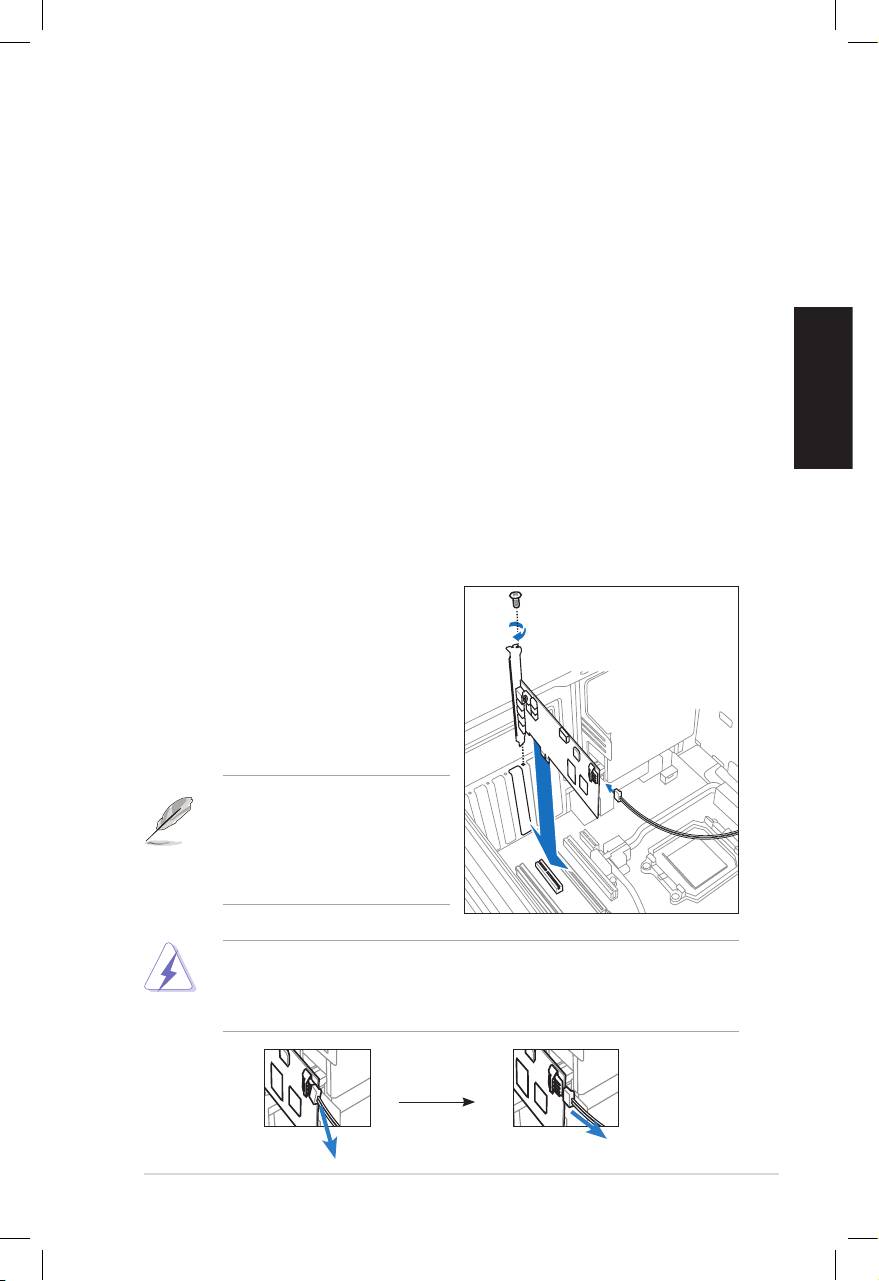
8. Sécurisez la carte son au châssis à l’aide d’une vis. Référez-vous à
l’illustration ci-dessous pour localiser le pas de vis.
8. Replacez le panneau latéral du
châssis.
9. Reconnectez tous les câbles.
10. Branchez une extrémité du cordon
d’alimentation au bloc d’alimentation
de votre ordinateur puis l’autre
extrémité à une prise électrique.
11. Allumez l’ordinateur.
La carte son PCI Express
nécessite une source
d’alimentation. Si le câble
d’alimentation n’est pas
correctement connecté, la carte
son ne pourra pas fonctionner.
Lors de la déconnexion du câble d’alimentation de la carte son Xonar DX,
assurez-vous de d’abord tirer vers vous le connecteur 4 broches tel qu’illustré
ci-dessous. Ne forcez pas le connecteur hors du port d’alimentation de la carte;
vous pourriez l’endommager.
3
3
Français
14
ASUS Xonar DX - Guide d’installation rapide
1.3 Installation des pilotes
Une fois la carte son Xonar DX installée sur votre ordinateur, vous devrez installer
le pilote permettant à la carte son Xonar DX de fonctionner sous un système
d’exploitation Windows.
La version et le contenu du CD des pilotes peuvent changer sans avertissement.
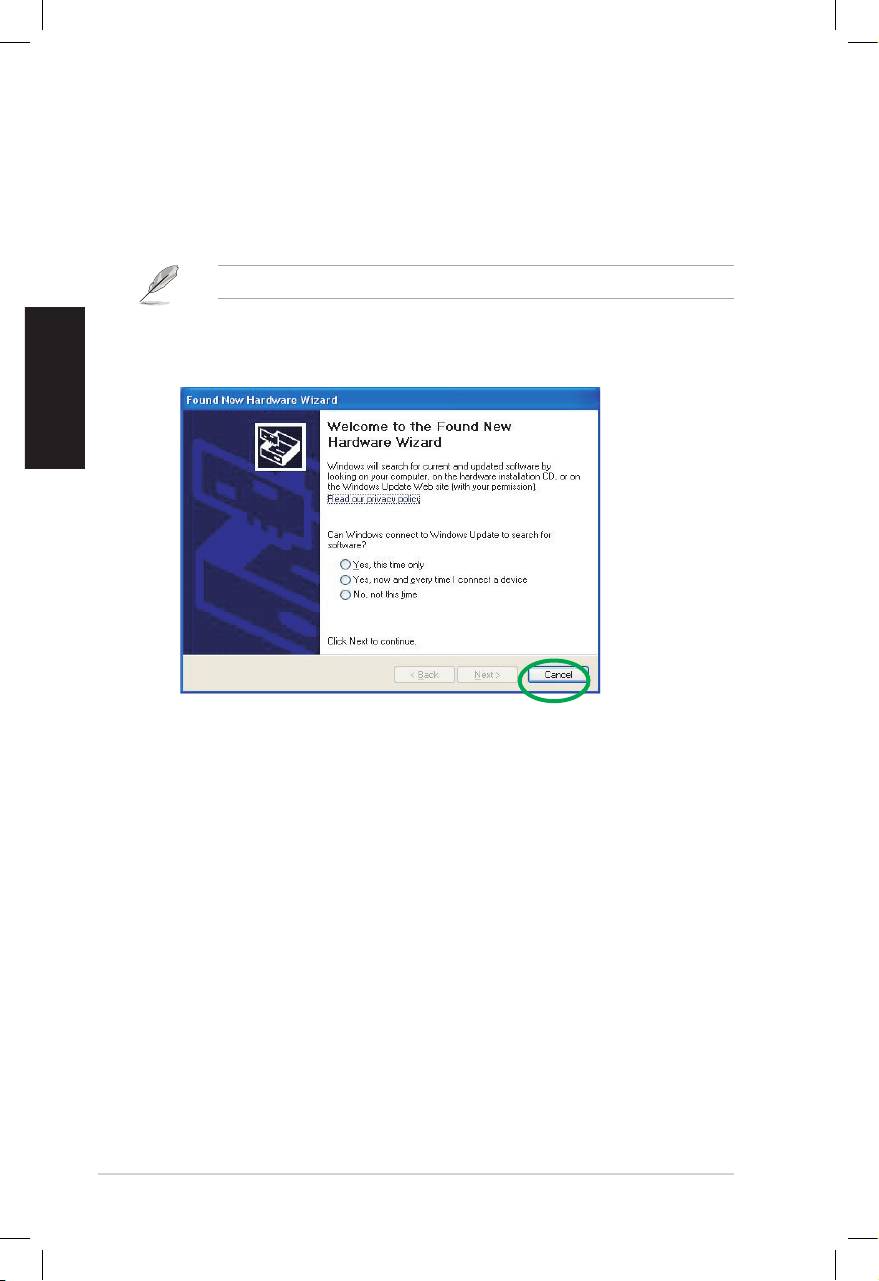
Si vous avez déjà installé la carte son ASUS Xonar DX, la fenêtre de l’Assistant
Ajoutdenouveaumatérieldétectépeutapparaîtreavantoupendantleprocessus
d’installationdespilotes.Voirlagureci-dessous.
1.3.1 Installer le pilote de la carte son
Pour installer le pilote de la carte son:
1. Cliquez sur Annuler lors de l’apparition de la fenêtre de l’Assistant ajout de
nouveau matériel.
2. Insérez le CD de support de la carte son ASUS Xonar DX dans votre lecteur
optique.
Si l’Exécution automatique est activée, l’écran d’installation du pilote ASUS
XonarCardDriverapparaîtautomatiquement.Passezdirectementàl’étape5.
Si l’Exécution automatique n’est pas activée sur votre PC, passez à l’étape 3.
3. Cliquez sur Poste de travail et double-cliquez sur l’icône de votre lecteur optique.
4. Double-cliquez sur l’icône setup.exe du CD de support.
5. Suivez les instructions apparaissant à l’écran pour terminer l’installation.
Lisez le contrat de licence “END USER LICENSE AGREEMENT” et
acceptez-le pour pouvoir continuer.
6. Une fois l’installation terminée, il peut vous être demandé de redémarrer
votre ordinateur. Vous pouvez toutefois choisir de redémarrer ultérieurement.
Français
ASUS Xonar DX - Guide d’installation rapide
15
1.4 Connecter un périphérique audio
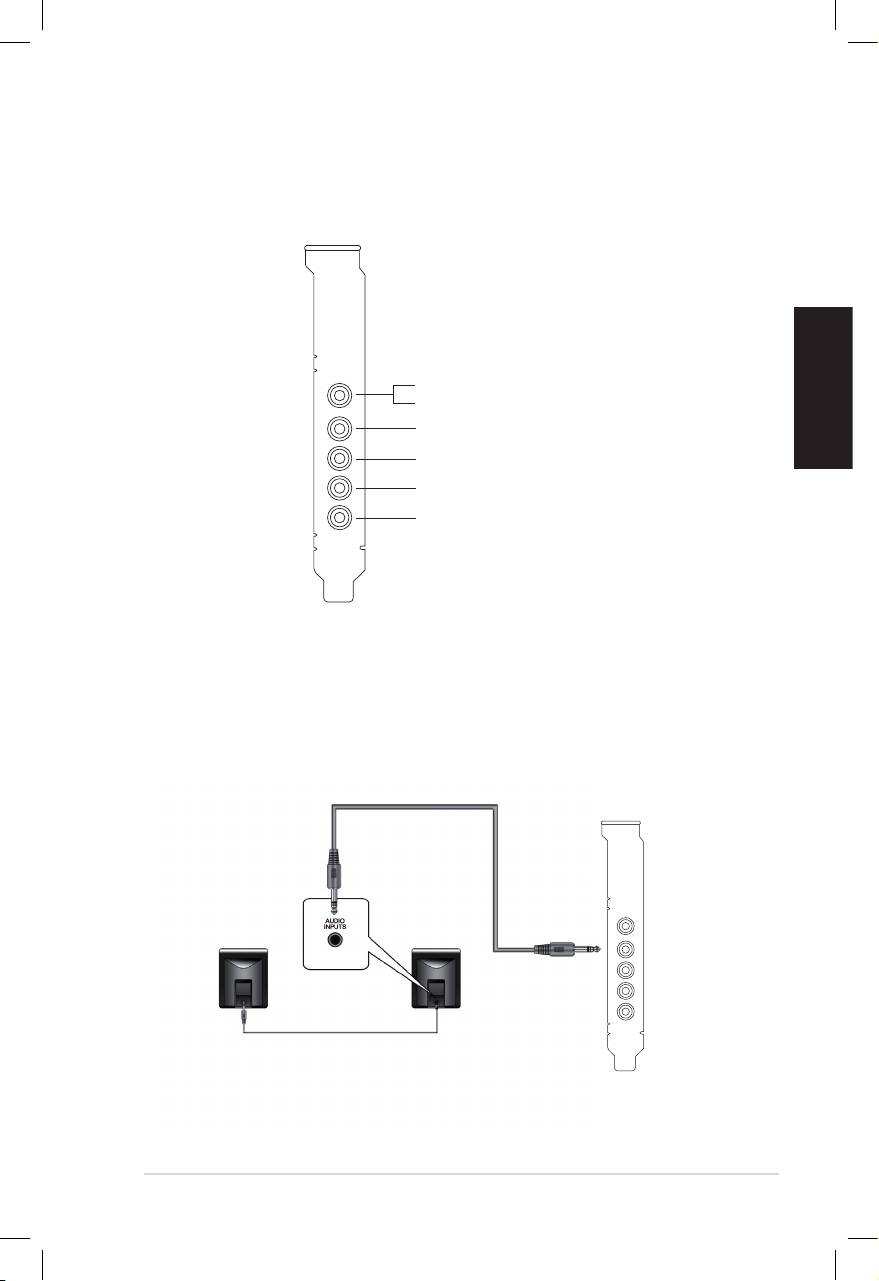
1.4.1 Ports arrières
Sortie SPDIF
Entrée audio / Entrée micro
Sortie avant
Haut-parleur Surround latérale
Haut-parleur central & caisson de basses
Haut-parleur Surround arrière
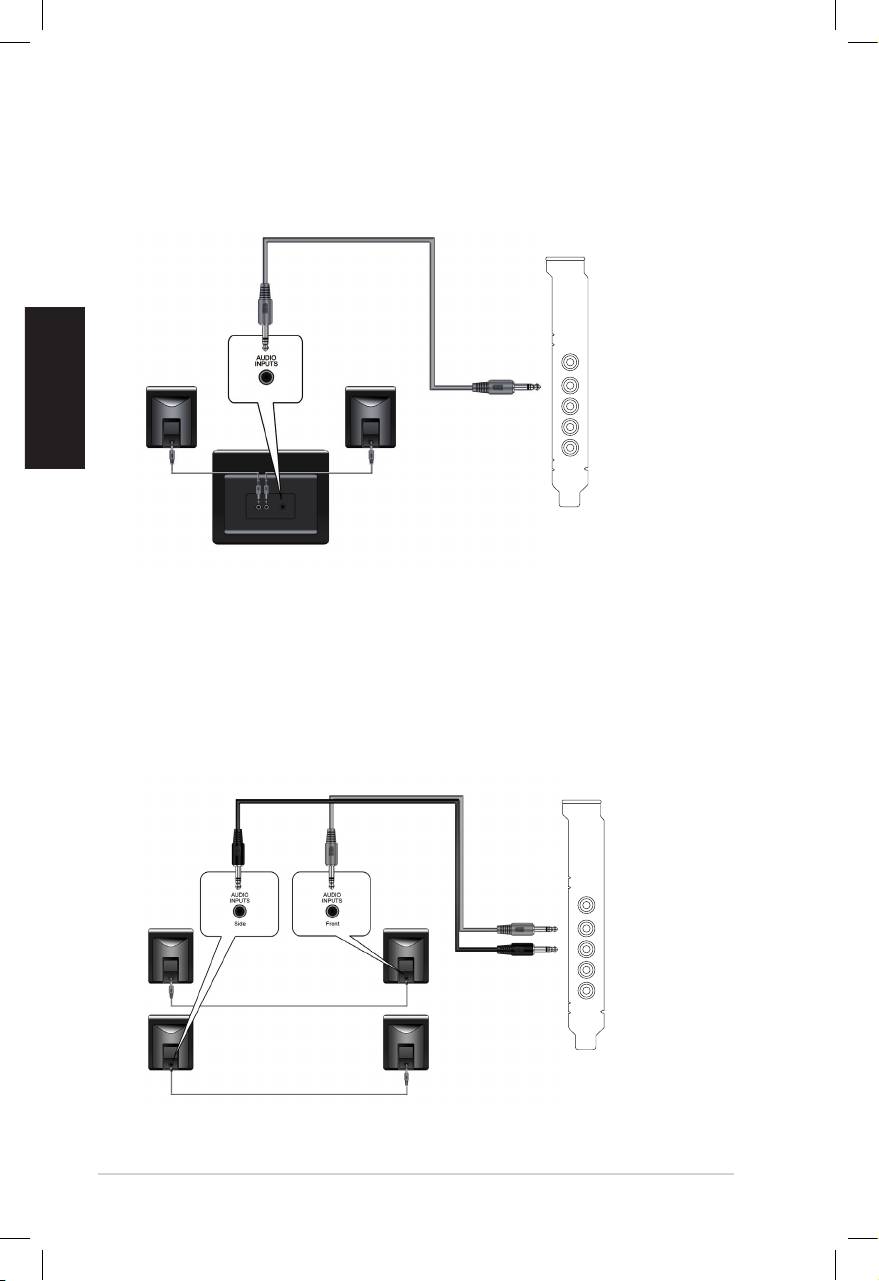
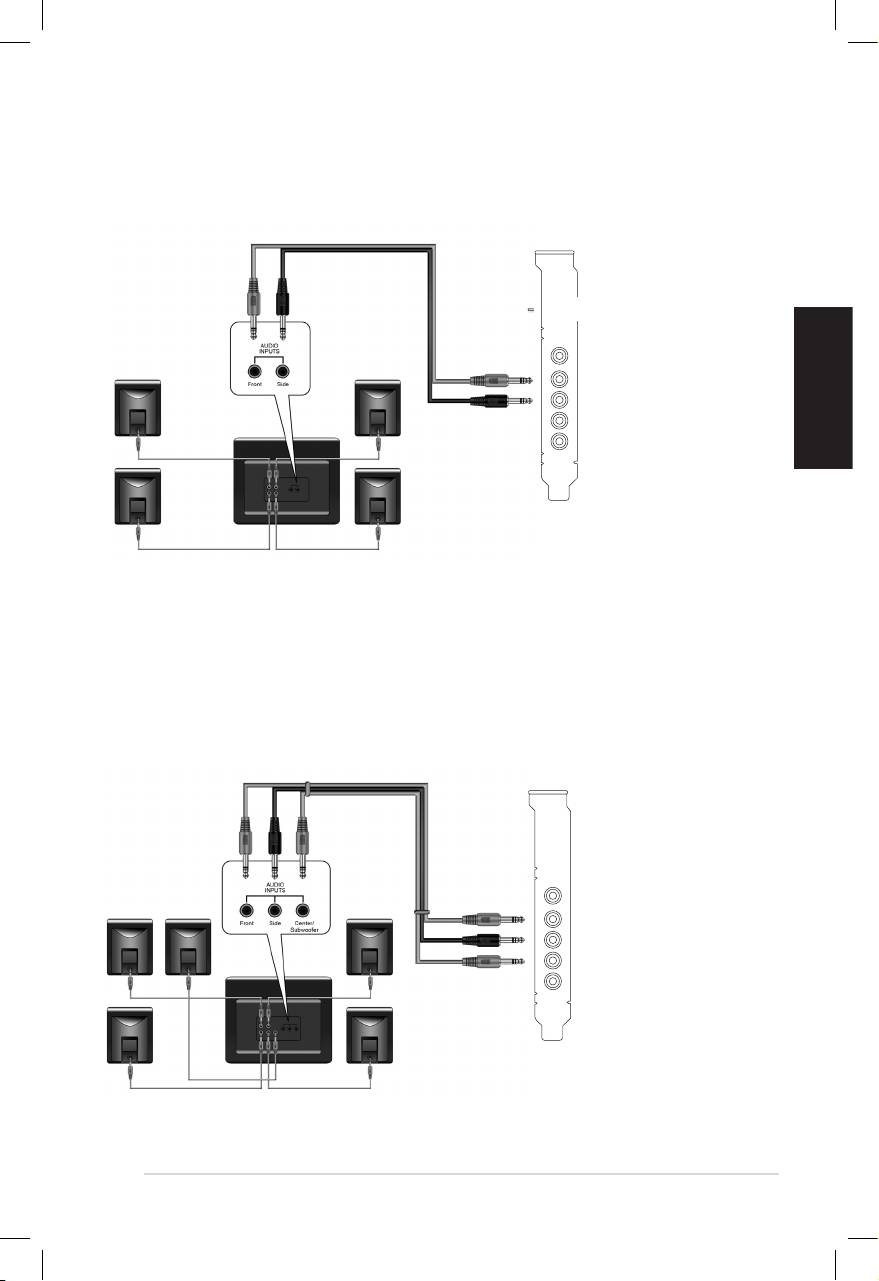
1.4.2 Connecter des haut-parleurs analogiques
Conguration à 2 haut-parleurs
Sortie avant
Français
16
ASUS Xonar DX - Guide d’installation rapide
Conguration 2.1
Sortie avant
Conguration à 4 haut-parleurs
Sortie avant
Haut-parleur Surround latérale
Français
ASUS Xonar DX - Guide d’installation rapide
17
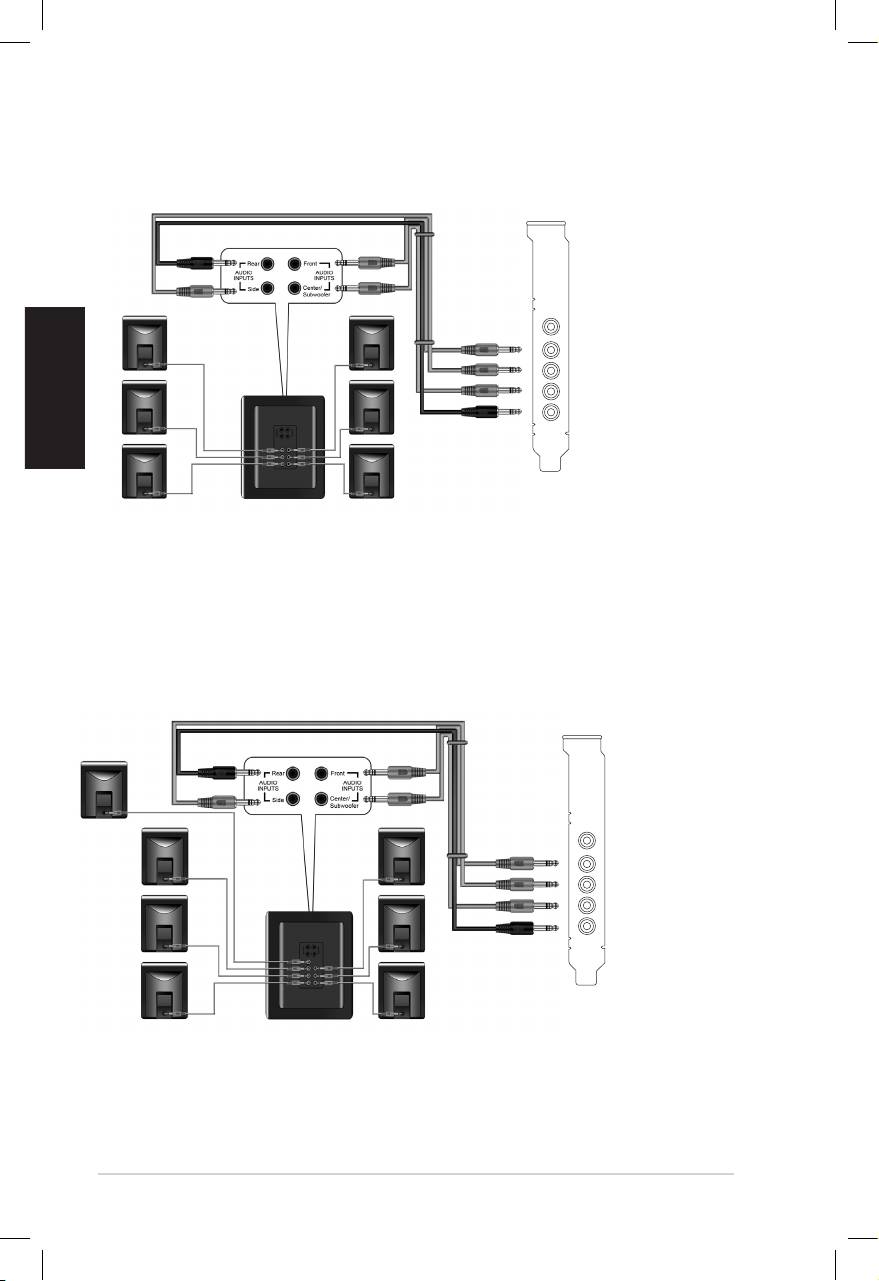
Conguration 4.1
Sortie avant
Haut-parleur Surround latérale
Conguration 5.1
Sortie avant
Haut-parleur Surround latérale
Haut-parleur Surround latérale
Haut-parleur central & caisson de basses
Français
18
ASUS Xonar DX - Guide d’installation rapide
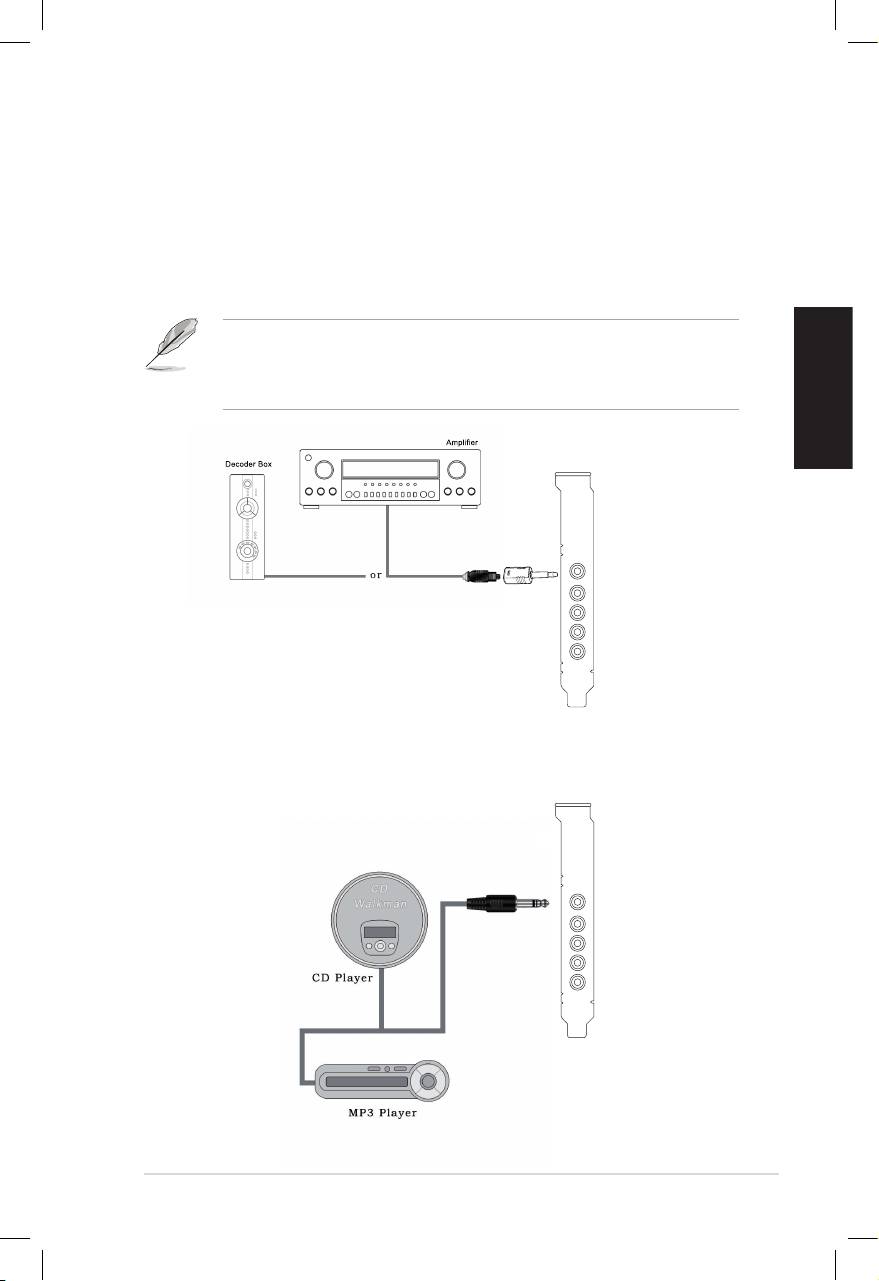
Conguration 6.1
Sortie avant
Haut-parleur Surround latérale
Haut-parleur central & caisson de basses
Haut-parleur Surround arrière
Conguration 7.1
Sortie avant
Haut-parleur Surround latérale
Haut-parleur Surround arrière
Français
ASUS Xonar DX - Guide d’installation rapide
19
1.4.3 Connecter des haut-parleurs numériques
Sortie SPDIF
Branchez l’adaptateur TOSLINK optique sur le connecteur S/PDIF-Out. Puis,
connectez le port d’entrée S/PDIF de votre lecteur MD/CD/DVD à l’adaptateur
optique du câble TOSLINK.
Vous pouvez aussi utiliser un câble coaxial pour une connexion S/PDIF.
Connectez simplement une extrémité du connecteur mâle RCA coaxial au
connecteur S/PDIF-Out, puis l’autre extrémité au port d’entrée S/PDIF coaxial
Haut-parleur central & caisson de basses
de votre lecteur.
Sortie SPDIF
1.4.4 Connexion de sources audio entrantes
Sortie avant
Haut-parleur Surround latérale
Entrée audio
Haut-parleur Surround arrière
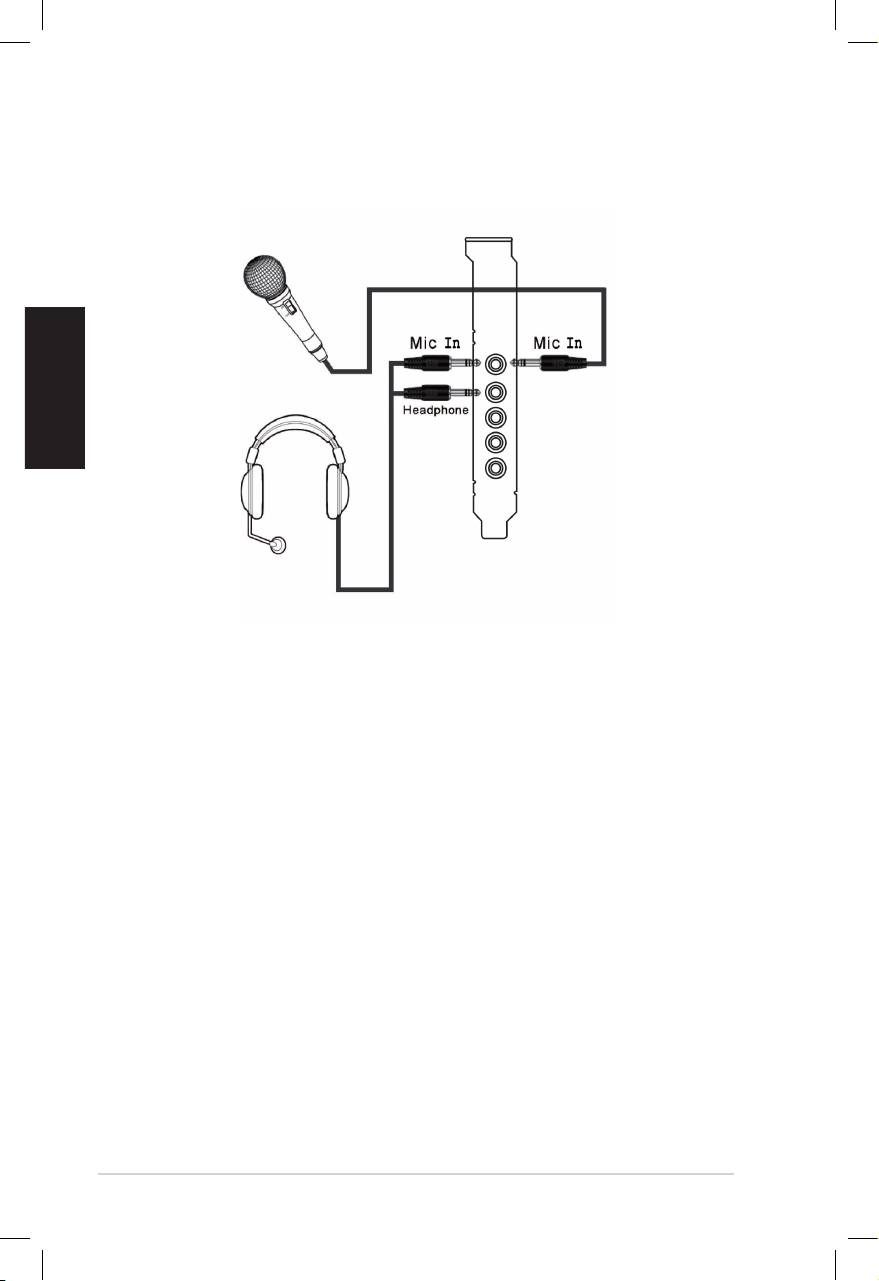
1.4.5
Connexion d’un casque / microphone
Français
20
ASUS Xonar DX - Guide d’installation rapide
