
Asus rp-n14: instruction
Class: Networks, communications, telecommunications, internet, security
Type:
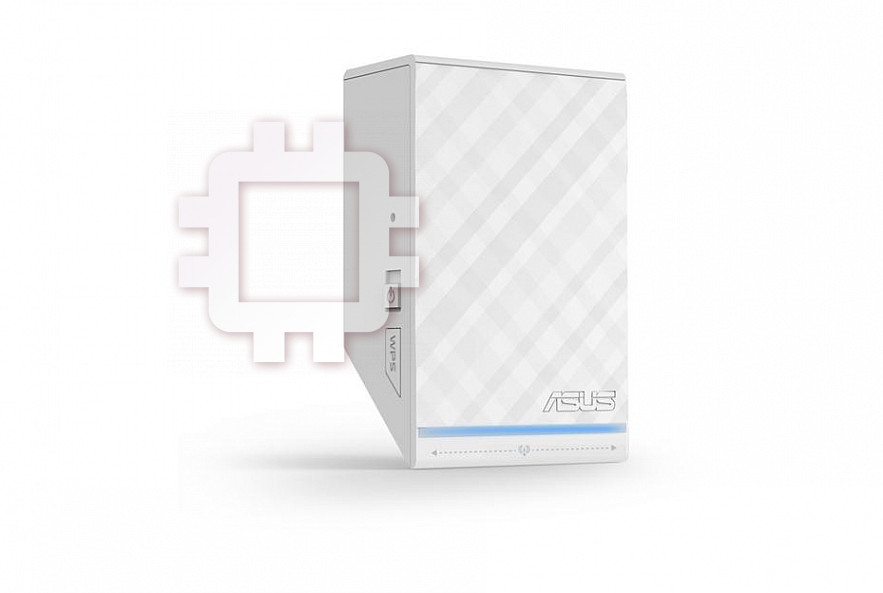
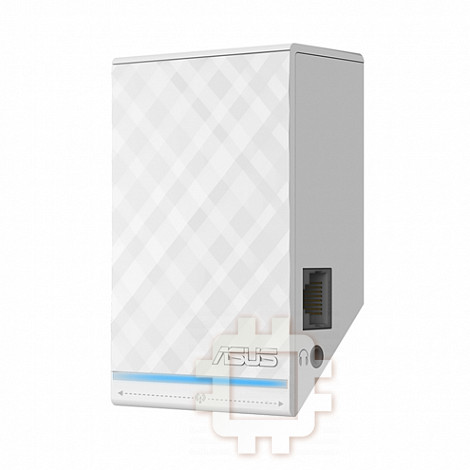
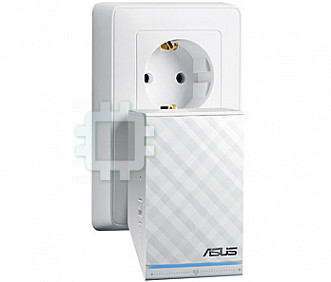
Manual for Asus rp-n14
Table of contents
- English ................................................................................................................................ 3
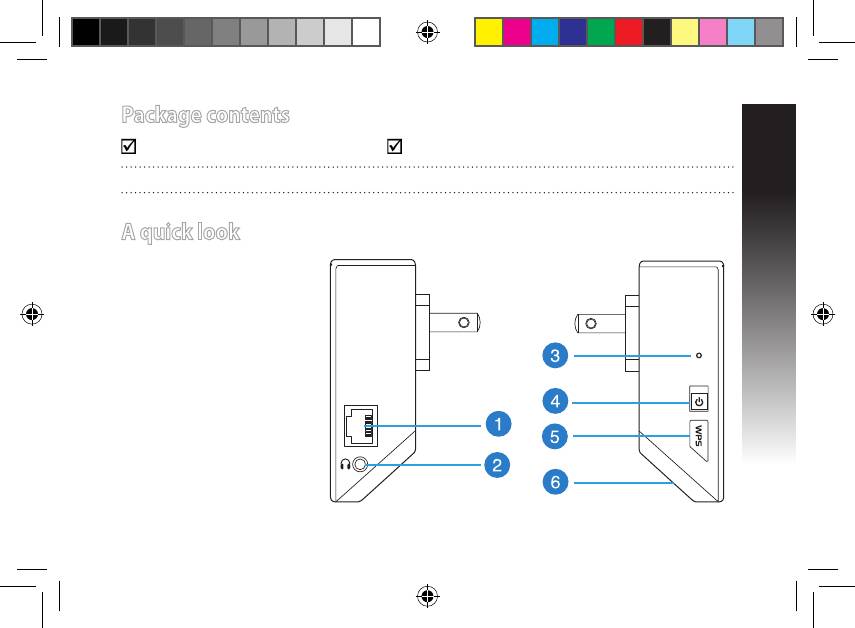
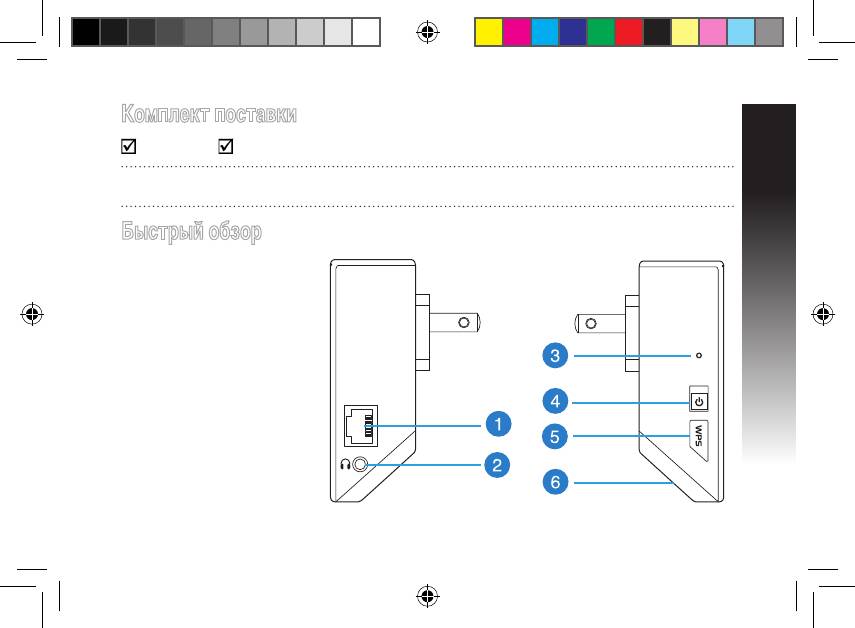
- Package contents A quick look 1) Ethernet port 6) Night light
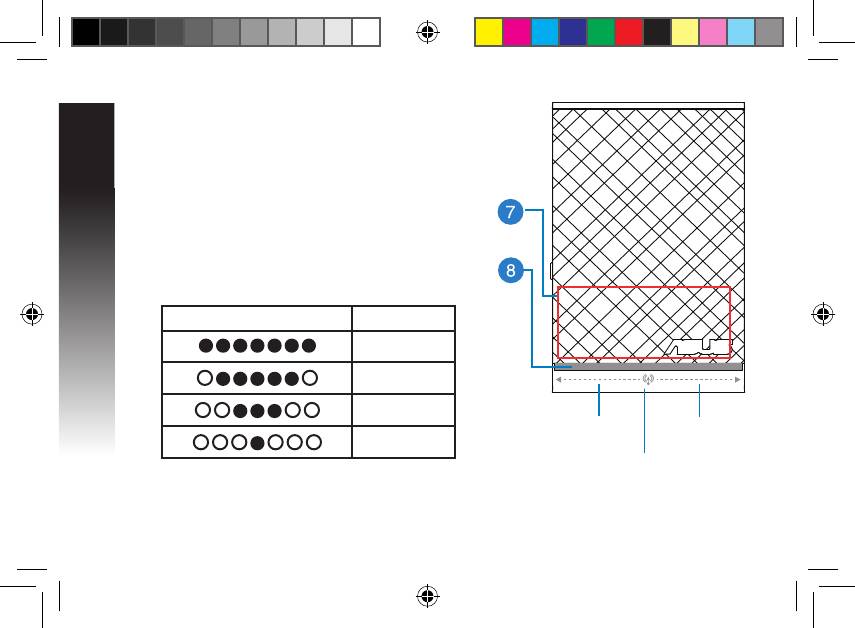
- 7) Touch controller 8) LED indicators
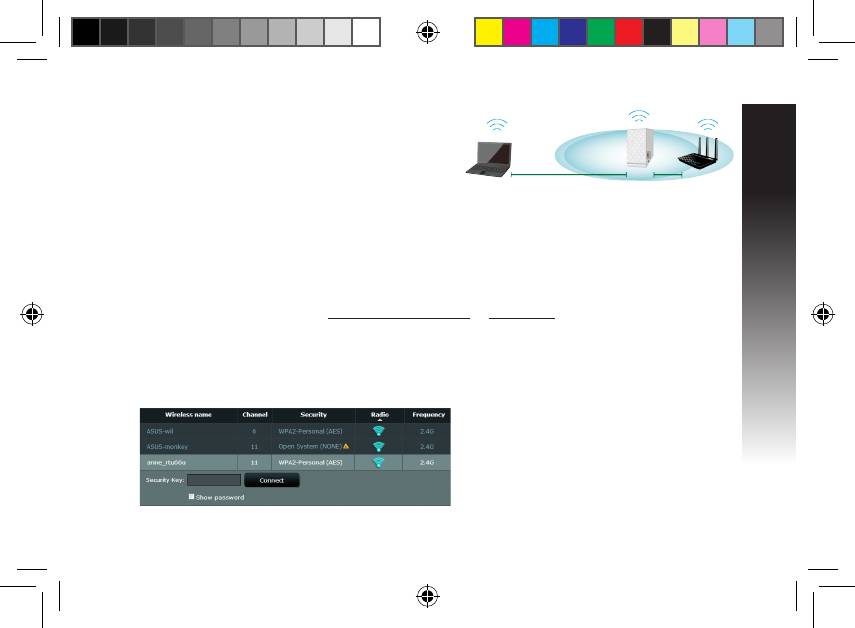
- Setting up the Range Extender Turning the Range Extender on Connecting to a network Option A: Connecting through GUI
- Option B: Using WPS (Wi-Fi Protected Setup)
- Move the Range Extender Signal Indicators Wireless Media Playback
- Frequently Asked Questions Windows 7
- Mac 10.5.8
- Manufacturer ASUSTeK Computer Inc.
- Комплект поставки
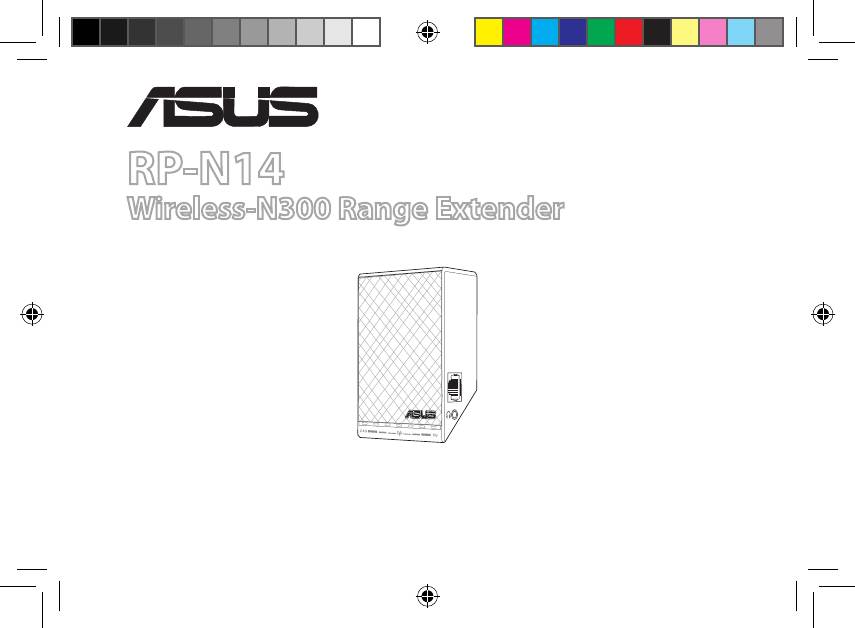
RP-N14
Wireless-N300 Range Extender
Quick Start Guide
®
EEU8662_RP-N14_QSG.indb 1 29/09/13 16:19:59
English ................................................................................................................................ 3
Russian ............................................................................................................................... 11
Bulgarian ........................................................................................................................... 19
Czech .................................................................................................................................. 27
Croatian..............................................................................................................................35
Estonian ............................................................................................................................. 43
Hungarian ......................................................................................................................... 51
Latvian ................................................................................................................................ 59
Lithuanian ......................................................................................................................... 67
Polish ................................................................................................................................... 75
Romanian .......................................................................................................................... 83
Serbian ............................................................................................................................... 91
Slovak.................................................................................................................................. 100
Slovenian ...........................................................................................................................109
Turkish ................................................................................................................................118
Ukrainian ........................................................................................................................... 127
E8662 / First Edition / Sept. 2013
EEU8662_RP-N14_QSG.indb 2 29/09/13 16:20:00
Package contents
Range Extender Quick Start Guide
NOTE: If any of the items is damaged or missing, please contact your retailer.
English
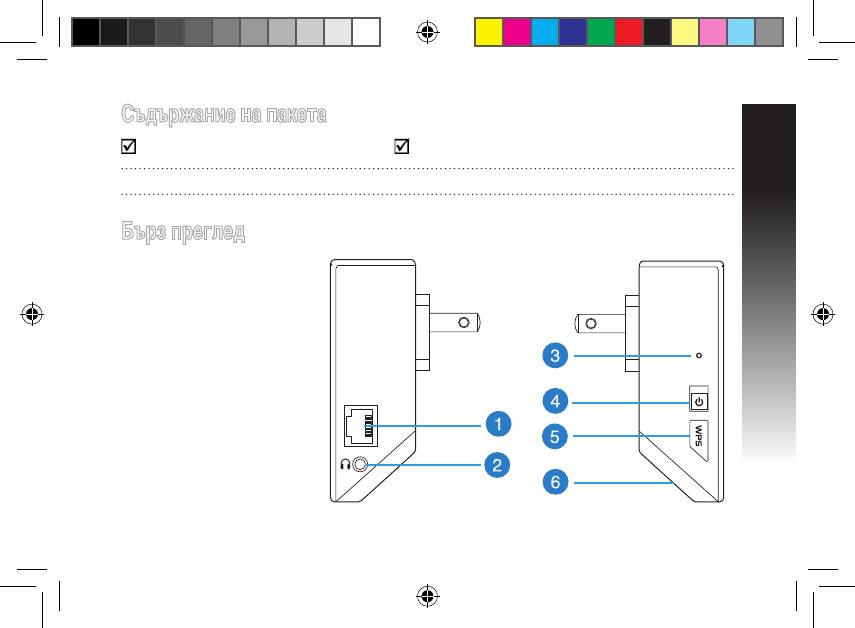
A quick look
1) Ethernet port
2) Audio port
3) Reset button
4) Power On/O button
5) WPS button
6) Night light
EEU8662_RP-N14_QSG.indb 3 29/09/13 16:20:03
English
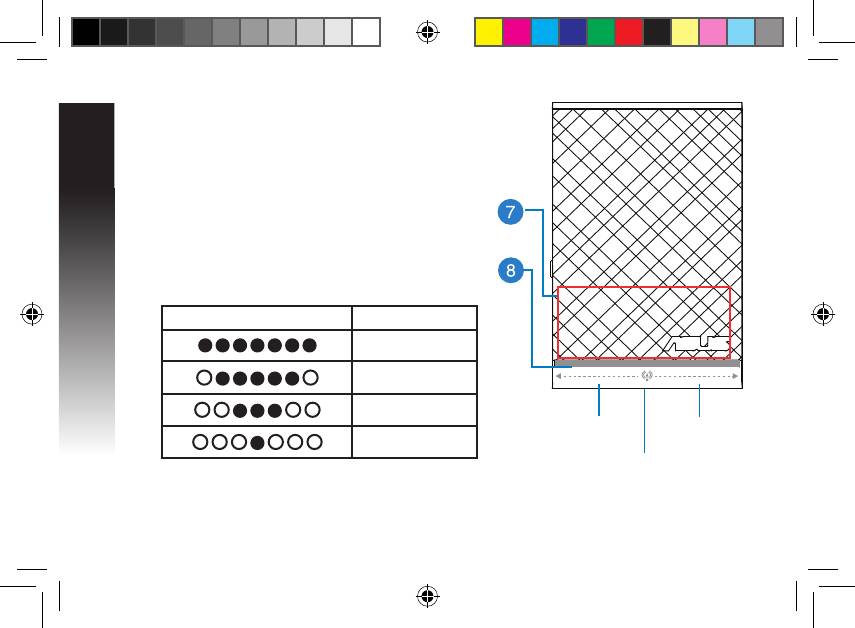
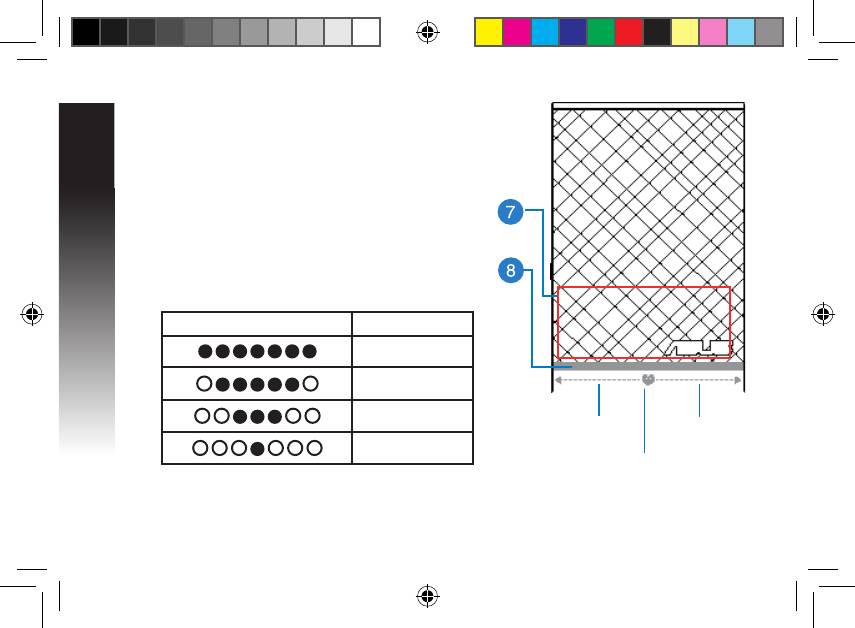
7) Touch controller
Touch the marked area to turn on/o the night light by
default. You can log into the Range Extender’s Web GUI
to change the settings.
8) LED indicators
• System Indicator: The System Indicator lights up when
the Range Extender is powered on and ashes when
the Ethernet cable or audio cable is conected.
• Signal indicators: The lights indicate the connection
signal strength from the Range Extender to the router.
Indicators Performance
Excellent
Good
Poor
Signal
Signal
No connection
indicators
indicators
System Indicator
EEU8662_RP-N14_QSG.indb 4 29/09/13 16:20:05
English
Setting up the Range Extender
Turning the Range Extender on
1. Place the Range Extender near your Router.
2. Plug the Range Extender into a power outlet, wait one
minute for the system indicator to ash twice and turn into solid blue.
Connecting to a network
Select one of the following ways to connect the Range Extender to a network.
Option A: Connecting through GUI
1. Use a computer/notebook/tablet PC to nd and connect to ASUS_RPN14 wireless network.
2. Launch a web browser and enter http://repeater.asus.com or 192.168.1.1 in the address bar to access
the Range Extende0r.
3. Enter the default login name and password, which are admin/admin.
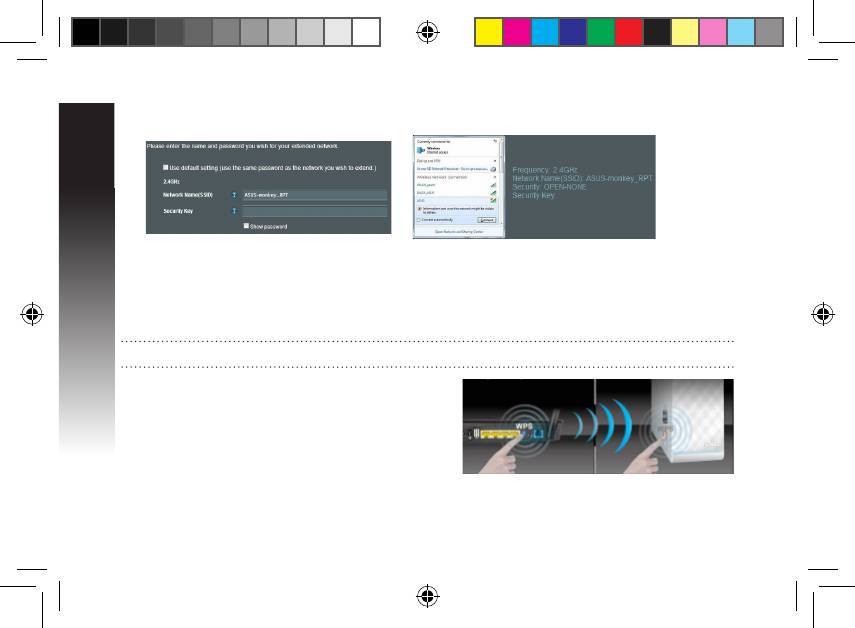
4. Follow the Quick Install Setup steps below to set up the Range Extender:
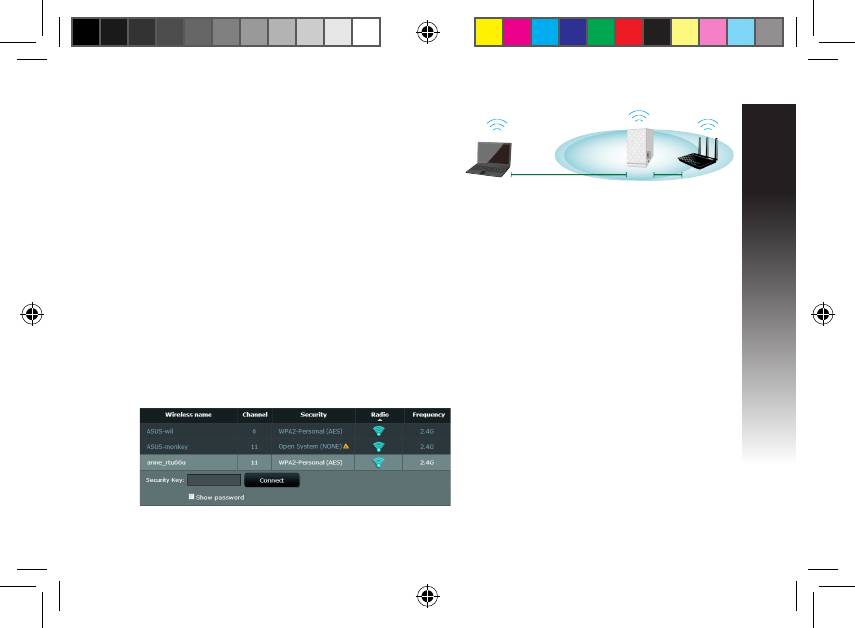
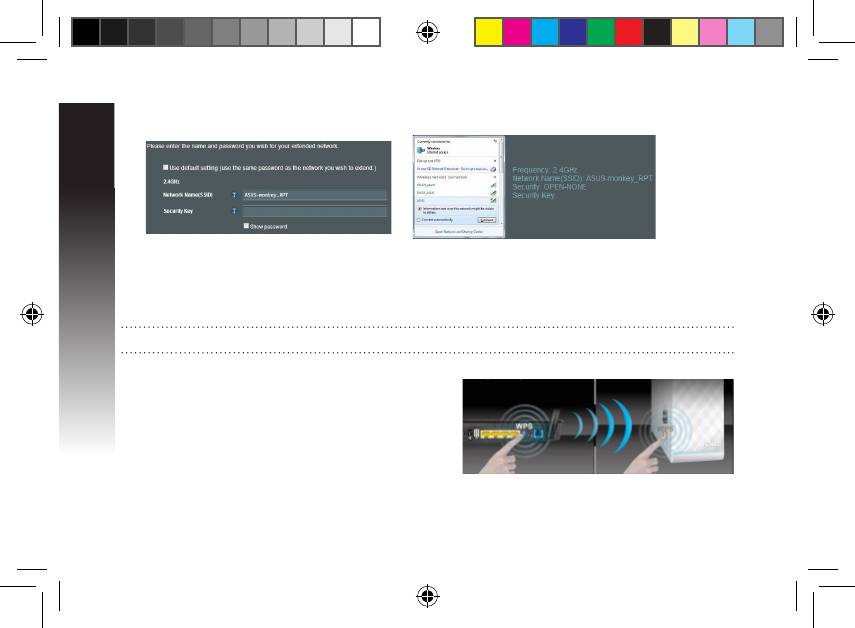
• Select the Wi-Fi network that you want to extend and enter its security password.
EEU8662_RP-N14_QSG.indb 5 29/09/13 16:20:08
English
• Enter a name for the new Extender
• Connect your wireless devices to the new Extender
network.
network.
Option B: Using WPS (Wi-Fi Protected Setup)
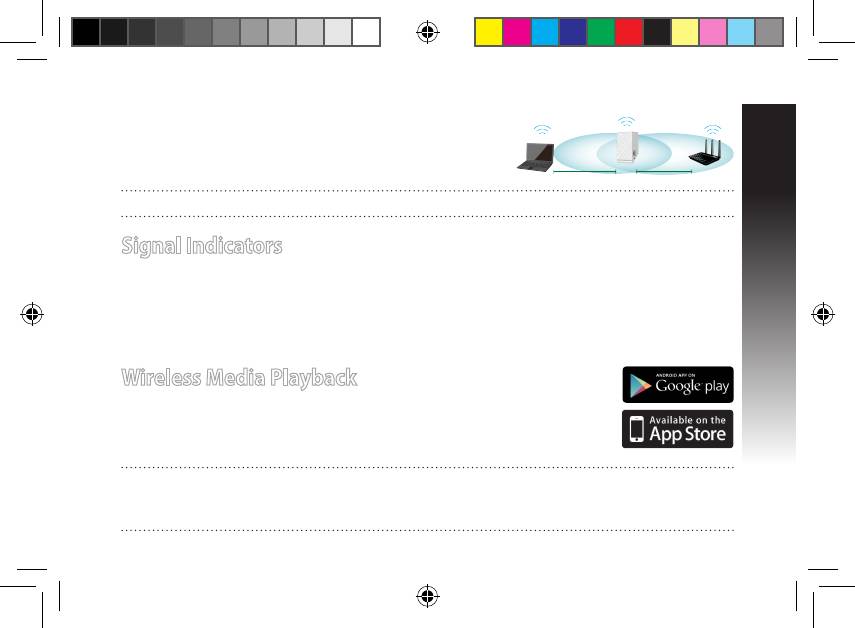
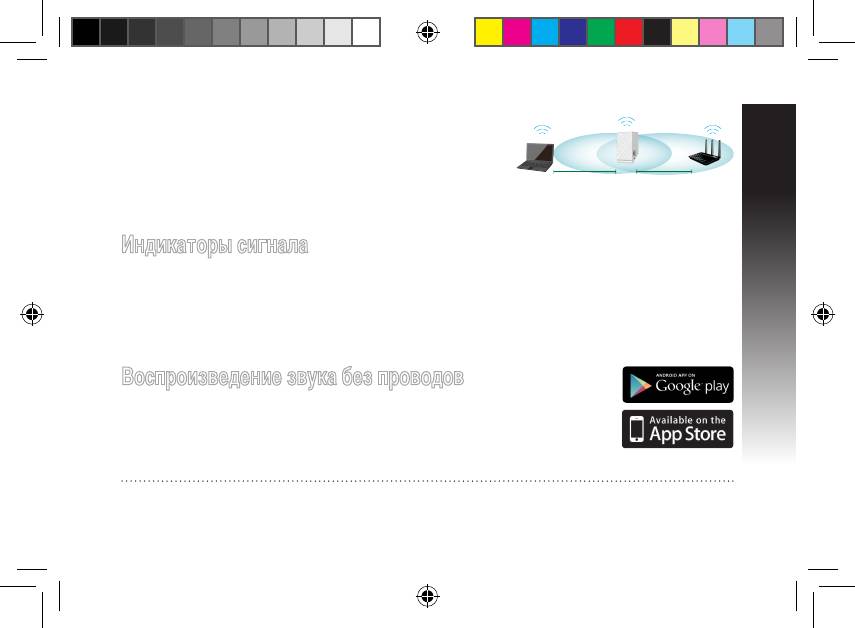
1. Press the WPS button on the side of the Range Extender for more than two seconds, until the system
indicator ashes.
2. Press the WPS button on the router within two minutes.
NOTE: Refer to the router’s manual for the location of the WPS button.
3. Check if the Range Extender’s system indicator turns
into solid blue, which indicates that the Range Extender
has connected to the wireless network successfully. The
Range Extender’s wireless network name (SSID) changes
to your existing Wi-Fi network name, ending with _RPT.
For example:
Existing network name: existing NetworkName
New network name: existing NetworkName_RPT
EEU8662_RP-N14_QSG.indb 6 29/09/13 16:20:09
English
To connect an additional Wi-Fi device to your Extender network, use the same network password as that
of your existing wireless router.
Move the Range Extender
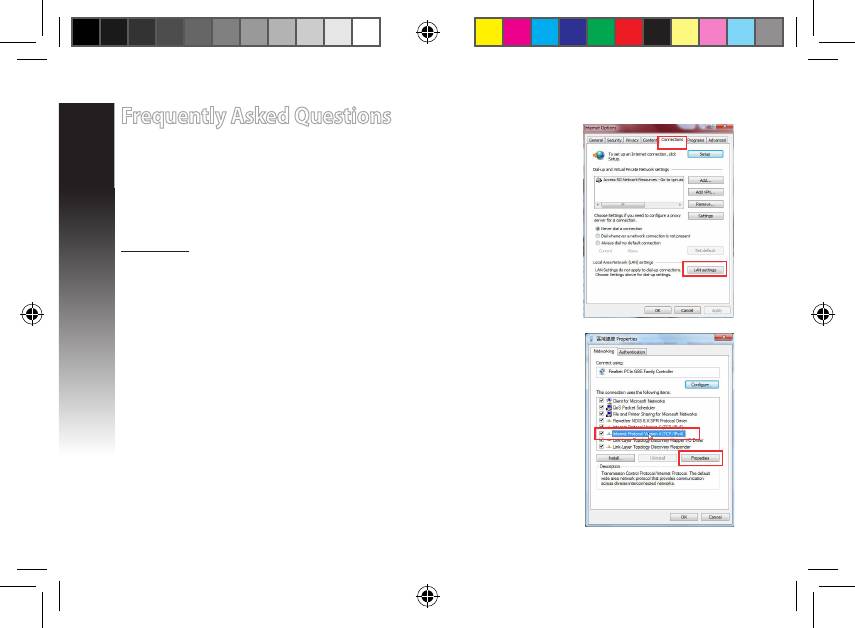
When the connection is complete, locate the Range Extender be-
tween the router and the wireless device to get better performance.
NOTE: To get the best connection performance, ensure that at least two signal indicators light up.
Signal Indicators
• To get the best performance, place the Range Extender between your router and wireless device.
• The signal indicators indicate the connection performance from the Range Extender to the Router.
Refer to the LED indicators in section A Quick Look.
• If no signal indicator lights up, search the network again in Option A or make sure that your router
supports WPS in Option B.
Wireless Media Playback
The Range Extender supports wireless media playback, which allows you to
stream and play your network music through its audio port. You can use ASUS
AiPlayer app to control the music streaming over the Range Extender from your
mobile device. Search for “RP-N14” or “ASUS AiPlayer” from Google Play or App
Store and download the app to your mobile device.
NOTES:
• AiPlayer supports mp3, wav., ac, and acc les.
• You can insert an earphone, powered speaker, or stereo system to the 3.5mm stereo audio port.
EEU8662_RP-N14_QSG.indb 7 29/09/13 16:20:10
English
Frequently Asked Questions
Q1: I cannot access the web GUI to congure the RP-N14
settings.
• Close all running web browsers and launch again.
• Follow the steps below to congure your computer settings based on its
operating system.
Windows 7
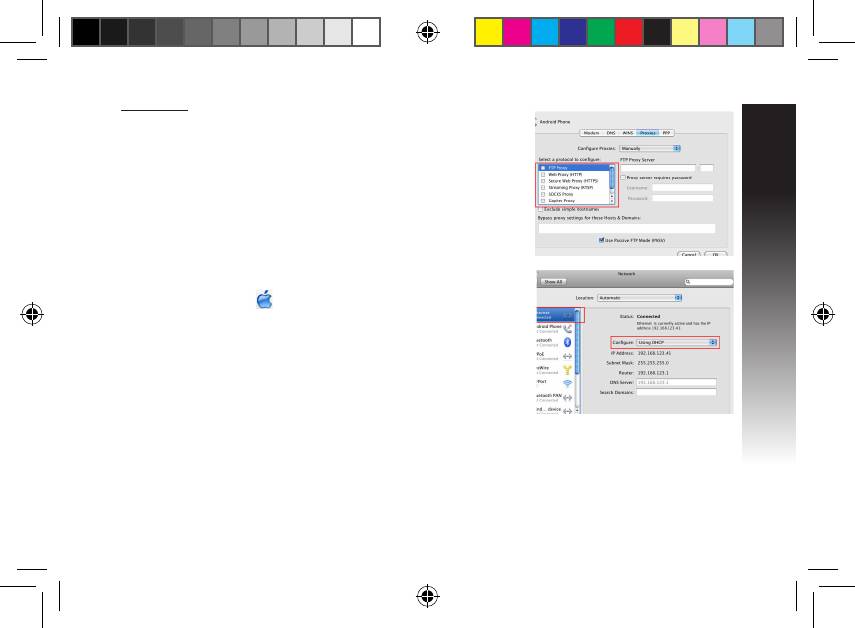
A. Disable the proxy server, if enabled.
1. Click Start > Internet Explorer to launch the web browser.
2. Click Tools > Internet options > Connections tab > LAN settings.
3. From the Local Area Network (LAN) Settings screen, untick Use a proxy
server for your LAN.
4. Click OK when done.
B. Set the TCP/IP settings to automatically obtain an IP address.
1. Click Start > Control Panel > Network and Internet > Network and
Sharing Center > Manage network connections.
2. Select Internet Protocol Version 4 (TCP/IPv4), then click Properties.
3. Tick Obtain an IP address automatically.
4. Click OK when done.
EEU8662_RP-N14_QSG.indb 8 29/09/13 16:20:11
English
Mac 10.5.8
A. Disable the proxy server, if enabled.
1. From the menu bar, click Safari >
Preferences... > Advanced tab.
2. Click Change Settings... in the Proxies eld.
3. From the list of protocols, deselect FTP Proxy and Web Proxy
(HTTP).
4. Click OK when done.
B. Set the TCP/IP settings to automatically obtain an IP address.
1. Click the Apple icon > System Preferences > Network.
2. Select Ethernet and select Using DHCP in the Congure eld.
3. Click Apply when done.
Q2: Why doesn’t the touch controller work?
• Ensure that you touch the area correctly. Refer to A Quick Look for the location of the touch area.
EEU8662_RP-N14_QSG.indb 9 29/09/13 16:20:12
Q3: My router security is WEP, and I entered a wrong passphrase or security key on
the extender. Now I cannot access the Extender any more. What can I do?
English
• The Range Extender cannot check whether the WEP passphrase is correct or not. When entered a
wrong passphrase, your wireless device cannot get the correct IP address from the Range Extender.
Please reset the Range Extender to its factory defaults to get the IP address back.
Q4: When I connect a speaker or stereo system to RP-N14, there is no sound coming
out when I play audio les.
• Make sure that you have not turned o the audio output via the touch controller. The touch control-
ler is set to turn on/o the night light and mute/unmute the audio by default. You can log into the
Range Extender’s Web GUI to change the settings.
Manufacturer ASUSTeK Computer Inc.
Tel: +886-2-2894-3447
Address: No. 150, LI-TE RD., PEITOU, TAIPEI 112, TAIWAN
Authorised
ASUS Computer GmbH
representative in
Address: HARKORT STR. 21-23, 40880 RATINGEN, GERMANY
Europe
Authorised
BOGAZICI BIL GISAYAR
CIZGI Elektronik San. Tic. Ltd.
KOYUNCU ELEKTRONiK
distributors in
SAN. VE TIC. A.S.
Sti.
BiLGi iSLEM SiST. SAN. VE
Turkey
Tel: +90 212 3311000
Tel: +90 212 3567070
DIS TIC. A.S.
Address: AYAZAGA MAH.
Address: CEMAL SURURI CD.
Tel: +90 216 5288888
KEMERBURGAZ CAD.
HALIM MERIC IS MERKEZI
Address: EMEK MAH.ORDU
NO.10 AYAZAGA/ISTANBUL
No: 15/C D:5-6 34394
CAD. NO:18, SARIGAZi,
MECIDIYEKOY/ ISTANBUL
SANCAKTEPE ISTANBUL
EEE Yönetmeliğine Uygundur.
EEU8662_RP-N14_QSG.indb 10 29/09/13 16:20:12
Комплект поставки
Повторитель Краткое руководство
ПРИМЕЧАНИЕ: Если какие-либо элементы комплекта поставки отсутствуют или повреждены, обратитесь
к продавцу.
Русский
Быстрый обзор
1) Ethernet порт
2) Аудиовыход
3) Кнопка сброса
4) Кнопка питания
5) Кнопка WPS
6) Подсветка
EEU8662_RP-N14_QSG.indb 11 29/09/13 16:20:15
Русский
7) Сенсорный контроллер
Коснитесь указанной области для включения/
отключения подсветки. Для изменения настроек
войдите в веб-интерфейс.
8) Индикаторы
• Системный индикатор: индикатор состояния системы
загорается, когда повторитель включен и мигает,
когда подключен Ethernet или аудио кабель.
• Индикаторы сигнала: Индикаторы указывают мощность
сигнала.
Индикаторы Сигнал
Отличный
Хороший
Плохой
Индикаторы
Индикаторы
Нет соединения
сигнала
сигнала
Системный
EEU8662_RP-N14_QSG.indb 12 29/09/13 16:20:17
Русский
Настройка повторителя
Включение повторителя
1. Поместите повторитель рядом с вашим роутером.
2. Подключите повторитель к розетке и дождитесь когда
индикатор загорится синим.
Подключение к сети
Выберите один из следующих способов подключения повторителя к сети.
Вариант А: Подключение через GUI
1. Используйте компьютер для подключения к сетиASUS_RPN14.
2. Запустите браузер и введите http://repeater.asus.com или 192.168.1.1.
3. Введите логин и пароль по умолчанию: admin/admin.
4. Для настройки повторителя следите инструкциям ниже:
• Выберите беспроводную сеть, которую нужно расширить и введите пароль.
EEU8662_RP-N14_QSG.indb 13 29/09/13 16:20:18
Русский
• Подключите беспроводные устройства к новой сети.• Введите имя для новой сети.
Вариант Б: Использование WPS (Wi-Fi Protected Setup)
1. Нажмите и удерживайте кнопку WPS более двух секунд, пока системный индикатор не замигает.
2. Нажмите и удерживайте кнопку WPS на роутере в течение двух минут.
ПРИМЕЧАНИЕ: Размещение кнопки WPS смотрите в руководстве роутера.
3. Убедитесь, что системный индикатор повторителя
горит синим, что указывает на успешное подключение к
беспроводной сети. Сеть повторителя (SSID) использует
имя существующей сети и добавляет к нему _RPT.
Например:
Имя существующей сети: existing NetworkName
Имя новой сети: existing NetworkName_RPT
EEU8662_RP-N14_QSG.indb 14 29/09/13 16:20:19
Русский
Для подключения дополнительного беспроводного устройства к новой сети используйте пароль как на
роутере.
Перемещение повторителя
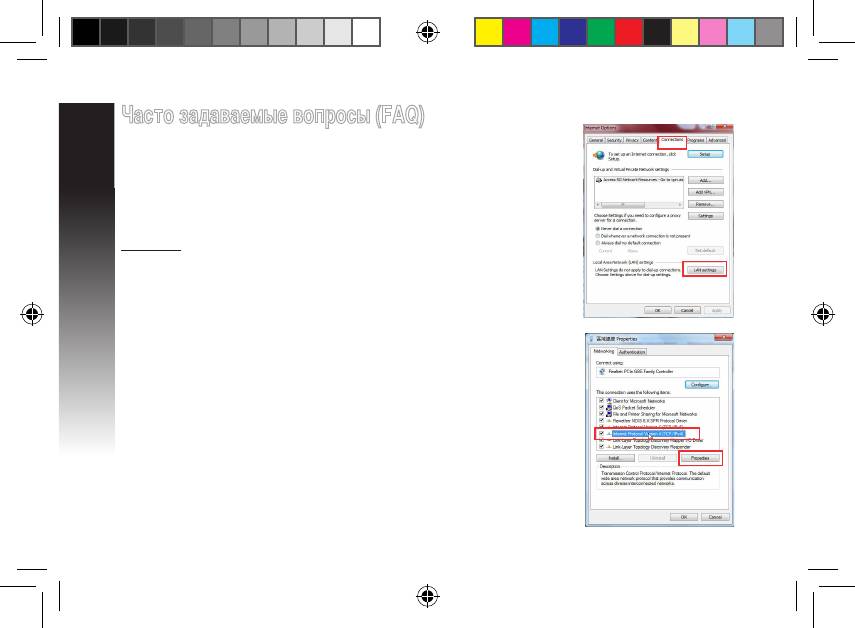
Когда соединение установлено, для улучшения производительности
установите повторитель примерно посредине между роутером и
беспроводным устройством.
Индикаторы сигнала
• Для наилучшей производительности установите повторитель между роутером и беспроводным
устройством.
• Индикаторы сигнала указывают мощность сигнала. Смотрите индикаторы в разделе Изучение
частей.
• Если индикатор не горит, выполните поиск сети снова в Варианте A или убедитесь, что ваш роутер
Воспроизведение звука без проводов
Повторитель поддерживает беспроводное воспроизведение медиа-файлов, что
позволяет передавать по сети и воспроизводить звук через его аудиовыход. Для
управления воспроизведением звука через повторитель с Вашего мобильного
устройства можно использовать приложение ASUS AiPlayer. Найдите приложение
“RP-N14” или “AiPlayer” в Google Play или App Store и установите его на Ваше
мобильное устройство.
ПРИМЕЧАНИЯ:
• AiPlayer поддерживает файлы mp3, wav., flac и acc.
EEU8662_RP-N14_QSG.indb 15 29/09/13 16:20:21
Русский
Часто задаваемые вопросы (FAQ)
В1: Невозможно получиться к веб-интерфейсу для настройки
RP-N14.
• Перезапустите все работающие браузеры.
• Выполните следующие инструкции для настройки компьютера на основе
настройки его операционной системы.
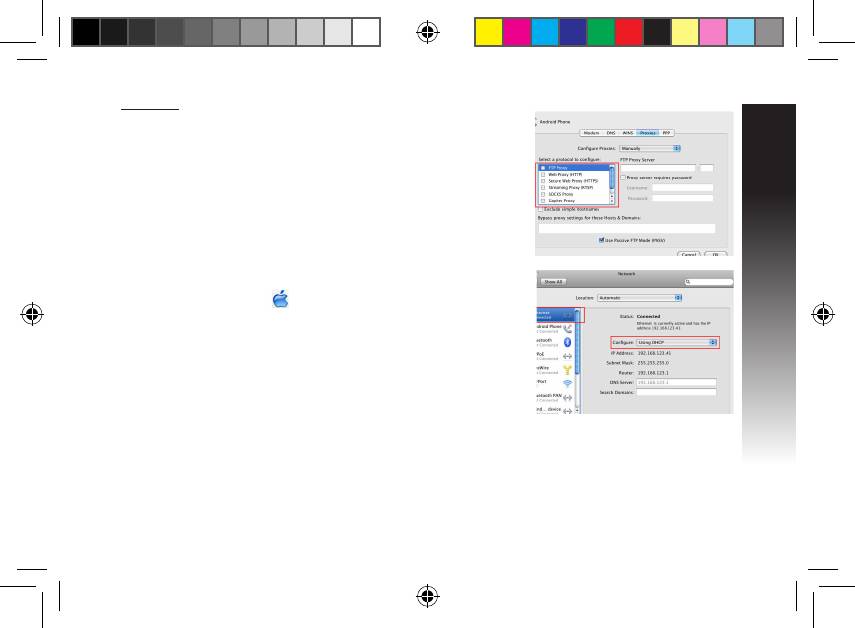
Windows 7
А. Отключите прокси-сервер, если он включен.
1. Нажмите Пуск > Internet Explorer для запуска браузера.
2. Выберите Сервис > Свойства обозревателя > вкладка Подключения >
Настройка локальной сети.
3. На экране настройки локальной сети отключите использование прокси-
сервера для локальной сети.
B. Установите TCP/IP для автоматического получения IP-адреса.
1. Нажмите Пуск > Панель управления > Сеть и Интернет > Центр
управления сетями и общим доступом > Управление сетевыми
подключениями.
2. Выберите Протокол Интернета версии 4(TCP/IPv4) и нажмите Свойства.
3. Выберите Получить IP-адрес автоматически.
4. Нажмите OK когда закончите.
EEU8662_RP-N14_QSG.indb 16 29/09/13 16:20:22
Русский
Mac 10.5.8
А. Отключите прокси-сервер, если он включен.
1. В меню нажмите Safari > Preferences. > вкладка Дополнительно.
2. Нажмите Change Settings. в поле Proxies.
3. В списке протоколов снимите флажок FTP Proxy и Web Proxy
(HTTPS).
4. Нажмите OK когда закончите.
B. Установите TCP/IP для автоматического получения IP-адреса.
1. Нажмите иконку Apple > System Preferences > Network.
2. Выберите Ethernet, затем выберите Using DHCP в поле Configure.
3. Когда закончите, нажмите Применить.
В2: Почему не работает сенсорный контроллер?
• Убедитесь, что сенсорный контроллер правильно подключен. Размещение сенсорной области
смотрите в Изучение частей.
EEU8662_RP-N14_QSG.indb 17 29/09/13 16:20:23
В3: Мой роутер использует WEP-ключ, я ввел неверный пароль или ключ безопасности в
повторитель. Теперь я не могу получить доступ к повторителю. Что делать?
Русский
• Повторитель не может проверить правильность WEP-ключа. Если введен неверный пароль,
беспроводное устройство не сможет получить IP-адрес от повторителя. Выполните сброс
повторителя к заводским настройкам.
В4: When I connect a speaker or stereo system to RP-N14, there is no sound coming out when I
play audio files.
• Убедитесь, что аудиовыход включен. Сенсорный контроллер позволяет включать/отключать
подсветки и звук. Для изменения настроек войдите в веб-интерфейс.
Производитель ASUSTeK Computer Inc.
Тел: +886-2-2894-3447 Адрес: No. 150, LI-TE RD., PEITOU, TAIPEI 112, TAIWAN
Официальный
ASUS Computer GmbH
представитель в
Адрес: HARKORT STR. 21-23, 40880 RATINGEN, GERMANY
Европе
Официальный
BOGAZICI BIL GISAYAR
CIZGI Elektronik San. Tic. Ltd. Sti.
KOYUNCU ELEKTRONiK
представитель в
SAN. VE TIC. A.S.
Тел: +90 212 3567 070
BiLGi iSLEM SiST. SAN. VE DIS
Турции
Тел: +90 212 3311000
TIC. A.S.
Адрес:CEMAL SURURI CDD.
Адрес: AYAZAGA MAH.
HALIM MERIC IS MERKEZI
Тел: +90 216 5288 888
KEMERBURGAZ CAD.
No: 15/C D:5-6 34394
Адрес:EMEK MAH.ORDU
NO.10 AYAZAGA/ISTANBUL
MECIDIYEKOY/ ISTANBUL
CADD. NO:18, SARIGAZi,
SANCAKTEPE ISTANBUL
EEU8662_RP-N14_QSG.indb 18 29/09/13 16:20:24
Съдържание на пакета
ЗАБЕЛЕЖКА
Български
Бърз преглед
EEU8662_RP-N14_QSG.indb 19 29/09/13 16:20:27
Български
EEU8662_RP-N14_QSG.indb 20 29/09/13 16:20:28



