
Asus WL-320gE: instruction
Class: Household, kitchen appliances, electronics and equipment
Type:
Manual for Asus WL-320gE
Table of contents
- Content 1. English ............................................................................... 1
- Manufacturer Contact Information
- 1. Package contents 2. Getting to know the Wireless Access Point
- Operation Mode AP/Repeater/Bridge/Gateway Client
- 2) Back panel LABEL Description 3) Wall mount option
- 3. Conguring the Wireless Access Point 1) Wired connection 2) Wireless Connection 3) Setting IP address for wired or wireless client
- 4) ASUS WLAN Utilities
- Launching the ASUS WLAN Utilities
- ASUS WLAN Device Discovery 5) Accessing the web page
- User Name and Password Home Page
- 6) Quick Setup in Access Point mode
- 7) Quick Setup in Gateway mode System Setup -> Operation Mode -> Home Gateway. Cable User
- PPPoE User PPTP User Static IP User
- 8) Operation Modes 1) Bridge Mode (WDS)
- 2) Client Mode (Station) 3) Repeater Mode (URE) 9) Wireless 1) Site Survey(AP SCAN)
- 2) Access Control Adding a MAC Address
- 3) Multi-SSID and VLAN
- 10) System Setup 1) Global Settings 2) SNMP

Content
1. English ............................................................................... 1
2.
Български
..........................................................................
19
3. Česky ............................................................................... 37
4. Nederlands ...................................................................... 55
5. Eesti .................................................................................
73
6. Suomi ..............................................................................
91
7. Français .........................................................................
109
8. Deutsch .........................................................................
127
9. Ελληνικά ......................................................................
145
10. Magyar ........................................................................... 163
11. Italiano ........................................................................... 181
12. Polski ............................................................................. 199
13. Português ...................................................................... 217
14.
Русский
............................................................................ 235
15. Română ......................................................................... 253
16. Slovensky ...................................................................... 271
17. Español .......................................................................... 289
18.
ไทย
................................................................................
307
19. Türkçe ............................................................................ 325
20.
한국어
............................................................................
343
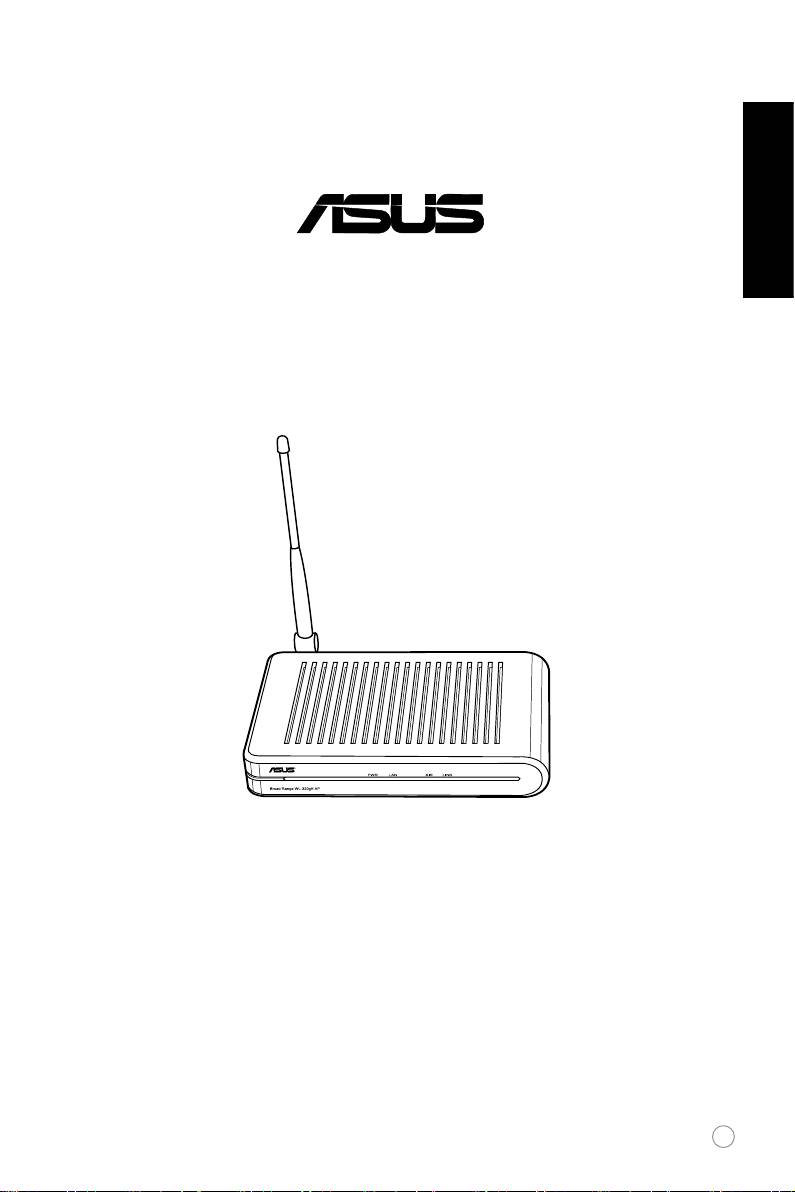
WL-320gE Access Point
Quick Start Guide
®
English
1

Manufacturer Contact Information
English
ASUSTeK COMPUTER INC. (Asia-Pacic)
Companyaddress:15Li-TeRoad,Beitou,Taipei11259
General(tel): +886-2-2894-3447 Websiteaddress: www.asus.com.tw
General(fax): +886-2-2894-7798 Generalemail: info@asus.com.tw
ASUS COMPUTER INTERNATIONAL (America)
Companyaddress:44370NobelDrive,Fremont,CA94538,USA
General(fax): +1-510-608-4555 Websiteaddress: usa.asus.com
Technical support
Generalsupport:+1-812-282-2787 Support(fax): +1-812-284-0883
Onlinesupport:http://vip.asus.com/eservice/techserv.aspx
ASUS COMPUTER GmbH (Germany & Austria)
Companyaddress:HarkortStr.25,D-40880Ratingen,Germany
General(tel): +49-2102-95990 Websiteaddress: www.asuscom.de
General(fax): +49-2102-959911 Onlinecontact: www.asuscom.de/sales
Technical support
Components: +49-2102-95990 Onlinesupport: www.asuscom.de/support
Notebook: +49-2102-959910 Support(fax): +49-2102-959911
2
WL-320gE Access Point Quick Start Guide
1. Package contents
•WL-320gEwirelessaccesspoint x1
•Poweradapterx1
English
•SupportCDx1(UtilitiesandUserManual)
•RJ45cablex1
•QuickStartGuidex1
•5dBidipoleantennax1
2. Getting to know the Wireless Access Point
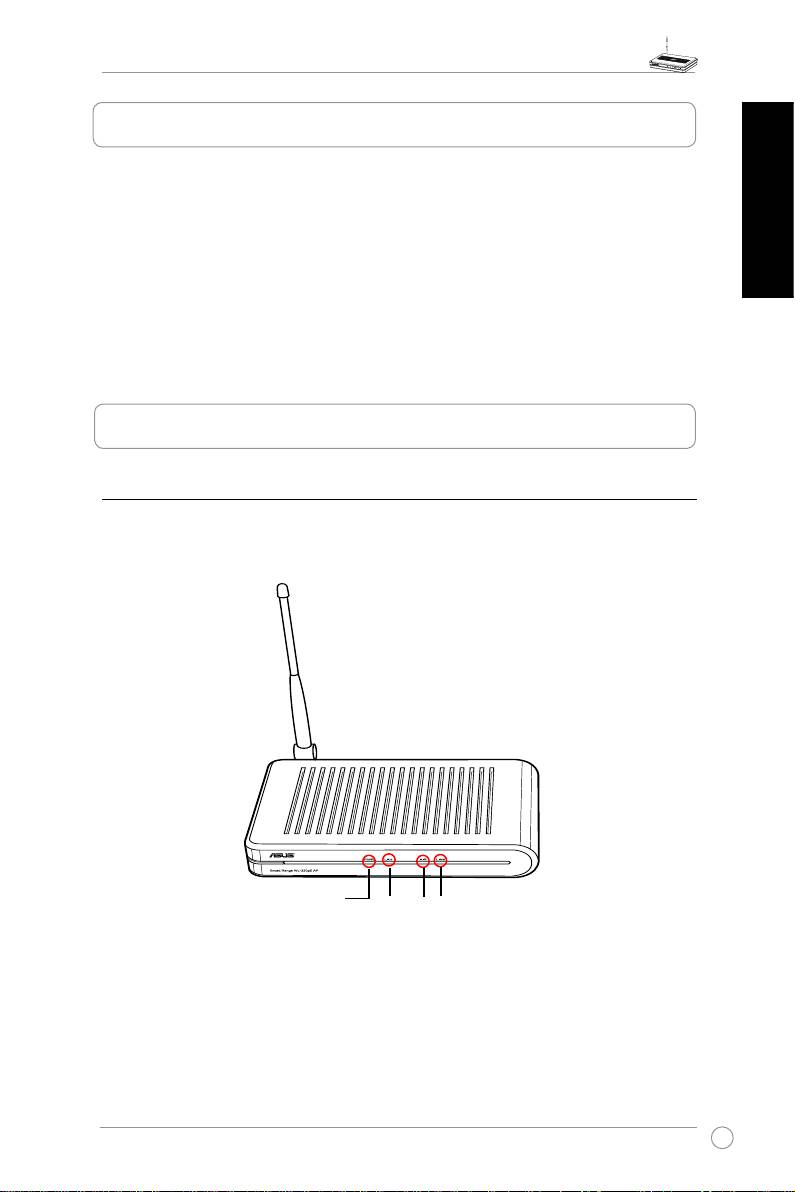
1) Front panel
TheASUSWL-320gEAccessPointincludesLEDindicatorswhichshowthesystem,LAN,
wirelessnetwork,andlinkstatus.
PWR
LAN
AIR
LINK
3

WL-320gE Access Point Quick Start Guide
PWR (Power)
OFF Nopowerorperformingbootsequence
English
ON Systemready
Blinking Firmwareupgradefailed
LAN (Ethernet Network)
OFF Nopower
ON PhysicalconnectiontoEthernetnetwork
Blinking Transmittingorreceivingdata(throughEthernetcable)
AIR (Wireless Network)
OFF Nopower
ON Wirelessfunctionready
Blinking Transmittingorreceivingdata(throughwireless)
LINK (Link Status)
Operation Mode AP/Repeater/Bridge/Gateway Client
OFF Clientnotassociated NotassociatedtoAP
ON Clientassociated Associated toAPwith strong
signal
Blinkingquickly
-- Associated toAPwith better
signal
Blinkingslowly
-- Associated toAPwith weak
signal
4
WL-320gE Access Point Quick Start Guide
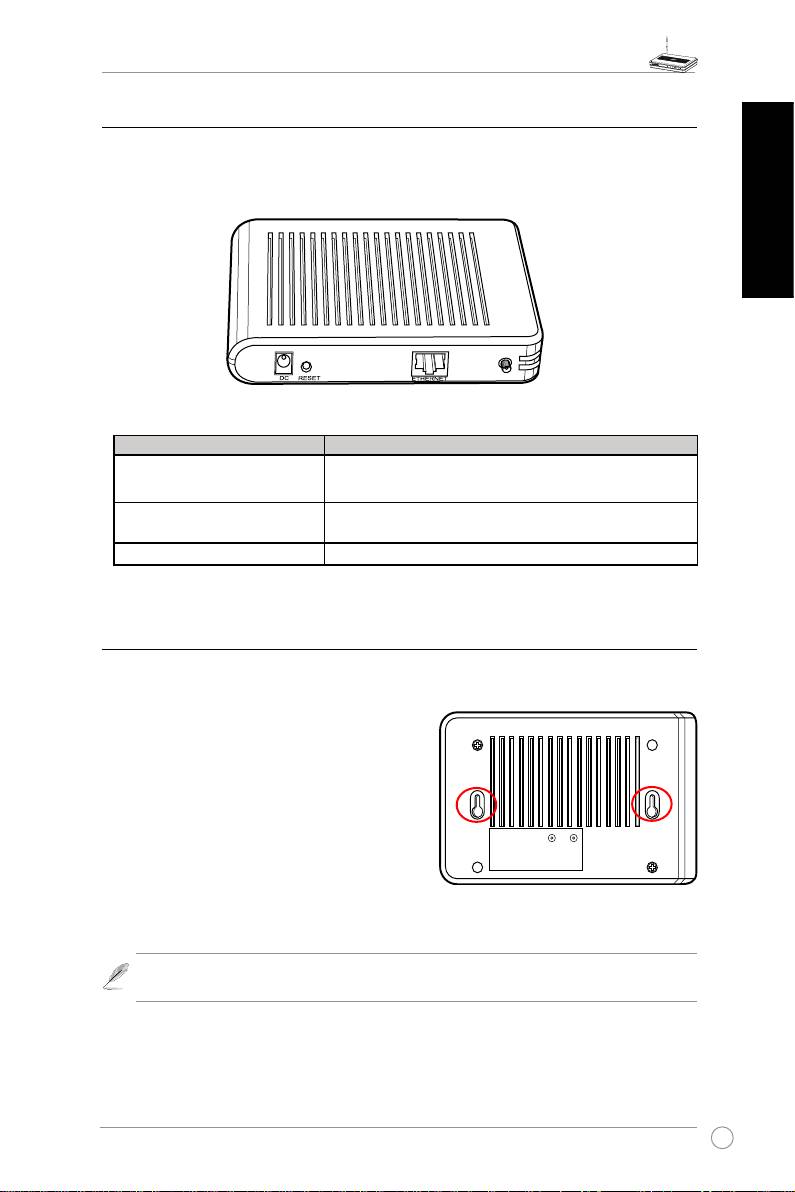
2) Back panel
TherearpanelcontainstheEthernet,theDCport,andtheResetbutton.
English
LABEL Description
ETHERNET
TheEthernetportconnectstoanEthernetdevice,such
astoaswitchorarouter.
RESET
Press the Reset button to restore to factory default
settings.
DC
TheDCportconnectstheAccessPointpoweradapter.
3) Wall mount option
TheASUS WL-320gEAccessPoint is designedto sit ona a raisedat surfacelike a le
cabinetorbookshelf.Theunitmayalsobeconvertedformountingtoawallorceiling.
Follow these stepsto mounttheASUS Wireless
AccessPointtoawall:
1. Look onthe undersideforthe two mounting
hooks.
2.Markupperholesinaatsurface.
3.Tightentwoscrewsuntilonly1/4''isshowing.
4. Latchthe hooks of theASUSAccessPoint
ontothescrews
.
Note:
Re-adjustthescrewsifyoucannotlatchtheASUSWirelessAccessPointonto
thescrewsorifitistooloose.
5
WL-320gE Access Point Quick Start Guide
3. Conguring the Wireless Access Point
English
TheASUSWL-320gEAccessPointcanmeetvariousworkingscenarioswithproperconguration.
Thedefaultsettingsofthewirelessroutermayneedchangesoastomeetyourindividualneeds.
Therefore,beforeusingtheASUSAccessPoint,checkthebasicsettingstomakesuretheyall
workinyourenvironment.
Note:
Wired connection for initial conguration isrecommended to avoidpossible
setupproblemsduetowirelessuncertainty.
1) Wired connection
TheASUSWL-320gEAccessPointissuppliedwithanEthernetcableinthepackage.Sincethe
ASUS WirelessAccessPointhasintegratedauto-crossoverfunction,therefore, youcanuse
eitherstraight-throughorcrossovercableforwiredconnection.Plugoneendofthecabletothe
LANportontherearpaneloftherouterandtheotherendtotheEthernetportonyourPC.
2) Wireless Connection
Forestablishingwirelessconnection,youneedanIEEE802.11b/gcompatibleWLANcard.Refer
to yourwireless adapter user manualfor wireless connection procedures. By default, the
SSIDofASUSAccessPointis “default”(in lower case), encryption is disabledandopen
systemauthenticationisused.
3) Setting IP address for wired or wireless client
ToaccesstheWL-320gEAccessPoint,youmusthavecorrectTCP/IPsettingsonyourwiredor
wirelessclients.SettheIPaddressesoftheclientswithinthesamesubnetofWL-320gE.
Setting up IP address Manually
TosetIPaddressmanually,youneedtoknowthedefaultsettingsoftheASUSAccessPoint:
• IPaddress192.168.1.1
• SubnetMask255.255.255.0
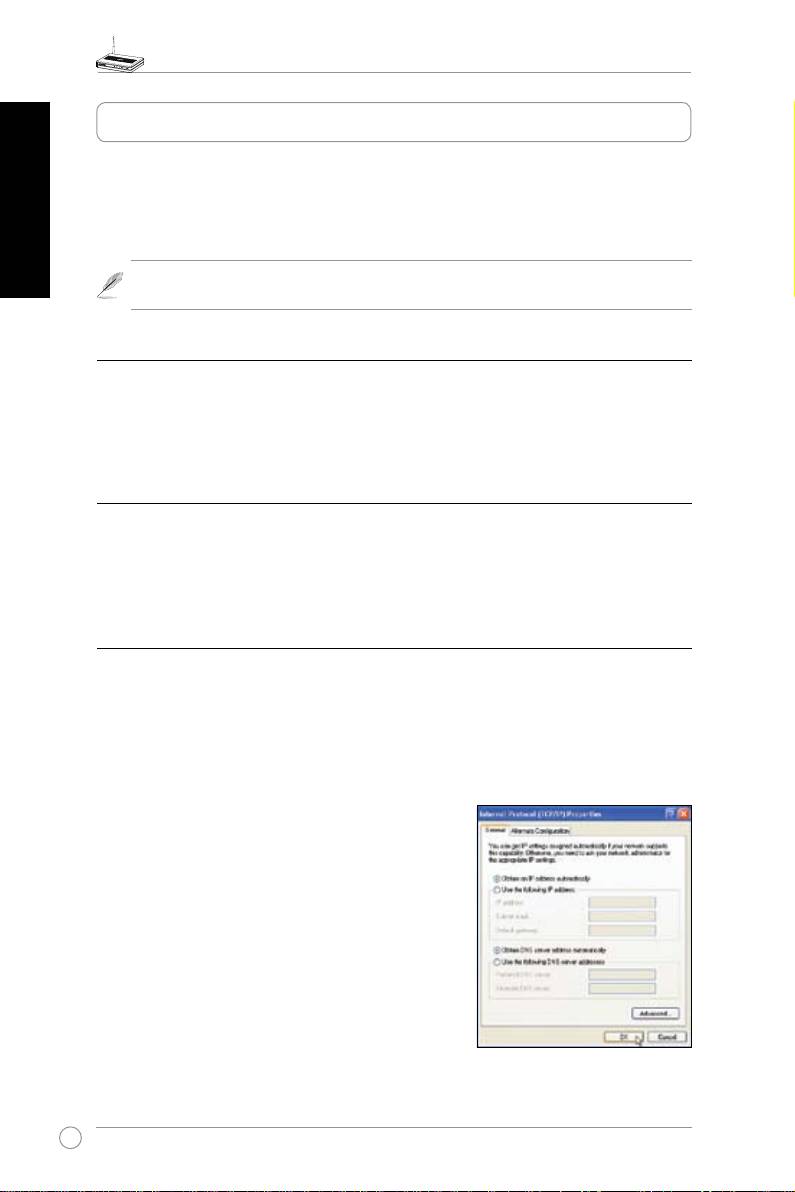
To setup theconnection withamanually assigned IP
address,theaddressofyourPCandthewirelessrouter
mustbewithinthesamesubnet:
• IPaddress: 192.168.1.xxx(xxx canbe any number
between2and254.MakesuretheIPaddressisnot
usedbyotherdevice)
• SubnetMask:255.255.255.0(sameasWL-320gE)
• Gateway:192.168.1.1(IPaddressof
WL-320gE)
• DNS: 192.168.1.1 (
WL-320gE), or assigna known
DNSserverinyournetwork.
6
WL-320gE Access Point Quick Start Guide
4) ASUS WLAN Utilities
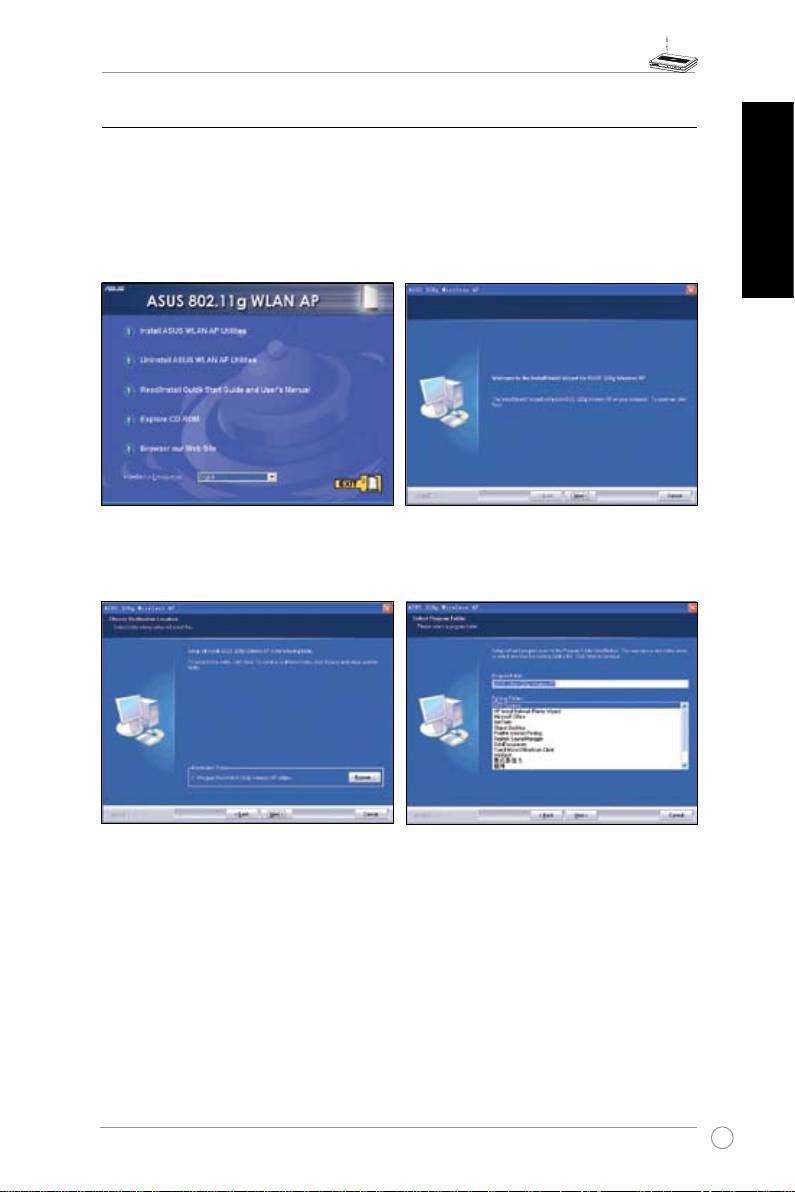
Installing the Utility
®
Follow thesestepsto install theASUS WLANUtilities inMicrosoft
Windows. Insert the
supportCD.Double-clicksetup.exe(intherootofthesupportCD)ifyourautorunhasbeen
English
disabled.
(1) ClickInstall...Utilities.
(2) ClickNext afterreadingthewelcome
screen.
(3) Click
Next to accept the default
(4) Click Next to accept the default
destinationfolderorclickBrowseto
program folder or enter another
specifyanotherpath.
name.
7
WL-320gE Access Point Quick Start Guide
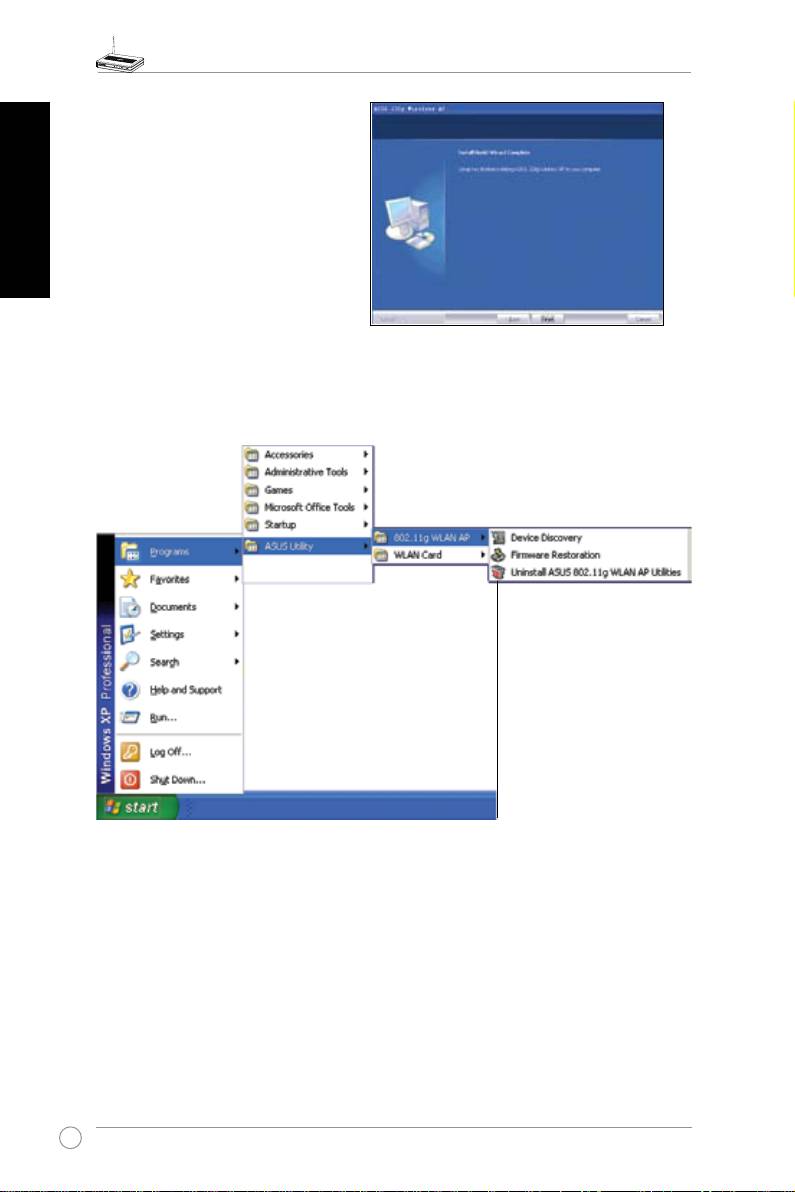
(5) ClickFinish whensetupis
complete.
English
Launching the ASUS WLAN Utilities
Afterinstallation,youcanlaunchtheutilitiesfromtheStartmenu.
8
WL-320gE Access Point Quick Start Guide
ASUS WLAN Device Discovery
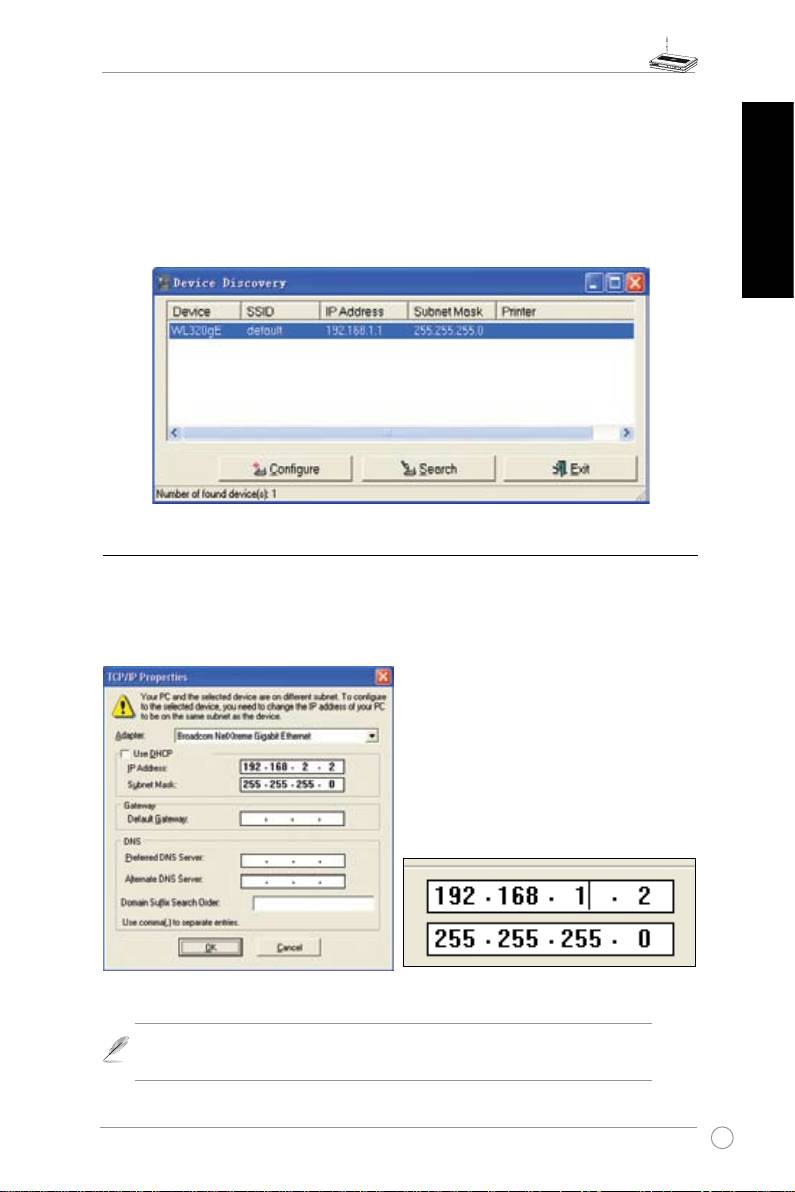
TheASUSWLANDeviceDiscovery toolenablesyouto changetheTCP/IPsettingsofthe
WL-320gE.
TolaunchtheASUSWLANDeviceDiscovery:
Run theASUS WLAN
Device Discovery
fromthe
Start
menuandclick
Config
on the
English
device.
5) Accessing the web page
Manually Entering the Address
TomanuallyenterthedefaultIPaddressoftheWL-320gE,enterthisURLinawebbrowser:
http://192.168.1.1
If yourcomputer’s IPis not onthe same
subnetastheASUSWL-320gE(192.168.1.X),
you will beasked tochangeit.Thelast digit
intheIPaddress can be any numberfrom
2to 254thatis notusedby anotherdevice.
Gatewayisnotrequired.
(Thisisthewrongsetting.)
(Thisisthecorrectsetting.)
Note: YoucanalsochangeyourTCP/IPsettingsthroughWindowsnetwork
propertiesasshownearlier.
9
WL-320gE Access Point Quick Start Guide
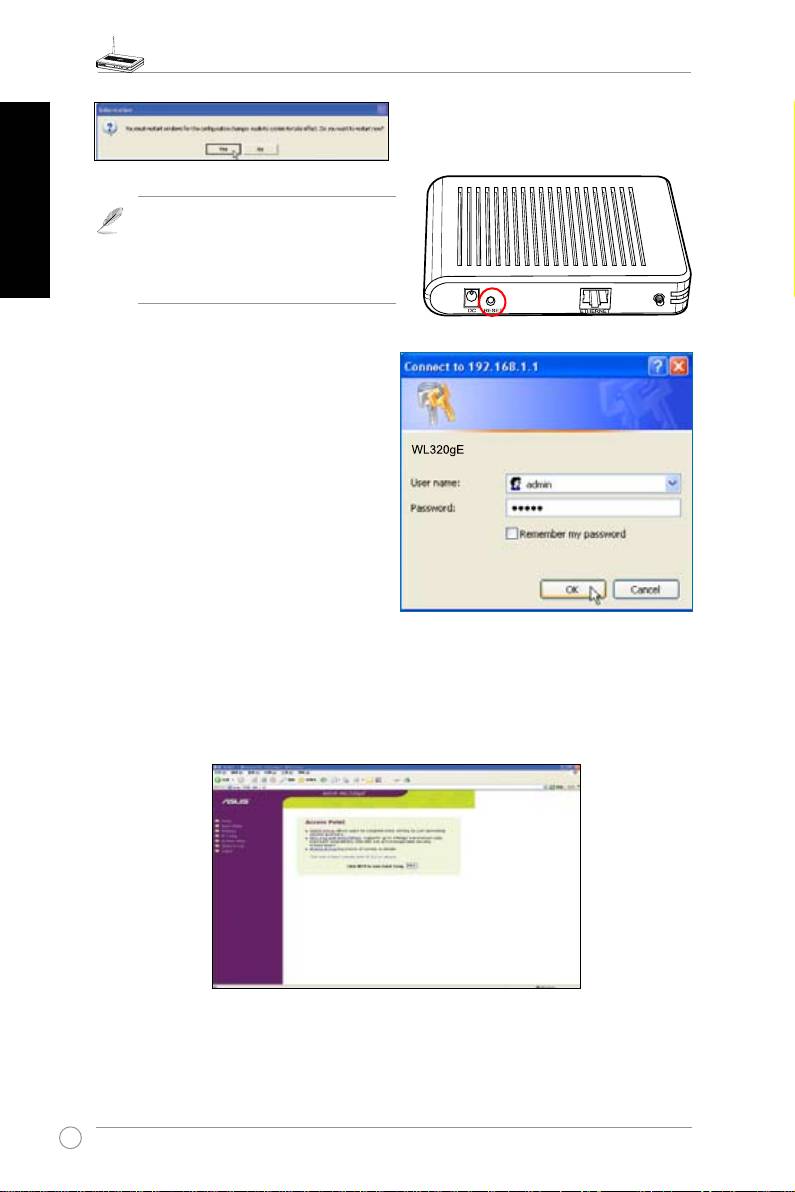
RestartyourWindowsifyouareaskedto.
English
Note:Ifyouarehavingproblemswith
theIPsettings,restoretheWL-320gE
’s settings toitsdefault.Todo this,
pushand hold forfiveseconds the
Resetbuttonusingapointedobject.
User Name and Password
Onceconnected,a window will ask for the
UsernameandPasswordinordertologin.
Thefactorydefaultvaluesare“
admin
”and“
admin
”.
Home Page
Afterloggingin,youwillseetheASUSWL-320gEAP homepage.Thedefaultpagewillbefor
theAccessPointmode.YoucanalsochangetoGatewaymodethrough
System Setup ->
Operation Mode
.BothAPandGatewaymodesupportBridge(WDS),Repeater(URE)and
Client(Station)mode.
Click<Next>tostartQuickSetup.FollowtheinstructionstosetuptheASUSAccessPoint.
10
WL-320gE Access Point Quick Start Guide
6) Quick Setup in Access Point mode
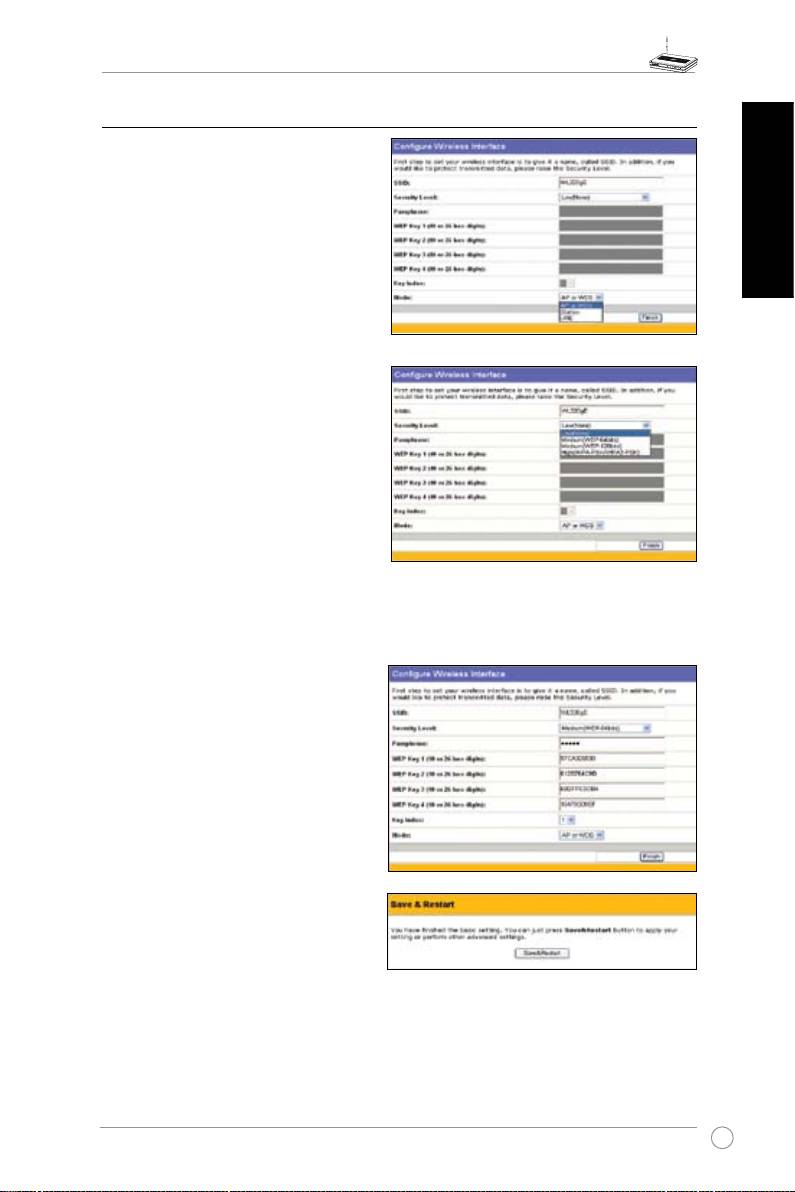
1. Click Nextto enter theQuick Setup
page.Followtheinstructionstosetup
theASUSAccessPoint.
2. Set mode toAP or WDS(Bridge),
Station(Client)orURE(Repeater).
English
3. Setting up yourwirelessinterface.
Specify toyour wireless router an
SSID(Service Set Identier),which is
auniqueidentierattachedtopackets
sen t ove r WLA N. This identifier
emulatesapasswordwhen adevice
attempts tocommunicate with your
wirelessrouterviaWLAN.
Ifyouwanttoprotecttransmitteddata,
proceedto steps4 and5.Otherwise,
gotostep6.
4. Selecta
Security Level
to enable
encryptionmethods.
Medium:
Onlyuserswiththesame WEP
keysettingscanconnect toyourwireless
routerandtransmitdatausing64bitsor128bitsWEPkeyencryption.
High:
OnlyuserswiththesameWPApre-sharedkeysettingscanconnecttoyourwireless
routerandtransmitdatausingTKIPencryption.
5. InputonesetofWEPkeysintheWEP
Keyfields(10 hexadecimal digitsfor
WEP64bits,26hexadecimaldigitsfor
WEP128bits),and thenselect from
KeyIndexaccordingly.
You can also let the systemgenerate
the keys byinputtinga Passphrase.
Record the Passphrase and the
WEPkeys in your notebook,then
selectfrom Key Index accordingly.
Click Finish to enable yoursetting.
For example, if we input 11111as
the Passphrase,the WEPKeys are
generatedautomatically.
6. Click Save&Restart to restart the
wirelessrouterandactivatethenewsettings.
11
WL-320gE Access Point Quick Start Guide
7) Quick Setup in Gateway mode
1.Click
System Setup -> Operation Mode -> Home Gateway.
IntheHomeGatewaymode,
English
youwillbeabletoconnecttotheInternetthroughADSLorcablemodem.
2.Click
Apply
toentertheGatewaymode.
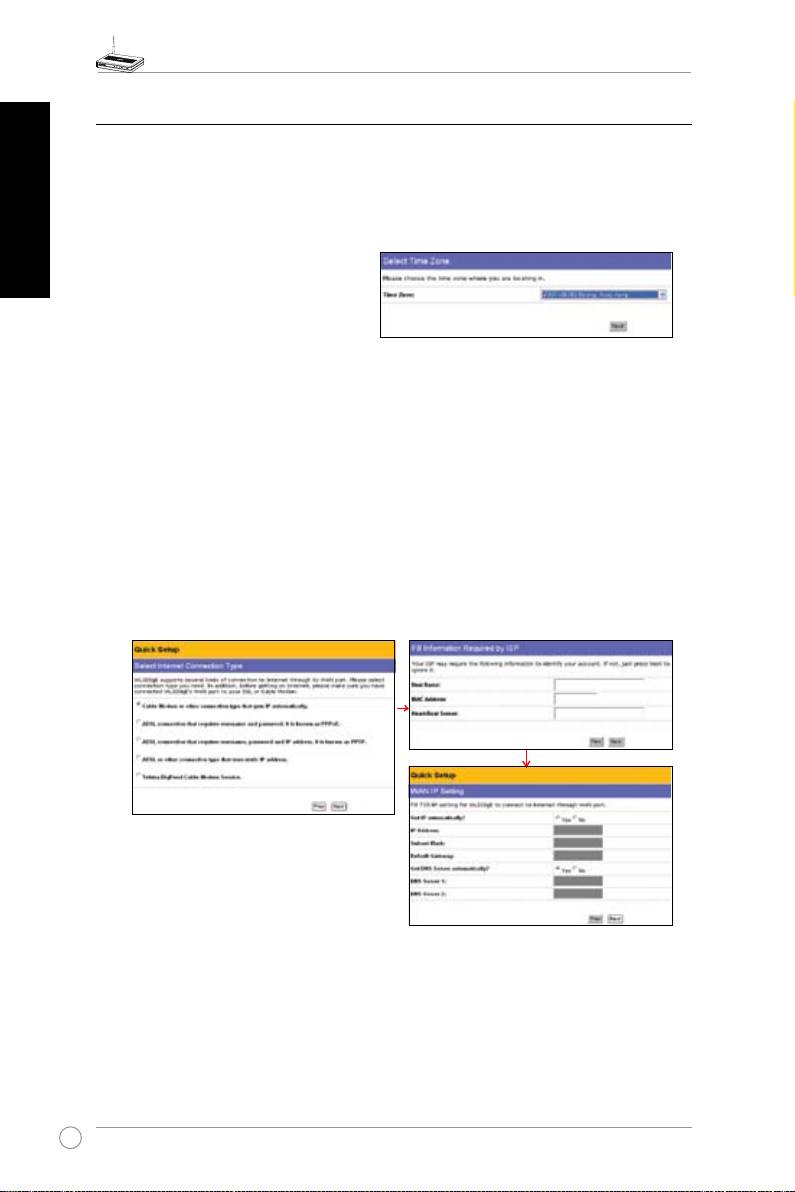
3. Selectyourtimezoneor theclosest
region.Click
Next
tocontinue.
4.. ASUSWL320gEAccessPointsupportsvetypesofISPservices—cable,ADSL(PPPoE,
PPTP,staticIPaddress),andTelstraBigPond.Sinceeachservicehasitsownprotocolsand
standards,therefore,duringthesetupprocess,therearedifferentidentitysettingsdemanded
byWL-320gE.Selectthecorrectconnectiontypeandclick
Next
tocontinue.
Cable User
IfyouarereceivingservicesfromcableorotherISPassigningIPaddressesautomatically,
please select
Cable Modem or other connection that gets IP automatically
.If you are
usingcableservices, your ISPmay have provided you withhostname,MAC address, and
heartbeatserver,iftrue,pleaselltheseinformationintotheboxesonthesettingpage;ifnot,
click
Next
toskipthisstep.
12
WL-320gE Access Point Quick Start Guide
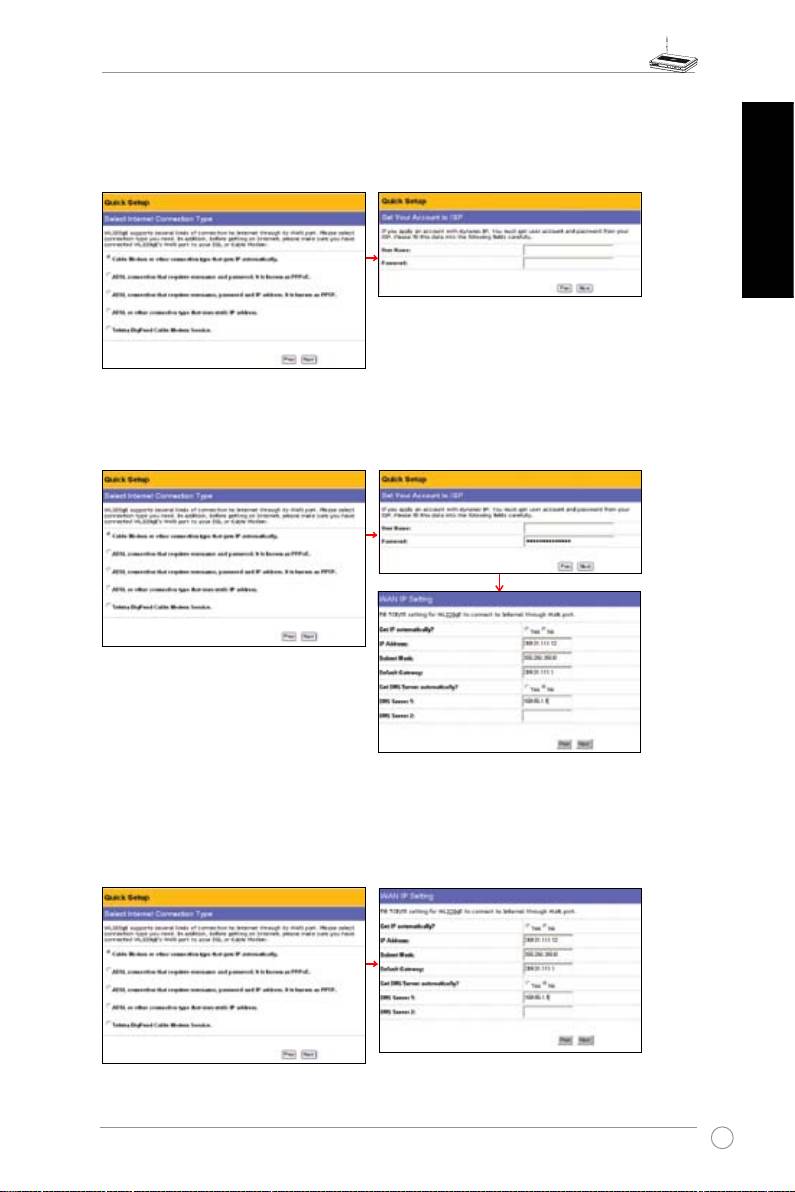
PPPoE User
IfyouarePPPoEserviceuser,pleaseselectthesecondline.Youwouldberequiredtoinput
theusernameandpasswordprovidedbyyourISP.
English
PPTP User
IfyouareusingPPTP services, youwouldbeaskedtoinputtheusername,password,as
wellastheIPaddressprovidedbyyourISP.
herk036@adsl-comfort
Static IP User
IfyouareusingADSLorotherconnectiontypethatusesstaticIPaddresses,pleaseselect
thefourthline,theninputtheIPaddress,subnetmask,anddefaultgatewayprovidedbyyour
ISP.YoucouldchoosetospecifycertainDNSservers,orselecttogetDNSautomatically.
13
WL-320gE Access Point Quick Start Guide
5. Setting upyour wireless interface. Tosetup your wirelessinterface, followthesame
instructionsfrom3 to5as above Configurating Wireless Interface inAccessPoint mode
on page10.You canchangetoAP orWDS(Bridge), Station(Client), orURE(Repeater)
English
accordingly.Click
Save&Restart
torestartthewirelessrouterandactivatethenewsettings.
8) Operation Modes
ThischaptergivesinformationontheoperationmodesoftheASUSWL-320gEAccessPoint.
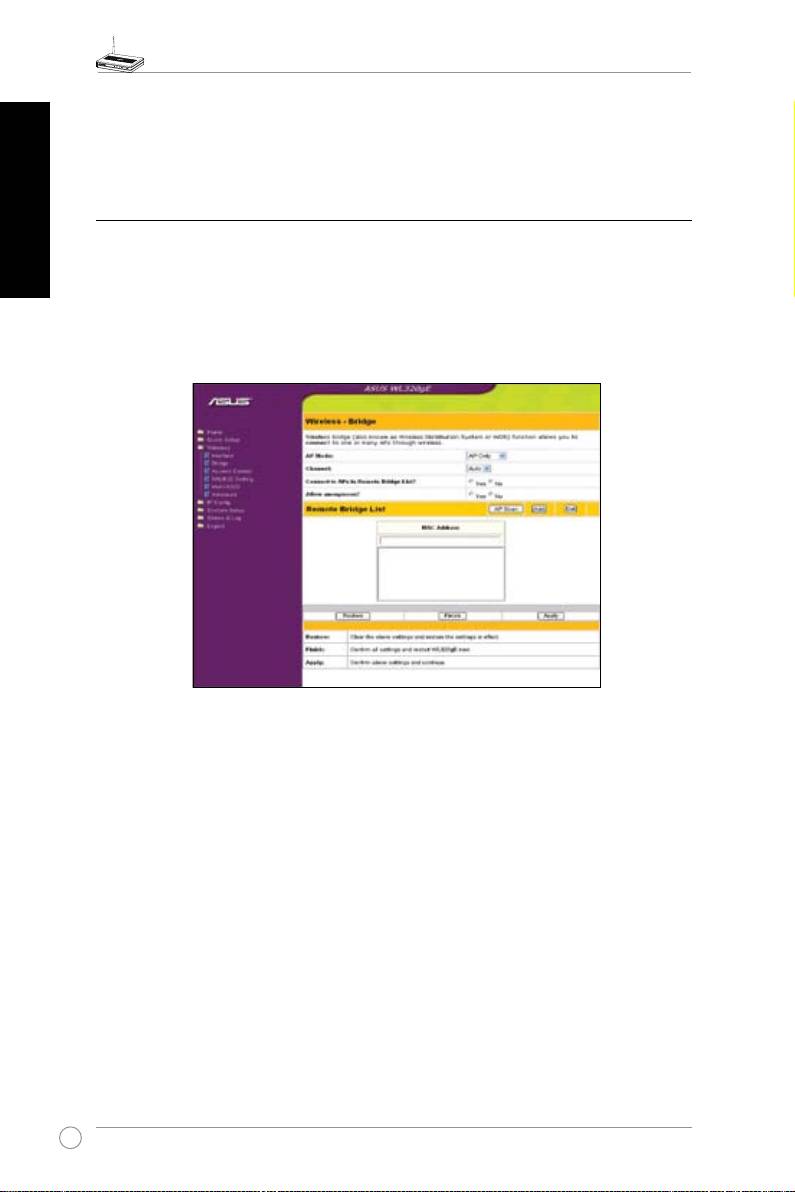
1) Bridge Mode (WDS)
Wirelessbridge,alsoknownasWirelessDistributionSystemorWDS,allowsyoutoconnect
toone ormanyAccessPoints. IfyousetthesameSSID amongallaccesspoints,wireless
securitylevelcouldbeuptoWPA-PSK.Otherwise,securitylevelisWEPonly.
Access Point
APModeconfigurestheASUS802.11gAPforaspecific purpose.By default,theASUS
802.11gAPissettoserveasan“AccessPoint”whereawirelessmobileclientcanconnect
wirelesslytoawiredEthernetnetwork.
WDS Only
WithWDS,theASUS802.11gAPcanonlycommunicatewithotherAccessPoints.
Hybrid
HybridallowsyoutousetheASUS802.11gAPbothasanaccesspointandasawireless
bridge.
Channel
BothAccessPointsinWirelessBridgemodemustbesettothesamechannel.
14

WL-320gE Access Point Quick Start Guide
Connect to APs in Remote Bridge List (Yes/No)
SelectYestoconnecttoaccesspointsintheremotebridgelist.
Allow anonymous? (Yes/No)
SelectYestoallowuserswithoutaccountstoconnect.
English
Note:If“ConnecttoAPsinRemoteBridgeList”and“AllowAnonymous”arebothset
to“No”,itmeansthatthisAPwillnotconnectwithotherAPsandthereforetheAP
modesettingwillreturnto“APOnly”.
2) Client Mode (Station)
Wirelessclient(Station)modeallowsWL-320gEworksasperformancewirelessclientcardas
longasthedevicesupportswiredconnection(withEthernetport),likeGameconsole,PCorNB.
Youneedtosetupthewirelesssettingandencryptionbeforeassociation.
Specify theSSIDand Encryption of targetAPaccordinglyunderWireless-Interfacesub
menuthenclickFinishbuttontoSaveandRestoresetting.Aftersystemrestarting,connect
theEthernetcabletoWL-320gEETHERNETportandotherdevice,thenWL-320gEwillwork
aswirelessclientcard.
3) Repeater Mode (URE)
Wireless RepeaterModeallows WL-320gEworksas range extender.Youcan set upthe
wirelesssettingunderWireless-Interfacesubmenu(sameasClientMode)thesameasroot
APthenthewirelesscoveragecanbeboost.
9) Wireless
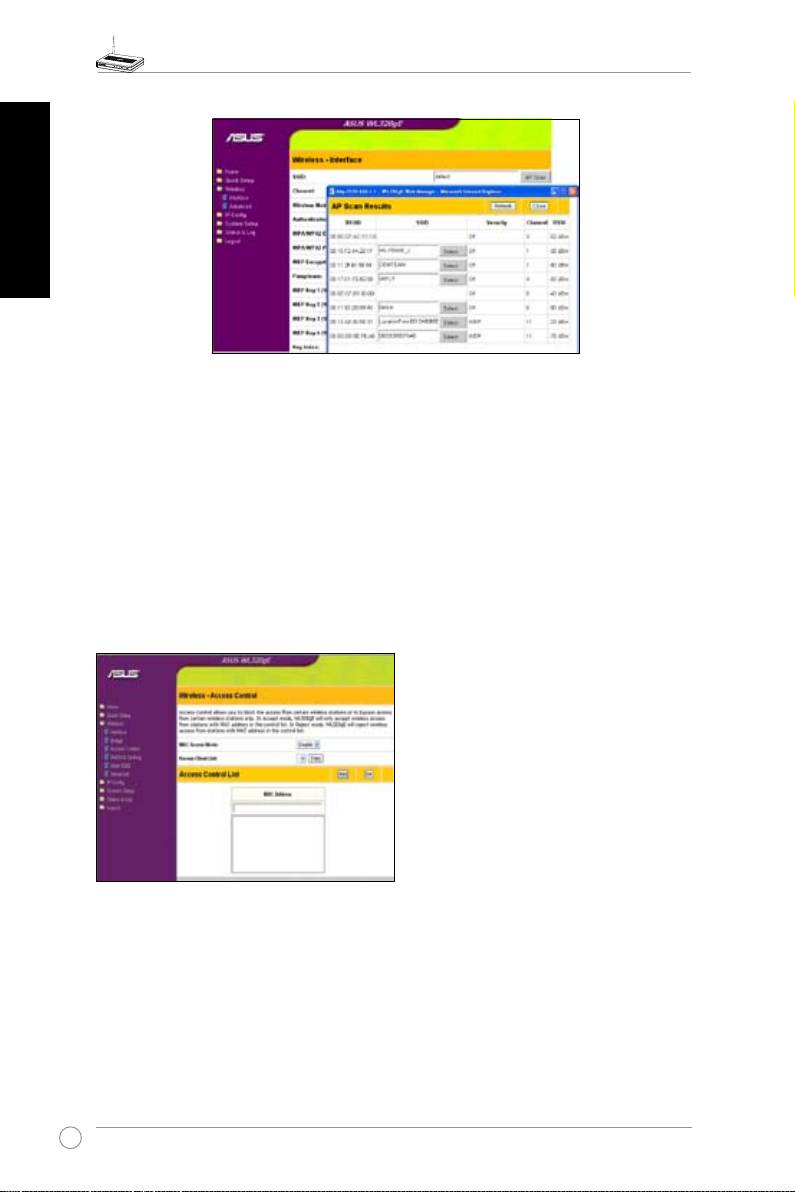
1) Site Survey(AP SCAN)
SiteSurveywillhelpWL-320gEassociate appropriateAPwhileinStation(Client)or
URE(Repeater)mode.MakesureWL-320gEinClientorUREmode,click“APSCAN”button
inWireless->Interfacewill popupawindow.APScanwillcollectcompleteAParound
informationincludingMAC,SSID, Security,Channel andRSSI(APwirelesssignalstrength)
value.
15
WL-320gE Access Point Quick Start Guide
English
2) Access Control
Toaddsecurity,theASUS802.11gAPhastheabilitytoonlyassociatewithornotassociate
withwirelessmobileclientsthathavetheirMACaddress enteredintothispage.
Thedefaultsettingof“Disable”willallowanywirelessmobileclientto
connect.“Accept”willonly
allowthoseenteredintothispagetoconnect. “Reject”willpreventthoseenteredintothispage
fromconnecting.
Adding a MAC Address
KnowClientListcollectsMACaddressofknownclients,whichassociatetotheAP.Toadda
MACaddress,simplyselectMACaddressinthelistthenclick“Copy”buttontoaddtheMAC
addressintheAccessControlList.
Pull down menu items:
Disable(noinforequired)
Accept(needtoinputinformation)
Reject(needtoinputinformation)
16
WL-320gE Access Point Quick Start Guide
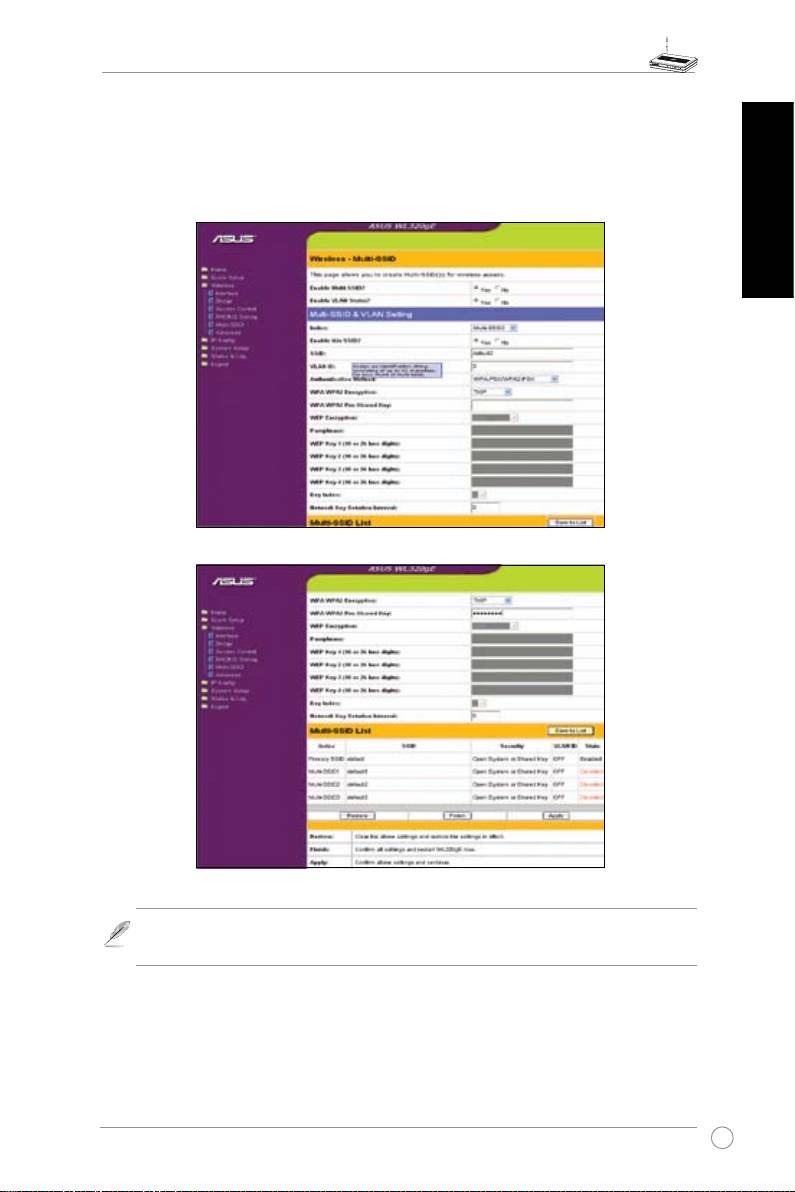
3) Multi-SSID and VLAN
TheAccessPointcan workwith a primary wireless network andup to three Virtual Local
AreaNetworks(VLAN).YoumustenableMulti-SSIDandVLANrstthensetupeachVLAN
property.EachVLANcanworkwithitsownVLANIDandsecuritylevelindependently.
English
Note: Toensurethecompatibilityofvariousclientcardwhilesitesurvey,wesuggest
manuallyspecifytheSSIDofMulti-SSIDaccordingly.
17
WL-320gE Access Point Quick Start Guide
10) System Setup
English
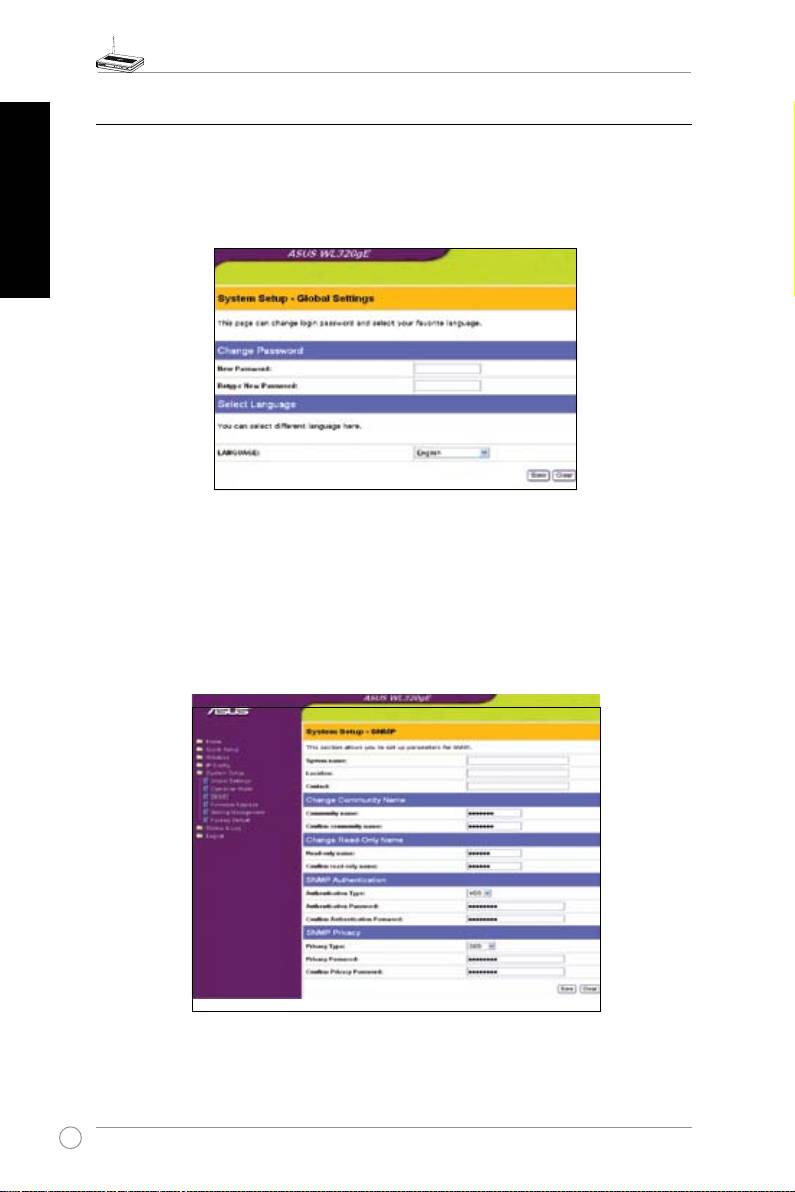
1) Global Settings
Thispagecanchangeloginpasswordandselectyourfavoritelanguage.
2) SNMP
SNMPisapopular network monitoringand management protocol. Itprovides network
administratorswiththeabilitytomonitorthestatusoftheAccessPointandreceivenotication
ofanycriticaleventsastheyoccurontheAccessPoint.YoucansetupAPpropertyforSNMP
control needed inSystem Setup-> SNMPwebpage thenclick Savetoapply yourchange.
PleaseinstallSNMPutilityandtheMIBleprovidedinutilityCD.
18

WL-320gE Access Point (Точка на достъп)
Кратко ръководство за експлоатация
®
Български
19
