
Asus WL-320gE: User Name and Password Home Page
User Name and Password Home Page: Asus WL-320gE
Table of contents
- Content 1. English ............................................................................... 1
- Manufacturer Contact Information
- 1. Package contents 2. Getting to know the Wireless Access Point
- Operation Mode AP/Repeater/Bridge/Gateway Client
- 2) Back panel LABEL Description 3) Wall mount option
- 3. Conguring the Wireless Access Point 1) Wired connection 2) Wireless Connection 3) Setting IP address for wired or wireless client
- 4) ASUS WLAN Utilities
- Launching the ASUS WLAN Utilities
- ASUS WLAN Device Discovery 5) Accessing the web page
- User Name and Password Home Page
- 6) Quick Setup in Access Point mode
- 7) Quick Setup in Gateway mode System Setup -> Operation Mode -> Home Gateway. Cable User
- PPPoE User PPTP User Static IP User
- 8) Operation Modes 1) Bridge Mode (WDS)
- 2) Client Mode (Station) 3) Repeater Mode (URE) 9) Wireless 1) Site Survey(AP SCAN)
- 2) Access Control Adding a MAC Address
- 3) Multi-SSID and VLAN
- 10) System Setup 1) Global Settings 2) SNMP
WL-320gE Access Point Quick Start Guide
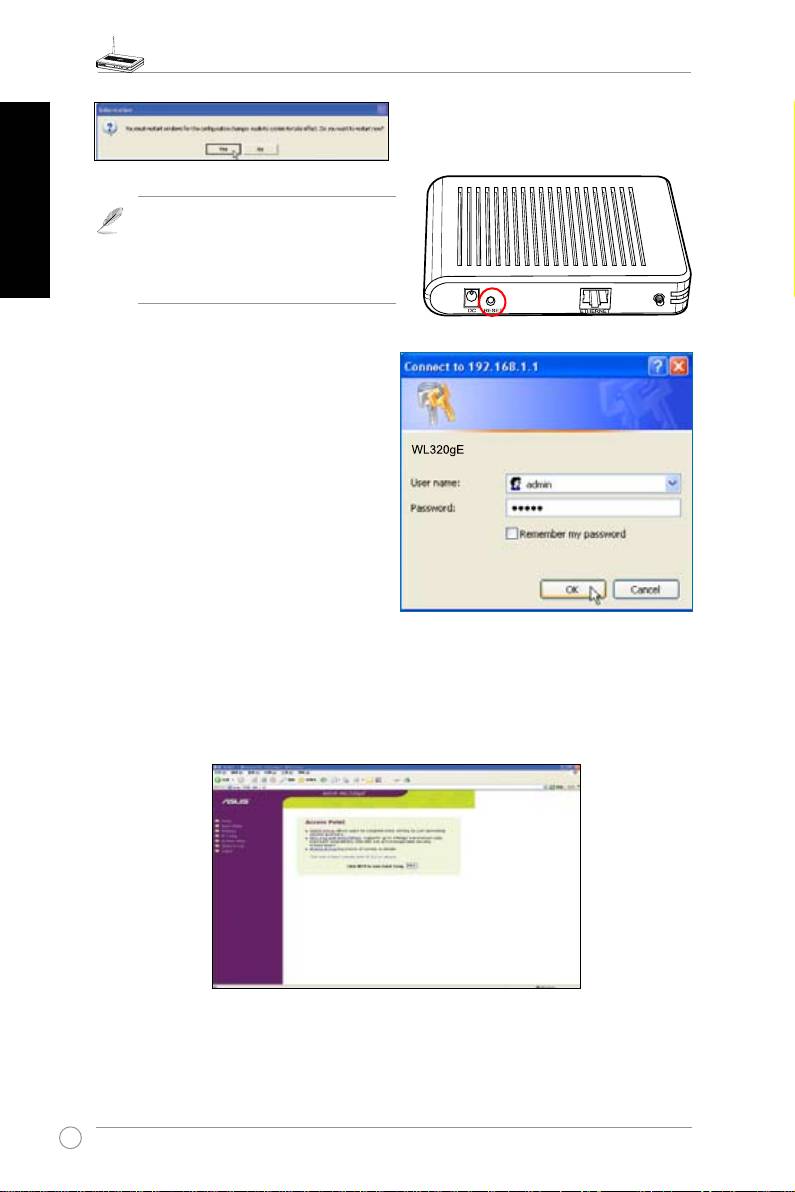
RestartyourWindowsifyouareaskedto.
English
Note:Ifyouarehavingproblemswith
theIPsettings,restoretheWL-320gE
’s settings toitsdefault.Todo this,
pushand hold forfiveseconds the
Resetbuttonusingapointedobject.
User Name and Password
Onceconnected,a window will ask for the
UsernameandPasswordinordertologin.
Thefactorydefaultvaluesare“
admin
”and“
admin
”.
Home Page
Afterloggingin,youwillseetheASUSWL-320gEAP homepage.Thedefaultpagewillbefor
theAccessPointmode.YoucanalsochangetoGatewaymodethrough
System Setup ->
Operation Mode
.BothAPandGatewaymodesupportBridge(WDS),Repeater(URE)and
Client(Station)mode.
Click<Next>tostartQuickSetup.FollowtheinstructionstosetuptheASUSAccessPoint.
10
