
Asus WL-320gE: 6) Quick Setup in Access Point mode
6) Quick Setup in Access Point mode: Asus WL-320gE
Table of contents
- Content 1. English ............................................................................... 1
- Manufacturer Contact Information
- 1. Package contents 2. Getting to know the Wireless Access Point
- Operation Mode AP/Repeater/Bridge/Gateway Client
- 2) Back panel LABEL Description 3) Wall mount option
- 3. Conguring the Wireless Access Point 1) Wired connection 2) Wireless Connection 3) Setting IP address for wired or wireless client
- 4) ASUS WLAN Utilities
- Launching the ASUS WLAN Utilities
- ASUS WLAN Device Discovery 5) Accessing the web page
- User Name and Password Home Page
- 6) Quick Setup in Access Point mode
- 7) Quick Setup in Gateway mode System Setup -> Operation Mode -> Home Gateway. Cable User
- PPPoE User PPTP User Static IP User
- 8) Operation Modes 1) Bridge Mode (WDS)
- 2) Client Mode (Station) 3) Repeater Mode (URE) 9) Wireless 1) Site Survey(AP SCAN)
- 2) Access Control Adding a MAC Address
- 3) Multi-SSID and VLAN
- 10) System Setup 1) Global Settings 2) SNMP
WL-320gE Access Point Quick Start Guide
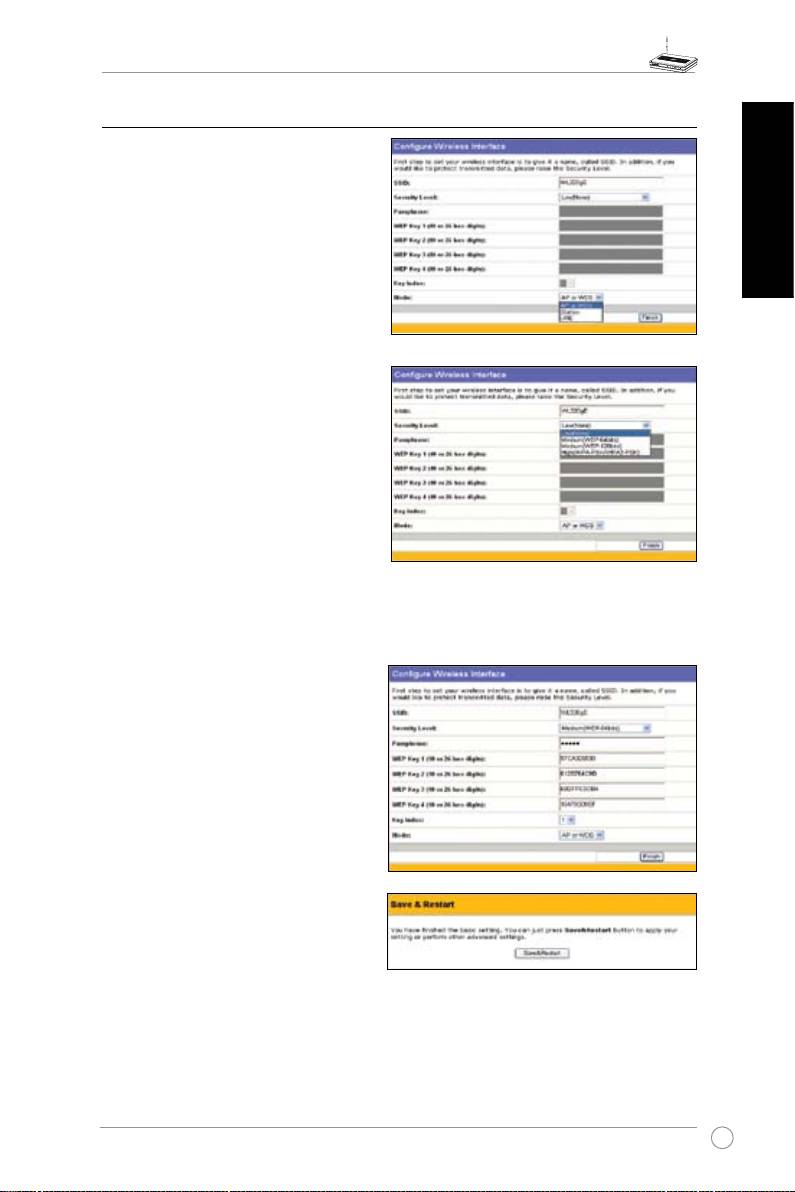
6) Quick Setup in Access Point mode
1. Click Nextto enter theQuick Setup
page.Followtheinstructionstosetup
theASUSAccessPoint.
2. Set mode toAP or WDS(Bridge),
Station(Client)orURE(Repeater).
English
3. Setting up yourwirelessinterface.
Specify toyour wireless router an
SSID(Service Set Identier),which is
auniqueidentierattachedtopackets
sen t ove r WLA N. This identifier
emulatesapasswordwhen adevice
attempts tocommunicate with your
wirelessrouterviaWLAN.
Ifyouwanttoprotecttransmitteddata,
proceedto steps4 and5.Otherwise,
gotostep6.
4. Selecta
Security Level
to enable
encryptionmethods.
Medium:
Onlyuserswiththesame WEP
keysettingscanconnect toyourwireless
routerandtransmitdatausing64bitsor128bitsWEPkeyencryption.
High:
OnlyuserswiththesameWPApre-sharedkeysettingscanconnecttoyourwireless
routerandtransmitdatausingTKIPencryption.
5. InputonesetofWEPkeysintheWEP
Keyfields(10 hexadecimal digitsfor
WEP64bits,26hexadecimaldigitsfor
WEP128bits),and thenselect from
KeyIndexaccordingly.
You can also let the systemgenerate
the keys byinputtinga Passphrase.
Record the Passphrase and the
WEPkeys in your notebook,then
selectfrom Key Index accordingly.
Click Finish to enable yoursetting.
For example, if we input 11111as
the Passphrase,the WEPKeys are
generatedautomatically.
6. Click Save&Restart to restart the
wirelessrouterandactivatethenewsettings.
11
