
Asus WL-320gE: 3. Conguring the Wireless Access Point 1) Wired connection 2) Wireless Connection 3) Setting IP address for wired or wireless client
3. Conguring the Wireless Access Point 1) Wired connection 2) Wireless Connection 3) Setting IP address for wired or wireless client: Asus WL-320gE
Table of contents
- Content 1. English ............................................................................... 1
- Manufacturer Contact Information
- 1. Package contents 2. Getting to know the Wireless Access Point
- Operation Mode AP/Repeater/Bridge/Gateway Client
- 2) Back panel LABEL Description 3) Wall mount option
- 3. Conguring the Wireless Access Point 1) Wired connection 2) Wireless Connection 3) Setting IP address for wired or wireless client
- 4) ASUS WLAN Utilities
- Launching the ASUS WLAN Utilities
- ASUS WLAN Device Discovery 5) Accessing the web page
- User Name and Password Home Page
- 6) Quick Setup in Access Point mode
- 7) Quick Setup in Gateway mode System Setup -> Operation Mode -> Home Gateway. Cable User
- PPPoE User PPTP User Static IP User
- 8) Operation Modes 1) Bridge Mode (WDS)
- 2) Client Mode (Station) 3) Repeater Mode (URE) 9) Wireless 1) Site Survey(AP SCAN)
- 2) Access Control Adding a MAC Address
- 3) Multi-SSID and VLAN
- 10) System Setup 1) Global Settings 2) SNMP
WL-320gE Access Point Quick Start Guide
3. Conguring the Wireless Access Point
English
TheASUSWL-320gEAccessPointcanmeetvariousworkingscenarioswithproperconguration.
Thedefaultsettingsofthewirelessroutermayneedchangesoastomeetyourindividualneeds.
Therefore,beforeusingtheASUSAccessPoint,checkthebasicsettingstomakesuretheyall
workinyourenvironment.
Note:
Wired connection for initial conguration isrecommended to avoidpossible
setupproblemsduetowirelessuncertainty.
1) Wired connection
TheASUSWL-320gEAccessPointissuppliedwithanEthernetcableinthepackage.Sincethe
ASUS WirelessAccessPointhasintegratedauto-crossoverfunction,therefore, youcanuse
eitherstraight-throughorcrossovercableforwiredconnection.Plugoneendofthecabletothe
LANportontherearpaneloftherouterandtheotherendtotheEthernetportonyourPC.
2) Wireless Connection
Forestablishingwirelessconnection,youneedanIEEE802.11b/gcompatibleWLANcard.Refer
to yourwireless adapter user manualfor wireless connection procedures. By default, the
SSIDofASUSAccessPointis “default”(in lower case), encryption is disabledandopen
systemauthenticationisused.
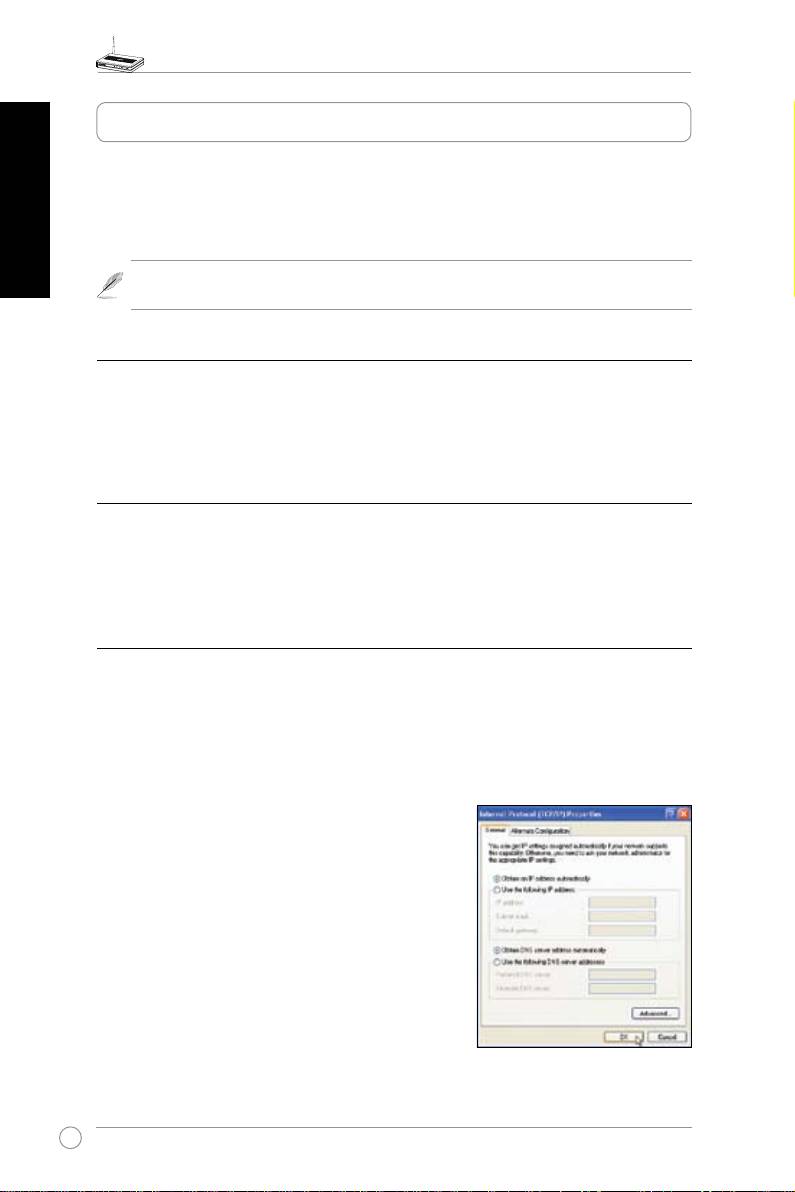
3) Setting IP address for wired or wireless client
ToaccesstheWL-320gEAccessPoint,youmusthavecorrectTCP/IPsettingsonyourwiredor
wirelessclients.SettheIPaddressesoftheclientswithinthesamesubnetofWL-320gE.
Setting up IP address Manually
TosetIPaddressmanually,youneedtoknowthedefaultsettingsoftheASUSAccessPoint:
• IPaddress192.168.1.1
• SubnetMask255.255.255.0
To setup theconnection withamanually assigned IP
address,theaddressofyourPCandthewirelessrouter
mustbewithinthesamesubnet:
• IPaddress: 192.168.1.xxx(xxx canbe any number
between2and254.MakesuretheIPaddressisnot
usedbyotherdevice)
• SubnetMask:255.255.255.0(sameasWL-320gE)
• Gateway:192.168.1.1(IPaddressof
WL-320gE)
• DNS: 192.168.1.1 (
WL-320gE), or assigna known
DNSserverinyournetwork.
6
