
Asus rt-ac56u: instruction
Class: Networks, communications, telecommunications, internet, security
Type:
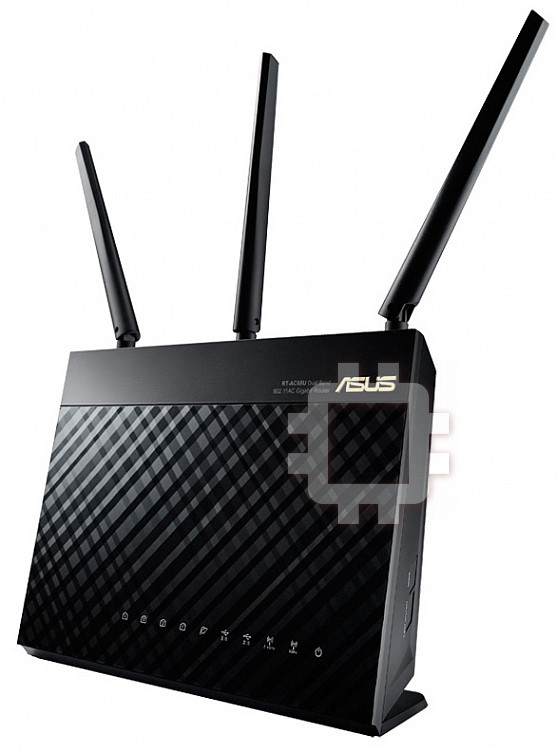
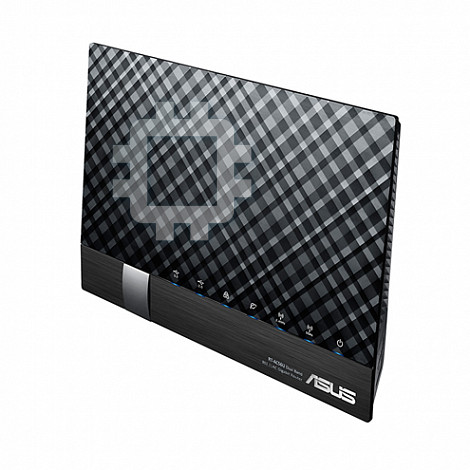
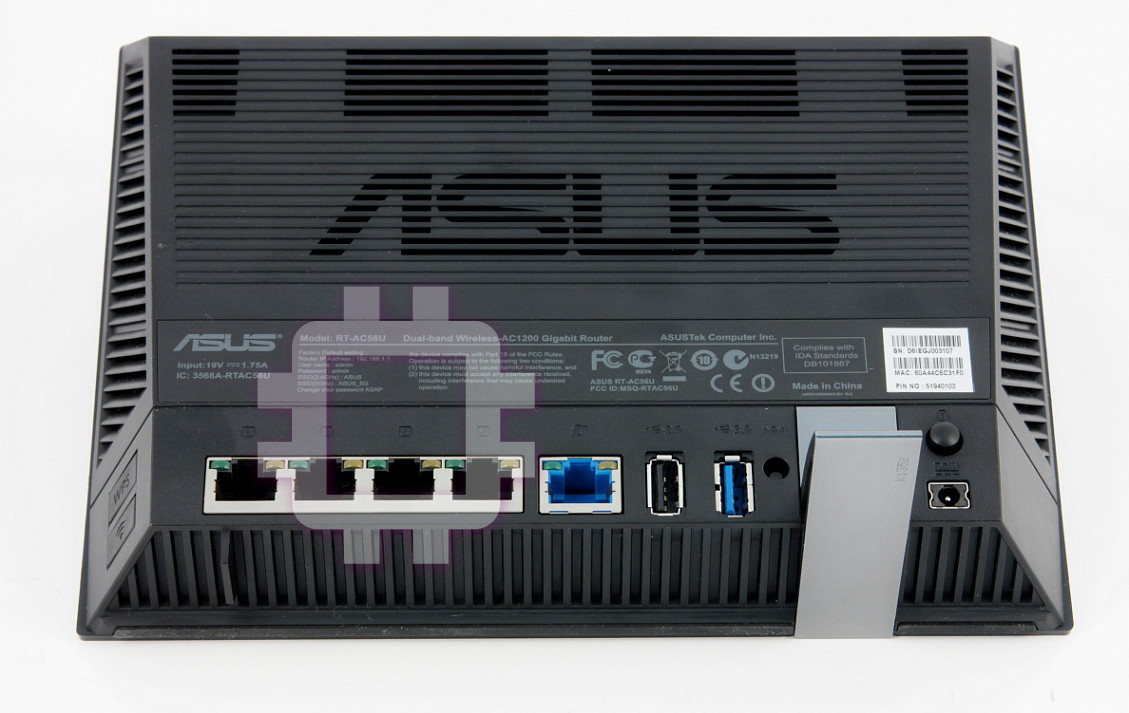
Manual for Asus rt-ac56u
Table of contents
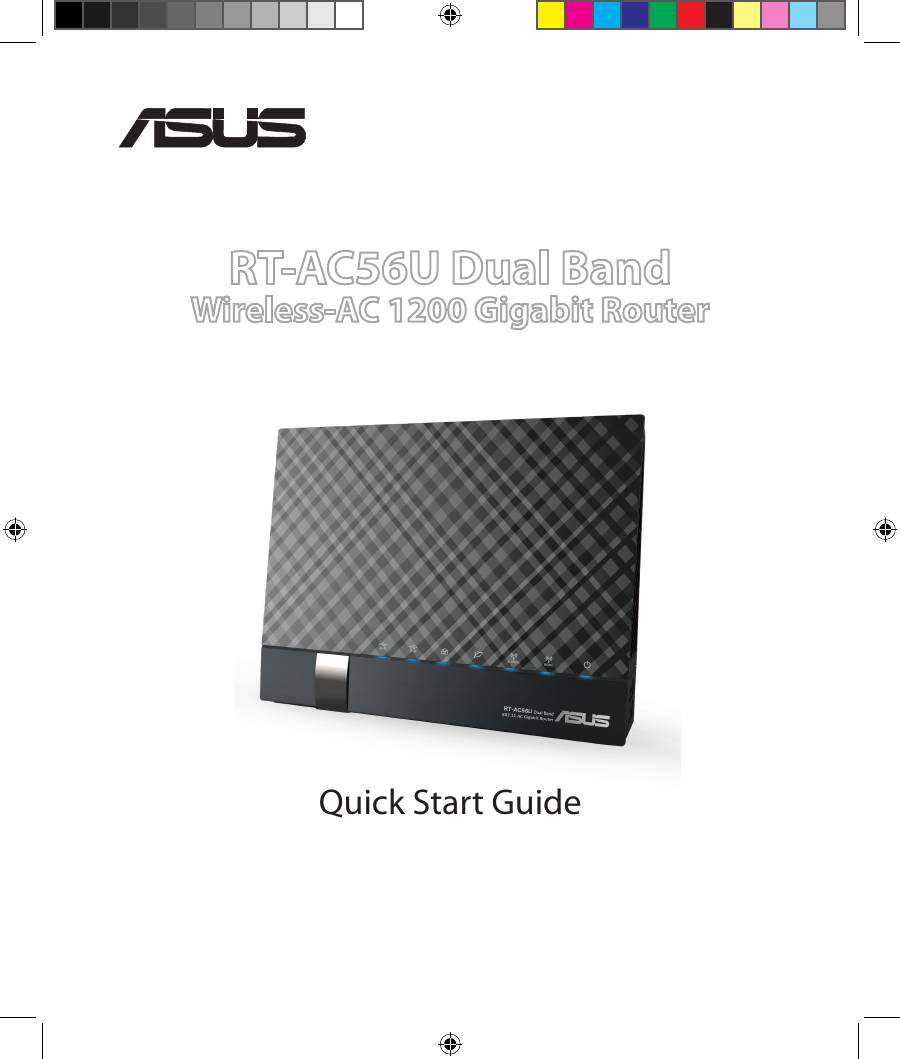
RT-AC56U Dual Band
Wireless-AC 1200 Gigabit Router
Quick Start Guide
®
EEU8555 / Second Edition / August 2013
EEU8555_RT-AC56U_QSG_v2.indd 1 8/21/13 5:58:50 PM
Table of contents
English .............................................................................................4
Български ......................................................................................17
Čeština .............................................................................................30
Eesti ..................................................................................................43
Magyar ............................................................................................56
Latviski ............................................................................................69
Lietuvių ...........................................................................................82
Polski ................................................................................................95
Română ...........................................................................................108
Русский ...........................................................................................121
Slovensky........................................................................................134
Türkçe ..............................................................................................147
Українська .....................................................................................160
Deutsch ...........................................................................................173
Hrvatski ...........................................................................................186
Srpski ...............................................................................................199
Slovenščina ....................................................................................212
EEU8555_RT-AC56U_QSG_v2.indd 2 8/21/13 5:58:51 PM
Note / Забележка / Poznámka /märkus / Megjegyzés/
piezīme/ Pastaba/ Uwaga/ Notă/
Примечание
/ Obs/not/
Примітка
/ Hinweis/NAPOMENA / BELEŠKA /OPOMBA
• For more details, refer to the user manual included in the
support CD.
•
За повече информация, вижте ръководството на потребителя,
намиращо се на помощния CD диск.
• Podrobnější informace viz uživatelská příručka na podpůrném
disku CD.
• Täpsemat teavet leiate seadmega kaasnenud tugijuhendi CD-lt.
• A további részleteket illetően tekintse meg a támogató CD-n
lévő felhasználói útmutatót.
• Detalizētāku informāciju meklējiet atbalsta CD esošajā lietotāja
rokasgrāmatā.
• Išsamiau žr. vartotojo vadovą, esantį šiame pagalbos
kompaktiniame (CD) diske.
• Dalsze szczegółowe informacje znajdują się w podręczniku
użytkownika na pomocniczym dysku CD.
•
Pentru mai multe detalii, consultaţi manualul de utilizare inclus pe CD-
ul suport.
•
Для получения дополнительной информации обратитесь к
руководству пользователя на компакт-диске.
•
Viac podrobností nájdete v návode na obsluhu na CD s
podporou.
•
Daha fazla ayrıntı için destek CD'sinde bulunan kullanıcı
kılavuzuna bakın.
•
Детальніше див. посібник користувача на компакт-диску
підтримки
.
• Weitere Details nden Sie im Benutzerhandbuch auf der
Support-CD.
• Dodatne pojedinosti potražite u korisničkom priručniku na CD-u
podrške.
• Za više detalja, pogledajte uputstvo za korišćenje koje se nalazi
na CD-u za podršku.
• Za več podrobnosti glejte uporabniški priročnik na priloženem
CD-ju.
EEU8555_RT-AC56U_QSG_v2.indd 3 8/21/13 5:58:52 PM
English
Package contents
RT-AC56U AC adapter
Network cable Quick Start Guide
Support CD (User Manual/utilities) Warranty card
Stand
NOTE: If any of the items is damaged or missing, contact your retailer.
A quick look
1 2
3
5 64 1412
7 9 10 13118
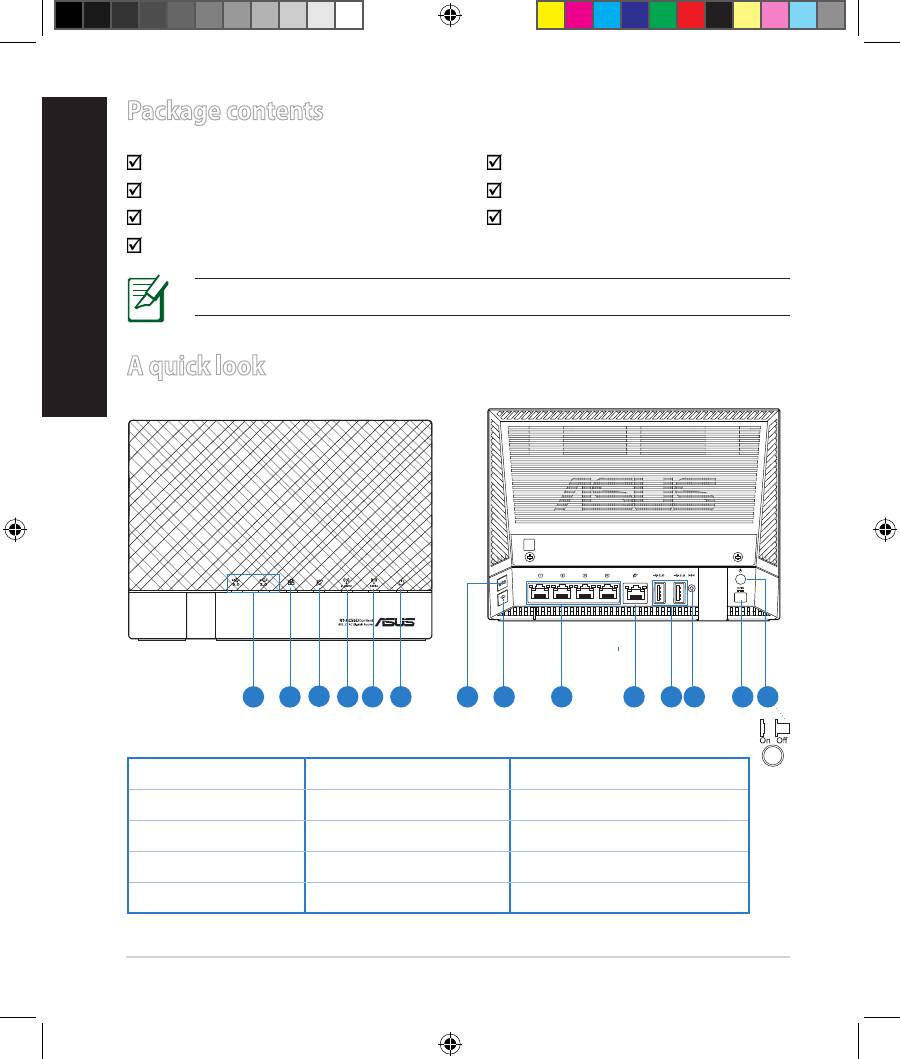
1) USB 3.0/2.0 LED 6) Power LED 11) USB 3.0/2.0 ports
2) LAN LED 7) WPS button 12) Reset button
3) WAN LED 8) Wi-Fi button 13) Power (DC-IN) port
4) 2.4GHz LED 9) LAN ports 14) Power switch
5) 5GHz LED 10) WAN port
4
EEU8555_RT-AC56U_QSG_v2.indd 4 8/21/13 5:59:10 PM
NOTES:
•
USB External HDD/Flash disk:
• The wireless router works with most USB HDDs/Flash disks up to
2TB and supports read-write access for FAT16, FAT32, EXT2, EXT3,
and NTFS.
• To safely remove the USB disk, launch the web GUI (
http://router.
asus.com or http://192.168.1.1), then in the Network Map
page's upper right corner, click the USB icon and click Eject USB 1.
English
• Incorrect removal of the USB disk may cause data corruption.
• For the list of le system and hard disk partitions that the
wireless router supports, visit http://event.asus.com/networks/
disksupport
• For the list of printers that the wireless router supports, visit
http://event.asus.com/networks/printersupport
5
EEU8555_RT-AC56U_QSG_v2.indd 5 8/21/13 5:59:12 PM

English
Positioning your wireless router
For the best wireless signal transmission between the wireless router and the
network devices connected to it, ensure that you:
• Place the wireless router in a centralized area for a maximum wireless coverage
for the network devices.
• Keep the device away from metal obstructions and away from direct sunlight.
• Keep the device away from 802.11g or 20MHz only Wi-Fi devices, 2.4GHz
computer peripherals, Bluetooth devices, cordless phones, transformers,
heavy-duty motors, uorescent lights, microwave ovens, refrigerators, and other
industrial equipment to prevent signal interference or loss.
• To ensure the best wireless signal, orient the three detachable antennas as
shown in the drawing below.
• For optimum performance, adjust the internal cooling system. Refer to the user
manual for details.
• Always update to the latest rmware. Visit the ASUS website at
http://www.asus.com to get the latest rmware updates.
6
EEU8555_RT-AC56U_QSG_v2.indd 6 8/21/13 5:59:13 PM
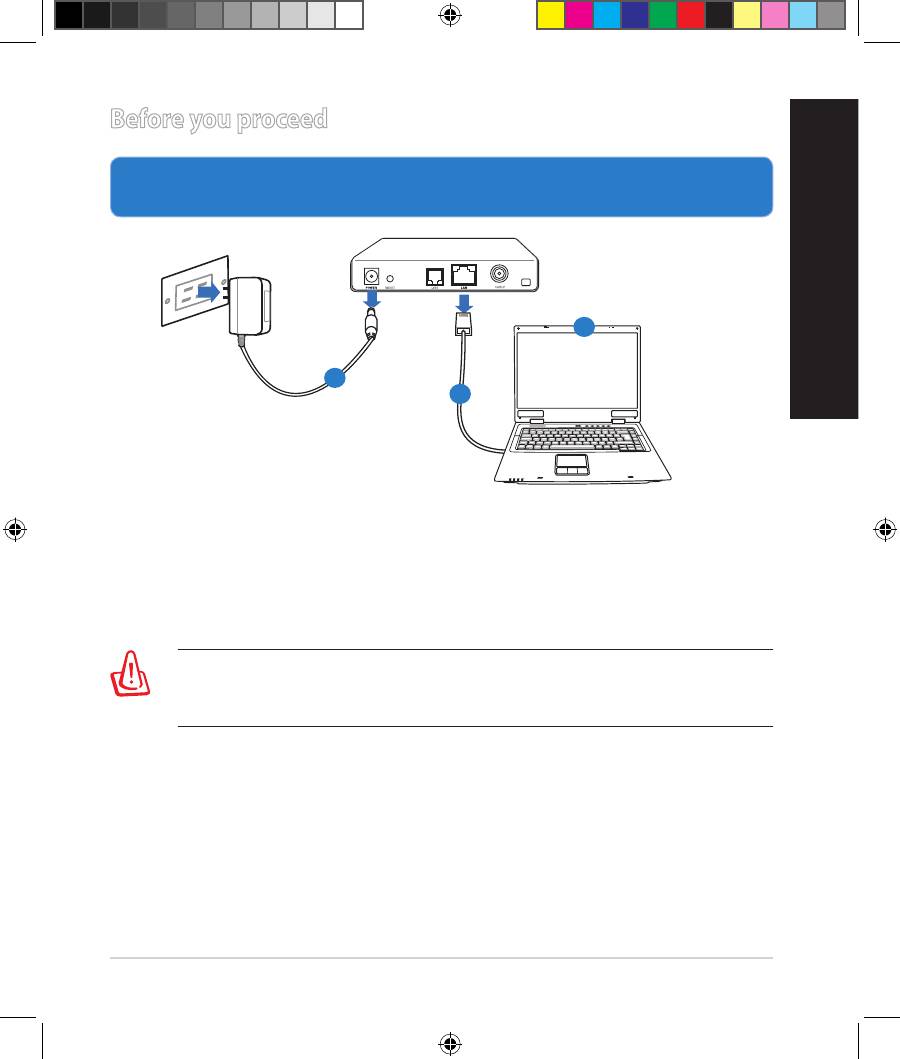
Before you proceed
1. Unplug and disconnect the wires/cables from your existing modem setup
and release your computer’s outmoded IP address.
a: Unplug the AC adapter from the power outlet and disconnect it from your
cable/ADSL modem.
b: Disconnect the network cable from your cable/ADSL modem.
c: Reboot your computer (recommended).
7
Modem
OFF
!
c
English
a
b
WARNING! Before disconnecting the wires/cables, ensure that your
cable/ADSL modem has been turned o for at least two minutes. If your
modem has a backup battery, remove it as well.
EEU8555_RT-AC56U_QSG_v2.indd 7 8/21/13 5:59:15 PM
English
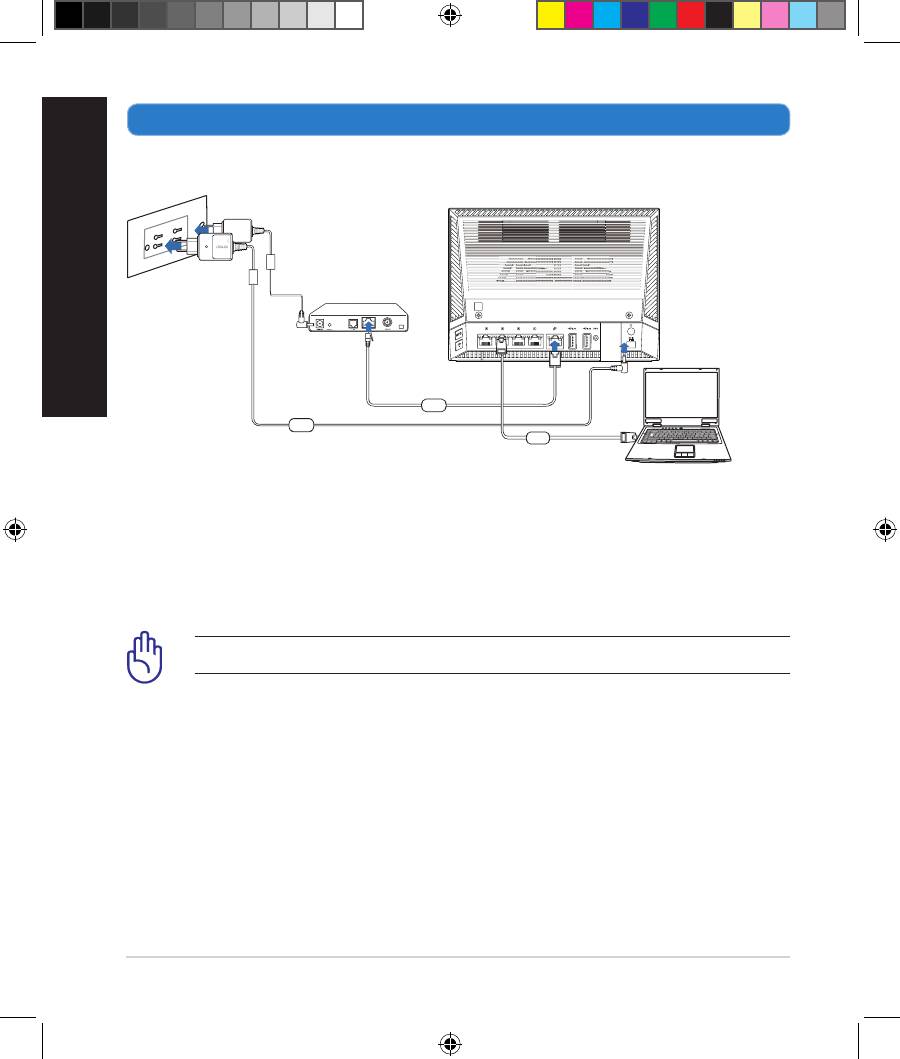
2. Set up your wireless environment.
a: Insert your wireless router’s AC adapter to the DC-IN port and plug it to a
power outlet.
b: Using the bundled network cable, connect your computer to your wireless
router’s LAN port.
IMPORTANT! Ensure that the WAN and LAN LEDs are blinking.
c: Using another network cable, connect your modem to your wireless router’s
WAN port.
d: Insert your modem’s AC adapter to the DC-IN port and plug it to a power
outlet.
8
Wall Power Outlet
RT-AC56U
Mode
m
WAN
Power
LAN
Computer
EEU8555_RT-AC56U_QSG_v2.indd 8 8/21/13 5:59:18 PM
3. Disable some settings on your computer.
A. Disable the proxy server, if enabled.
B. Set the TCP/IP settings to automatically obtain an IP address.
C. Disable the dial-up connection, if enabled.
NOTE: For more details on disabling your computer settings, refer to
Frequently Asked Questions (FAQs).
English
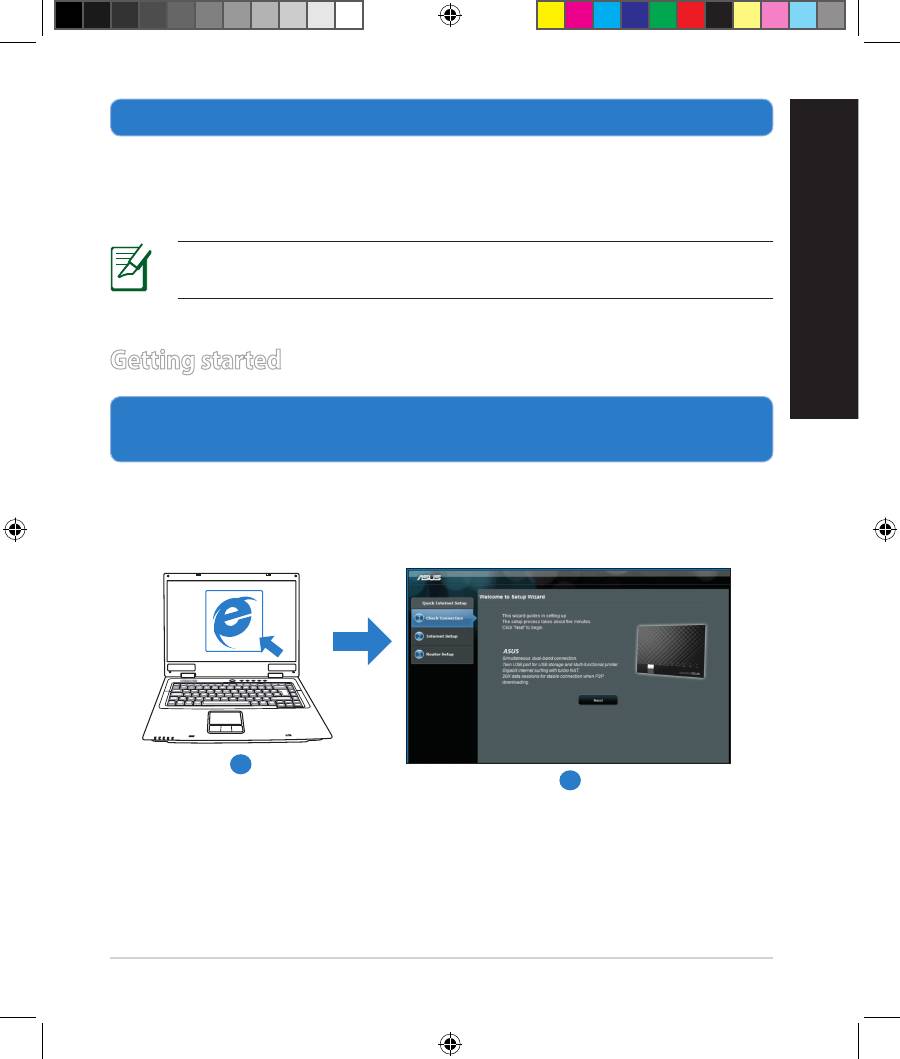
Getting started
1. Congure your wireless settings via the wireless router’s web graphics
user interface (web GUI).
a: Launch your web browser such as Internet Explorer, Firefox, Google Chrome,
or Safari.
9
RT-AC56U
RT-AC56U
a
b
EEU8555_RT-AC56U_QSG_v2.indd 9 8/21/13 5:59:21 PM
English
NOTE: If QIS does not launch automatically, follow these steps to
manually launch QIS:
• On your web browser, key in
http://router.asus.com or
http://192.168.1.1 and run the Quick Internet Setup (QIS) Wizard
again.
• Disable the proxy settings, dial-up connection, and set your TCP/IP
settings to automatically obtain an IP address. For more details, refer
to the FAQs section or use the Setup Wizard in the support CD for
auto-diagnosis.
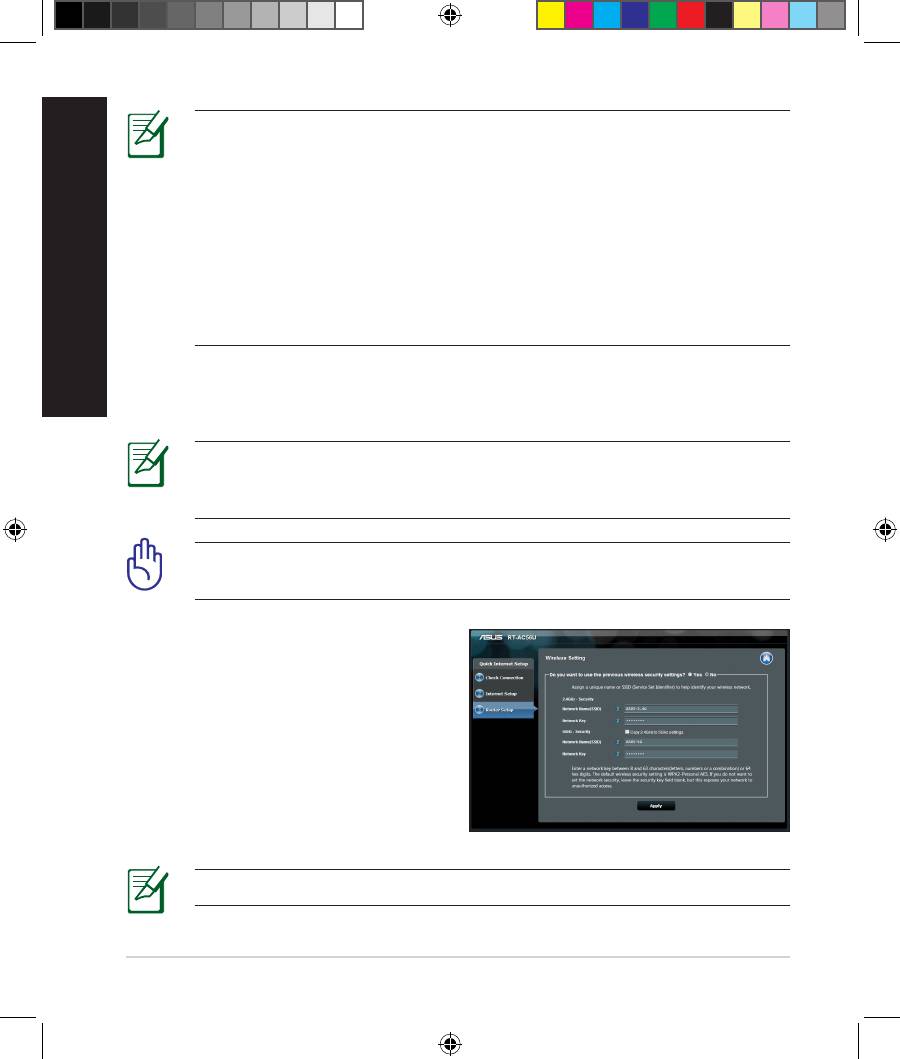
b: The wireless router’s Quick Internet Setup (QIS) feature automatically detects
if your ISP connection type is Dynamic IP, PPPoE, PPTP, L2TP, and Static IP.
Key in the necessary information for your connection type.
NOTE: The auto-detection of your ISP connection type takes place
when you congure the wireless router for the rst time or when your
wireless router is reset to its default settings.
IMPORTANT! Obtain the necessary information about your Internet
connection type from your Internet Service Provider (ISP).
c: Assign the network name (SSID) and
security key for your 2.4GHz and
5GHz wireless connection. Click Ap-
ply when done.
d: Your Internet and wireless settings
are displayed. Click Next to con-
tinue.
e: Read the wireless network con-
nection tutorial. When done, click
Finish.
NOTE: You can assign a network name with up to 32 characters.
10
EEU8555_RT-AC56U_QSG_v2.indd 10 8/21/13 5:59:23 PM
Frequently Asked Questions (FAQs)
After following the steps, I still cannot access the wireless router’s web
graphics user interface (web GUI) to congure the wireless router settings.
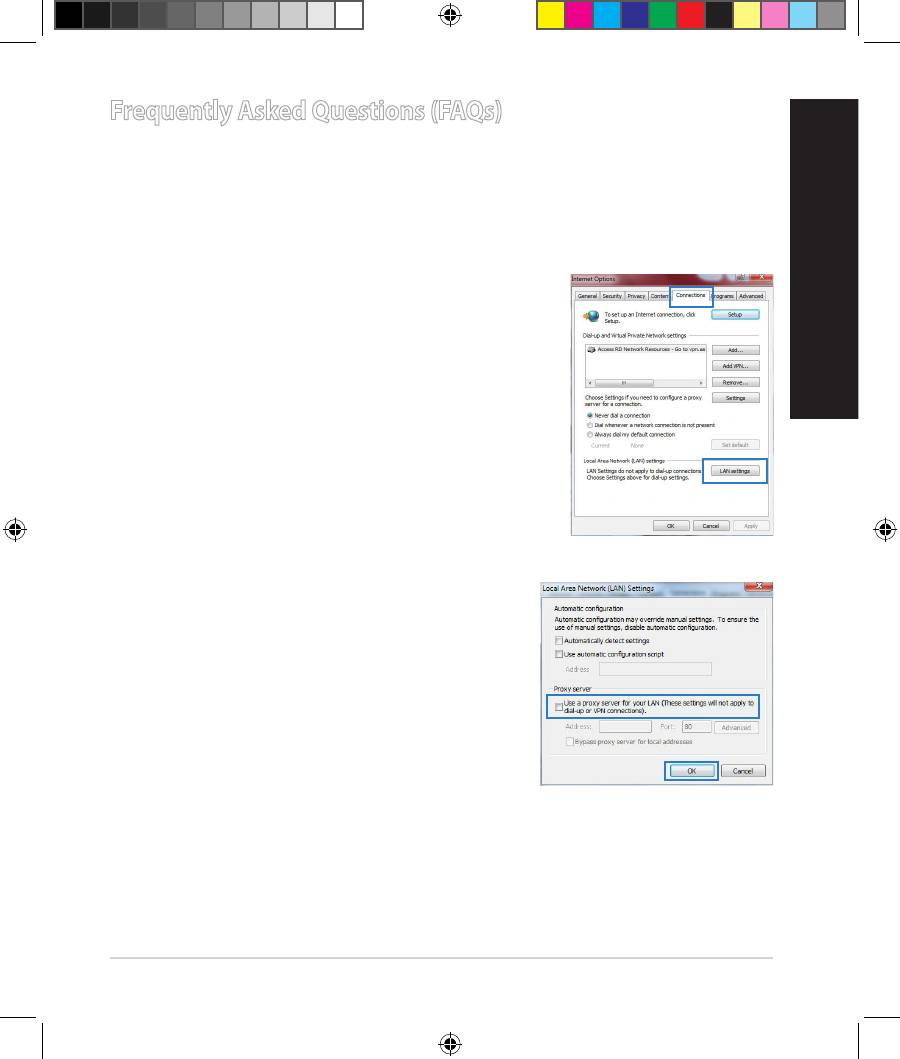
A. Disable the proxy server, if enabled.
Windows® 7
1. Click Start > Internet Explorer to launch the web
browser.
2. Click Tools > Internet options > Connections tab
English
> LAN settings.
3. From the Local Area Network (LAN) Settings
screen, untick Use a proxy server for your
LAN.
4. Click OK when done.
11
EEU8555_RT-AC56U_QSG_v2.indd 11 8/21/13 5:59:24 PM
English
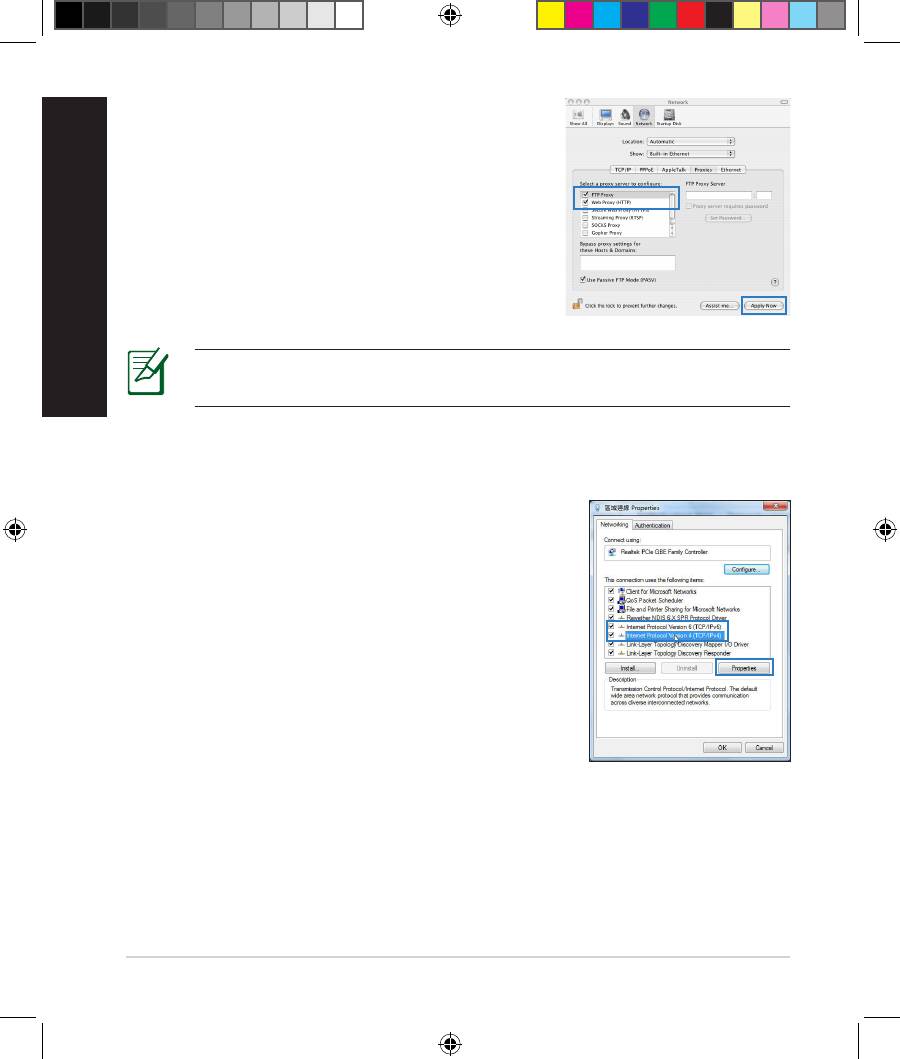
MAC OS
1. From your Safari browser, click Safari > Prefer-
ences > Advanced > Change Settings...
2. From the Network screen, deselect FTP Proxy
and Web Proxy (HTTP).
3. Cllick Apply Now when done.
NOTE: Refer to your browser's help feature for details on disabling the
proxy server.
B. Set the TCP/IP settings to automatically obtain an IP address.
Windows® 7
1. Click
Start > Control Panel > Network and
Internet > Network and Sharing Center >
Manage network connections.
2. Select Internet Protocol Version 4 (TCP/IPv4),
then click Properties.
12
EEU8555_RT-AC56U_QSG_v2.indd 12 8/21/13 5:59:25 PM
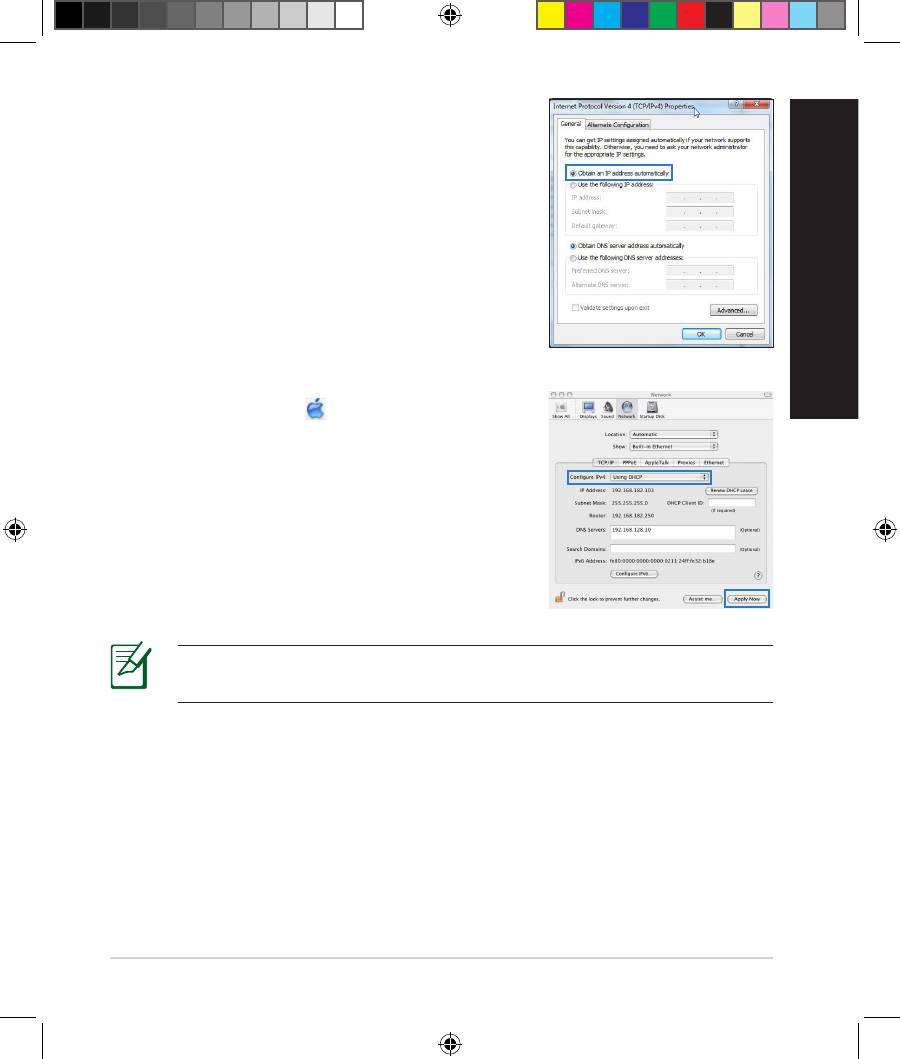
3. To obtain the iPv4 IP settings automatically, tick
Obtain an IP address automatically.
4. Click OK when done.
English
MAC OS
1. Click the Apple icon located on the top left of
your screen.
2. Click System Preferences > Network >
Congure...
3. From the TCP/IP tab, select Using DHCP in the
Congure IPv4 dropdown list.
4. Cllick Apply Now when done.
NOTE: Refer to your operating system’s help and support feature for
details on conguring your computer’s TCP/IP settings.
13
EEU8555_RT-AC56U_QSG_v2.indd 13 8/21/13 5:59:26 PM
English
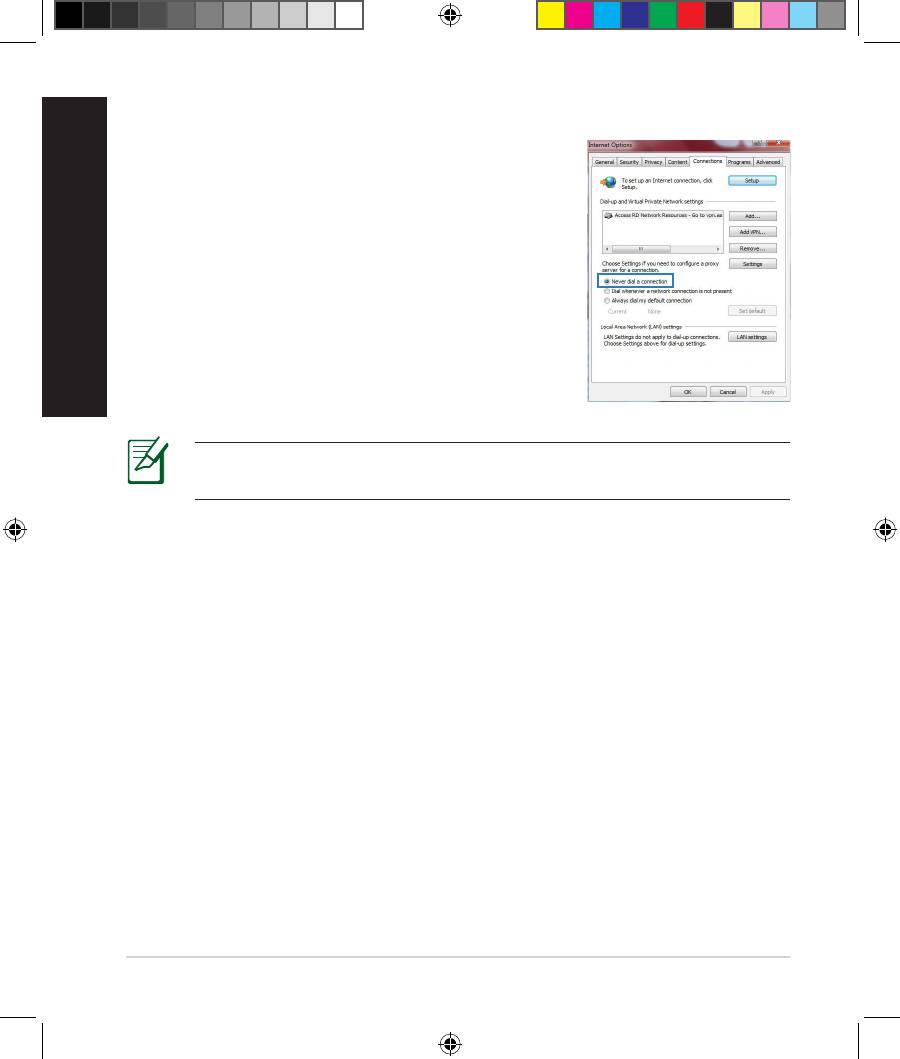
C. Disable the dial-up connection, if enabled.
Windows® 7
1. Click Start > Internet Explorer to launch the
browser.
2. Click Tools > Internet options > Connections tab.
3. Tick Never dial a connection.
4. Click OK when done.
NOTE: Refer to your browser's help feature for details on disabling
the dial-up connection settings.
D. Close all running web browsers.
The client cannot establish a wireless connection with the router.
Out of Range:
• Put the router closer to the wireless client.
• Try to change the channel settings.
Authentication:
• Use wired connection to connect to the router.
• Check the wireless security settings.
• Press the Reset button at the rear panel for more than ve seconds.
14
EEU8555_RT-AC56U_QSG_v2.indd 14 8/21/13 5:59:26 PM
Cannot nd the router:
• Press the Reset button at the rear panel for more than ve seconds.
• Check the setting in the wireless adapter such as SSID and encryption
settings.
Cannot access the Internet via wireless LAN adapter.
• Move the router closer to the wireless client.
• Check whether the wireless adapter is connected to the correct wireless
router.
• Check whether the wireless channel in use conforms to the channels avail-
English
able in your country/area.
• Check the encryption settings.
• Check if the ADSL or Cable connection is correct.
• Retry using another Ethernet cable.
If the ADSL “LINK” light blinks continuously or stays o, Internet access is
not possible - the Router is unable to establish a connection with the ADSL
network.
• Ensure that all your cables are all properly connected .
• Disconnect the power cord from the ADSL or cable modem, wait a few min-
utes, then reconnect the cord.
• If the ADSL light continues to blink or stays OFF, contact your ADSL service
provider.
Network name or encryption keys are forgotten.
• Try setting up the wired connection and conguring the wireless encryption
again.
• Press the Reset button of the wireless router for more than ve seconds.
• Factory default settings:
User name / Password:
IP address:
SSID: ASUS
admin / admin
192.168.1.1
15
EEU8555_RT-AC56U_QSG_v2.indd 15 8/21/13 5:59:27 PM
English
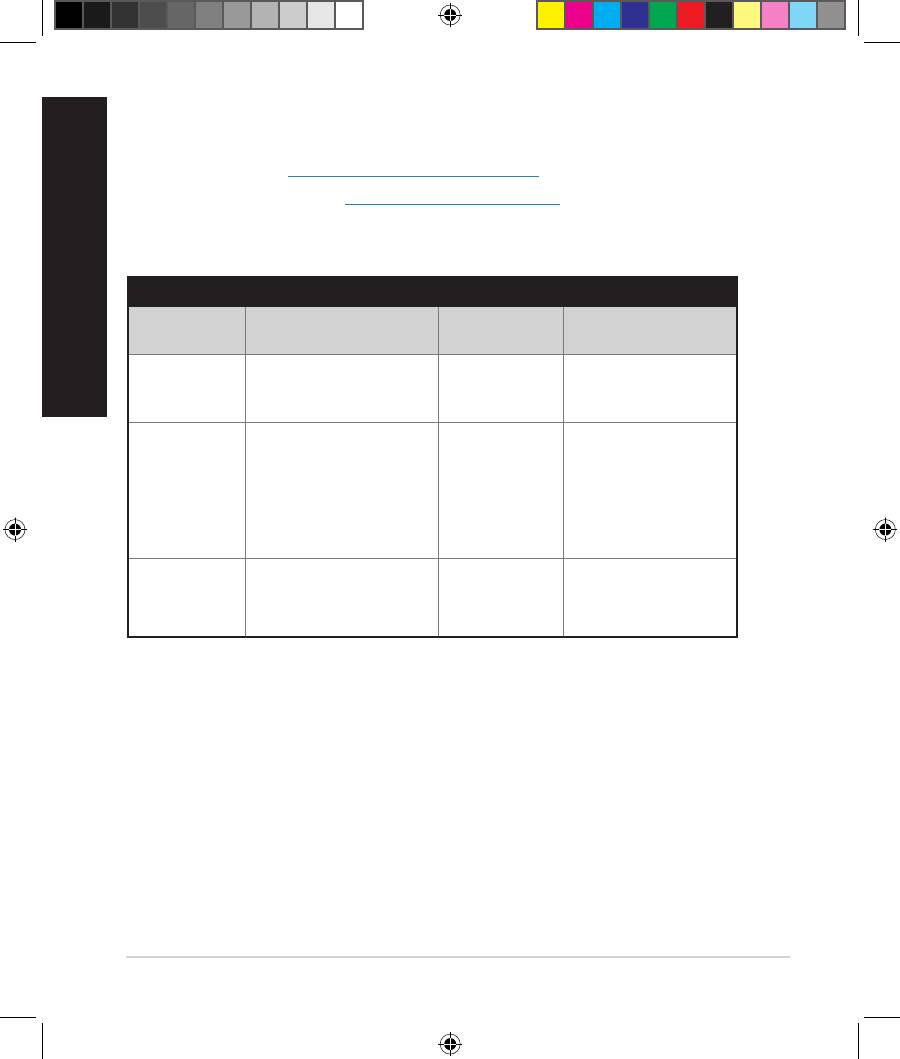
Where can I nd more information about the wireless router?
• User Manual in the support CD
• Online FAQ site: http://support.asus.com/faq
• Technical Support site: http://support.asus.com
• Customer Hotline: Refer to the Support Hotline in this Quick Start Guide
SUPPORT HOTLINE
Area Hotline Number Support
Availability
Languages
Taiwan 0800-093-456;
Traditional
Mon. to Fri.
02-81439000
Chinese
9:00-12:00;
13:30-18:00
USA/
1-812-282-2787 English Mon. to Fri.
Canada
8:30-12:00am EST
(5:30am-9:00pm PST)
Sat. to Sun.
9:00am-6:00pm EST
(6:00am-3:00pm PST)
Brazil 4003 0988 (Capital) Portuguese
Mon. to Fri.
9:00am-18:00
0800 880 0988
(demais localidades)
16
EEU8555_RT-AC56U_QSG_v2.indd 16 8/21/13 5:59:27 PM
Бърз преглед
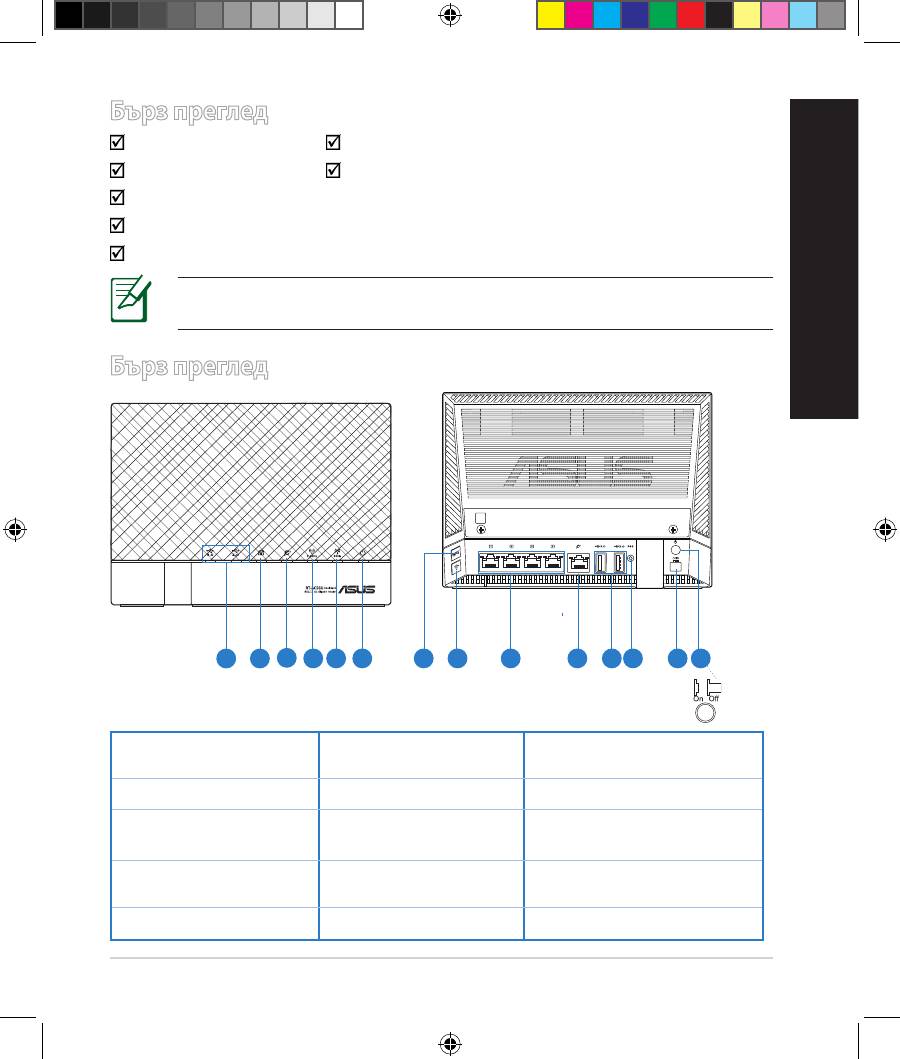
RT-AC56U Адаптер за променлив ток
Мрежов кабел Ръководство за бърз старт
Помощен CD диск (Ръководство на потребителя/помощни програми)
Гаранционна карта
Стойка
ЗАБЕЛЕЖКА: Ако някой от компонентите е повреден или липсва,
свържете се с Вашия търговски представител.
български
Бърз преглед
1 2
3
5 64 1412
7 9 10 13118
1) USB 2.0 /3.0
6) Индикатор на
11) USB 3.0/2.0 портове
индикатор
захранването
2) LAN индикатор 7) WPS бутон 12) Бутон за нулиране
13) Порт захранване
3) WAN индикатор 8) Wi-Fi бутон
(DC-IN)
14) Пpeвклю
ц
ватeл на
4) 2.4GHz индикатор 9) LAN Портове
захранването
5) 5 GHz индикатор 10) WAN Порт
17
EEU8555_RT-AC56U_QSG_v2.indd 17 8/21/13 5:59:44 PM
български
ЗАБЕЛЕЖКИ:
•
USB Външен хард / флаш диск:
• Безжичният рутер работи с повечето USB хард дискове и флаш
дискове до 2 TB и поддържа достъп четене-писане за FAT16,
FAT32, EXT2, EXT3 и NTFS.
• За сигурно изключване на USB диска стартирайте
потребителския интерфейс от мрежата GUI (http://router.asus.
com или http://192.168.1.1), след това на страница Network
Map (Карта на мрежата) в горния десен ъгъл щракнете
иконата на USB и щракнете Eject USB 1 (Изхвърляне на USB
1).
• Неправилното изваждане на USB диска може да предизвика
повреждане на данните.
• Списъка на системните и дискови раздели, поддържани от
безжичния рутер, можете да намерите на http://event.asus.
com/networks/disksupport
• Списъка на принтерите, поддържани от безжичния рутер, можете
да намерите на
http://event.asus.com/networks/printersupport
18
EEU8555_RT-AC56U_QSG_v2.indd 18 8/21/13 5:59:45 PM

Разположение на безжичния рутер
За постигане на максимално добро предаване на безжичните сигнали
между безжичния рутер и свързаните с него мрежови устройства трябва:
• Да поставите безжичния рутер на централно място за максимално покритие
на мрежовите устройства.
• Рутерът да е отдалечен от метални прегради и да не е изложен на слънчева
светлина.
• Рутерът да е отдалечен от Wi-Fi устройства 802.11g или 20MHz, компютърни
периферни устройства 2.4GHz, Bluetooth (блутут) устройства, безжични
телефони, трансформатори, мощни мотори, флуоресцентни лампи,
български
микровълнови печки, хладилници и други промишлени машини за
избягване на смущенията или загубите на сигнала.
• За осигуряване на максимално добър сигнал трите свалящи се антени да се
ориентират както е показано на схемата по-долу.
• За оптимална да се регулира вътрешната охлаждаща система. Повече
подробности са дадени в ръководството на потребителя.
• Винаги използвайте най-новите версии на фърмуера. Посетете сайта на
ASUS http://www.asus.com за сваляне на последните версии на фърмуера.
19
EEU8555_RT-AC56U_QSG_v2.indd 19 8/21/13 5:59:46 PM
Преди започване
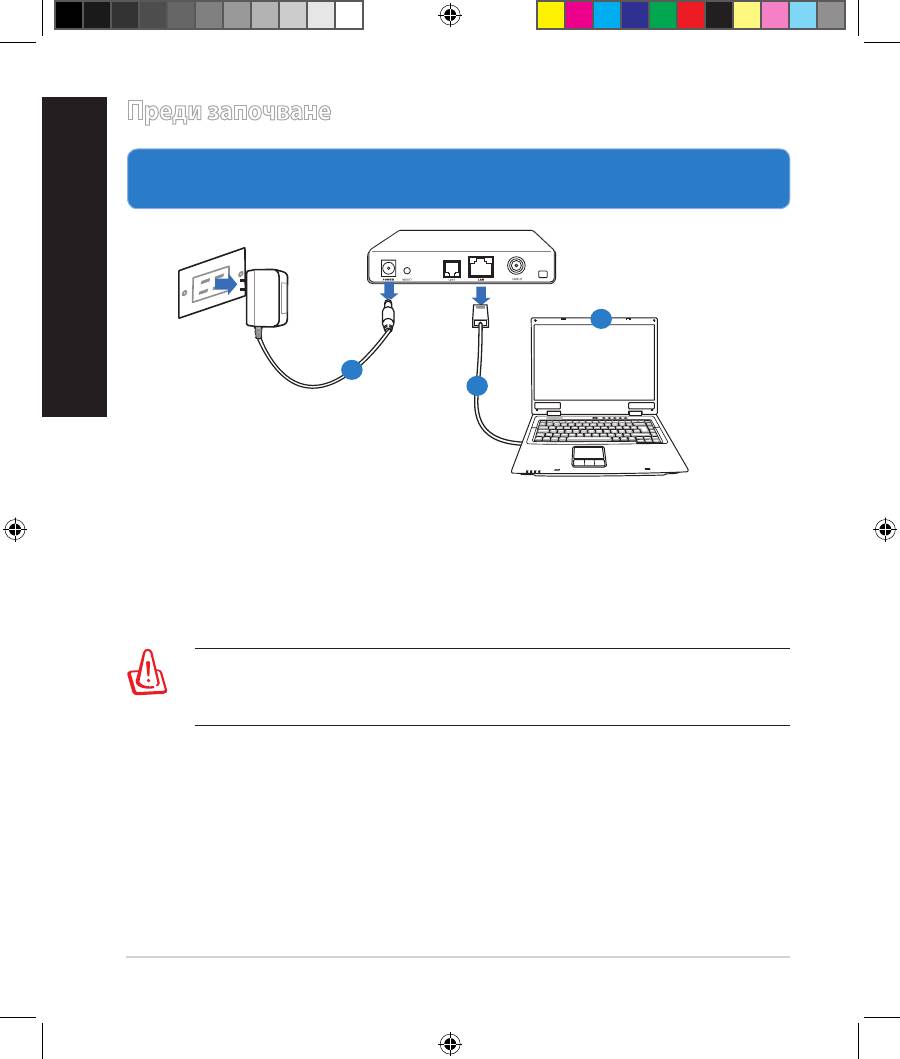
1. Откачете жиците и кабелите от съществуващата система с модем и
освободете стария IP адрес на компютъра.
а
: Изключете адаптера за променлив ток от контакта и го извадете от
кабелния/ADSL модем.
б
: Извадете мрежовия кабел от Вашия кабелен/ADSL модел.
в
: Рестартирайте компютъра (препоръчително).
20
Modem
OFF
!
български
c
a
b
ПРЕДУПРЕЖДЕНИЕ: Преди да откачите жиците и кабелите вашият
кабелен или ADSL модем трябва да бъде изключен най-малко за две
минути. Ако модемът има поддържаща батерия, свалете и нея.
EEU8555_RT-AC56U_QSG_v2.indd 20 8/21/13 5:59:46 PM


