
Asus RT-N11: instruction
Class: Networks, communications, telecommunications, internet, security
Type:
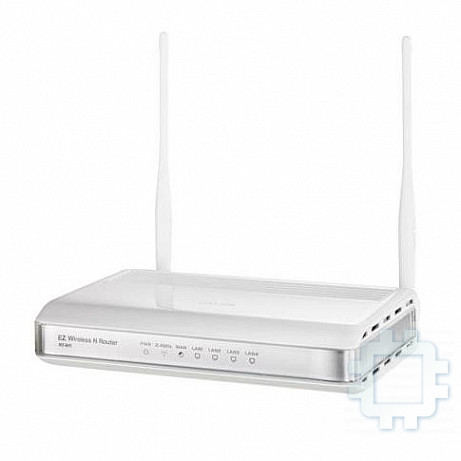
Manual for Asus RT-N11
Table of contents
- Index 1 English ......................................................................... 1

Index
1 English ......................................................................... 1
2 Български .....................................................................13
3 Česky ...........................................................................25
4 Eesti .............................................................................37
5 Magyar .........................................................................49
6 Latviski .........................................................................61
7 Lietuvių .........................................................................73
8 Polski ...........................................................................85
9 Română .......................................................................97
10 Русский........................................................................109
11 Slovensky .................................................................121
12 Українська ...................................................................133
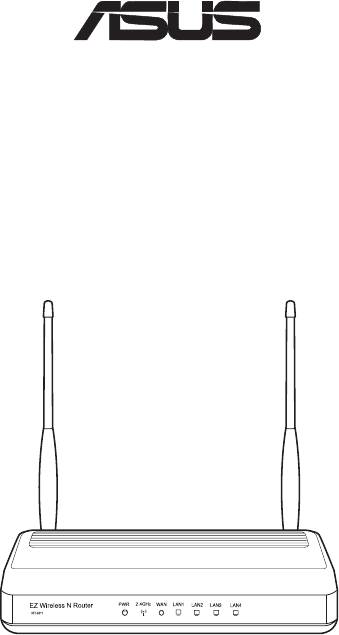
RT-N11
EZWirelessNRouter
QuickStartGuide
®

ASUSContactInformation
ASUSTeKCOMPUTERINC.(Asia-Pacic)
Company address: 15 Li-Te Road, Beitou, Taipei 11259
Telephone: +886-2-2894-3447
Fax: +886-2-2890-7798
E-mail: info@asus.com.tw
Web site: http://www.asus.com.tw
ASUSCOMPUTERINTERNATIONAL(America)
Company address: 44370 Nobel Drive, Fremont, CA 94538, USA
General (fax): +1-510-608-4555
Web site address: http://usa.asus.com
Technicalsupport
General support: +1-502-995-0883
Support (fax): +1-502-933-8713
Online support: http://vip.asus.com/eservice/techserv.aspx
ASUSCOMPUTERGmbH(Germany&Austria)
Company address: Harkortstr. 21-23, 40880 Ratingen, Germany
General (tel): +49-02102-95990
General (fax): +49-02102-959911
Web site address: http://www.asuscom.de
Online contact: http://www.asuscom.de/sales
Technicalsupport
Components: +49-02102-95990
Fax: +49-02102-959911
Online support: http://vip.asus.com/eservice/techserv.aspx?SLanguage=de-de
Global service center: http://support.asus.com/service/service.aspx?SLanguage=en-
us
FAQ: http://support.asus.com/faq/faq.aspx?SLanguage=en-us
Online technical support: http://support.asus.com/techserv/techserv.
aspx?SLanguage=en-us
RT-N11EZWirelessNRouterQuickStartGuide
1.Packagecontents
• RT-N11 wireless router x 1
• Power adapter x 1
• Docking stand x 1
• Utility CD x 1
• RJ45 cable x 1
• Quick Start Guide x 1
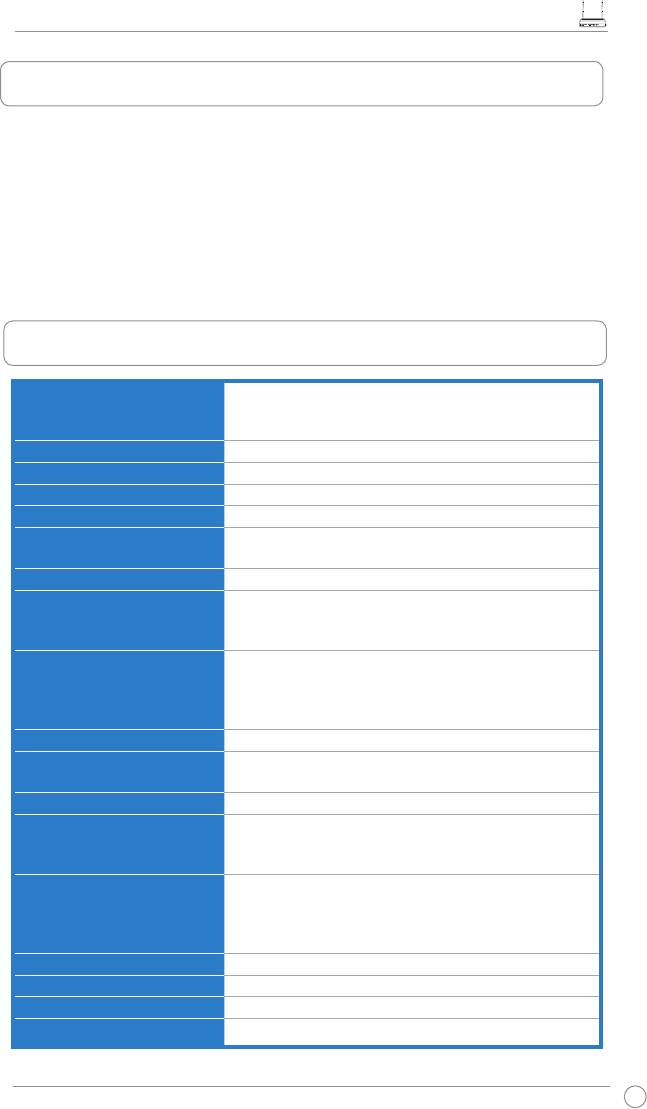
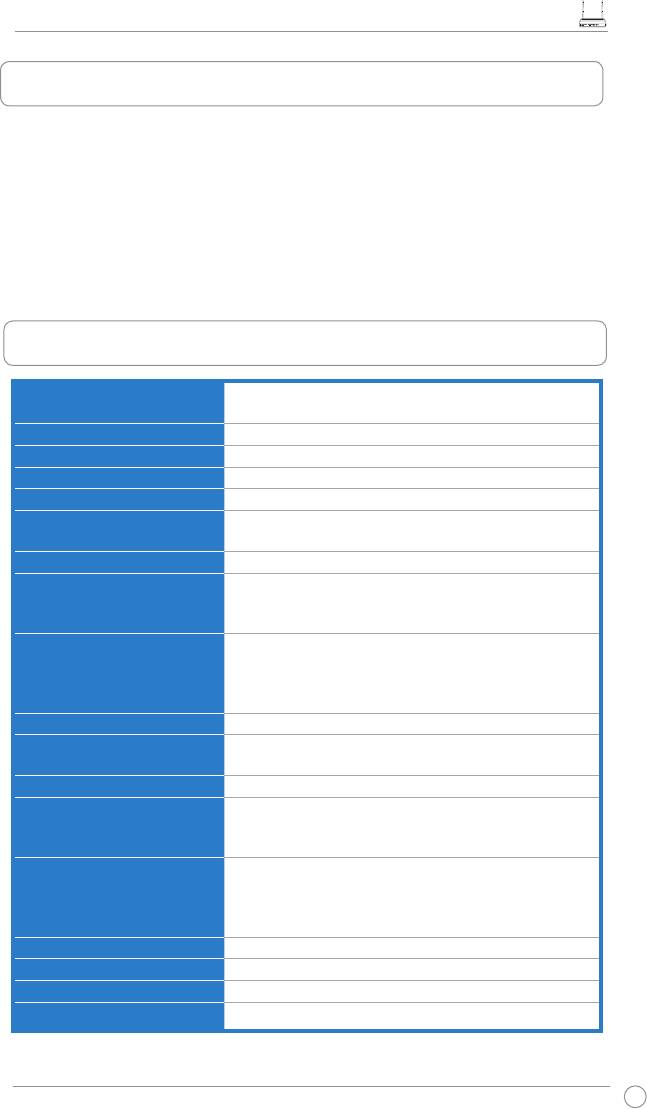
2.Specicationsummary
NetworkStandard
Compatible with 802.11b/g/n, IEEE802.3, IEEE802.3u,
IEEE802.1x, IEEE802.11i, IEEE802.11e, IPv4, CSMA/
CA, CSMA/CD, ICMP
OperatingFrequency
2.4G ~ 2.483GHz
OperationChannel
11 for N. America, 14 Japan, 13 Europe (ETSI)
EthernetPort
WAN x 1, LAN x 4 RJ45 for 10/100 BaseT
Antenna
2 External Detachable Antennas
WPS Button
Support WPS (Wi-Fi Protection Setup) Push Button
and PIN Code Setup
LED
Power x 1, AIR x 1, WAN x 1, LAN x 4
Security
64/128-bit WEP, WPA-Personal, WPA2-Personal,
WPA-Enterprise, WPA2-Enterprise, WPA-Auto (TKIP/
AES), WPA2-Auto (TKIP/AES), Radius with 802.1x
Firewall&AccessControl
NAT Firewall, SPI (Stateful Package Inspection)
Firewall, WAN Ping Control, Domain Access Control,
URL Filter, MAC Filter, Inbound/Outbound Packet
Filter, DoS Detection
VPNSupport
IPSec / PPTP / L2TP Pass-Through
QualityofService
WMM (Wi-Fi multimedia)
Customizable QoS rules
AdvancedNetwork
Support up to 4 Multiple BSSIDs/ESSIDs, VLANs
NetworkManagement
Support SNMP, IGMP, UPnP, DHCP, DNS Proxy, NTP
Client, DDNS, Port Trigger, Virtual Server, Virtual
DMZ, VPN Pass-Through, WDS
PowerSupply
AC Input: 100V~240V (50~60HZ); DC Output: +5V
with max. 1.2A current
Note: Use only the adapter included in the package.
Using other adapters may damage the device.
o
o
Temperature
Operating: 0~40
C Storage: -10~70
C
Humidity
Operating: 10-90% Storage: 0~90%
Dimension
179 x 119 x 37 (L x W x H) mm
Weight
310g
* All specications are subject to change without notice.
3
RT-N11EZWirelessNRouterQuickStartGuide
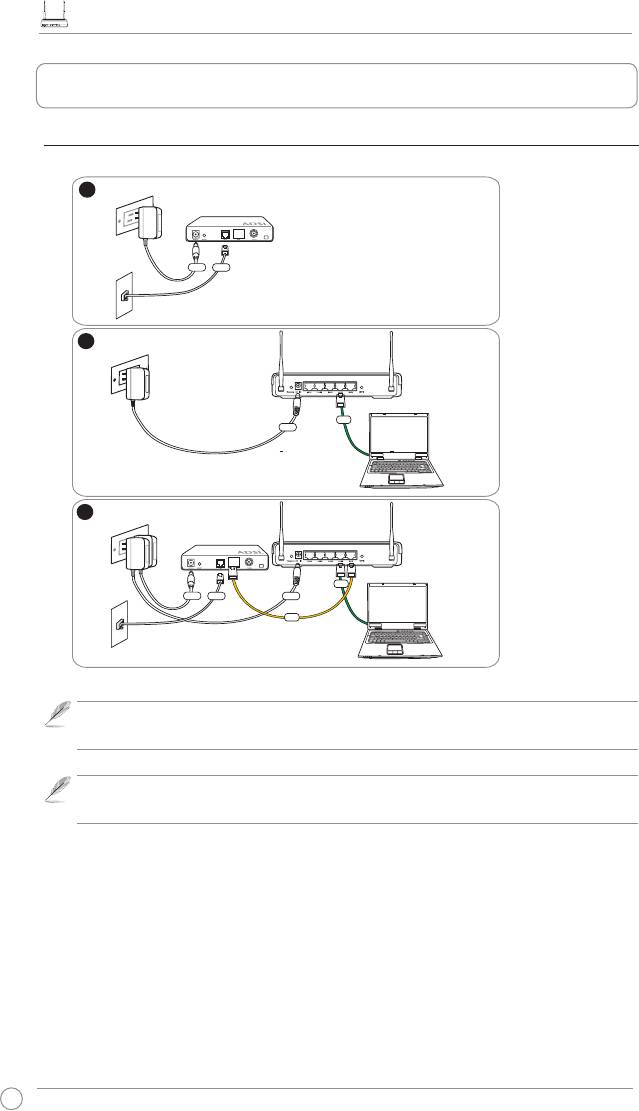
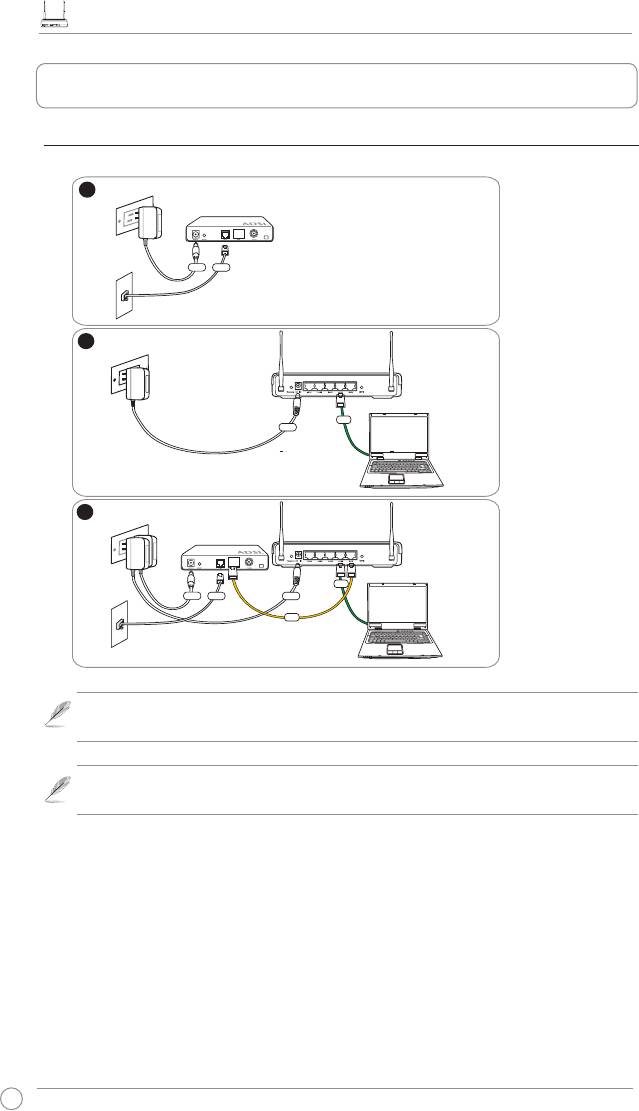
3.ConnectingADSLmodemandWirelessRouter
1)Cableconnection
4
1
W
all Power Outlet
Modem
Power
Phone
W
all Telephone Outlet
2
Wall Power Outlet
ASUS Wireless Router
LAN
Power
3
W
all Power Outlet
Modem
ASUS Wireless Router
LAN
Power
Phone
Power
WAN
W
all Telephone Outlet
Note:
Use only the adapter included in the package. Using other adapters may
damage the device.
Note:
The device in the above illustration is for your reference only. Please refer to
your package for the real product.
RT-N11EZWirelessNRouterQuickStartGuide
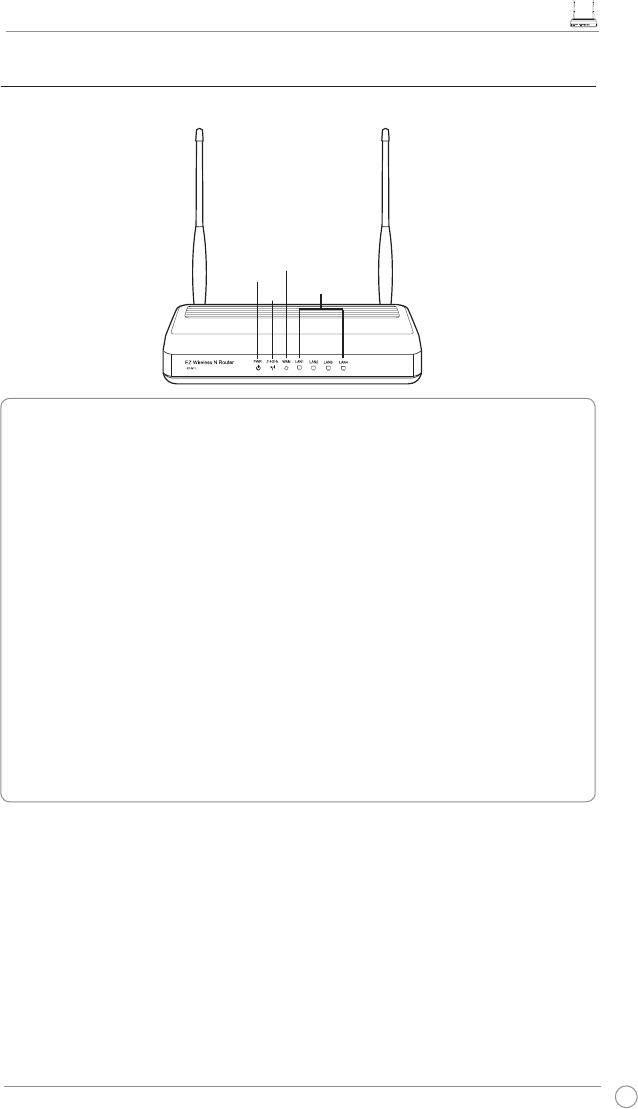
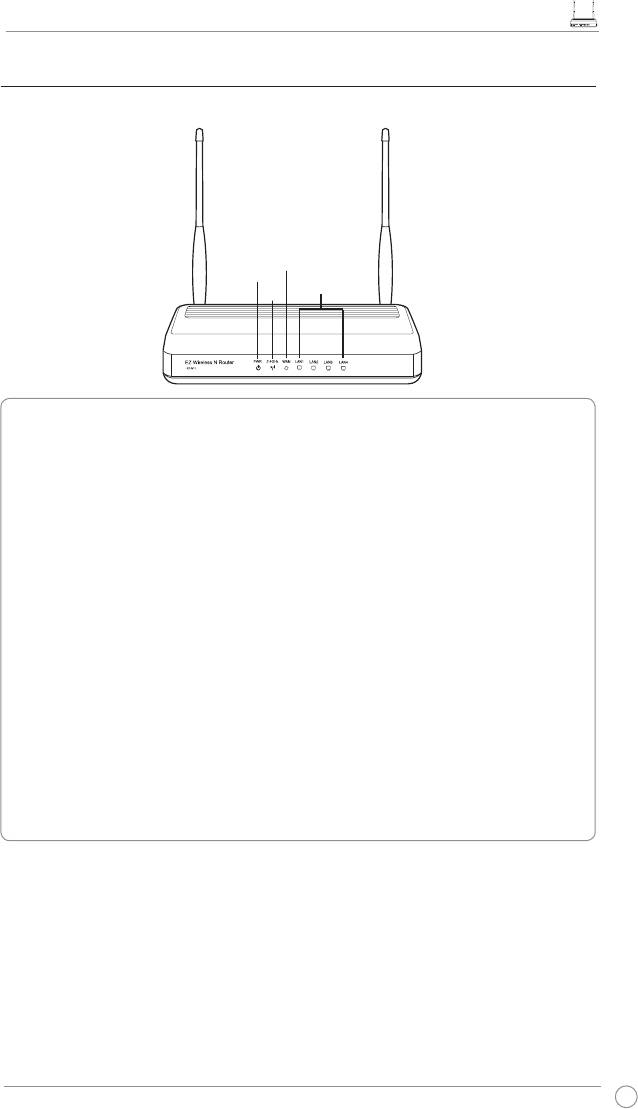
2)Statusindicators
WAN
PWR
LAN
AIR
PWR(Power)
Off No power
On System ready
Flashing-slow Reset to default mode
Flashing-quick WPS mode
AIR(WirelessNetwork)
Off No power
On Wireless system ready
Flashing Transmitting or receiving data (wireless)
WAN(WideAreaNetwork)
Off No power or no physical connection
On Has physical connection to an Ethernet network
Flashing Transmitting or receiving data (through Ethernet cable)
LAN1-4(LocalAreaNetwork)
Off No power or no physical connection
On Has physical connection to an Ethernet network
Flashing Transmitting or receiving data (through Ethernet cable)
5
RT-N11EZWirelessNRouterQuickStartGuide
4.Gettingstarted
The ASUS RT-N11 Wireless Router meets various working scenarios with proper
conguration. The default settings of the wireless router may change to meet your individual
needs. Thus, before using the wireless router, check the basic settings to ensure that they all
work in your environment.
Note:
Wired connection for initial conguration is recommended to avoid possible
setup problems due to wireless uncertainty.
1)Wired connectioniredconnection
An Ethernet cable is bundled with your RT-N11 package. The wireless router has an
integrated auto-crossover function. You can either use a straight-through or a crossover cable
for wired connection. Plug one end of the cable to the LAN port on the rear panel of the router
and the other end to the Ethernet port on your PC.
2)Wirelessconnection
For establishing wireless connection, you need an IEEE 802.11b/g/n compatible WLAN card.
Refer to the user manual of your wireless router for the wireless connection procedures. By
default, the SSID of the wireless router is “default” (in lower case), encryption is disabled and
open system authentication is used.
3)SettingIPaddressforwiredorwirelessclient
To access the RT-N11 Wireless Router, you must have the correct TCP/IP settings on your
wired or wireless clients. Set the IP addresses of the clients within the same subnet of
RT-N11.
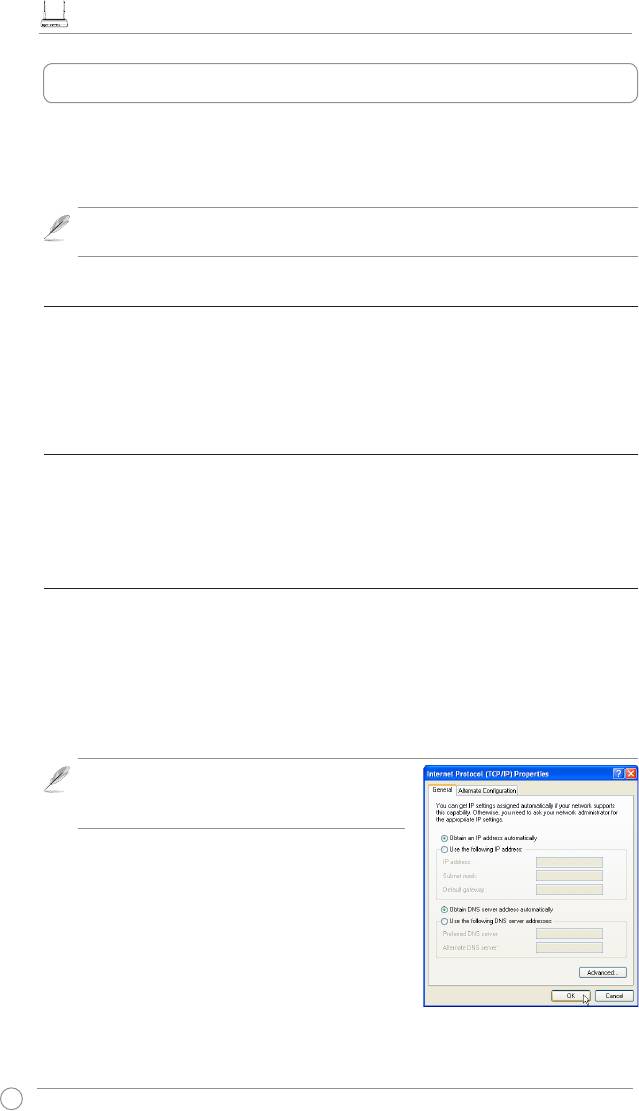
GettinganIPaddressautomatically
The RT-N11 Wireless Router integrates DHCP server functions, thus, your PC gets an IP
address automatically.
Note:
Before rebooting your PC, switch ON the
wireless router and ensure that the router is ready.
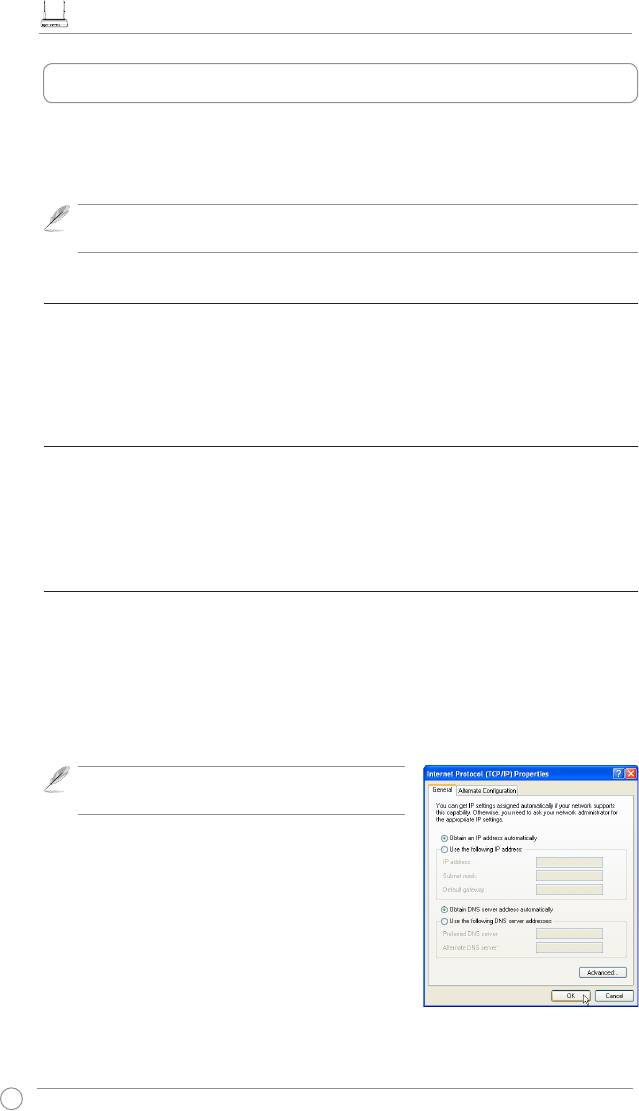
SettinguptheIPaddressmanually
To manually set the IP address, you need to know the
default settings of the Wireless Router:
• IP address: 192.168.1.1
• Subnet Mask: 255.255.255.0
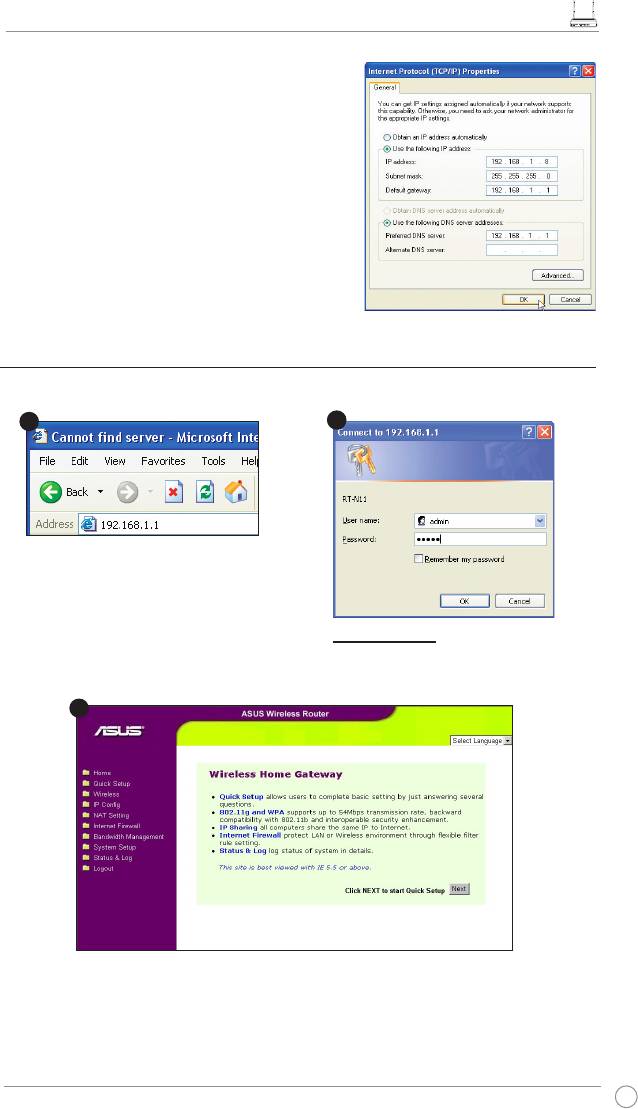
To set up the connection with a manually assigned IP
address, the address of your PC and the wireless router
must be within the same subnet:
6
RT-N11EZWirelessNRouterQuickStartGuide
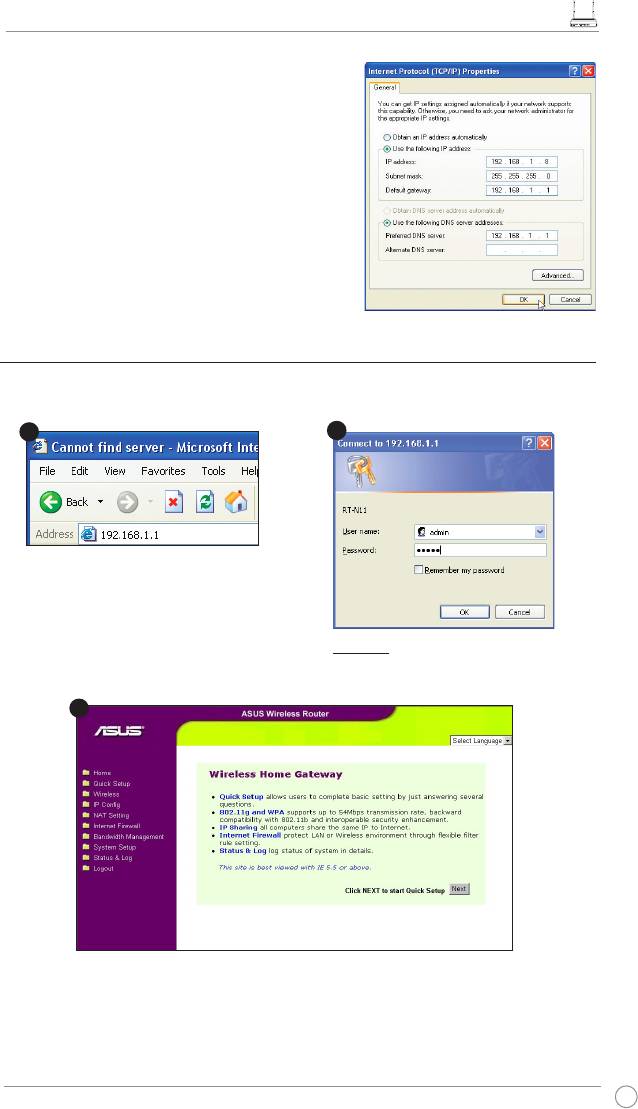
• IP address: 192.168.1.xxx (xxx can be any
number between 2 and 254. Ensure that the IP
address is not used by another device.)
• Subnet Mask: 255.255.255.0
• Gateway: 192.168.1.1
• DNS: 192.168.1.1, or assign a known DNS server
in your network.
Enter the following address in your
web browser:
http://192.168.1.1
Defaults
User name:
admin
Password:
admin
After logging in, you can see the ASUS Wireless Router home page.
The homepage displays quick links to congure the main features of the Wireless Router.
7
1
3
2
4)ConguringtheWirelessRouter
Follow the steps below to enter the Web conguration interface of RT-N11.
RT-N11EZWirelessNRouterQuickStartGuide
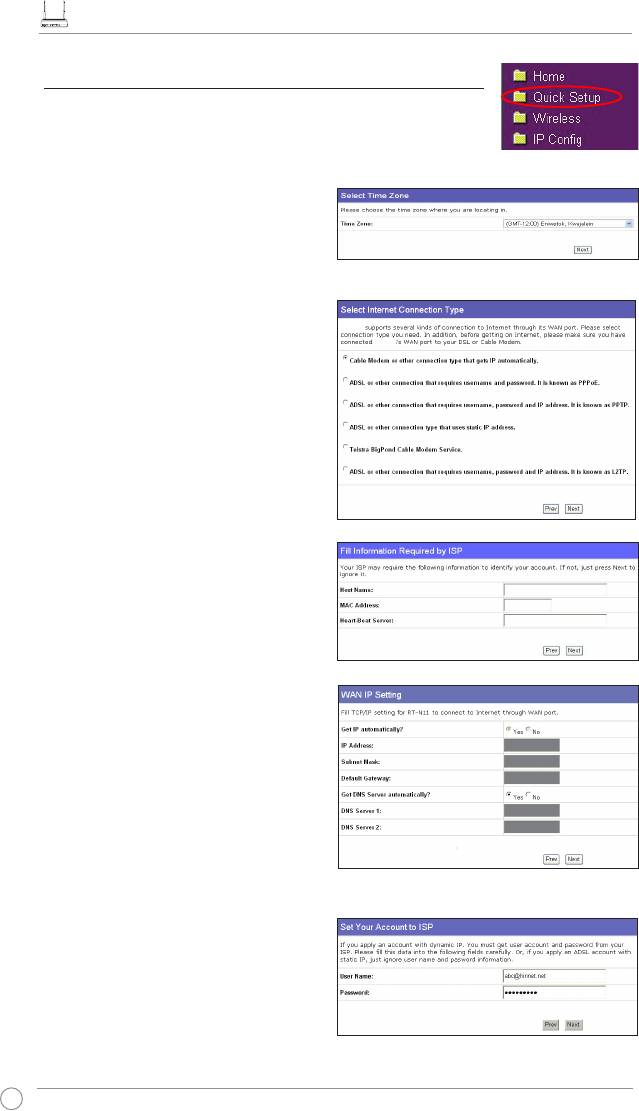
5)Quicksetup
To start quick setup, click
Next
to enter the
QuickSetup
page.
Follow the instructions below to set up the ASUS Wireless Router.
1. Select your time zone and click
Next
.
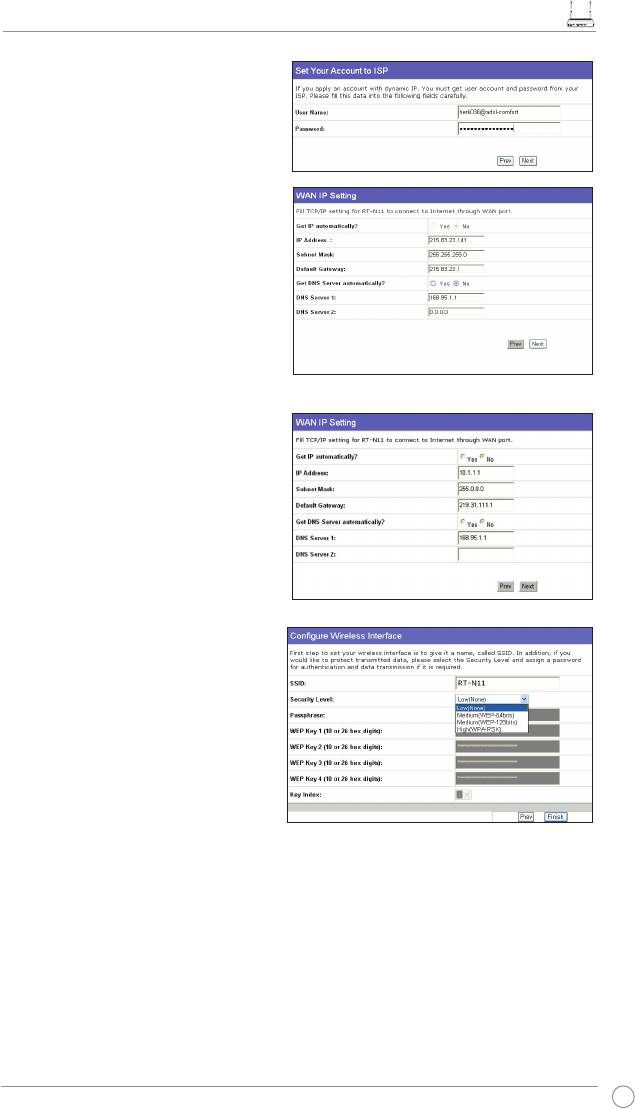
2. The ASUS Wireless Router supports six
RT-N11
types of ISP services: cable, PPPoE,
RT-N11
PPTP, static WAN IP, Telstra BigPond,
and L2TP. Select your connection type
and click
Next
to continue.
CableordynamicIPuser
If you are using services provided by
cable ISP, select
CableModemorother
connectionthatgetsIPautomatically
. If
your ISP provides you with the host name,
the MAC address, and the heart-beat server
address, ll these information into the boxes
on the setting page; if not, click
Next
to skip
this step.
PPPoEuser
If you are using PPPoE services, select
ADSLconnectionthatrequires
usernameandpassword.
You need
to key in the username and password
provided by your ISP. Click
Next
to
continue.
8
RT-N11EZWirelessNRouterQuickStartGuide
PPTPorL2TPuser
If you are using PPTP services, select
ADSL
connectionthatrequiresusername,
passwordandIPaddress.
Fill in the
username and password provided by
your ISP into the elds. Click
Next
to
continue. For L2TP users, follow the same
instructions above.
StaticIPuser
If you are using ADSL or other connection
type that uses static IP address, select
ADSL
orotherconnectiontypethatusesstatic
IPaddress
. Key in the IP address, subnet
mask, and default gateway provided by your
ISP. You can specify DNS servers, or get
DNS information automatically.
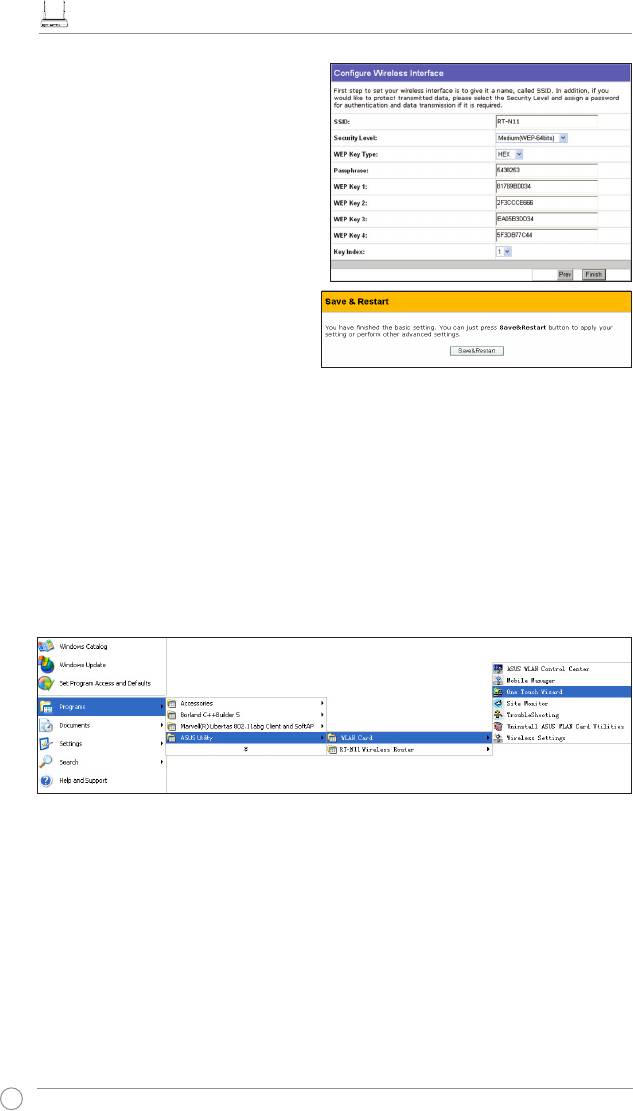
3. After the connection type setting
is completed, set up your wireless
interface. Specify to your wireless
router an SSID (Service Set Identier),
which is a unique identier attached to
packets sent over WLAN. This identier
emulates a password when a device
attempts to communicate with your
wireless router via WLAN.
If you want to protect transmitted data, select any of the
SecurityLevel
below to enable
encryption methods:
Medium:
Only users with the same WEP key settings can connect to your wireless router and
transmit data using 64bits or 128bits WEP key encryption. Congure the settings as Open
System/WEP instead of Shared Key/WEP.
High:
Only users with the same WPA pre-shared key settings can connect to your wireless
router and transmit data using TKIP encryption.
9
RT-N11EZWirelessNRouterQuickStartGuide
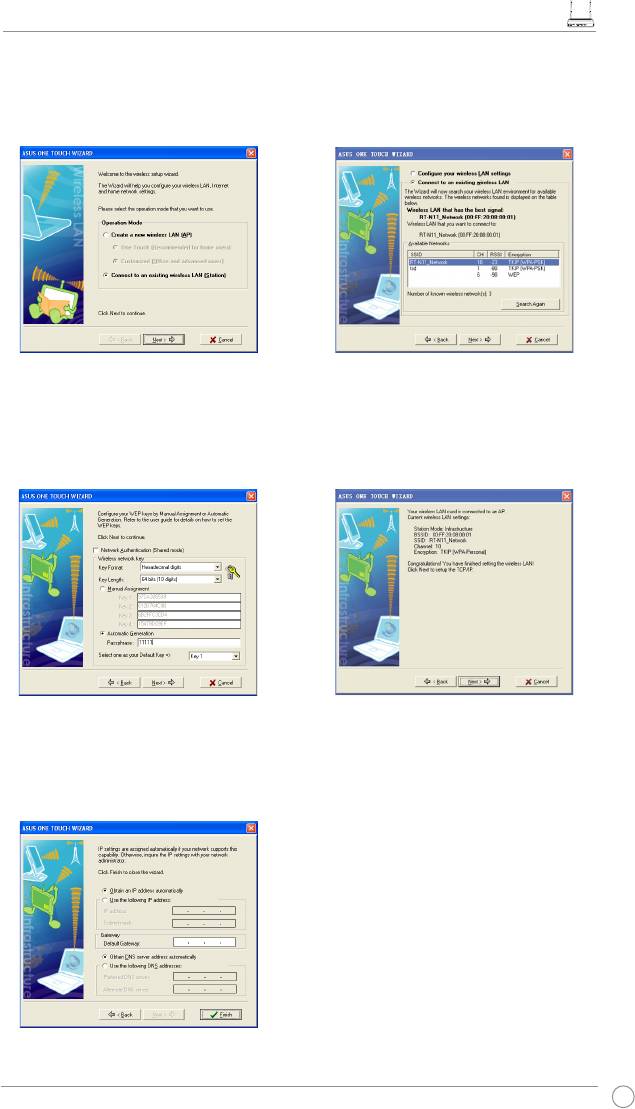
4. Key in four sets of WEP keys in the
WEP Key elds (10 hexadecimal digits
for WEP 64bits, 26 hexadecimal digits
for WEP 128bits). For system-generated
keys, enter a Passphrase. Take note of
the Passphrase and WEP keys, then
click
Finish
.
For example, if we select WEP 64bits
encryption mode and key in 11111 as
the Passphrase, the WEP Keys are
generated automatically.
5. Click
Save&Restart
to restart the
wireless router and activate the new
settings.
6. To connect the wireless router from a wireless client, you can use Windows® Wireless
Zero Conguration service to set up the connection. If you use ASUS Wireless Card on
your computer, you can use the One Touch Wizard utility supplied in WLAN Card support
CD for wireless connection.
ConguringASUSWLANCardwithOneTouchWizard
If you installed ASUS wireless card together with its utilities and drives on your PC, click
Start
->Programs->ASUSUtility->WLANCard->OneTouchWizard
to launch the One Touch
Wizard utility.
10
RT-N11EZWirelessNRouterQuickStartGuide
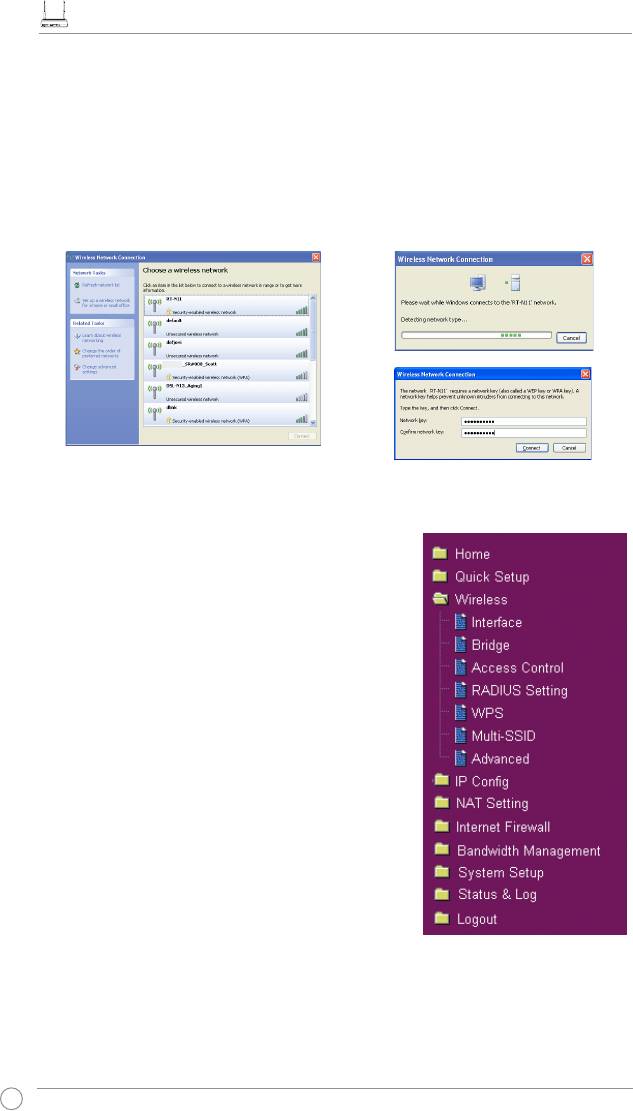
1) Select
Connecttoanexistingwireless
2) One Touch Wizard searches and displays
LAN(Station)
radio button and click
the available APs in the
Available
Next
to continue.
Networks
list. Select RT-N11 and press
Next
to continue.
3) Set the same authentication and encryption
4) It takes several seconds for the wireless
of your WLAN card with those at RT-N11.
card to associate with RT-N11. Press
Next
In the previous steps the
KeyLength
is
64
to set up the TCP/IP for your WLAN Card.
bits
, and the
Passphrase
is 11111. Click
Next
to continue.
5) Set up the IP address of the WLAN Card
according to your network condition.
After the setup is complete, click
Finish
to exit the One Touch Wizard.
11
RT-N11EZWirelessNRouterQuickStartGuide
®
ConguringWLANcardwithWindows
WZCservice
®
If you use non-ASUS wireless card, you can set up the wireless connection with Windows
Wireless Zero Conguration (WZC) service.
1) Double-click the wireless network
2) Key in the 10-digit keys you have set on
icon on the task bar to view available
the wireless router and click
Connect
.
networks.Select your wireless router
The connection is complete within
and click
Connect
.
several seconds.
RT-N11
Conguringadvancedfeatures
To view and adjust other settings of the Wireless Router,
enter the Web conguration page of RT-N11. Click the
items on the menu to open a submenu and follow the
instructions to set up the router. Tips show up when you
move your cursor over each item.
12
RT-N11
EZ Wireless N рутер
Кратко упътване за бърз старт
®

Информация за контакти с производителя
ASUSTeK COMPUTER INC.
Адрес на компанията 15 Li-Te Road, Beitou, Taipei 11259
Основен (тел.) +886-2-2894-3447
Основен (факс) +886-2-2890-7798
Основен имейл info@asus.com.tw
Интернетадрес http://www.asus.com.tw
ASUS COMPUTER INTERNATIONAL (Америка)
Адрес на компанията 44370 Nobel Drive, Fremont, CA 94538, USA
Основен (факс) +1-510-608-4555
Интернетадрес http://usa.asus.com
Техническа поддръжка
Основен поддръжка +1-502-995-0883
Основен (факс) +1-502-933-8713
Онлайн поддръжка http://vip.asus.com/eservice/techserv.aspx
ASUS COMPUTER GmbH (Германия и Австрия)
Адрес на компанията Harkortstr. 21-23, 40880 Ratingen, Germany
Основен (тел.) +49-02102-95990
Основен (факс) +49-02102-959911
Интернетадрес http://www.asuscom.de
Онлайн контакт http://www.asuscom.de/sales
Техническа поддръжка
Основен (тел.) +49-02102-95990
Основен (факс) +49-02102-959911
Онлайн поддръжка http://vip.asus.com/eservice/techserv.aspx?SLanguage=de-de
Сервизен център за целия свят:
http://support.asus.com/service/service.aspx?SLanguage=en-us
Често задавани въпроси:
http://support.asus.com/faq/faq.aspx?SLanguage=en-us
Онлайн поддръжка:
http://support.asus.com/techserv/techserv.aspx?SLanguage=en-us
Ръководство за бърз старт на RT-N11 EZ Wireless N рутер
1. Съдържание на пакета
• RT-N11 безжичен рутер x 1
• Захранващ адаптер x 1
• Стойка x 1
• CD с помощни програми x 1
• RJ45 кабел x 1
• Кратко ръководство за потребителя x 1
2. Характеристики
Мрежов стандарт Съвместим с 802.11b/g/n, IEEE802.3, IEEE802.3u, IEEE802.1x,
IEEE802.11i, IEEE802.11e, IPv4, CSMA/CA, CSMA/CD, ICMP
Работна честота 2.4G ~ 2.483GHz
Работен канал 11 за Северна Америка, 14 Япония, 13 Европа (ETSI)
Ethernet порт WAN x 1, LAN x 4 RJ45 за 10/100 BaseT
Антена 2 външни подвижни антени
WPS бутон Има бутон WPS (Wi-Fi Protection Setup) и настройки на PIN
код
Индикатори Захранване x 1, AIR x 1, WAN x 1, LAN x 4
Сигурност 64/128-bit WEP, WPA-Personal, WPA2-Personal, WPA-
Enterprise, WPA2-Enterprise, WPA-Auto (TKIP/AES), WPA2-Auto
(TKIP/AES), Radius с 802.1x
Защитна стена & Управление на
NAT Firewall (защитна стена при маскиране на адреси), SPI
достъпа
защитна стена (Stateful Package Inspection), WAN Ping Control,
Domain Access Control, URL филтър, MAC филтър, Филтър на
входящи/изходящи пакети, Откриване на DoS
VPN поддръжка IPSec / PPTP / L2TP Pass-Through
Качество на обслужването WMM (Wi-Fi мултимедия), QoS правила, които могат да се
редактират
Разширени свойства на мрежата Поддържа до 4 Multiple BSSID/ESSID, VLAN мрежи
Мрежово управление Поддържа SNMP, IGMP, UPnP, DHCP, DNS Proxy, NTP Client,
DDNS, Port Trigger, Virtual Server, Virtual DMZ, VPN Pass-
Through, WDS
Захранване AC вход: 100V~240V (50~60HZ); DC изход: +5V с max. 1.2A
Забележка: Използвайте само адаптера включен в пакета.
Използването на други адаптери може да доведе до повреда
на устройството.
o
o
Температура Работна: 0~40
C Съхранение: -10~70
C
Влажност Работна: 10-90% Съхранение: 0~90%
Размери 179 x 119 x 37 (Д x Ш x В) mm
Тегло 310g
* Всички данни са предмет на промяна без предупреждение.
15
Ръководство за бърз старт на RT-N11 EZ Wireless N рутер
3. Свързване на ADSL модем с безжичен маршрутизатор
1) Кабелна връзка
16
1
W
all Power Outlet
Modem
Power
Phone
W
all Telephone Outlet
2
Wall Power Outlet
ASUS Wireless Router
LAN
Power
3
W
all Power Outlet
Modem
ASUS Wireless Router
LAN
Power
Phone
Power
WAN
W
all Telephone Outlet
Забележка: Използвайте само адаптера включен в пакета. Използването на други адаптери
може да доведе до повреда на устройството.
Забележка: Устройството показано на илюстрацията по-горе е само за Ваша справка. Моля
вижте Вашия пакета за истинския продукт.
Ръководство за бърз старт на RT-N11 EZ Wireless N рутер
2) Индикатори на състоянието
WAN
PWR
LAN
AIR
PWR (захранване)
Off ИзключенИзключен
On Системата е готова
Мигане - бавно Възстановяване на стандартния режим
Мигане - бързо WPS режим
AIR (безжична мрежа)
Off ИзключенИзключен
On Безжичната система е готова
Мигане Предаване или приемане на данни (безжично)
WAN (глобална мрежа)
Off Няма захранване или физическа връзка
On Има физическа връзка с Ethernet мрежа
Мигане Предаване или приемане на данни (чрез Ethernet кабел)
LAN 1-4 (локална мрежа)
Off Няма захранване или физическа връзка
On Има физическа връзка с Ethernet мрежа
Мигане Предаване или приемане на данни (чрез Ethernet кабел)
17
Ръководство за бърз старт на RT-N11 EZ Wireless N рутер
4. Въведение
С подходяща конфигурация безжичният маршрутизатор RT-N11 на ASUS може да функционира в
различни работни среди. Може да се наложи фабричните настройки на маршрутизатора да се променят,
за да съответстват на индивидуалните ви нужди. Следователно преди използване на безжичния
маршрутизатор на ASUS, проверете дали всички основни настройки работят във вашата среда.
Забележка: За първоначална настройка се препоръчва връзка чрез кабел, за да се избегнат
евентуални проблеми при настройката поради несигурността на безжичната връзка.
1) Връзка чрез кабел
Безжичният маршрутизатор RT-N11 на ASUS е снабден с Ethernet кабел, който се намира в опаковката.
Тъй като безжичният маршрутизатор на ASUS има интегрирана функция за автоматично превключване
на кръстосан кабел, можете да използвате или кръстосан (crossover), или прав (straight-through) кабел за
връзка. Включете единия край на кабела в LAN порта на задния панел на маршрутизатора, а другия – в
Ethernet порта на вашия компютър.
2) Безжична връзка
За осъществяване на безжична връзка се нуждаете от WLAN карта, съвместима с IEEE 802.11b/g/n. Направете
справка с ръководството на вашия безжичен адаптер за процедурите по свързване. По подразбиране SSID на
безжичния маршрутизатор на ASUS е „default“ (с малки букви), криптирането е дезактивирано и се използва
удостоверяване на отворена система.
3) Настройка на IP адрес при кабелен и безжичен клиент
За да получите достъп до безжичния маршрутизатор RT-N11, трябва да коригирате TCP/IP настройките на
вашия кабелен или безжичен клиент. Настройте IP адресите на клиентите в рамките на една и съща подмрежа
(subnet) на RT-N11.
Автоматично получаване на IP адрес
Безжичният маршрутизатор RT-N11 включва функции на DHCP сървър, следователно вашият компютър
получава автоматично IP-адрес.
Забележка: Преди да рестартирате своя компютър,
включете безжичния маршрутизатор и се уверете, че
маршрутизаторът е готов.
Ръчна настройка на IP адрес
За да настроите ръчно IP адреса, трябва да знаете
настройките по подразбиране на рутера ASUS.
• IP адрес 192.168.1.1
• Маска на подмрежа 255.255.255.0
18
Ръководство за бърз старт на RT-N11 EZ Wireless N рутер
За да се настрои връзка с ръчно зададена IP адрес,
адресът на вашия компютър и на безжичния
маршрутизатор трябва да бъдат в една и съща
подмрежа:
• IP адрес 192.168.1.xxx (xxx може да бъде което и да
било число от 2 до 254. Проверете дали IP адресът не
се използва от друго устройство)
• Маска на подмрежа: 255.255.255.0
• Портал (Gateway): 192.168.1.1
• DNS: 192.168.1.1 или задайте известен DNS сървър от
вашата мрежа.
4) Конфигуриране на безжичния маршрутизатор
Следвайте стъпките по-долу, за да влезете в Web интерфейса за конфигуриране на RT-N11.
Във вашия уеббраузър въведете
следния адрес: http://192.168.1.1
По подразбиране
Потребителско име (User name): admin, парола
(Password): admin
След като се регистрирате, можете да видите началната страница на безжичния маршрутизатор на
ASUS.
На началната страница са показани бързи препратки за конфигуриране на главните функции на
безжичния маршрутизатор.
19
1
3
2


