
Asus WL-138g v2: instruction
Class: Household, kitchen appliances, electronics and equipment
Type:
Manual for Asus WL-138g v2
Table of contents

Content
English ................................................................. 1
Français ............................................................... 6
Deutsch ............................................................. 11
Русский
............................................................... 16
Español.............................................................. 21
Italiano ............................................................... 26
Türkçe ............................................................... 31
Hollands............................................................. 36
한국어
................................................................ 41
简体中文
............................................................
46
繁體中文
............................................................ 51
Bahasa Indonesia...............................................56
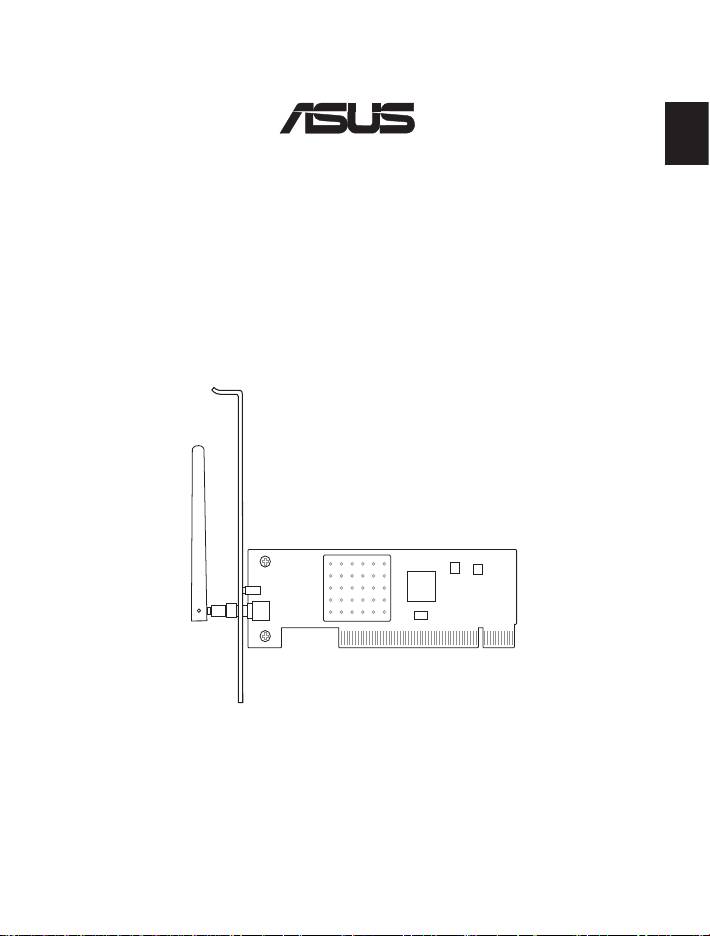
English
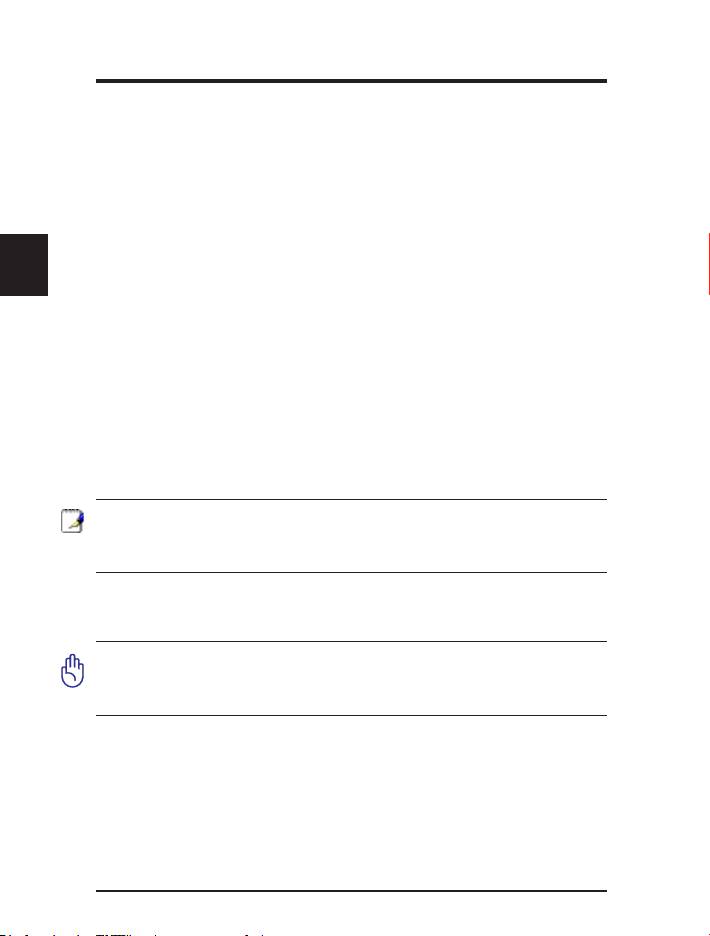
Wireless Local Area Network Card
WL-138g V2 / WL-138gE
(For 802.11g & 802.11b Wireless Networks)
Quick Start Guide
1
®
Quick Install Guide
English
2 ASUS WLAN Card
System Requirements
To begin using the ASUS WLAN Card, you must have the
following minimum requirements:
• Windows XP/2000/ME/98SE
• Standard 32-bit PCI Slot
• 32MB system memory or larger
• 300MHz processor or higher
The Product Package
When you receive the ASUS WLAN Card package, it should
contain the following items:
• ASUS WLAN PCI Card
• Dipole Antenna
• ASUS WLAN Card Quick Start Guide
• CD-ROM Disc (Drivers, Utilities, Documentation)
Note: If any of the above items are not included or damaged,
contact your local dealer for instructions.
Installation Procedures
Important: Install the ASUS WLAN card utilities before
inserting the ASUS WLAN Card into your computer.
Follow these instructions to setup the ASUS WLAN card.
1. Install the ASUS WLAN card utilities and driver from the
support CD.
2. Insert the ASUS WLAN card into your computer.
Quick Install Guide
Installing the ASUS WLAN Card Utilities &
English
Driver
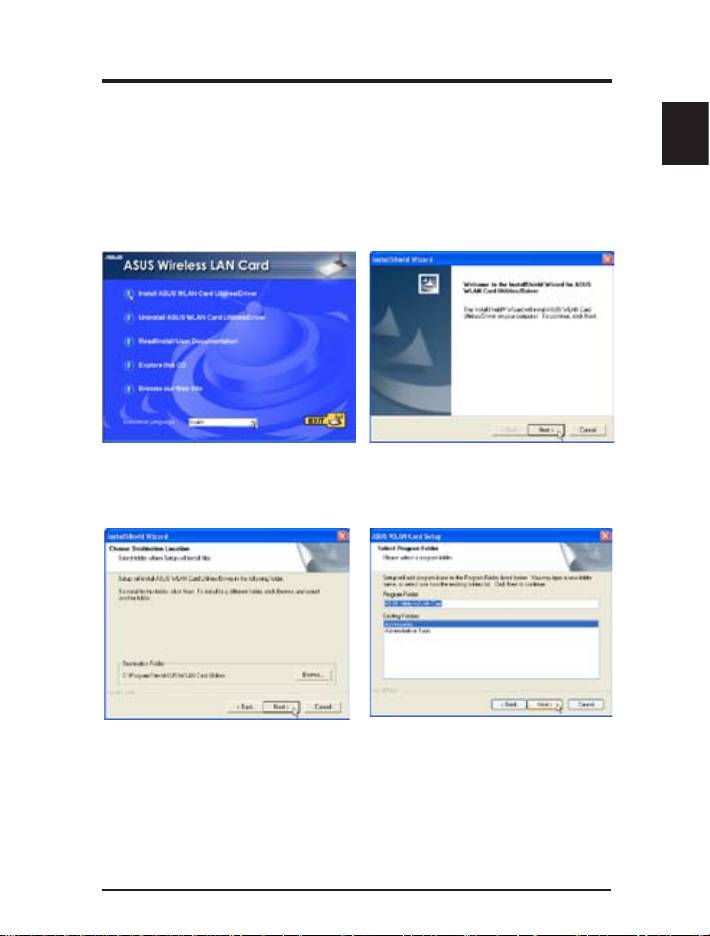
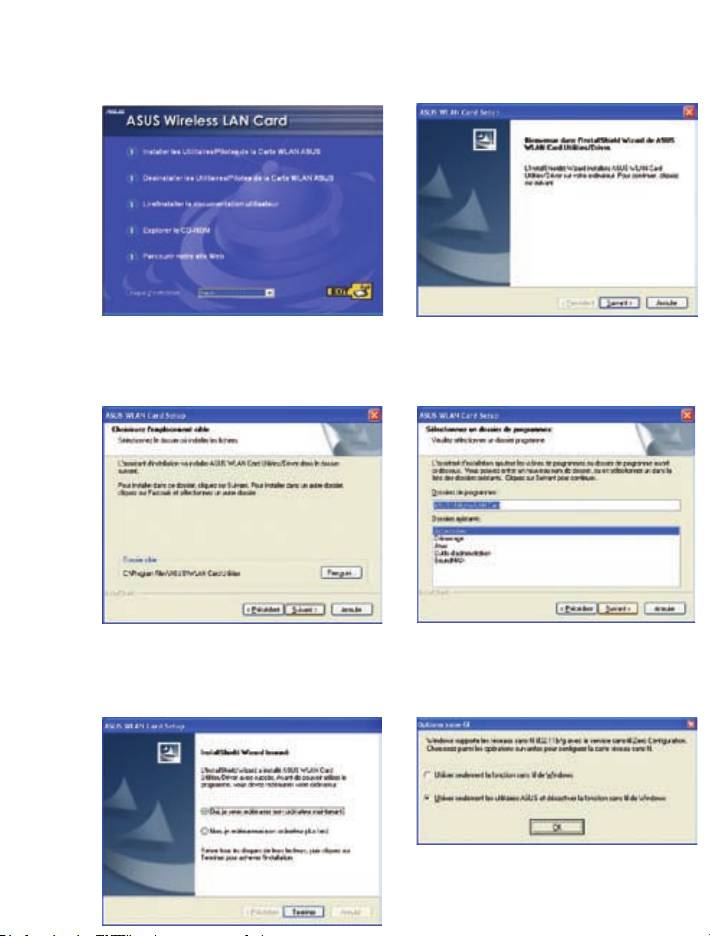
1. Insert the ASUS WLAN Card support CD and an autorun menu will appear. If
your autorun is disabled, double click SETUP.EXE in the root directory of the
support CD.
2. From the autorun menu, select your
3. Click Next on the Welcome screen.
language and click Install ASUS
WLAN Card Utilities / Driver.
4. Click Next to use the default Destination
5. Click Next to place icons in the
Folder or click Browse to select another
default program folder or type
folder.
another folder name.
ASUS WLAN Card 3
Quick Install Guide
English
4 ASUS WLAN Card
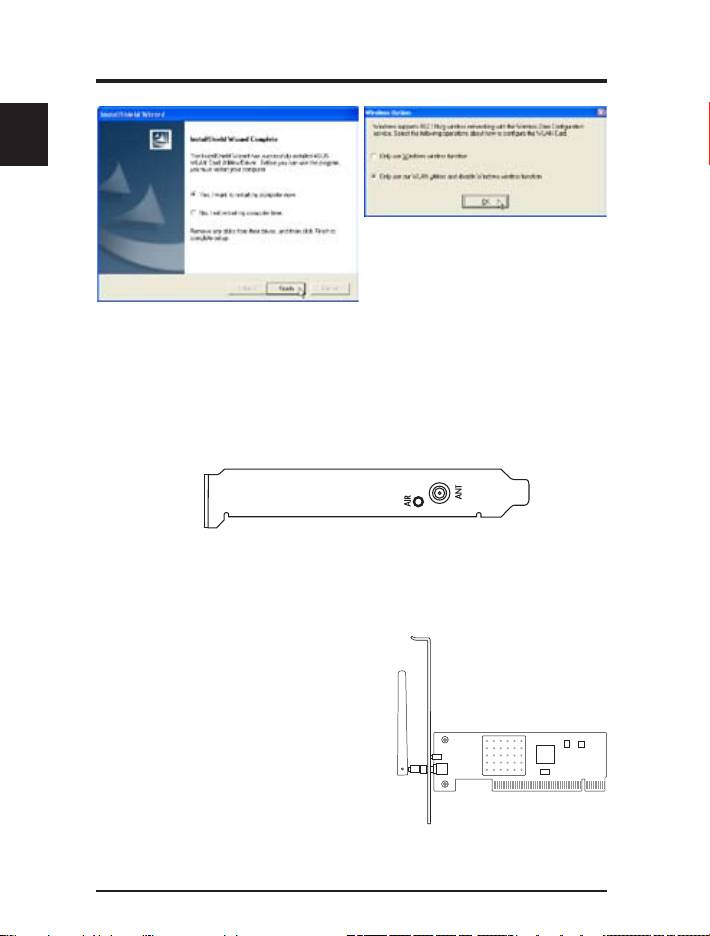
7. When the program is launched for
the first time, you will be asked
which function to use. Select to
use our WLAN utilities for more
functionality.
6. When Setup is complete, click Finish
to exit the installation wizard.
Reading the ASUS WLAN Status Indicators
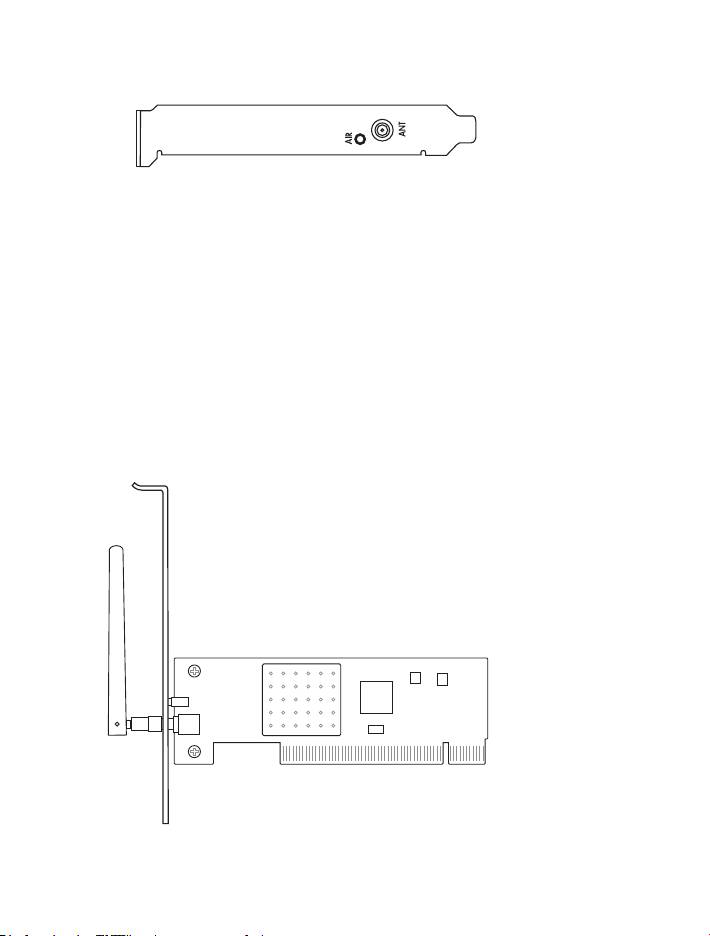
The ASUS WLAN card consists of one AIR indicator that shows
the status of the ASUS WLAN Card.
OFF: No wireless activity.
Blinking: Transmitting or receiving wireless data.
Orientating the Antenna
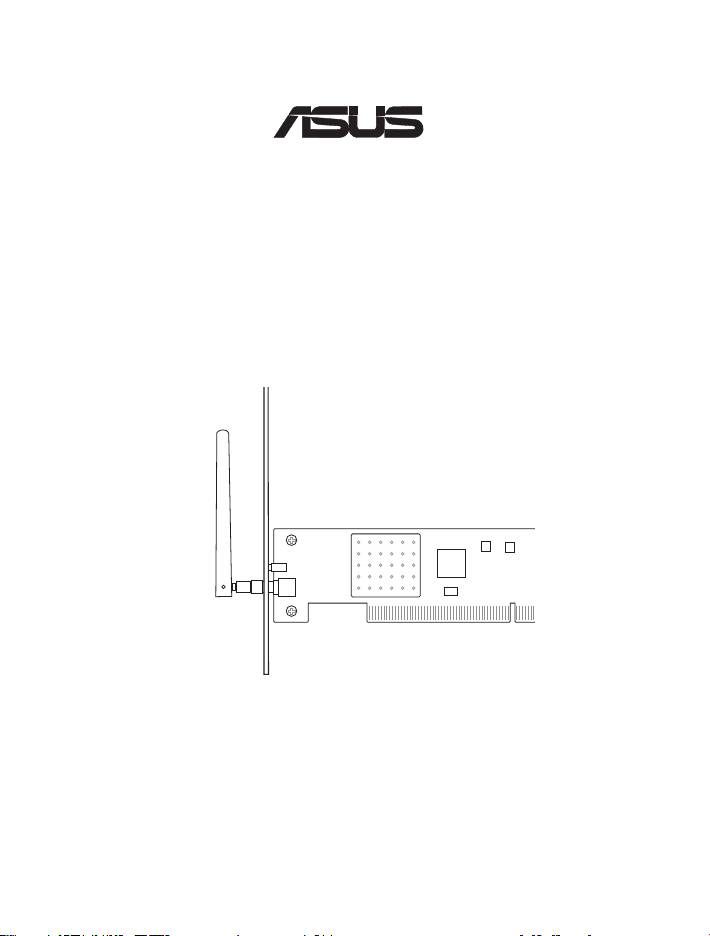
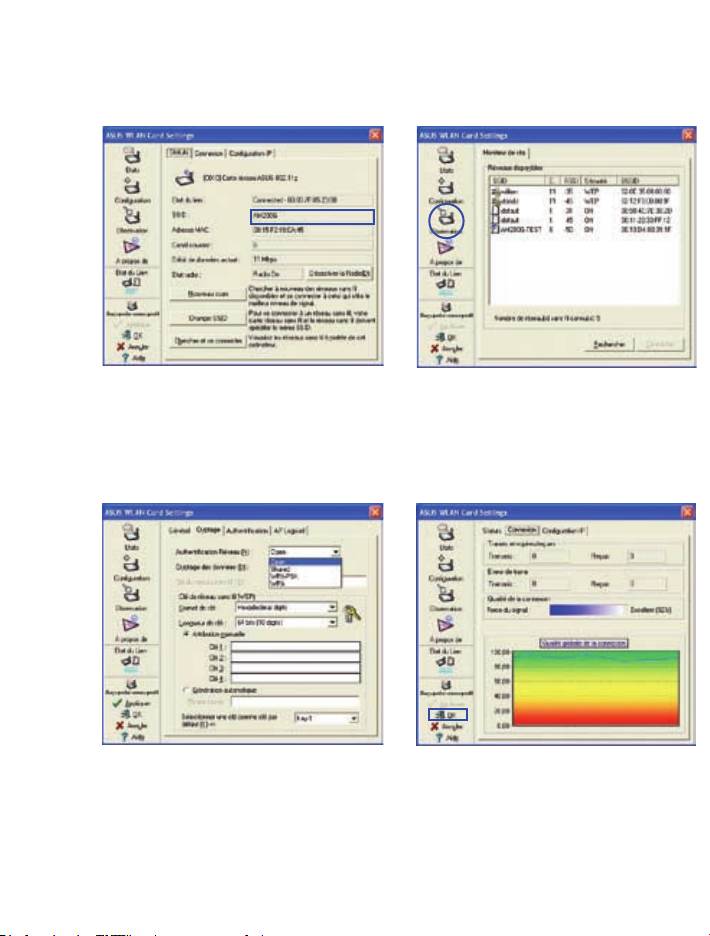
The ASUS WLAN Card has one
external antenna. It is recommended
that you adjust the external antenna
straight up for maximum range and
higher link quality.
Quick Install Guide
ASUS WLAN Utility Quick Start
After installing the ASUS WLAN driver and utility, you may
English
need to make some settings before being able to use your wireless
connection.
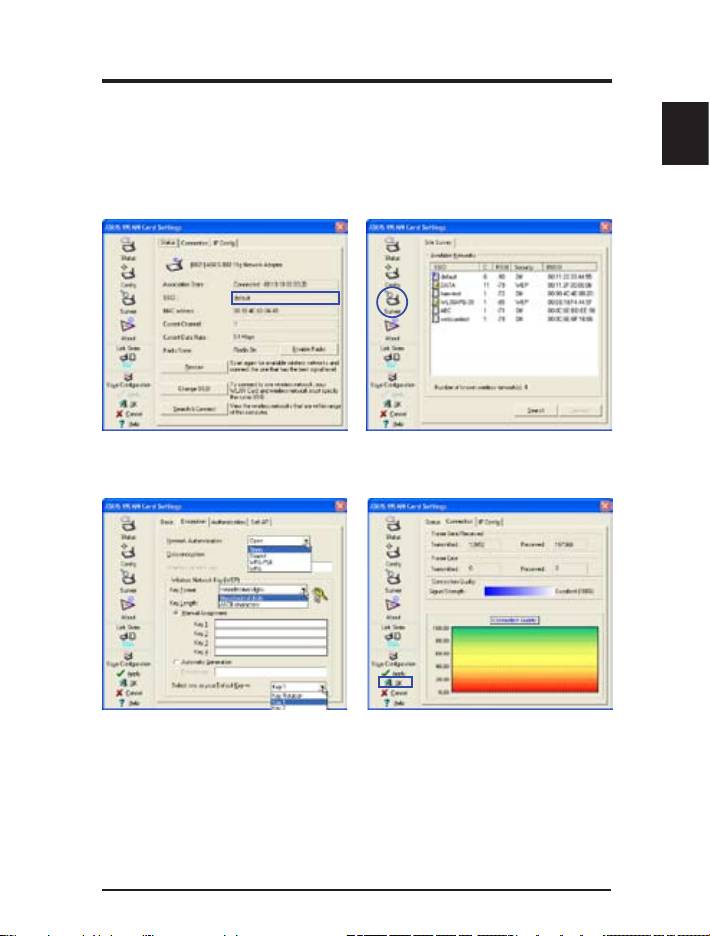
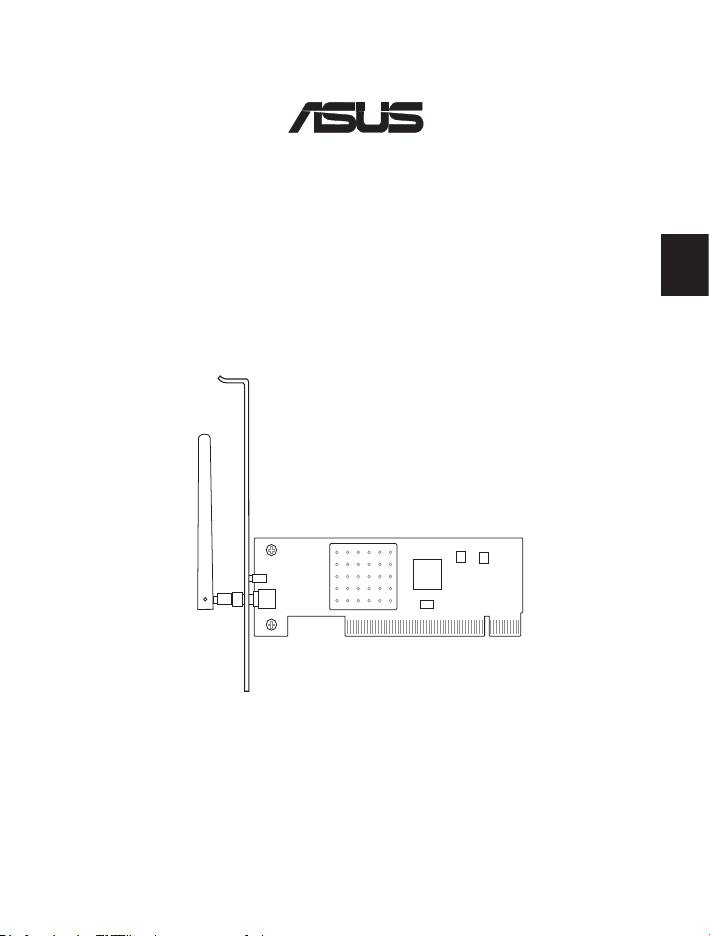
1. Set the Network Name (SSID) to
2. Use “Site Survey” if you don’t know
the same name as the SSID set in
the name of your access point(s).
your access point.
3. Encryption settings must also
4. You can also see the connection
match those set in the access
quality on the “Connection” page.
point. Talk with your network
Click OK to exit the utility.
administrator if necessary.
5. Click Apply to save your settings
and check the “Status” page to see
the “Association State”. It should
show “Connected - xx:xx:xx:xx:xx:
xx”.
ASUS WLAN Card 5
Carte réseau sans l
WL-138g V2 / WL-138gE
(Pour réseaux sans l 802.11g & 802.11b)
Guide de démarrage rapide
QF2270 / Nov 2005
®
Conguration requise
Avant d’utiliser la carte WLAN ASUS, assurez-vous de satisfaire aux
recommandations minimum suivantes:
• Windows XP/2000/ME/98SE
• Slot PCI 32 bit standard
• 32Mo de mémoire système ou plus
• Processeur de 300MHz ou supérieur
Contenu de la boîte
Lors de l’achat de votre carte WLAN ASUS, assurez-vous que les éléments
suivants sont bien présents dans la boîte ainsi qu’en bon état:
• Carte PCI WLAN ASUS
• Antenne dipôle
• Guide de démarrage rapide
• CD-ROM (Pilotes, Utilitaires, Documentation)
Note: Si un ou plusieurs de ces éléments n’étaient pas inclus ou
endommagés, veuillez contacter votre revendeur.
Procedures d’installation
Important: Installez les utilitaires de la carte WLAN ASUS avant
d’installer la carte sur votre ordinateur.
Suivez ces instructions pour congurer la carte WLAN ASUS.
1. Installez les utilitaires et pilotes de la carte contenus dans le CD de support.
2. Insérez la carte sur votre ordinateur.
Installer le pilote et les utilitaires de la carte WLAN
1. Lancez le CD de support de la carte WLAN ASUS, un menu apparaît. Si la fonction
d’exécution automatique est désactivée, double-cliquez sur le chier SETUP.EXE contenu
dans le CD de support.
2. Depuis le menu, sélectionnez votre langue
3. Cliquez sur Suivant depuis l’écran de
et cliquez sur Install ASUS WLAN Card
bienvenue.
Utilities / Driver (installer pilote/utilitaires
de la carte WLAN ASUS).
4. Cliquez sur Suivant pour utiliser le
5. Cliquez sur Suivant pour placer les
répertoire de destination par défaut
icônes dans le répertoire des programmes
ou cliquez sur Parcourir pour en
par défaut ou tapez un nom de répertoire
sélectionner un autre.
différent.
7. Lorsque le programme est lancé pour la
première fois, vous aurez à choisir la fonction
à utiliser. Choisissez d’utiliser les utilitaires
WLAN pour plus de fonctionnalités.
6. Lorsque l’installation est terminée, cliquez
sur Terminer pour quitter l’assistant
d’installation.
Lire les indicateurs d’état
La carte WLAN ASUS intègre un indicateur AIR afchant le statut de la
carte réseau sans l.
Eteint: Pas d’activité.
Clignotant: Transmission ou réception de données sans l.
Orientation de l’antenne
La carte réseau sans l possède une antenne externe. Il est recommandé
d’ajuster l’antenne externe dans une position verticale pour une portée
d’émission optimale ainsi qu’une meilleure qualité de lien.
Conguration de l’utilitaire WLAN
Une fois le pilote et les utilitaires de la carte WLAN installés, vous aurez
besoin d’effectuer certains réglages avant de pouvoir profiter d’une
connexion sans l.
1. Réglez le SSID sur le même nom que celui
2. Utilisez la fonction “Observation” si vous
de votre point d’accès.
ne connaissez pas le nom de votre/vos
point(s) d’accès.
3. Les paramètres de cryptage doivent
4. Vous pouvez aussi visualiser la qualité de
également correspondre à ceux de votre
la connexion dans l’onglet “Connexion”.
point d’accès. Consultez, si nécessaire,
Cliquez sur OK pour quitter l’utilitaire.
votre administrateur réseau.
5. Cliquez sur Appliquer pour sauvegarder
vos paramètres et vérifier l’onglet
“Statuts” pour afcher “Association State”
(état d’association). Il devrait afficher
“Connected - xx:xx:xx:xx:xx:xx”.
®
Wireless Local Area Network-Karte
WL-138g V2 / WL-138gE
Deutsch
(Für 802.11g & 802.11b Wireless-Netzwerke)
Schnellstarthilfe
11
Schnellinstallation
Deutsch
12 ASUS WLAN-Karte
Systemanforderungen
Um die ASUS WLAN-Karte verwenden zu können, muss Ihr
System die folgenden Voraussetzungen erfüllen:
• Windows XP/2000/ME/98SE
• Standard 32-Bit PCI-Steckplatz
• mind. 32MB Systemspeicher
• mind. 300MHz-Prozessor
Das Produktpaket
Das ASUS WLAN-Kartenpaket sollte folgendes enthalten:
• ASUS WLAN PCI-Karte
• Dipol-Antenne
• ASUS WLAN-Karte Schnellstarthilfe
• CD-ROM (Treiber, Hilfsprogramme, Dokumentation)
Hinweis: Falls einer der oben genannten Gegenstände
beschädigt oder nicht vorhanden ist, wenden Sie sich bitte
an Ihren Händler.
Installation
Wichtig: Installieren Sie die ASUS WLAN-Kartensoftware,
bevor Sie die ASUS WLAN-Karte in Ihren Computer
einstecken.
Folgen Sie diesen Anweisungen, um die ASUS WLAN-Karte
zu installieren.
1. Installieren Sie den ASUS WLAN-Kartentreiber und die
Anwendungssoftware von der Support-CD.
2. Stecken Sie die ASUS WLAN-Karte in Ihren Computer ein.
Schnellinstallation
Installieren des ASUS WLAN-Kartentreibers
und der Anwendungssoftware
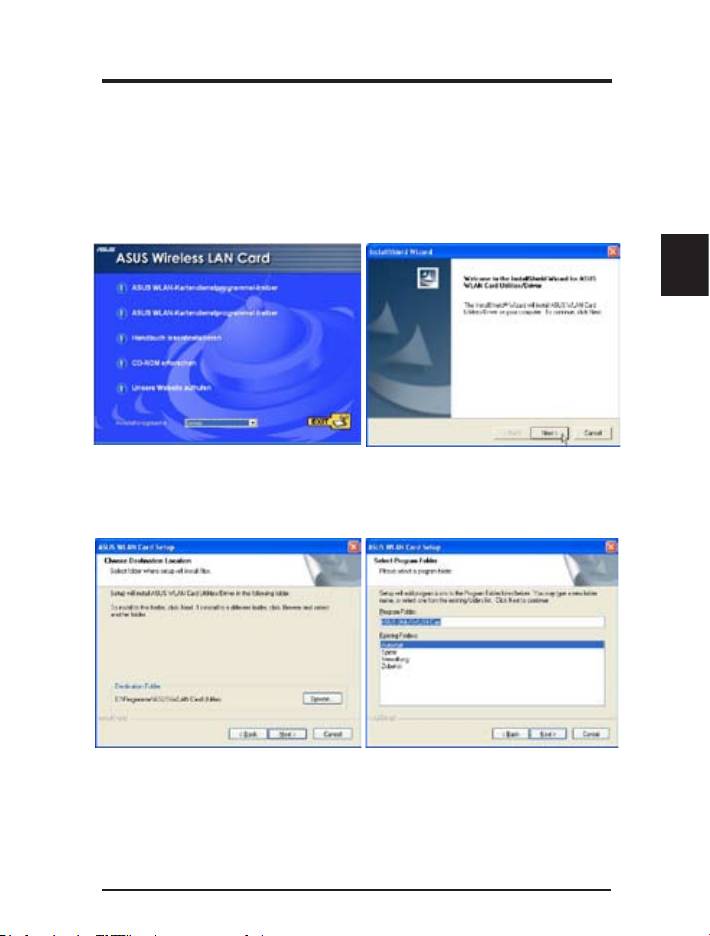
1. Legen Sie die Support-CD der ASUS WLAN-Karte ein. Ein Autorun-Menü
erscheint. Falls Sie Autorun in Ihrem System deaktiviert haben, doppelklicken
Sie auf SETUP.EXE im Wurzelverzeichnis der Support-CD.
Deutsch
2. W ä h l e n S i e i m A u t o r u n - M e n ü
3. Klicken Sie “Next”, wenn der
d i e g e w ü n s c h t e Sp r a c h e u n d
Willkommensbildschirm angezeigt
klicken Si e a u f “ASUS WLAN-
wird.
Kartendienstprogramme /-treiber”.
4. K l i c k e n S i e “ N e x t ” , u m d e n
5. Klicken Sie “Next”, um Symbole
voreingestellten Ordner zu verwenden,
im Stand ard- Prog r ammo rdner
oder “Browse”, um einen anderen
abzulegen, oder geben Sie selbst
Ordner auszuwählen. .
einen Ordnernamen ein.
ASUS WLAN-Karte 13
Schnellinstallation
Deutsch
14 ASUS WLAN-Karte
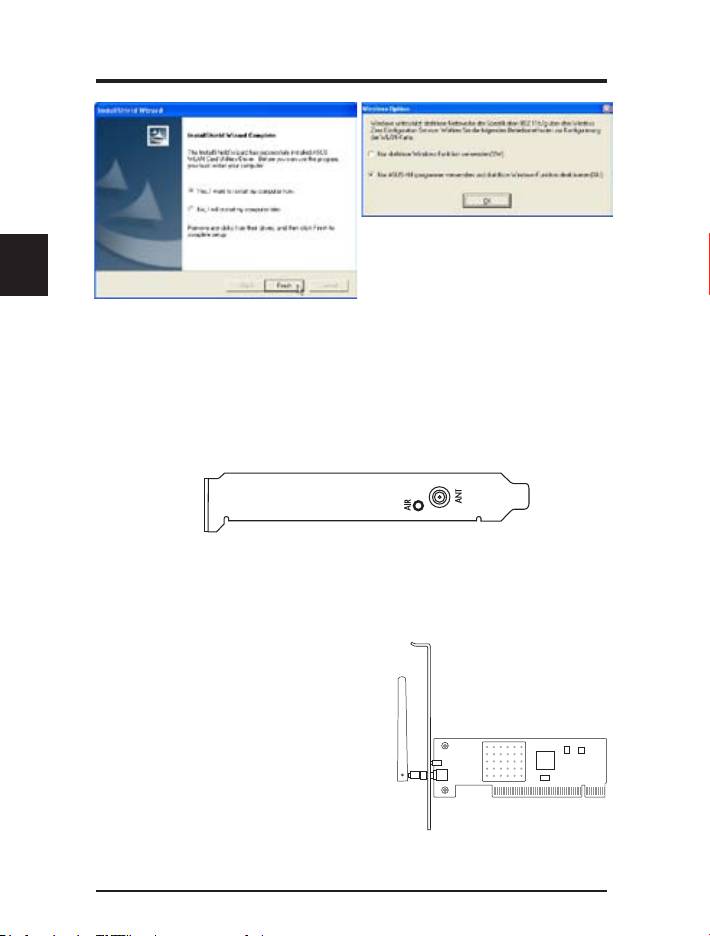
7. Wenn das Programm zum ersten Mal
ausgeführt wird, werden Sie gefragt,
welche Funktionen Sie nutzen wollen.
Wählen Sie die untere Option, um die
ASUS-Programme für mehr WLAN-
6. Wenn das Setup beendet ist, klicken Sie
Funktionalität zu nutzen.
“Finish”, um den Installationsassistenten
zu beenden.
Die ASUS WLAN-Statusanzeigen
Die ASUS WLAN-Karte verfügt über eine AIR-Anzeige, die den
Status der ASUS WLAN-Karte darstellt.
AUS: Keine Wireless-Aktivität.
Blinkt: Daten werden empfangen oder übertragen.
Ausrichten der Antenne
Die ASUS WLAN-Karte verfügt
über eine externe Antenne. Es wird
empfohlen, die Antenne gerade nach
oben auszurichten, um die maximale
Reichweite und Verbindungsqualität
zu erhalten.
Schnellinstallation
Das ASUS WLAN-Programm
Nachdem der ASUS WLAN-Treiber und das Hilfsprogramm
installiert wurden, müssen Sie u.U. einige Einstellungen
vornehmen, bevor Sie Ihre Wireless-Verbindung nutzen
können.
Deutsch
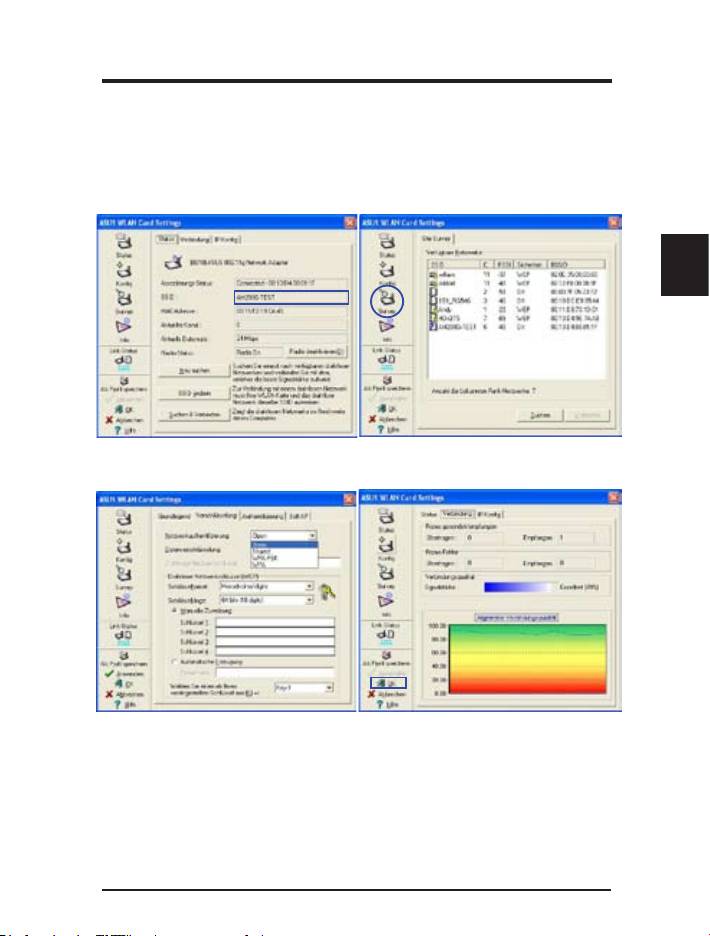
1. Geben Sie bei “SSID” den gleichen
2. Verwenden Sie “Site Survey”, wenn
Namen ein wie beim SSID Ihres
Sie den Namen Ihres/Ihrer Access
Access Points.
Points nicht wissen.
3. Die Verschlüsselungseinstellungen
4. Sie können die Verbindungsqualität
müssen ebenfalls mit denen Ihres
auch unter “Verbindung” überprüfen.
Access Points übereinstimmen.
Klicken Sie OK, um das Programm
Bitt en Sie , wenn nöt ig, Ih ren
zu verlassen.
Netzwerkadministrator um Hilfe.
5. Klicken Sie Anwenden, um die
Einstellungen zu speichern. Unter
“Status” sehen Sie den “Association
State” (Zuweisungsstatus). Er sollte
als “Connected - xx:xx:xx:xx:xx:xx”
dargestellt sein.
ASUS WLAN-Karte 15
Беспроводная сетевая карта
WL-138g V2 / WL-138gE
(Для беспроводных сетей 802.11g & 802.11b )
Руководство по быстрой установке
®
Русский
16
Руководство по быстрой установке
Системные требования
Для использования беспроводной карты, вы должны иметь
следующие минимальные требования:
• Windows XP/2000/ME/98SE
• Стандартный 32-битный слот PCI
• 32MB системной памяти или больше
• Процессор 300MHz или выше
Комплект поставки
Русский
В комплект беспроводной сетевой карты ASUS входит следущее:
• Беспроводная сетевая PCI-карта ASUS
• Дипольная антенна
• Руководство по быстрой установке
• Компакт-диск (драйвера, утилиты, документация)
Примечание: Если что-либо повреждено или отсутствует
свяжитесь с вашим местным дилером.
Процедура установки
Важно: Установите утилиты беспроводной карты перед установкой
карты в ваш компьютер.
Для установки беспроводной сетевой карты следуйте следующим
инструкциям.
1. С компакт-диска установите драйвера и утилиты.
2. Вставьте карту в компьютер.
Беспроводная сетевая карта ASUS
17
Руководство по быстрой установке
Установка драйверов и утилит
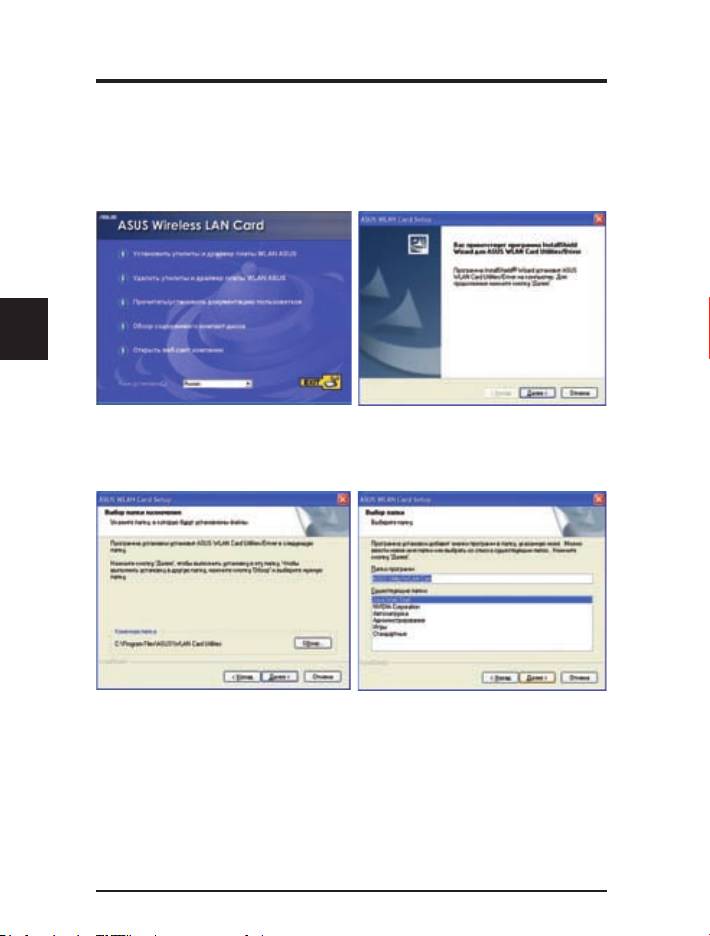
1. Вставьте компакт-диск, поставляемый вместе с картой, появится меню автозапуска. Если
автозапуск отключен, дважды щелкните на файле SETUP.EXE в корневой директории
компакт-диска.
Русский
2. В меню авторзапуска, выберите ваш язык
3. На экране приветствия нажмите Далее.
и щелкните Установить утилиты и драйвер
платы WLAN ASUS.
4. Нажмите Далее для использования
5. Нажмите Далее для помещения иконки
директории по умолчанию или нажмите
в папку программ по умолчанию или
Обзор для выбора другой директории.
введите другое имя папки.
18
Беспроводная сетевая карта ASUS
Руководство по быстрой установке
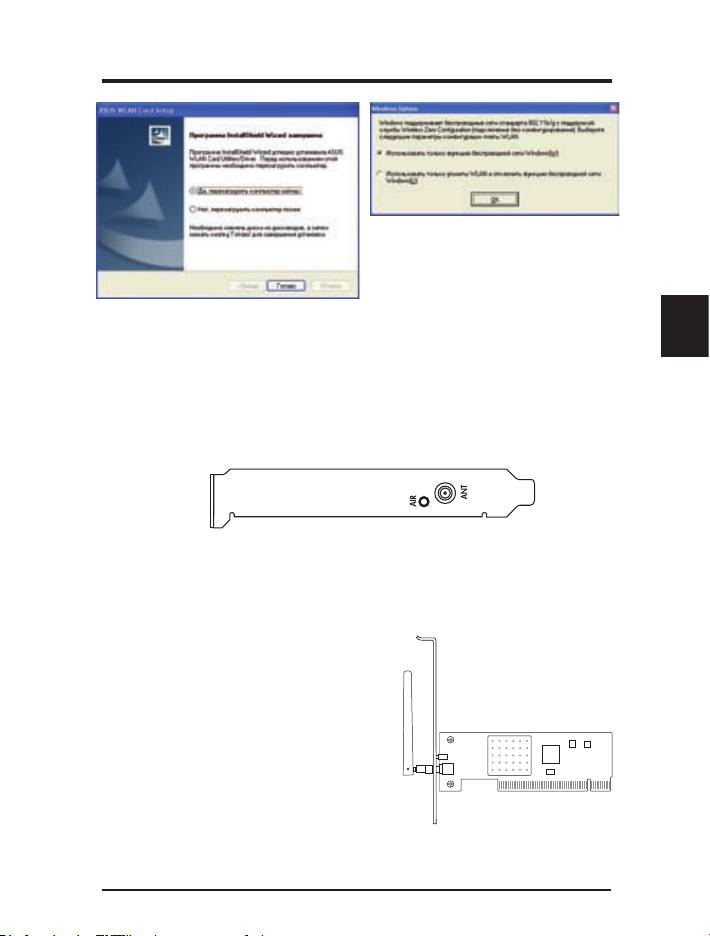
7. При запуске программы в первый раз, вас
спросят какие функции использовать. Для
большей функциональности выберите
Использовать только утилиты WLAN и
отключить функцию беспроводной сети
6. При завершении установки, нажмите Готово
Windows.
для выхода из мастера установки.
Русский
Индикаторы состояния
Карта имеет один AIR индикатор, который показывает состояние
карты.
Выключен: Нет беспроводной активности.
Мигает: Прием или передача данных.
Ориентация антенны
Карта имеет внешнюю антенну.
Для максимального расстояния
и в ы с о к о г о к а ч е ст в а с в я зи
рекомендуется установить внешнюю
антенну.
Беспроводная сетевая карта ASUS
19
