
Asus rp-n14: Frequently Asked Questions Windows 7
Frequently Asked Questions Windows 7: Asus rp-n14
Table of contents
- English ................................................................................................................................ 3
- Package contents A quick look 1) Ethernet port 6) Night light
- 7) Touch controller 8) LED indicators
- Setting up the Range Extender Turning the Range Extender on Connecting to a network Option A: Connecting through GUI
- Option B: Using WPS (Wi-Fi Protected Setup)
- Move the Range Extender Signal Indicators Wireless Media Playback
- Frequently Asked Questions Windows 7
- Mac 10.5.8
- Manufacturer ASUSTeK Computer Inc.
- Комплект поставки
English
Frequently Asked Questions
Q1: I cannot access the web GUI to congure the RP-N14
settings.
• Close all running web browsers and launch again.
• Follow the steps below to congure your computer settings based on its
operating system.
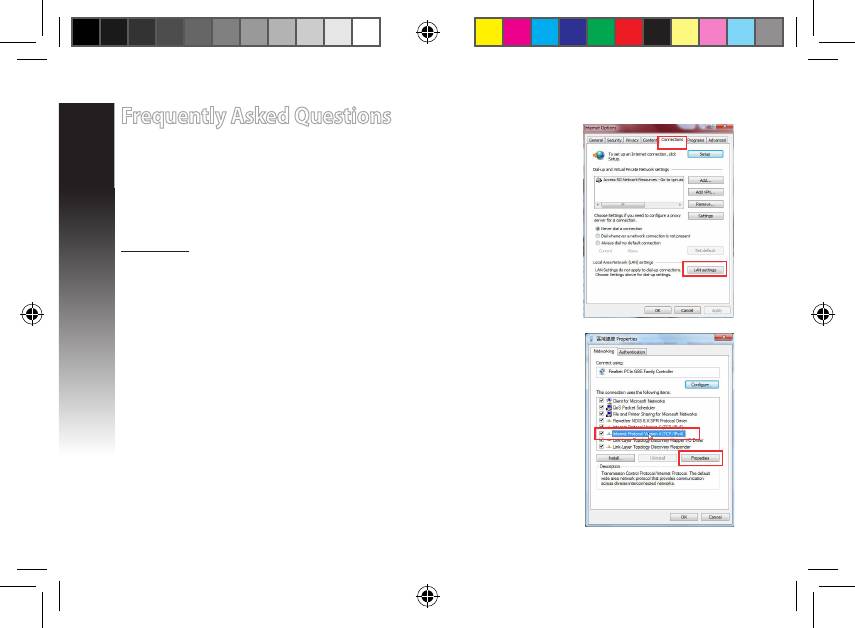
Windows 7
A. Disable the proxy server, if enabled.
1. Click Start > Internet Explorer to launch the web browser.
2. Click Tools > Internet options > Connections tab > LAN settings.
3. From the Local Area Network (LAN) Settings screen, untick Use a proxy
server for your LAN.
4. Click OK when done.
B. Set the TCP/IP settings to automatically obtain an IP address.
1. Click Start > Control Panel > Network and Internet > Network and
Sharing Center > Manage network connections.
2. Select Internet Protocol Version 4 (TCP/IPv4), then click Properties.
3. Tick Obtain an IP address automatically.
4. Click OK when done.
EEU8662_RP-N14_QSG.indb 8 29/09/13 16:20:11



