
Asus WL-160W: Taskbar icon - Right-click menu Taskbar icon - Left-click menu Taskbar Icon - Launch Wireless Settings
Taskbar icon - Right-click menu Taskbar icon - Left-click menu Taskbar Icon - Launch Wireless Settings: Asus WL-160W
Table of contents
- Installation Procedures Installing the WLAN utilities and driver Reading the WLAN status indicators
- One Touch Wizard
- Conguring with the WLAN utility (Infrastructure)
- Conguring with the WLAN utility (Ad Hoc)
- ASUS WLAN Control Center
- Taskbar icon - Right-click menu Taskbar icon - Left-click menu Taskbar Icon - Launch Wireless Settings
- ASUS Wireless Settings Utility Starting Wireless Settings Status - Status
- Buttons
- Save Conguration Activate Conguration Status - Connection
- Status - IP Cong Status - Ping
- Cong - Basic
- Cong - Advanced
- Cong - Encryption
- Quick Start Guide Data encryption
- Quick Start Guide
Quick Start Guide
Taskbar icon - Right-click menu
Right-click the taskbar icon to show the following menu items:
•
Wireless Settings
– Click to launch Wireless Settings application.
•
Activate Conguration
– Click to choose a preset prole.
English
•
Mobile Manager
– Click to launch Mobile Manager application.
•
Site Monitor –
Click to to launch the Site Monitor application.
•
Preferences
– Click to customize the Control Center program. You can
create a Control Center shortcut on the desktop and decide whether to
start Control Center when system boots.
•
About Control Center
-Shows the version of Control Center.
•
Exit
– Click to close the Control Center program.
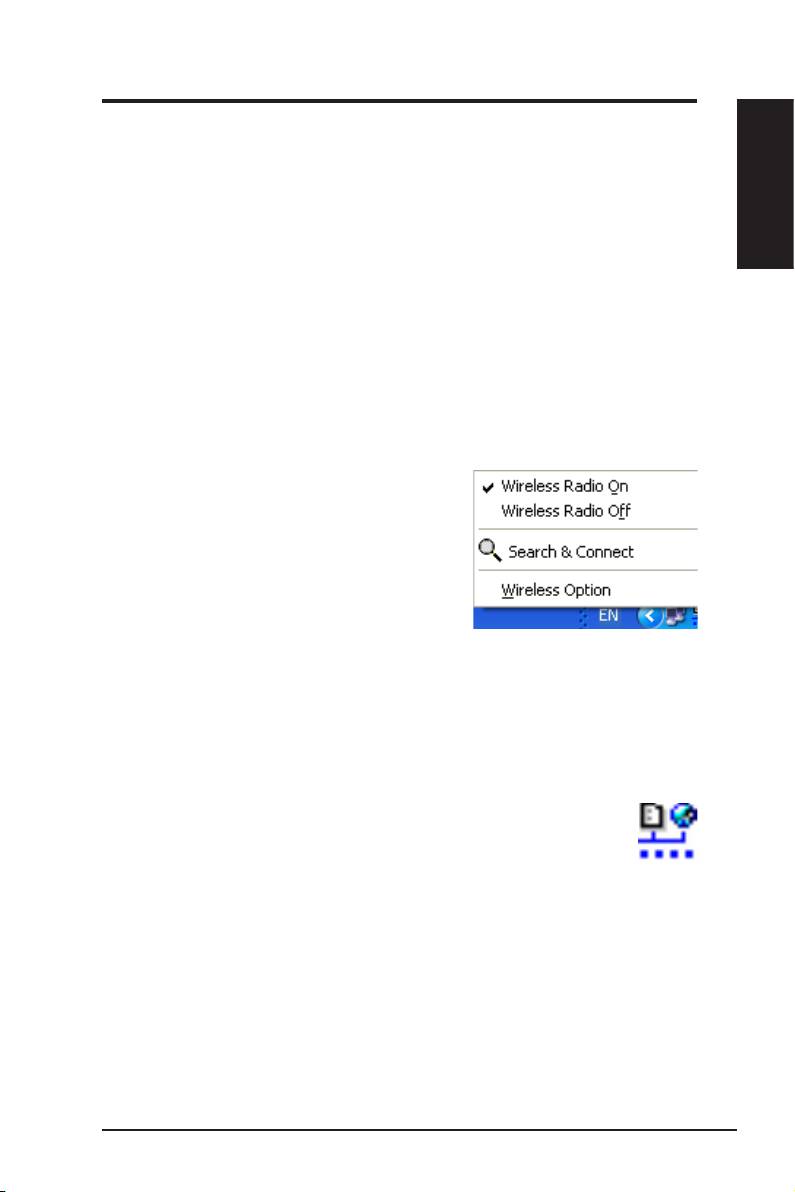
Taskbar icon - Left-click menu
Left-click the taskbar icon to show the
following menu items:
•
Wireless Radio On
– Click to turn
the wireless radio ON.
•
Wireless Radio Off
– Click to turn
the wireless radio OFF.
Taskbar Left-Click Menu
•
Search & Connect
– Click to view
the properties of available access points.
®
•
Wireless Option
(Windows
XP only) – Click to choose Windows
®
Wireless Zero Configuration (WZC) service or ASUS utilities to
congure your WLAN Adapter.
Taskbar Icon - Launch Wireless Settings
Double-click the taskbar icon to launch the Wireless Settings utility. to launch the Wireless Settings utility.
ASUS WLAN Adapter 7
