
Asus WL-160W: Conguring with the WLAN utility (Ad Hoc)
Conguring with the WLAN utility (Ad Hoc): Asus WL-160W
Table of contents
- Installation Procedures Installing the WLAN utilities and driver Reading the WLAN status indicators
- One Touch Wizard
- Conguring with the WLAN utility (Infrastructure)
- Conguring with the WLAN utility (Ad Hoc)
- ASUS WLAN Control Center
- Taskbar icon - Right-click menu Taskbar icon - Left-click menu Taskbar Icon - Launch Wireless Settings
- ASUS Wireless Settings Utility Starting Wireless Settings Status - Status
- Buttons
- Save Conguration Activate Conguration Status - Connection
- Status - IP Cong Status - Ping
- Cong - Basic
- Cong - Advanced
- Cong - Encryption
- Quick Start Guide Data encryption
- Quick Start Guide
Quick Start Guide
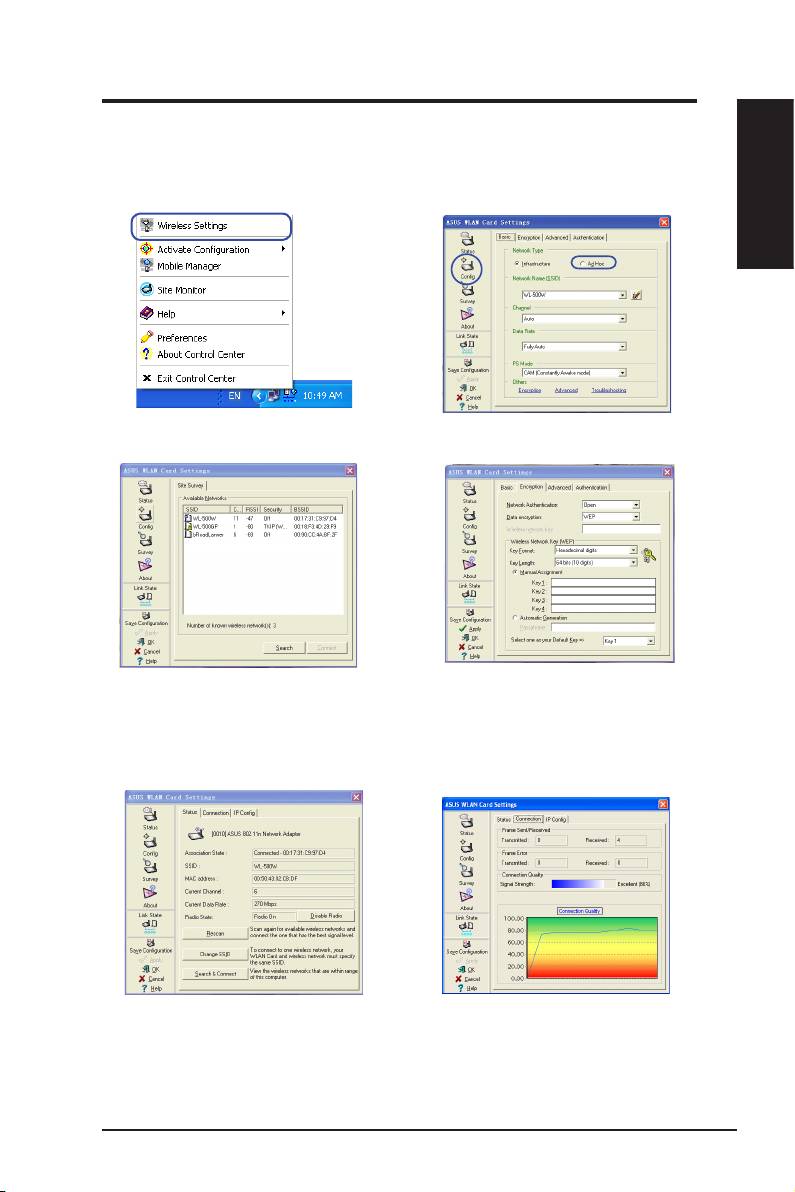
Conguring with the WLAN utility (Ad Hoc)
The WLAN adapter supports Ad Hoc mode which allows communication
between wireless stations without an AP.
English
1. Right-click the wireless connection icon
2. Click the Config button and set the
and select
Wireless Settings.
WLAN Card
to
Ad Hoc
connection mode.
3. Click the
Survey
button to scan for Ad
4. If the encryption settings of your WLAN
Hoc nodes. Select the node you want to
Adapter are different from those of the
communicate with and press
Connect
.
other Ad Hoc nodes, you are prompted
to make the encryption of the two nodes
identical. Click
Apply
to activate the
settings.
5. Check the
Status
page to see the association
6. Check the
Connection
tab to see the
state. If connection is established, the box
signal strength. Click
OK
to exit the utility.
shows “Connected - xx:xx:xx:xx:xx:xx”.
ASUS WLAN Adapter 5
