
Asus WL-160W: Installation Procedures Installing the WLAN utilities and driver Reading the WLAN status indicators
Installation Procedures Installing the WLAN utilities and driver Reading the WLAN status indicators: Asus WL-160W
Table of contents
- Installation Procedures Installing the WLAN utilities and driver Reading the WLAN status indicators
- One Touch Wizard
- Conguring with the WLAN utility (Infrastructure)
- Conguring with the WLAN utility (Ad Hoc)
- ASUS WLAN Control Center
- Taskbar icon - Right-click menu Taskbar icon - Left-click menu Taskbar Icon - Launch Wireless Settings
- ASUS Wireless Settings Utility Starting Wireless Settings Status - Status
- Buttons
- Save Conguration Activate Conguration Status - Connection
- Status - IP Cong Status - Ping
- Cong - Basic
- Cong - Advanced
- Cong - Encryption
- Quick Start Guide Data encryption
- Quick Start Guide
Quick Start Guide
English
Installation Procedures
Important: Install the WLAN Adapter utilities before inserting the WLAN
Adapter into your computer.
Installing the WLAN utilities and driver
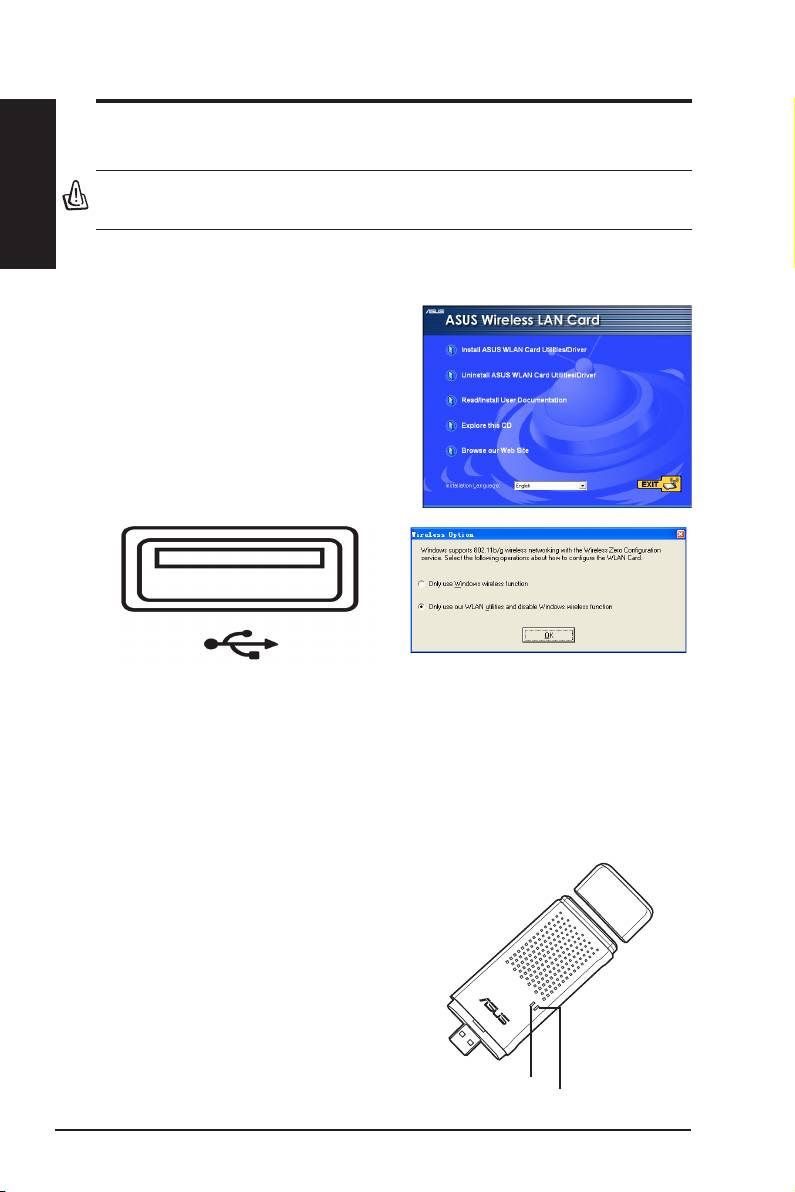
Follow these instructions to install the
WLAN Adapter utilities and driver. Insert
the support CD into your optical drive.
If autorun is enabled in your computer,
the CD automatically displays the utilitymatically displays the utility
menu. Click
Install ASUS WLAN Card
Utilities/Driver
. If autorun is disabled,
double-click SETUP.EXE in the root
directory of the CD.
Insert the WLAN Adapter into your computer
Windows XP users: When the program is
’s USB port using the correct orientation.
launched for the rst time (during Windows
Windows will automatically detect and
restart), you are asked to choose one utility
configure the WLAN Adapter using the
to congure the WLAN Adapter. Select "Only
utilities and drivers installed in the previous
use our WLAN utilities and disable Windows
steps.
wireless function".
Reading the WLAN status indicators
The device comes with two LEDs that indicate the status of the WLAN
Adapter.
ACT LED
Blinking:
Transmitting data; the blinking
speed indicates the link speed.
OFF:
Radio off or Adapter is disabled.
LINK LED
ON:
Connected to wireless device.
OFF:
No wireless connection.
ACT
LINK
2 ASUS WLAN Adapter
