
Asus WL-160W: ASUS Wireless Settings Utility Starting Wireless Settings Status - Status
ASUS Wireless Settings Utility Starting Wireless Settings Status - Status: Asus WL-160W
Table of contents
- Installation Procedures Installing the WLAN utilities and driver Reading the WLAN status indicators
- One Touch Wizard
- Conguring with the WLAN utility (Infrastructure)
- Conguring with the WLAN utility (Ad Hoc)
- ASUS WLAN Control Center
- Taskbar icon - Right-click menu Taskbar icon - Left-click menu Taskbar Icon - Launch Wireless Settings
- ASUS Wireless Settings Utility Starting Wireless Settings Status - Status
- Buttons
- Save Conguration Activate Conguration Status - Connection
- Status - IP Cong Status - Ping
- Cong - Basic
- Cong - Advanced
- Cong - Encryption
- Quick Start Guide Data encryption
- Quick Start Guide
Quick Start Guide
English
ASUS Wireless Settings Utility
Wireless Settings is an application for managing the WLAN Adapter. Use Wireless
Settings to view or modify the conguration settings, or to monitor the operational
status of your WLAN Adapter. When Wireless Settings is launched, you can
see the tabbed property sheets which categorize the conguration options into
groups.
Starting Wireless Settings
• Open the Windows
Control Panel
, then double-click the
ASUS
WLAN
Adapter Settings
icon.
or
• Click the Windows
Start
button, select
Programs | ASUS Utility |
WLAN Adapter | Wireless Settings
.
or
• Right-click the
Control Center icon
on the Windows taskbar and
select
Wireless Settings
.
NOTE: If you have more than one ASUS WLAN device installed on your
computer, you may see a device selection window when you launch the “
Wireless Settings” utility. Select the device you want when such situation
occurs.
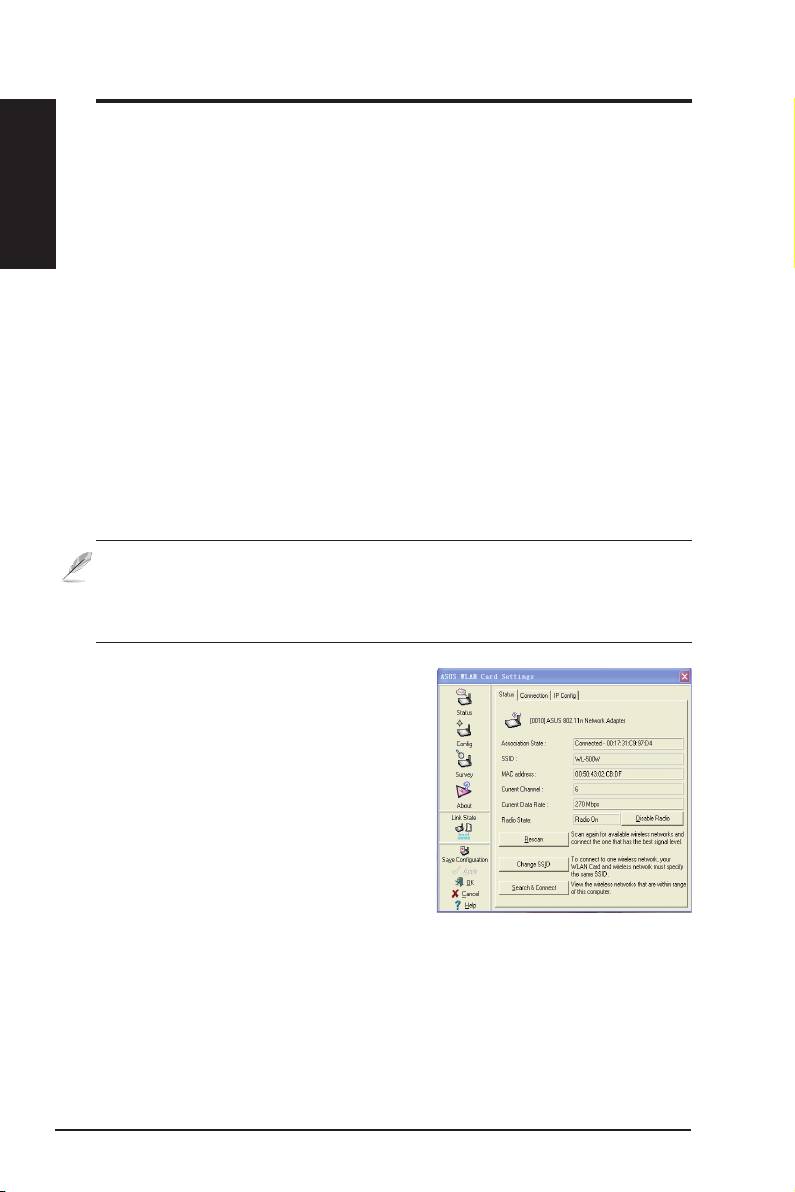
Status - Status
You can view the information about the
WLAN Adapter from the Status menu.
The status fields are blank if the WLAN
Adapter is not installed. You can turn
off the WLAN Adapter by clicking the
“Disable Radio” button.
Association State
Displays the connection status as follows:
Connected -
The adapter is now associated with one wireless LAN device.
When operating in Infrastructure mode, this field shows the MAC address
of the access point with which the WLAN Adapter is communicating. When
operating in Ad Hoc
mode, this eld shows the virtual MAC address used by
computers participating in the Ad Hoc
network.
8 ASUS WLAN Adapter
