
Pioneer KRL-46V: Teletext Using the MHEG-5 application (UK only)
Teletext Using the MHEG-5 application (UK only): Pioneer KRL-46V
Table of contents
- Contents
- Important Safety Precautions
- Remote control unit
- Controlling other equipment using the supplied remote control unit Presetting manufacture codes Manufacture codes STB DVD
- DVR VCR BD VCR
- Using with other equipment (STB) Using with other equipment (VCR)
- Using with other equipment (DVD/DVR)
- Trademarks
- TV (Front view) TV (Rear view)
- Preparation Supplied accessories Attaching the stand unit
- Preparation Inserting the batteries Using the remote control unit
- Installation precautions
- Quick guide Initial installation overview
- Before turning on the power
- Initial auto installation
- Watching TV Daily operation
- EPG (Electronic Programme Guide) EPG Overview Useful settings for using EPG
- Selecting a programme using EPG
- Timer recording using EPG Cancelling the timer recording
- Teletext Using the MHEG-5 application (UK only)
- Connecting external devices Introduction to connections
- HDMI connection Component connection S-VIDEO/VIDEO connection
- SCART connection Controlling devices with SCART using i/o link.A
- Speaker/amplifier connection
- Inserting a smart card
- HDMI CONTROL Controlling HDMI devices using HDMI CONTROL
- HDMI CONTROL connection HDMI CONTROL Setup
- Operating an HDMI CONTROL device
- Menu operation What is the HOME MENU?
- Basic adjustment Picture Settings
- Sound Settings Power Save Settings
- Channel Settings
- Analogue channel settings
- Password/Parental lock settings Language Settings (language, subtitle, multi audio)
- Useful Viewing functions Selecting the picture size
- Other picture and audio settings
- Display Settings
- Other useful features Setting when using external devices Additional features
- Connecting a PC Connecting a PC Displaying a PC image on the screen
- Selecting input resolution
- RS-232C port specifications
- PC compatibility chart RS-232C command list
- Appendix Troubleshooting
- Updating your TV via DVB-T Reset Identification
- Specifications
- End of life disposal
Watching TV
Buttons for teletext operations
Teletext
Buttons Description
What is Teletext?
Pk/l (e/f)
Increase or decrease the page number.
Teletext broadcasts pages of information and
entertainment to specially equipped TV. Your TV
Colour (Red/
Select a group or block of pages
receives teletext signals broadcast by a TV network,
Green/Yellow/
displayed in the coloured brackets at
Blue)
the bottom of the screen by pressing
and decodes them into graphical format for viewing.
the corresponding Colour (Red/Gr
een/
News, weather and sports information, stock
Yellow/Blue) buttons on the remote
exchange prices and programme previews are among
control unit.
the many services available.
0–9
Directly select any page from 100 to 899
Turning Teletext on/off
by using the 0–9 numeric buttons.
1
Select a TV channel or external source providing
k (Reveal
Reveal or hide hidden information such
a teletext programme.
hidden
as an answer to a quiz.
Teletext)
2
Press m to display the Teletext.
•
Many stations use the TOP operating system, while
3 (Freeze/
Stop updating teletext pages
some use FLOF (e.g. CNN). Your TV supports both
Hold)
automatically or release the hold mode.
these systems. The pages are divided into topic
[ (Subtitle
Display the subtitle or exit the subtitle
groups and topics. After switching on the teletext, up
for Teletext)
screen.
to 2,000 pages are stored for fast access.
•
Subtitles will not be displayed when
•
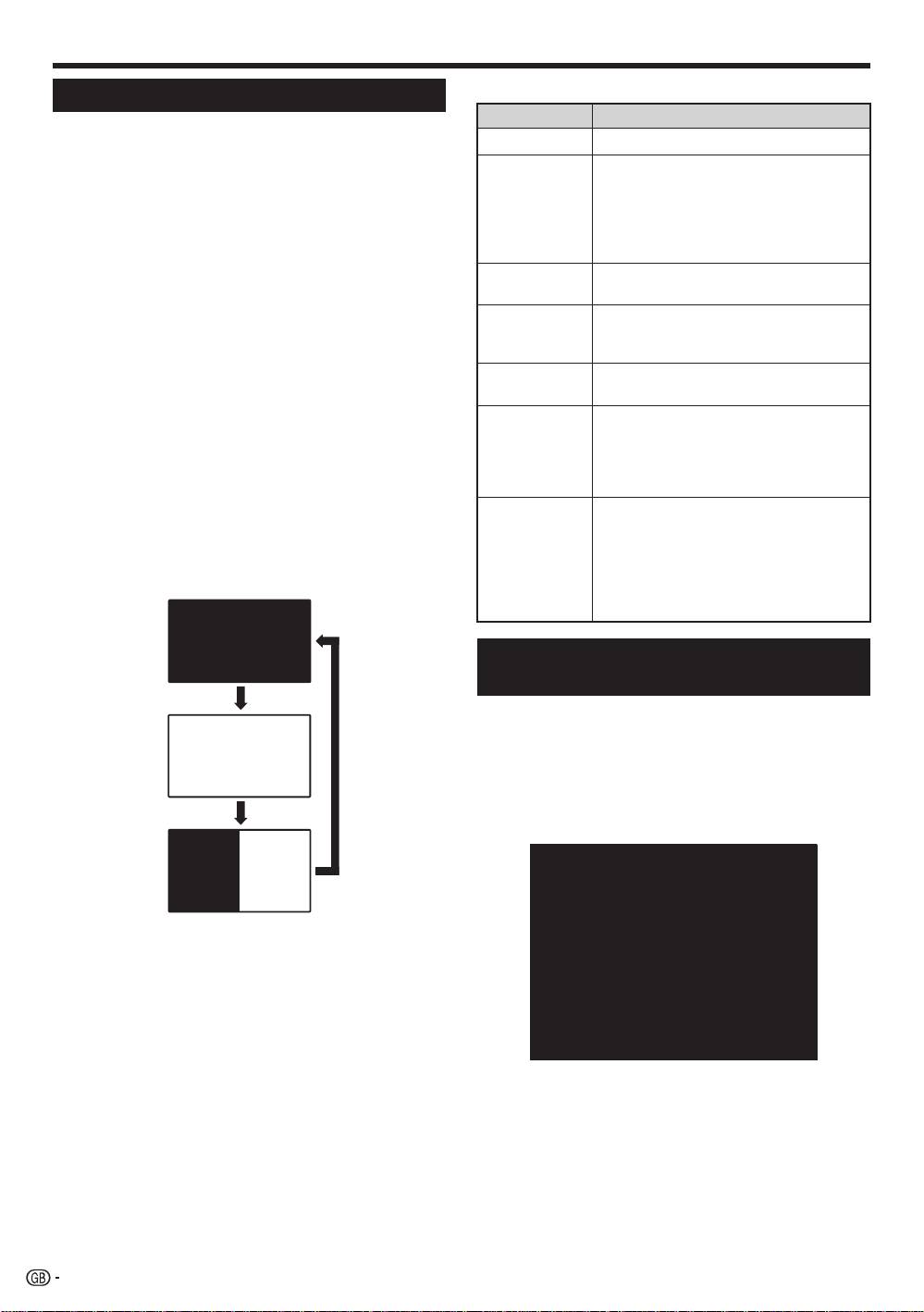
Each time you press m, the screen switches as
the service does not contain subtitle
shown below.
information.
•
Press m again to display the teletext on the right
screen and the normal image on the left screen.
1 (Subpage)
Reveal or hide subpages.
•
If you select a programme with no teletext signal, “No
•
Red button: Move to the pr
evious
Teletext available” displays.
subpage.
•
The same message displays during other modes if no
•
Green button: Move to the following
teletext signal is available.
subpage.
•
These two buttons are shown on the
screen by the symbols “e” and “f”.
Using the MHEG-5 application (UK
only)
Some services bring you programmes with the MHEG
(Multimedia and Hypermedia Expert Group) application
TELETEXT
encoded, letting you experience DTV interactively.
If provided, the MHEG-5 application will start when you
press m.
Sample MHEG-5 screen
TELETEXT
NOTE
•
Teletext will not work if the selected signal type is
RGB (Page 38).
20
KRL46V_GB.indd 20 2008/07/09 14:08:50
