
Pioneer KRL-46V: SCART connection Controlling devices with SCART using i/o link.A
SCART connection Controlling devices with SCART using i/o link.A: Pioneer KRL-46V
Table of contents
- Contents
- Important Safety Precautions
- Remote control unit
- Controlling other equipment using the supplied remote control unit Presetting manufacture codes Manufacture codes STB DVD
- DVR VCR BD VCR
- Using with other equipment (STB) Using with other equipment (VCR)
- Using with other equipment (DVD/DVR)
- Trademarks
- TV (Front view) TV (Rear view)
- Preparation Supplied accessories Attaching the stand unit
- Preparation Inserting the batteries Using the remote control unit
- Installation precautions
- Quick guide Initial installation overview
- Before turning on the power
- Initial auto installation
- Watching TV Daily operation
- EPG (Electronic Programme Guide) EPG Overview Useful settings for using EPG
- Selecting a programme using EPG
- Timer recording using EPG Cancelling the timer recording
- Teletext Using the MHEG-5 application (UK only)
- Connecting external devices Introduction to connections
- HDMI connection Component connection S-VIDEO/VIDEO connection
- SCART connection Controlling devices with SCART using i/o link.A
- Speaker/amplifier connection
- Inserting a smart card
- HDMI CONTROL Controlling HDMI devices using HDMI CONTROL
- HDMI CONTROL connection HDMI CONTROL Setup
- Operating an HDMI CONTROL device
- Menu operation What is the HOME MENU?
- Basic adjustment Picture Settings
- Sound Settings Power Save Settings
- Channel Settings
- Analogue channel settings
- Password/Parental lock settings Language Settings (language, subtitle, multi audio)
- Useful Viewing functions Selecting the picture size
- Other picture and audio settings
- Display Settings
- Other useful features Setting when using external devices Additional features
- Connecting a PC Connecting a PC Displaying a PC image on the screen
- Selecting input resolution
- RS-232C port specifications
- PC compatibility chart RS-232C command list
- Appendix Troubleshooting
- Updating your TV via DVB-T Reset Identification
- Specifications
- End of life disposal
Connecting external devices
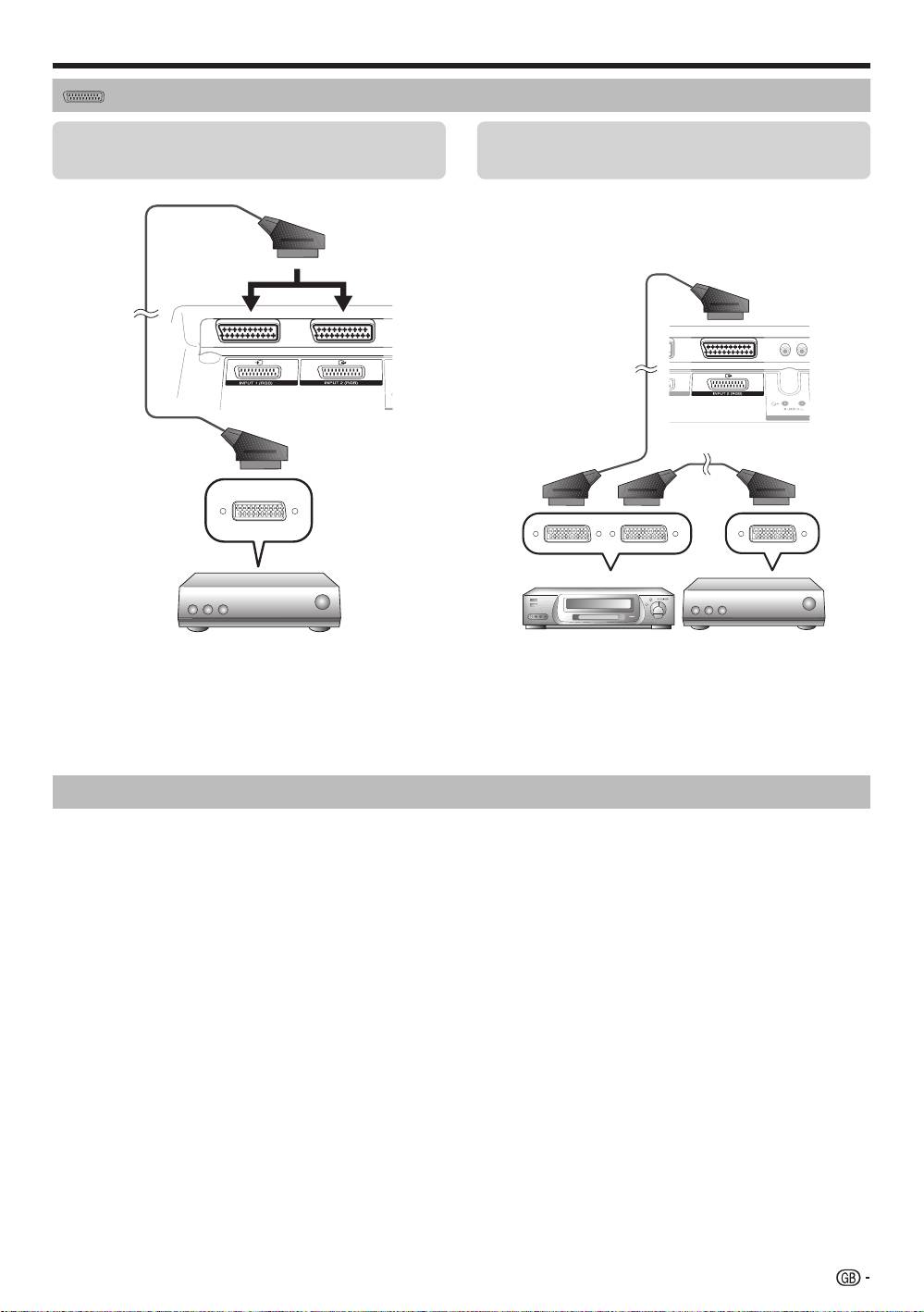
SCART connection
Example of connectable devices
Example of connectable devices
DecoderE
VCR E DVD player/recorderE
E
When using the INPUT2 (SCART) terminal
If your VCR supports TV-VCR advanced AV Link
systems, you can connect the VCR using a fully wired
SCART cable.
SCART cable
SCART cable
SCART cable
Decoder
DecoderVCR
NOTE
•
In cases when the decoder needs to receive a signal from the TV, make sure to select the appropriate input terminal to which
the decoder is connected in “Manual Adjust” in the “Analogue Setting” menu (Page 33).
•
TV-VCR advanced AV Link systems may not be compatible with some external sources.
•
You cannot connect the VCR with Decoder using a fully wired SCART cable when selecting “Y/C” under “INPUT2” in the
“Input Select” menu.
Controlling devices with SCART using i/o link.A
This TV incorporates four typical i/o link.A functions for smooth connections between the TV and other audiovisual
equipment.
One Touch Play
While the TV is in standby mode, it automatically turns on and plays back the image from the audiovisual source
(e.g. VCR, DVD player/recorder).
TV Standby
When the TV enters standby mode, the connected audiovisual equipment (e.g. VCR, DVD player/recorder) enters
standby mode as well.
WYSIWYR (What You See Is What You Record)
When the remote control unit of the connected VCR has the WYSIWYR button, you can automatically start
recording by pressing the WYSIWYR button.
Preset Download
Automatically transfers the channel preset information from the tuner on the TV to the one on the connected
audiovisual equipment (e.g. VCR) via the INPUT2 terminal.
NOTE
•
Refer to the operation manuals of external equipment for details.
•
The i/o link.A function works only when audiovisual equipment is connected to the INPUT2 terminal with a fully wired SCART
cable.
•
The use of the
i/o link.A
function is only possible if the TV has enforced a complete auto installation with the connected
audiovisual equipment (Page 15, Initial auto installation).
The availability of the
i/o link.A
function depends on the audiovisual equipment used. Depending on the manufacturer and type
of equipment used, it is possible that the described functions may be completely or partially unusable.
23
KRL46V_GB.indd 23 2008/07/09 14:08:53
