
Pioneer KRL-46V: Display Settings
Display Settings: Pioneer KRL-46V
Table of contents
- Contents
- Important Safety Precautions
- Remote control unit
- Controlling other equipment using the supplied remote control unit Presetting manufacture codes Manufacture codes STB DVD
- DVR VCR BD VCR
- Using with other equipment (STB) Using with other equipment (VCR)
- Using with other equipment (DVD/DVR)
- Trademarks
- TV (Front view) TV (Rear view)
- Preparation Supplied accessories Attaching the stand unit
- Preparation Inserting the batteries Using the remote control unit
- Installation precautions
- Quick guide Initial installation overview
- Before turning on the power
- Initial auto installation
- Watching TV Daily operation
- EPG (Electronic Programme Guide) EPG Overview Useful settings for using EPG
- Selecting a programme using EPG
- Timer recording using EPG Cancelling the timer recording
- Teletext Using the MHEG-5 application (UK only)
- Connecting external devices Introduction to connections
- HDMI connection Component connection S-VIDEO/VIDEO connection
- SCART connection Controlling devices with SCART using i/o link.A
- Speaker/amplifier connection
- Inserting a smart card
- HDMI CONTROL Controlling HDMI devices using HDMI CONTROL
- HDMI CONTROL connection HDMI CONTROL Setup
- Operating an HDMI CONTROL device
- Menu operation What is the HOME MENU?
- Basic adjustment Picture Settings
- Sound Settings Power Save Settings
- Channel Settings
- Analogue channel settings
- Password/Parental lock settings Language Settings (language, subtitle, multi audio)
- Useful Viewing functions Selecting the picture size
- Other picture and audio settings
- Display Settings
- Other useful features Setting when using external devices Additional features
- Connecting a PC Connecting a PC Displaying a PC image on the screen
- Selecting input resolution
- RS-232C port specifications
- PC compatibility chart RS-232C command list
- Appendix Troubleshooting
- Updating your TV via DVB-T Reset Identification
- Specifications
- End of life disposal
Useful Viewing functions
Option
Time Display
Time Display
This function allows you to display the clock time in the
lower-right corner of the screen.
*
Four digit numbers (e.g. 0001) are displayed after
selecting the five Nordic countries in the country
setting.
Time Format
E
Time display in channel information
You can display the time information included in DTV
You can select the time format (either “24HR” or “AM/
and teletext broadcasts.
PM”) for the clock time.
NOTE
Option
•
Skip step 1 if receiving DTV broadcasts.
1
Select a TV channel (The time information is
Game Play Time
automatically captured).
2
Press p. The channel display will appear on
This function allows you to display the elapsed time on
the TV.
the screen when AV SELEC
TION is set to “GAME”.
3
Press p again within the several seconds
that the channel display is on the screen. Time
information will be shown in the lower-right
corner of the screen for several seconds.
4
Even when you change the TV channel, you can
display the time information with steps 2 and 3
above.
Option
NOTE
•
If acquired successfully, the time information will appear in
Programme Title Display
the upper-right corner of the screen by pressing h.
This function allows you to display programme
information such as the title and airtime by tuning a
channel.
NOTE
•
This function is available only when the DTV mode is
selected.
BBC2
DTV
001
Audio (ENG) STEREO :
Video 1080i :
Subtitle ENG 1/3:
New Information
BBC1
ATV
01
PAL I
NICAM STEREO
Subtitle Teletext Off:
New Information
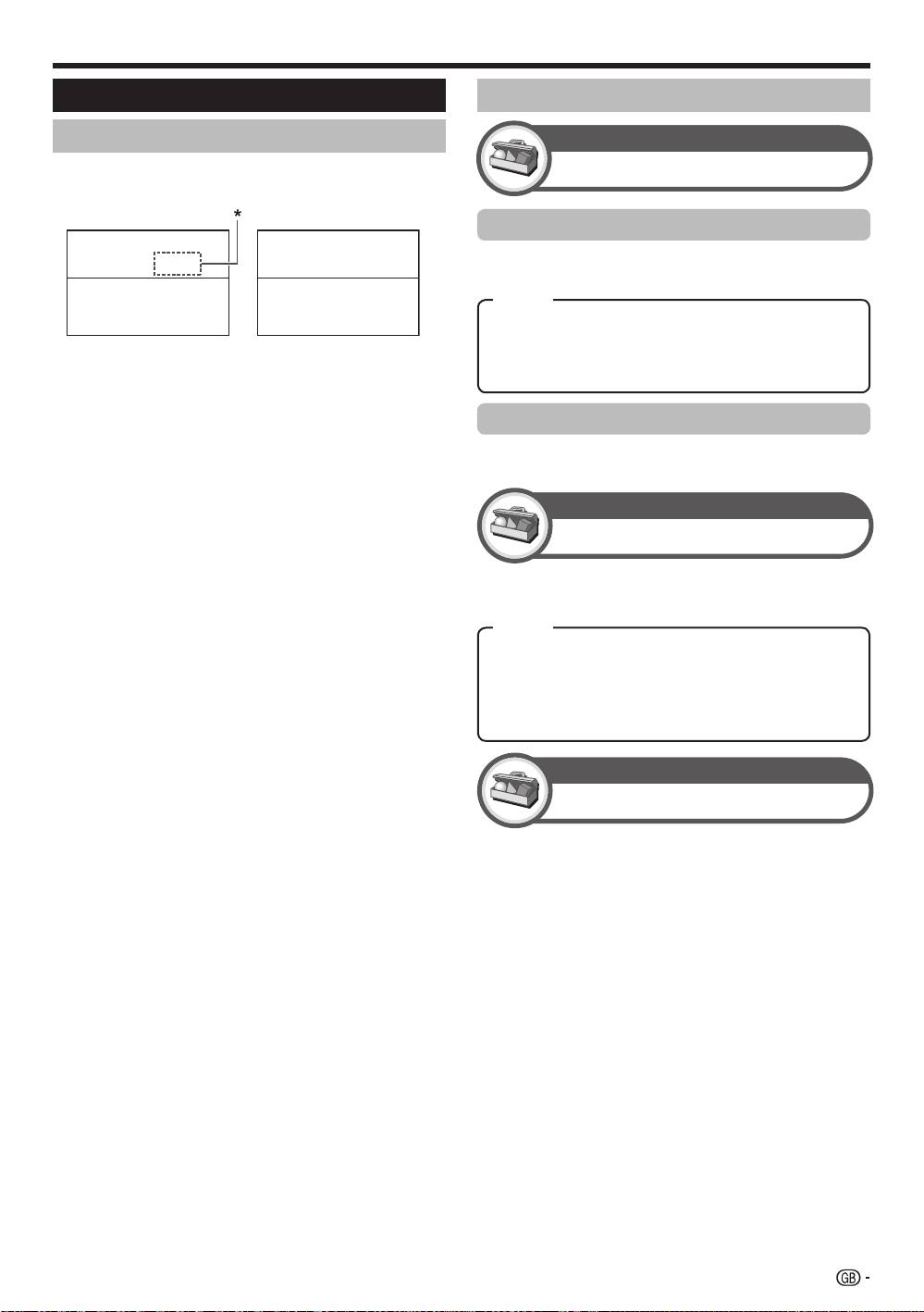
Display Settings
Time and Title display
Channel display
You can display the channel information by pressing
p on the remote control unit.
DTV Mode ATV Mode
Item
On: Displays the clock time.
On (half-hourly): Displays the clock time in 30-minute
increments.
Off: Hides the clock time.
Item
On: Under connecting a game console to the TV, the
elapsed time is displayed in 30-minute increments
in the lower-left corner of the screen after AV
SELECTION is set to “GAME”.
Off: Hides the time.
37
KRL46V_GB.indd 37 2008/07/09 14:09:04
