
Pioneer KRL-46V: HDMI CONTROL connection HDMI CONTROL Setup
HDMI CONTROL connection HDMI CONTROL Setup: Pioneer KRL-46V
Table of contents
- Contents
- Important Safety Precautions
- Remote control unit
- Controlling other equipment using the supplied remote control unit Presetting manufacture codes Manufacture codes STB DVD
- DVR VCR BD VCR
- Using with other equipment (STB) Using with other equipment (VCR)
- Using with other equipment (DVD/DVR)
- Trademarks
- TV (Front view) TV (Rear view)
- Preparation Supplied accessories Attaching the stand unit
- Preparation Inserting the batteries Using the remote control unit
- Installation precautions
- Quick guide Initial installation overview
- Before turning on the power
- Initial auto installation
- Watching TV Daily operation
- EPG (Electronic Programme Guide) EPG Overview Useful settings for using EPG
- Selecting a programme using EPG
- Timer recording using EPG Cancelling the timer recording
- Teletext Using the MHEG-5 application (UK only)
- Connecting external devices Introduction to connections
- HDMI connection Component connection S-VIDEO/VIDEO connection
- SCART connection Controlling devices with SCART using i/o link.A
- Speaker/amplifier connection
- Inserting a smart card
- HDMI CONTROL Controlling HDMI devices using HDMI CONTROL
- HDMI CONTROL connection HDMI CONTROL Setup
- Operating an HDMI CONTROL device
- Menu operation What is the HOME MENU?
- Basic adjustment Picture Settings
- Sound Settings Power Save Settings
- Channel Settings
- Analogue channel settings
- Password/Parental lock settings Language Settings (language, subtitle, multi audio)
- Useful Viewing functions Selecting the picture size
- Other picture and audio settings
- Display Settings
- Other useful features Setting when using external devices Additional features
- Connecting a PC Connecting a PC Displaying a PC image on the screen
- Selecting input resolution
- RS-232C port specifications
- PC compatibility chart RS-232C command list
- Appendix Troubleshooting
- Updating your TV via DVB-T Reset Identification
- Specifications
- End of life disposal
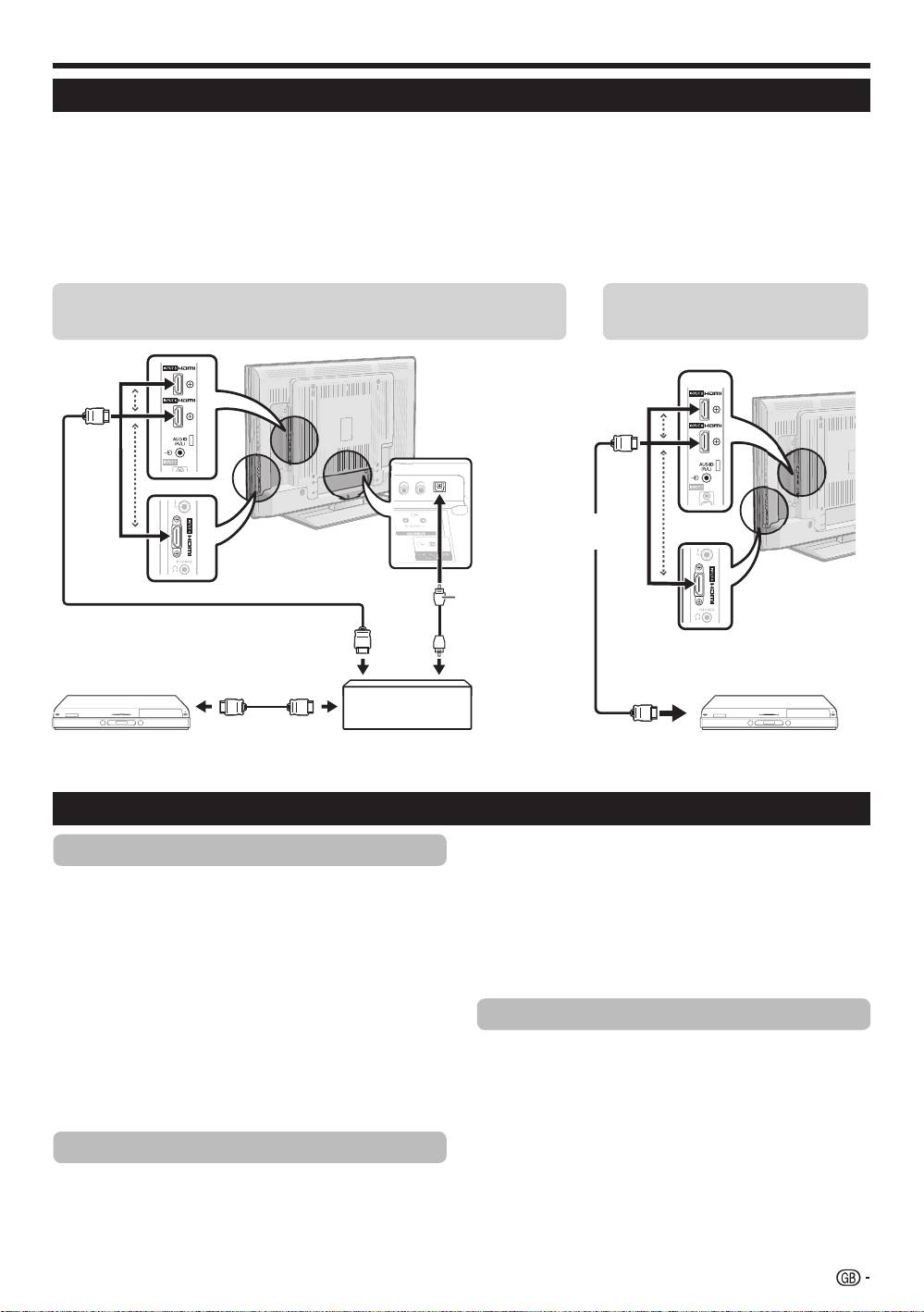
HDMI CONTROL
HDMI CONTROL connection
First connect the Pioneer AV Sound system or a Pioneer BD Player/Pioneer Recorder that supports the HDMI
CEC protocol.
NOTE
•
Refer to the operation manual of the device to be connected for further details.
•
After unplugging connection cables or changing the connection pattern, turn on the power of the TV after all relevant devices’
power have been turned on. Change the external input source by pressing INPUT1–8, select the appropriate external source
and verify the audiovisual output.
•
The cables illustrated in the following explanation are commercially available items.
Connecting a Pioneer BD Player/Pioneer Recorder via
Connecting a Pioneer BD
the Pioneer AV Sound system
Player/Pioneer Recorder only
HDMI-certified
cable
Optical audio
cable
HDMI-certified cable
HDMI-certified cable
Pioneer BD Player/
Pioneer AV Sound
Pioneer BD Player/
Pioneer Recorder
system
Pioneer Recorder
HDMI CONTROL Setup
1
Repeat steps 1 to 3 in HDMI CONTROL.
HDMI CONTROL
2
Press a/b to select “Auto Power On”, and then
Set to “On” to enable HDMI CEC functions. When
press ENTER.
turning on the power while “HDMI CONTROL” is set
3
Press c/d to select “On”, and then press
to “On”, the connected HDMI devices’ power will be
ENTER.
turned on in conjunction with the TV.
1
Press h and the “HOME MENU” screen displays.
NOTE
•
The factory default for this item is “Off”.
2
Press a/b to select “Option”.
3
Press a/b to select “HDMI CONTROL Setup”,
Selecting recorder
and then press ENTER.
Here, you can select a recorder for the recording from
4
Press a/b to select “HDMI CONTROL”, and
several connected recorders.
then press ENTER.
1
Repeat steps 1 to 3 in HDMI C
ONTROL.
5
Press c/d to select “On”, and then press
ENTER.
2
Press a/b to select “Selecting Recorder”, and
then press ENTER.
Auto Power On
3
Select the recorder, and then press ENTER.
If this is activated, the One Touch Play function
NOTE
is enabled. While the TV is in standby mode, it
•
If you have connected the Pioneer AV Sound system
automatically turns on and plays back the image from
between the TV and a Pioneer Recorder, the external
the HDMI source.
source’s indication changes (e.g. from “INPUT5” to
“INPUT5 (Sub)”).
27
KRL46V_GB.indd 27 2008/07/09 14:08:56
