
Asus PW201: Quick Start Guide
Quick Start Guide: Asus PW201
Table of contents
- English...........................................................................................1
- Safety information Monitor introduction
- Unfolding the monitor Connecting the cables
- Quick Start Guide
- Connecting the power adapter Adjusting the monitor
- Detaching the stand (for VESA wall mount) Pivot Pro Software
- Built-in webcam introduction Hardware Software
- LifeFrame software
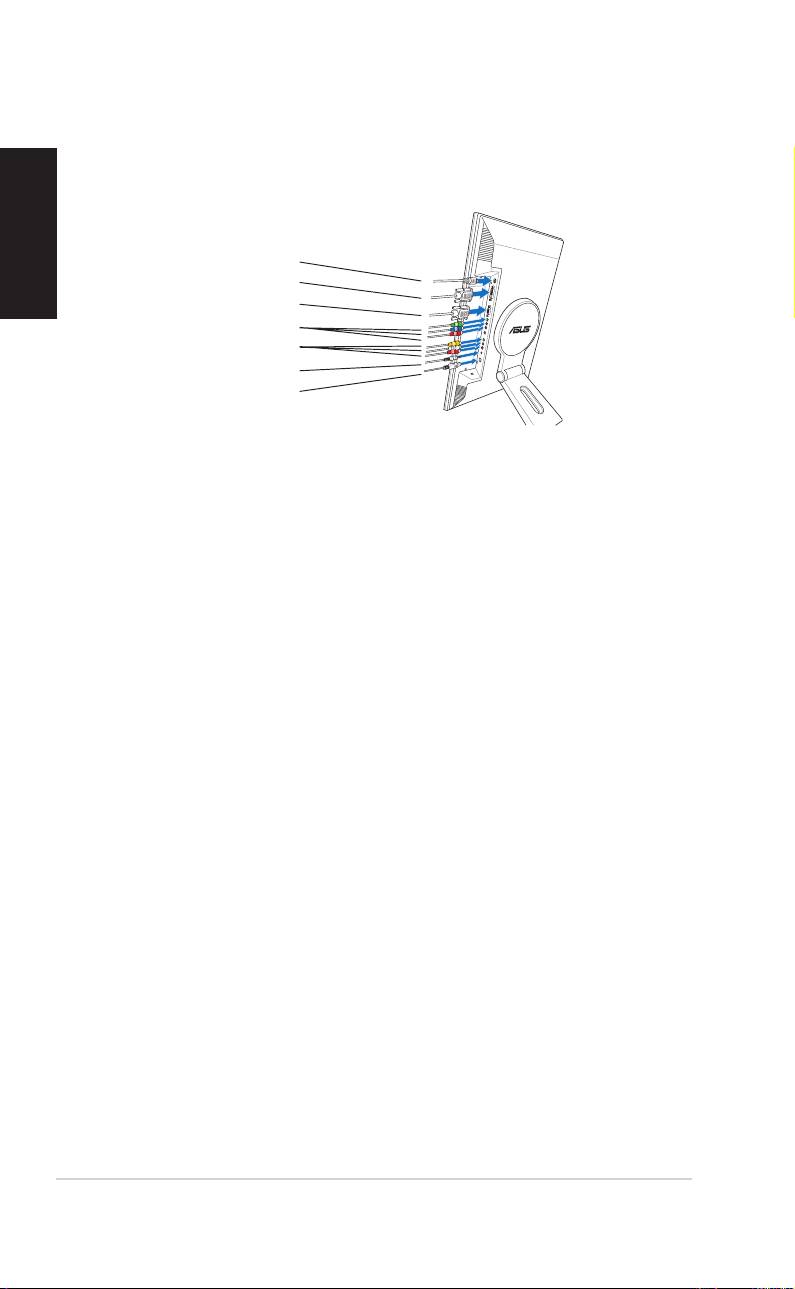
3. Connect the cables as shown. Refer to the succeeding sections for
English
detailed instructions.
Power adapter
DVI cable
VGA cable
Component cable
RCA cable
PC Audio cable
USB 2.0 cable
Connecting a computer equipped with a VGA/DVI portConnecting a computer equipped with a VGA/DVI port
Connecting a computer equipped with a VGA/DVI portConnecting a computer equipped with a VGA/DVI port
Connecting a computer equipped with a VGA/DVI port
1. Plug the VGA, audio, and USB connectors of the supplied
3-in-1 cable to the LCD monitor’s VGA, Line-in, and USB ports
respectively.
2. Connect the other ends of the supplied 3-in-1 cable to your
computer’s VGA, Line-out, and USB ports respectively.
3. Tighten the two screws to secure the VGA connector.
4. Connect one end of the supplied DVI cable to the LCD monitor,
then connect the other end to your computer’s DVI port.
Connecting a video equipment with Video (composite) orConnecting a video equipment with Video (composite) or
Connecting a video equipment with Video (composite) orConnecting a video equipment with Video (composite) or
Connecting a video equipment with Video (composite) or
S-Video output ports such as a VCR, V8, or DVS-Video output ports such as a VCR, V8, or DV
S-Video output ports such as a VCR, V8, or DVS-Video output ports such as a VCR, V8, or DV
S-Video output ports such as a VCR, V8, or DV
1. Connect one end of the supplied RCA cable to the video and L/R
Audio ports of the LCD monitor, then connect the other end to
the video and Audio ports of your video equipment.
2. Connect one end of the S-Video cable to the LCD monitor’s S-
Video port, then connect the other end to the S-Video port of
your video equipment.
3. Plug the red and white connectors of the supplied RCA cable to
the LCD monitor’s L/R Audio ports, then connect the other end to
the Audio ports of your video equipment.
Connecting a video equipment with component outputConnecting a video equipment with component output
Connecting a video equipment with component outputConnecting a video equipment with component output
Connecting a video equipment with component output
ports, such as a DVD player or a satellite set-top boxports, such as a DVD player or a satellite set-top box
ports, such as a DVD player or a satellite set-top boxports, such as a DVD player or a satellite set-top box
ports, such as a DVD player or a satellite set-top box
1. Connect one end of the component cable to the
component ports of the LCD monitor, then connect the other end
to the component output ports of your video equipment.
2. Plug the red and white connectors of the supplied RCA cable to
the LCD monitor’s L/R Audio ports, then connect the other end to
the Audio Line-out ports of your video equipment.
44
44
4
Quick Start Guide Quick Start Guide
Quick Start Guide Quick Start Guide
Quick Start Guide
