
Asus P5W: Updating the BIOS through a BIOS le
Updating the BIOS through a BIOS le: Asus P5W
Table of contents
- Chapter 1: Quick Start 1.1 Installing the CPU
- 1.1.2 AMD AM2 Socket
- 1.2 Installing the heatsink and fan
- For Intel-certied heatsink:
- For AMD-certied heatsink:
- 1.3 Installing a DIMM 1.4 Installing the motherboard
- Chapter1: QuickStart
- 1.5 Installing the power supply unit
- 1.6 Installing an expansion card
- 1.7 Installing disk drives
- 1.7.2 SATA optical disk drive
- 1.7.3 Floppy disk drive
- 1.7.4 PATA hard disk drive
- Notes for installing PATA hard disk drive
- 1.7.5 SATA hard disk drive
- 1.8 Front panel cables
- ASUS Q-Connector 1.9 Connecting the ATX power
- Power connectors
- 1.10 Peripheral devices and accessories
- 1.11 Startingupforthersttime Troubleshooting
- Chapter 2: Manage/update BIOS 2.1 AFUDOS utility
- ASUS Motherboard installation guide
- 2.2 Award BIOS Flash Utility
- ASUS Motherboard installation guide
- Saving the current BIOS le
- 2.3 ASUS Update utility Installing ASUS Update
- Updating the BIOS through the Internet
- Updating the BIOS through a BIOS le
- Chapter 3: Troubleshooting 3.1 Troubleshooting for Motherboard DIY 3.1.1 Basic troubleshooting
- B. CPU overheated
- 3.2 Other common troubles
- 3.2.1 No power
- 3.2.2 Failure to boot-up; No screen display 3.2.3 Failure to enter the operating system
- 3.2.4 FAQs
- Chapter 4: Computer care tips
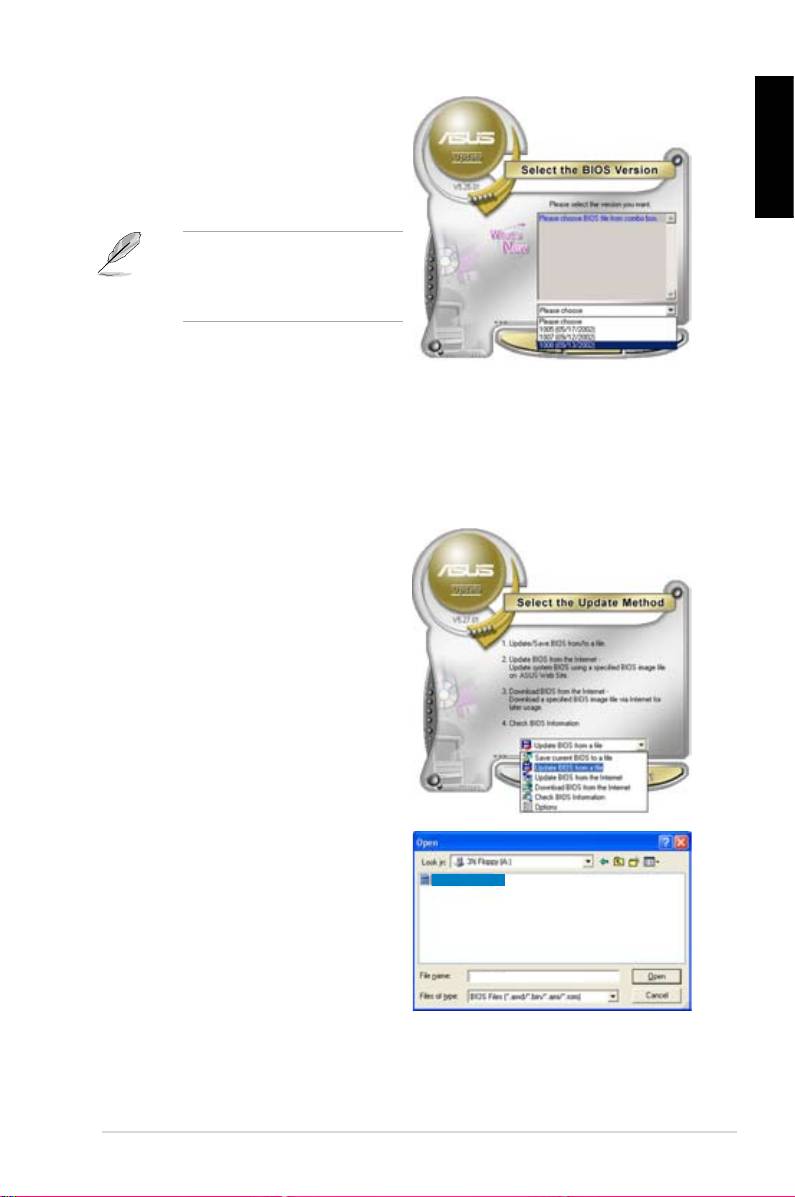
4. From the FTP site, select the BIOS
versionthatyouwishtodownload.
Click Next.
5. Follow the screen instructions to
English
complete the update process.
TheASUSUpdateutilityis
capable of updating itself through
theInternet.Alwaysupdatethe
utilitytoavailallitsfeatures.
Updating the BIOS through a BIOS le
ToupdatetheBIOSthroughaBIOSle:
®
1. LaunchtheASUSUpdateutilityfromtheWindows
desktopbyclickingStart
> Programs > ASUS > ASUSUpdate > ASUSUpdate. The ASUS Update
main window appears.
2. Select
Update BIOSfromale
option from the drop‑down menu,
then click Next.
3. LocatetheBIOSlefromtheOpen
window, then click Open.
P5K3 Deluxe
4. Follow the screen instructions to
complete the update process.
P5K3 Deluxe
ASUS Motherboard installation guide
31
