
Asus P5W: 1.7.3 Floppy disk drive
1.7.3 Floppy disk drive: Asus P5W
Table of contents
- Chapter 1: Quick Start 1.1 Installing the CPU
- 1.1.2 AMD AM2 Socket
- 1.2 Installing the heatsink and fan
- For Intel-certied heatsink:
- For AMD-certied heatsink:
- 1.3 Installing a DIMM 1.4 Installing the motherboard
- Chapter1: QuickStart
- 1.5 Installing the power supply unit
- 1.6 Installing an expansion card
- 1.7 Installing disk drives
- 1.7.2 SATA optical disk drive
- 1.7.3 Floppy disk drive
- 1.7.4 PATA hard disk drive
- Notes for installing PATA hard disk drive
- 1.7.5 SATA hard disk drive
- 1.8 Front panel cables
- ASUS Q-Connector 1.9 Connecting the ATX power
- Power connectors
- 1.10 Peripheral devices and accessories
- 1.11 Startingupforthersttime Troubleshooting
- Chapter 2: Manage/update BIOS 2.1 AFUDOS utility
- ASUS Motherboard installation guide
- 2.2 Award BIOS Flash Utility
- ASUS Motherboard installation guide
- Saving the current BIOS le
- 2.3 ASUS Update utility Installing ASUS Update
- Updating the BIOS through the Internet
- Updating the BIOS through a BIOS le
- Chapter 3: Troubleshooting 3.1 Troubleshooting for Motherboard DIY 3.1.1 Basic troubleshooting
- B. CPU overheated
- 3.2 Other common troubles
- 3.2.1 No power
- 3.2.2 Failure to boot-up; No screen display 3.2.3 Failure to enter the operating system
- 3.2.4 FAQs
- Chapter 4: Computer care tips
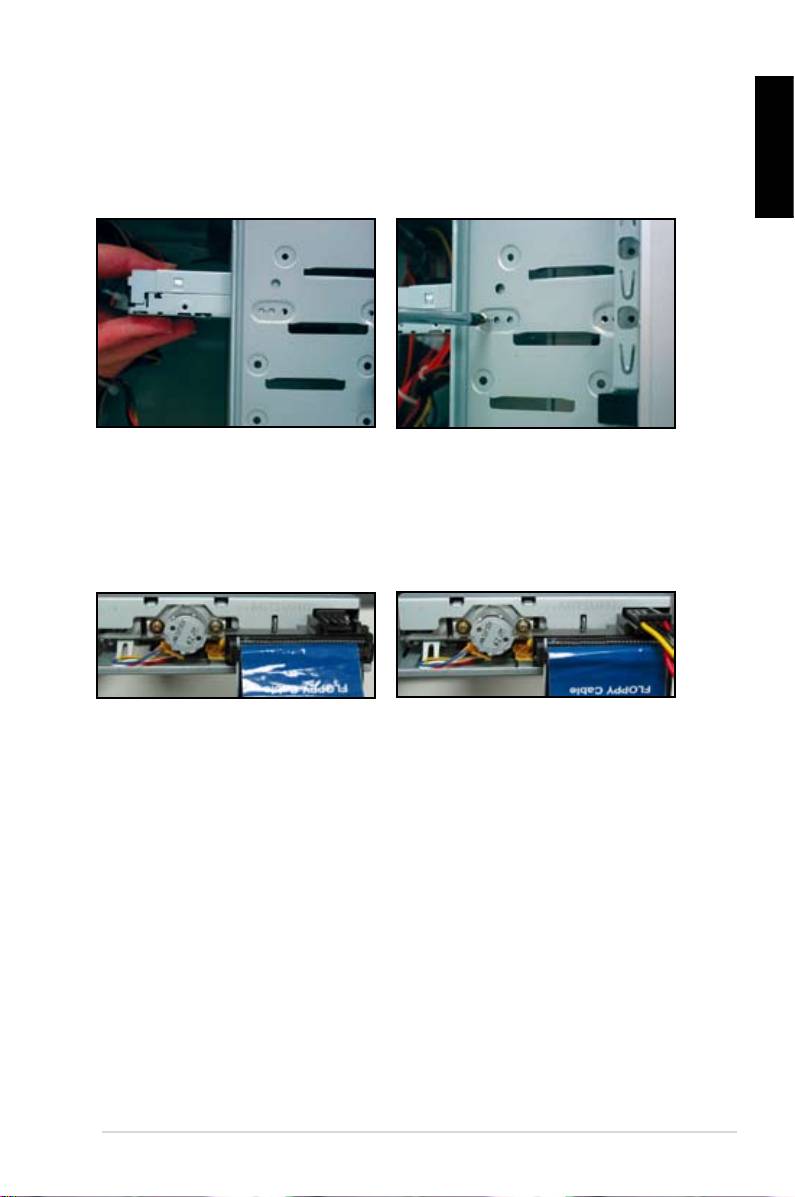
1.7.3 Floppy disk drive
1. Removethedummycoverand
2. Align the screws holes and secure
inserttheoppydiskdriveintothe
the disk drive with screws.
English
bay.
3. Orientandplugtheoppyinterface
4. Connecttheoppypowercableto
cableintotheoppydiskdrive.The
the connector at the back of the
red stripe on the cable is the pin1
oppydiskdrive.
end and should match pin1 on the
oppydiskdrive.
ASUS Motherboard installation guide
15
Top 10 manuals
100.00
NZXT HALE90 1000W99.99
Samsung SM-R38099.97
AEG BSB 18C99.97
Dell 2700W99.97
Smeg KSEC70X99.96
Beurer HDE 4099.96
Pyramida KH 50 v.299.96
MSI CSM-H81M-P3299.96
AEG HR 562799.95
Melissa 640-048