
Asus CM6340: instruction
Class: Household, kitchen appliances, electronics and equipment
Type: Computer
Manual for Asus CM6340

Index
English .................................................................................. 1
Русский .............................................................................. 71
Українська ....................................................................... 141
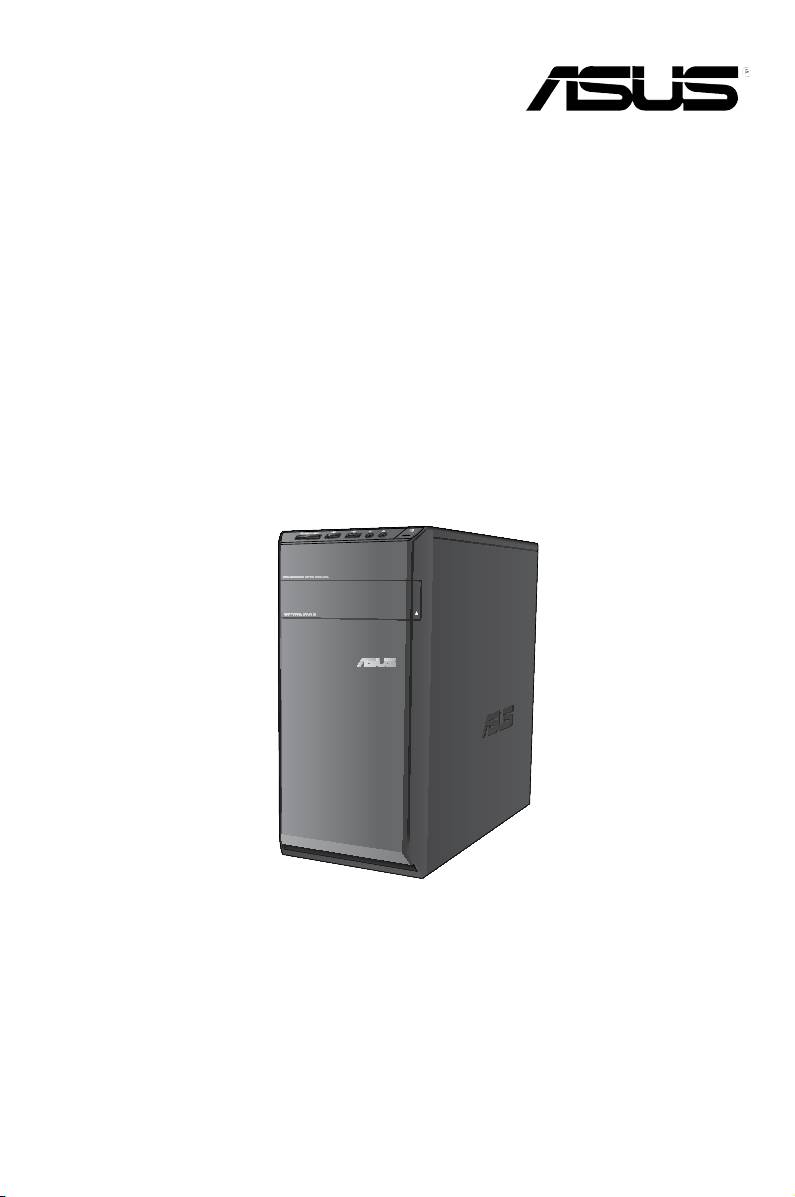
ASUS Essentio Desktop PC
CM6340
User Manual

ENGLISH
ENGLISH
2
ENGLISH
ENGLISH
E7503
First Edition
June 2012
Copyright © 2012 ASUSTeK Computer Inc. All Rights Reserved.
No part of this manual, including the products and software described in it, may be reproduced,
transmitted, transcribed, stored in a retrieval system, or translated into any language in any form or by any
means, except documentation kept by the purchaser for backup purposes, without the express written
permission of ASUSTeK Computer Inc. (“ASUS”).
Product warranty or service will not be extended if: (1) the product is repaired, modied or altered, unless
such repair, modication of alteration is authorized in writing by ASUS; or (2) the serial number of the
product is defaced or missing.
ASUS PROVIDES THIS MANUAL “AS IS” WITHOUT WARRANTY OF ANY KIND, EITHER EXPRESS
OR IMPLIED, INCLUDING BUT NOT LIMITED TO THE IMPLIED WARRANTIES OR CONDITIONS OF
MERCHANTABILITY OR FITNESS FOR A PARTICULAR PURPOSE. IN NO EVENT SHALL ASUS, ITS
DIRECTORS, OFFICERS, EMPLOYEES OR AGENTS BE LIABLE FOR ANY INDIRECT, SPECIAL,
INCIDENTAL, OR CONSEQUENTIAL DAMAGES (INCLUDING DAMAGES FOR LOSS OF PROFITS,
LOSS OF BUSINESS, LOSS OF USE OR DATA, INTERRUPTION OF BUSINESS AND THE LIKE),
EVEN IF ASUS HAS BEEN ADVISED OF THE POSSIBILITY OF SUCH DAMAGES ARISING FROM ANY
DEFECT OR ERROR IN THIS MANUAL OR PRODUCT.
SPECIFICATIONS AND INFORMATION CONTAINED IN THIS MANUAL ARE FURNISHED FOR
INFORMATIONAL USE ONLY, AND ARE SUBJECT TO CHANGE AT ANY TIME WITHOUT NOTICE,
AND SHOULD NOT BE CONSTRUED AS A COMMITMENT BY ASUS. ASUS ASSUMES NO
RESPONSIBILITY OR LIABILITY FOR ANY ERRORS OR INACCURACIES THAT MAY APPEAR IN THIS
MANUAL, INCLUDING THE PRODUCTS AND SOFTWARE DESCRIBED IN IT.
Products and corporate names appearing in this manual may or may not be registered trademarks or
copyrights of their respective companies, and are used only for identication or explanation and to the
owners’ benet, without intent to infringe.

3
ENGLISH
ENGLISH
Contents
ENGLISH
Notices .......................................................................................................... 5
Safety information ........................................................................................ 10
Conventions used in this guide .....................................................................11
Where to nd more information ....................................................................11
Package contents ........................................................................................ 12
ENGLISH
Chapter 1: Getting started
Welcome! ..................................................................................................... 13
Getting to know your computer .................................................................... 13
Setting up your computer ............................................................................. 16
Turning your computer ON/OFF .................................................................. 19
®
Chapter 2: Using Windows
7
Starting for the rst time ............................................................................... 21
®
Using Windows
7 desktop .......................................................................... 22
Managing your les and folders ................................................................... 24
Restoring your system settings .................................................................... 26
Protecting your computer ............................................................................. 27
®
Getting Windows
Help and Support ........................................................... 28
Chapter 3: Connecting devices to your computer
Connecting a USB storage device ............................................................... 29
Connecting microphone and speakers ........................................................ 30
Connecting multiple external displays ......................................................... 33
Connecting an HDTV ................................................................................... 35
Chapter 4: Using your computer
Proper posture when using your Desktop PC.............................................. 37
Using the memory card reader .................................................................... 38
Using the optical drive ................................................................................. 39
Using the multimedia keyboard (on selected models only) ......................... 40
Chapter 5: Connecting to the Internet
Wired connection ......................................................................................... 43
Wireless connection (on selected models only) ........................................... 45

ENGLISH
ENGLISH
4
ENGLISH
ENGLISH
Contents
Chapter 6: Using the utilities
ASUS AI Suite II ........................................................................................... 47
ASUS AI Manager ........................................................................................ 53
Ai Charger .................................................................................................... 55
ASUS Webstorage ....................................................................................... 56
ASUS Easy Update ..................................................................................... 58
ASUS Instant On ......................................................................................... 59
Nero 9 ........................................................................................................
60
Recovering your system .............................................................................. 61
Chapter 7: Troubleshooting
Troubleshooting ........................................................................................... 63
ASUS contact information ............................................................................ 70
5
ENGLISH
ENGLISH
Notices
REACH
ENGLISH
Complying with the REACH (Registration, Evaluation, Authorisation, and Restriction of
Chemicals) regulatory framework, we published the chemical substances in our products at
ASUS REACH website at http://csr.asus.com/english/REACH.htm
ASUS Recycling/Takeback Services
ASUS recycling and takeback programs come from our commitment to the highest standards
for protecting our environment. We believe in providing solutions for you to be able to
ENGLISH
responsibly recycle our products, batteries, other components as well as the packaging
materials. Please go to http://csr.asus.com/english/Takeback.htm for detailed recycling
information in different regions.
Federal Communications Commission Statement
This device complies with FCC Rules Part 15. Operation is subject to the following two
conditions:
• This device may not cause harmful interference.
• This device must accept any interference received, including interference that may cause
undesired operation.
This equipment has been tested and found to comply with the limits for a class B digital
device, pursuant to Part 15 of the Federal Communications Commission (FCC) rules.
These limits are designed to provide reasonable protection against harmful interference in
a residential installation. This equipment generates, uses, and can radiate radio frequency
energy and, if not installed and used in accordance with the instructions, may cause harmful
interference to radio communications. However, there is no guarantee that interference
will not occur in a particular installation. If this equipment does cause harmful interference
to radio or television reception, which can be determined by turning the equipment off and
on, the user is encouraged to try to correct the interference by one or more of the following
measures:
• Reorient or relocate the receiving antenna.
• Increase the separation between the equipment and receiver.
• Connect the equipment into an outlet on a circuit different from that to which the receiver
is connected.
• Consult the dealer or an experienced radio/TV technician for help.
The use of a shielded-type power cord is required in order to meet FCC emission limits and
to prevent interference to the nearby radio and television reception. It is essential that only
the supplied power cord be used. Use only shielded cables to connect I/O devices to this
equipment. You are cautioned that changes or modications not expressly approved by the
party responsible for compliance could void your authority to operate the equipment.
(Reprinted from the Code of Federal Regulations #47, part 15.193, 1993. Washington
DC: Ofce of the Federal Register, National Archives and Records Administration, U.S.
Government Printing Ofce.)

ENGLISH
ENGLISH
6
ENGLISH
ENGLISH
FCC Radio Frequency (RF) Exposure Caution Statement
Any changes or modications not expressly approved by the party responsible for
compliance could void the user’s authority to operate this equipment. “The manufacture
declares that this device is limited to Channels 1 through 11 in the 2.4GHz frequency by
specied rmware controlled in the USA.”
This equipment complies with FCC radiation exposure limits set forth for an uncontrolled
environment. To maintain compliance with FCC RF exposure compliance requirements,
please avoid direct contact to the transmitting antenna during transmitting. End users must
follow the specic operating instructions for satisfying RF exposure compliance.
IC Radiation Exposure Statement for Canada
This equipment complies with IC radiation exposure limits set forth for an uncontrolled
environment. To maintain compliance with IC RF exposure compliance requirements, please
avoid direct contact to the transmitting antenna during transmitting. End users must follow the
specic operating instructions for satisfying RF exposure compliance.
Operation is subject to the following two conditions:
• This device may not cause interference and
• This device must accept any interference, including interference that may cause
undesired operation of the device.
To prevent radio interference to the licensed service (i.e. co-channel Mobile Satellite systems)
this device is intended to be operated indoors and away from windows to provide maximum
shielding. Equipment (or its transmit antenna) that is installed outdoors is subject to licensing.
Déclaration d'Industrie Canada relative à l’exposition aux ondes radio
Cet appareil est conforme aux limites d'exposition aux radiations d’Industrie Canada dénies
pour un environnement non-contrôlé. Pour maintenir la conformité avec les exigences
d'exposition RF IC, veuillez éviter tout contact direct avec l'antenne pendant l'émission. Les
utilisateurs naux doivent suivre les instructions de fonctionnement spéciques pour satisfaire la
conformité aux expositions RF.
Son utilisation est sujette aux deux conditions suivantes :
• Cet appareil ne peut pas causer d'interférence, et
• Cet appareil doit accepter toute interférence, y compris les interférences qui pourraient
causer un fonctionnement non souhaité de l'appareil.
Pour éviter les interférences radio avec le service sous licence (c'est à-dire le partage de
canal avec les systèmes de téléphonie satellite), cet appareil est destiné à être utilisé en
intérieur et loin des fenêtres pour fournir un blindage maximal. Tout appareil (ou son antenne
d'émission) qui est installé en extérieur est sujet à cette licence.
Wireless Operation Channel for Different Domains
N. America 2.412-2.462 GHz Ch01 through CH11
Japan 2.412-2.484 GHz Ch01 through Ch14
Europe ETSI 2.412-2.472 GHz Ch01 through Ch13
7
ENGLISH
ENGLISH
CE Mark Warning
ENGLISH
CE marking for devices without wireless LAN/Bluetooth
The shipped version of this device complies with the requirements of the EEC directives
2004/108/EC “Electromagnetic compatibility” and 2006/95/EC “Low voltage directive”.
ENGLISH
CE marking for devices with wireless LAN/ Bluetooth
This equipment complies with the requirements of Directive 1999/5/EC of the European
Parliament and Commission from 9 March, 1999 governing Radio and Telecommunications
Equipment and mutual recognition of conformity.
This equipment may be operated in all members of the EU. Some areas of France have a
restricted frequency band. This equipment may be used indoor only.
低功率射頻電機設備警語
依據低功率電波輻射性電機管理辦法
第十二條
經型式認證合格之低功率射頻電機,非經許可,公司、商號或使用者均不得擅自
變更頻率、加大功率或變更原設計之特性及功能。
第十四條
低功率射頻電機之使用不得影響飛航安全及乾擾合法通信;經發現有乾擾現象
時,應立即停用,並改善至無干擾時方得繼續使用。
前項合法通信,指依電信法規定作業之無線電通信。
低功率射頻電機須忍受合法通信或工業、科學及醫療用電波輻射性電機設備之干擾。
與5.25GHz 至5.35GHz 區域內操作之
無線設備的警告申明
工作頻率5.250~5.350GHz 該頻率限於室內使用
VCCI: Japan Compliance Statement
VCCI Class B Statement
ENGLISH
ENGLISH
8
ENGLISH
ENGLISH
KC: Korea Warning Statement
Macrovision Corporation Product Notice
This product incorporates copyright protection technology that is protected by method
claims of certain U.S. patents and other intellectual property rights owned by Macrovision
Corporation and other rights owners. Use of this copyright protection technology must be
authorized by Macrovision Corporation, and is intended for home and other limited viewing
uses only unless otherwise authorized by Macrovision Corporation. Reverse engineering
or disassembly is prohibited.
Lithium-Ion Battery Warning
CAUTION: Danger of explosion if battery is incorrectly replaced. Replace only with the
same or equivalent type recommended by the manufacturer. Dispose of used batteries
according to the manufacturer’s instructions.

9
ENGLISH
ENGLISH
Safety information
ENGLISH
Disconnect the AC power and peripherals before cleaning. Wipe the Desktop PC using a
clean cellulose sponge or chamois cloth dampened with solution of nonabrasive detergent
and a few drops of warm water then remove any extra moisture with a dry cloth.
• DO NOT place on uneven or unstable work surfaces. Seek servicing if the casing has
been damaged.
ENGLISH
•
DO NOT expose to dirty or dusty environments. DO NOT operate during a gas leak.
•
DO NOT place or drop objects on top and do not shove any foreign objects into the
Desktop PC.
•
DO NOT expose to strong magnetic or electrical elds.
•
DO NOT expose to or use near liquids, rain, or moisture. DO NOT use the modem during
electrical storms.
• Battery safety warning:
DO NOT throw the battery in re. DO NOT short circuit the
contacts. DO NOT disassemble the battery.
• Use this product in environments with ambient temperatures between 0˚C (32F)and
35˚C (95F).
•
DO NOT cover the vents on the Desktop PC to prevent the system from getting
overheated.
•
DO NOT use damaged power cords, accessories, or other peripherals.
•
To prevent electrical shock hazard, disconnect the power cable from the electrical outlet
before relocating the system.
•
Seek professional assistance before using an adapter or extension cord. These devices
could interrupt the grounding circuit.
•
Ensure that your power supply is set to the correct voltage in your area. If you are not
sure about the voltage of the electrical outlet you are using, contact your local power
company.
•
If the power supply is broken, do not try to x it by yourself. Contact a qualied service
technician or your retailer.
ENGLISH
ENGLISH
10
ENGLISH
ENGLISH
Conventions used in this guide
To ensure that you perform certain tasks properly, take note of the following symbols used
throughout this manual.
DANGER/WARNING: Information to prevent injury to yourself
when trying to complete a task.
CAUTION: Information to prevent damage to the components
when trying to complete a task.
IMPORTANT: Instructions that you MUST follow to complete a
task.
NOTE: Tips and additional information to help you complete a
task.
Where to nd more information
Refer to the following sources for additional information and for product and software
updates.
ASUS websites
The ASUS website provides updated information on ASUS hardware and software
products. Refer to the ASUS website www.asus.com.
ASUS Local Technical Support
Visit ASUS website at
http://support.asus.com/contact for the contact information of
local Technical Support Engineer.
11
ENGLISH
ENGLISH
Package contents
ENGLISH
ENGLISH
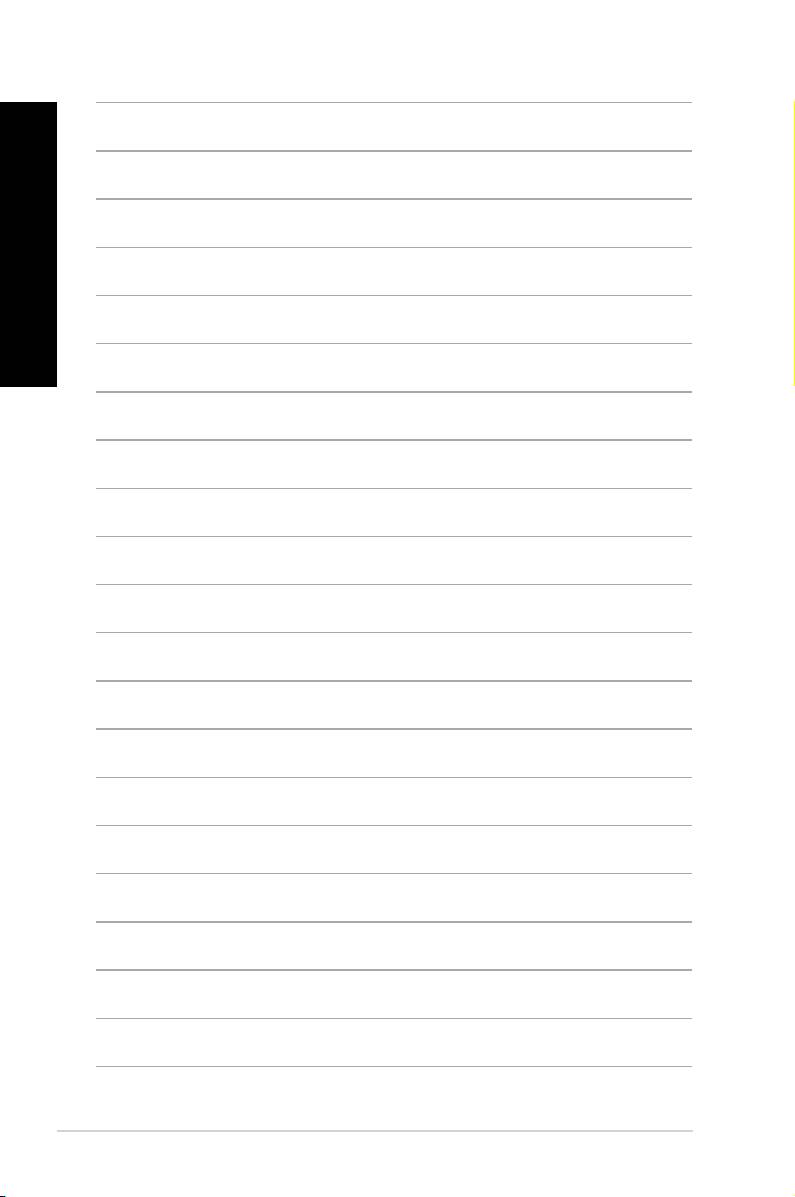
ASUS Essentio Desktop
Keyboard x1 Mouse x1
PC
• If any of the above items is damaged or missing, contact your retailer.
• The illustrated items above are for reference only. Actual product specications may vary
with different models.
Installation Guide
Power cord x1 Installation Guide x1 Warranty card x1
Nero 9 burning software
Support DVD (optional) x1
Antenna (optional) x1
DVD x1
Recovery DVD (optional) x1
ENGLISH
ENGLISH
12
ENGLISH
Chapter 1
Getting started
ENGLISH
Welcome!
Thank you for purchasing the ASUS Essentio CM6340 Desktop PC!
The ASUS Essentio CM6340 Desktop PC provides cutting-edge performance,
uncompromised reliability, and user-centric utilities. All these values are encapsulated in a
stunningly futuristic and stylish system casing.
Read the ASUS Warranty Card before setting up your ASUS Desktop PC.
Getting to know your computer
Illustrations are for reference only. The ports and their locations, and the chassis color vary
with different models.
Front panel
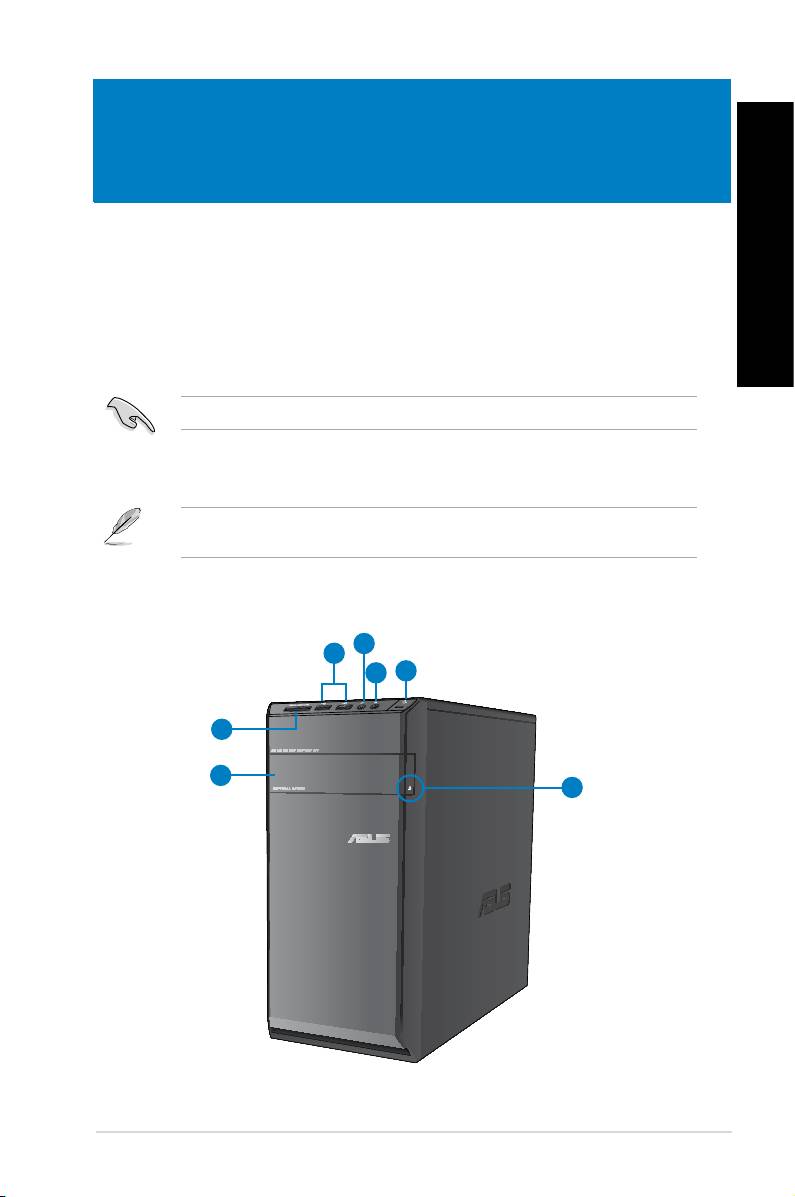
2
1
3
4
7
6
5
ASUS CM6340 13
ENGLISH
ENGLISH
14 Chapter 1: Getting started
ENGLISH
ENGLISH
1. USB 2.0 ports.USB 2.0 ports. These Universal Serial Bus 2.0 (USB 2.0) ports connect to USB 2.0
devices such as a mouse, printer, scanner, camera, PDA, and others.
2. Microphone port.
Microphone port. This port connects to a microphone.
3. Headphone port.
Headphone port. This port connects to a headphone or speaker.
4. Power button.
Power button. Press this button to turn on your computer.
5. Optical disk drive eject button.Optical disk drive eject button.
Press this button to eject the optical disk drive tray.
6. Optical disk drive bay.
Optical disk drive bay. There is an optical disk drive in this bay.
7. MultiMediaCard(MMC) / xD-Picture (XD) / Secure Digital™ (SD) / High CapacityMultiMediaCard(MMC) / xD-Picture (XD) / Secure Digital™ (SD) / High Capacity
Secure Digital™(SDHC) / Memory Stick Pro™(MS/PRO) card slot.
Insert a
supported memory card into this slot.
Rear panel
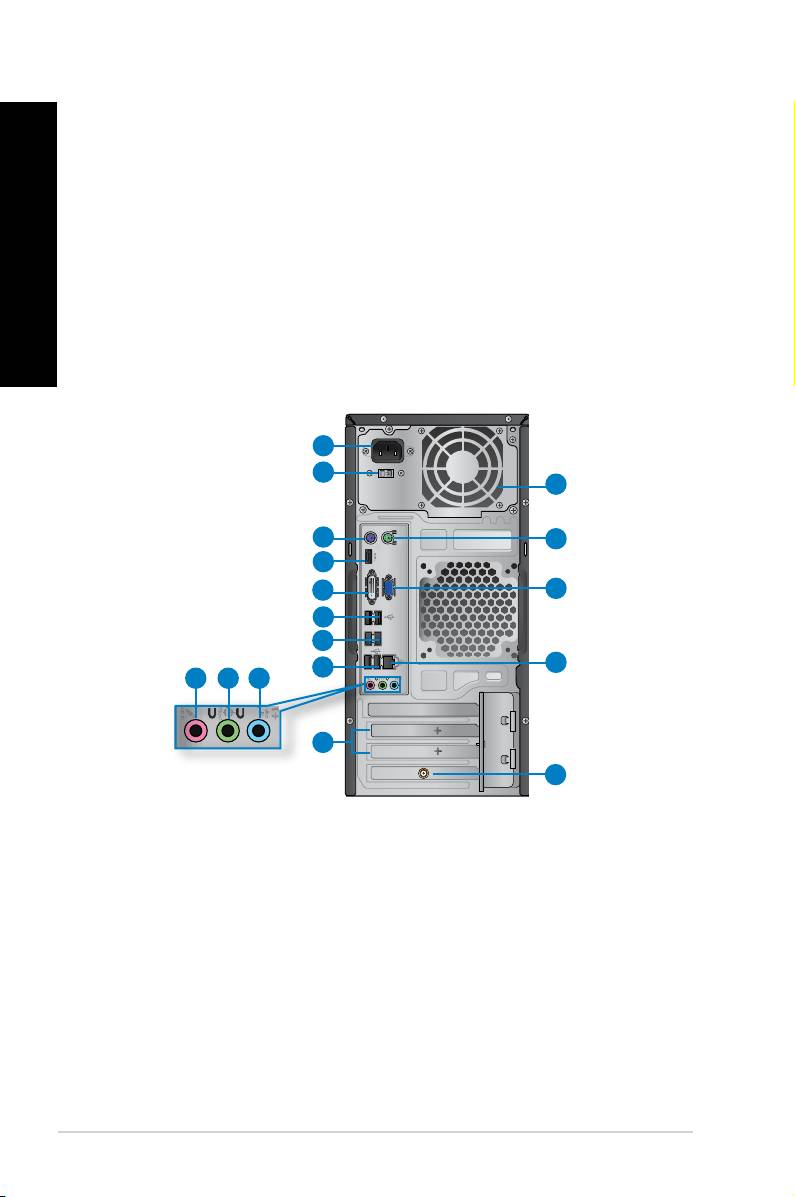
1
2
16
3
15
4
5
14
6
7
13
6
10 9
8
11
12
1. Power connector.Power connector. Plug the power cord to this connector.
2. Voltage selector switch.
Voltage selector switch. Switch to select the appropriate system input voltage.
3. PS/2 keyboard port (purple). This port is for a PS/2 keyboard.
4. HDMI port.
HDMI port. This port is for a High-Denition Multimedia Interface (HDMI) connector,
and is HDCP compliant allowing playback of HD DVD, Blu-ray, and other protected
content.
5. DVI-D port.
DVI-D port. This port is for any DVI-D compatible device and is HDCP compliant
allowing playback of HD DVD, Blu-ray, and other protected content.
ENGLISH
ENGLISH
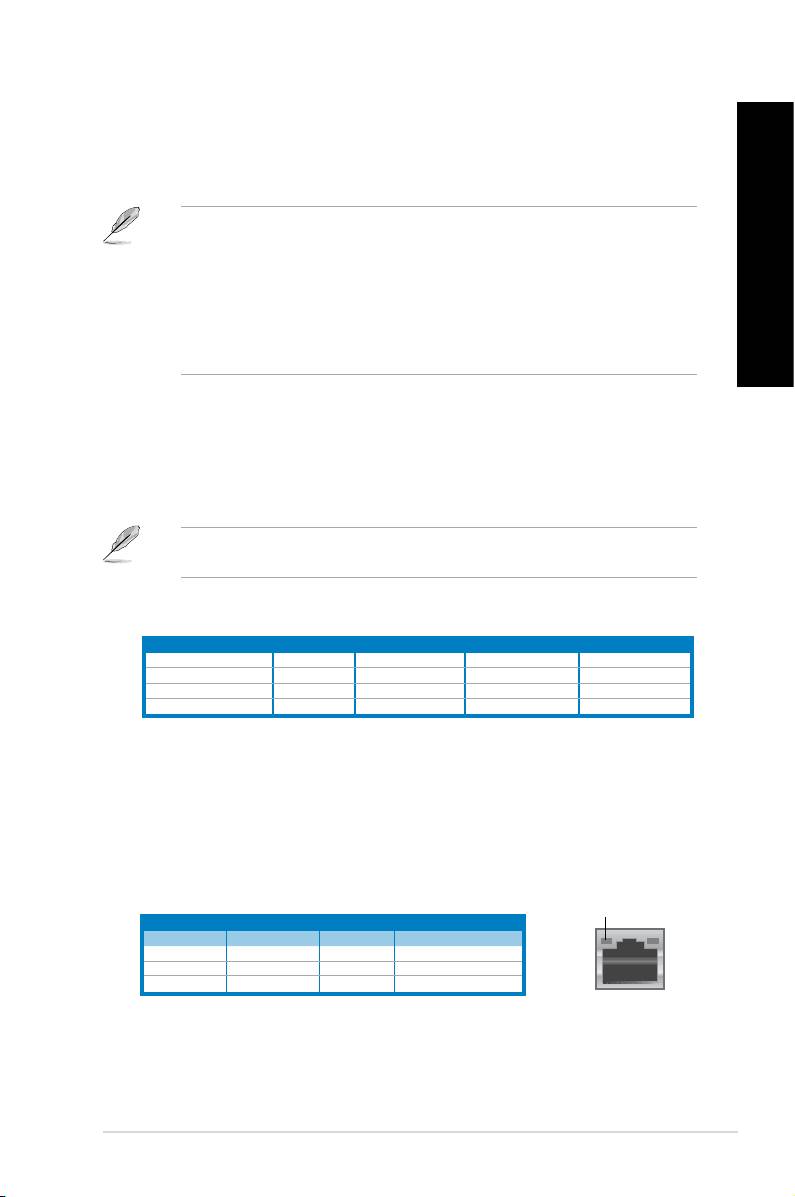
6. USB 2.0 ports.USB 2.0 ports. These Universal Serial Bus 2.0 (USB 2.0) ports connect to USB 2.0
devices such as a mouse, printer, scanner, camera, PDA, and others.
ENGLISH
7. USB 3.0 ports.
USB 3.0 ports. These Universal Serial Bus 3.0 (USB 3.0) ports connect to USB 3.0
devices such as a mouse, printer, scanner, camera, PDA, and others.
®
• DO NOT connect a keyboard / mouse to any USB 3.0 port when installing Windows
operating system.
®
• Due to USB 3.0 controller limitation, USB 3.0 devices can only be used under Windows
ENGLISH
OS environment and after the USB 3.0 driver installation.
• USB 3.0 devices can only be used as data storage only.
• We strongly recommend that you connect USB 3.0 devices to USB 3.0 ports for faster
and better performance for your USB 3.0 devices.
8. Line In port (light blue).Line In port (light blue). This port connects to a tape, CD, DVD player, or other audio
sources.
9. Line Out port (lime).
Line Out port (lime). This port connects to a headphone or speaker. In a 4, 6, or
8-channel conguration, the function of this port becomes Front Speaker Out.
10. Microphone port (pink).
This port connects to a microphone.
Refer to the audio conguration table below for the function of the audio ports in a 2, 4, 6,
or 8-channel conguration.
Audio 2, 4, 6, or 8-channel conguration
Port 2-channel 4-channel 6-channel 8-channel
Light Blue (Rear panel) Line In Rear Speaker Out Rear Speaker Out Rear Speaker Out
Lime (Rear panel) Line Out Front Speaker Out Front Speaker Out Front Speaker Out
Pink (Rear panel) Mic In Mic In Bass/Center Bass/Center
Lime (Front panel) – – – Side Speaker Out
11. Expansion slot brackets.Expansion slot brackets. Remove the expansion slot bracket when installing an
expansion card.
12. ASUS WLAN Card (on selected models only).
ASUS WLAN Card (on selected models only). This optional WLAN card allows your
computer to connect to a wireless network.
13. LAN (RJ-45) port.
LAN (RJ-45) port. This port allows Gigabit connection to a Local Area Network (LAN)
through a network hub.
ACT/LINK
SPEED
LAN port LED indications
LED
LED
Activity/Link LED Speed LED
Status Description Status Description
OFF No link OFF 10Mbps connection
ORANGE Linked ORANGE 100Mbps connection
BLINKING Data activity GREEN 1Gbps connection
LAN port
ASUS CM6340 15
ENGLISH
ENGLISH
16 Chapter 1: Getting started
ENGLISH
ENGLISH
14. VGA port.VGA port. This port is for VGA-compatible devices such as a VGA monitor.
15. PS/2 mouse port (green). This port is for a PS/2 mouse.
16. Air vents.
Air vents. These vents allow air ventilation.
DO NOT block the air vents on the chassis. Always provide proper ventilation for your
computer.
Setting up your computer
This section guides you through connecting the main hardware devices, such as the external
monitor, keyboard, mouse, and power cord, to your computer.
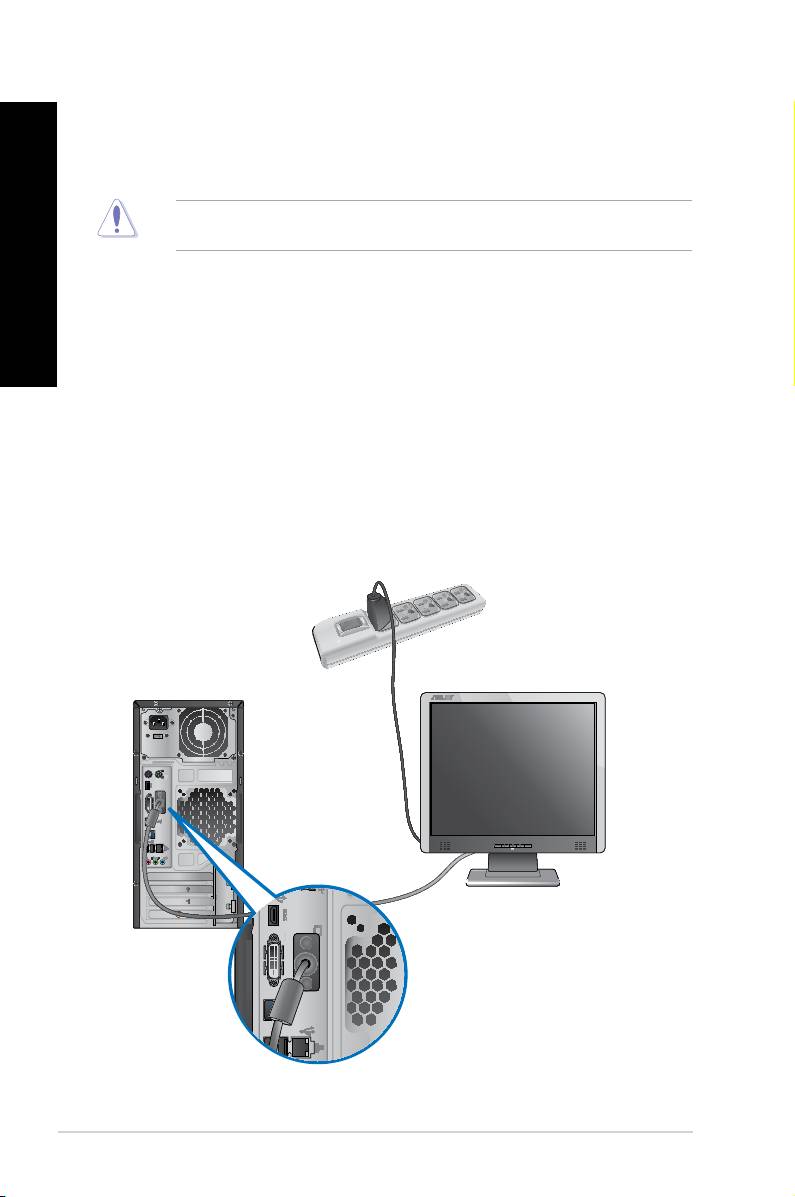
Connecting an external monitor
Using the onboard display output ports
Connect your monitor to the onboard display output port.
To connect an external monitor using the onboard display output ports:
1. Connect a VGA monitor to the VGA port, or a DVI-D monitor to the DVI-D port, or an
HDMI monitor to the HDMI port on the rear panel of your computer.
2. Plug the monitor to a power source.
ENGLISH
ENGLISH
ENGLISH
• If your computer comes with an ASUS Graphics Card, the graphics card is set as the
primary display device in the BIOS. Hence, connect your monitor to a display output port
on the graphics card.
• To connect multiple external monitors to your computer, refer to
Connecting multiple
external monitors in Chapter 3 of this user manual for details.
ENGLISH
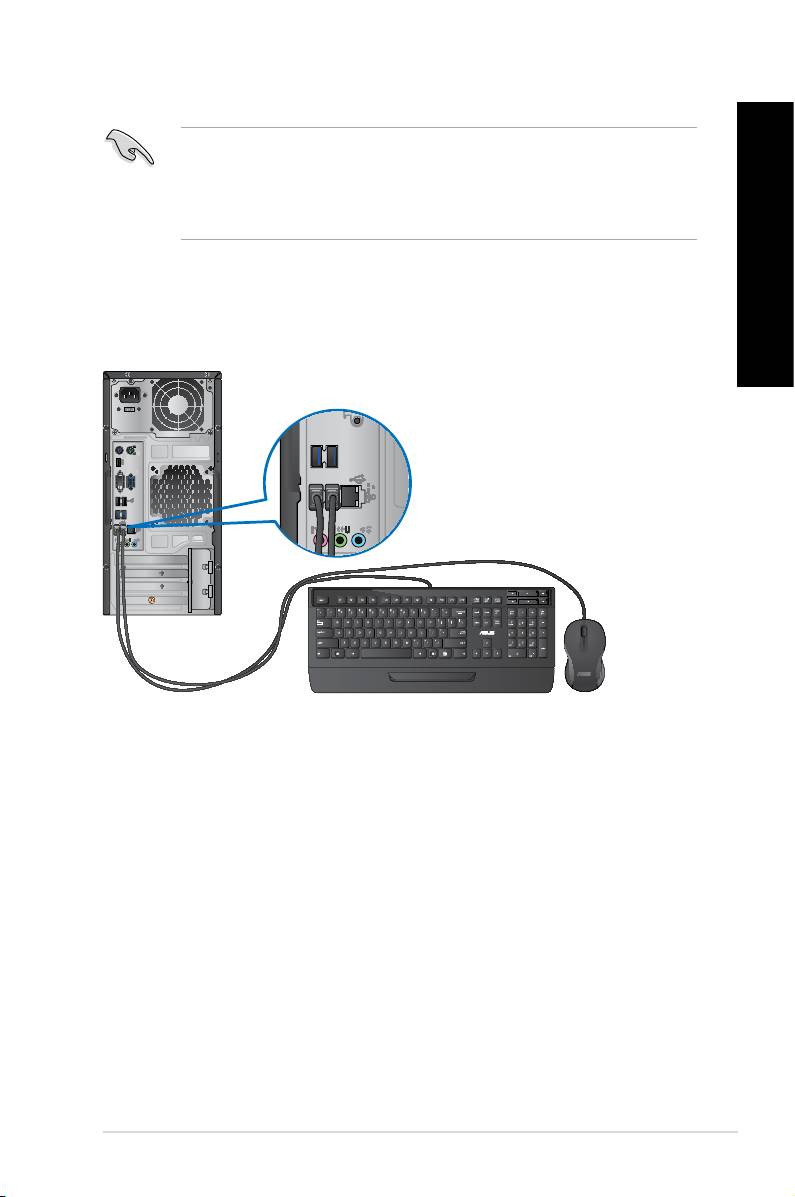
Connecting a USB keyboard and a USB mouse
Connect a USB keyboard and a USB mouse to the USB ports on the rear panel of your
computer.
ASUS CM6340 17
ENGLISH
ENGLISH
18 Chapter 1: Getting started
ENGLISH
ENGLISH
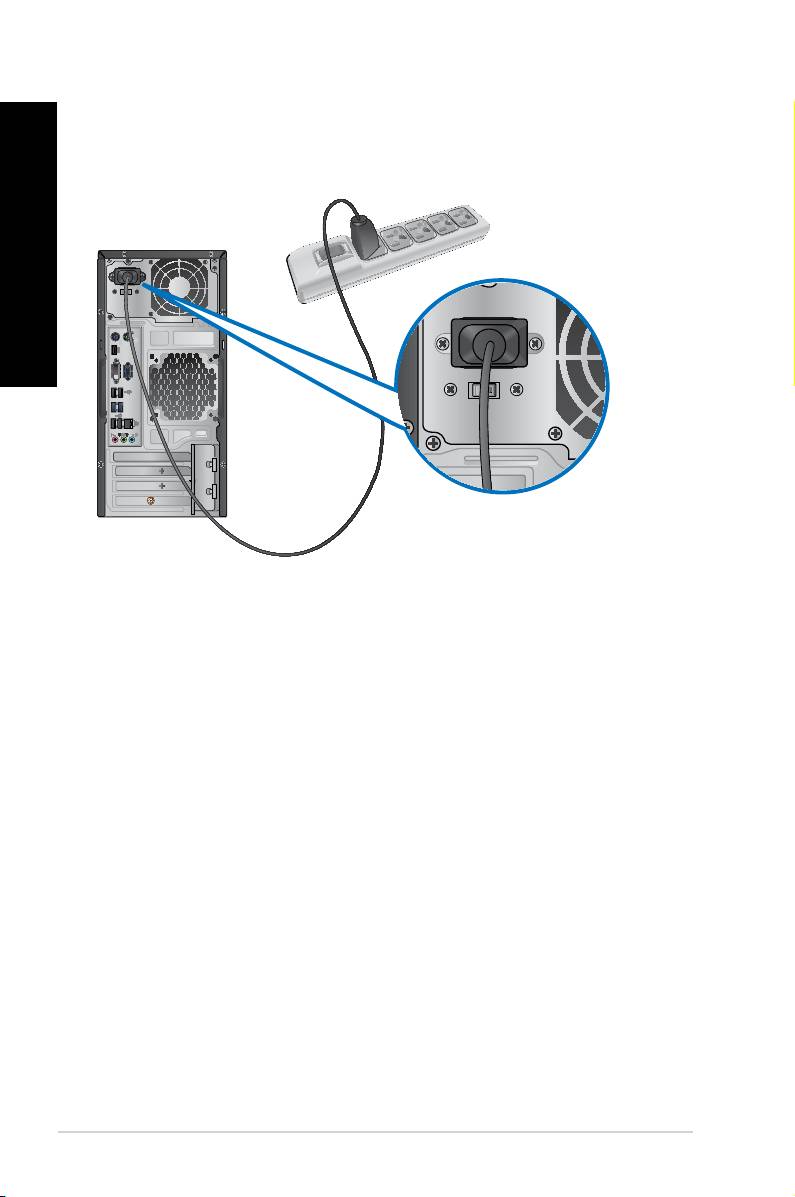
Connecting the power cord
Connect one end of the power cord to the power connector on the rear panel of your
computer and the other end to a power source.
