
Asus CM6340 – page 3
Manual for Asus CM6340
ENGLISH
ENGLISH
Using the optical drive
ENGLISH
1
2
ENGLISH
3
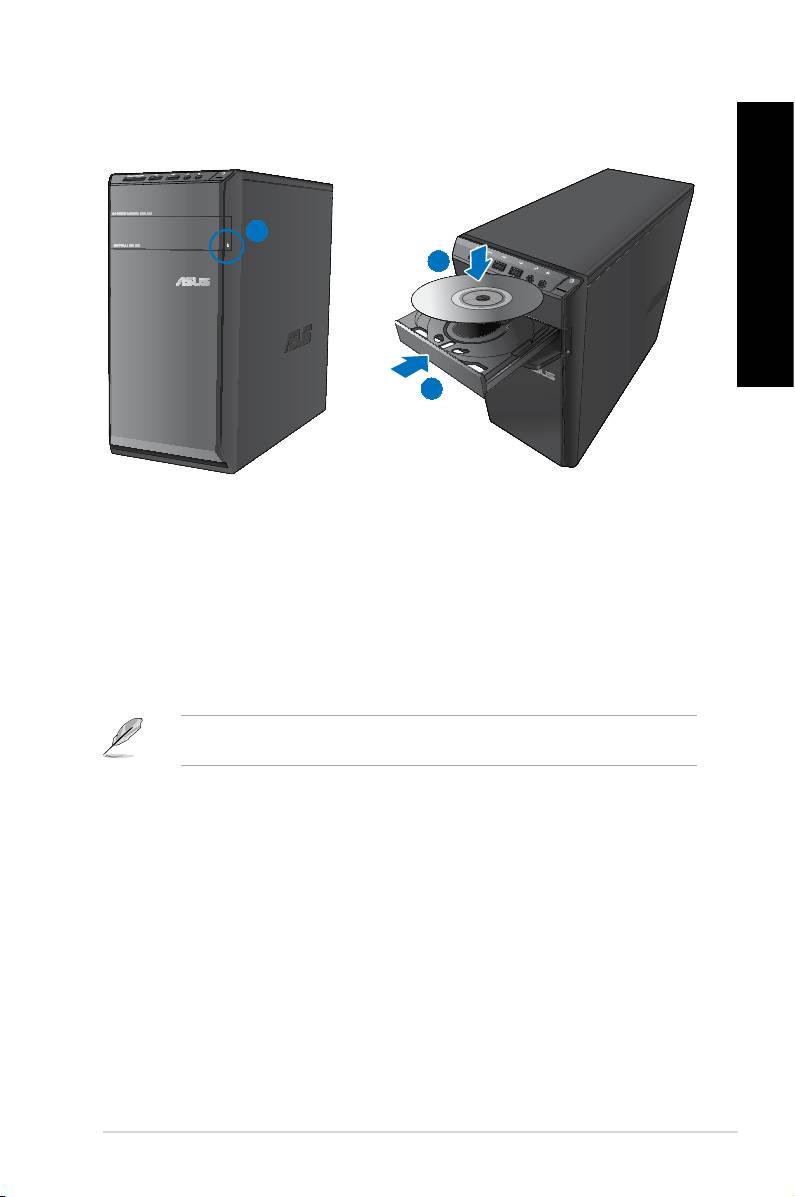
Inserting an optical disc
To insert an optical disc:
1. While your system is on, press the eject button below the drive bay cover to open the
tray.
2. Place the disc to the optical drive with the label side facing up.
3. Push the tray to close it.
4. Select a program from the AutoPlay window to access your les.
®
If AutoPlay is NOT enabled in your computer, click Windows
7 Start button on the taskbar,
click Computer, and then double-click the CD/DVD drive icon to access the data on it.
Removing an optical disc
To remove an optical disc:
1. While the system is on, do either of the following to eject the tray:
• Press the eject button below the drive bay cover.
• Right-click the CD/DVD drive icon on the
Computer screen, and then click Eject.
2. Remove the disc from the disc tray.
ASUS CM6340 39
ENGLISH
ENGLISH
40 Chapter 4: Using your computer
ENGLISH
ENGLISH
Using the multimedia keyboard
(on selected models only)
The keyboard varies with models. The illustrations on this section are for reference only.
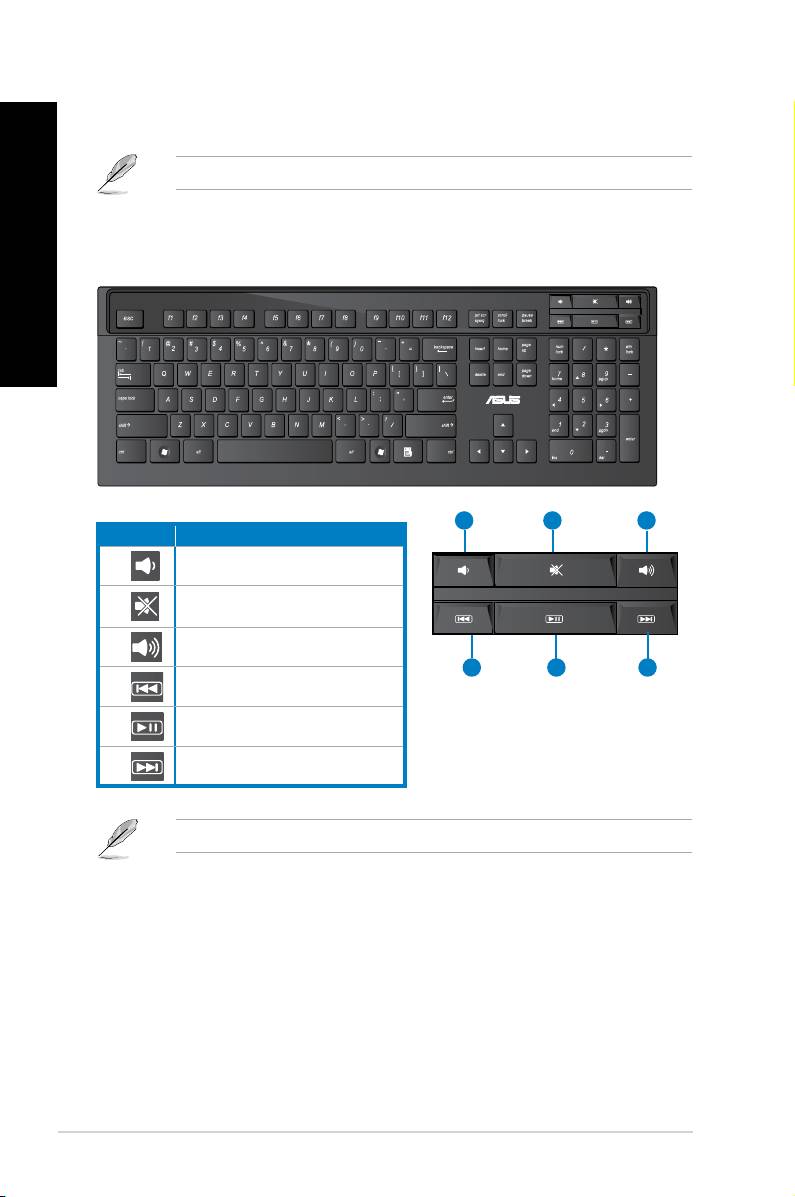
ASUS PRIMAX/KB2621 keyboard
2
31
3
Keys Description
Decreases the system volume.
1.
Turns the volume’s mute mode on/off.
2.
Increases the system volume.
3.
4
5
6
Goes to the previous track in a media
4.
player.
Plays or pauses playback in a media
5.
player.
Goes to the next track in a media
6.
player.
®
®
The special function keys only work on Windows
Vista / Windows
7 operating systems.
ENGLISH
ENGLISH
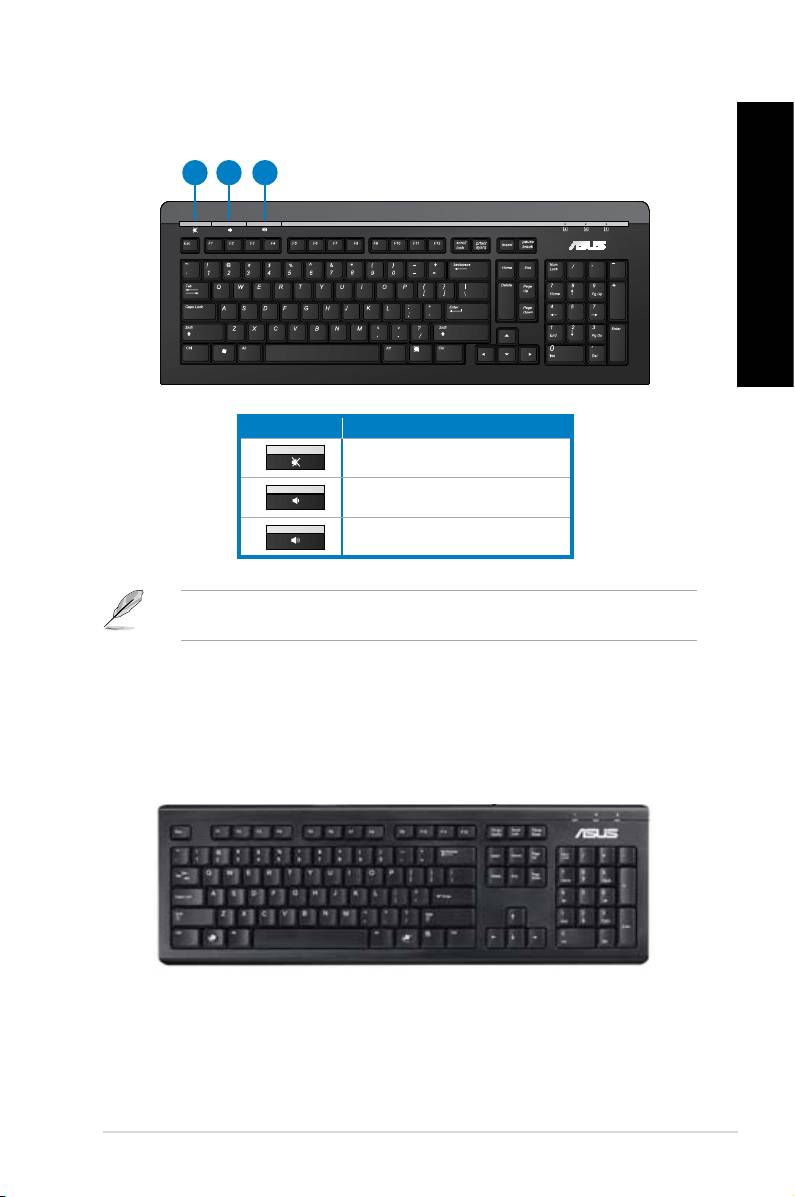
ASUS KB34211 modern wired keyboard
ENGLISH
1 2 3
ENGLISH
Hot keys Description
Turns the volume’s mute mode on/off.
1.
Decreases the system volume.
2.
Increases the system volume.
3.
®
®
The special function keys only work on Windows
Vista / Windows
7 / XP operating
systems.
ASUS PK1100 wired keyboard
ASUS CM6340 41

ENGLISH
ENGLISH
42 Chapter 4: Using your computer
ENGLISH
Chapter 5
Connecting to the Internet
Wired connection
ENGLISH
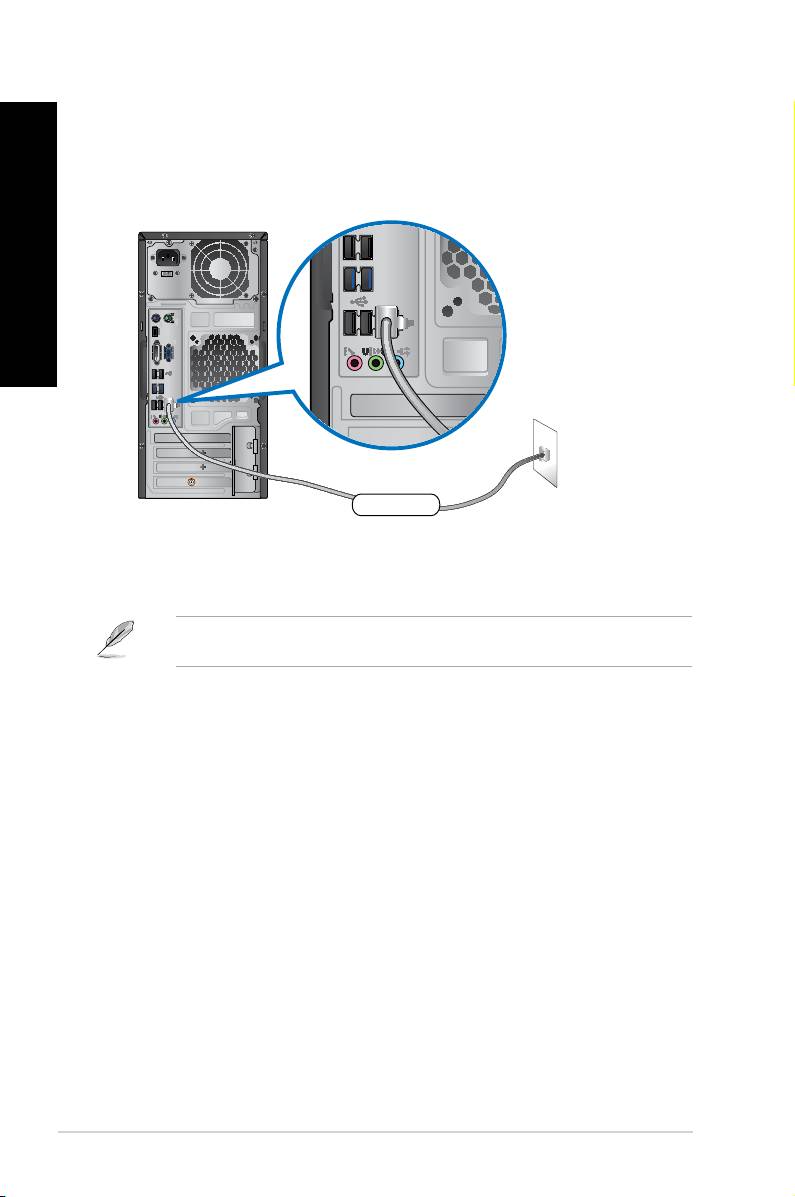
Use an RJ-45 cable to connect your computer to a DSL/cable modem or a local area network
(LAN).
Connecting via a DSL/cable modem
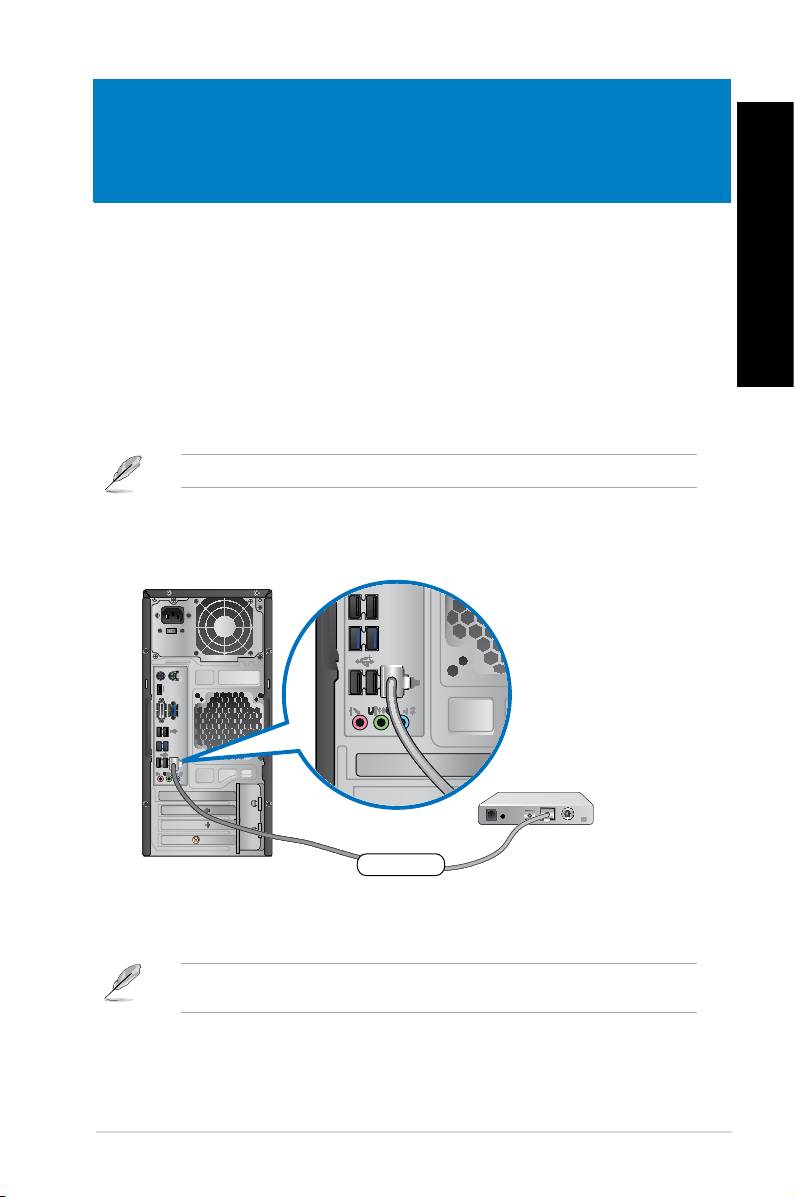
To connect via a DSL/cable modem:
1. Set up your DSL/cable modem.
ASUS CM6340 43
Modem
RJ-45 cable
Refer to the documentation that came with your DSL/cable modem.
2. Connect one end of an RJ-45 cable to the LAN (RJ-45) port on the rear panel of your
computer and the other end to a DSL/cable modem.
3. Turn on the DSL/cable modem and your computer.
4. Congure the necessary Internet connection settings.
Contact your Internet Service Provider (ISP) for details or assistance in setting up your
Internet connection.
ENGLISH
ENGLISH
44 Chapter 5: Connecting to the Internet
ENGLISH
ENGLISH
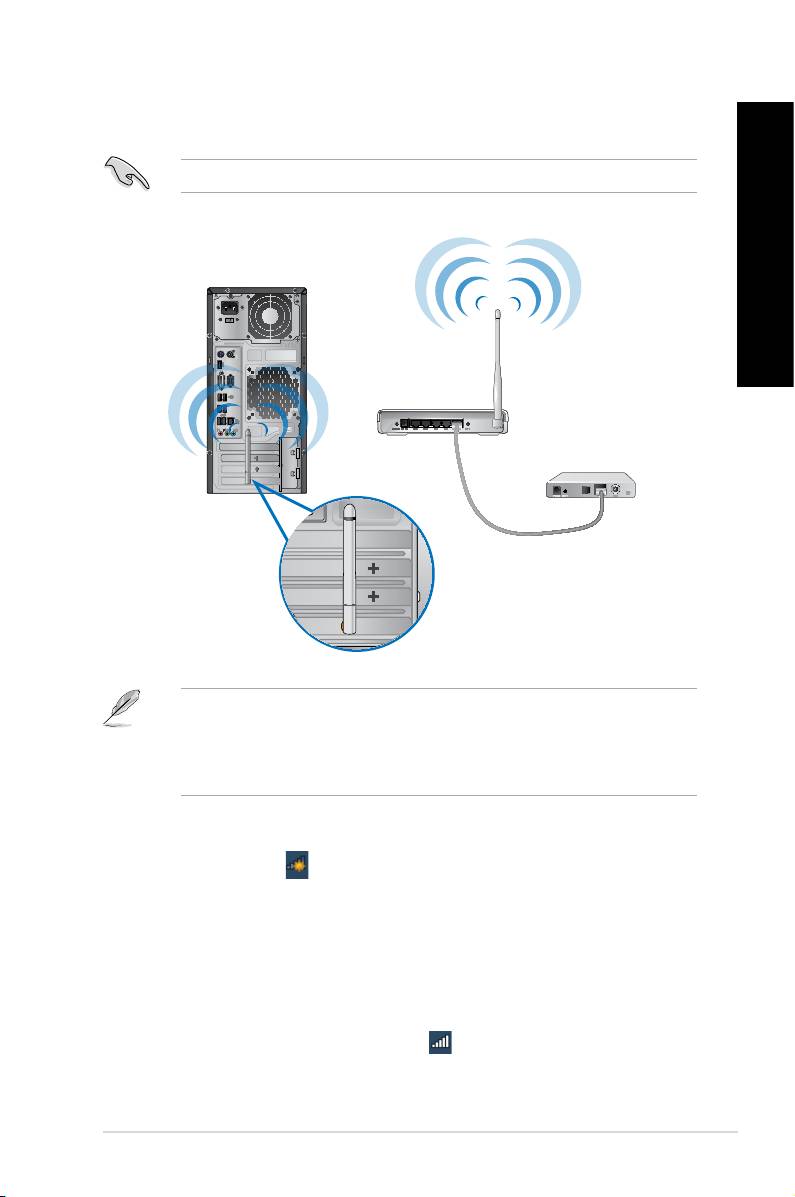
Connecting via a local area network (LAN)
To connect via a LAN:
1. Connect one end of an RJ-45 cable to the LAN (RJ-45) port on the rear panel of your
computer and the other end to your LAN.
LAN
RJ-45 cable
2. Turn on your computer.
3. Congure the necessary Internet connection settings.
Contact your network administrator for details or assistance in setting up your Internet
connection.
ENGLISH
ENGLISH
Wireless connection (on selected models only)
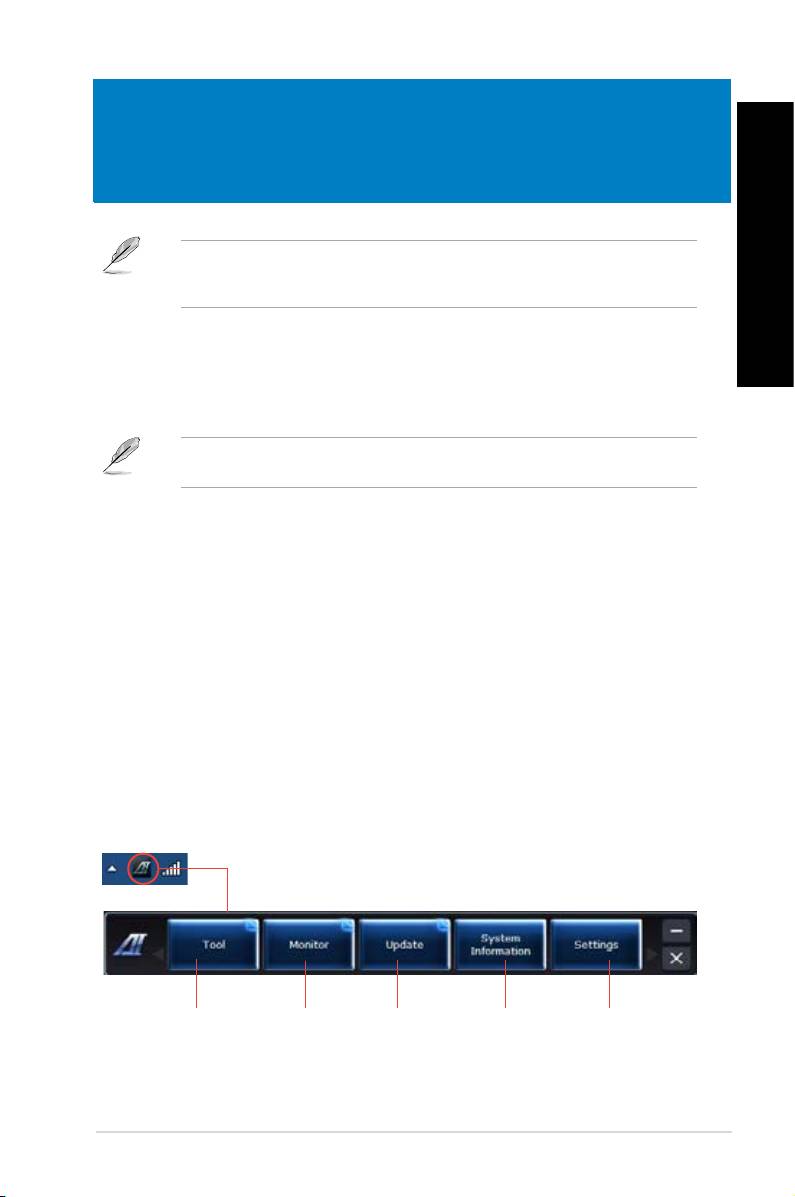
Connect your computer to the Internet through a wireless connection.
ENGLISH
To establish a wireless connection, you need to connect to a wireless access point (AP).
ENGLISH
• To increase the range and sensitivity of the wireless radio signal, connect the external
antennas to the antenna connectors on the ASUS WLAN Card.
• Place the antennas on the top of your computer for the best wireless performance.
• The external antennas are optional items.
To connect to a wireless network:
1. Click the network icon in the notication area to display the available wireless
networks.
2. Select the wireless network that you want to connect to, then click
Connect.
3. You may need to key in the network security key for a secured wireless network, then
click OK.
4. Wait while your computer is connecting to the wireless network.
5. The wireless connection is established successfully. The connection status is displayed
and the network icon displays the connected status.
ASUS CM6340 45
Wireless AP
Modem

ENGLISH
ENGLISH
46 Chapter 5: Connecting to the Internet
ENGLISH
Chapter 6
Using the utilities
The Support DVD and Recovery DVD may not be included in the package. You may use
ENGLISH
the Recovery Partition feature to create the Support DVD and Recovery DVD. For details,
refer to Recovering your system in this chapter.
ASUS AI Suite II
ASUS AI Suite II is an all-in-one interface that integrates several ASUS utilities and allows
users to launch and operate these utilities simultaneously.
This utility is pre-installed on some models. For models without an operating system, follow
the steps below to install this utility.
Installing AI Suite II
To install AI Suite II:
1. Place the support DVD in the optical drive. The Drivers installation tab appears if
Autorun is enabled.
2. Click the
Utilities tab, then click ASUS AI Suite II.
3. Follow the onscreen instructions to complete the installation.
Using AI Suite II
®
AI Suite II automatically starts when you enter the Windows
operating system. The AI Suite
®
II icon appears in the Windows
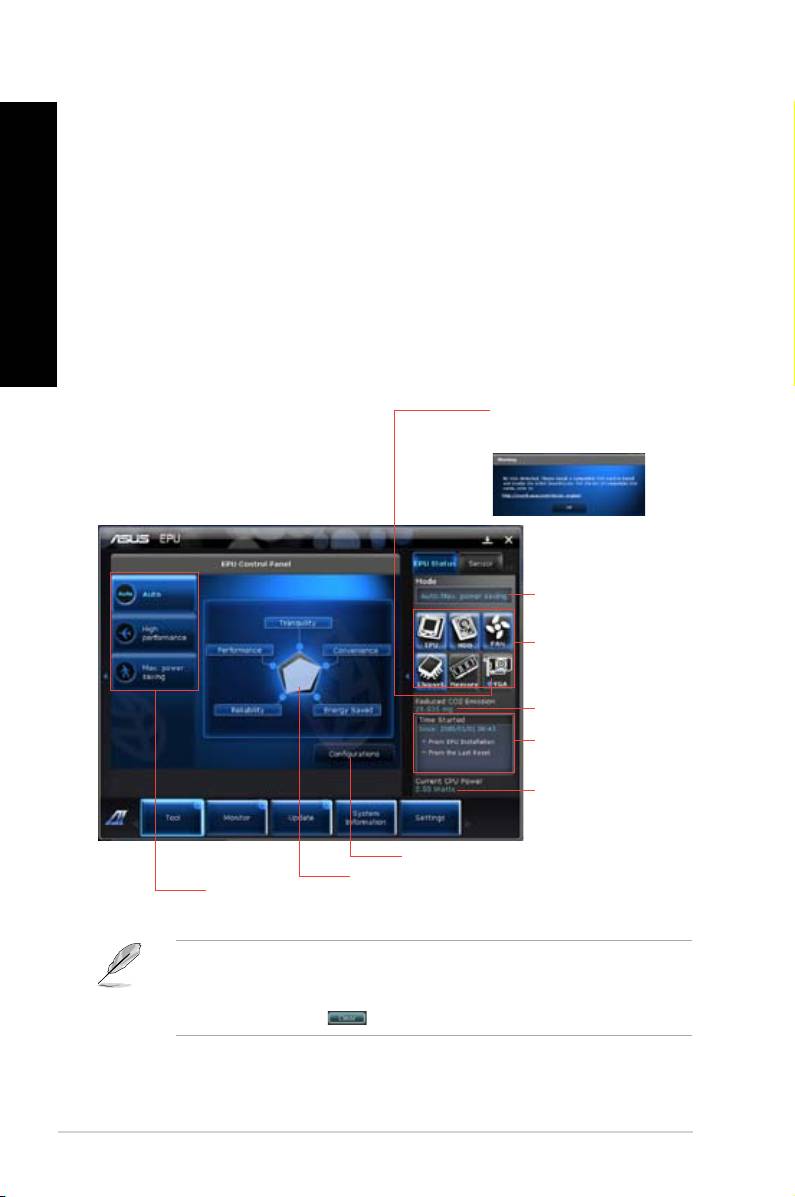
notication area. Click the icon to open the AI Suite II main
menu bar.
Click each button to select and launch a utility, to monitor the system, to update the
motherboard BIOS, to display the system information, and to customize the settings of AI
Suite II.
Click to select a
Click to monitor
Click to update the
Click to show
Click to customize
utility
sensors or CPU
motherboard BIOS
the system
the interface
frequency
information
settings
ASUS CM6340 47
ENGLISH
ENGLISH
48 Chapter 6: Using the utilities
ENGLISH
ENGLISH
The Tool menu
The Tool menu includes the EPU, Probe II, and Sensor Recorder panels.
Launching EPU
EPU is an energy-efcient tool that provides you with a total power-saving solution. It detects
the current loading and intelligently adjusts the power usage in real-time. When you select
the Auto mode, the system changes modes automatically according to the current system
status. It allows you to customize each mode through conguring the settings such as CPU
frequency, vCore Voltage, and Fan Control.
To launch EPU:
• Click
Tool > EPU on the AI Suite II main menu bar.
Displays the following message
if no VGA power saving engine is
detected.
Displays current mode
The items lighting up
means power saving
engine is activated
Displays the amount
of CO2 reduced
*Shifts between the
display of Total and
Current CO2 reduced
Displays the current
CPU power
Advanced settings for each mode
Displays the system
Multiple system
properties of each mode
operating modes
• * Select From EPU Installation to show the CO2 that has been reduced since you
installed EPU.
• *
Select From the Last Reset to show the total CO2 that has been reduced since you
click the Clear button .
ENGLISH
ENGLISH
Launching and conguring Probe II
ENGLISH
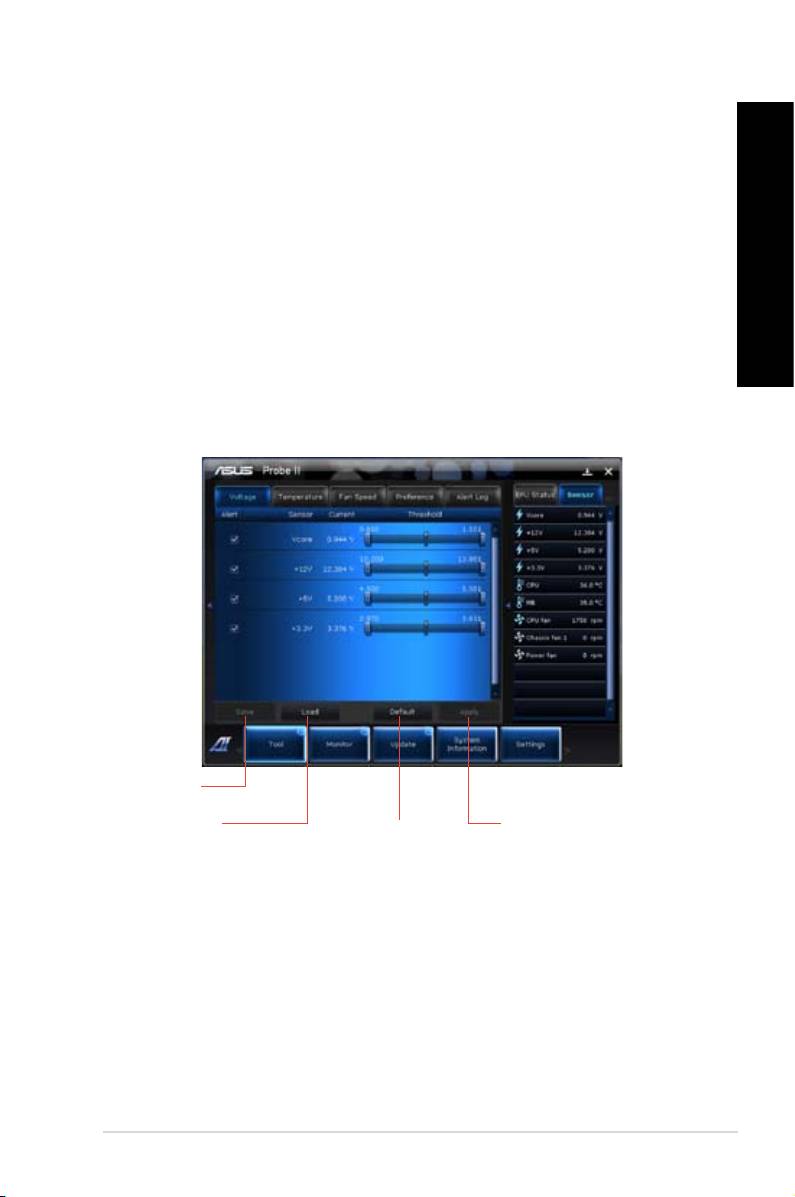
Probe II is a utility that monitors the computer’s vital components, and detects and alerts you
of any problem with these components. Probe II senses fan rotations, CPU temperature,
and system voltages, among others. With this utility, you are assured that your computer is
always at a healthy operating condition.
To launch Probe II:
• Click
Tool > Probe II on the AI Suite II main menu bar.
ENGLISH
To congure Probe II:
• Click the
Voltage/Temperature/Fan Speed tabs to activate the sensors or to adjust the
sensor threshold values.
• The
Preference tab allows you to customize the time interval of sensor alerts, or
change the temperature unit.
Saves your
conguration
Loads your saved
Applies your
Loads the default
conguration
changes
threshold values
for each sensor
ASUS CM6340 49
ENGLISH
ENGLISH
50 Chapter 6: Using the utilities
ENGLISH
ENGLISH
Launching and conguring Sensor Recorder
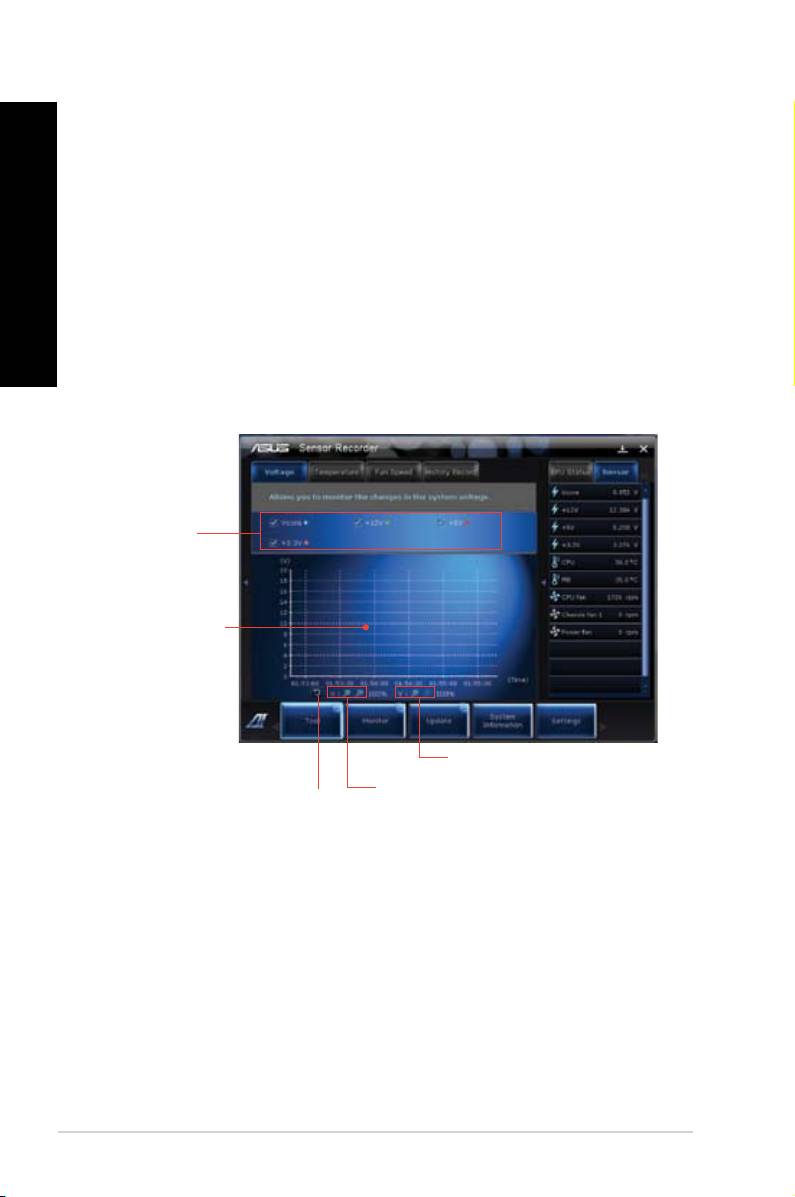
Sensor Recorder allows you to monitor the changes in the system voltage, temperature, and
fan speed, as well as recording the changes.
To launch Sensor Recorder:
• Click
Tool > Sensor Recorder on the AI Suite II main menu bar.
To congure Sensor Recorder:
• Click the
Voltage/Temperature/Fan Speed tabs and select the sensors that you want
to monitor.
• The
History Record tab allows you to record the changes in the sensors that you
enable.
Select the
sensors that you
want to monitor
Drag to view the
status during a
certain period
of time
Click to zoom in/out
the Y axis
Click to zoom in/out
Click to return to
the X axis
the default mode

ENGLISH
ENGLISH
The Monitor menu
ENGLISH
The Monitor menu includes the Sensor and CPU Frequency panels.
Launching Sensor
The Sensor panel displays the current value of a system sensor such as fan rotation, CPU
temperature, and voltages.
ENGLISH
To launch Sensor:
• Click
Monitor > Sensor on the AI Suite II main menu bar.
Launching CPU Frequency
The CPU Frequency panel displays the current CPU frequency and CPU usage.
To launch CPU frequency:
• Click
Monitor > CPU Frequency on the AI Suite II main menu bar.
The Update menu
The Update menu allows you to update the motherboard BIOS and the BIOS boot logo with
the ASUS designed update utilities.
ASUS Update
The ASUS Update is a utility that allows you to manage, save, and update the motherboard
®
BIOS in Windows
OS. The ASUS Update utility allows you to update the BIOS directly
from the Internet, download the latest BIOS le from the Internet, update the BIOS from an
updated BIOS le, save the current BIOS le or view the BIOS version information.
Updating the BIOS through the Internet
To update the BIOS through the Internet:
1. From the ASUS Update screen, select
Update BIOS from le, then click Next.
2. Select the ASUS FTP site nearest you to avoid network trafc.
Tick the two items if you want to enable the BIOS downgradable and Auto-BIOS
backup functions.
3. Select the BIOS version that you want to download, then click
Next.
When no updated version is detected, a message is displayed informing you that there
is no new BIOS le from the BIOS server.
4. Click
Yes if you want to change the boot logo, which is the image appearing on screen
during the Power-On Self-Tests (POST). Otherwise, click
No.
5. Follow the onscreen instructions to complete the update process.
ASUS CM6340 51

ENGLISH
ENGLISH
52 Chapter 6: Using the utilities
ENGLISH
ENGLISH
Updating the BIOS through a BIOS le
To update the BIOS through a BIOS le:
1. From the ASUS Update screen, select
Update BIOS from le, then click Next.
2. Locate the BIOS le from the Open window, click
Open, and click Next.
3. Click
Yes if you want to change the boot logo, which is the image appearing on screen
during the Power-On Self-Tests (POST). Otherwise, click No.
4. Follow the onscreen instructions to complete the update process.
The System Information screen
The System Information screen displays the information about the motherboard, CPU, and
memory slots.
• Click the
MB tab to see the details on the motherboard manufacturer, product name,
version, and BIOS.
• Click the
CPU tab to see the details on the processor and the Cache.
• Click the
SPD tab and then select the memory slot to see the details on the memory
module installed on the corresponding slot.
The Settings screen
The Settings screen allows you to customize the main menu bar settings and the interface’s
skin.
• Application allows you to select the application that you want to enable.
• Bar allows you to modify the bar setting,
• Skin allows you to customize the interface’s contrast, brightness, saturation, hue, and
gamma.
ENGLISH
ENGLISH
ASUS AI Manager
ENGLISH
ASUS AI Manager is a utility which gives you quick and easy access to frequently-used
applications.
This utility is pre-installed on some models. For models without an operating system, follow
the steps below to install this utility.
ENGLISH
Installing AI Manager
To install AI Manager:
1. Place the support DVD in the optical drive. If Autorun is enabled, the Drivers installation
wizard appears.
If Autorun is disabled, double-click the setup.exe le from the ASUS AI Manager folder in
the support DVD.
2. Click the Utilities tab, then click ASUS AI Manager.
3. Follow the onscreen instructions to complete the installation.
Launching AI Manager
®
To launch the AI Manager from the Windows
desktop, click
Start > All Programs > ASUS >
AI Manager > AI Manager 1.xx.xx
. The AI Manager quick bar appears on the desktop.
®
After launching the application, the AI Manager icon appears in the Windows
taskbar.
Right-click this icon to switch between the quick bar and the main window, and to launch the
AI Manager either from the quick bar or taskbar.
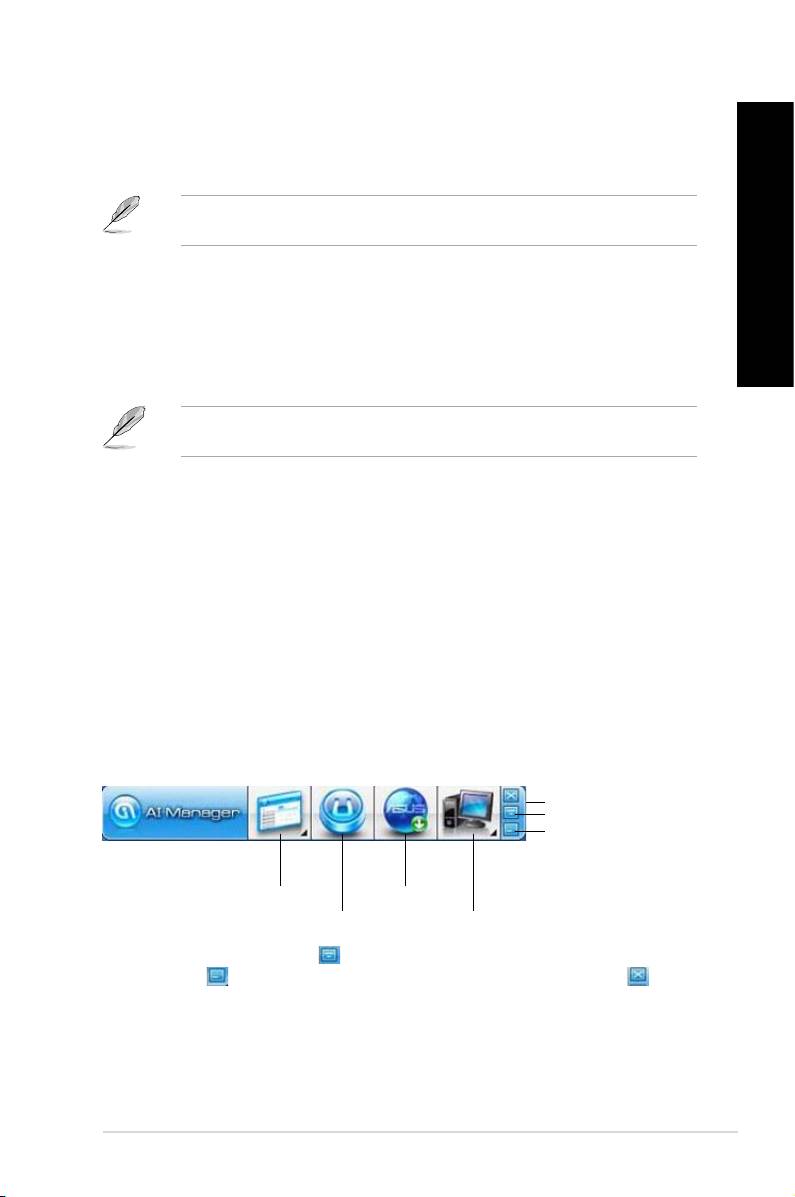
AI Manager quick bar
The AI Manager quick bar saves the desktop space and allows you to launch the ASUS
utilities or display system information easily. Click any of the Main, My Favorites, Support or
Information tab to display the menu’s contents.
Exit button
Switch to main Window
Add to ToolBar
Main
Support
My Favorites
Information
Click the Maximize/restore button to switch between full window and quick bar. Click the
Minimize button to keep the AI Manager on the taskbar. Click the Close button to quit
the AI Manager.
Main
The Main menu contains three utilities: AI Disk, AI Security, and AI Booting. Click the arrow
on the Main menu icon to browse through the utilities in the main menu.
ASUS CM6340 53

ENGLISH
ENGLISH
54 Chapter 6: Using the utilities
ENGLISH
ENGLISH
AI Disk
AI Disk allows you to easily clear temporary IE les, IE cookies, IE URLs, IE history,
or the Recycle Bin. Click the AI Disk icon on the quick bar to display the full AI Disk
window and select the items you want to clear. Click Apply when done.
AI Security
AI Security enables you to set a password to secure your devices, such as USB ash
disks and CD/DVD disks, from unauthorized access.
To lock a device:
1. When using AI Security for the rst time, you are asked to set a password. Key in
a password with at most 20 alphanumeric characters.
2. Conrm the password.
3. Key in the password hint (recommended).
4. When done, click
Ok.
5. Select the device you want to lock, then click
Apply.
6. Key in the password you have set previously, then click
Ok.
To unlock the device:
1. Deselect the locked device, then click
Apply.
2. Key in the password you have set previously, then click
Ok.
To change the password:
• Click
Change Password, then follow the onscreen instructions to change
password.
AI Booting
AI Booting allows you to specify the boot device priority sequence.
To specify the boot sequence:
1. Select a device, then click the left/right button to specify the boot sequence.
2. When done, press
Apply.

ENGLISH
ENGLISH
My Favorites
ENGLISH
My Favorites allows you to add applications that you frequently use, saving you from
searching for the applications throughout your computer.
To add an application:
1. Click
Add, then locate the application you want to add to My Favorites.
2. Click
Open on the le location window. The application is added to My Favorites list.
ENGLISH
Right click on the application icon to launch, delete, or rename the selected application. You
can also double click to launch the selected application.
Support
Click any links on the Support window to go to the ASUS website, technical support website,
download support website, or contact information.
Information
Click the tab on the Information window to see the detailed information about your system,
motherboard, CPU, BIOS, installed device(s), and memory.
Ai Charger
Ai Charger is a unique software that allows you to quickly charge your Apple devices such as
iPod, iPhone, and iPad on your ASUS computer’s USB 2.0 / USB 3.0 port.
• There is no setting screen for Ai Charger. After its installation on your computer, the Ai
®
Charger icon appears on the Windows
taskbar.
• The Ai Charger icon (
) shows if an Apple device is connected on your computer’s
USB port.
• Your Apple device can only be detected if its Apple USB driver is properly installed in it.
• The current Apple devices only support USB 2.0 performance. Even when you plug your
Apple device into a USB 3.0 port, the maximum charging rate is still 500mA, which is the
USB 2.0 maximum charging rate. Ai Charger can increase this limit to 700mA~900mA.
• There is no BIOS, hardware, or chipset requirements for Ai Charger.
ASUS CM6340 55
ENGLISH
ENGLISH
56 Chapter 6: Using the utilities
ENGLISH
ENGLISH
ASUS Webstorage
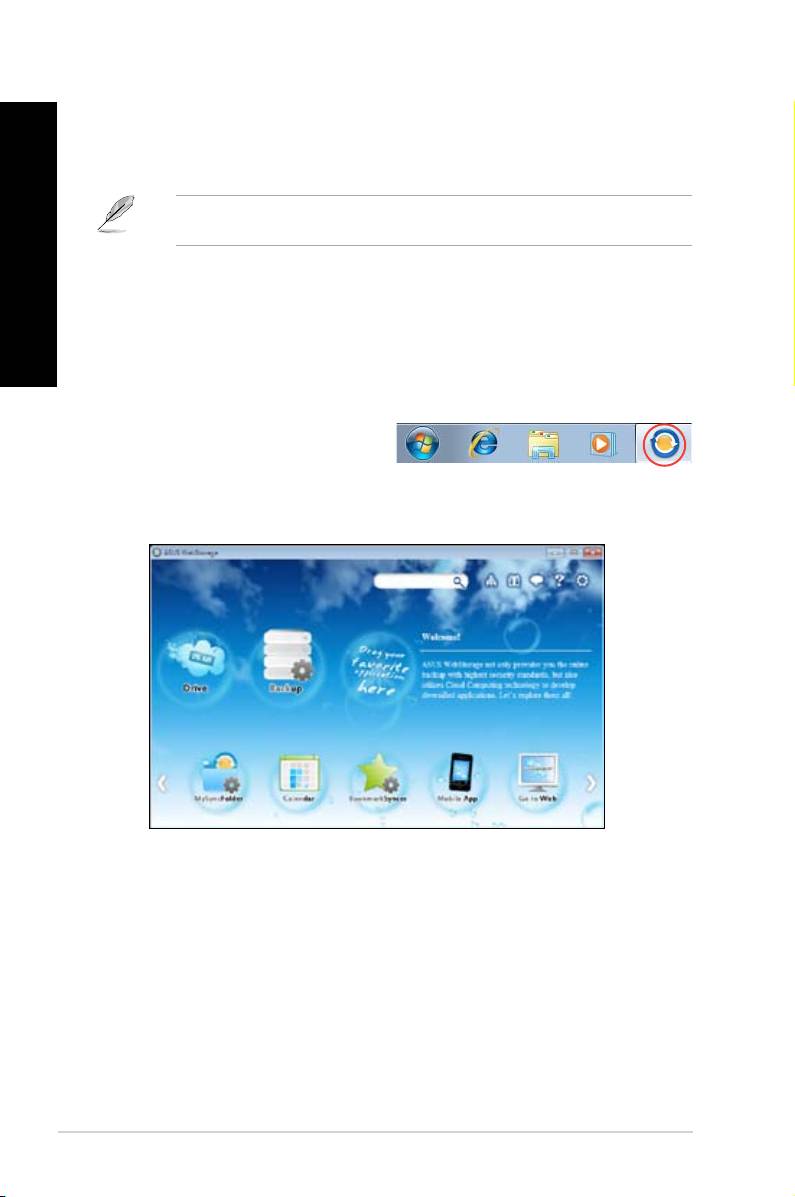
ASUS webstorage is designed to help you retrieve your data to your notebooks, smartphones
or tablets wherever there is internet connection.
This utility is pre-installed on some models. For models without an operating system, follow
the steps below to install this utility.
Installing webstorage
To install webstorage:
Place the support DVD in the optical drive. Double-click the setup.exe le from the ASUS
WebStorage folder in the Software folder in the support DVD.
Launching Webstorage
To launch the WebStorage from the
®
Windows
desktop, click
Start > All
Programs > ASUS > Webstorage
. The
webstorage quick bar appears in the
®
Windows
taskbar. Right-click this icon to switch between the quick bar and the main window
Drive
Allows your to retrieve all your backups, synced les, share groups and password protected
data from here. Right-click the mouse to preview les before downloading or generating a
sharing URL.
Backup
To backup your most important data with simple steps: preset a backup shcedule with your
preferences in cloud storage; or select “Auto Backup” for complete data backup.
ENGLISH
ENGLISH
MySyncFolder
ENGLISH
To store the updated les to MySyncFolder for easy access and share of all types of les
without the limitation of location or device.
Calendar
ASUS WebStorage automatically syncs the most updated calendar events to all personal
computers so that you know the exact events no matter which PC is in use.
BookmarkSyncer
ENGLISH
The convenient BookmarkSyncer keeps our browser preference and bookmark to the cloud
automatically synchronized in multiple computer.
MobileApp
ASUS WebStorage mobile applications sync your les between multiple devices. It also
supports transcoding technology that allows preview and les streaming on your mobile
phone.
Go to Web
Experience the value-added cloud service through ASUS WebStorage, without the risk of
losing data.
Settings
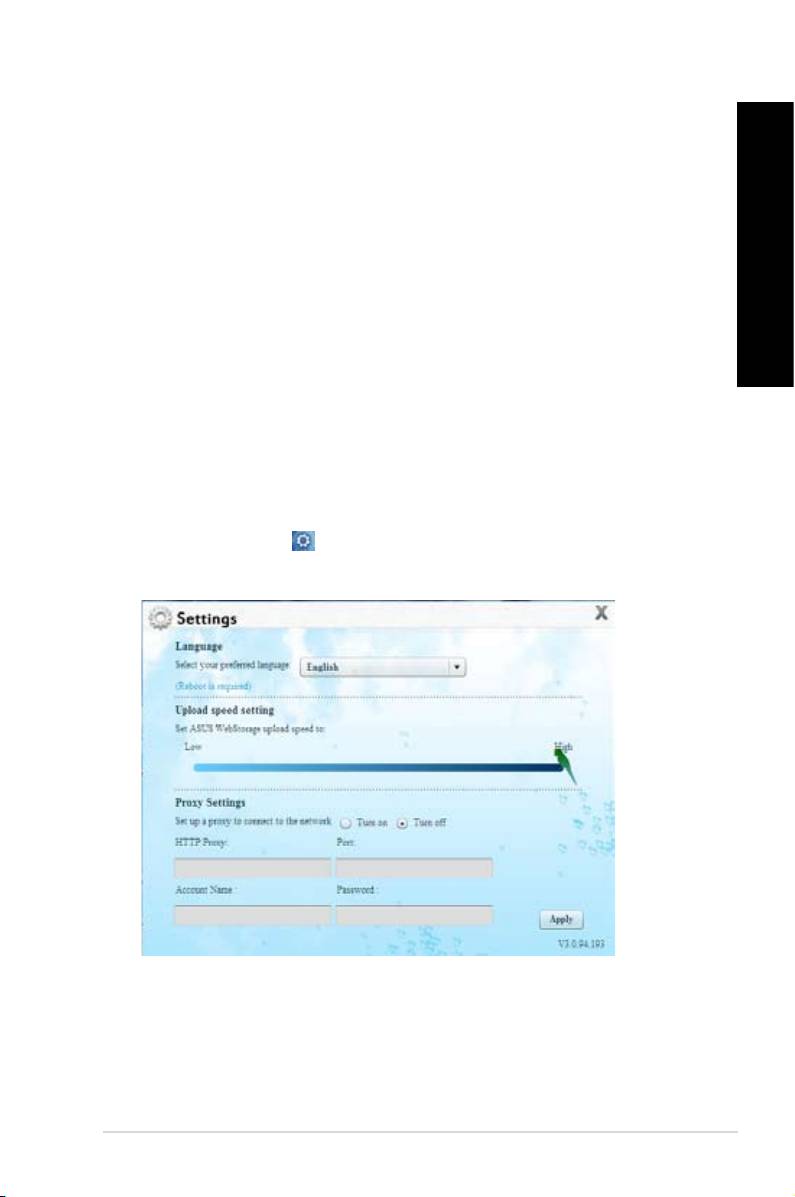
1. Click the Settings icon , the settings interface appears.
2. Follow the onscreen instructions to complete the conguration.
ASUS CM6340 57
ENGLISH
ENGLISH
58 Chapter 6: Using the utilities
ENGLISH
ENGLISH
ASUS Easy Update
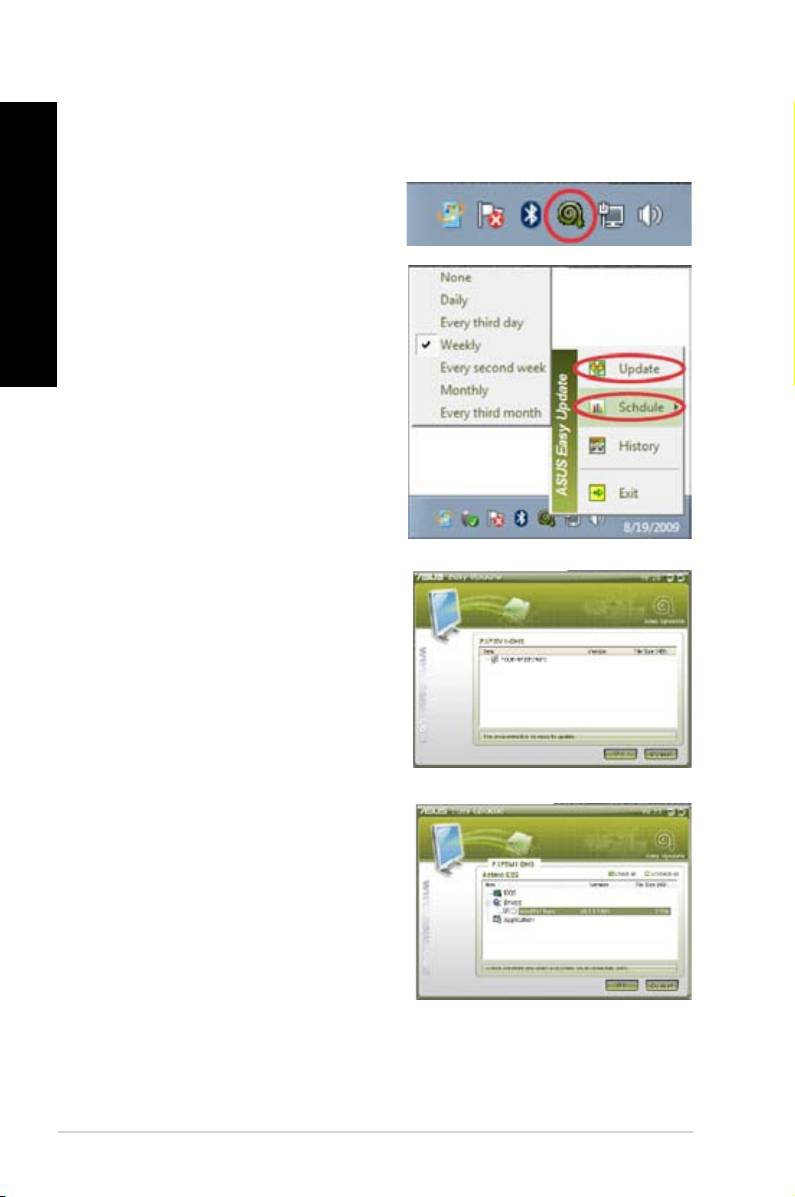
ASUS Easy Update is a software tool that automatically detects the latest drivers and
applications for your system.
®
1. From the Windows
notication area,
right-click the ASUS Easy Update icon.
2. Select
Schedule to set how often you
want to update your system.
3. Select
Update to activate the update.
4. Click OK to display the items you can
download.
5. Check the item(s) you want to download,
and then click OK.
