
Asus Xonar Xense: Installing the audio card driver Connecting speakers and peripherals Connecting the gaming headset
Installing the audio card driver Connecting speakers and peripherals Connecting the gaming headset: Asus Xonar Xense
Table of contents
- Package contents System requirements
- Hardware introduction
- Gaming headset
- Installing the audio card
- Connecting to a TV tuner card
- Installing the audio card driver Connecting speakers and peripherals Connecting the gaming headset
- Connecting Line-in audio sources Connecting analog speaker systems
- Notices REACH Federal Communications Commission Statement Canadian Department of Communications Statement
- Safety Information Declaration of Conformity for R&TTE directive 1999/5/EC
Installing the audio card driver
To install the audio card driver:
®
1. After you have installed the audio card, turn on your computer. Windows
automatically detects the audio card and searches for device drivers. When
prompted for the drivers, click Cancel.
English
2. Insert the support CD into the optical drive. If Autorun is enabled in your
system, the setup starts automatically. If not, run setup.exe from your
support CD.
3. Followtheonscreeninstructionstonishtheinstallation.
The contents of the support CD are subject to change without notice.
To uninstall the audio card driver:
®
1. From the Windows
desktop, click Start > Control Panel.
2 Double-click Add or Remove Programs.
3. Click Change or Remove Programs.
4. Select the audio card driver.
5. Click Remove to uninstall the audio card driver. If you are prompted, restart
your computer.
Connecting speakers and peripherals
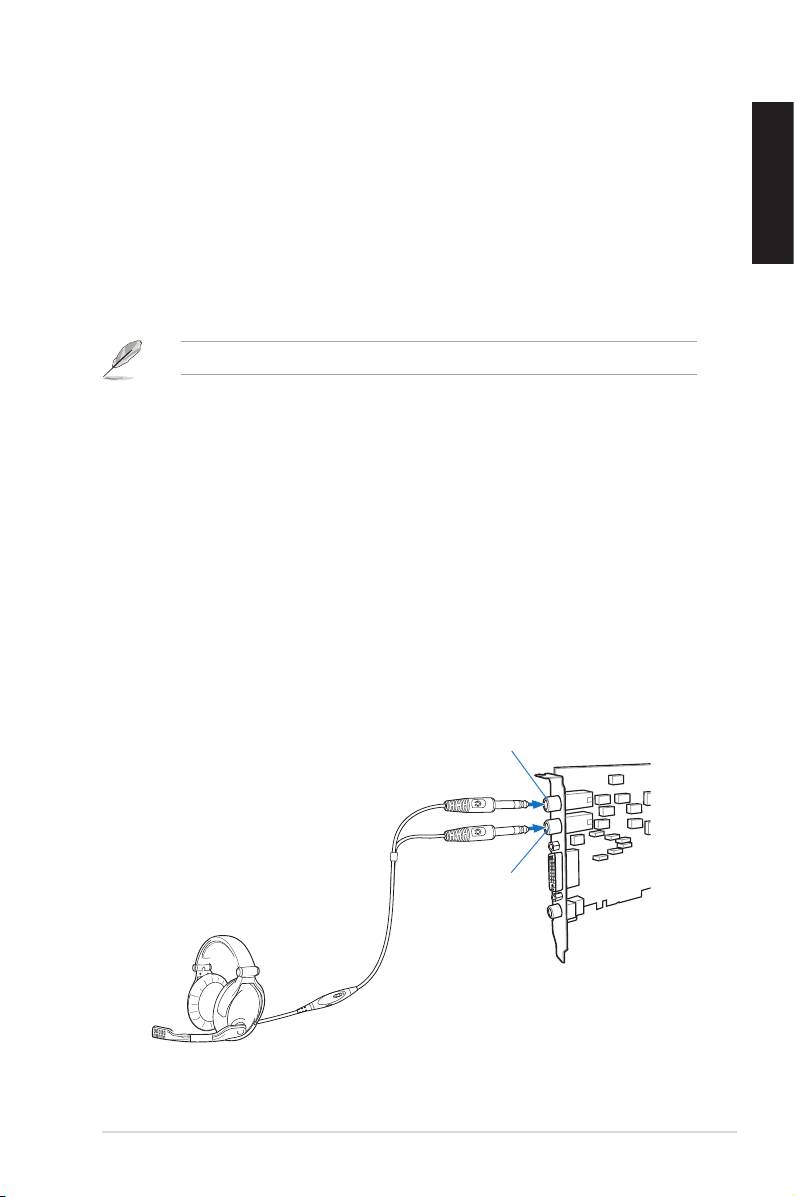
Connecting the gaming headset
Mic In/ Line-In port
Headphone Out port
ASUS Xonar Xense Quick Start Guide
7
