
Asus WL-100W: Status - Connection
Status - Connection: Asus WL-100W
Table of contents
- 1. English ............................................................................1
- Quick Start Guide Installation Procedures Installing the WLAN utilities and driver Reading the WLAN status indicators
- One Touch Wizard
- Conguring with the WLAN utility (Infrastructure)
- Conguring with the WLAN utility (Ad Hoc)
- ASUS WLAN Control Center Starting the Control Center Using the Control Center Wireless Status Icons (on the taskbar)
- Taskbar icon - Right-click menu Taskbar icon - Left-click menu Taskbar Icon - Launch Wireless Settings
- ASUS Wireless Settings Utility Status - Status Association State
- Quick Start Guide
- Status - Connection
- Status - IP Cong Status - Ping
- Cong - Basic Channel
- Cong - Advanced
- Cong - Encryption
- Quick Start Guide Data encryption Wireless Network Key Wireless Network Key (WEP) Key Format Key Length
- Quick Start Guide Select one as your Default Key
- Cong - Authentication Authentication Type Survey - Site Survey
- Quick Start Guide Buttons About - Version Info
- Link State Exit Wireless Settings
- Windows XP Wireless Options
- Quick Start Guide
Quick Start Guide
English
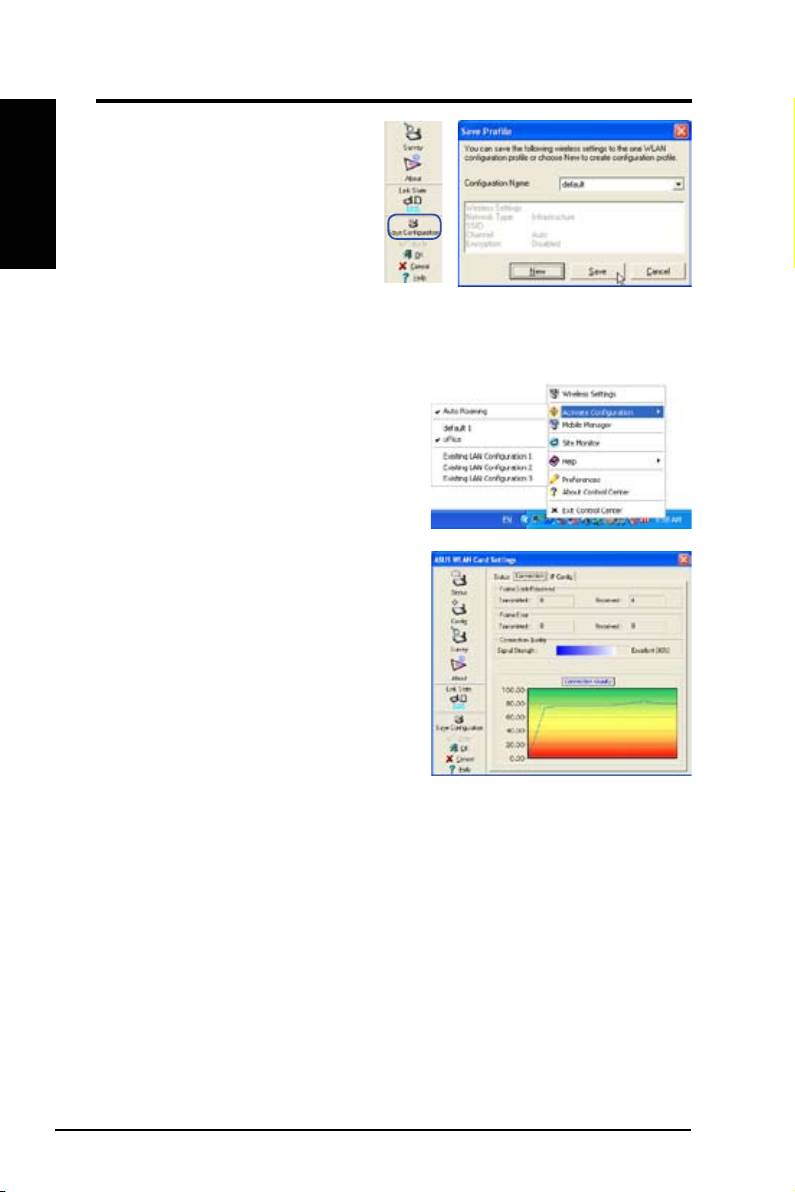
Save Conguration
When you make settings for a
certain working environment, you
may need to save your settings to a
prole so that you can easily switch
to the settings without repeating the
configurations. For example, you
can set proles for work, home and
other situations. When you travel form home to work, choose the "ofce" prole
that contains all your settings for office use. When you travel back home,
choose the “home” prole.
Activate Conguration
Auto roaming is enabled by default and
makes the Card automatically switch to APs
of better signal. You can uncheck it if you
want to connect to a specified AP using a
particular prole.
Status - Connection
You can view the current link statistics
about the WLAN Card. These statistics are
updated once per second and are valid if the
WLAN Card is correctly installed.
Frame Sent/Received
Transmitted
- The number of frames that
were transmitted.
Received
- The number of frames that were received.
Frame Error
Transmitted
- The number of frames that were not successfully transmitted.
Received
- The number of frames that were not successfully received.
Connection Quality
Signal Strength -
Shows the link quality of the access point or Ad Hoc node
the WLAN Card is currently connected to. Ratings are: Excellent, Good, Fair,
and Poor.
Overall Connection Quality
The overall connection quality is derived from the current signal strength. A
graphic chart uses percentage to show signal quality.
10 ASUS WLAN Card
