
Asus WL-100W: One Touch Wizard
One Touch Wizard: Asus WL-100W
Table of contents
- 1. English ............................................................................1
- Quick Start Guide Installation Procedures Installing the WLAN utilities and driver Reading the WLAN status indicators
- One Touch Wizard
- Conguring with the WLAN utility (Infrastructure)
- Conguring with the WLAN utility (Ad Hoc)
- ASUS WLAN Control Center Starting the Control Center Using the Control Center Wireless Status Icons (on the taskbar)
- Taskbar icon - Right-click menu Taskbar icon - Left-click menu Taskbar Icon - Launch Wireless Settings
- ASUS Wireless Settings Utility Status - Status Association State
- Quick Start Guide
- Status - Connection
- Status - IP Cong Status - Ping
- Cong - Basic Channel
- Cong - Advanced
- Cong - Encryption
- Quick Start Guide Data encryption Wireless Network Key Wireless Network Key (WEP) Key Format Key Length
- Quick Start Guide Select one as your Default Key
- Cong - Authentication Authentication Type Survey - Site Survey
- Quick Start Guide Buttons About - Version Info
- Link State Exit Wireless Settings
- Windows XP Wireless Options
- Quick Start Guide
Quick Start Guide
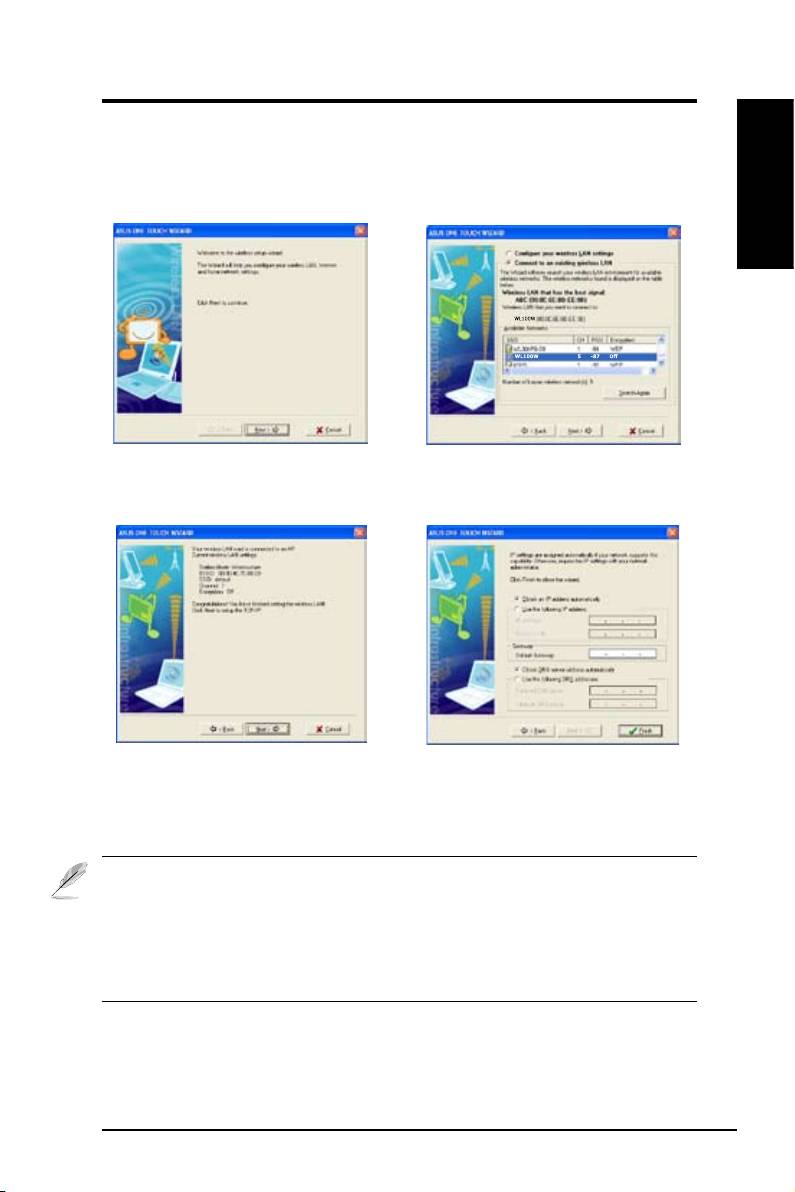
One Touch Wizard
Use One Touch Wizard to setup your wireless connection with an existing
wireless LAN.
English
1. Launch One Touch Wizard from Start
2. Select an AP from the
Available Networks
menu and click
Next
to set up your
then click
Next
.
wireless network.
3. Connection is complete. Click
Next
to
4. Choose to obtain an IP address or to
setup the IP address for the WLAN card.
assign static address manually for your
WLAN card. When IP setting is complete,
click
Finish
to exit the One Touch Wizard.
Note: If the access point you want to connect has set up encryption
policies, you must congure the same encryption on your WLAN Card.
Select "Configure your wireless LAN settings" radio button in step 2
and make the settings accordingly. When the encryption settings are
complete, you can launch the One Touch Wizard once again from the Start
menu to set up the connection with your AP.
ASUS WLAN Card 3
