
Pioneer X-CM56: Pairing and connection using NFC Radio wave caution
Pairing and connection using NFC Radio wave caution: Pioneer X-CM56
Table of contents
- VENTILATION CAUTION POWER-CORD CAUTION
- Information for users on collection and disposal of old equipment and used batteries
- Contents
- Chapter 1: Before you start What’s in the box Loading the batteries in the remote control
- Chapter 2: Part names and functions Remote control
- Part names and functions 02
- Front panel
- Speaker system
- Chapter 3: Connections Speaker connection
- Connecting antennas
- Plugging in
- Chapter 4: Getting started To turn the power on General control Setting the clock
- Sound controls Setting the wake-up timer
- Using Headphones Using the sleep timer
- Chapter 5: Disc playback Playing discs or files
- Basic operations Advanced CD or MP3 disc playback
- Programmed play (CD) Switch the display contents About downloading MP3
- Chapter 6: USB playback Playing USB storage devices
- Chapter 7: Using the tuner Listening to FM (X-CM56D)/ Listening to FM or AM (X-CM56)
- Using the Radio Data System (RDS) (for European models only)
- Using the Auto Station program Memory (ASPM)
- Listening to the DAB+ (X-CM56D only)
- Changing the information display DAB Frequency table (BAND III) Memorising a station
- Chapter 8: Other connections Connecting auxiliary components
- Chapter 9: Bluetooth Audio playback Music playback using Bluetooth Remote control operation wireless technology Pairing with the unit (Initial registration)
- BT STANDBY Listen to music on the unit from a Bluetooth capable device
- Pairing and connection using NFC Radio wave caution
- Scope of operation Radio wave reflections Precautions regarding connections to products supported by this unit
- Chapter 10: Additional information Troubleshooting General problem Problem Check Remedy
- When a USB storage device is connected Problem Check Remedy
- When the Bluetooth wireless technology device is connected or operated Problem Remedy Playable discs and formats
- Cautions on use
- Handling discs Auto power off setting Restoring all the settings to the defaults
- Specifications
SN29402593_X-CM56&56D_En.book 28 ページ 2016年5月27日 金曜日 午後3時47分
®
09
Bluetooth
Audio playback
Note
Pairing and connection using NFC
• Only one device can be connected at a time.
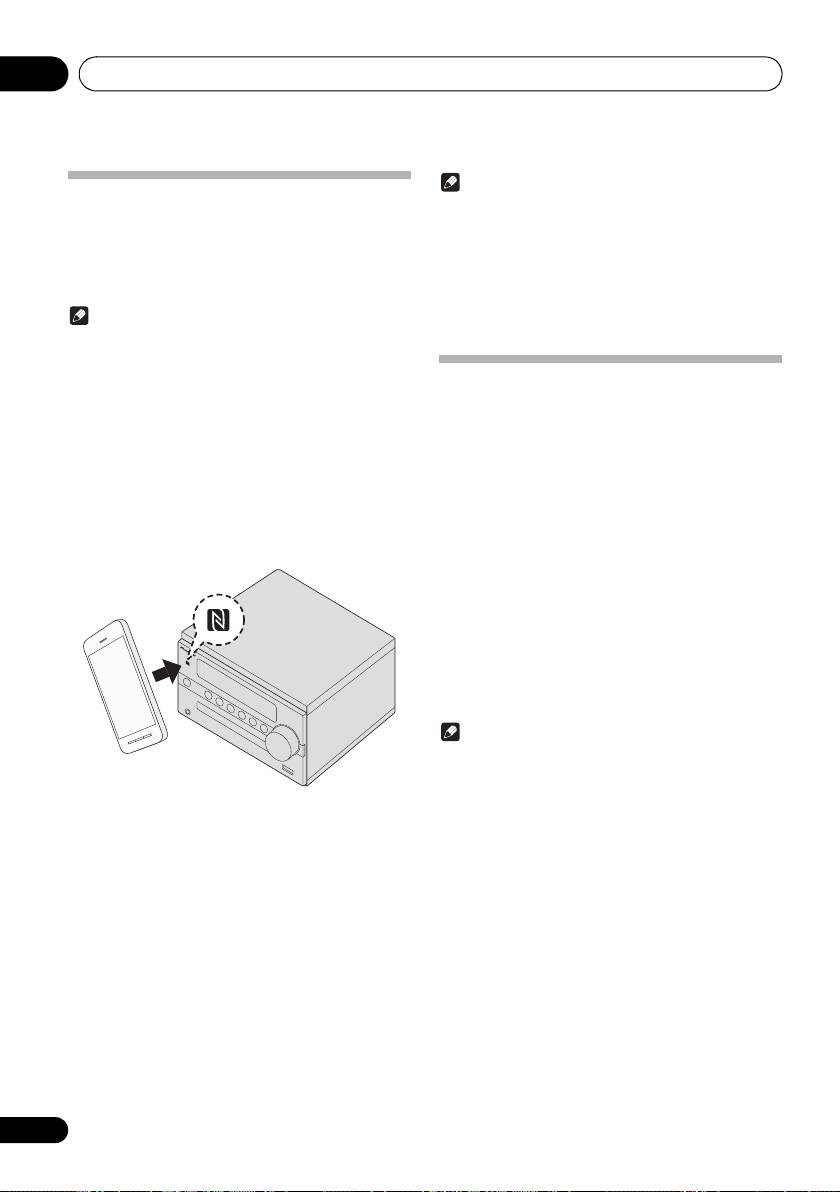
NFC stands for Near Field Communication.
If a NFC-
•
NFC can also be used to quickly cancel a
Bluetooth
equipped smartphone is placed close to the unit, Bluetooth
connection. If you perform Step 1 using a NFC-
pairing and connection can easily be established.
For
equipped smartphone that is already connected via
details, refer to the user manual for the NFC-equipped
Bluetooth
, the connected will be cancelled.
device.
• If another NFC-equipped smartphone is held over the
NFC area, this unit connects to the device via
Note
Bluetooth. The connection with the previously
connected device is terminated.
• Supported OS: Android 4.1 and above
• This may not operate properly, depending on the
smartphone or tablet device.
Radio wave caution
• This unit automatically turns on if an NFC-equipped
smartphone is held over the NFC area when BT
This unit uses a 2.4 GHz radio wave frequency, which is a
STANDBY is set to ON.
band used by other wireless systems (see list below). To
• The N Mark is a trademark or registered trademark of
prevent noise or interrupted communication, do not use this
NFC Forum, Inc. in the United States and in other
unit nearby such devices, or make sure these devices are
countries.
switched off during use.
• Android is a trademark of Google Inc.
• Cordless phones
• Cordless facsimiles
1 Hold the device to be connected over the
• Microwave ovens
NFC area on the front panel of the unit.
• Wireless LAN devices (IEEE802.11b/g)
When an NFC-equipped smartphone is detected, the input
• Wireless AV equipment
automatically switches to
Bluetooth
.
• Wireless controllers for game systems
• Microwave-based health aids
• Some baby monitors
Other, less common, equipment that may operate on the
same frequency:
• Anti-theft systems
• Amateur radio stations (HAM)
• Warehouse logistic management systems
• Discrimination systems for train or emergency vehicles
Note
• In the event noise appears in your television image,
there is the possibility that a Bluetooth wireless
technology enabled device or this unit (including
products supported by this unit) are causing signal
2 Pairing automatically begins.
interference with the antenna input connector of your
When an NFC-equipped smartphone is detected, Pairing
television, video, satellite tuner, etc. In this event,
displays on the front panel display.
increase the distance between the antenna input
• Do not move the NFC-equipped smartphone until a
connector and the Bluetooth wireless technology
response such as message display can be confirmed
enabled device or this unit (including products
on the device. Remove the device after a response is
supported by this unit).
confirmed on the device.
• If there is something obstructing the path between this
• If a connection does not start, change the position to
unit (including devices supported by this unit) and the
hold the NFC-equipped smartphone over this unit.
device equipped with Bluetooth wireless technology
(such as a metal door, concrete wall, or insulation
3 Once connection with the NFC-equipped
containing tinfoil), you may need to change the location
smartphone is completed, the device name is
of your system to prevent signal noise and interruptions.
displayed on the front panel display of this unit.
4 Start playback of the music from the NFC-
equipped smartphone.
28
En
