
Pioneer VSX-519V-K: Remote control
Remote control: Pioneer VSX-519V-K
Table of contents
- IMPORTANT
- Information for users on collection and disposal of old equipment and used batteries
- Contents
- Chapter 1: Before you start
- Chapter 2: 5 minute guide
- Chapter 3: Connecting up
- Connecting up03 Analog audio cables Component video cables Digital audio cables About video outputs connection Video cables
- Connecting a TV and Blu-ray Disc player or DVD player
- Connecting the multichannel analog outputs
- Connecting a satellite receiver or other digital set-top box
- Connecting other audio components Connecting to the front panel audio mini jack
- Connecting other video components
- Using the component video jacks
- Connecting antennas
- Connecting the speakers
- Connecting up 03 Hints on speaker placement Speaker placement diagrams
- Connecting an IR receiver Plugging in the receiver
- Chapter 4: Controls and displays Front panel
- Operating range of remote control unit
- Display
- Controls and displays04
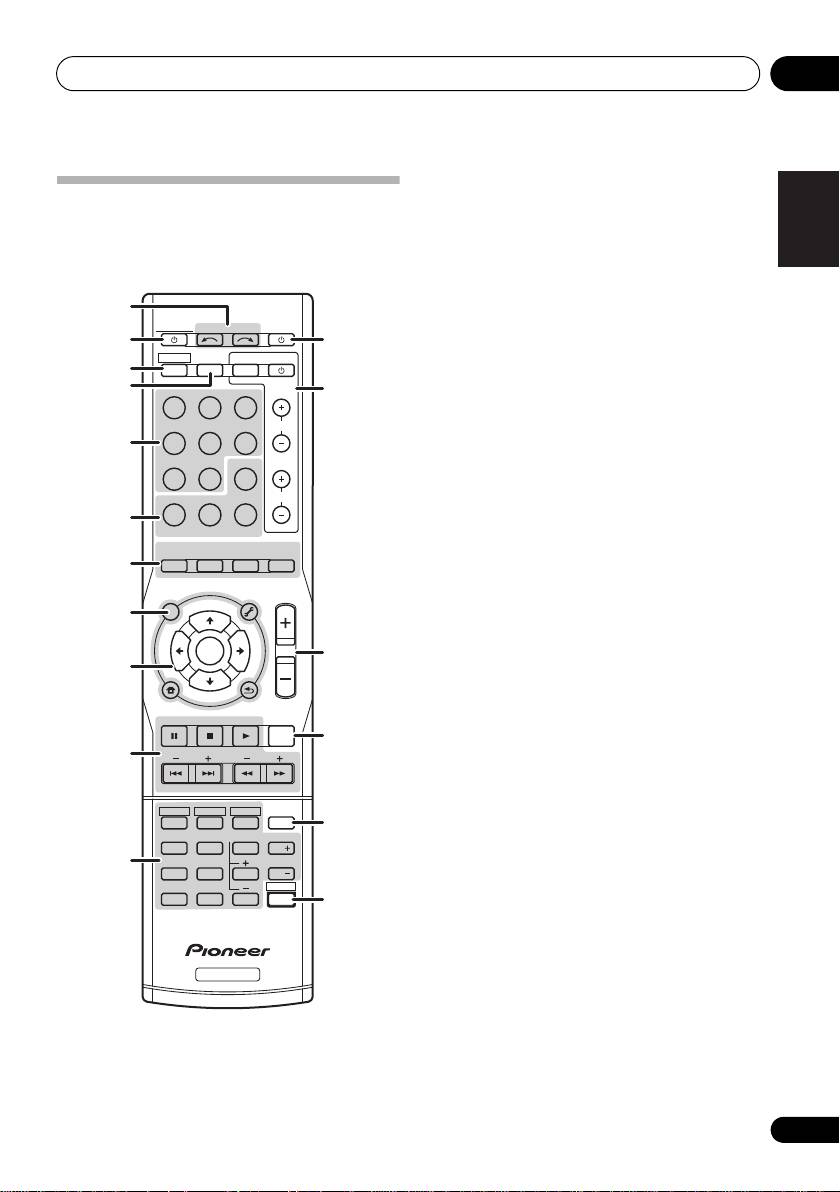
- Remote control
- Controls and displays04
- Controls and displays 04
- Chapter 5: Listening to your system Listening in surround sound Auto playback
- Listening in stereo
- Using Front Stage Surround Advance Using the Sound Retriever Using Stream Direct
- Using Phase Control
- Setting the Audio options Setting What it does Option(s)
- Setting What it does Option(s)
- Playing other sources Selecting the multichannel analog inputs Choosing the input signal Using the headphone
- Chapter 6: The System Setup menu Using the System Setup menu Manual speaker setup
- The System Setup menu06 Channel level Crossover network
- Speaker Distance The Input Assign menu
- Chapter 7: Using the MULTI-ZONE feature MULTI-ZONE listening
- Using the MULTI-ZONE feature 07 Using the MULTI-ZONE controls MULTI-ZONE remote controls
- Chapter 8 Using the tuner Listening to the radio Saving station presets
- Using the tuner 08 Naming preset stations
- An introduction to RDS Searching for RDS programs
- Displaying RDS information
- Chapter 9: Making recordings Making an audio or a video recording
- Chapter 10: Additional information Troubleshooting Problem Remedy
- Problem Remedy
- HDMI Symptom Remedy Important information regarding the HDMI connection
- Resetting the main unit Specifications
- Cleaning the unit
VSX_519V_MY.book 23 ページ 2009年1月16日 金曜日 午後7時32分
Controls and displays 04
1 INPUT SELECT
English
Use to select the input source.
Remote control
As for operating other devices, the remote
2
RECEIVER
control codes for the Pioneer products are
Switches the receiver between standby and
preset. The settings cannot be changed.
on.
Français
3RECEIVER
1
Switches the remote to control the receiver
RECEIVER
INPUT SELECT
SOURCE
212
(used to select the white commands above
ZONE 2
RECEIVER
ON/OFF
TV CONTROL
the number buttons (TEST TONE, etc)). Also
3
INPUT
use this button to set up surround sound
4
BD TV
DVR
13
(page 33) or Audio parameters (page 30).
CD CD-R
TUNER
CH
4 ZONE 2 ON/OFF
5
Switches zone 2 of the multi-zone function
PORTABLE MULTI IN SIGNAL SEL
between on and off.
MIDNIGHT
PHASE
S.RETRIEVER
VOL
5 MULTI CONTROL buttons
6
Press to select control of other components.
Italiano
BD MENU
AUTO/
STEREO/
6
Receiver control
buttons
DIRECT
A.L.C.
STANDARD
ADV SURR
7
SIGNAL SEL
AUDIO
TUNER EDIT
MASTER
PARAMETER
TOOLS
VOLUME
Use to select an input signal (page 32).
TOP
T
U
N
E
MENU
8
MENU
Nederlands
MIDNIGHT
T
P
E
R
S
E
E
ENTER
S
R
E
Switches to Midnight or Loudness
14
P
T
9
listening (p age 30).
HOME
MENU
BAND
T
U
N
E
SETUP
RETURN
PHASE
PTY SEARCH
DTV/TV
Press to switch on/off Phase Control
MUTE
15
(page 29).
Español
10
BASS
TRE
S.RETRIEVER
Press to restore CD quality sound to
HDD
DVD
VCR
DISPLAY
compressed audio sources (page 28).
1
2
3
16
TEST TONE
CH SELECT
SLEEP
Press BD first to access:
4
5
6
CH
Deutsch
11
SPEAKERS
DIMMER
BD MENU
7
8
9
CH
SHIFT
Displays the disc menu of Blu-ray Discs.
0
ENTERCLR
17
7
Listening mode buttons
AUTO/DIRECT
Switches between Auto surround mode
RECEIVER
(Auto playback on page 26) and Stream
Direct playback. Stream Direct playback
bypasses the tone controls for the most
accurate reproduction of a source
(page 28).
23
En
