
Pioneer VSX-519V-K: Chapter 2: 5 minute guide
Chapter 2: 5 minute guide: Pioneer VSX-519V-K
Table of contents
- IMPORTANT
- Information for users on collection and disposal of old equipment and used batteries
- Contents
- Chapter 1: Before you start
- Chapter 2: 5 minute guide
- Chapter 3: Connecting up
- Connecting up03 Analog audio cables Component video cables Digital audio cables About video outputs connection Video cables
- Connecting a TV and Blu-ray Disc player or DVD player
- Connecting the multichannel analog outputs
- Connecting a satellite receiver or other digital set-top box
- Connecting other audio components Connecting to the front panel audio mini jack
- Connecting other video components
- Using the component video jacks
- Connecting antennas
- Connecting the speakers
- Connecting up 03 Hints on speaker placement Speaker placement diagrams
- Connecting an IR receiver Plugging in the receiver
- Chapter 4: Controls and displays Front panel
- Operating range of remote control unit
- Display
- Controls and displays04
- Remote control
- Controls and displays04
- Controls and displays 04
- Chapter 5: Listening to your system Listening in surround sound Auto playback
- Listening in stereo
- Using Front Stage Surround Advance Using the Sound Retriever Using Stream Direct
- Using Phase Control
- Setting the Audio options Setting What it does Option(s)
- Setting What it does Option(s)
- Playing other sources Selecting the multichannel analog inputs Choosing the input signal Using the headphone
- Chapter 6: The System Setup menu Using the System Setup menu Manual speaker setup
- The System Setup menu06 Channel level Crossover network
- Speaker Distance The Input Assign menu
- Chapter 7: Using the MULTI-ZONE feature MULTI-ZONE listening
- Using the MULTI-ZONE feature 07 Using the MULTI-ZONE controls MULTI-ZONE remote controls
- Chapter 8 Using the tuner Listening to the radio Saving station presets
- Using the tuner 08 Naming preset stations
- An introduction to RDS Searching for RDS programs
- Displaying RDS information
- Chapter 9: Making recordings Making an audio or a video recording
- Chapter 10: Additional information Troubleshooting Problem Remedy
- Problem Remedy
- HDMI Symptom Remedy Important information regarding the HDMI connection
- Resetting the main unit Specifications
- Cleaning the unit
5 minute guide02
Chapter 2:
5 minute guide
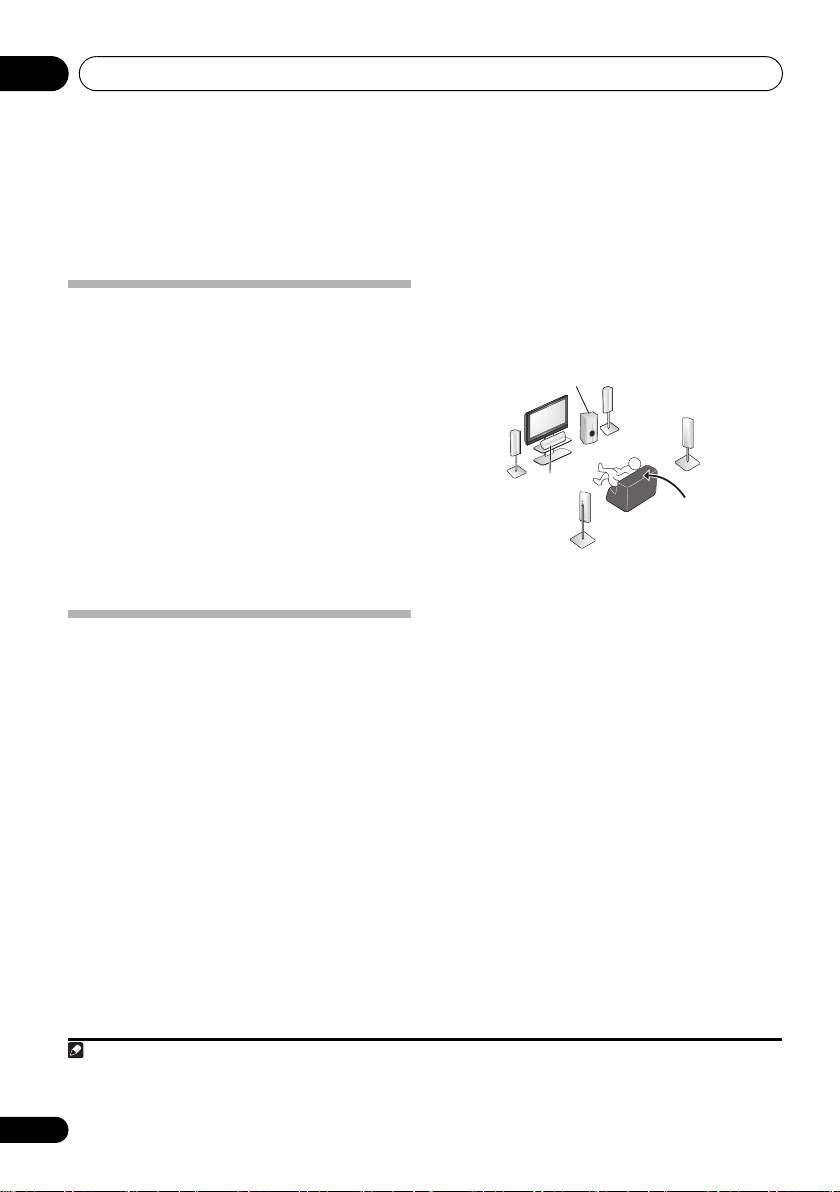
Where you place the speakers will have a big
effect on the sound. Place your speakers as
Introduction to home theater
shown below for the best surround sound
Home theater refers to the use of multiple
effect. Also see Hints on speaker placement on
audio tracks to create a surround sound effect,
page 17 for more on this.
making you feel like you’re in the middle of the
action or concert. The surround sound you get
from a home theater system depends not only
on your speaker setup, but also on the source
and the sound settings of the receiver.
This receiver will automatically decode
multichannel Dolby Digital, DTS, or Dolby
Surround sources according to your speaker
setup. In most cases, you won’t have to make
changes for realistic surround sound, but
other possibilities (like listening to a CD with
3 Plug in and switch on the receiver,
multichannel surround sound) are explained in
followed by your BD/DVD player,
Listening to your system on page 26.
subwoofer and TV.
Make sure you’ve set the video input on your TV
Listening to Surround Sound
to this receiver. Check the manual that came
with the TV if you don’t know how to do this.
With the following quick setup guide, you should
have your system hooked up for surround sound
4 Set the connection of the speaker and the
in no time at all. In most cases, you can simply
subwoofer.
leave the receiver in the default settings.
Perform Speaker setting of Manual speaker
•Be sure to complete all connections before
setup in Using the System Setup menu on
connecting to an AC power source.
page 33.
1 Connect your TV and Blu-ray Disc player
5 Play a BD/DVD, and adjust the volume.
or DVD player.
Make sure that BD/DVD is showing in the
See
Connecting a TV and Blu-ray Disc player or
receiver’s display, indicating that the BD/DVD
DVD player
on page 9 to do this. For surround
input is selected. If it isn’t, press BD on the
sound, you’ll want to hook up using a digital
remote to set the receiver to the BD/DVD input.
connection from the BD/DVD player to the receiver.
There are several other sound options you can
2 Connect your speakers and place them for
select. See Listening to your system on page 26
1
optimal surround sound.
for more on this.
See also The System Setup
See Connecting the speakers on page 16.
menu on page 33 for more setup options.
6
En
Note
VSX_519V_MY.book 6 ページ 2009年1月16日 金曜日 午後7時32分
Subwoofer (SW)
Front
Right (R)
Surround
Front
Right (SR)
Left (L)
Center (C)
Listening
position
Surround
Left (SL)
1Depending on your BD/DVD player or source discs, you may only get digital 2 channel stereo and analog sound. In this case,
the listening mode must be set to STANDARD (it should already be set—see Listening in surround sound on page 26 if you
need to do this) if you want multichannel surround sound.
