
Pioneer SEP-C1: USING THE UTILITY
USING THE UTILITY: Pioneer SEP-C1
Table of contents
- IMPORTANT
- Operating Environment We Want You Listening For A Lifetime
- FEATURES
- FEATURES
- SPECIFICATIONS COMFIRM ACCESSORIES
- INSTALLATION GUIDELINES
- CONNECTIONS
- PARTS AND THEIR FUNCTIONS
- PARTS AND THEIR FUNCTIONS Center Display
- PARTS AND THEIR FUNCTIONS Display A/Display B
- ABOUT DJS SOFTWARE SOFTWARE END USER LICENSE AGREEMENT
- ABOUT DJS SOFTWARE SYSTEM REQUIREMENTS (Minimum Operating Environment) COPYRIGHT WARNING
- INSTALLING DJS SOFTWARE NOTES REGARDING TRIAL PERIOD AND USER REGISTRATION
- ABOUT DJS SOFTWARE REGARDING ONLINE SUPPORT DISCLAIMER
- ABOUT THE DRIVER PROGRAM SOFTWARE END USER LICENSE AGREEMENT DRIVER INSTALLATION
- ABOUT THE DRIVER PROGRAM
- ABOUT THE DRIVER PROGRAM
- USING DJ SOFTWARE
- PREPARING YOUR DJ SOFTWARE PROGRAM CONTROLLING YOUR COMPUTER USING THE DEDICATED COMMUNICATIONS PROTOCOL
- USING DJ SOFTWARE USING MIDI FOR COMPUTER CONTROL
- MIDI MESSAGE TABLE
- USING DJ SOFTWARE
- USING THE UTILITY
- USING THE UTILITY TO PERFORM A FACTORY RESET
- TROUBLESHOOTING ABOUT THE LCD SCREEN ABOUT OEL (ORGANIC EL) SCREENS
- DISCLAIMER
SEP-C1_EN.book 25 ページ 2008年3月24日 月曜日 午前10時52分
USING THE UTILITY
USING THE UTILITY
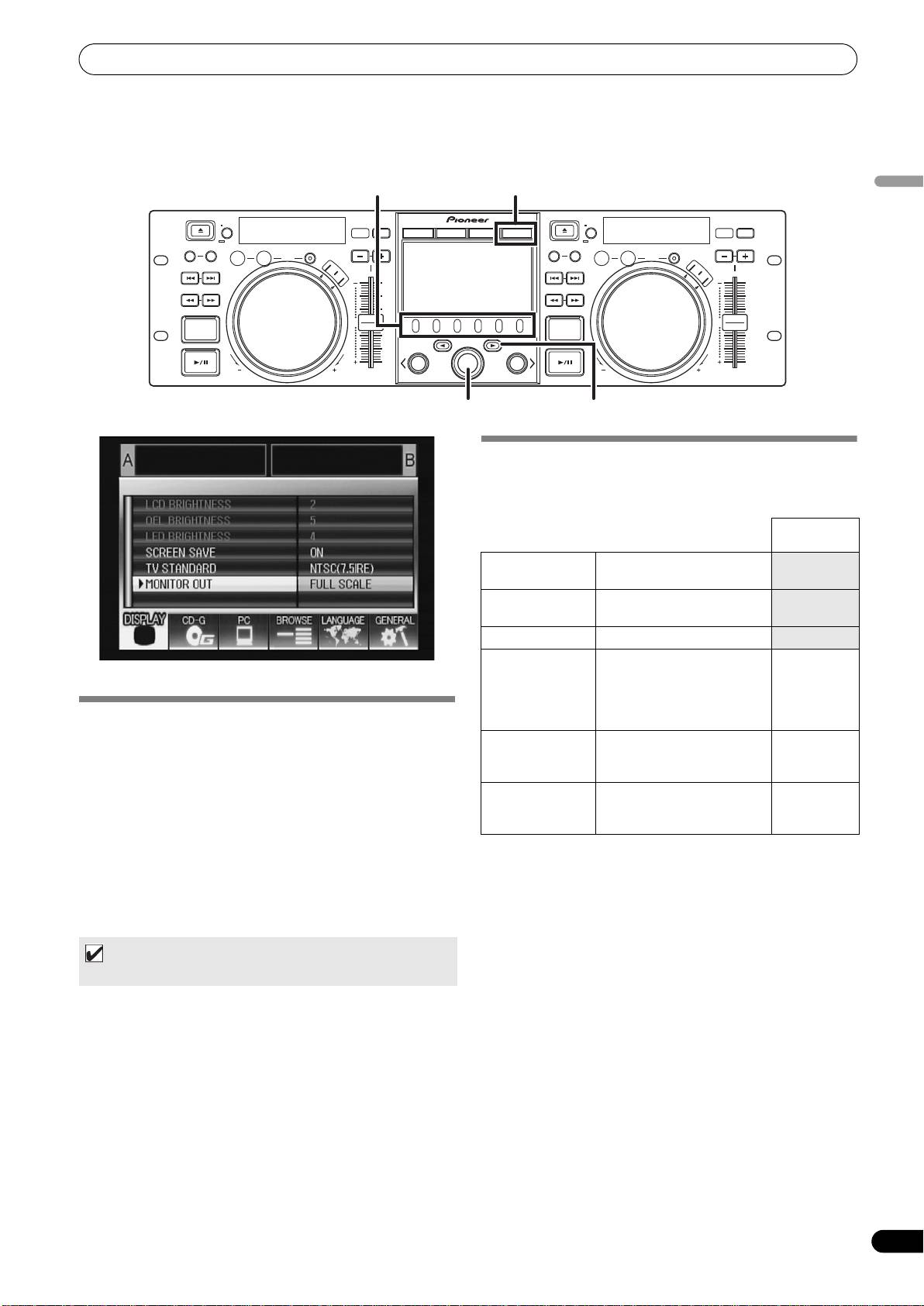
Press the UTILITY button to display the UTILITY screen and make unit settings.
Function buttons
UTILITY
English
BROWSE MIX EFFECT UTILITY
Select down () buttonRotary selector dial
SETTINGS
[1] DISPLAY
Use to perform settings for center display and external output.
Factory
default setting
LCD BRIGHTNESS Displays brightness of center
display.
OEL BRIGHTNESS Displays brightness of
display A/B.
LED BRIGHTNESS Displays brightness of LEDs.
*1
SCREEN SAVE
After the set time without
ON
user operation, the LCD and
OEL screens are dimmed in
order to preserve the
SETTING METHOD
displays.
1 Use the function buttons to select the item you wish to set
TV STANDARD Sets signal format for
NTSC (7.5
[DISPLAY/PC/LANGUAGE/GENERAL].
monitor output (PAL, NTSC
IRE)
2 Rotate the rotary selector dial to align the cursor with the
(7.5 IRE), NTSC (0 IRE).
desired setting item.
MONITOR OUT Sets center display aspect
OFF
3 Press either the select down (
) button or the rotary selector
ratio to letterbox, full-screen,
dial to move the
icon to the right side.
or OFF.
4 Turn the rotary selector dial to select the desired setting
*1 Screen saver operation
value.
• The screensaver operates when five minutes have passed
5 Press the rotary selector dial to confirm the new setting
without a track being loaded in either controller.
value.
• The screensaver also operates after 100 minutes passes
Also, to reset a setting to its default value, press the select up
without any button input when either one or both of the
() button.
controllers is in pause mode (including cue standby or END
display).
MEMO
• The screen saver is disabled when a track is set with DJ
• Grayed-out CD-G and BROWSE cannot be set on this unit.
software other than DJS.
• During operation of the screensaver, pressing a button or
performing any other command operation will cancel the
screensaver.
[2] PC
The MIDI channel can be set (P. 22).
25
En
