
Pioneer SEP-C1: PARTS AND THEIR FUNCTIONS
PARTS AND THEIR FUNCTIONS: Pioneer SEP-C1
Table of contents
- IMPORTANT
- Operating Environment We Want You Listening For A Lifetime
- FEATURES
- FEATURES
- SPECIFICATIONS COMFIRM ACCESSORIES
- INSTALLATION GUIDELINES
- CONNECTIONS
- PARTS AND THEIR FUNCTIONS
- PARTS AND THEIR FUNCTIONS Center Display
- PARTS AND THEIR FUNCTIONS Display A/Display B
- ABOUT DJS SOFTWARE SOFTWARE END USER LICENSE AGREEMENT
- ABOUT DJS SOFTWARE SYSTEM REQUIREMENTS (Minimum Operating Environment) COPYRIGHT WARNING
- INSTALLING DJS SOFTWARE NOTES REGARDING TRIAL PERIOD AND USER REGISTRATION
- ABOUT DJS SOFTWARE REGARDING ONLINE SUPPORT DISCLAIMER
- ABOUT THE DRIVER PROGRAM SOFTWARE END USER LICENSE AGREEMENT DRIVER INSTALLATION
- ABOUT THE DRIVER PROGRAM
- ABOUT THE DRIVER PROGRAM
- USING DJ SOFTWARE
- PREPARING YOUR DJ SOFTWARE PROGRAM CONTROLLING YOUR COMPUTER USING THE DEDICATED COMMUNICATIONS PROTOCOL
- USING DJ SOFTWARE USING MIDI FOR COMPUTER CONTROL
- MIDI MESSAGE TABLE
- USING DJ SOFTWARE
- USING THE UTILITY
- USING THE UTILITY TO PERFORM A FACTORY RESET
- TROUBLESHOOTING ABOUT THE LCD SCREEN ABOUT OEL (ORGANIC EL) SCREENS
- DISCLAIMER
SEP-C1_EN.book 10 ページ 2008年3月24日 月曜日 午前10時52分
PARTS AND THEIR FUNCTIONS
PARTS AND THEIR FUNCTIONS
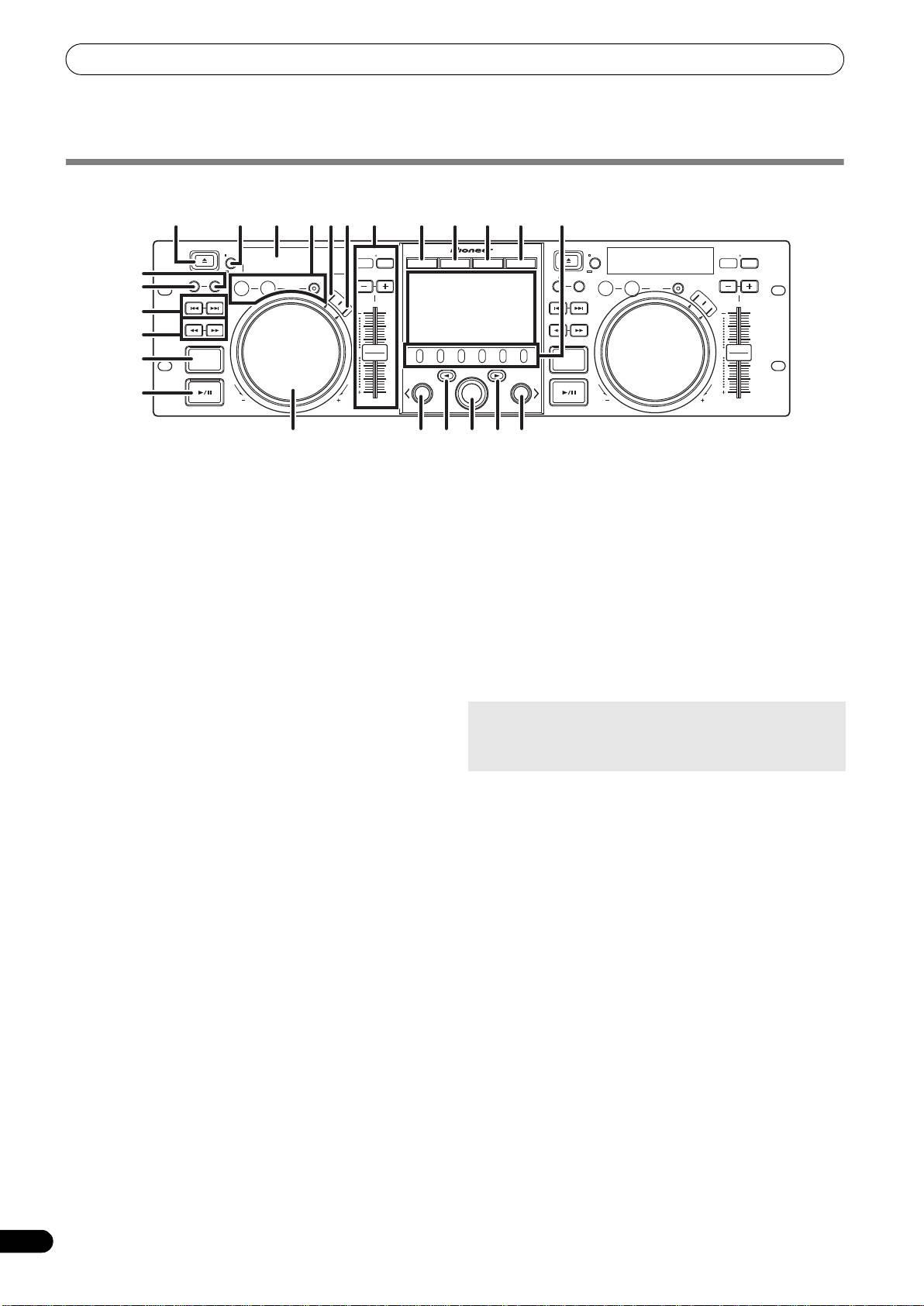
FRONT PANEL
1
8 23 2 3 11 12 13 14
18109
EJECT
MASTER
TEMPO
EJECT
MASTER
TEMPO
TIME
TEMPO
6/10/16WIDE
TIME
TEMPO
6/10/16WIDE
MT
BROWSE MIX EFFECT UTILITY
MT
17
CUE/LOOP
A.CUE
CUE/LOOP
A.CUE
MEMORY CALL
IN/CUE
OUT/ADJUST
RELOOP/EXIT
PITCH BEND
MEMORY CALL
IN/CUE
OUT/ADJUST
RELOOP/EXIT
PITCH BEND
LOOP
LOOP
16
TRACK SEARCH
HOT LOOP
S
C
R
A
T
S
C
TRACK SEARCH
HOT LOOP
C
H
R
A
T
C
H
4
22
SEARCH
J
O
G
J
B
SEARCH
O
G
R
E
B
A
R
K
E
A
K
5
0
0
QUE
QUE
6
A
B
LOAD
LOAD
7
FWD TEMPOREV
SEP-C1
FWD TEMPOREV
19 15 21
2024
19
This section explains the use of the unit when controlling DJS. Depending on the DJ software program used, some functions may not be
supported or may require different operations than those described in this manual.
1EJECT (
) button
7 Play/pause (
) button and indicator
Not used during DJS control.
Use to start and pause playback.
2 Loop control buttons
8 Time mode/auto cue button (TIME/A.CUE)
Loop-in button (IN/CUE)
TIME:
Use to set loop-in points. When this button is pressed during
Each time the button is pressed, the display’s time display
loop playback, playback returns to the loop-in point and
alternates between the current track’s elapsed playing time,
recommences.
and the remaining time (REMAIN).
Loop-out button (OUT/ADJUST)
A.CUE:
Use to set loop-out points. If this button is pressed during loop
When held depressed for one second or more, the AUTO CUE
playback, the jog dial or SEARCH buttons can be used to adjust
function alternates ON/OFF.
the position of the out point.
AUTO CUE function
RELOOP/EXIT button
Whenever a track is set or track search is performed, this
Press this button during loop playback to cancel loop play.
function automatically sets a cue point and cue standby
When the unit is not in loop play mode, pressing the button will
immediately before the point where music starts.
cause loop play to begin from the previously set loop-in point.
3 TEMPO control section
TEMPO control range button (±6/10/16/WIDE):
9 SCRATCH button
Press to set the scratch mode ON/OFF.
Each time the button is pressed, the variable range of the
TEMPO adjust slider changes.
10 JOG BREAK button
Not used during DJS control.
MASTER TEMPO button and indicator (MT):
11 BROWSE button
Each time the button is pressed, the master tempo function
Use to switch to the BROWSE screen.
alternates ON/OFF.
12 MIX button
TEMPO adjust slider:
Use to switch to the MIX screen.
From the center detent position, pull the slider towards you (+)
to increase the tempo, and push the slider away from you (–)
13 EFFECT button
to slow down the tempo.
Use to switch to the EFFECT screen.
PITCH BEND +/– buttons:
14 UTILITY button
Use to switch to the UTILITY screen (P. 25).
When pressed during play, the pitch bend function is enabled.
Pressing the “+” button accelerates the pitch bend speed, and
15 Rotary selector dial
pressing the “–” button decelerates the pitch bend speed.
When in the BROWSE and UTILITY screens, rotating the dial
allows track selection and movement of the cursor between
The speed of the pitch change can be modified by holding the
selection items. Press the dial to confirm the selection.
button depressed while rotating the jog dial.
For operations in the MIX and EFFECT screens, consult the
4 TRACK SEARCH (
,
) buttons
DJS Control Guide.
Use to perform track search.
16 CUE/LOOP MEMORY button
5SEARCH (
,
) buttons
Not used during DJS control.
Use to perform fast forward and reverse.
17 CUE/LOOP CALL button
6 CUE button and indicator
Not used during DJS control.
Use to set cue points. Also when a cue point has been set,
pressing the CUE button sets the unit to the cue standby mode.
10
En
