
Pioneer SEP-C1: PARTS AND THEIR FUNCTIONS Center Display
PARTS AND THEIR FUNCTIONS Center Display: Pioneer SEP-C1
Table of contents
- IMPORTANT
- Operating Environment We Want You Listening For A Lifetime
- FEATURES
- FEATURES
- SPECIFICATIONS COMFIRM ACCESSORIES
- INSTALLATION GUIDELINES
- CONNECTIONS
- PARTS AND THEIR FUNCTIONS
- PARTS AND THEIR FUNCTIONS Center Display
- PARTS AND THEIR FUNCTIONS Display A/Display B
- ABOUT DJS SOFTWARE SOFTWARE END USER LICENSE AGREEMENT
- ABOUT DJS SOFTWARE SYSTEM REQUIREMENTS (Minimum Operating Environment) COPYRIGHT WARNING
- INSTALLING DJS SOFTWARE NOTES REGARDING TRIAL PERIOD AND USER REGISTRATION
- ABOUT DJS SOFTWARE REGARDING ONLINE SUPPORT DISCLAIMER
- ABOUT THE DRIVER PROGRAM SOFTWARE END USER LICENSE AGREEMENT DRIVER INSTALLATION
- ABOUT THE DRIVER PROGRAM
- ABOUT THE DRIVER PROGRAM
- USING DJ SOFTWARE
- PREPARING YOUR DJ SOFTWARE PROGRAM CONTROLLING YOUR COMPUTER USING THE DEDICATED COMMUNICATIONS PROTOCOL
- USING DJ SOFTWARE USING MIDI FOR COMPUTER CONTROL
- MIDI MESSAGE TABLE
- USING DJ SOFTWARE
- USING THE UTILITY
- USING THE UTILITY TO PERFORM A FACTORY RESET
- TROUBLESHOOTING ABOUT THE LCD SCREEN ABOUT OEL (ORGANIC EL) SCREENS
- DISCLAIMER
SEP-C1_EN.book 11 ページ 2008年3月24日 月曜日 午前10時52分
PARTS AND THEIR FUNCTIONS
18 Function buttons (F1 to F6, from left)
Center Display
Use to select modes and categories.
Selectable items differ depending on the screen or menu.
For details, consult the DJS Control Guide.
19 LOAD A/B buttons
3
English
When in the BROWSE screen, press to set selected track in
controller A/B.
For operations in the MIX and EFFECT screens, consult the
1
DJS Control Guide.
20 Select up (
) button
2
When in the BROWSE and UTILITY screens, each time the
button is pressed the menu moves up (to left) one level in the
current menu hierarchy.
For operations in the MIX and EFFECT screens, consult the
DJS Control Guide.
21 Select down (
) button
When in the BROWSE and UTILITY screens, each time the
button is pressed the menu moves down (to right) one level in
1 Main menu display
the current menu hierarchy.
The center display’s menus are changed by using the
For operations in the MIX and EFFECT screens, consult the
BROWSE button, MIX button, EFFECT button, and UTILITY
DJS Control Guide.
button. The function buttons, select up ()/down() buttons,
LOAD A/B buttons, and the rotary selector dial are used to
22 Center display (P. 11)
manipulate the contents of each menu.
23 Display A / Display B (P. 12)
BROWSE screen
24 Jog dial (+FWD / –REV)
Use to display DJS track lists or playlists and to select tracks.
When scratch mode is ON:
For details, consult the DJS Control Guide’s “Using DJS Lists.”
Touch the surface of the dial and rotate to perform scratch
MIX screen
play.
Use to perform DJS mixer operations. For details, consult the
When scratch mode is OFF:
DJS Control Guide’s “DJS Mixer Operations.”
Use to perform pitch bend. Acceleration (+FWD) and
EFFECT screen
deceleration (–REV) are performed in proportion to the amount
Use to perform DJS effecter operations. For details, consult the
of dial rotation. When rotation of the dial is stopped, playback
DJS Control Guide’s “DJS Effecter Operations.”
returns to its previous speed.
UTILITY
screen
Use to make unit settings (P. 25).
2 Function tab
Displays items that can be changed using the six function
buttons. Items displayed differ depending on the contents
shown on the main menu display.
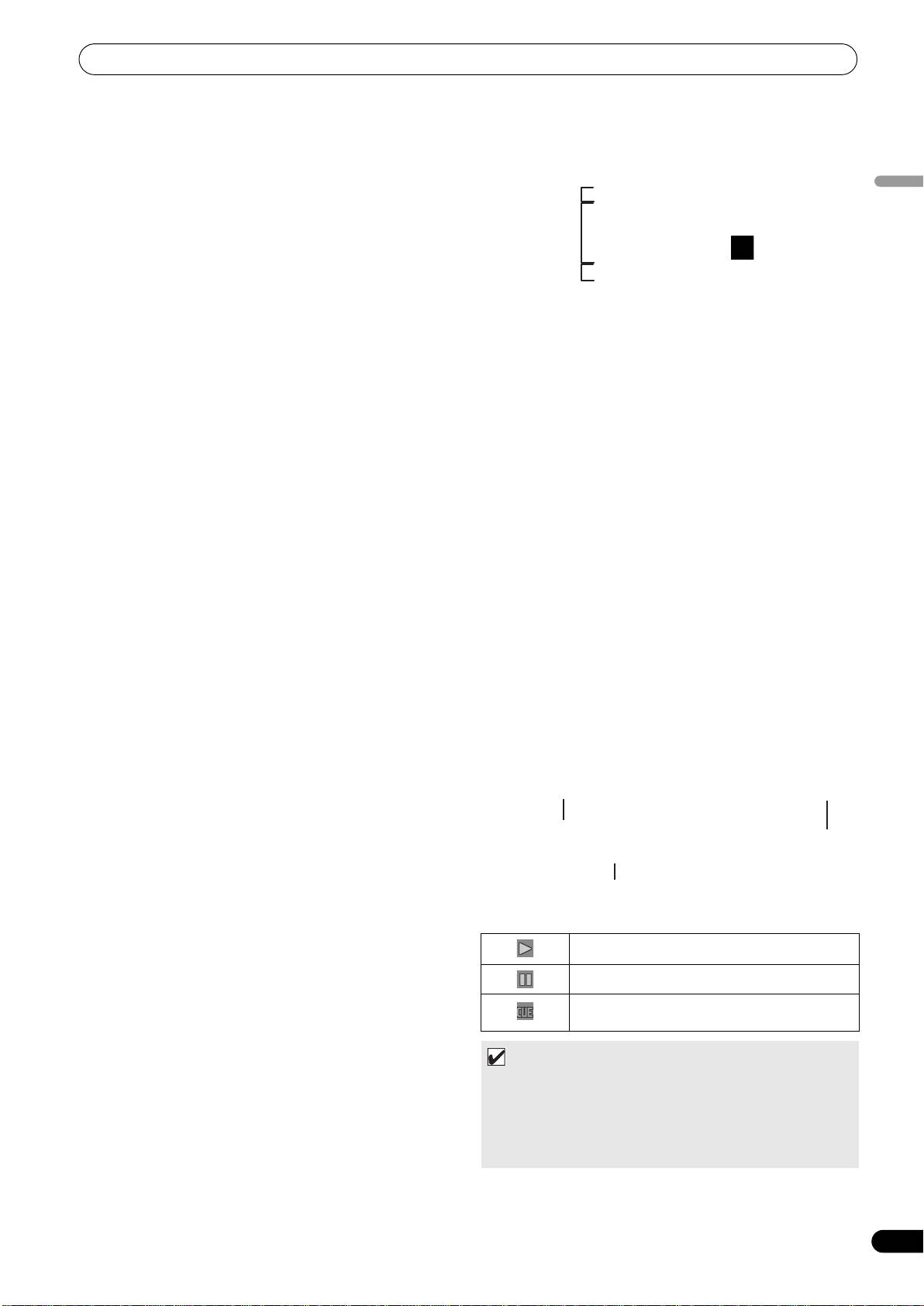
3 A/B track information display
Displays track information and current status for tracks
playing on controller A/B.
Track name Play status
Artist name
Play status
Indicates track is currently playing.
Indicates track is currently paused.
Indicates track is currently in cue standby
condition.
MEMO
• This unit can display names of titles and artists in Western
European languages, Russian, Simplified Mandarin
Chinese, and Japanese, but some languages may not be
supported, depending on the DJ software program used.
Consult the operating instructions for your DJ software
program for more information about supported languages.
11
En
