
Pioneer SEP-C1: USING DJ SOFTWARE USING MIDI FOR COMPUTER CONTROL
USING DJ SOFTWARE USING MIDI FOR COMPUTER CONTROL: Pioneer SEP-C1
Table of contents
- IMPORTANT
- Operating Environment We Want You Listening For A Lifetime
- FEATURES
- FEATURES
- SPECIFICATIONS COMFIRM ACCESSORIES
- INSTALLATION GUIDELINES
- CONNECTIONS
- PARTS AND THEIR FUNCTIONS
- PARTS AND THEIR FUNCTIONS Center Display
- PARTS AND THEIR FUNCTIONS Display A/Display B
- ABOUT DJS SOFTWARE SOFTWARE END USER LICENSE AGREEMENT
- ABOUT DJS SOFTWARE SYSTEM REQUIREMENTS (Minimum Operating Environment) COPYRIGHT WARNING
- INSTALLING DJS SOFTWARE NOTES REGARDING TRIAL PERIOD AND USER REGISTRATION
- ABOUT DJS SOFTWARE REGARDING ONLINE SUPPORT DISCLAIMER
- ABOUT THE DRIVER PROGRAM SOFTWARE END USER LICENSE AGREEMENT DRIVER INSTALLATION
- ABOUT THE DRIVER PROGRAM
- ABOUT THE DRIVER PROGRAM
- USING DJ SOFTWARE
- PREPARING YOUR DJ SOFTWARE PROGRAM CONTROLLING YOUR COMPUTER USING THE DEDICATED COMMUNICATIONS PROTOCOL
- USING DJ SOFTWARE USING MIDI FOR COMPUTER CONTROL
- MIDI MESSAGE TABLE
- USING DJ SOFTWARE
- USING THE UTILITY
- USING THE UTILITY TO PERFORM A FACTORY RESET
- TROUBLESHOOTING ABOUT THE LCD SCREEN ABOUT OEL (ORGANIC EL) SCREENS
- DISCLAIMER
SEP-C1_EN.book 22 ページ 2008年3月24日 月曜日 午前10時52分
USING DJ SOFTWARE
For DJS:
Setting a MIDI channel
Control can be performed while viewing the center display’s
MIDI channel setting can be performed from the UTILITY screen.
BROWSE, EFFECT, and MIX screens. For details of actual
1 Press the UTILITY button.
operation, consult the chapter on “Manipulator Style”
2 Press the [PC] function button.
operation of the SEP-C1 DJS Control Guide (PDF file on
The center display will show the MIDI channel setting menu.
accessory CD-ROM).
• Controller A uses the same channel as the center display,
while controller B uses a different channel. (Factory defaults
are for Controller A and center display to be set to Channel
1, and Controller B set to Channel 2).
MEMO
• While the UTILITY screen is being displayed on the center
display, the center display’s buttons and rotary selector dial
cannot be used to control DJ software.
3 Either press the rotary selector dial, or press the select down
(
) button.
The icon will move to the right.
4 Turn the rotary selector dial to change the value.
USING MIDI FOR COMPUTER CONTROL
Values between 1 and 16 can be set.
MIDI (Musical Instrument Digital Interface) is a standardized
5 Press the rotary selector dial to confirm the value selected.
protocol used to govern data transmission between electronic
• Press the select up () button to cancel the selection and
musical instruments and computers.
return to the UTILITY screen.
The SEP-C1 uses the MIDI message format to output its operating
data and status to a computer connected by USB cable. By using
a DJ software program with USB MIDI support to assign the MIDI
messages output by the SEP-C1, the SEP-C1 can be used to
control the DJ software.
For more information regarding messages output by the SEP-C1,
consult the section “MIDI MESSAGE TABLE” (P. 23).
1 Connect to the computer.
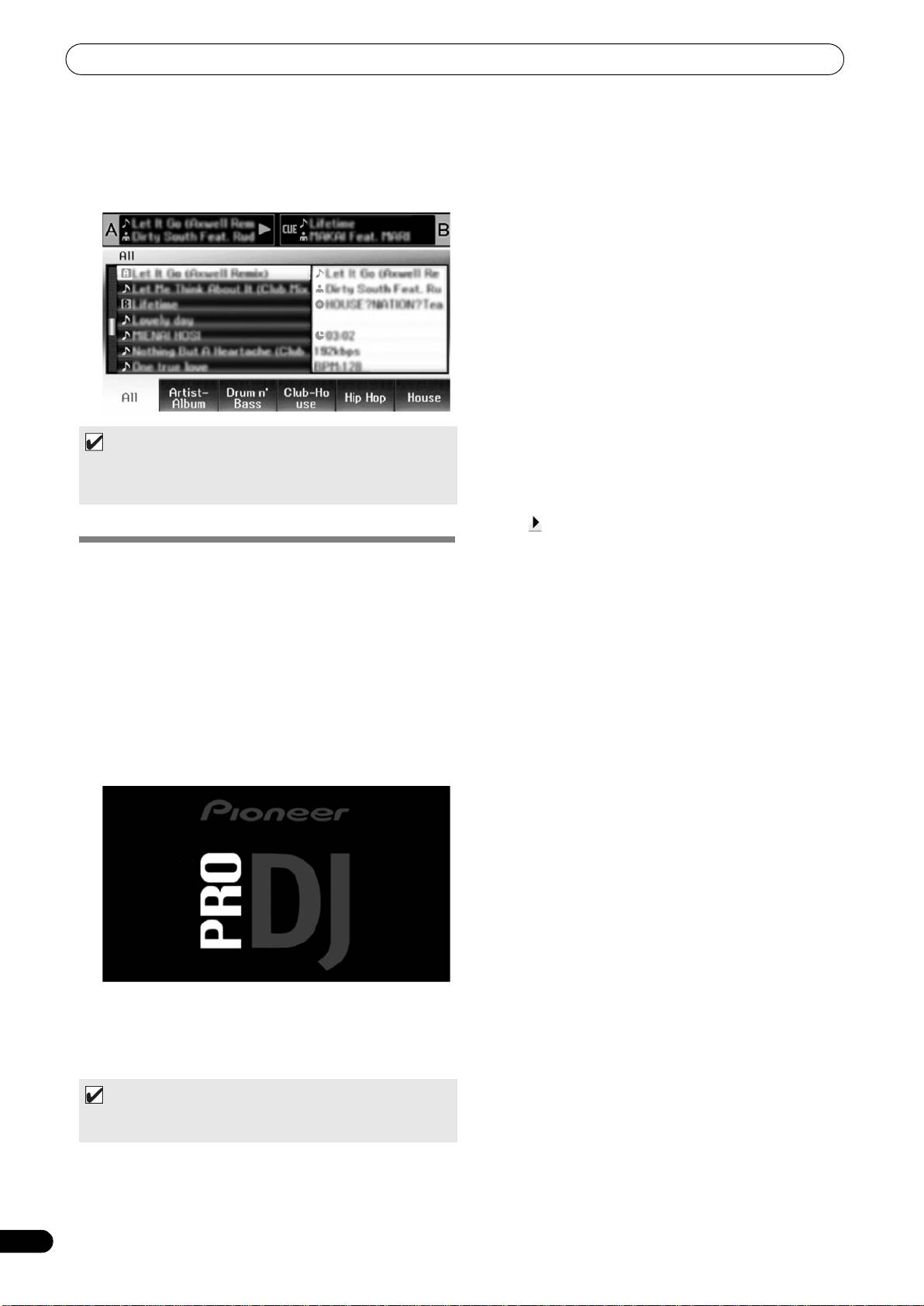
The center display will show the [PRO DJ] logo.
2 Start the DJ software program.
When communication is established with the DJ program, the
SEP-C1 operates as a MIDI controller, and the status of
controller A/B and center display section’s buttons and
controls are output as MIDI messages.
MEMO
• While the UTILITY screen is being displayed on the center
display, the center display’s MIDI messages are not output.
22
En
