
Asus VH192: Troubleshooting (FAQ)
Troubleshooting (FAQ): Asus VH192
Table of contents
4
English
Quick Start Guide
Troubleshooting (FAQ)
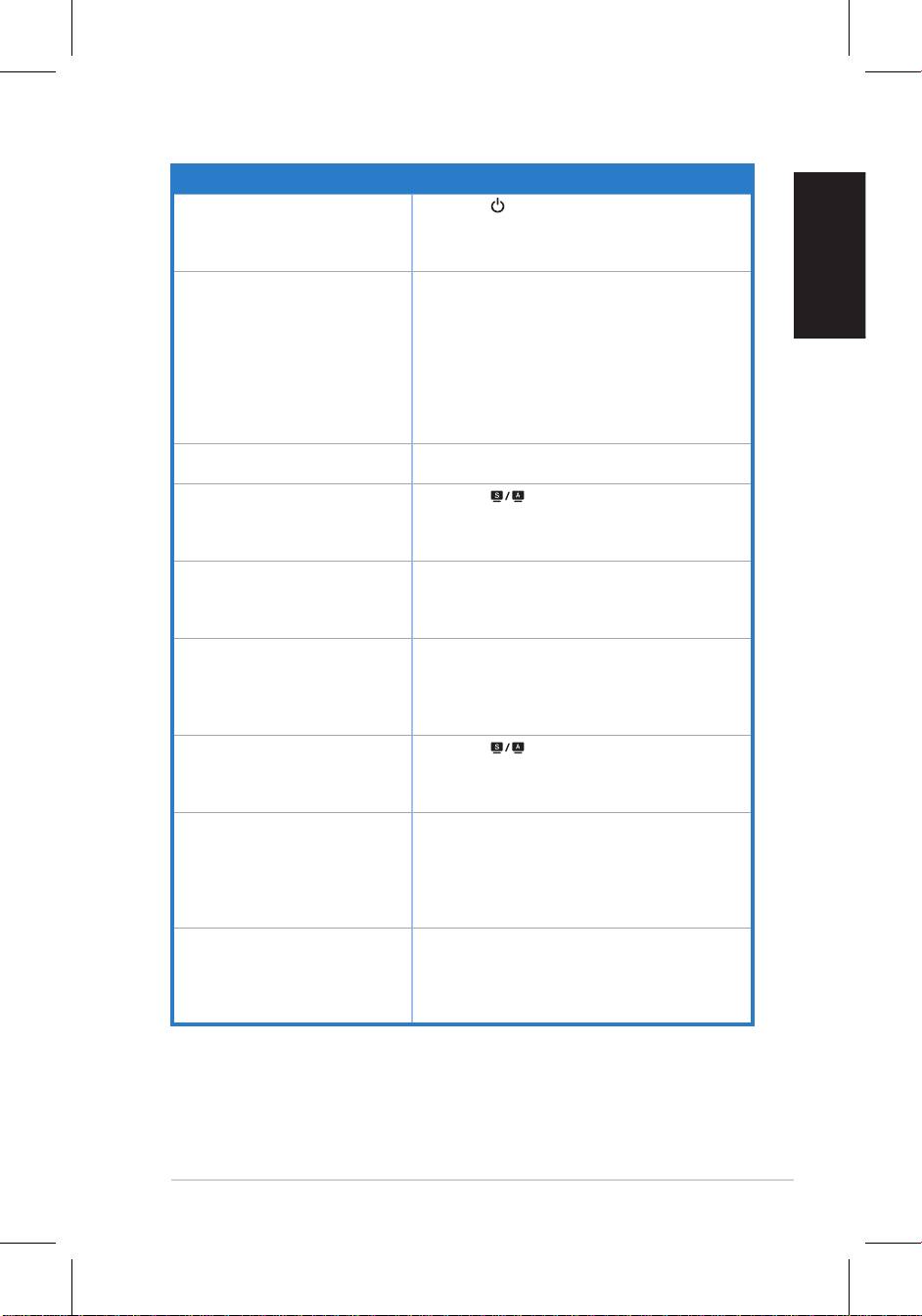
Problem Possible Solution
PowerLEDisnotON • Press the button to check if the monitor is in
theONmode.
•Checkifthepowercordisproperlyconnectedto
the monitor and the power outlet.
The power LED lights amber and
•Checkifthemonitorandthecomputerareinthe
there is no screen image
ONmode.
• Make sure the signal cable is properly connected
the monitor and the computer.
• Inspect the signal cable and make sure none of
the pins are bent.
•Connectthecomputerwithanotheravailable
monitor to check if the computer is
properly working.
Screen image is too light or dark •AdjusttheContrastandBrightnesssettingsvia
OSD.
Screen image is not centered or
• Press the button for 2–3 seconds to
sizedproperly
automaticallyadjusttheimage(VGAinputonly).
•AdjusttheH-PositionorV-Positionsettingsvia
OSD(VGAinputonly).
Screen image bounces or a wave
• Make sure the signal cable is properly
pattern is present in the image
connected to the monitor and the computer.
• Move away electrical devices that may cause
electrical interference.
Screenimagehascolordefects(white
• Inspect the signal cable and make sure that
does not look white)
none of the pins are bent.
•PerformAllResetviaOSD.
•AdjusttheR/G/Bcolorsettingsorselectthe
ColorTemperatureviaOSD.
Screenimageisblurryorfuzzy • Press the button for 2–3 seconds to
automaticallyadjusttheimage(VGAinputonly).
•AdjustthePhaseandClocksettingsviaOSD
(VGAinputonly).
Nosoundorsoundislow(formodels
• Ensure that the audio cable is properly
with speakers)
connected to the monitor and the computer
•Adjustthevolumesettingsofbothyour
monitor and computer.
• Ensure that the computer sound card driver
is properly installed and activated.
Webcam is not working • Make sure that you have connected the USB cable
securelytoboththeLCDmonitorandyour
computer.
®
®
• Make sure that you use the Microsoft
Windows
Vista/XPServicePack2(3)operatingsystems.


